> ## Documentation Index
> Fetch the complete documentation index at: https://docs.getcollate.io/llms.txt
> Use this file to discover all available pages before exploring further.
# Manage Relation Types | Collate Ontology Explorer Guide
> Configure the relationship types available between Glossary terms, including custom types with cardinality, RDF mapping, and color coding.
# Relation Types
Every edge in the [Ontology Explorer](/how-to-guides/data-governance/ontology) graph—and every option in its **Relationship Type** filter—is backed by a relation type definition. Collate ships with a set of system-defined types (for example **Related To**, **Parent Of**, **Part Of**, **Synonym**) and lets admins add their own custom types to model relationships specific to their domain.
## Accessing Relation Type Settings
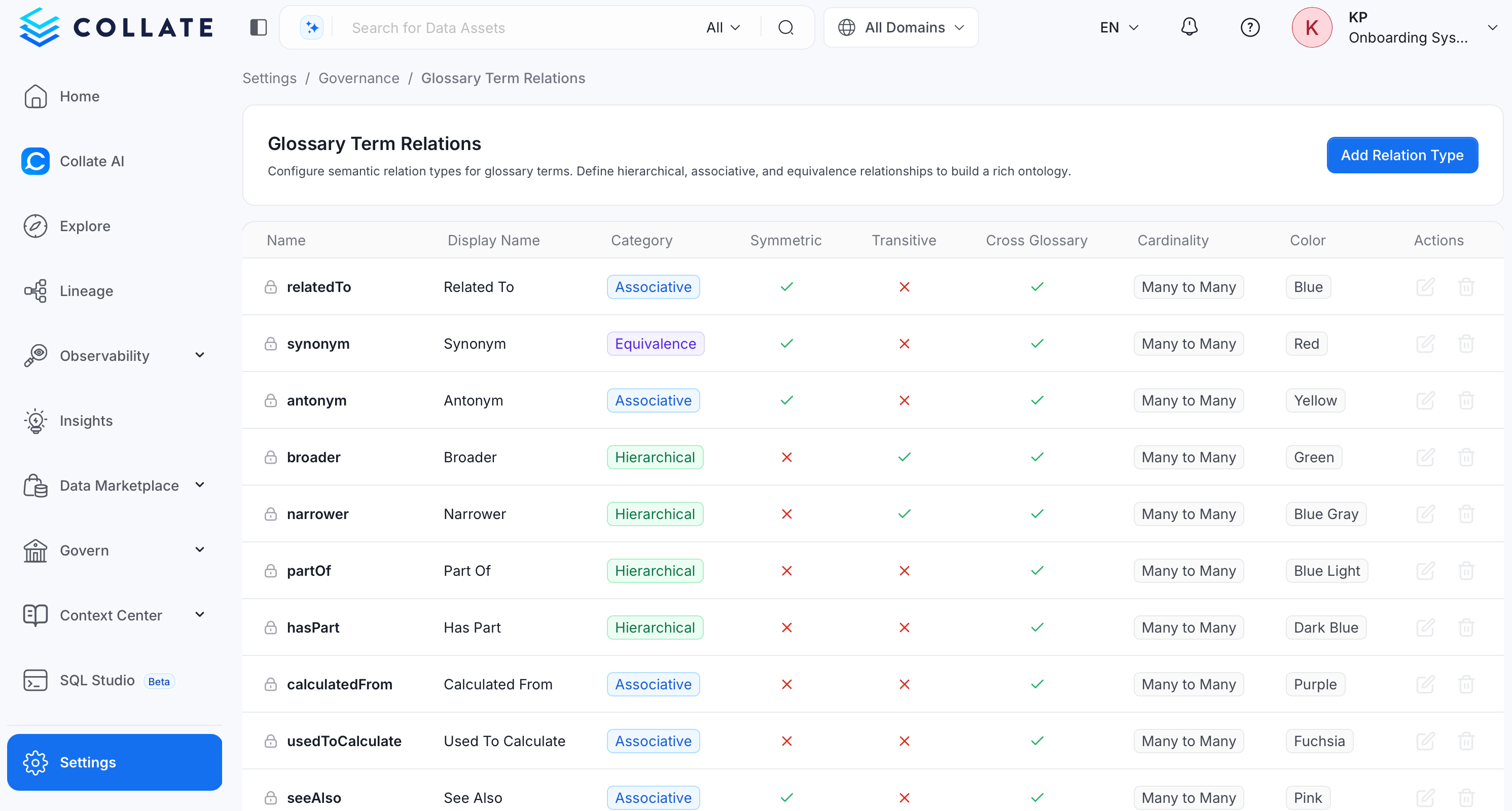
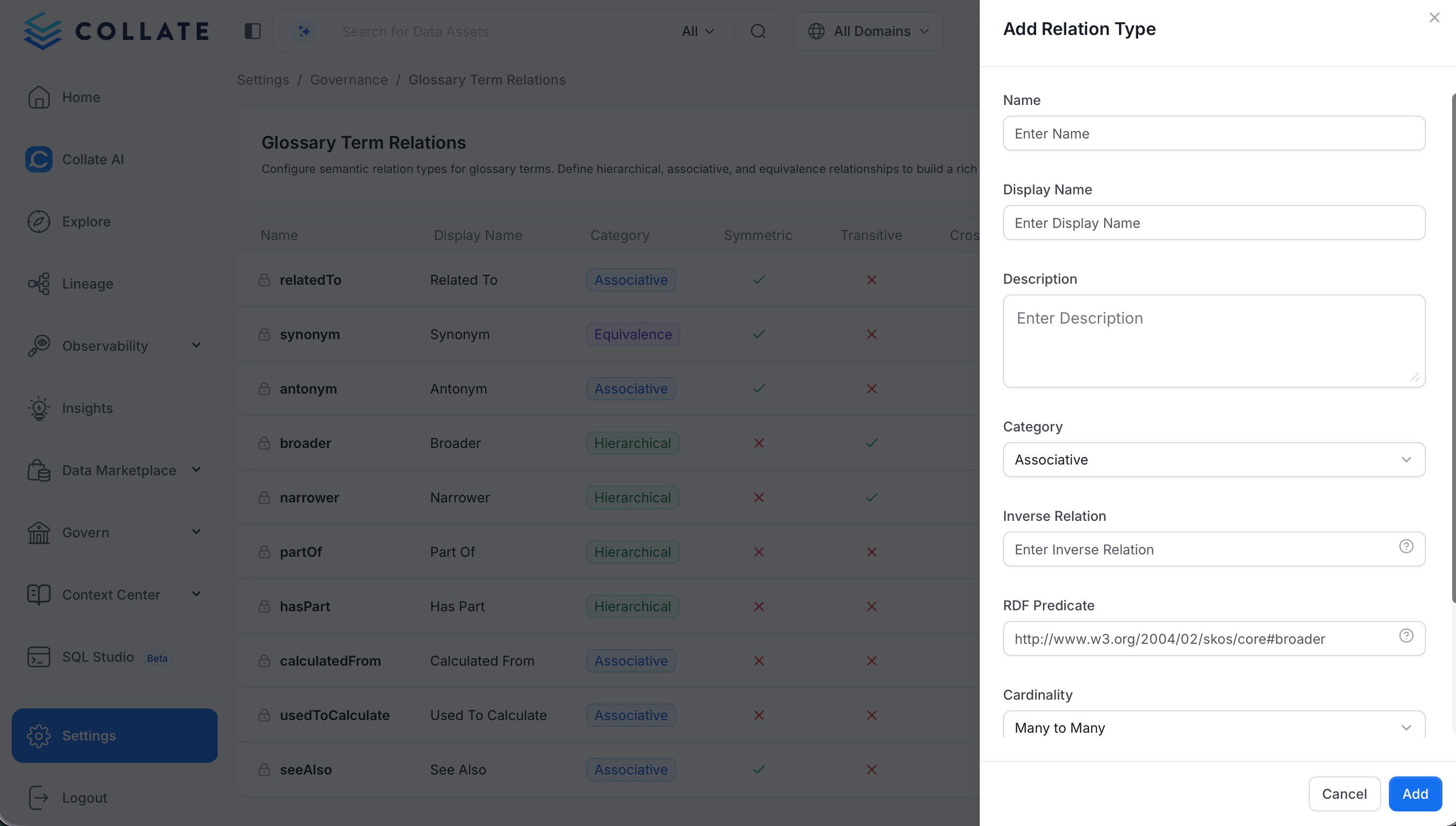
* To access relation type settings, navigate to **Settings > Governance > Glossary Term Relations**. This page is only visible to admin users.
* The page lists every relation type available in your instance as a table, with a column for each of the following:
* **Name**: The unique, system-facing identifier for the relation type.
* **Display Name**: The human-readable label shown in the Ontology Explorer graph and filters.
* **Category**: Groups the type as **Hierarchical**, **Associative**, or **Equivalence**.
* **Symmetric**: Whether the relationship applies equally in both directions (for example, **Related To**).
* **Transitive**: Whether the relationship chains across terms (if A relates to B, and B relates to C, A also relates to C).
* **Cross-Glossary**: Whether the relation type can connect terms that belong to different glossaries.
* **Cardinality**: The allowed number of source and target terms the relationship can connect.
* **Color**: The color used for the type's edges and badges in the graph.
* System-defined relation types show a lock icon next to their name and can't be edited or deleted. Custom relation types—added by an admin—can be edited or removed using the icons in the **Actions** column.
 ## Adding a Custom Relation Type
1. On the **Glossary Term Relations** page, click **Add Relation Type**.
## Adding a Custom Relation Type
1. On the **Glossary Term Relations** page, click **Add Relation Type**.
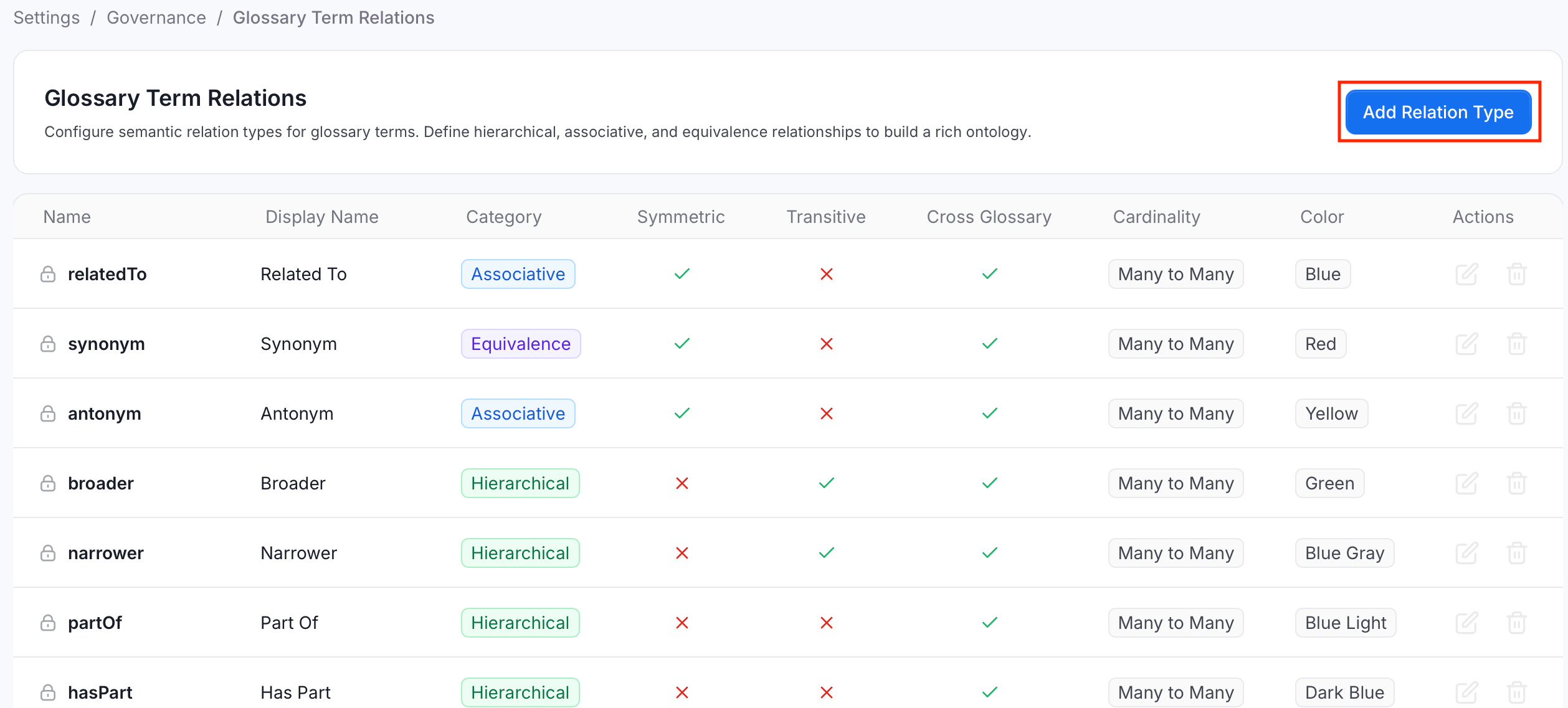 2. On the right panel that appears, configure the following options:
**Basic details:**
* **Name**: A required, unique identifier. Must start with a letter and contain only letters and numbers.
* **Display Name**: A required, human-readable label.
* Optional: **Description** — Add context on what the relationship represents and when to use it.
* **Category**: Groups the type alongside similar relationships:
* **Hierarchical**: Parent/child style relationships that build a ranked structure, such as **Parent Of** or **Broader**.
* **Associative**: General related-to style relationships between terms that don't imply a hierarchy, such as **Related To** or **See Also**.
* **Equivalence**: Same-as style relationships that mark two terms as interchangeable, such as **Synonym**.
**Behavior:**
* **Cardinality**: Constrains how many terms can be connected on each side of the relationship:
* **One-to-One**: Each source term can connect to exactly one target term, and each target term to exactly one source term.
* **One-to-Many**: Each source term can connect to multiple target terms, but each target term connects back to only one source term.
* **Many-to-One**: Multiple source terms can connect to a single target term, but each source term connects to only one target term.
* **Many-to-Many**: Any number of source terms can connect to any number of target terms, with no limit on either side.
* **Custom**: Set explicit **Source Max** and **Target Max** values instead of using one of the presets above—leave either field blank for unlimited.
* **Symmetric**: Toggle on if the relationship applies equally in both directions. For example, **Related To**.
* **Transitive**: Toggle on if the relationship chains across terms. For example, if A relates to B, and B relates to C, A also relates to C.
* **Cross-Glossary**: Toggle on to allow the relation type to connect terms that belong to different glossaries.
**Display & mapping:**
* **Inverse Relation**: The name of the relation type that represents this one in reverse. For example, an inverse of **Broader** would be **Narrower**.
* **RDF Predicate**: The RDF/OWL predicate URI this relation type maps to when [RDF indexing](/how-to-guides/admin-guide/applications/rdf-indexing-overview) is enabled. For example, `http://www.w3.org/2004/02/skos/core#broader`. Collate warns you if a predicate is already used by another relation type.
* **Color**: Pick a color to distinguish the relation type's edges and badges in the Ontology Explorer.
3. Click **Add** to save the relation type.
After you add a relation type, it's immediately available as an edge label in the Ontology Explorer graph and as an option in the **Relationship Type** filter.
2. On the right panel that appears, configure the following options:
**Basic details:**
* **Name**: A required, unique identifier. Must start with a letter and contain only letters and numbers.
* **Display Name**: A required, human-readable label.
* Optional: **Description** — Add context on what the relationship represents and when to use it.
* **Category**: Groups the type alongside similar relationships:
* **Hierarchical**: Parent/child style relationships that build a ranked structure, such as **Parent Of** or **Broader**.
* **Associative**: General related-to style relationships between terms that don't imply a hierarchy, such as **Related To** or **See Also**.
* **Equivalence**: Same-as style relationships that mark two terms as interchangeable, such as **Synonym**.
**Behavior:**
* **Cardinality**: Constrains how many terms can be connected on each side of the relationship:
* **One-to-One**: Each source term can connect to exactly one target term, and each target term to exactly one source term.
* **One-to-Many**: Each source term can connect to multiple target terms, but each target term connects back to only one source term.
* **Many-to-One**: Multiple source terms can connect to a single target term, but each source term connects to only one target term.
* **Many-to-Many**: Any number of source terms can connect to any number of target terms, with no limit on either side.
* **Custom**: Set explicit **Source Max** and **Target Max** values instead of using one of the presets above—leave either field blank for unlimited.
* **Symmetric**: Toggle on if the relationship applies equally in both directions. For example, **Related To**.
* **Transitive**: Toggle on if the relationship chains across terms. For example, if A relates to B, and B relates to C, A also relates to C.
* **Cross-Glossary**: Toggle on to allow the relation type to connect terms that belong to different glossaries.
**Display & mapping:**
* **Inverse Relation**: The name of the relation type that represents this one in reverse. For example, an inverse of **Broader** would be **Narrower**.
* **RDF Predicate**: The RDF/OWL predicate URI this relation type maps to when [RDF indexing](/how-to-guides/admin-guide/applications/rdf-indexing-overview) is enabled. For example, `http://www.w3.org/2004/02/skos/core#broader`. Collate warns you if a predicate is already used by another relation type.
* **Color**: Pick a color to distinguish the relation type's edges and badges in the Ontology Explorer.
3. Click **Add** to save the relation type.
After you add a relation type, it's immediately available as an edge label in the Ontology Explorer graph and as an option in the **Relationship Type** filter.
 ## Editing or Deleting a Custom Relation Type
* To edit the relation type, in the **Actions** column, click the **Edit** icon and modify the details.
* To delete the relation type, in the **Actions** column, click the **Delete** icon.
## Related Reading
Visualize your Glossary as an interactive graph using these relation types.
Enable RDF indexing to map relation types to RDF predicates.
## Editing or Deleting a Custom Relation Type
* To edit the relation type, in the **Actions** column, click the **Edit** icon and modify the details.
* To delete the relation type, in the **Actions** column, click the **Delete** icon.
## Related Reading
Visualize your Glossary as an interactive graph using these relation types.
Enable RDF indexing to map relation types to RDF predicates.