> ## Documentation Index
> Fetch the complete documentation index at: https://docs.getcollate.io/llms.txt
> Use this file to discover all available pages before exploring further.
# How to Add Assets to Glossary Terms
> Link glossary terms to assets so users can explore definitions directly from datasets, dashboards, and columns.
# How to Add Assets to Glossary Terms
After creating a glossary term, data assets can be associated with the term. In the **Glossary Term > Assets Tab** all the assets associated with the glossary term are displayed. These data assets are further subgrouped as Tables, Topics, Dashboards, etc.
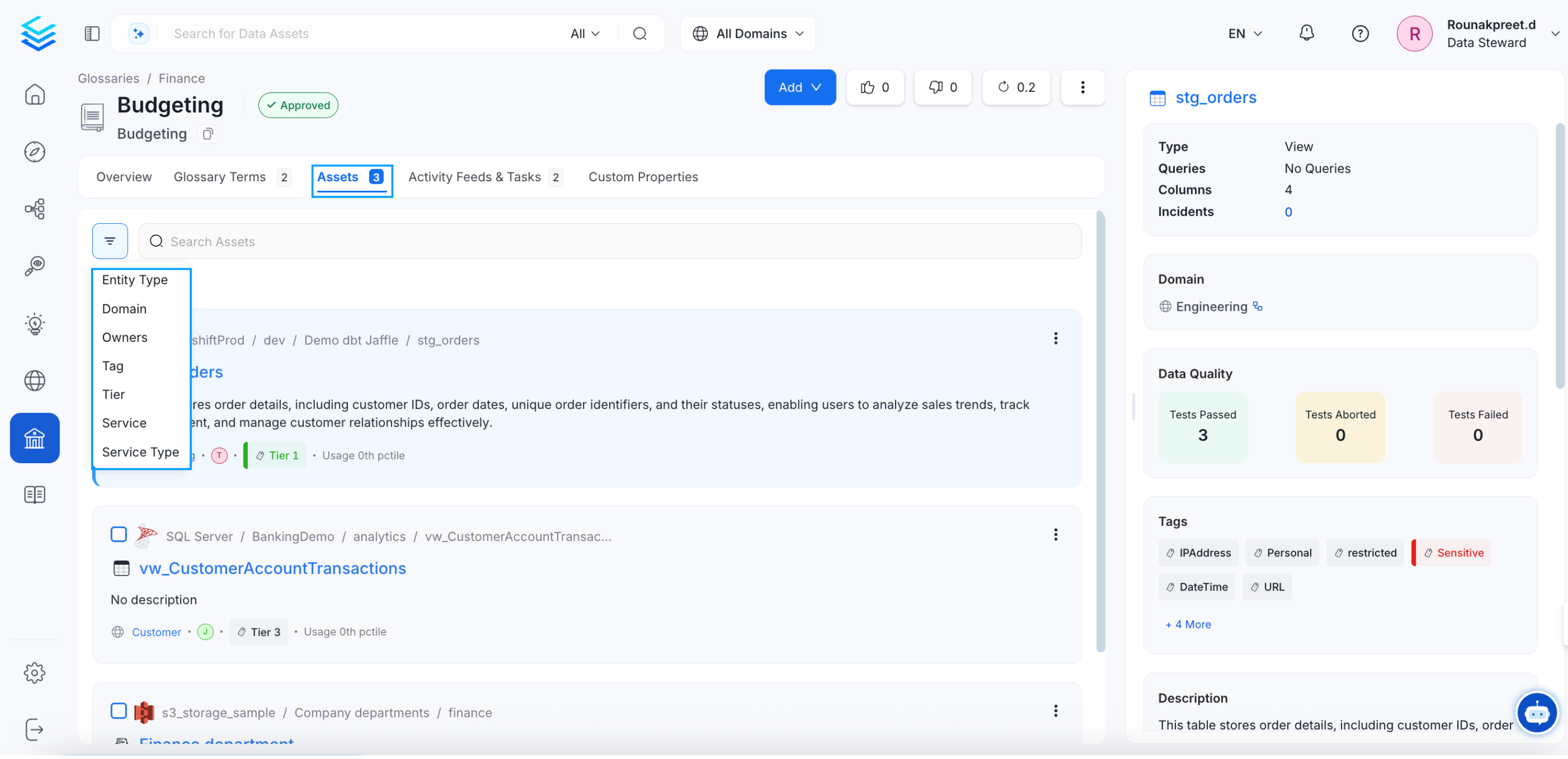 You can add more assets by clicking on **Add > Assets**.
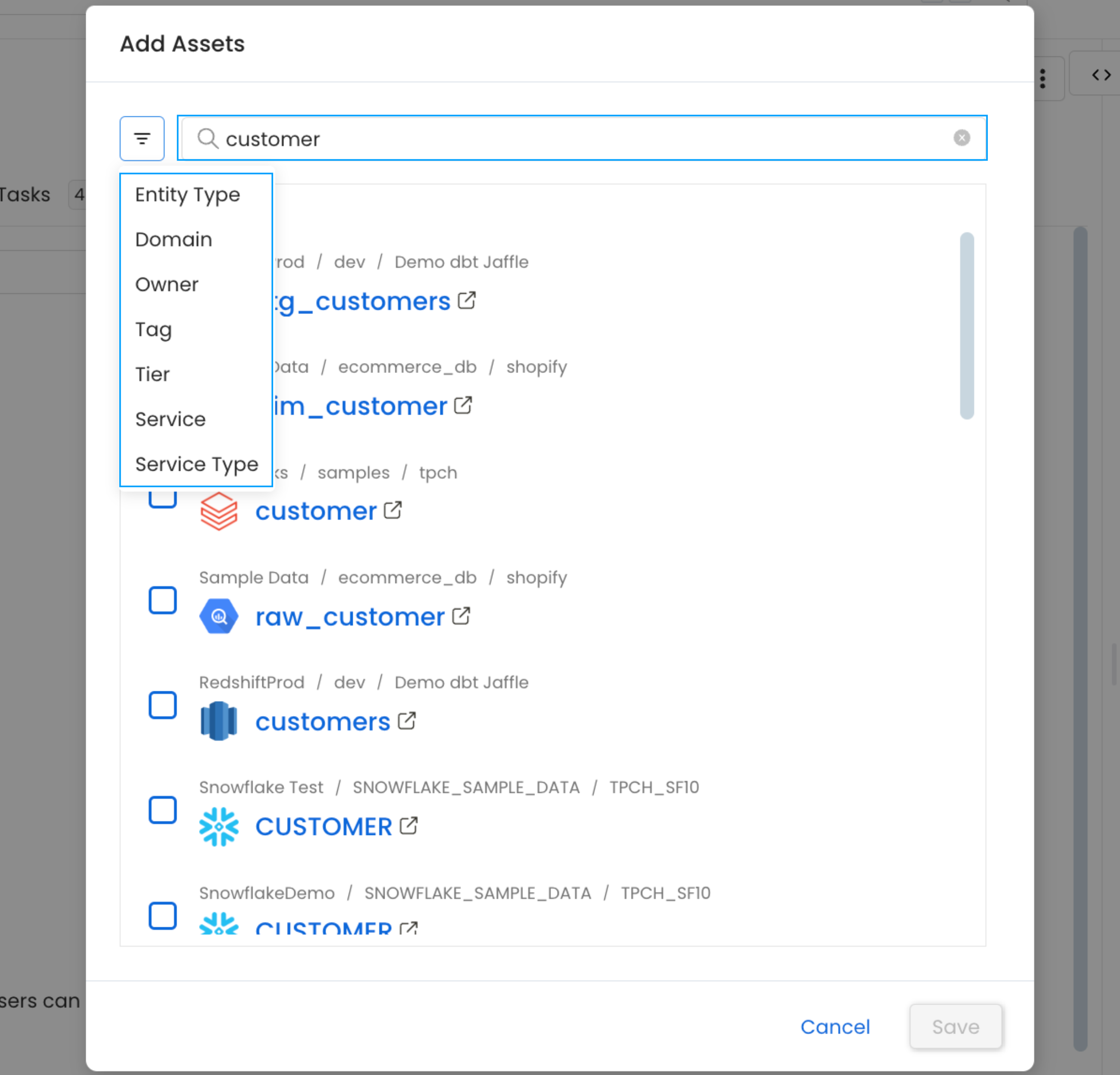
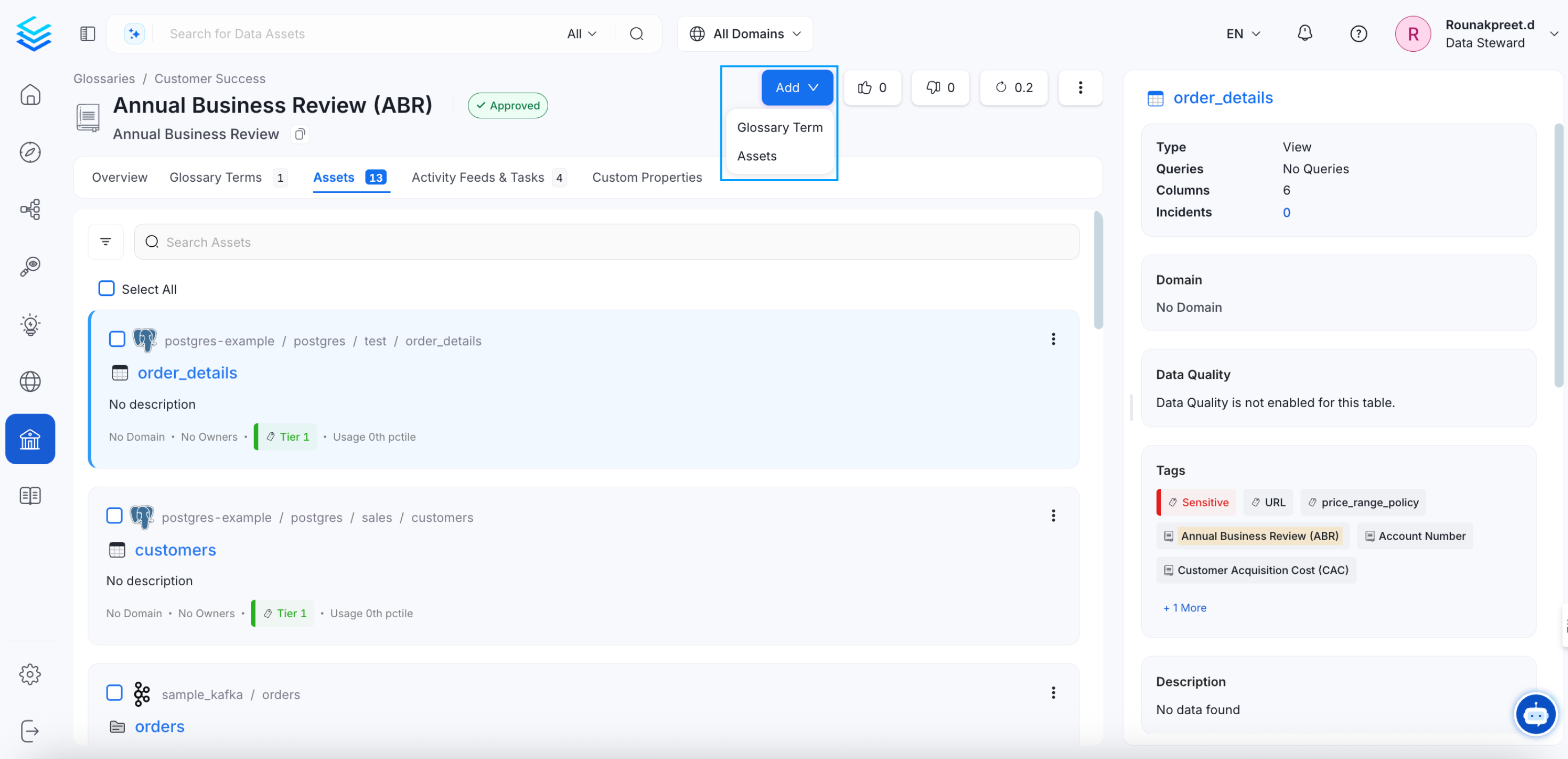 You can further search and filter assets by type. Simply select the relevant assets and click **Save**.
 The glossary term lists the Assets, which makes it easy to discover all the data assets related to the term.
## Glossary Terms and Tags
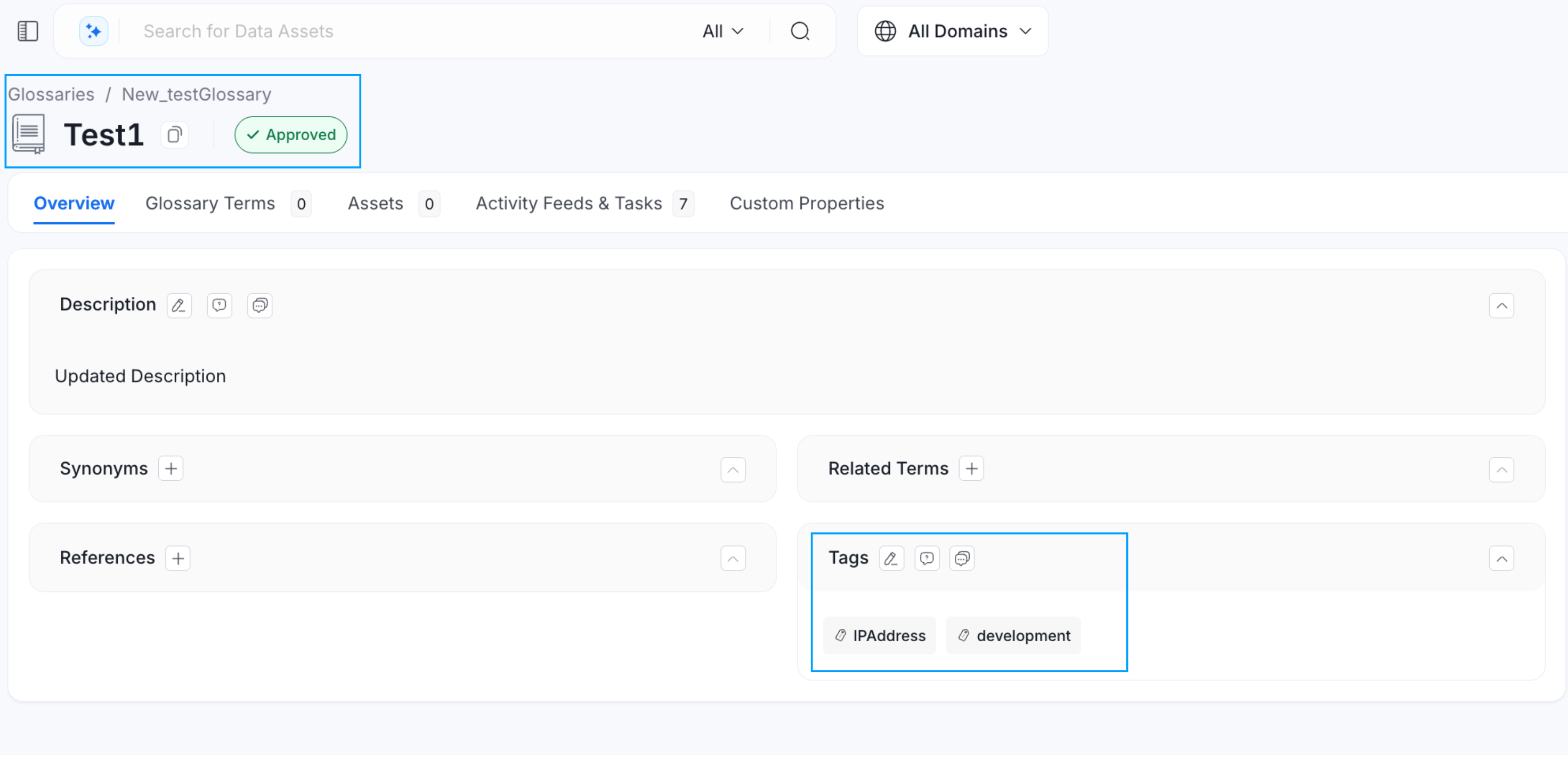
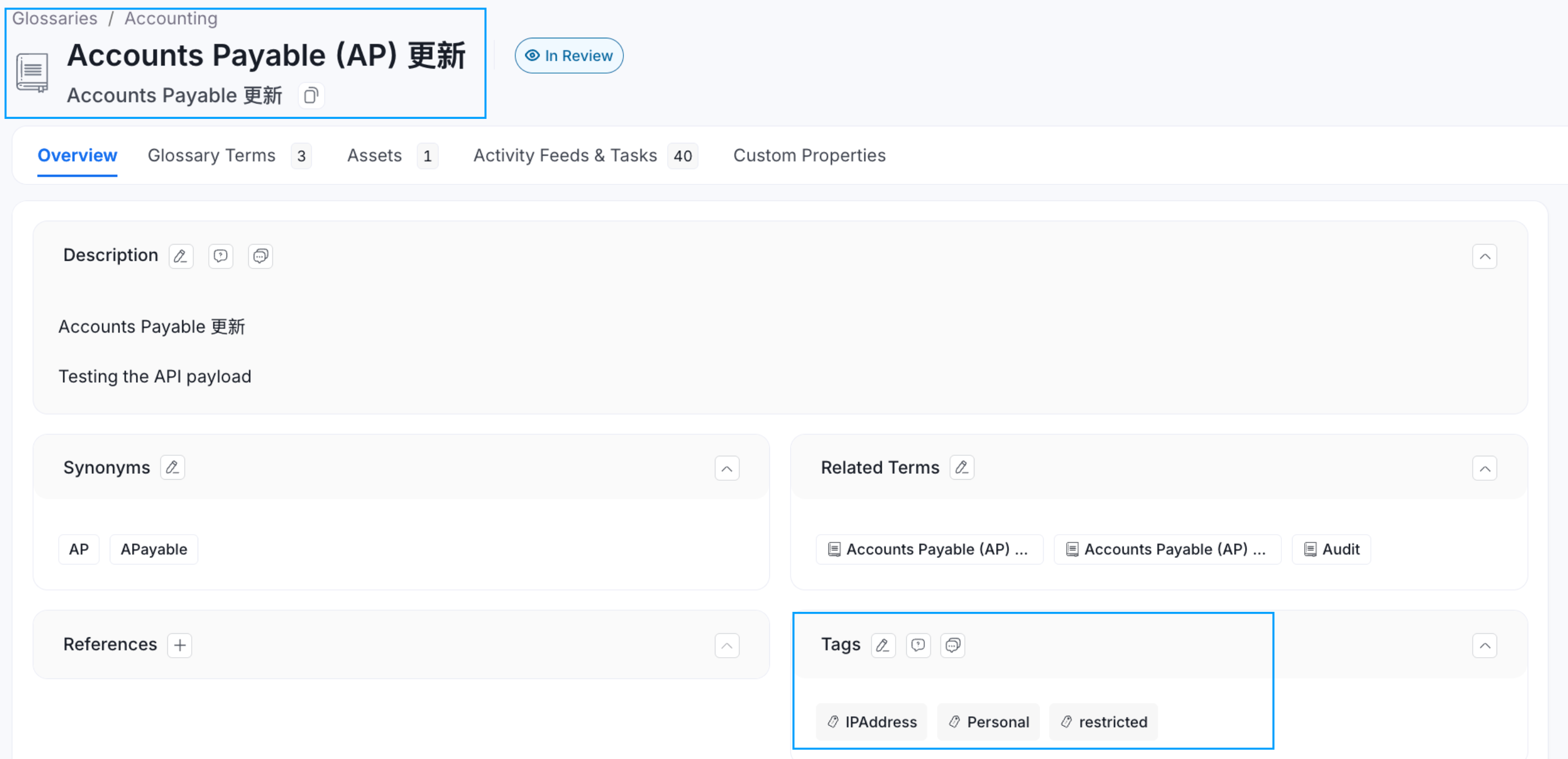
If **Tags** are associated with a **Glossary Term**, then applying that glossary term to a data asset, will also automatically apply the associated tags to that data asset. For example, the glossary term ‘Account’ has a PII.Sensitive tag associated with it. When you add a glossary term to a data asset, the associated tags also get added.
The glossary term lists the Assets, which makes it easy to discover all the data assets related to the term.
## Glossary Terms and Tags
If **Tags** are associated with a **Glossary Term**, then applying that glossary term to a data asset, will also automatically apply the associated tags to that data asset. For example, the glossary term ‘Account’ has a PII.Sensitive tag associated with it. When you add a glossary term to a data asset, the associated tags also get added.
 Here are the Top 8 Best Practices around Terminologies.