> ## Documentation Index
> Fetch the complete documentation index at: https://docs.getcollate.io/llms.txt
> Use this file to discover all available pages before exploring further.
# How to Grant Temporary Access to Collate Support Team Members
> Grant temporary access to customer support team members in Collate, including external email setup and SSO domain settings.
# How to Grant Temporary Access to Collate Support Team Members
This guide outlines the steps required to give temporary support access in the Collate platform for the support team.
## Steps to Grant Access
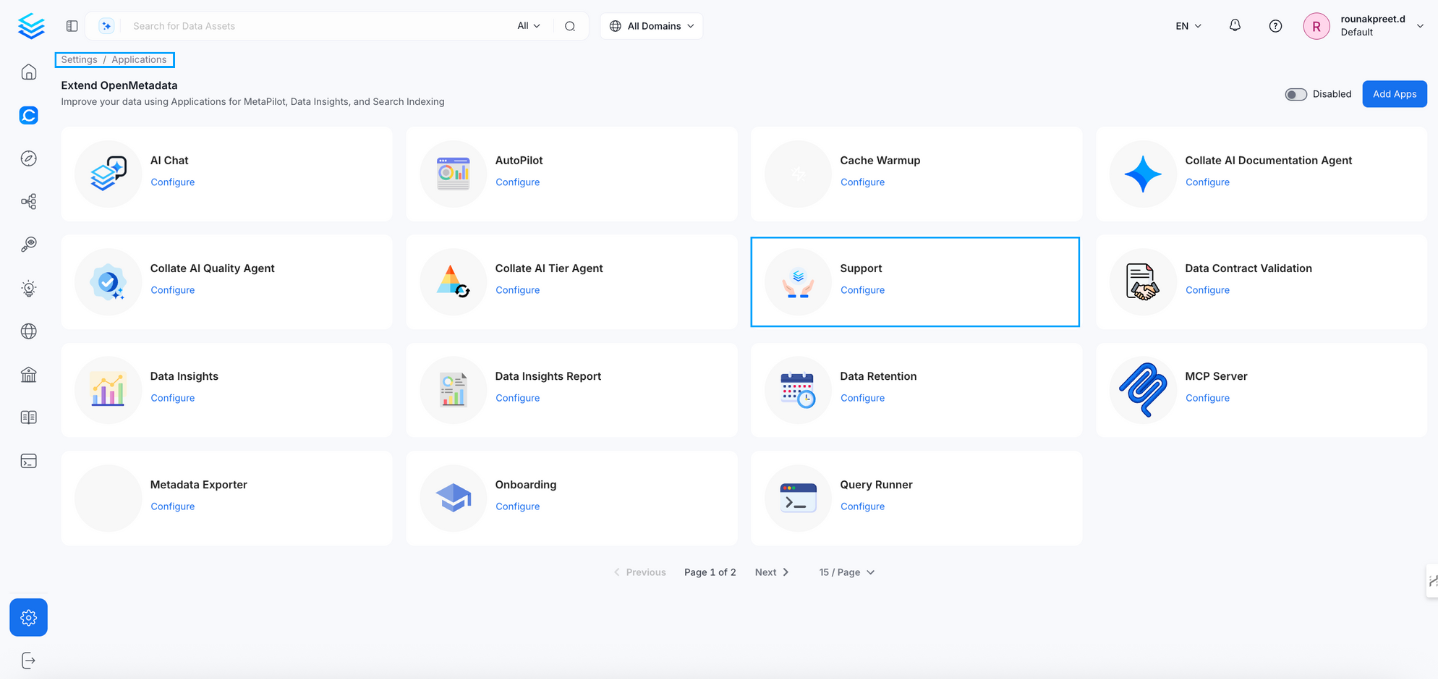
### 1. Navigate to the Support Application
* Go to **Settings → Applications → Support**
 ### 2. Add the Collate Support Access
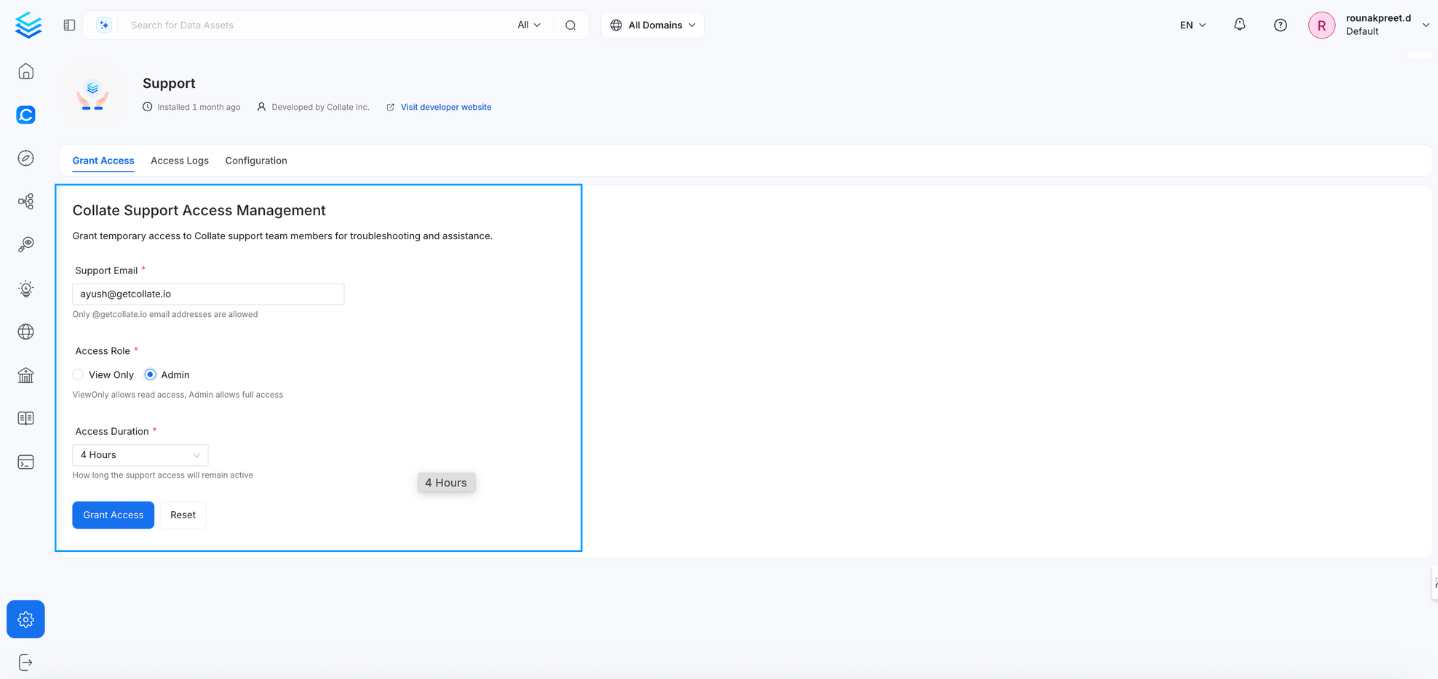
* In the **Add Support** section:
* Enter the support email, for example `ayush@getcollate.io`
* Set **Access Role** to `view only` or `Admin`.
* Set the **Access Duration** to `1 hour`, `2 hours`, or `4 hours`
### 2. Add the Collate Support Access
* In the **Add Support** section:
* Enter the support email, for example `ayush@getcollate.io`
* Set **Access Role** to `view only` or `Admin`.
* Set the **Access Duration** to `1 hour`, `2 hours`, or `4 hours`
 ### 3. Grant Access
* Click the **Grant Access** button.
### 3. Grant Access
* Click the **Grant Access** button.
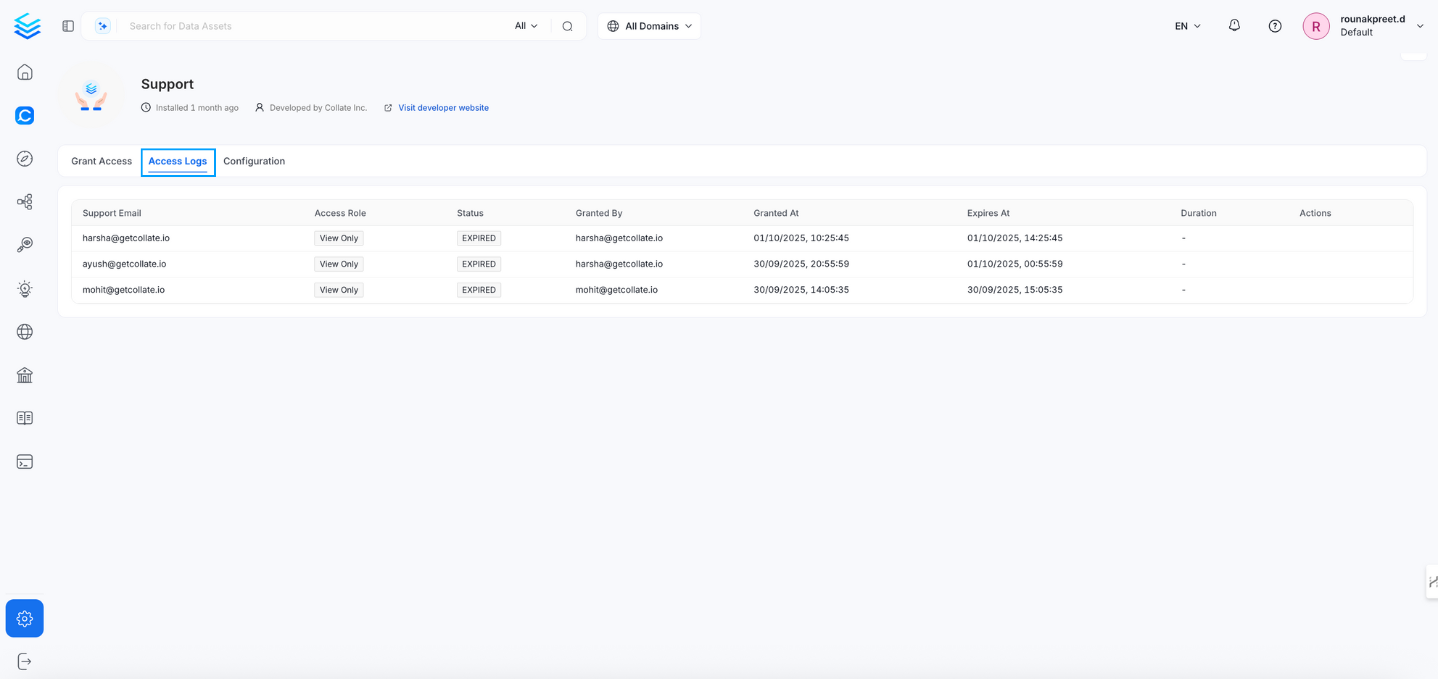
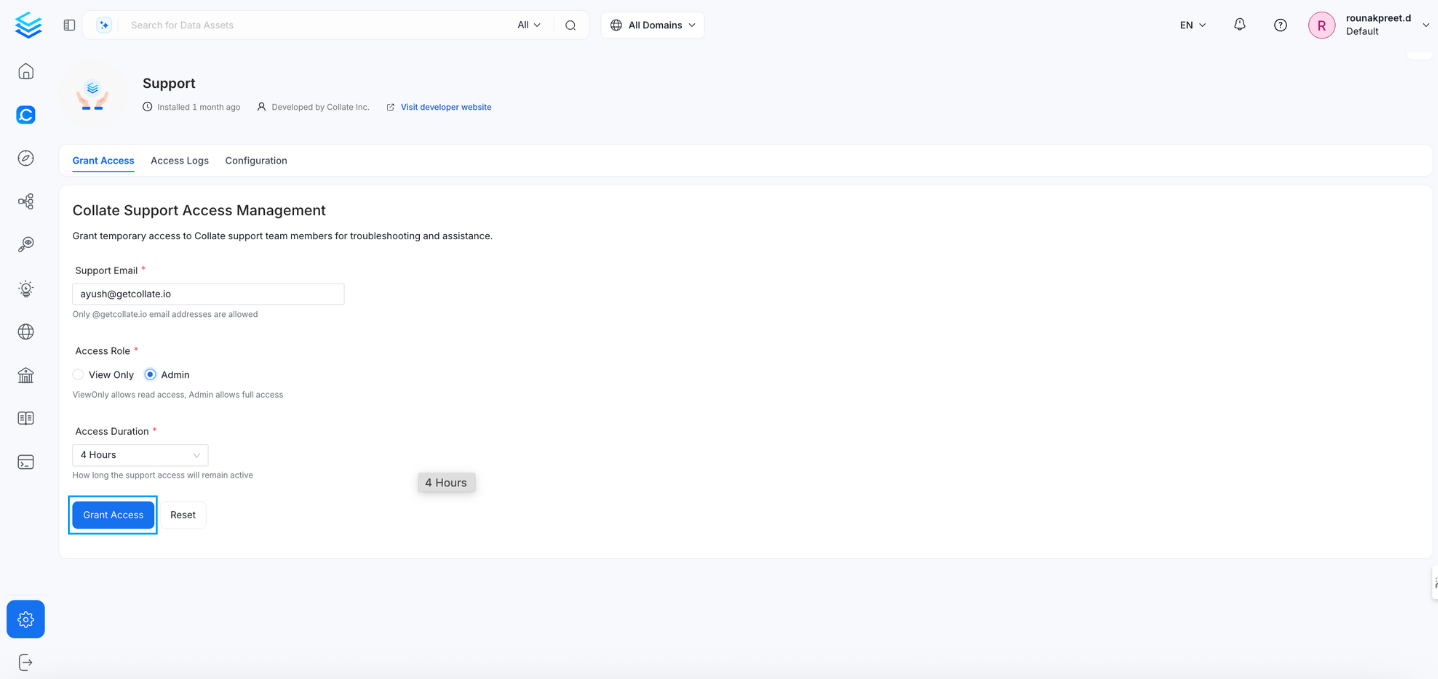 * Access will be granted to the specified support email address with the configured role and duration. This can be verified in the access logs.
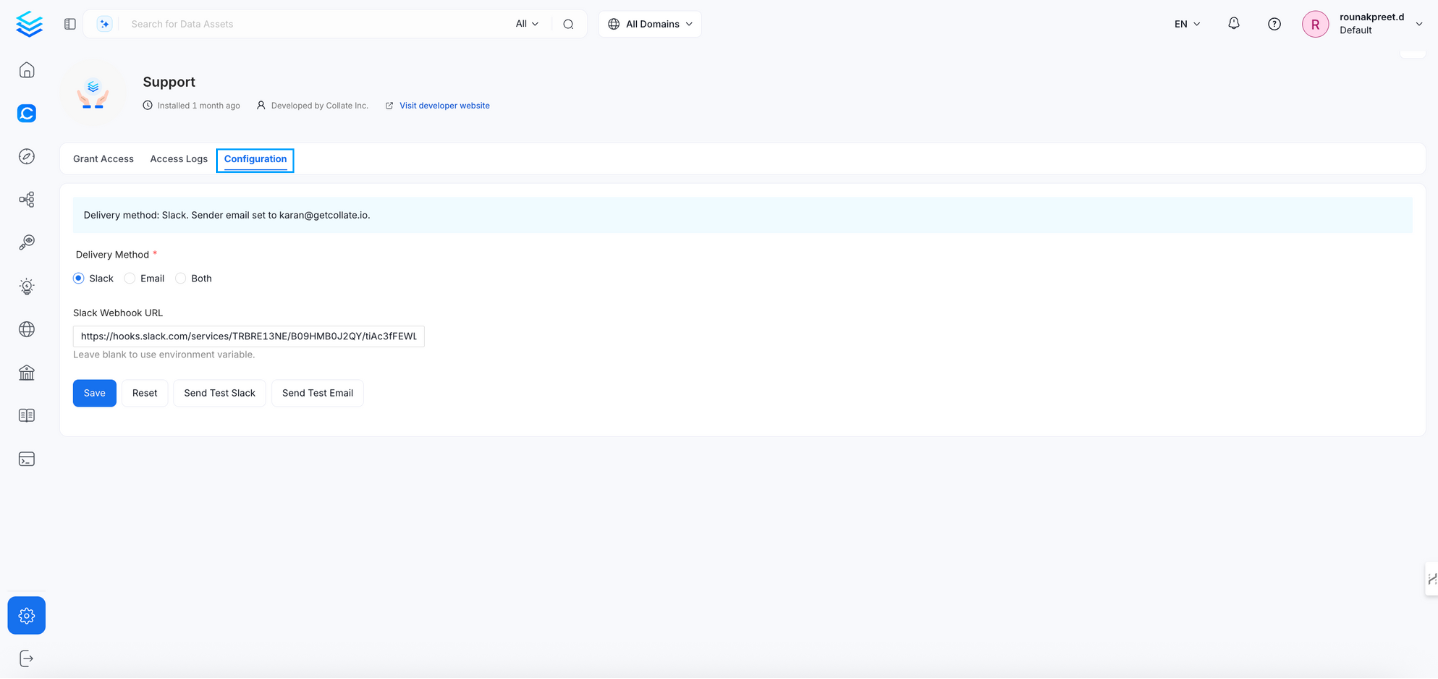
 * In the configuration section, you can select the delivery method as Email, Slack, or both.
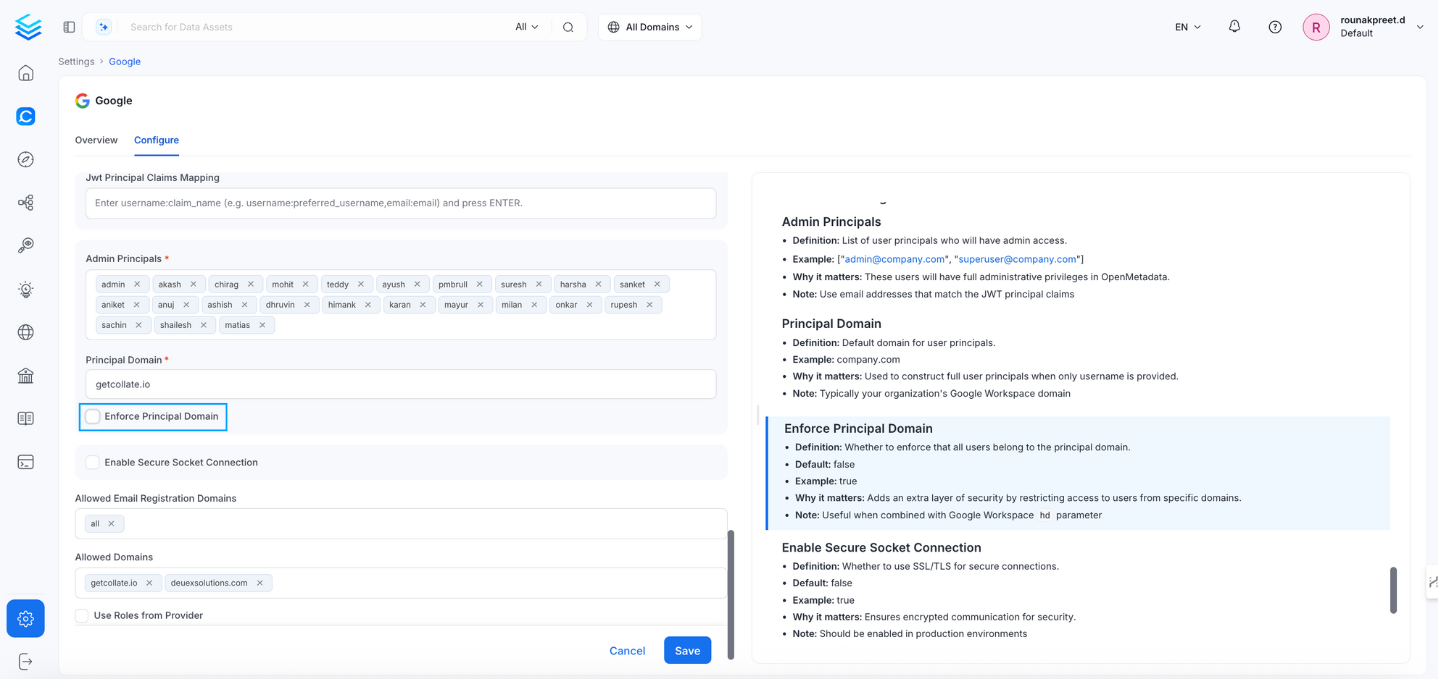
 If your organization uses Single Sign-On (SSO), you must **disable the Enforce Principal Domain** to allow access for emails from other domains (e.g., `gmail.com`). Navigate to **Settings → SSO → Configure** to disable the **Enforce Principal Domain** setting.