> ## Documentation Index
> Fetch the complete documentation index at: https://docs.getcollate.io/llms.txt
> Use this file to discover all available pages before exploring further.
# How to Change the Team Type | Official Documentation
> Learn how to change team types to modify access levels and permissions for improved role-based collaboration and enterprise access control.
# How to Change the Team Type
Refer to the [**Team Structure in Collate**](/how-to-guides/admin-guide/teams-and-users/team-structure-openmetadata) to get a clear understanding of the various **Team Types**.
Let's say you have a team `Digital_Marketing` of the type **`Department`** and you want to change it to the type **`Division`**. You can easily change that through the UI.
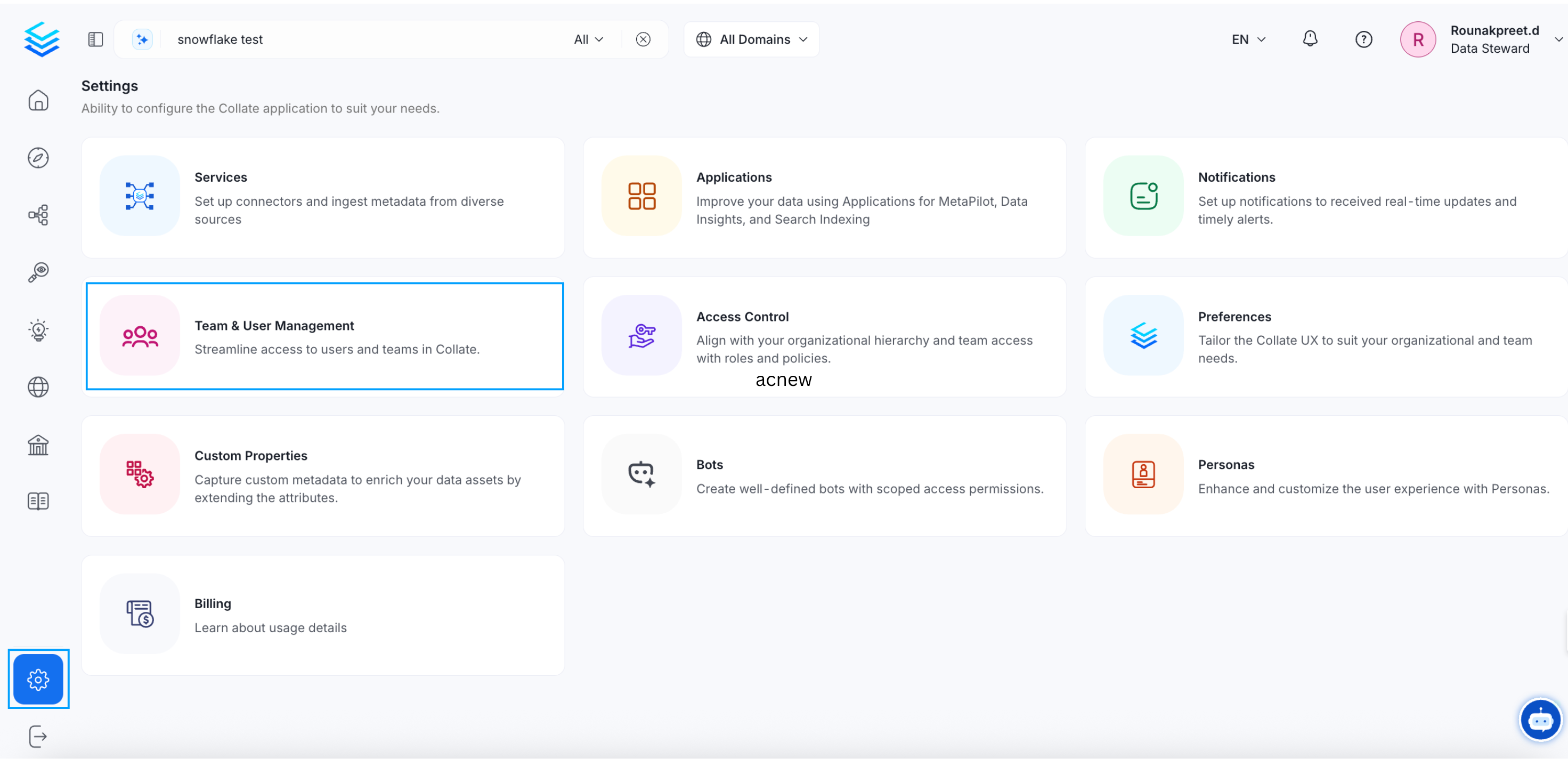
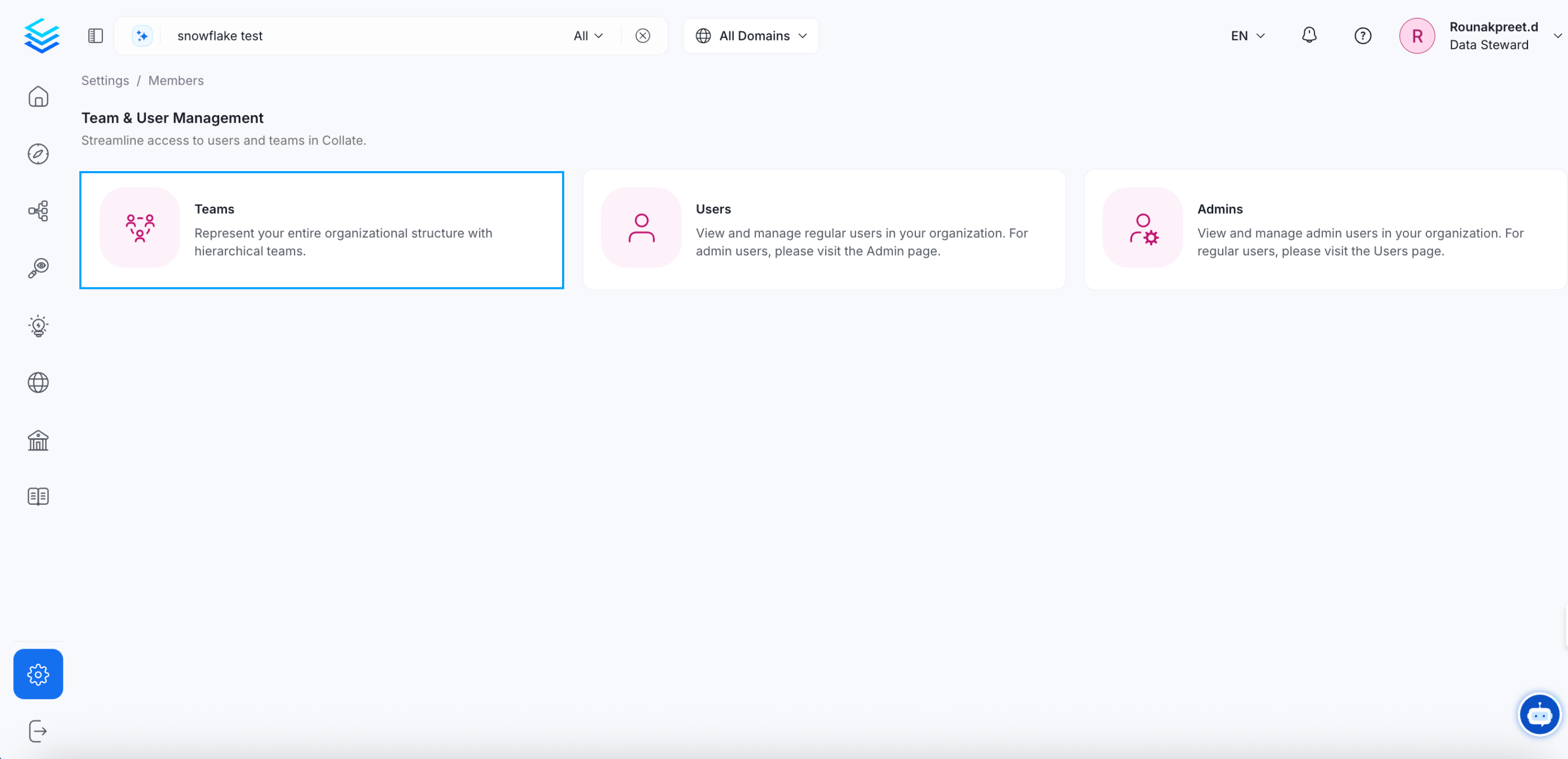
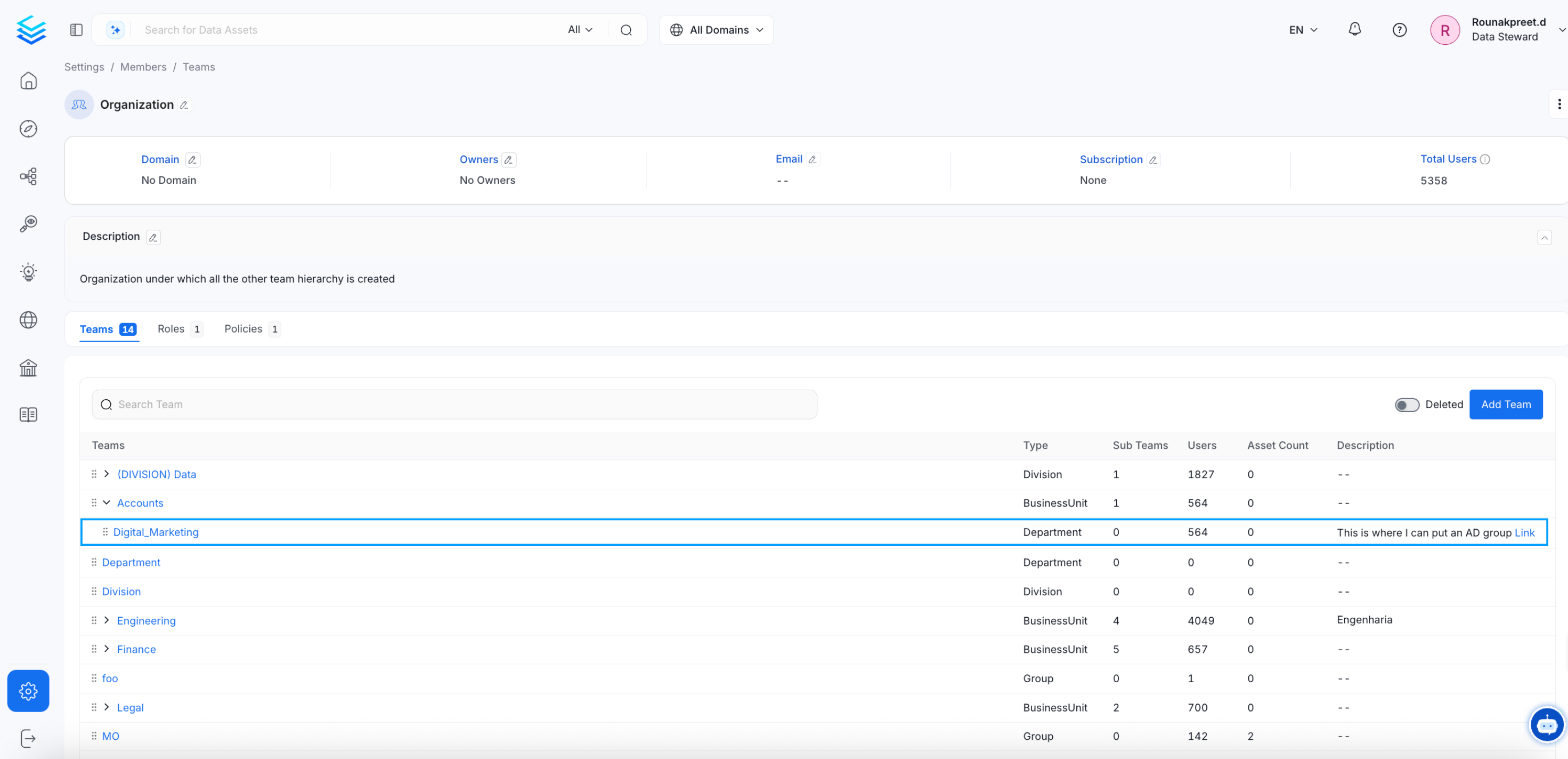
**1.** Navigate to **Settings >> Team & User Management >> Teams**. Click on the `Digital_Marketing` team name to view the details.
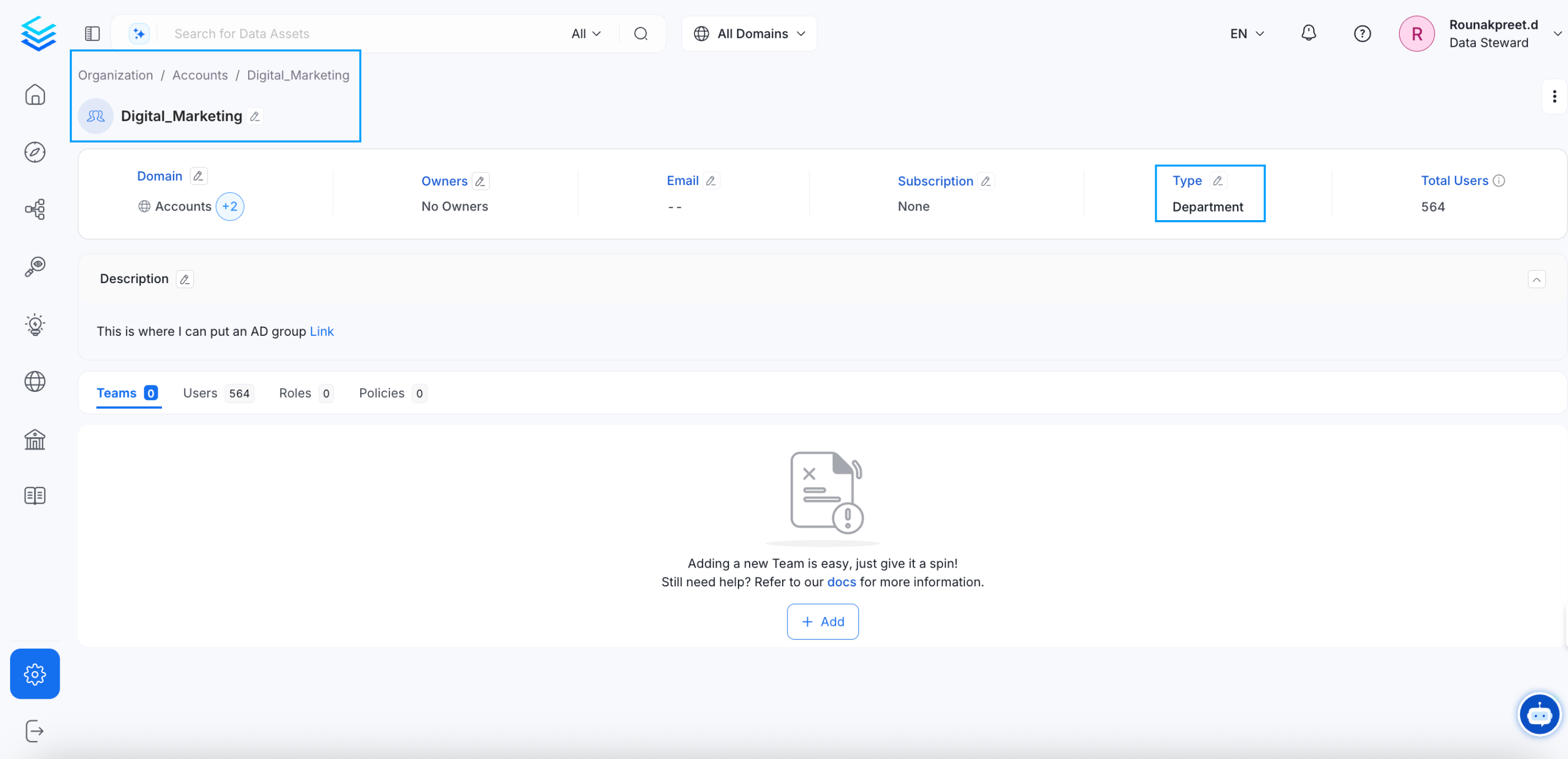
 **2.** On the `Digital_Marketing` team details page, you will see the `Type - Department` with an edit icon.
 **3.** Click on the edit button. You will get a set of options, from which you can select `Division`.Click on ✅ to save it.
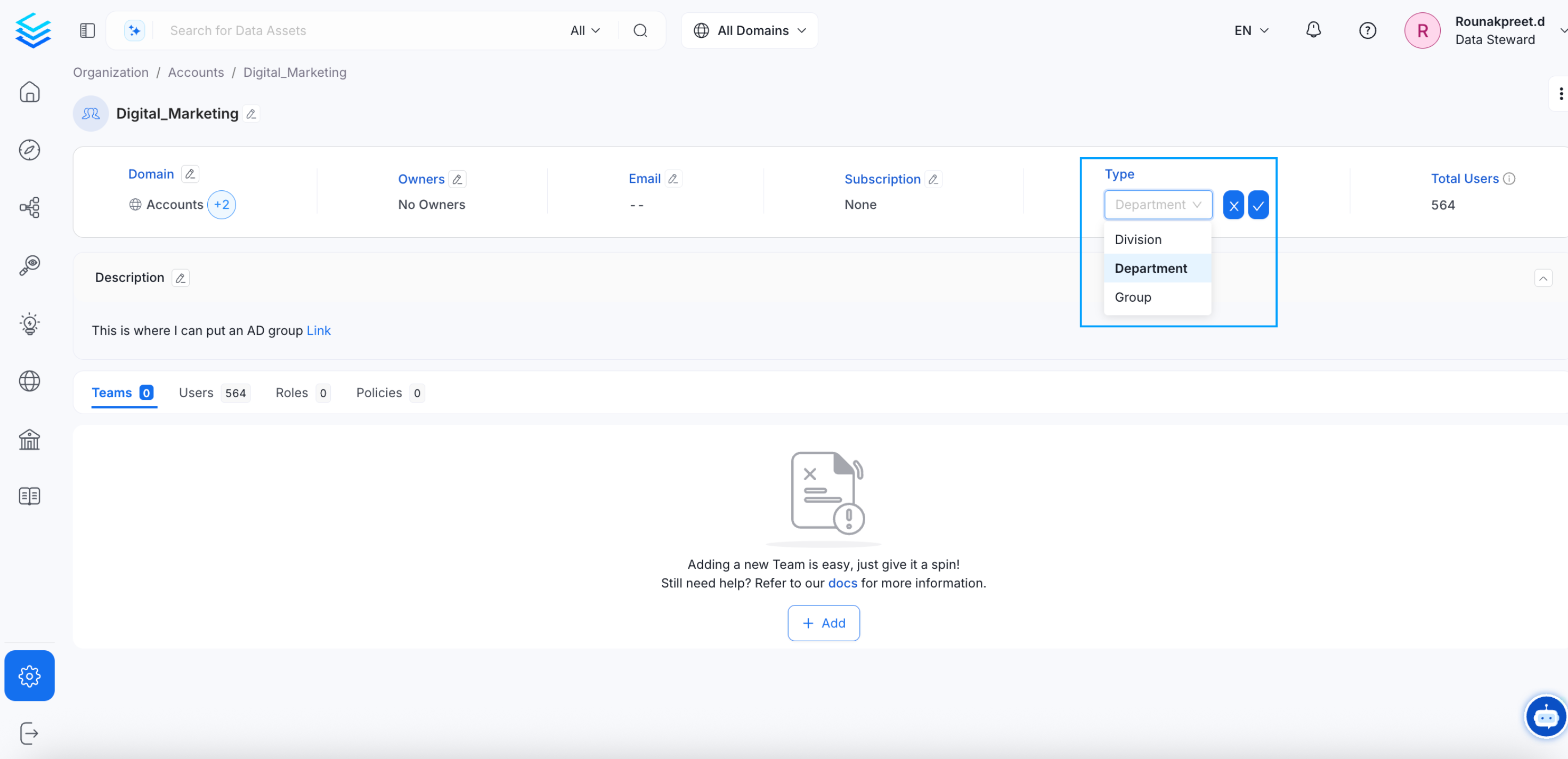 **4.** This changes the `Digital_Marketing` team type from `Department` to `Division`.