> ## Documentation Index
> Fetch the complete documentation index at: https://docs.getcollate.io/llms.txt
> Use this file to discover all available pages before exploring further.
# How to Add Users to Teams
# How to Add Users to Teams
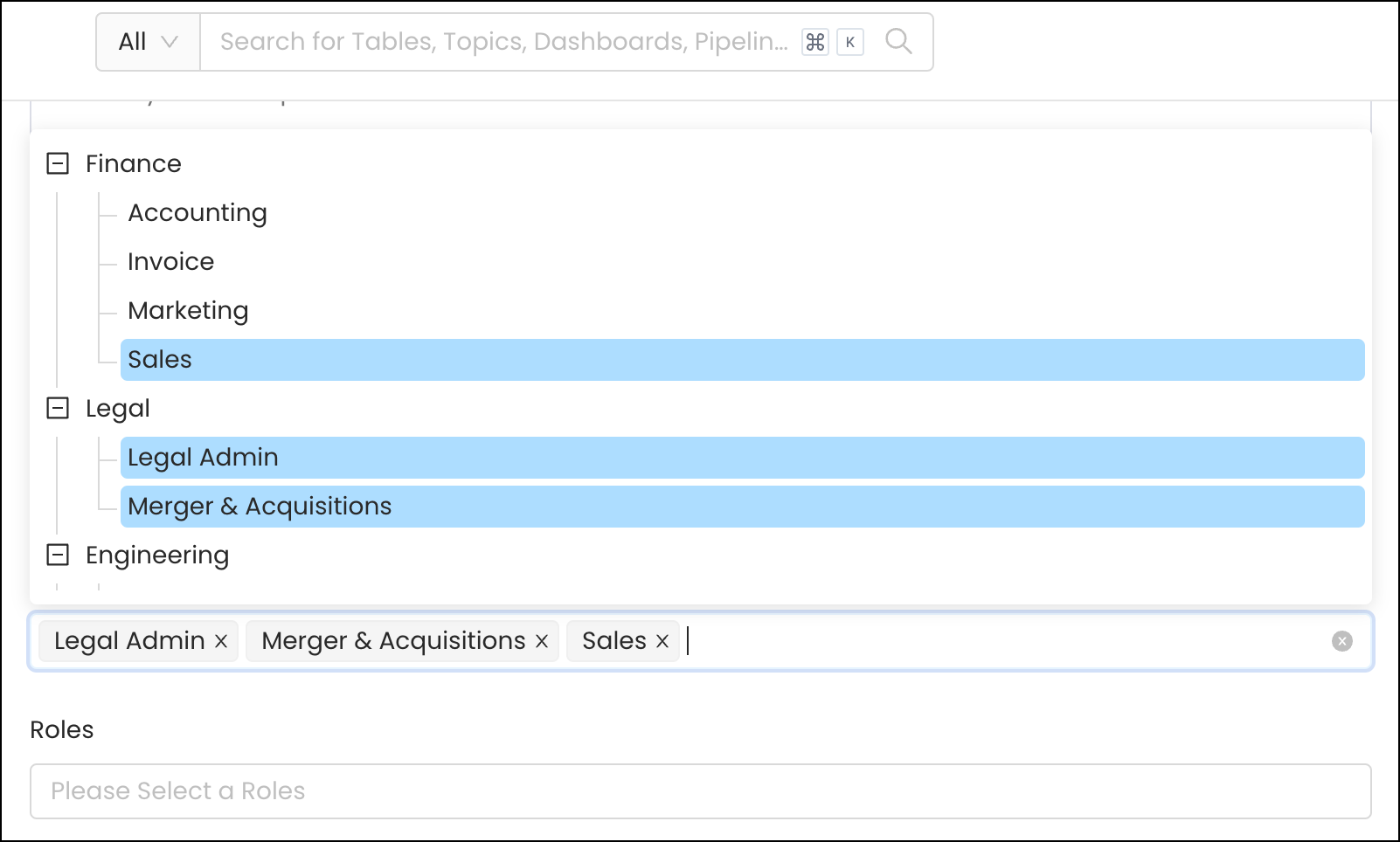
If the user does not already exist in Collate, then [invite the user](/how-to-guides/admin-guide/teams-and-users/invite-users) to Collate. While creating the **new user**, you can add them to the relevant **Team** as well as assign them the relevant **Roles**.
**Note:** You can add a User to multiple Teams when creating a New User.
 If the user, already exists in Collate, then
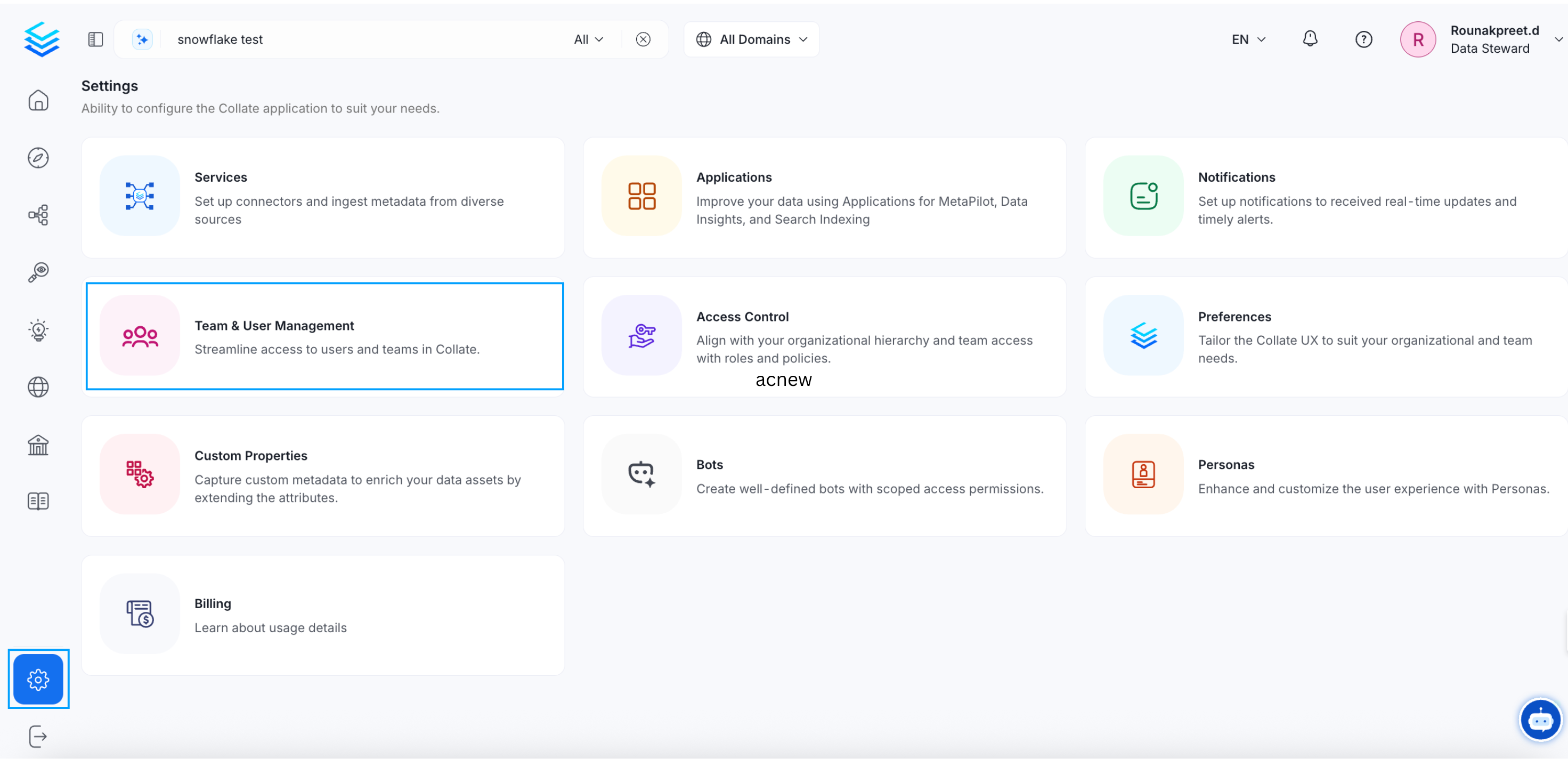
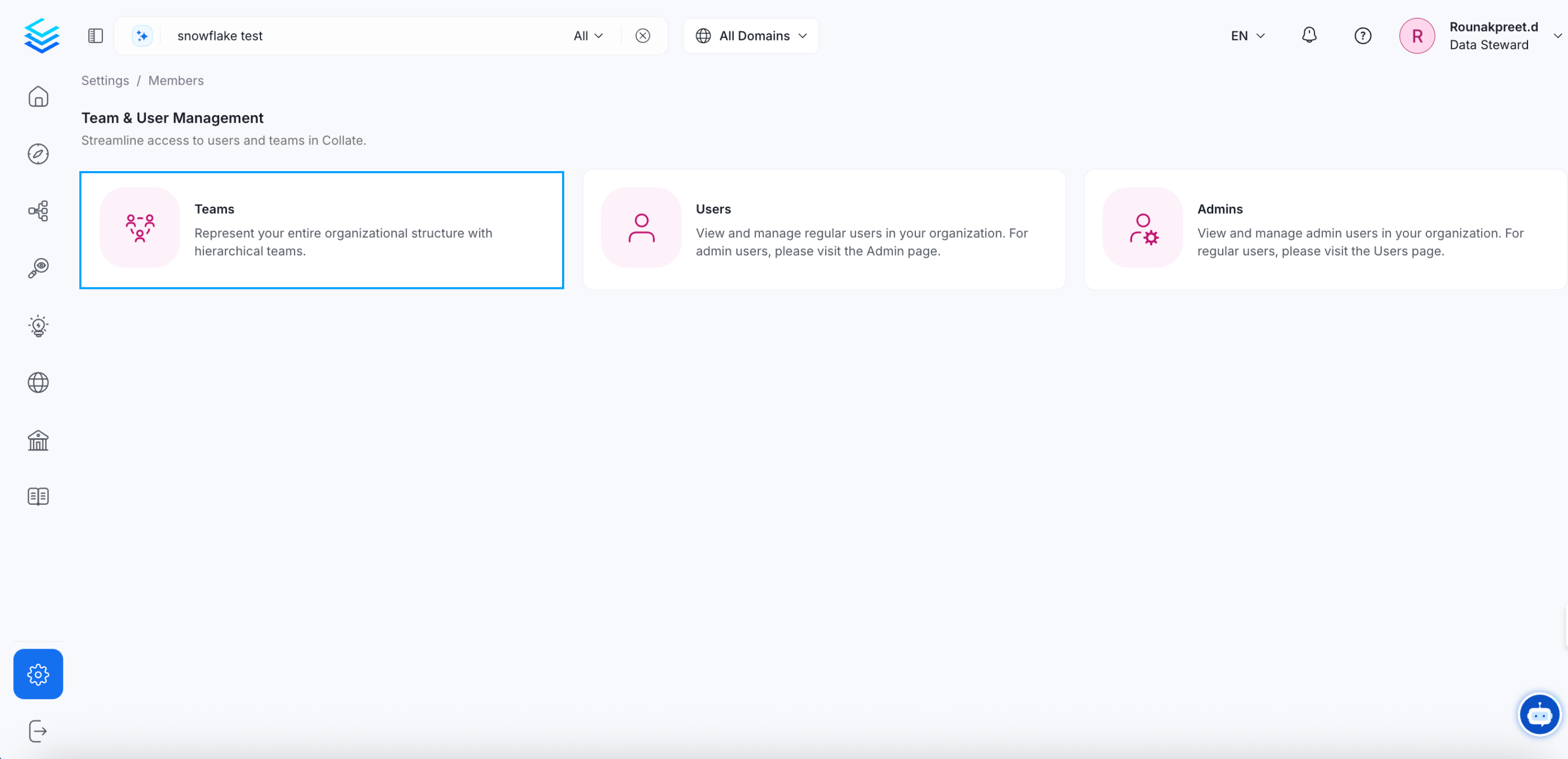
* Go to **Settings >> Team & User Management Teams >> Users Tab**
* Select the specific team you would like to add a user to. A team may have further sub teams. Select the required sub team.
* Click on **Add User**.
**Note:** Users will inherit the Roles that apply to the Team they belong to.
If the user, already exists in Collate, then
* Go to **Settings >> Team & User Management Teams >> Users Tab**
* Select the specific team you would like to add a user to. A team may have further sub teams. Select the required sub team.
* Click on **Add User**.
**Note:** Users will inherit the Roles that apply to the Team they belong to.
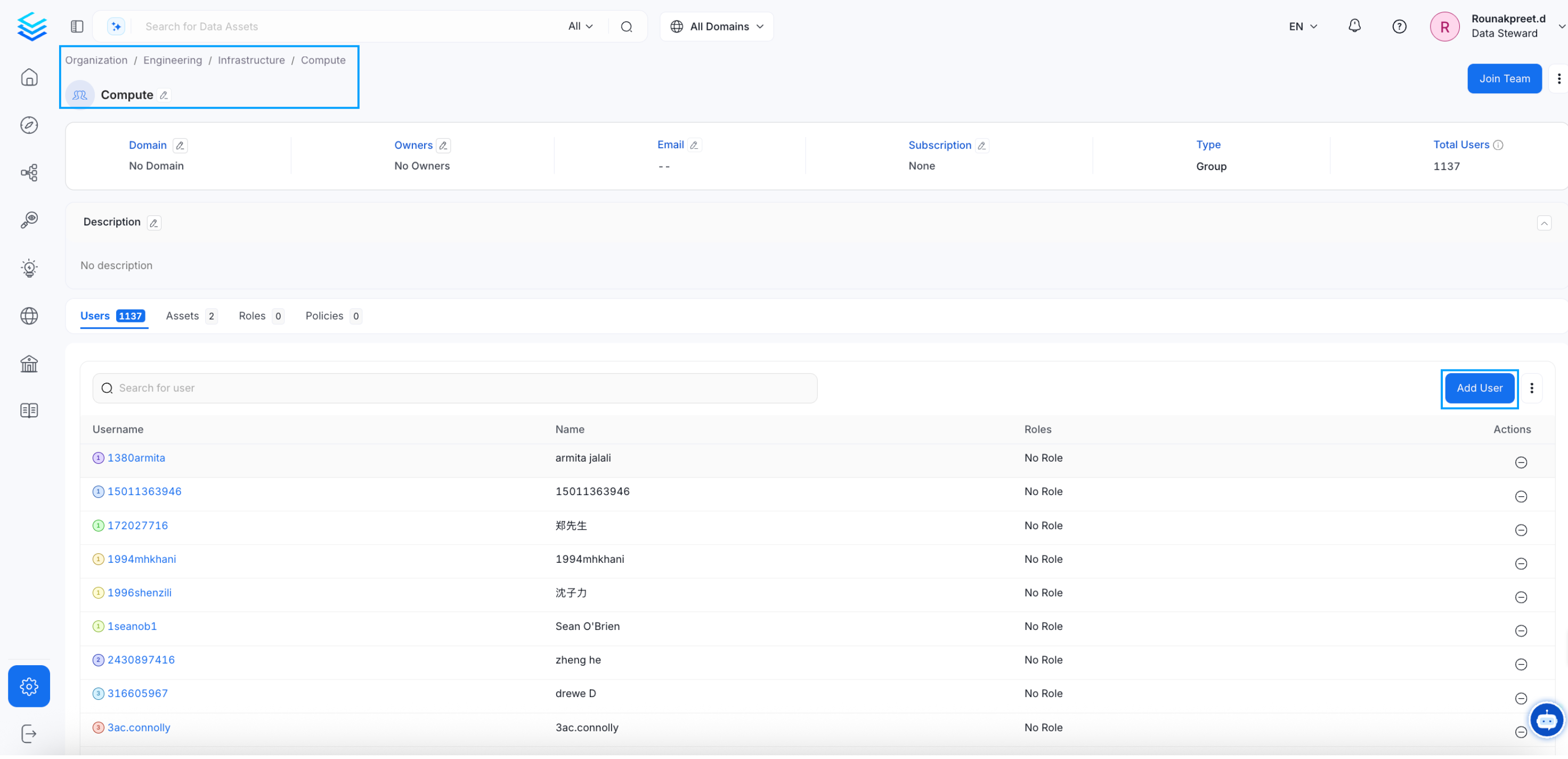 * Search for the user, select the checkbox, and click on **Update**.
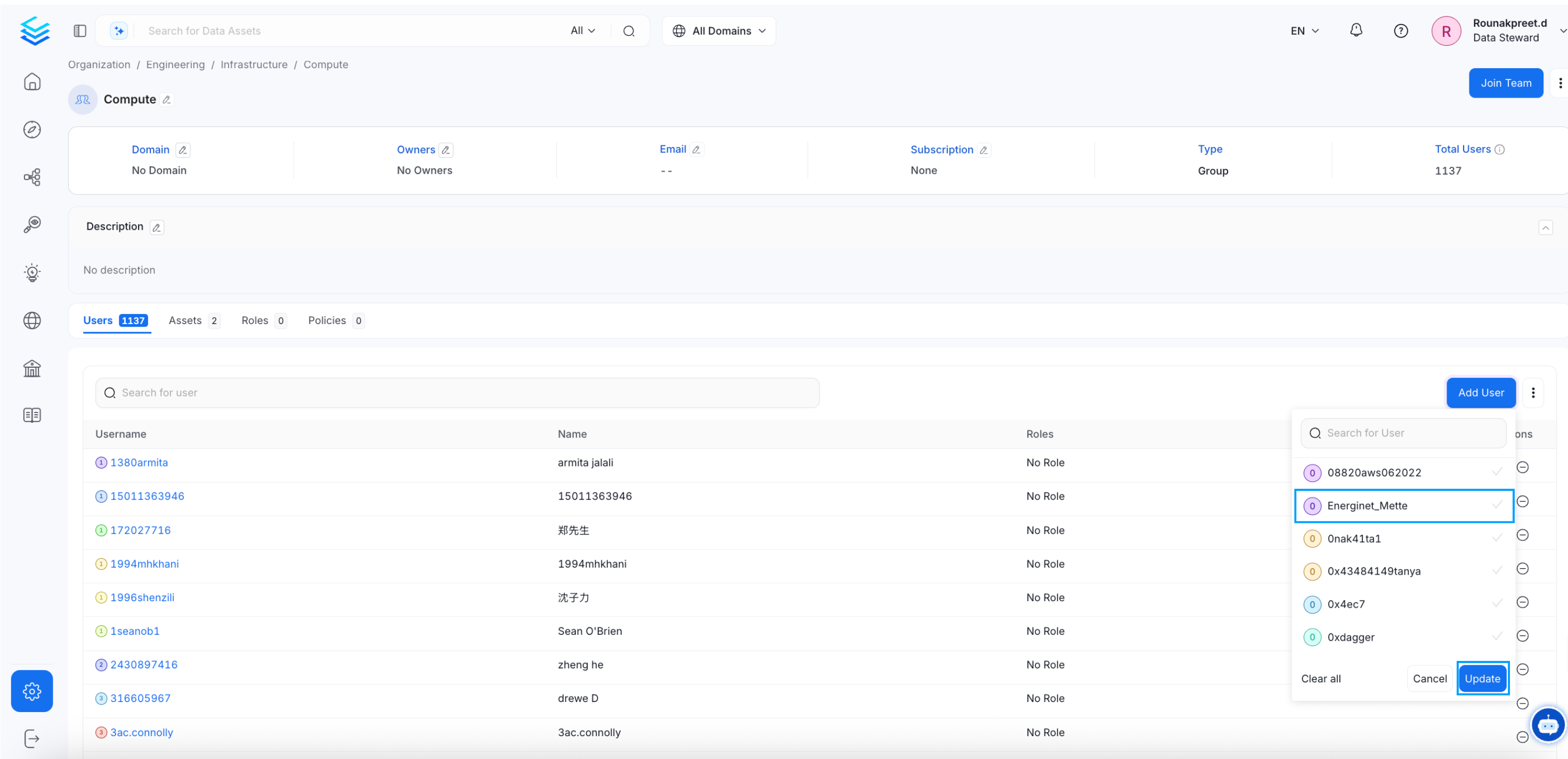 It's that simple to add users to teams!
Change the team type to change the hierarchy.
It's that simple to add users to teams!
Change the team type to change the hierarchy.