> ## Documentation Index
> Fetch the complete documentation index at: https://docs.getcollate.io/llms.txt
> Use this file to discover all available pages before exploring further.
# How to Add a Team | Collate Admin Guide
> Learn how to create a team in Collate and choose the right team type for your organization.
# How to Add a Team
Creating a Team in Collate is easy. Decide on the `teamType` that you would like to add. Refer to the [**Team Structure in Collate**](/how-to-guides/admin-guide/teams-and-users) to get a clear understanding of the various **Team Types**.
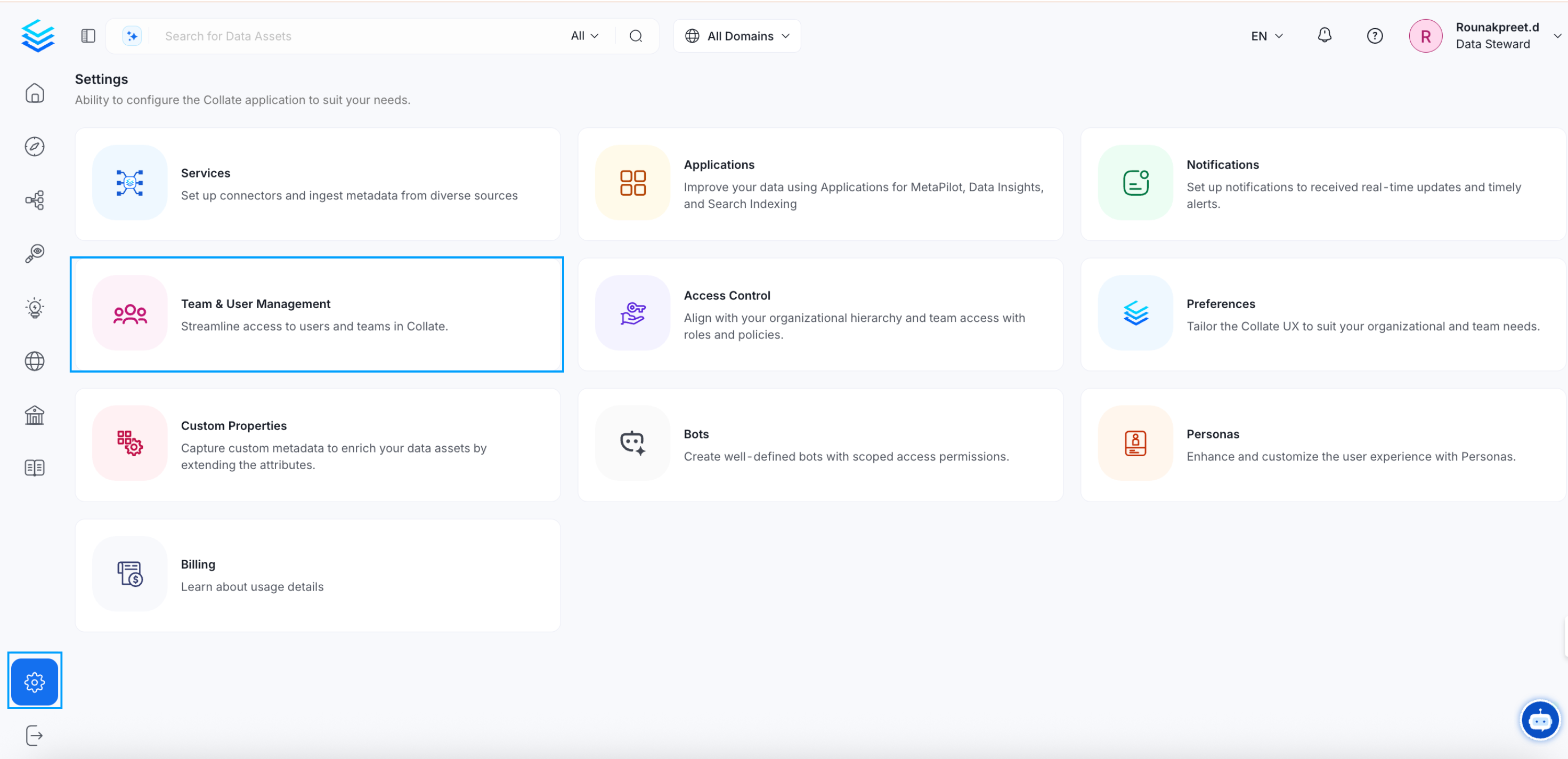
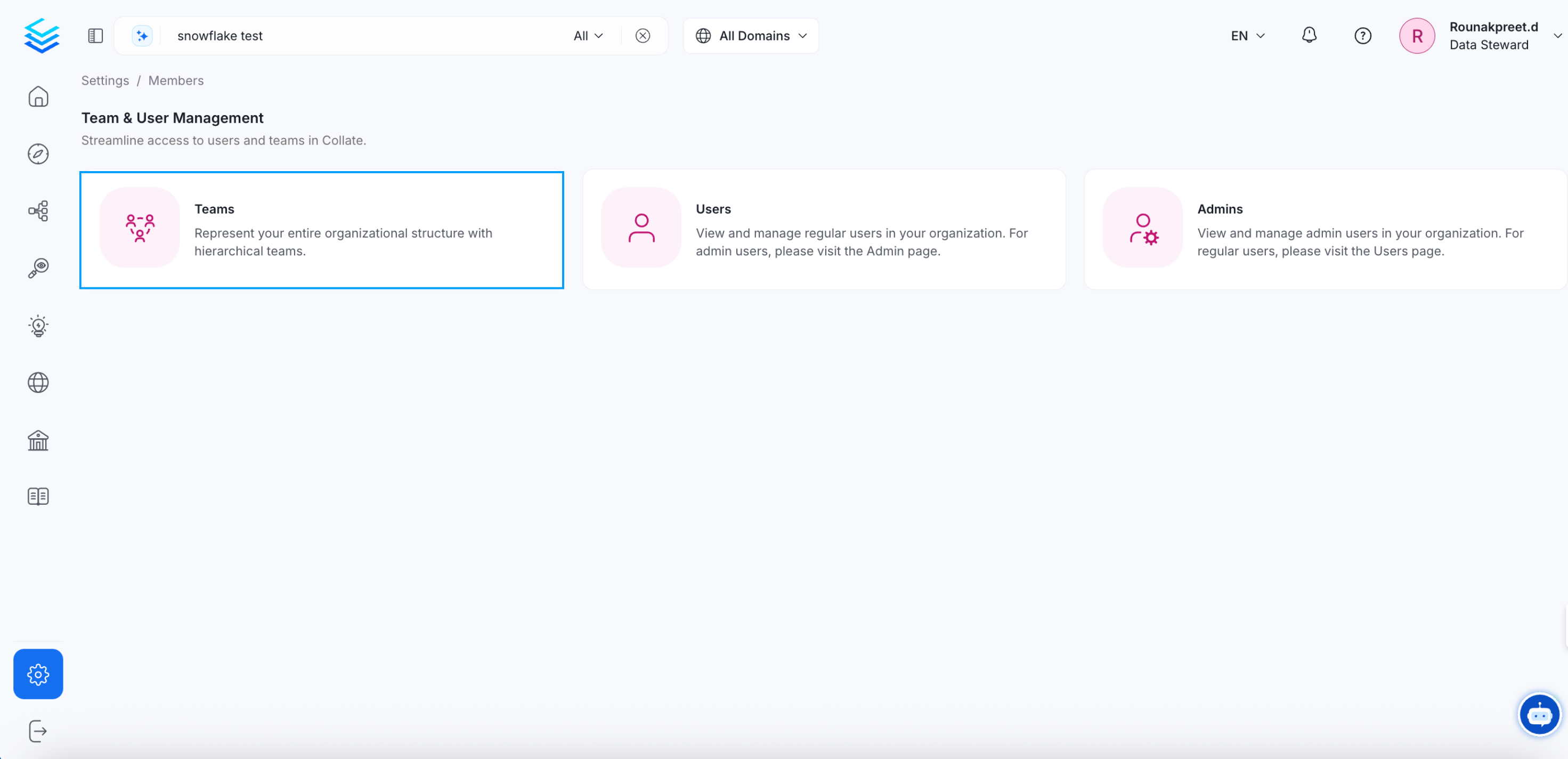
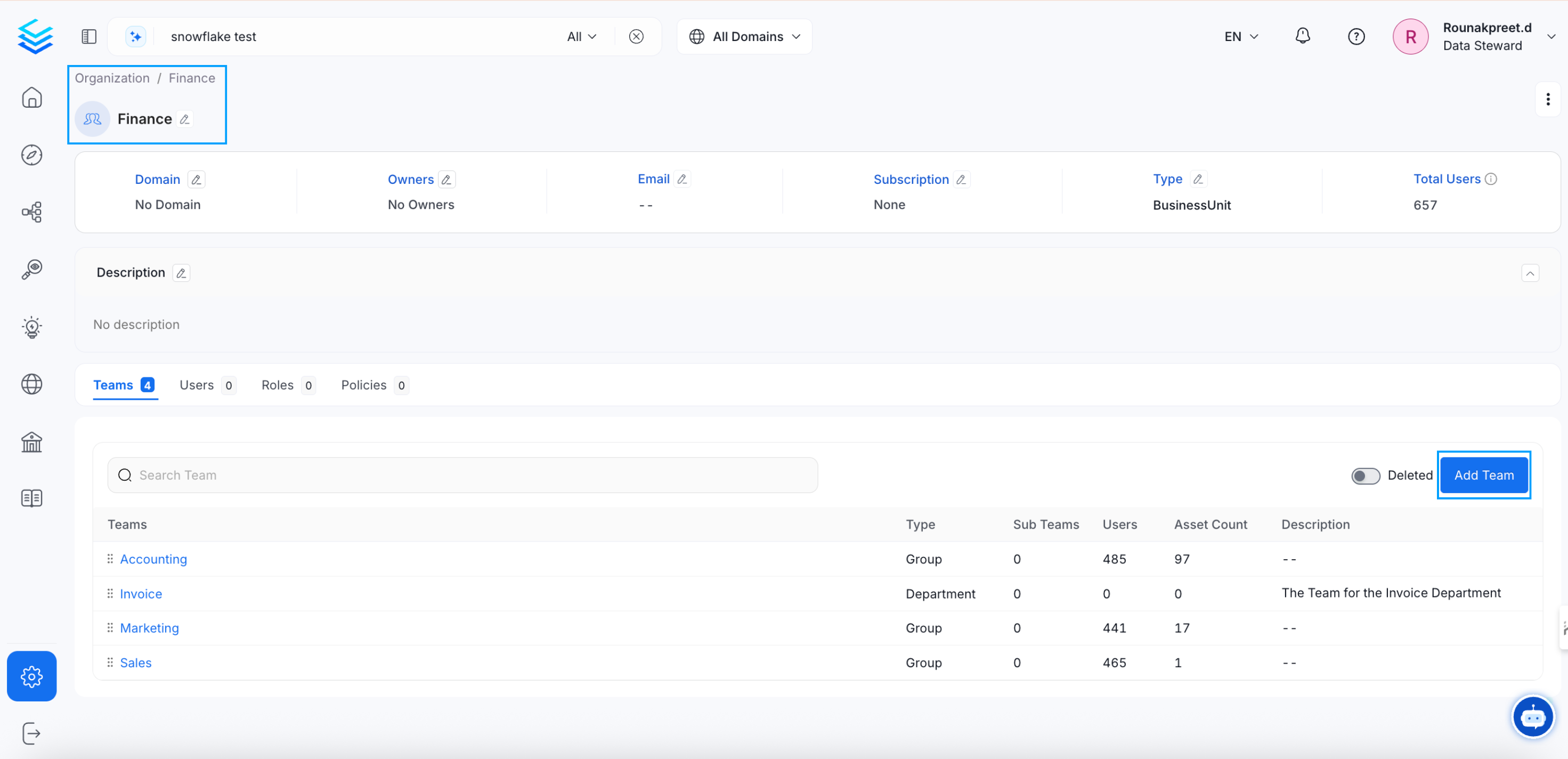
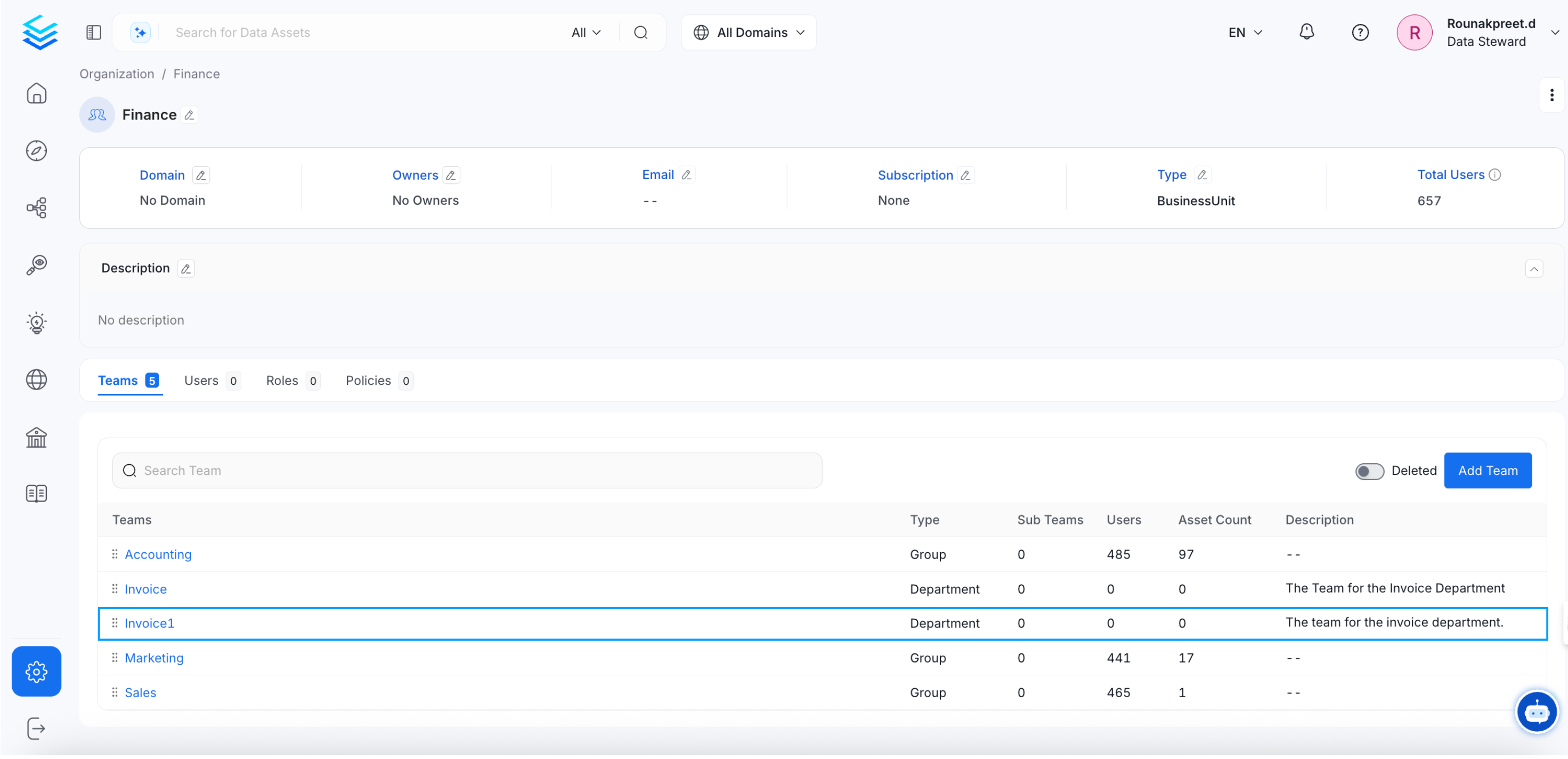
**1.** Click on **Settings >> Team & User Management >> Teams**. Further, navigate to the relevant `BusinessUnit`, `Division`, or `Department` where you would like to create a new team. Click on **Add Team**.
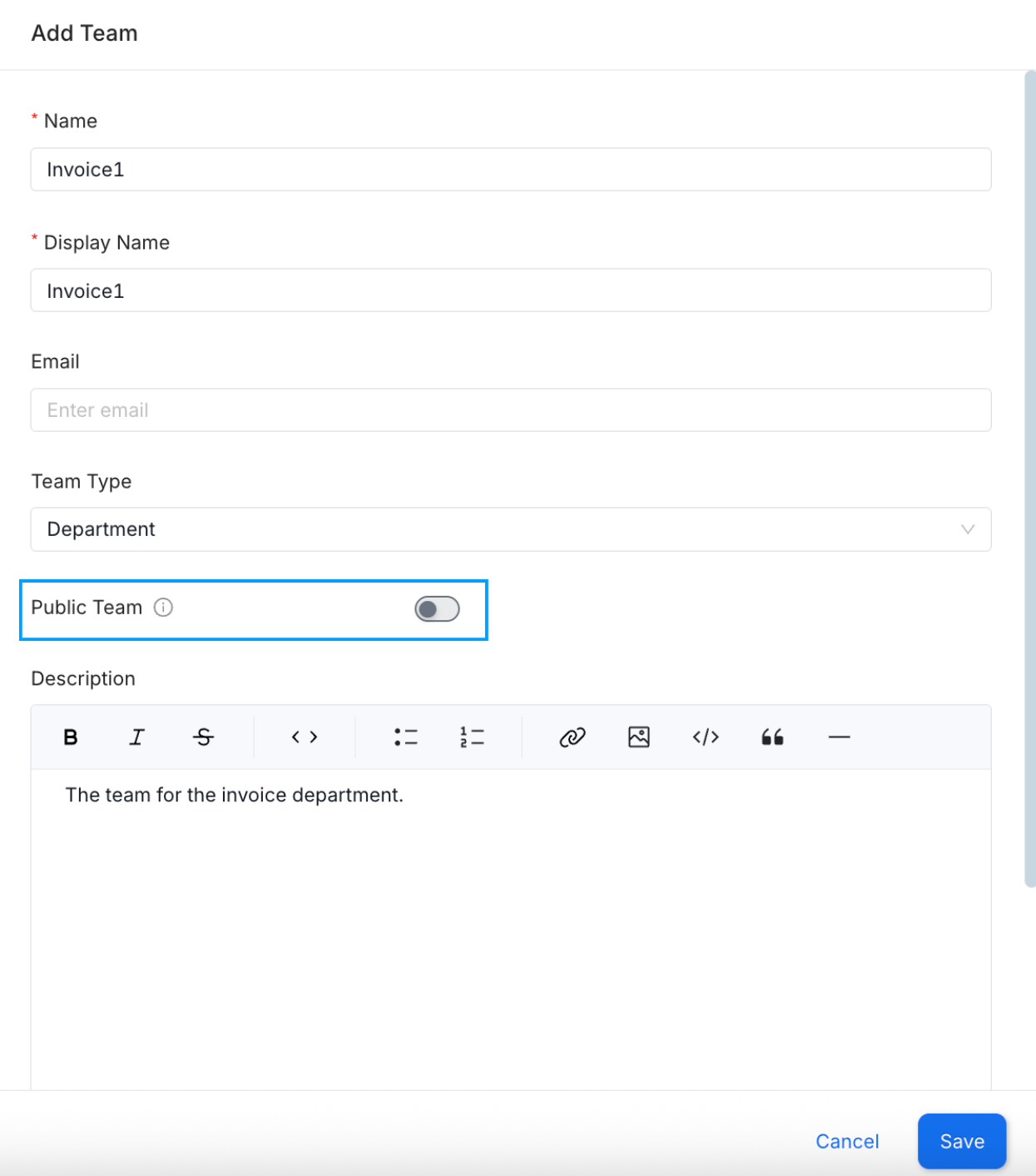
 **2.** Enter the details like `Name`, `Display Name`, `Email`, `Team Type`, and `Description` and click on **OK**. The choice of the `teamType` is restricted by the type of the parent team selected. More information can be found in the [**Team Structure**](/how-to-guides/admin-guide/teams-and-users) document. Enable the **Public Team** option to allow open access, permitting anyone to join the team, view data, and collaborate.
* Once created, the teamType for `Group` **cannot be changed later**.
* Only the Teams of the type `Group` can **own data assets**.
**2.** Enter the details like `Name`, `Display Name`, `Email`, `Team Type`, and `Description` and click on **OK**. The choice of the `teamType` is restricted by the type of the parent team selected. More information can be found in the [**Team Structure**](/how-to-guides/admin-guide/teams-and-users) document. Enable the **Public Team** option to allow open access, permitting anyone to join the team, view data, and collaborate.
* Once created, the teamType for `Group` **cannot be changed later**.
* Only the Teams of the type `Group` can **own data assets**.
 **3.** The new team has been created. You can further add Users or create another Team within it.
 Data is a team game. Admins can invite other users.