> ## Documentation Index
> Fetch the complete documentation index at: https://docs.getcollate.io/llms.txt
> Use this file to discover all available pages before exploring further.
# Theme and Branding
> Brand your Collate instance with a custom logo, monogram, favicon, and color palette to match your organization's identity.
# Theme and Branding
Theme and Custom Logo are organization-wide settings that require Admin access. The setting lives in **Settings** > **Preferences** > **Theme**, and has two panels:
* **Custom Logo**: Images and icons (logo, monogram, favicon)
* **Custom Theme**: The color palette
**Purpose and Benefits**
* **Purpose**: Customize the platform's logo, icons, and color palette to match your brand.
* **Benefits**: Makes Collate feel like an internal tool built for your organization instead of an off-the-shelf product.
Changes here apply instantly for every user on the instance once they refresh the page. These settings are independent of each individual user's personal dark/light mode toggle, which is available to every user from the profile menu.
## How to Access
1. Navigate to **Settings** > **Preferences**.
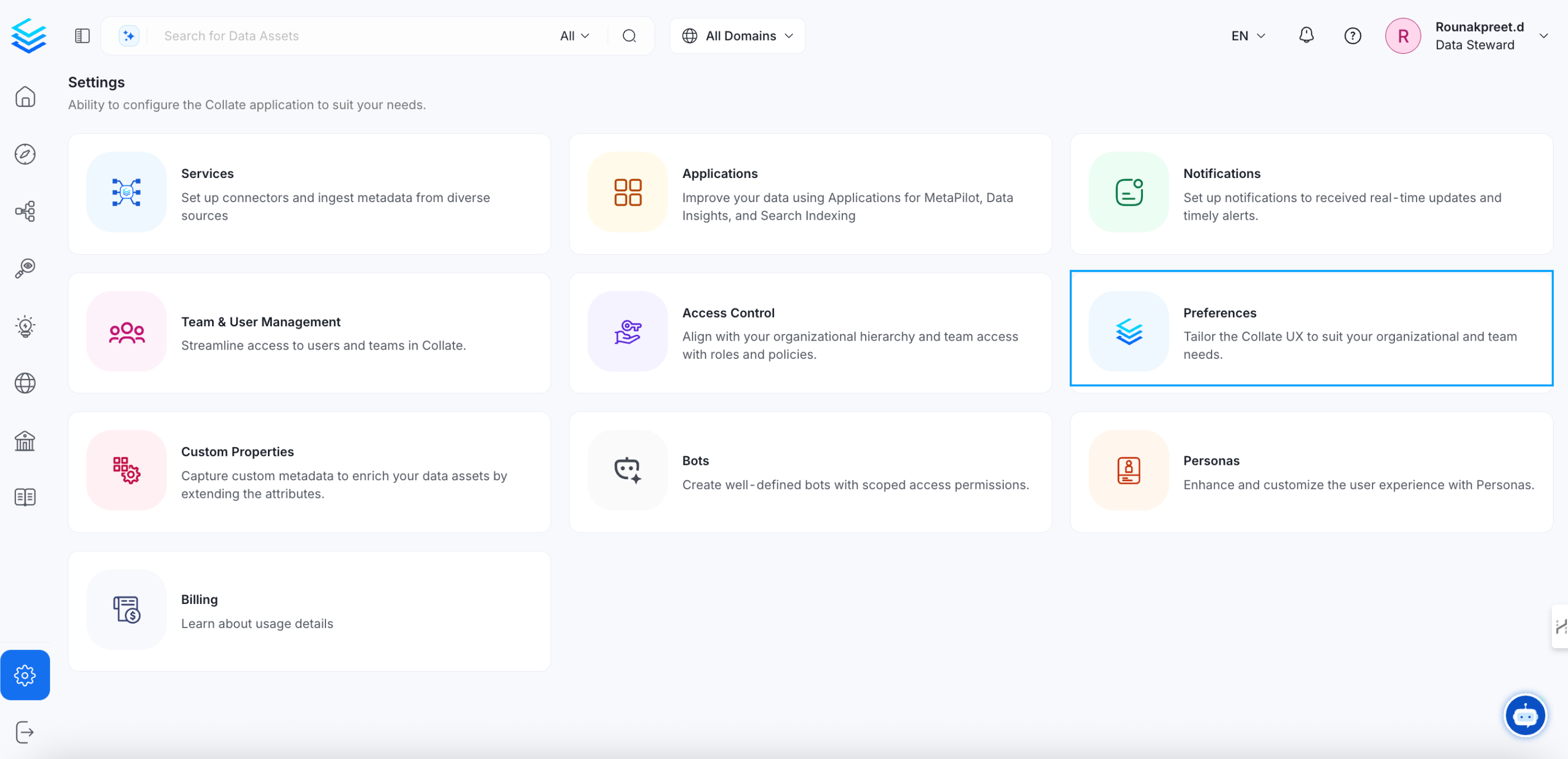 2. Click **Theme**.
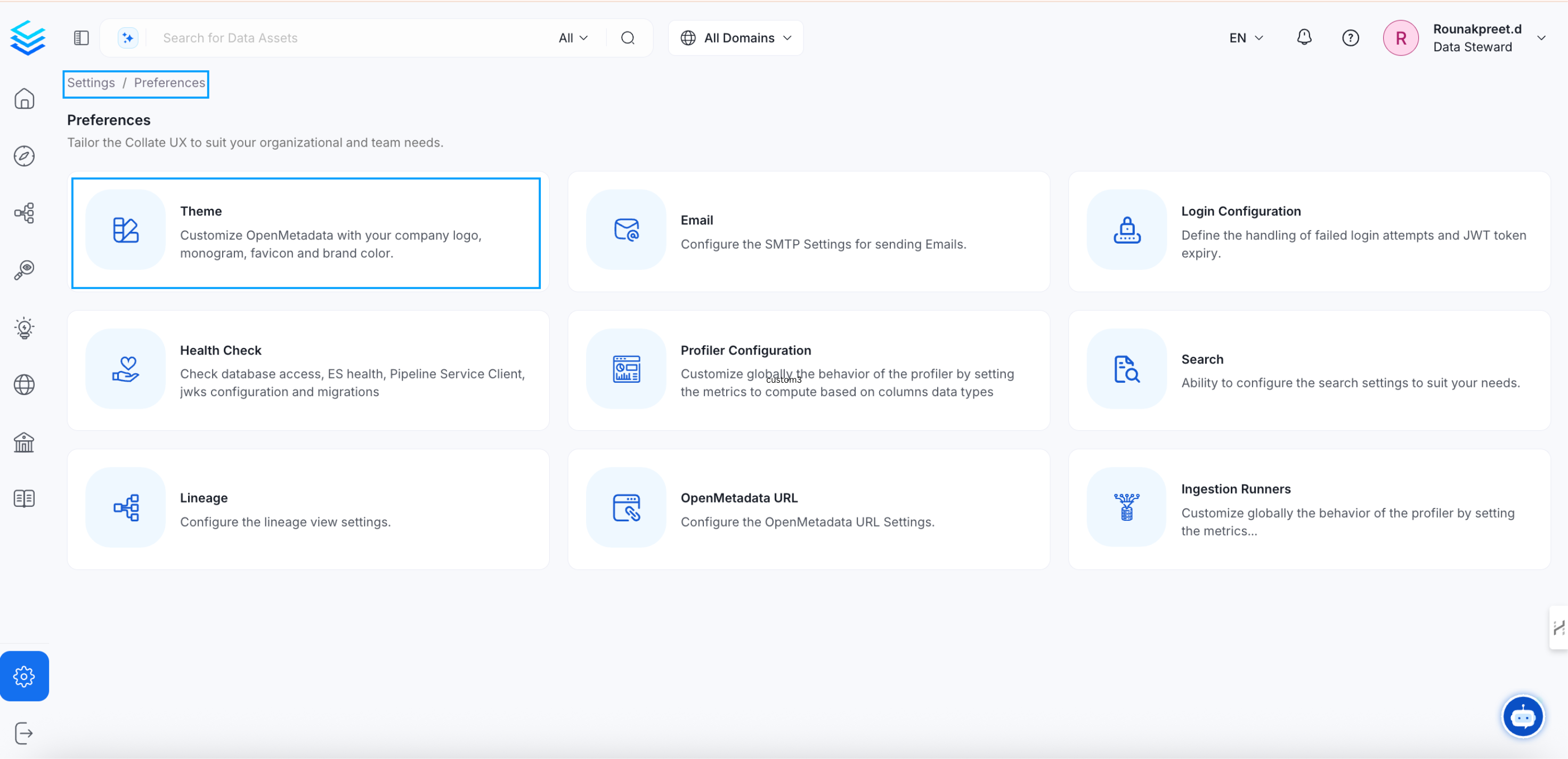 ## Custom Logo
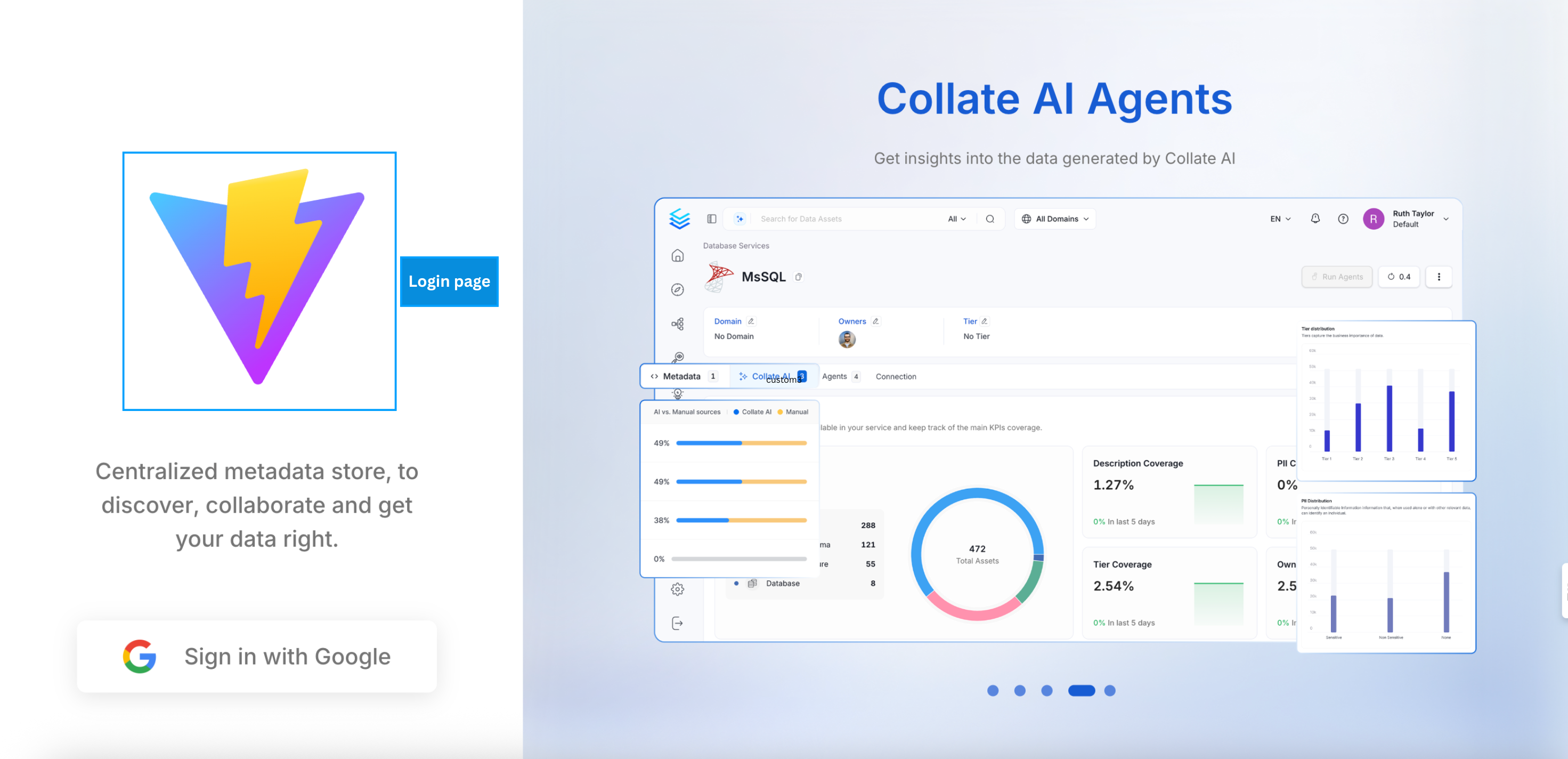
The **Custom Logo** panel replaces the default Collate branding assets with your organization's own images. Each field takes a URL rather than a file upload, so the image needs to already be hosted somewhere reachable by anyone loading the Collate UI, such as your own CDN or object storage:
| Field | Description | Recommended size |
| :--------------- | :------------------------------------------- | :---------------------------- |
| **Logo URL** | URL of the image shown on the login page | 5:2 aspect ratio, 150 x 60 px |
| **Monogram URL** | URL of the image shown in the navigation bar | 1:1 aspect ratio, 30 x 30 px |
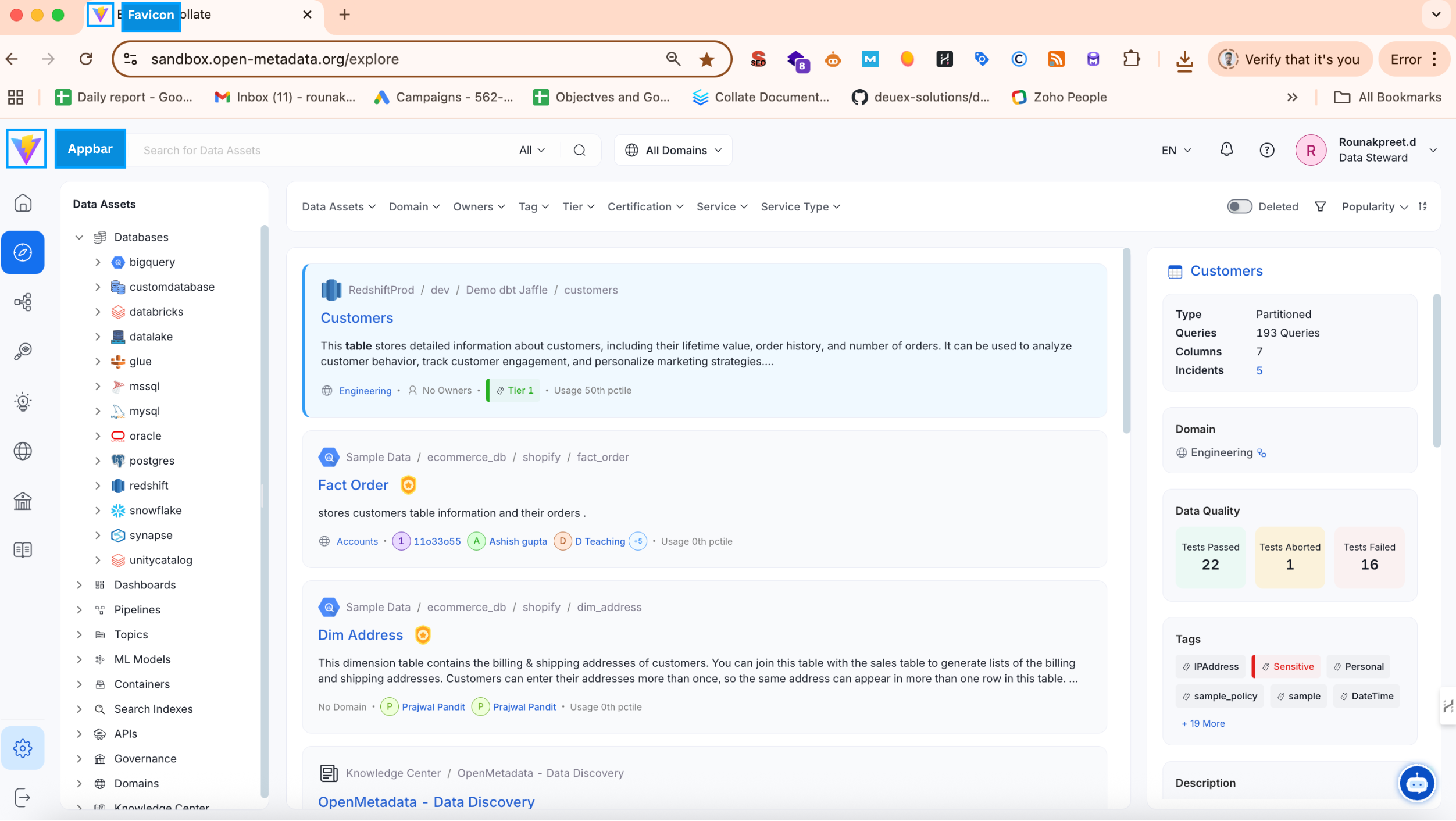
| **Favicon URL** | URL of the browser tab icon | 1:1 aspect ratio, 16 x 16 px |
## Custom Logo
The **Custom Logo** panel replaces the default Collate branding assets with your organization's own images. Each field takes a URL rather than a file upload, so the image needs to already be hosted somewhere reachable by anyone loading the Collate UI, such as your own CDN or object storage:
| Field | Description | Recommended size |
| :--------------- | :------------------------------------------- | :---------------------------- |
| **Logo URL** | URL of the image shown on the login page | 5:2 aspect ratio, 150 x 60 px |
| **Monogram URL** | URL of the image shown in the navigation bar | 1:1 aspect ratio, 30 x 30 px |
| **Favicon URL** | URL of the browser tab icon | 1:1 aspect ratio, 16 x 16 px |
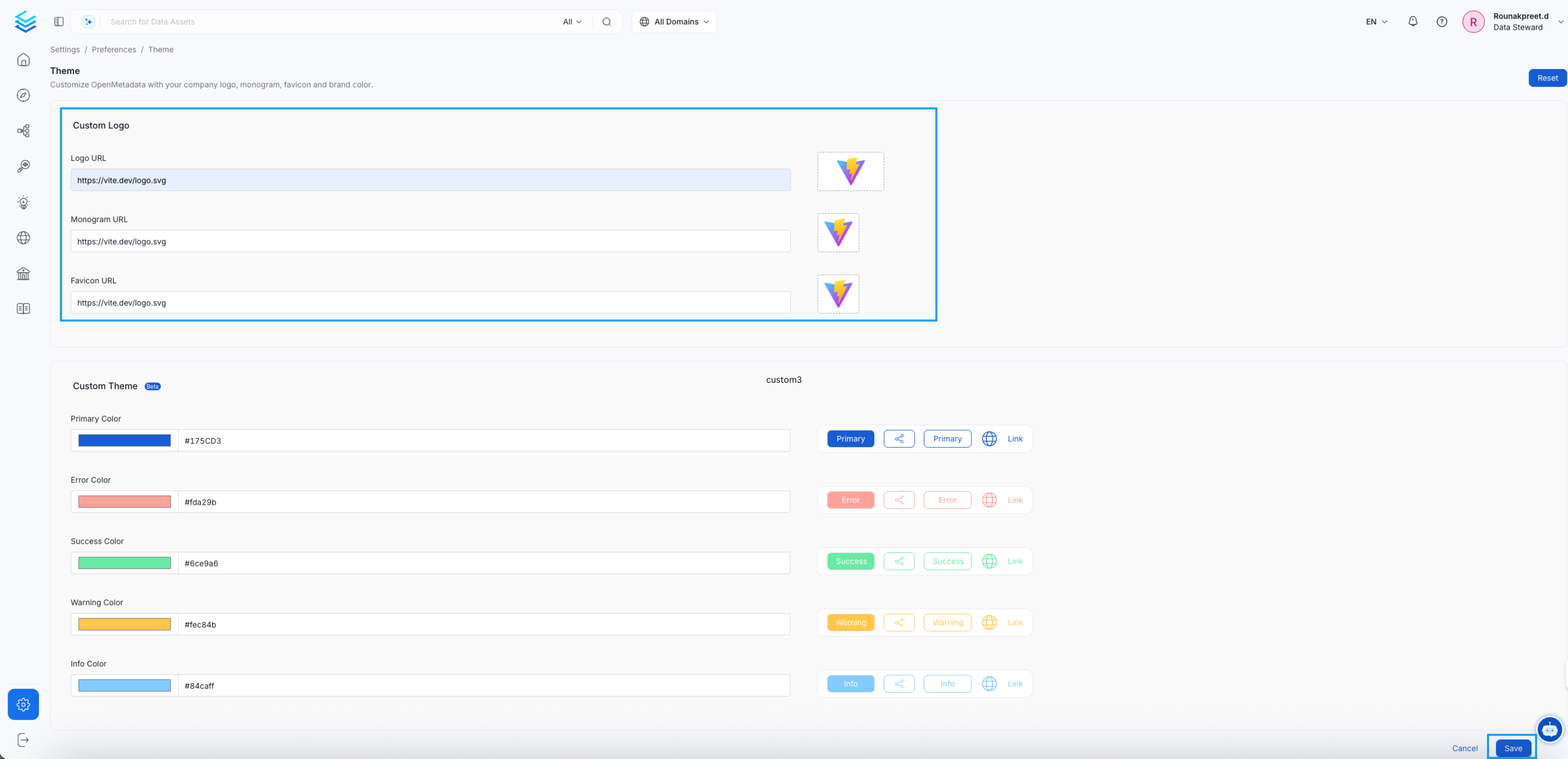 After entering the URLs, select **Save**. Changes can take a few minutes to reflect everywhere in the UI, so refresh the page and wait briefly before assuming a URL was entered incorrectly.
 ## Custom Theme
The **Custom Theme** panel defines the brand colors used across buttons, links, and status indicators throughout the interface, so the whole product reads as consistent with the rest of your brand rather than just the parts with a logo on them. Each field accepts a HEX color code or a color picker selection, and the preview on the right updates in real time to show the effect before you save. Leaving a field blank keeps Collate's own default for that color, shown below.
| Color | Applied to | Default |
| :------------------------- | :-------------------------------------------------------------------------------------------------------- | :-------- |
| **Primary Color** | Primary buttons, links, and key UI elements | `#1570EF` |
| **Selected Color** | Selected state on data assets and navigation items | `#175CD3` |
| **Hover Color** | Background highlight on interactive elements | `#D1E9FF` |
| **Info Color** | Informational messages and hints | `#84CAFF` |
| **Panel Background Color** | Background of the landing page welcome panel. Individual users and personas can still override this value | Not set |
| **Success Color** | Success confirmations and positive states | `#039855` |
| **Warning Color** | Warning messages and caution alerts | `#DC6803` |
| **Error Color** | Error messages and destructive action indicators | `#D92D20` |
After configuring colors, select **Save** to apply them.
Click **Reset** at the top of the Theme page to clear every logo and color field back to Collate's own defaults shown in the tables above.
## Custom Theme
The **Custom Theme** panel defines the brand colors used across buttons, links, and status indicators throughout the interface, so the whole product reads as consistent with the rest of your brand rather than just the parts with a logo on them. Each field accepts a HEX color code or a color picker selection, and the preview on the right updates in real time to show the effect before you save. Leaving a field blank keeps Collate's own default for that color, shown below.
| Color | Applied to | Default |
| :------------------------- | :-------------------------------------------------------------------------------------------------------- | :-------- |
| **Primary Color** | Primary buttons, links, and key UI elements | `#1570EF` |
| **Selected Color** | Selected state on data assets and navigation items | `#175CD3` |
| **Hover Color** | Background highlight on interactive elements | `#D1E9FF` |
| **Info Color** | Informational messages and hints | `#84CAFF` |
| **Panel Background Color** | Background of the landing page welcome panel. Individual users and personas can still override this value | Not set |
| **Success Color** | Success confirmations and positive states | `#039855` |
| **Warning Color** | Warning messages and caution alerts | `#DC6803` |
| **Error Color** | Error messages and destructive action indicators | `#D92D20` |
After configuring colors, select **Save** to apply them.
Click **Reset** at the top of the Theme page to clear every logo and color field back to Collate's own defaults shown in the tables above.