> ## Documentation Index
> Fetch the complete documentation index at: https://docs.getcollate.io/llms.txt
> Use this file to discover all available pages before exploring further.
# Resolving Data Insights and KPI Display Issues in Collate
# Data Insights Application (Troubleshooting)
If you are experiencing any of the following issues in Data Insights Application, follow the steps below to diagnose and resolve the problem.
* Insights menu returns no results.
* KPI charts do not display.
* Data Insights reports show no data.
* Filtering by "Yesterday" or "Last 3 Days" yields no results.
## Troubleshooting Steps
### 1. Verify Data Insights Application Installation
Ensure that the **Data Insights** application is installed:
* Navigate to `Settings` > `Applications`.
* Check if **Data Insights Application** is listed.
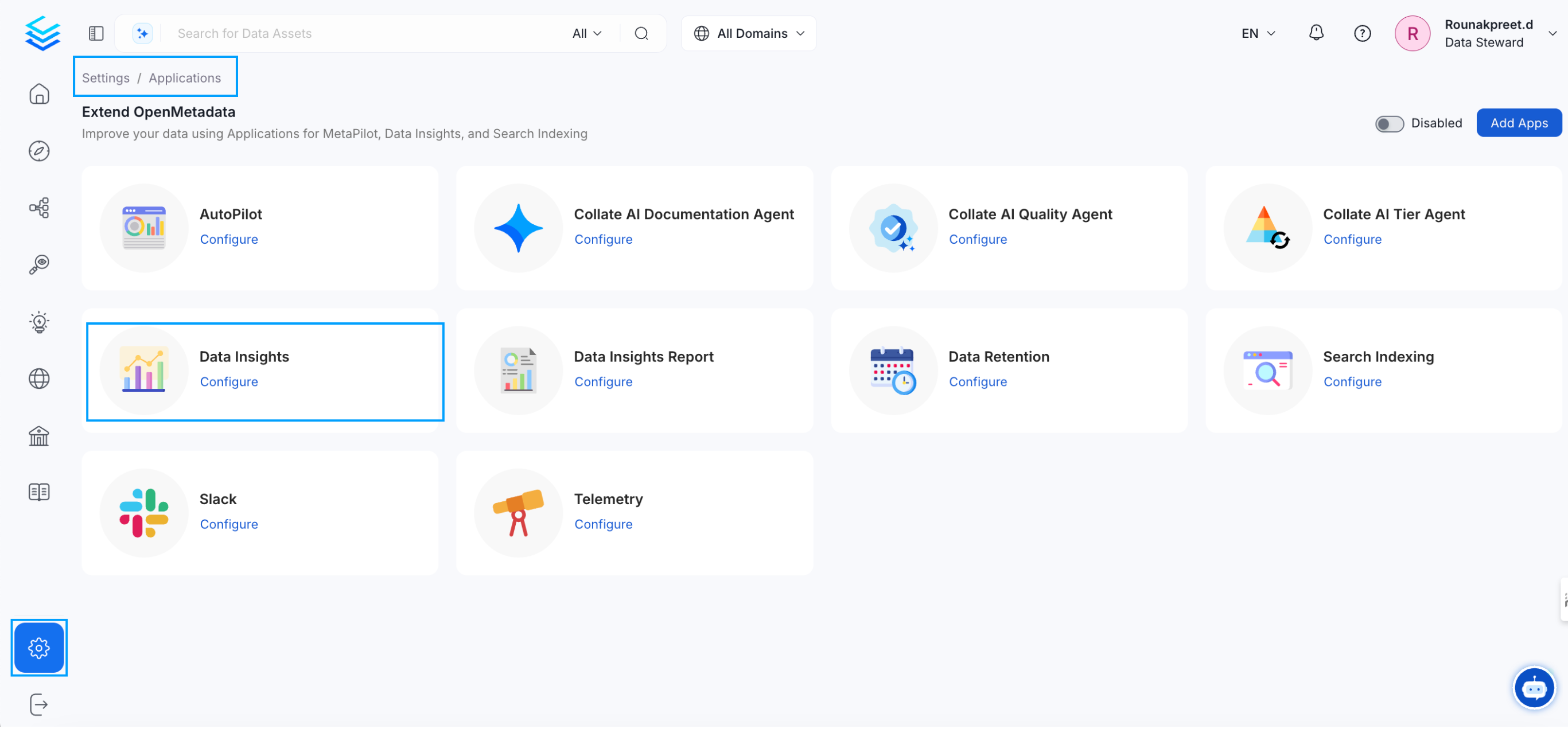 * If not, click `Add Apps` and install **Data Insights Application**.
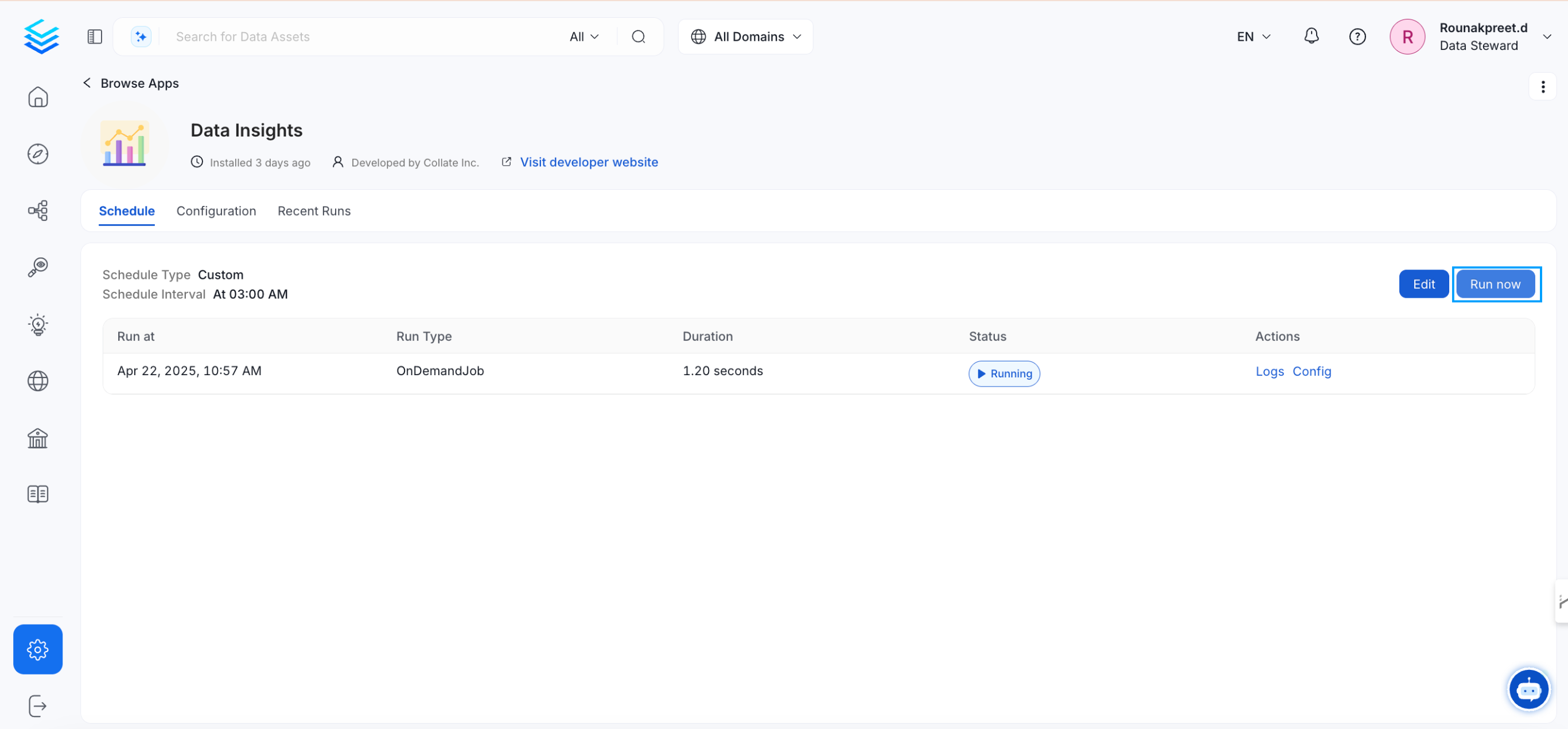
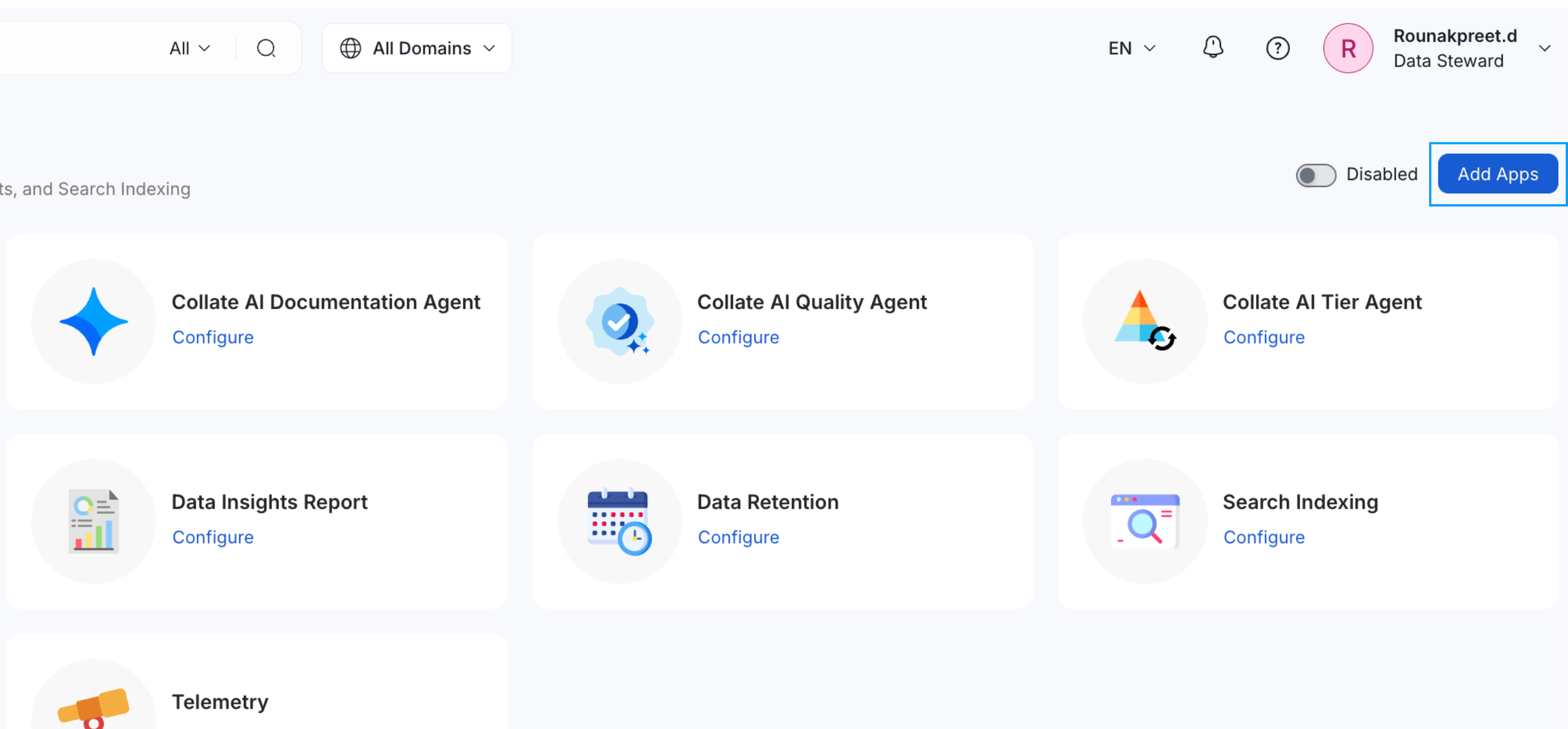 ### 2. Run the Data Insights Application
* Click `Configure` to set parameters.
### 2. Run the Data Insights Application
* Click `Configure` to set parameters.
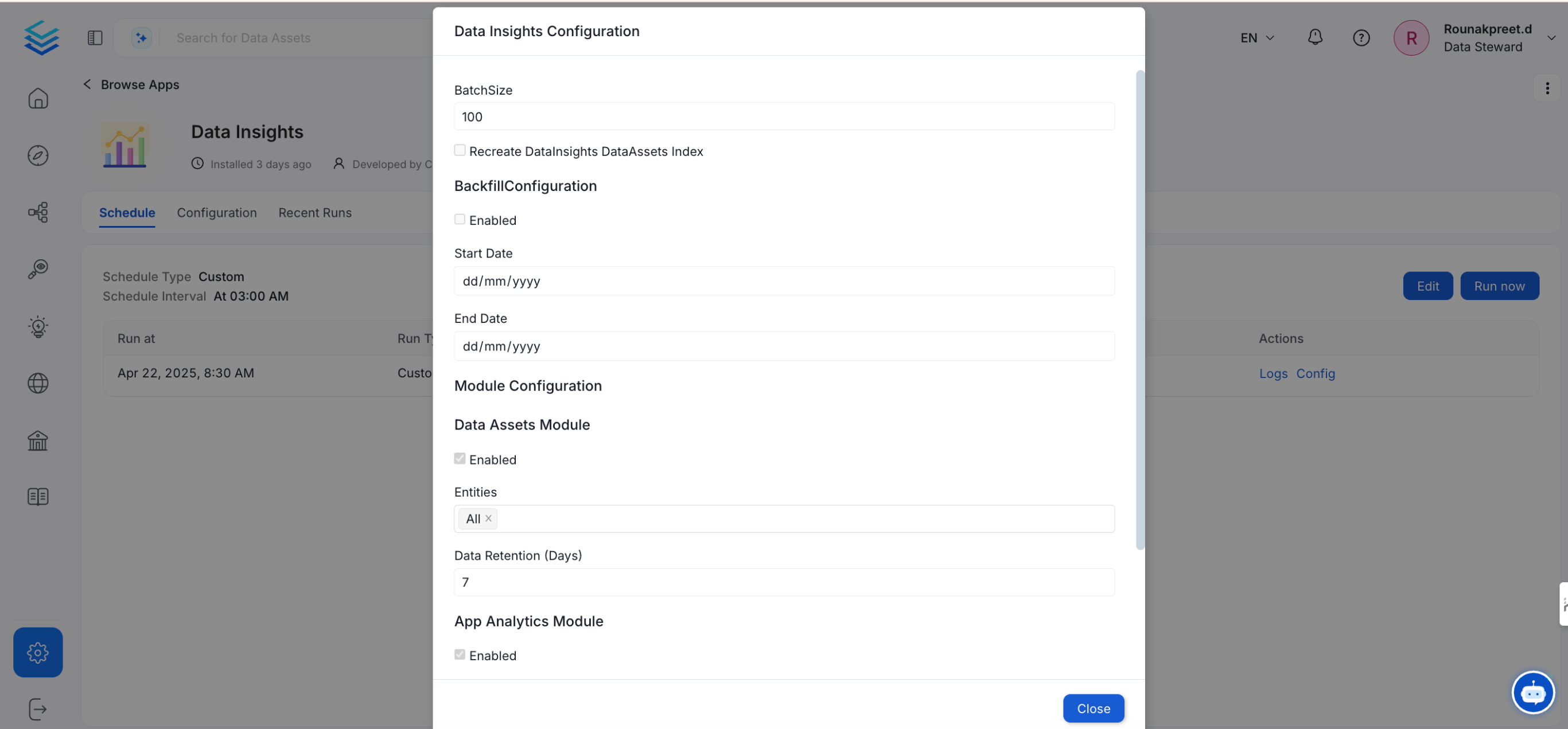 * Click `Schedule` to define execution timing.
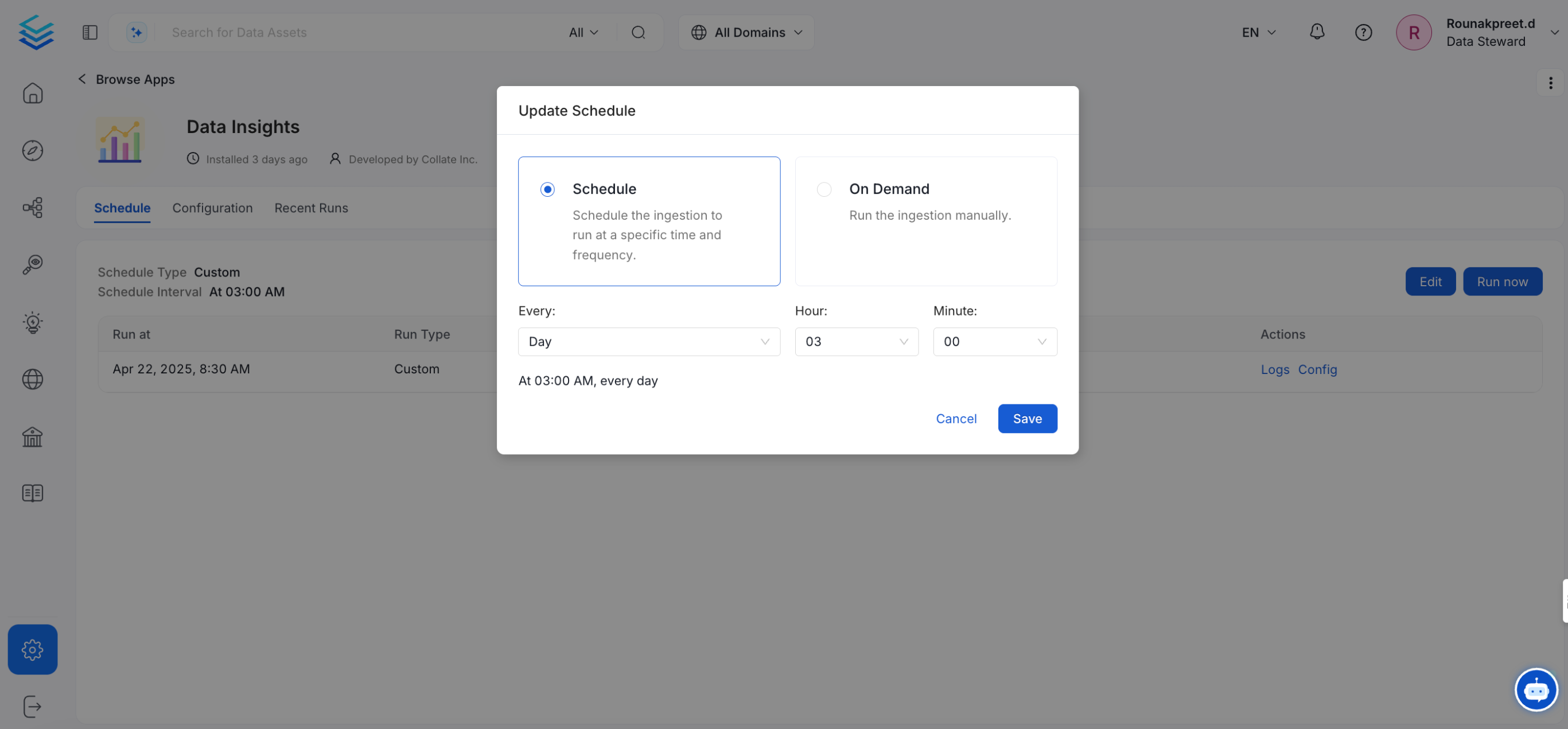 * Click `Run Now` to execute the Data Insights workflow.
 ### 3. Enable Backfill and Recreate Index Options
When configuring the Data Insights application:
* Enable **Backfill Configuration**.
### 3. Enable Backfill and Recreate Index Options
When configuring the Data Insights application:
* Enable **Backfill Configuration**.
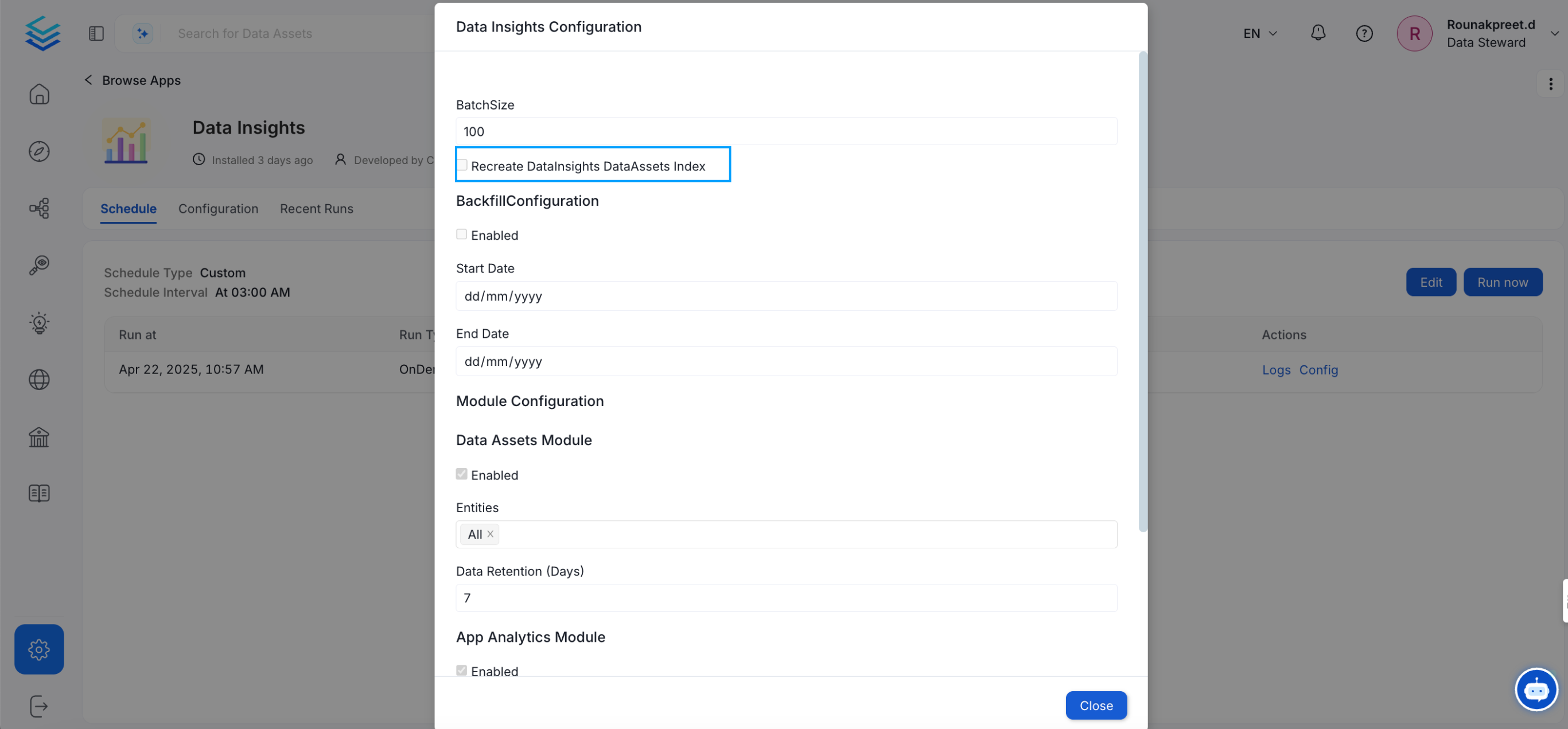 * Enable **Recreate DataInsights DataAssets Index**.
This will backfill historical data and recreate the index for accurate chart rendering.
* Enable **Recreate DataInsights DataAssets Index**.
This will backfill historical data and recreate the index for accurate chart rendering.