> ## Documentation Index
> Fetch the complete documentation index at: https://docs.getcollate.io/llms.txt
> Use this file to discover all available pages before exploring further.
# Collate SaaS Setup
> Connect a database service in Collate SaaS, allow IP access, test the connection, and run your first metadata extraction.
## Collate SaaS
Collate SaaS is the simplest way to connect a data source. Collate connects directly to your data source from its cloud — no local agent or additional infrastructure required.
**When to use this**: Use Collate SaaS when your data source is accessible from the internet or you're able to allowlist an IP address in your data source's firewall settings.
### Setting Up a Database Service
To set up a database service, follow these steps:
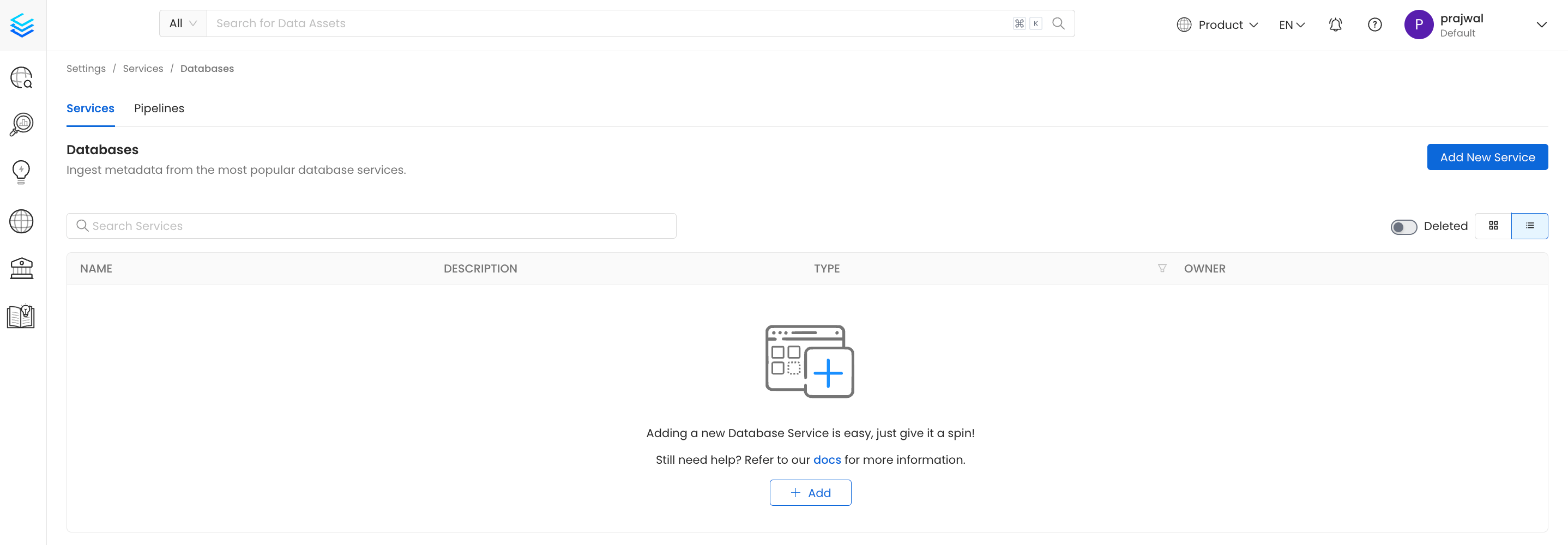
1. Sign in to your Collate instance, then navigate to **Settings** > **Services** and select the service type. For example, select **Databases**.
2. On the service page, click **Add New Service**.
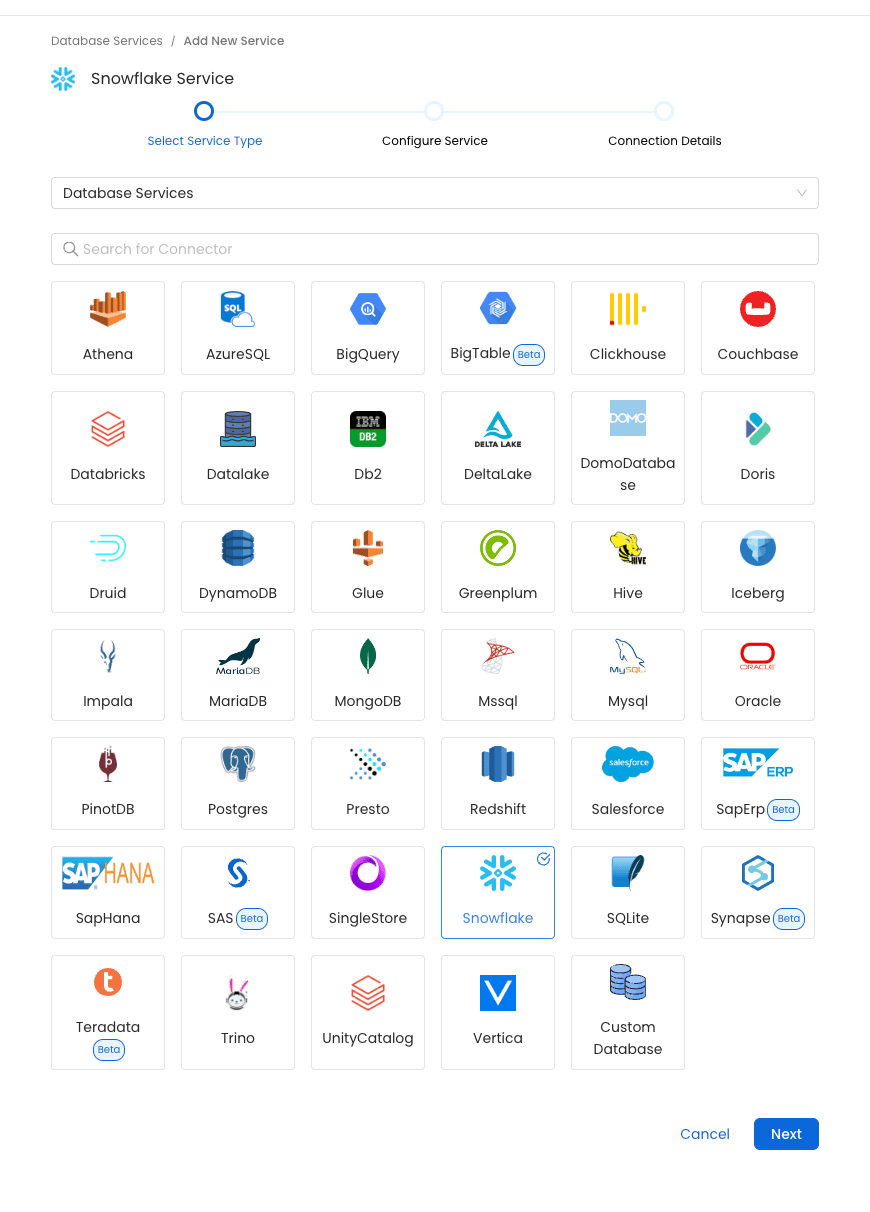
 3. Select the service connector and click **Next**. For example, the below image displays the **Snowflake** connector is selected for **Databases** service.
 4. Enter unique **Service Name** and **Description** (optional), then click **Next**.
5. Enter the **Connection Details**. Refer to the side panel documentation for field-by-field guidance.
For more information about configuring each connector, see [Connector](/connectors/index).
4. Enter unique **Service Name** and **Description** (optional), then click **Next**.
5. Enter the **Connection Details**. Refer to the side panel documentation for field-by-field guidance.
For more information about configuring each connector, see [Connector](/connectors/index).
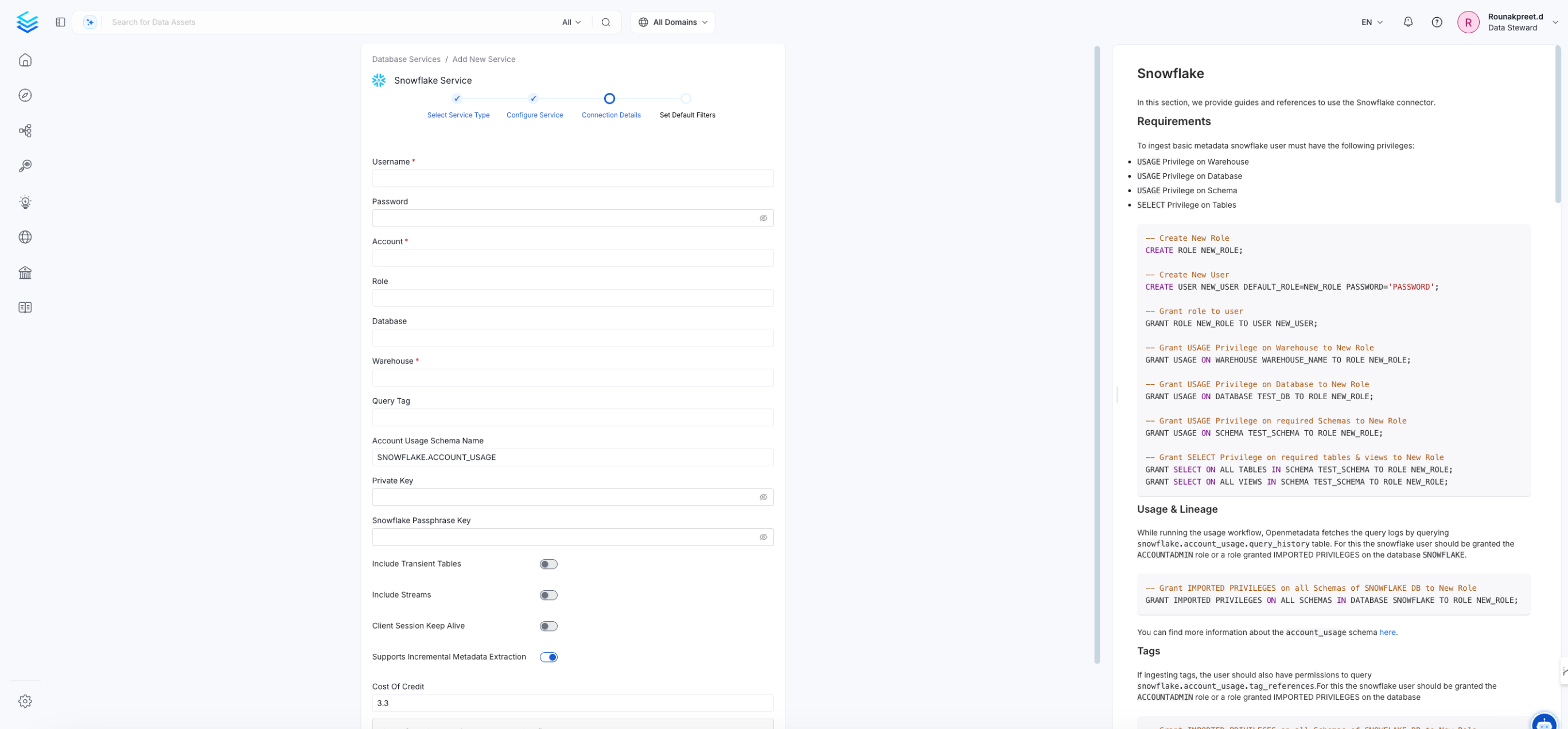 6. In the Connection Details, you will see the IP Address unique to your cluster. Add this IP to your data source's allowlist so Collate can access your data source.
This step applies to Collate SaaS only. If you're using the Hybrid Runner, no IP allowlist is needed — the runner connects from inside your own infrastructure.
6. In the Connection Details, you will see the IP Address unique to your cluster. Add this IP to your data source's allowlist so Collate can access your data source.
This step applies to Collate SaaS only. If you're using the Hybrid Runner, no IP allowlist is needed — the runner connects from inside your own infrastructure.
 7. To verify that Collate can reach the data source, click **Test Connection**. The test confirms the service is reachable and the credentials are valid.
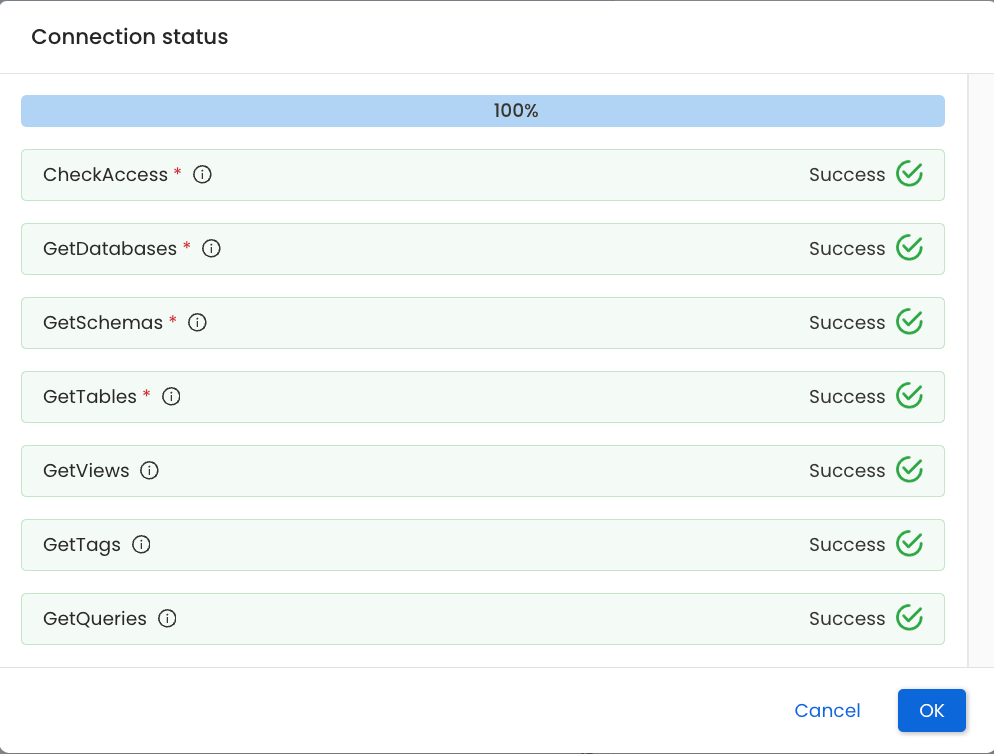 8. After the connection test passes, proceed to [Step 2 - Configure Metadata Ingestion](/getting-started/ingest-metadata).