
SAML AZURE SSO
Follow the sections in this guide to set up Azure SSO using SAML.Create OpenMetadata application
Step 1: Configure a new Application in Microsoft Entra ID
- Login to Azure Portal as an administrator and search for Microsoft Entra ID.
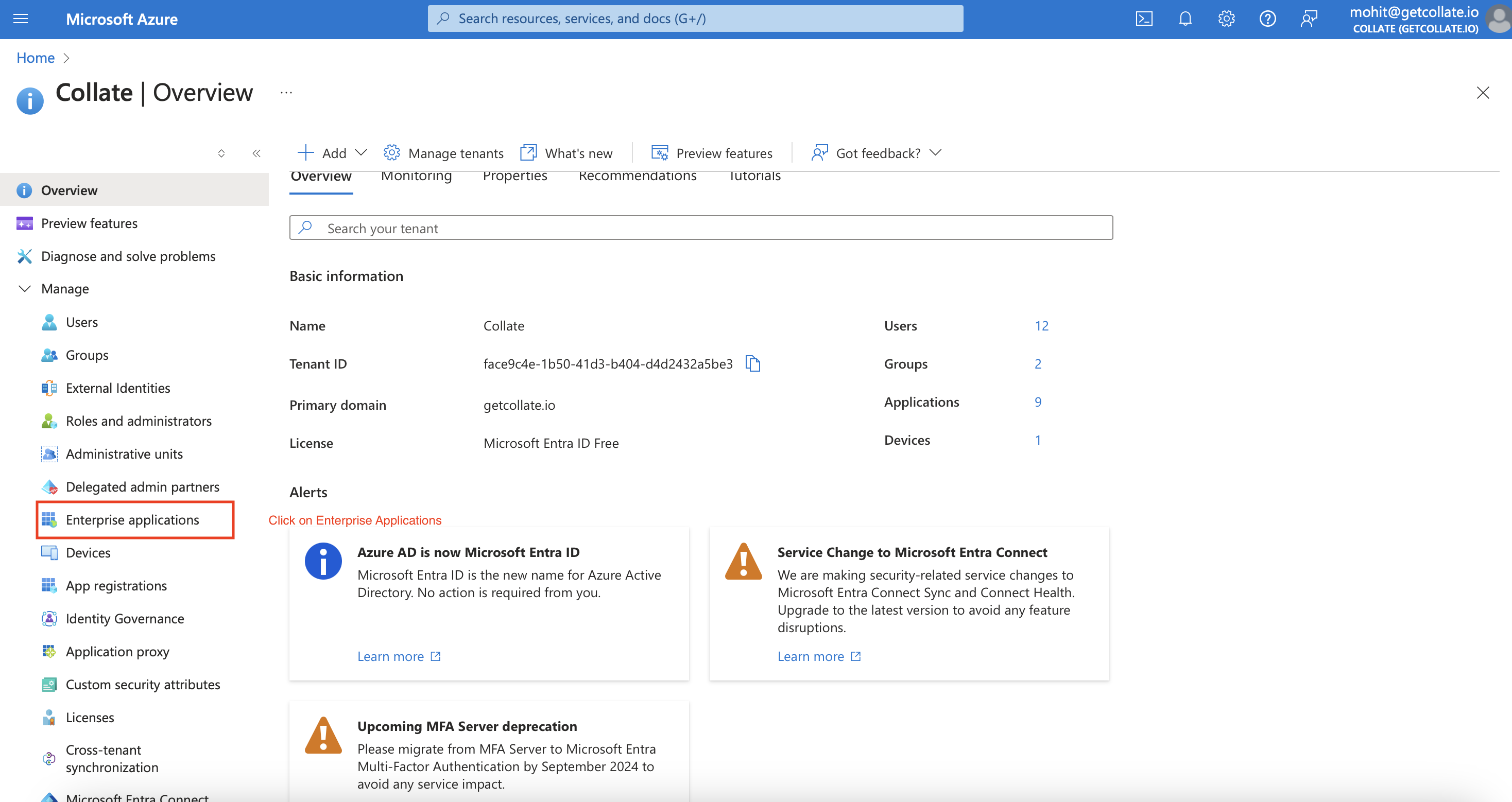
- Click on
Enterprise Applicationsand then+ New Application.

- After that a new window will appear with different applications, click on
Create your own application.
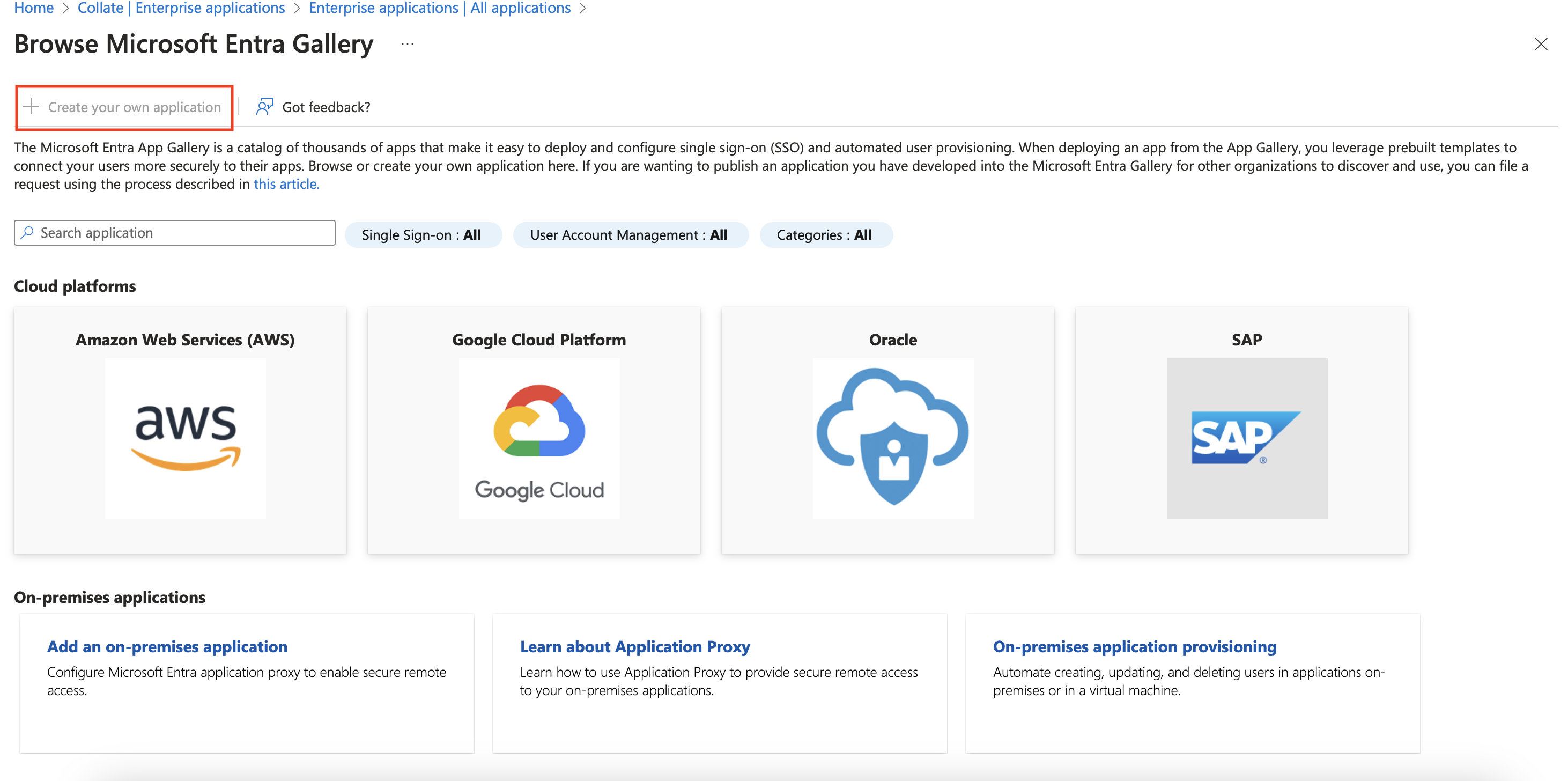
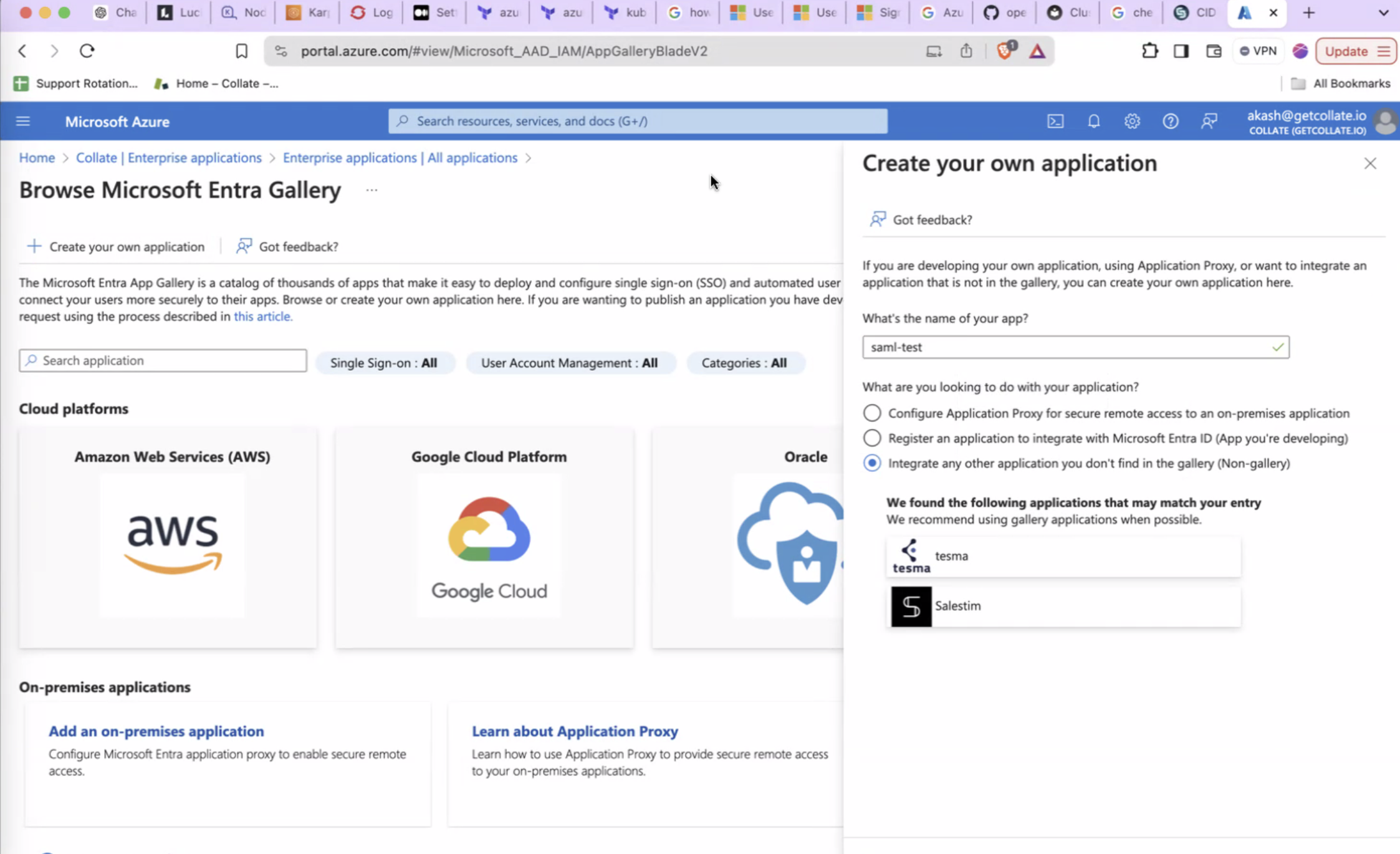
- Give your application a name and select
Integrate any other application you don't find in the galleryand then clickCreate.
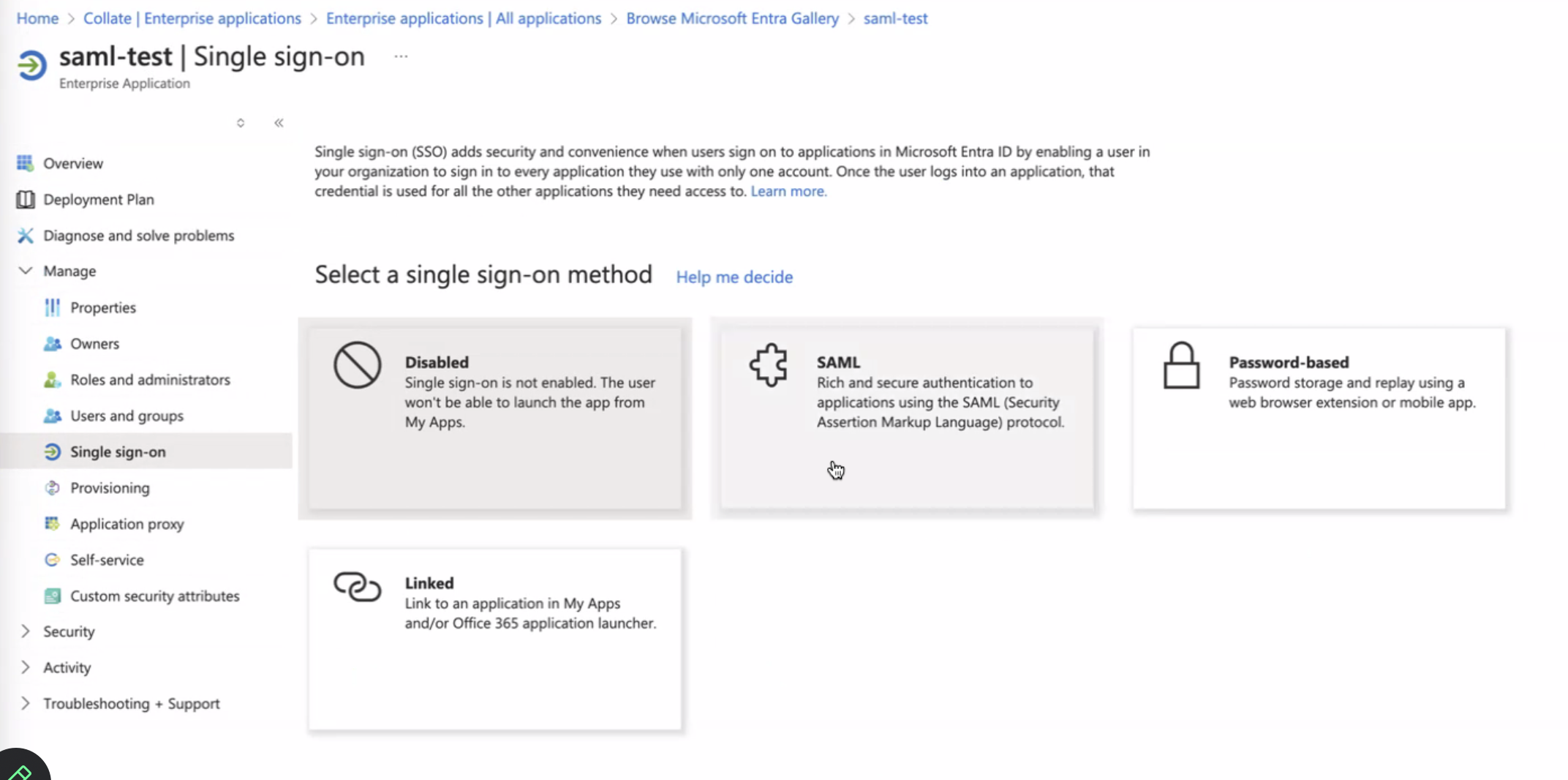
- Once you have the application created, open the app from list , and then click on
Single Sign-Onand thenSAML.
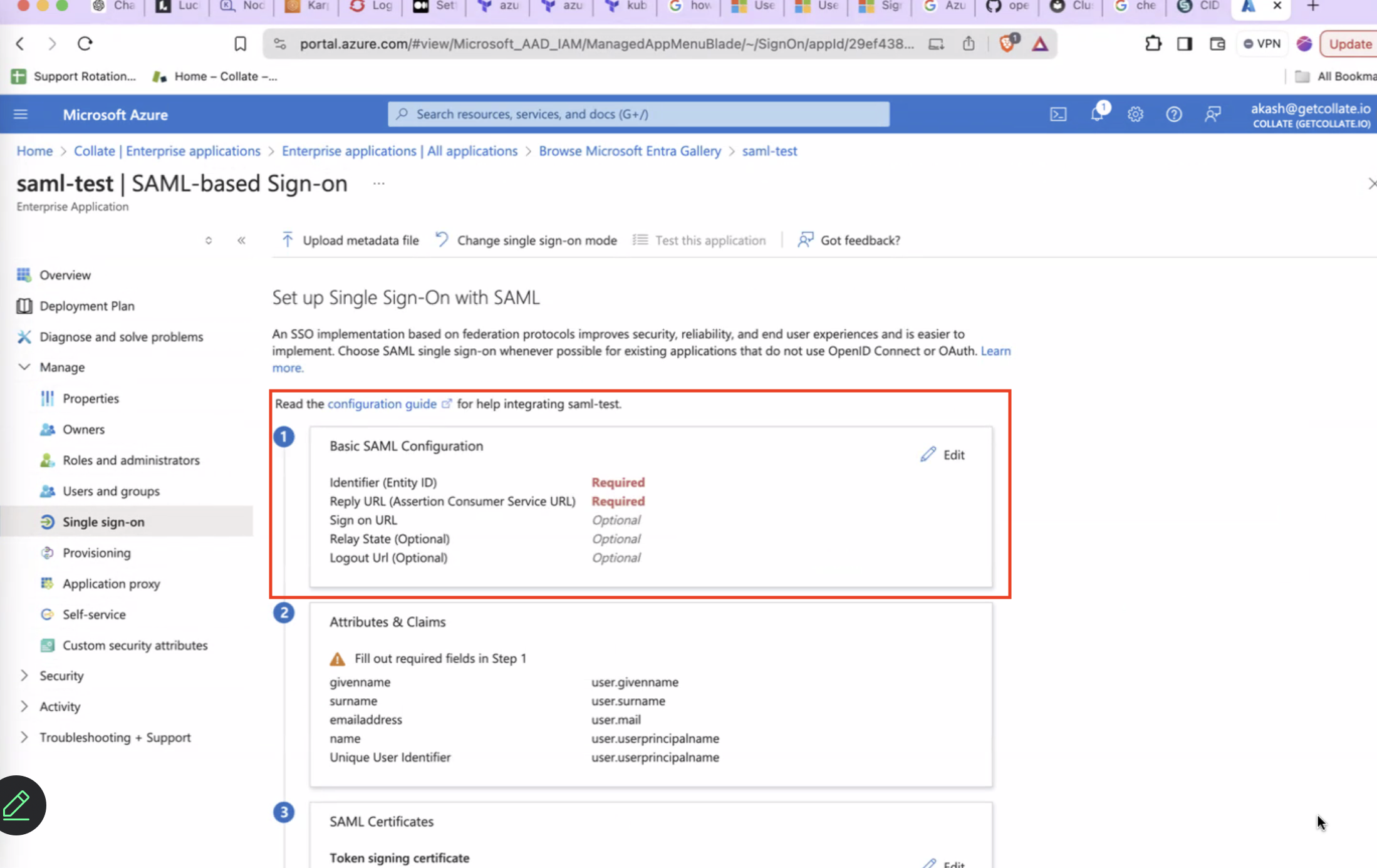
- Edit
Basic SAML Configurationand populate the values as shown below forEntityIdandAssertion Consumer Service Url. These value should match the one configured with Openmetadata Server side forsamlConfiguration.sp.entityIdandsamlConfiguration.sp.acsrespectively. After this clickSave.
- Click on
Attributes and Claimsand click on theRequired Claim (NameId).
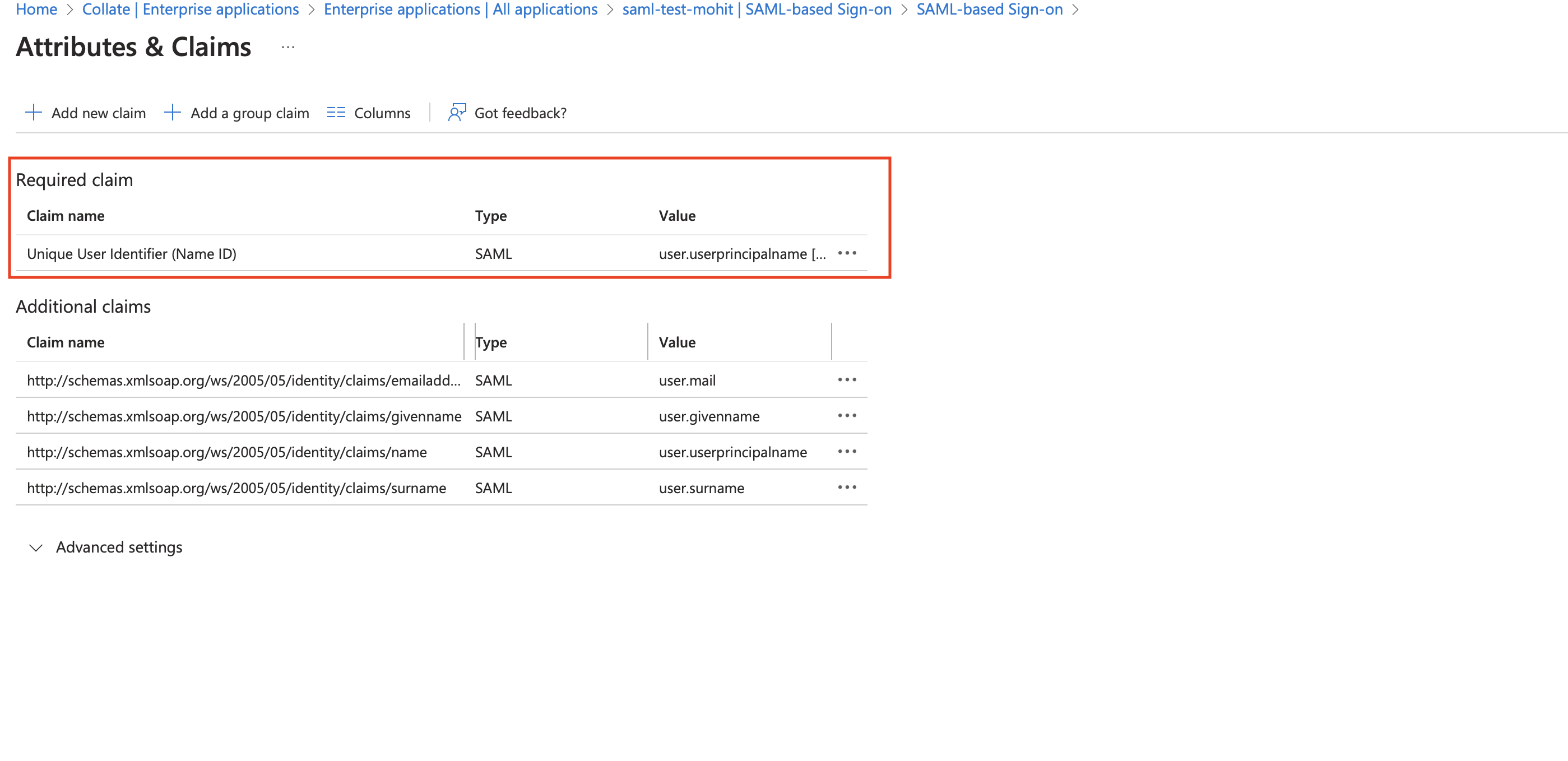
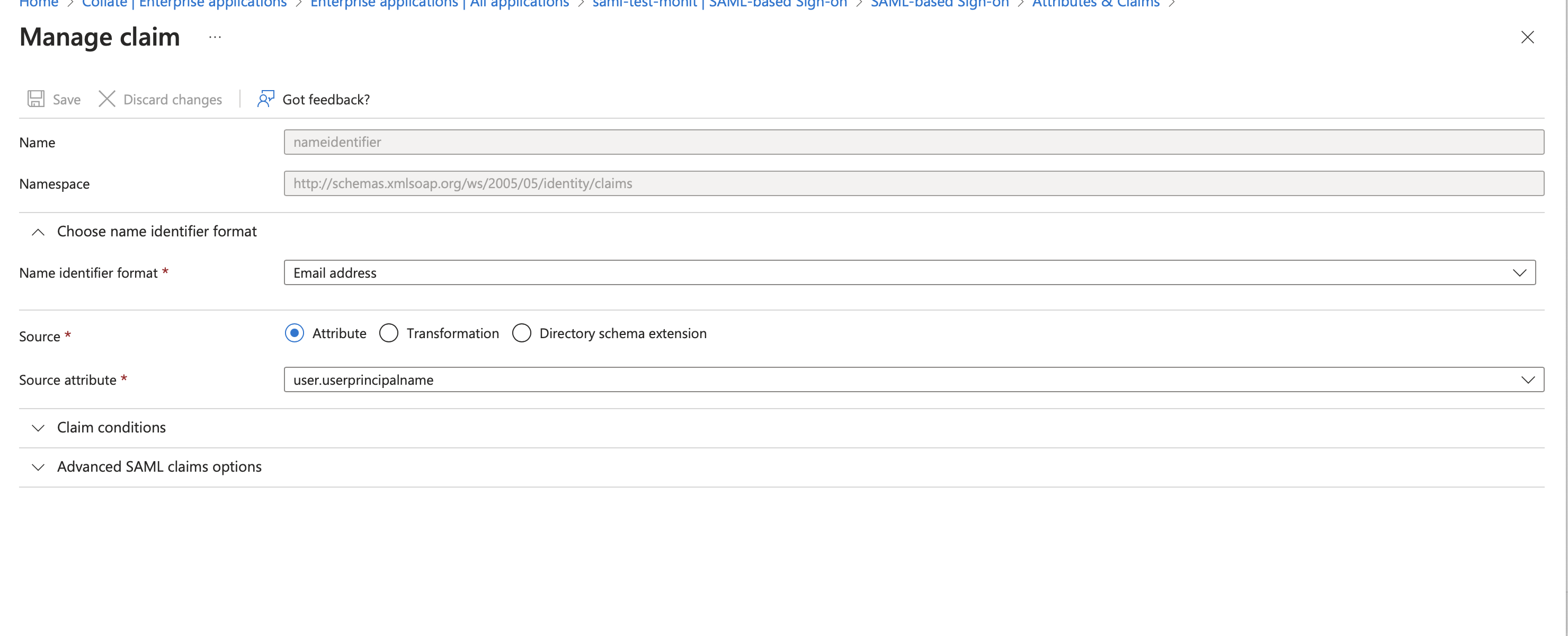
- You will see the values as below image, we need to set the value
Source Attributeto a user mail value claim from the IDP. Click onEditand then select theSource Attributeasuser.mailoruser.userprincipalname(in some cases this is also a mail) and then clickSave.
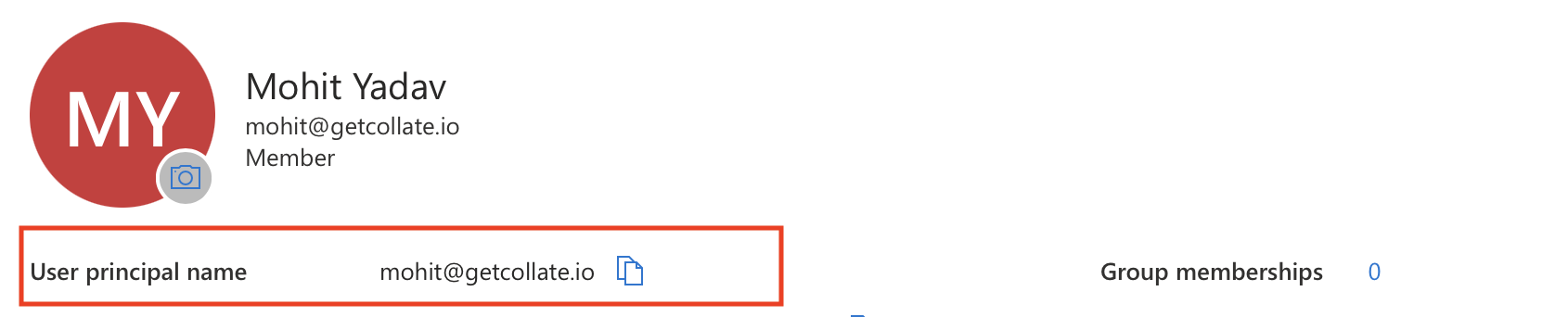
- To Confirm the claim value we can navigate to user page and check the value of the user. In my case as you can see User Princpal Name is a my mail which i want to use for Openmetadata , so for me
user.userprincipalnamewould be correct claim.
Security requirements for your production environment: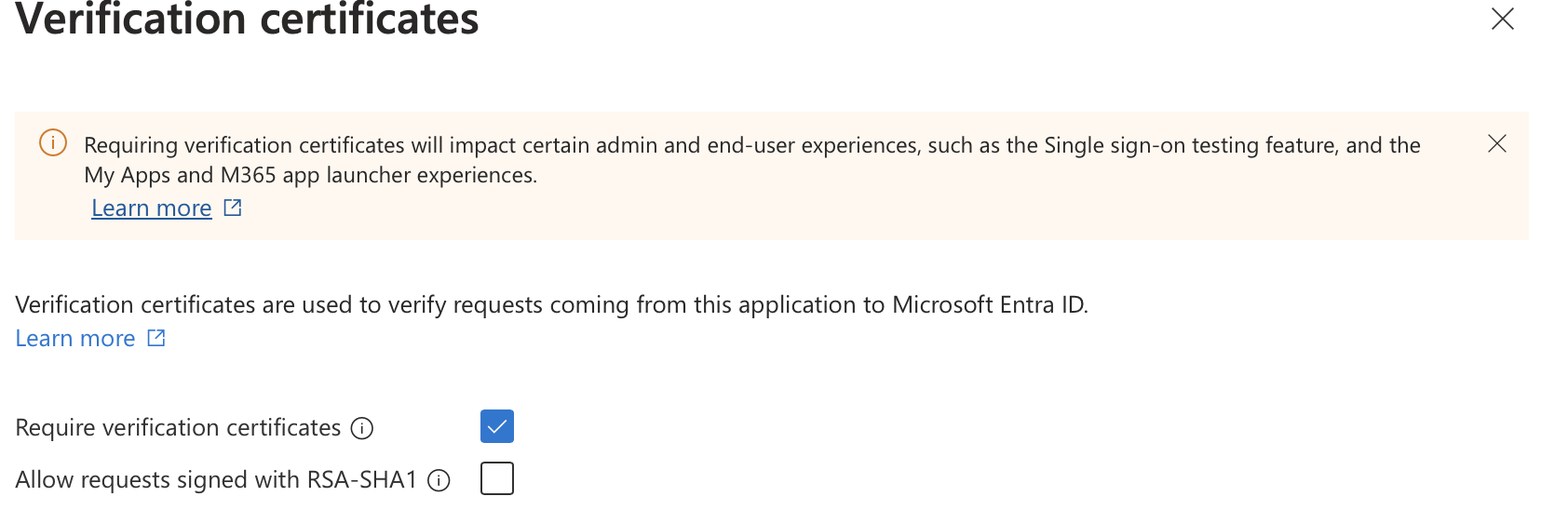
- You must always communicate via signed Request for both request from SP to IDP and response from IDP to SP.
- To do so we need to add SP certificate to IDP , so that IDP can validate the signed Auth Request coming from SP.
- Generate the certificate using below command and then upload the certificate to IDP.
- Under
Single Sign-Onyou will see SAML Certificates, click onVerification Certificates.
- You can then check the
Require Verification Certificatesand import the certification with .cer format we generated previously.
Step 2: Setup OpenMetadata Server
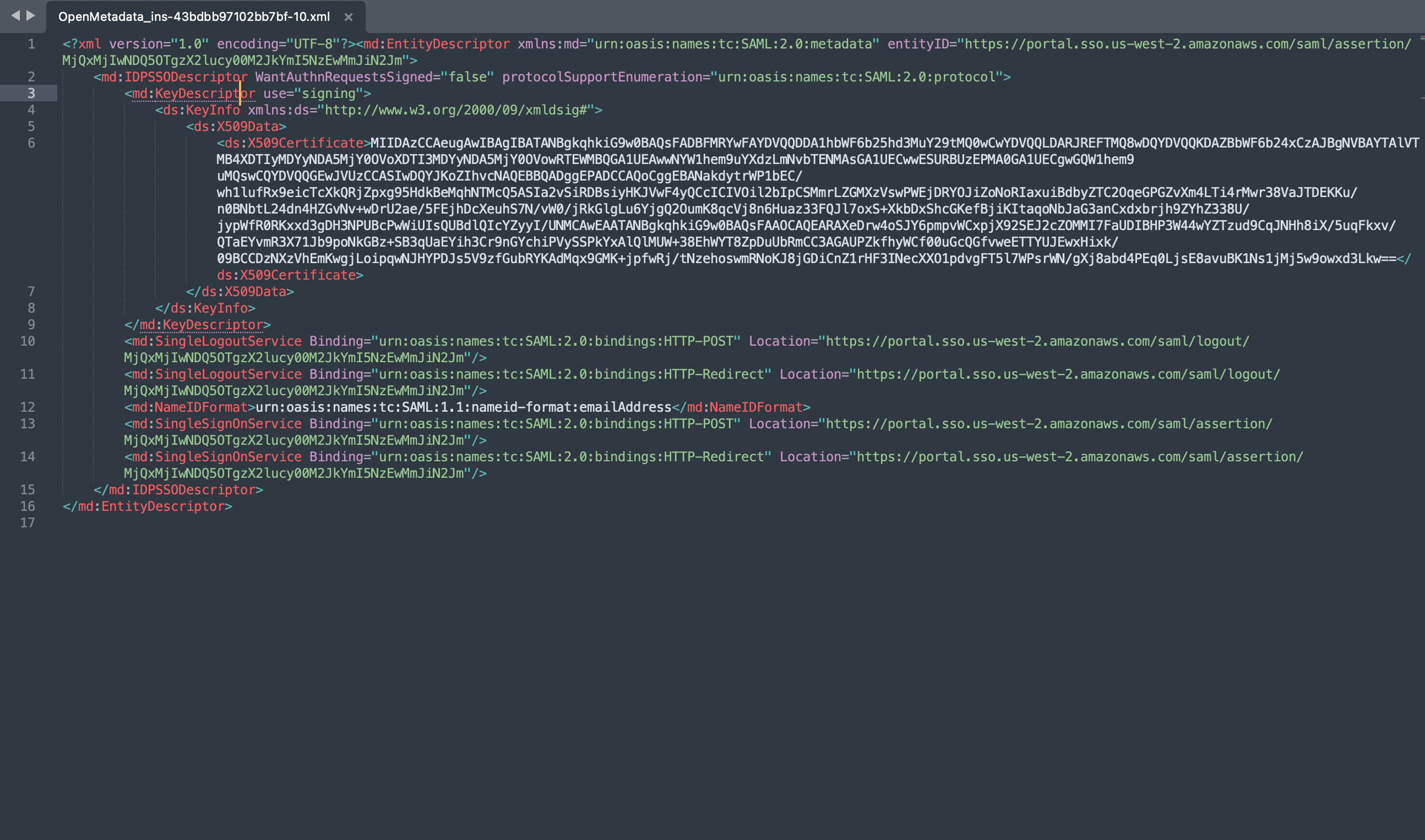
- Open the downloaded metadata xml file, and populate the following properties in
openmetadata.yml
- Populate the above config from xml metadata
-
IDP Config
entityID-> Populate it from Metadata XML Entity IDHTTP-Redirect SSO Login URL-> always select HTTP-Redirect Url for SSO Login UrlX509 Certificate-> This is also available in the IDP XML.NameIDFormat-> from MetadataXML NameIDFormatauthorityUrl-> set as /://:/api/v1/saml/login -
SP Config
entityId-> -> set as /://:/api/v1/saml/acsacs-> Assertion Consumer Url , set as /://:/api/v1/saml/acsspX509Certificate-> set to your X509 Signing Keycallback-> set as /:///api/v1/saml/callback
Step 3: Setup JWT Configuration
- Follow the guide here for JWT Configuration Enable JWT Token.
Step 4: Start the server
- Start the OpenMetadata server. With
AUTHENTICATION_PROVIDERset to saml, you should be routed to the IDP upon sign-in.