
Google SSO
Follow the sections in this guide to set up Google SSO.Create Server Credentials
Step 1: Create the Account
- Go to Create Google Cloud Account
- Click on
Create Project
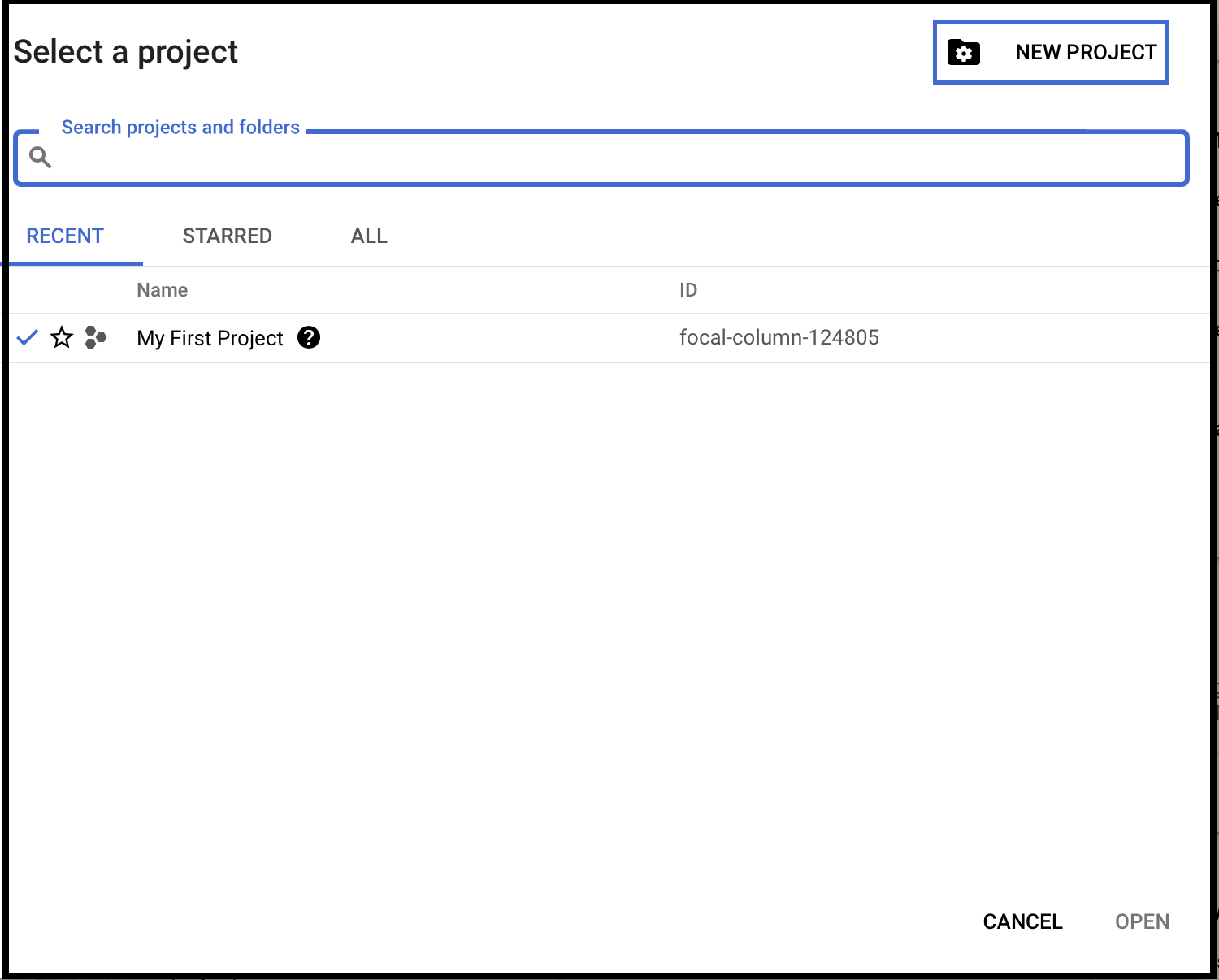
Step 2: Create a New Project
Enter the Project name. Enter the parent organization or folder in the Location box. That resource will be the hierarchical parent of the new project. Click Create.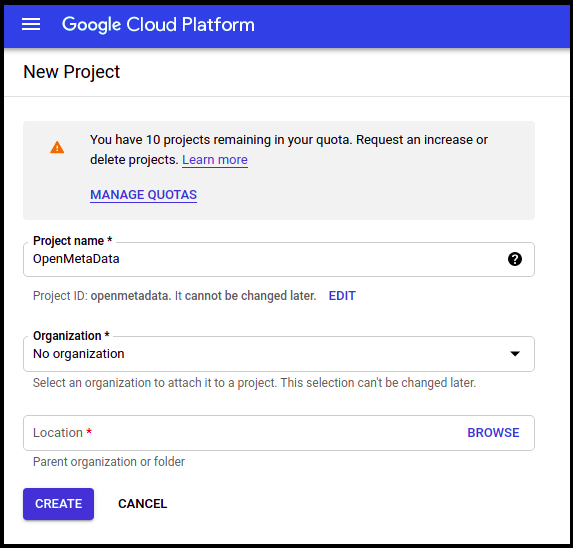
Step 3: How to Configure OAuth Consent
- Select the project you created above and click on APIs & Services on the left-side panel.
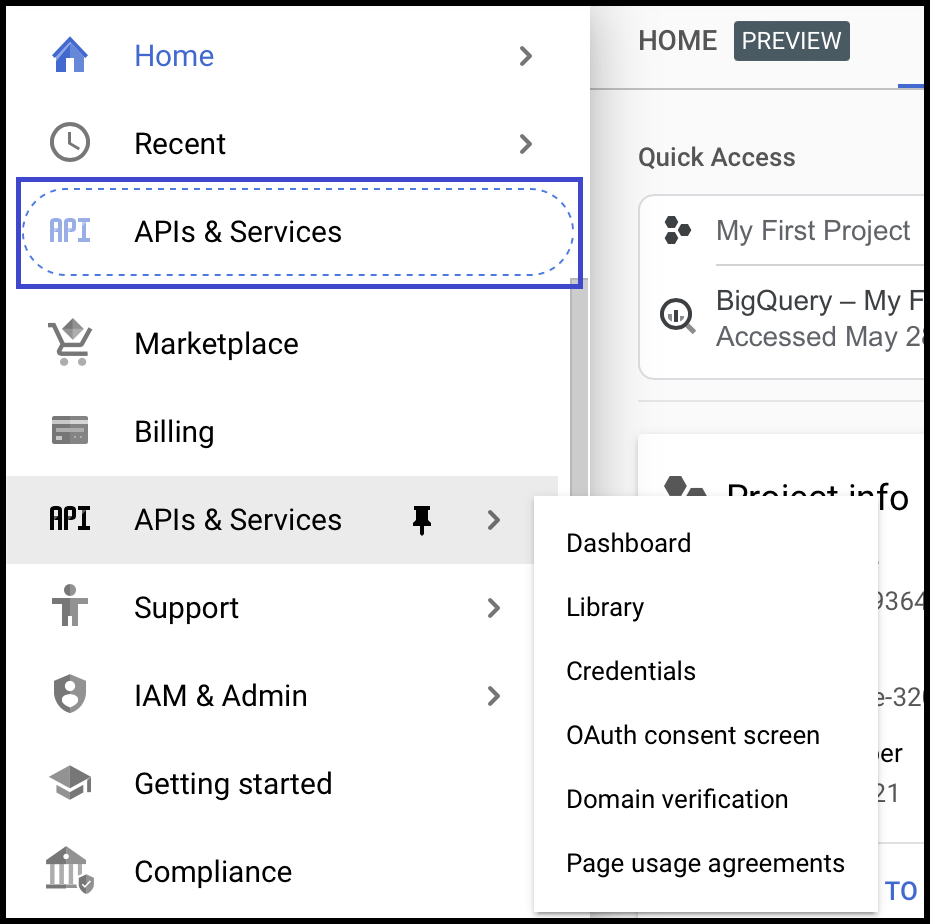
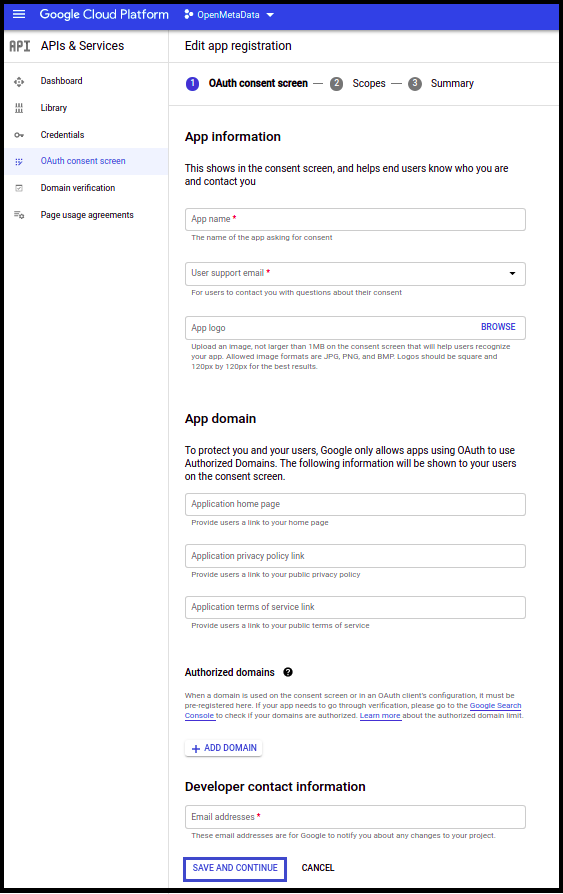
- Click on the OAuth Consent Screen available on the left-hand side panel.
- Choose User Type Internal.
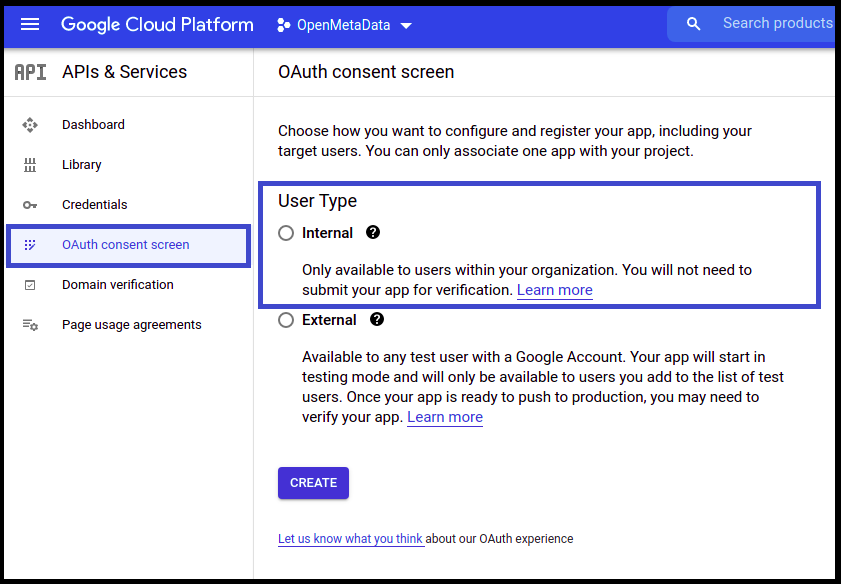
- Once the user type is selected, provide the App Information and other details.
- Click Save and Continue.
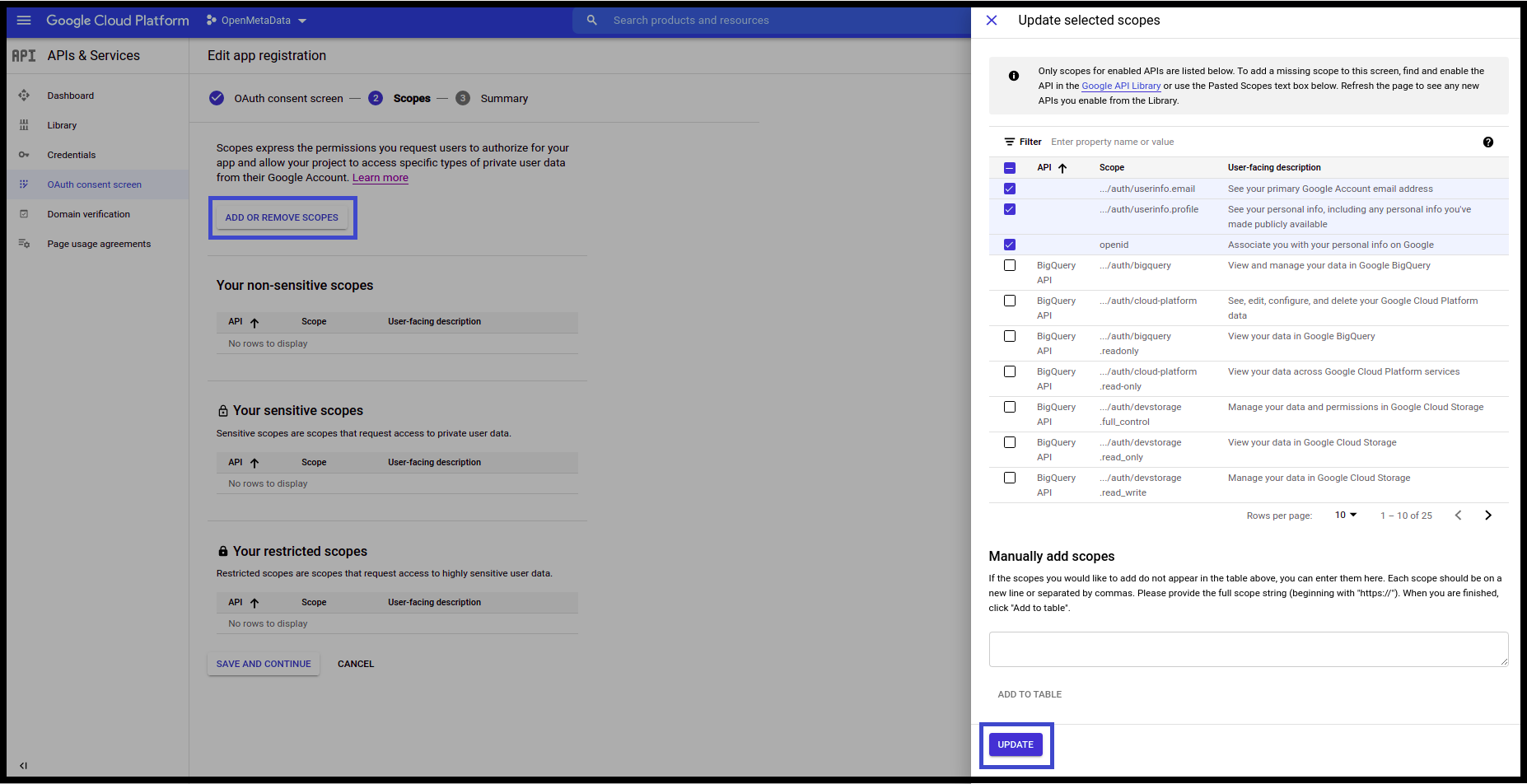
- On the Scopes Screen, Click on ADD OR REMOVE SCOPES and select the scopes.
- Once done click on Update.
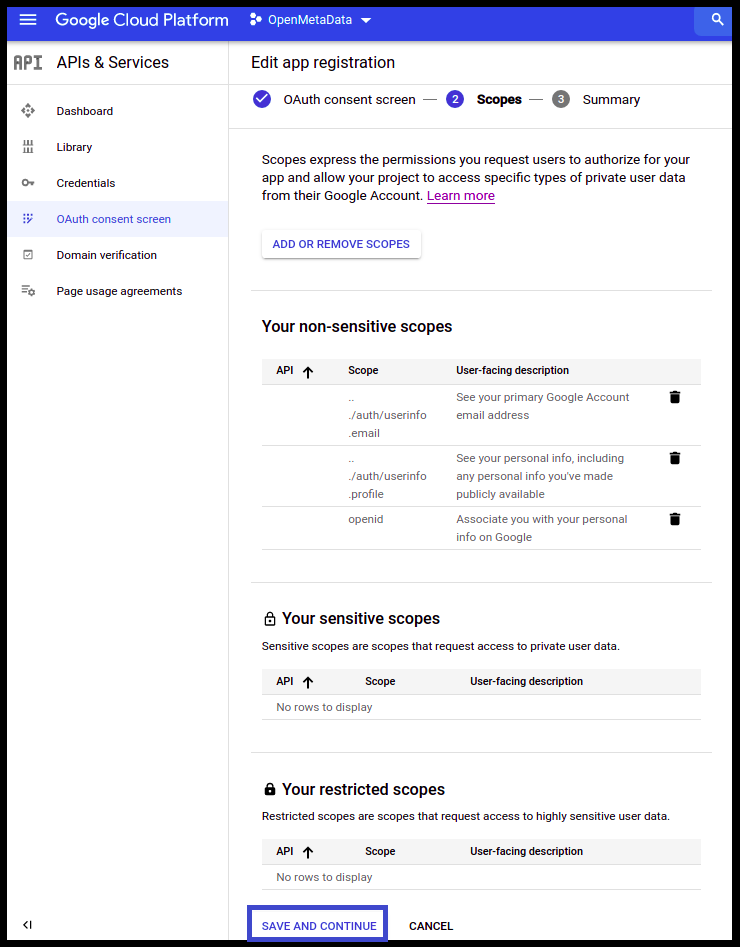
- Click Save and Continue.
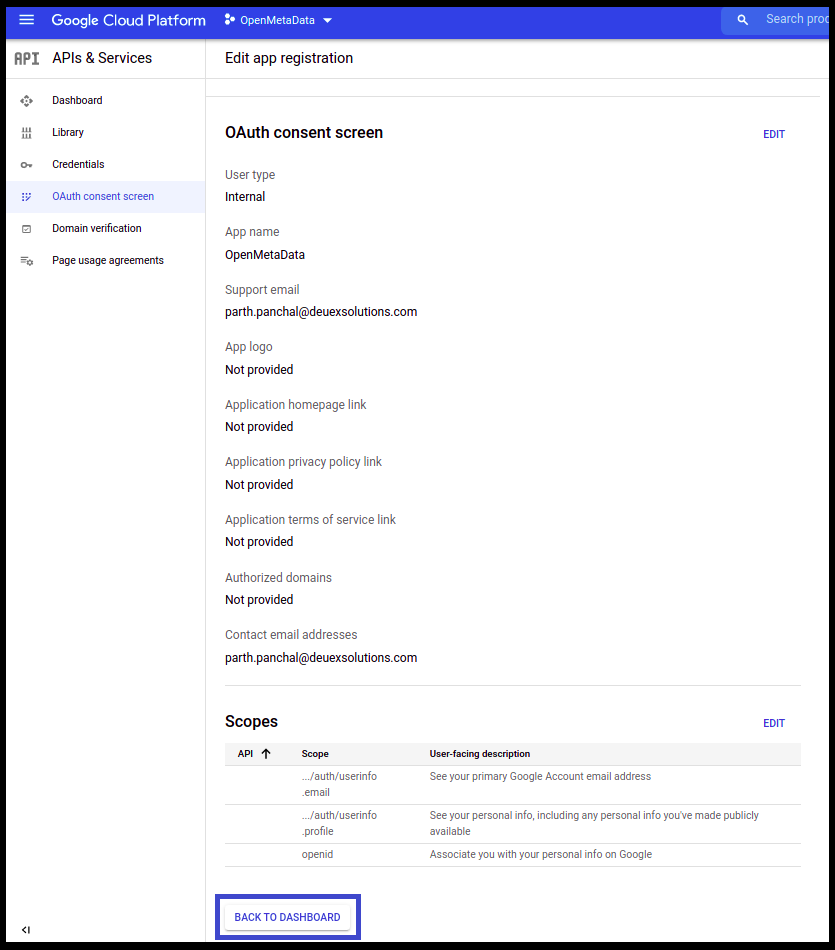
- Click on Back to Dashboard.
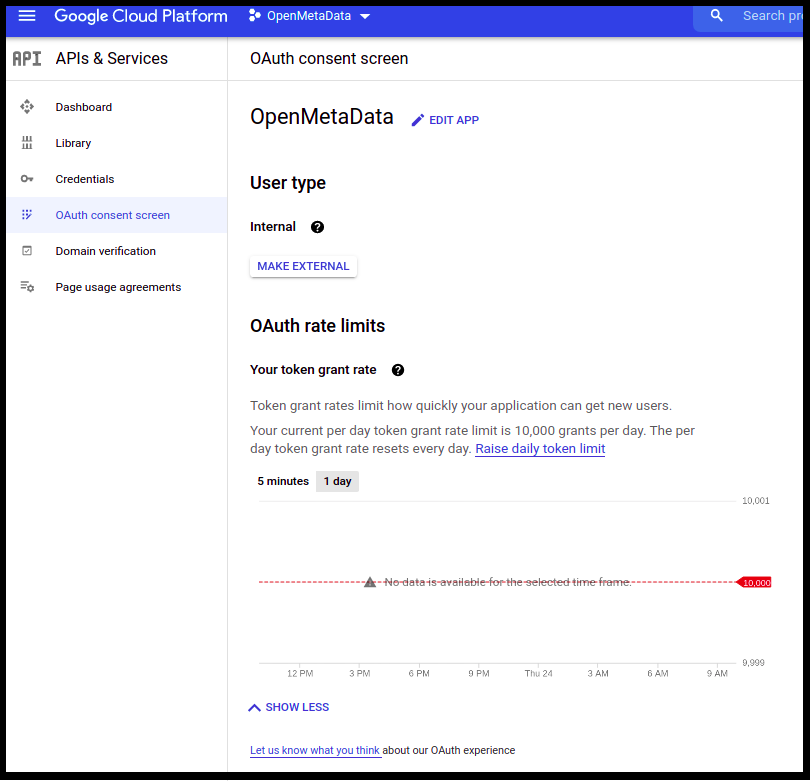
Step 4: Create Credentials for the Project
- Once the OAuth Consent is configured, click on Credentials available on the left-hand side panel.
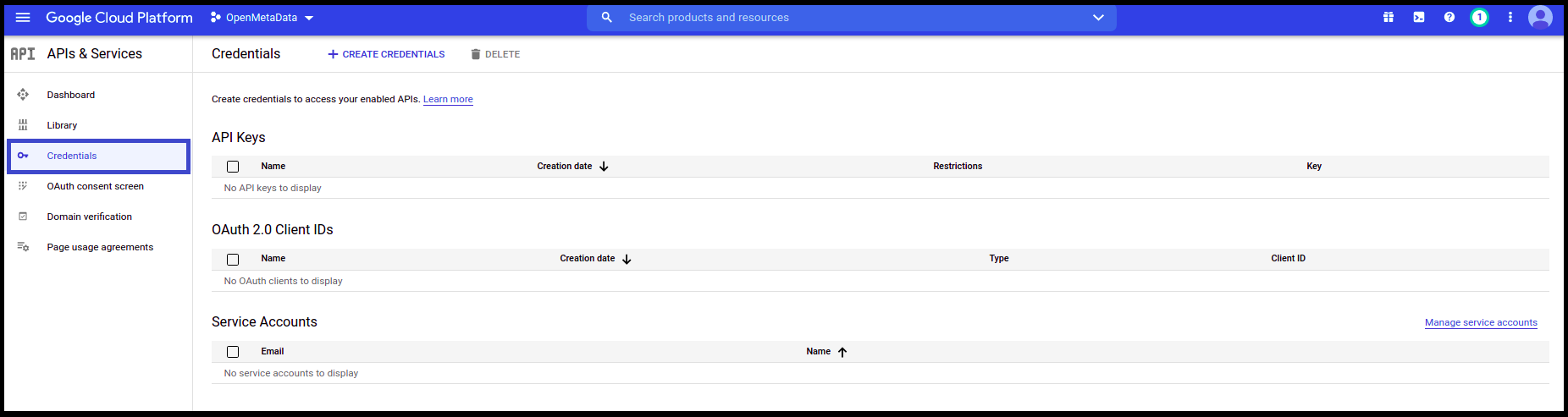
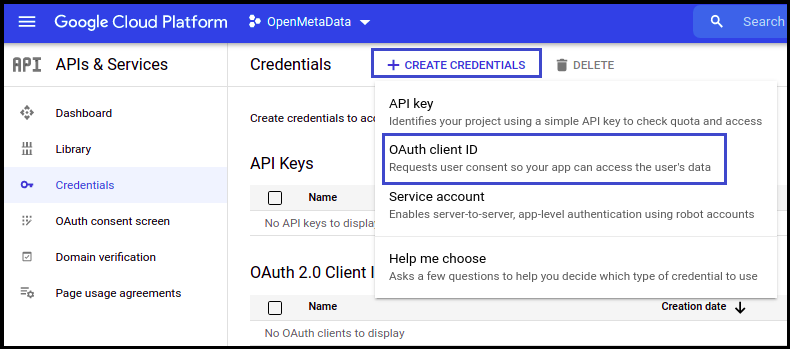
- Click on Create Credentials
- Select OAuth client ID from the dropdown.
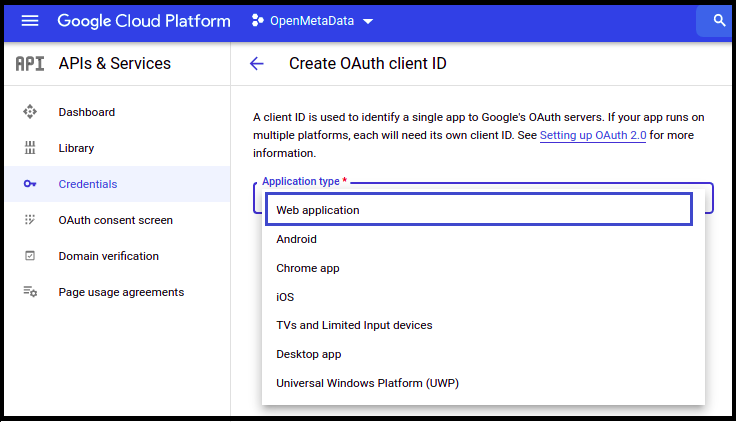
- Once selected, you will be asked to select the Application type. Select Web application.
- domain/callback
- domain/silent-callback
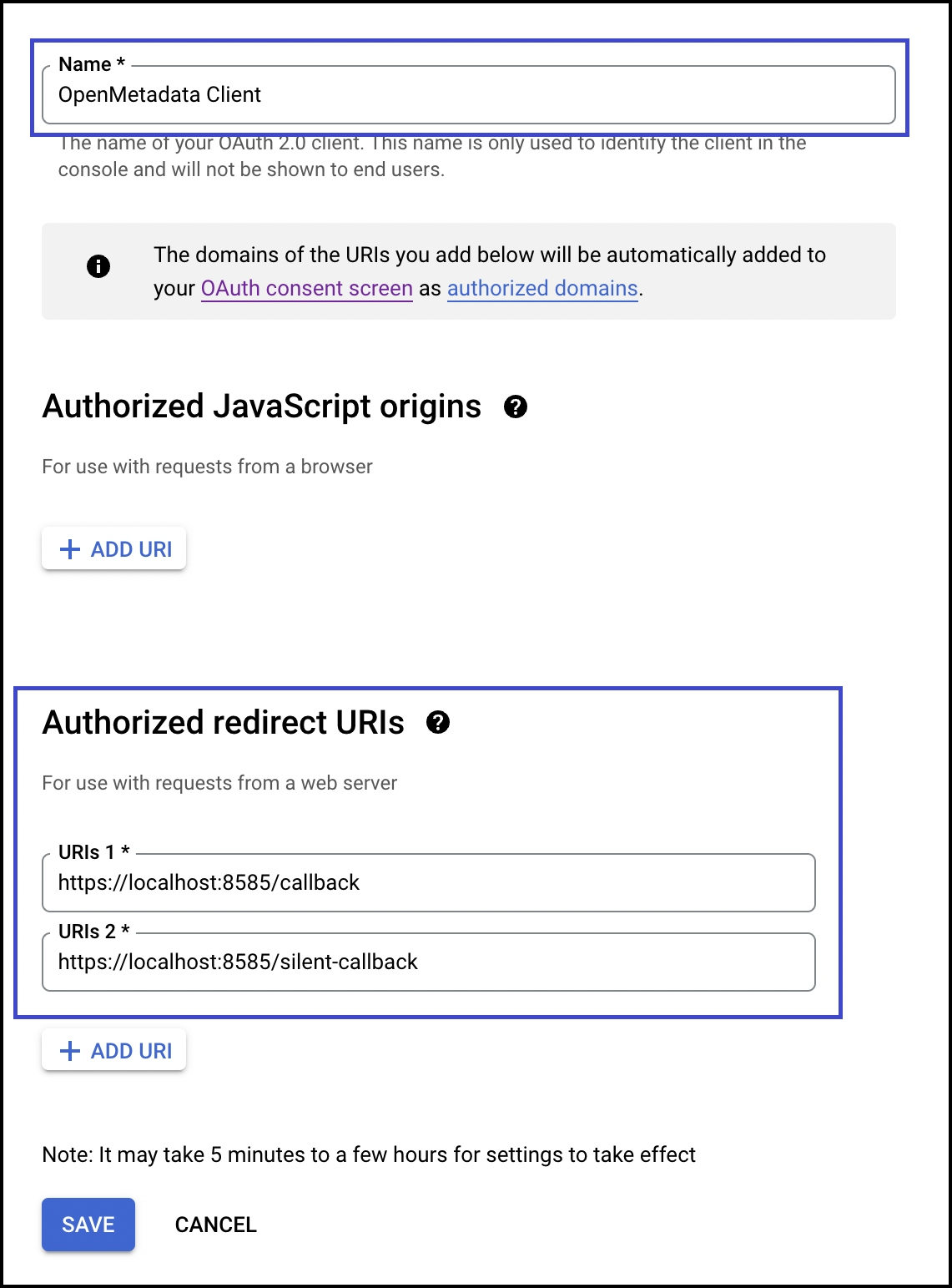
- Click Create
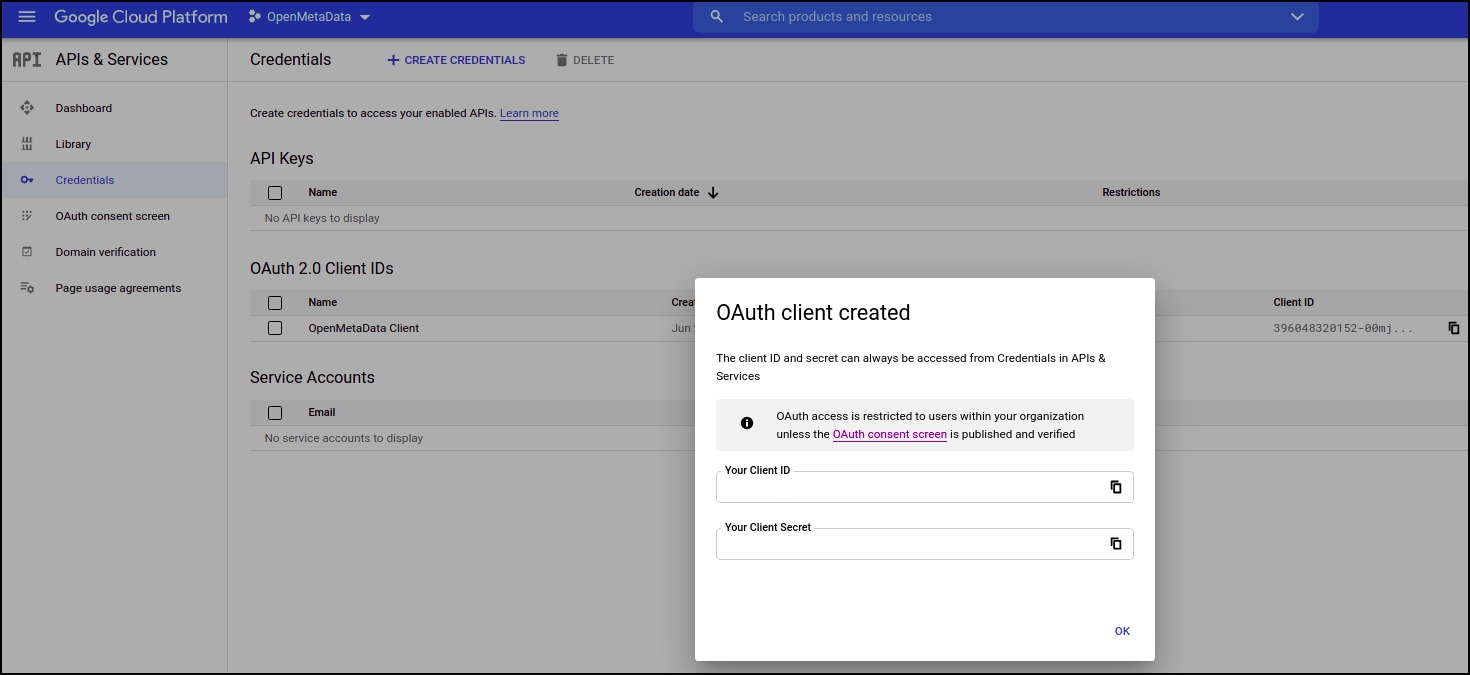
- You will get the credentials
Step 5: Where to Find the Credentials
- Go to Credentials
- Click on the pencil icon (Edit OAuth Client) on the right side of the screen
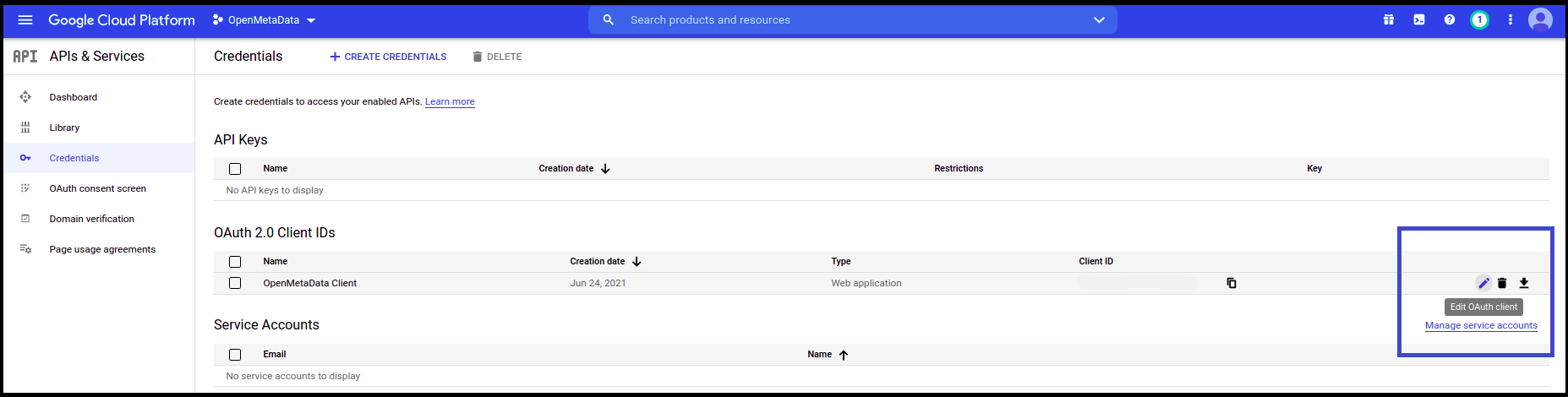
- You will find the Client ID in the top right corner

Docker
Configure Google SSO for Docker deployment.
Kubernetes
Configure Google SSO for Kubernetes deployment.
Bare Metal
Configure Google SSO for Bare Metal deployment.