> ## Documentation Index
> Fetch the complete documentation index at: https://docs.getcollate.io/llms.txt
> Use this file to discover all available pages before exploring further.
# Auth0 implicit flow | Collate Deployment Guide
> Set up Auth0’s implicit flow to enable client-side authentication for public-facing apps using direct token issuance and frontend validation.
# Implicit Flow
### Step 1: Create a New Application
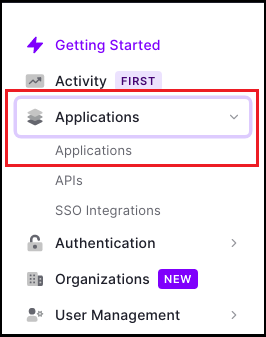
* Once you are on the Dashboard page, click on `Applications > Applications` available on the left-hand side panel.
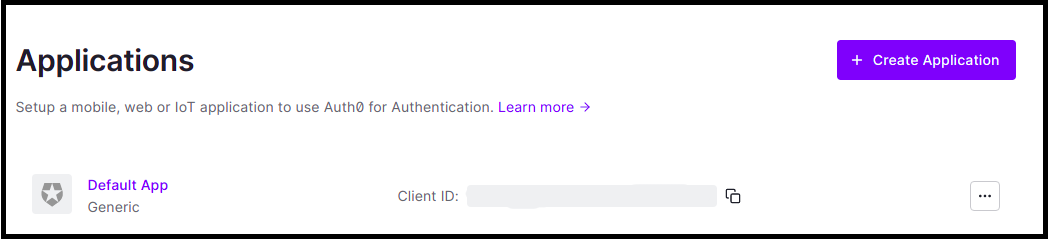
 * Click on `Create Application`.
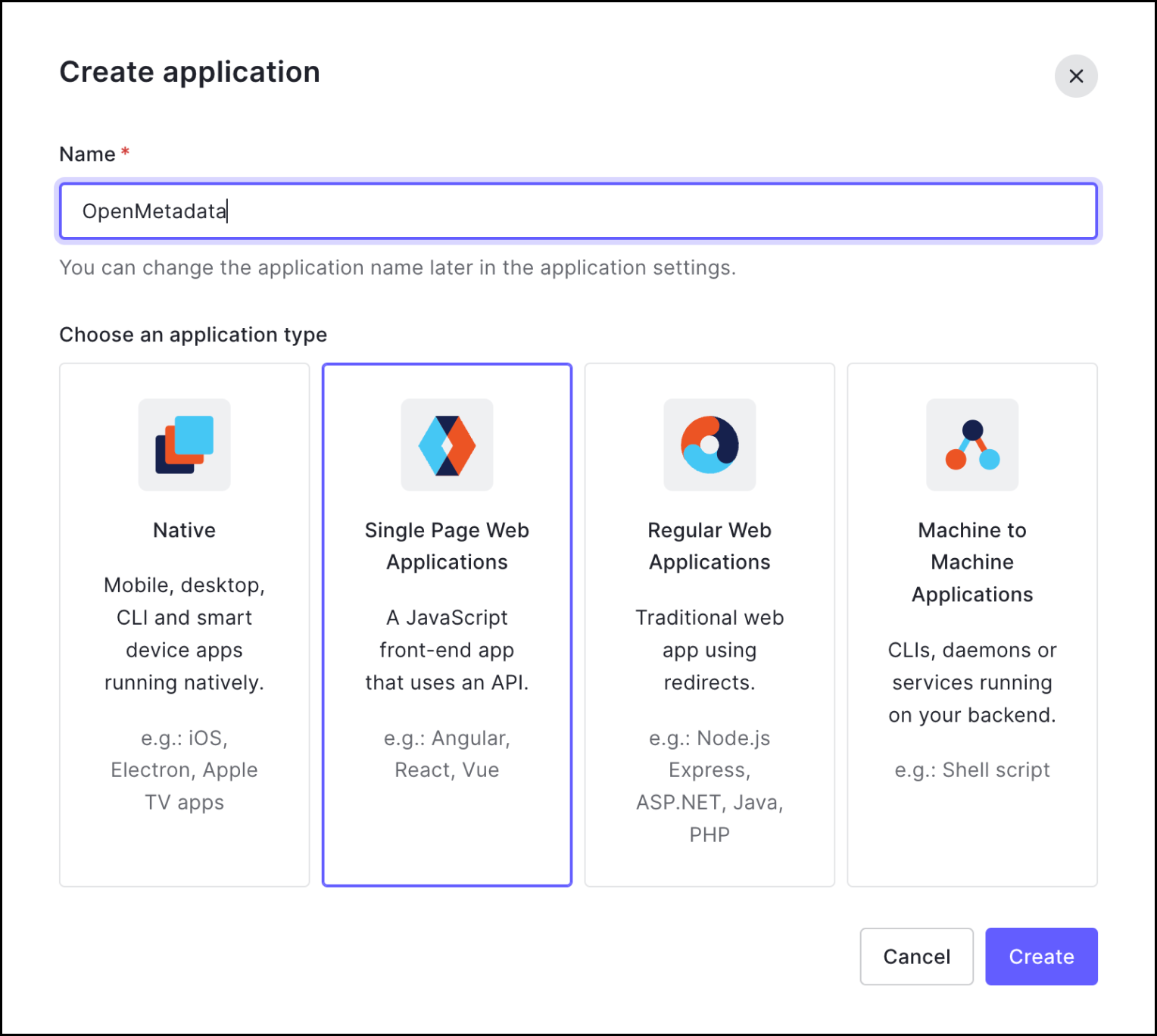
 * Enter the Application name.
* Choose an application type and click on `Create`.
* Enter the Application name.
* Choose an application type and click on `Create`.
 ### Step 2: Where to Find the Credentials
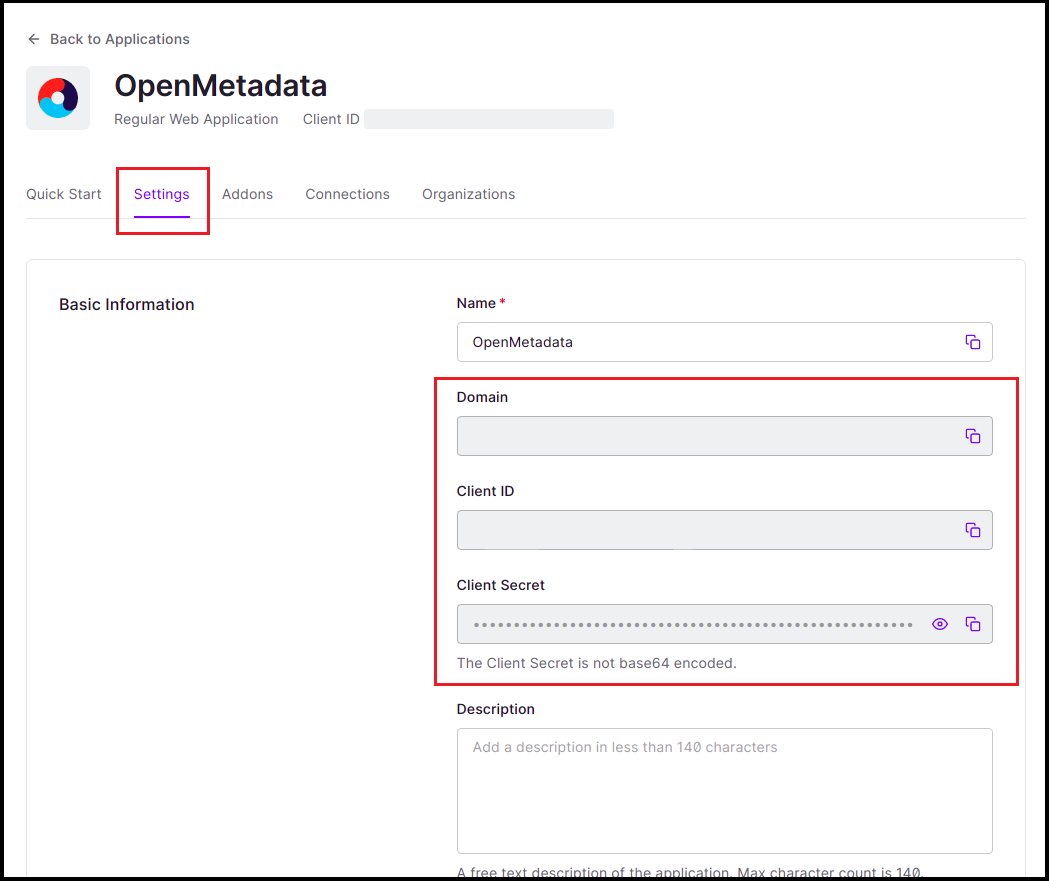
* Navigate to the Settings tab.
* You will find your `Client ID` and `Domain`.
### Step 2: Where to Find the Credentials
* Navigate to the Settings tab.
* You will find your `Client ID` and `Domain`.
 After the applying these steps, you can update the configuration of your deployment:
Configure Auth0 SSO for Docker deployment.
Configure Auth0 SSO for Kubernetes deployment.
Configure Auth0 SSO for Bare Metal deployment.
Go to Auth0 Configuration
After the applying these steps, you can update the configuration of your deployment:
Configure Auth0 SSO for Docker deployment.
Configure Auth0 SSO for Kubernetes deployment.
Configure Auth0 SSO for Bare Metal deployment.
Go to Auth0 Configuration