
GCP Secret Manager
The setup steps covers the use of the managed version of the GCP Secret Manager as secrets manager but for the non-managed follow only the steps related to the Airflow server and CLI.Setup
1. Permissions needed
These are the permissions required in the service account to enable the GCP Secret Manager in OpenMetadata. We recommend to use the role namedroles/secretmanager.secretAccessor to grant necessary permissions.
- resourcemanager.projects.get
- resourcemanager.projects.list
- secretmanager.versions.access
2. Update configuration
We have to set up the secret manager provider we want to use, that in our case isgcp, and the credentials for our GCP information.
The changes to be done in openmetadata.yaml file of the OpenMetadata server are:
airflow.cfg of our Airflow instance:
airflow.cfg file, we can also set the following environment variables:
- Local development environment
- Cloud Shell or other Google Cloud cloud-based development environments
- Compute Engine or other Google Cloud services that support attaching a service account
- Google Kubernetes Engine or GKE Enterprise
- On-premises or another cloud provider
3. Migrate Secrets & restart both servers
After updating the configuration files, we are ready to migrate the secrets and restart both services. In order to ensure that the current sensitive information is properly migrated to the Secrets Manager, you need to run the following command:/openmetadata/... in your GCP Secret Manager console. The following image shows what it should look
like:
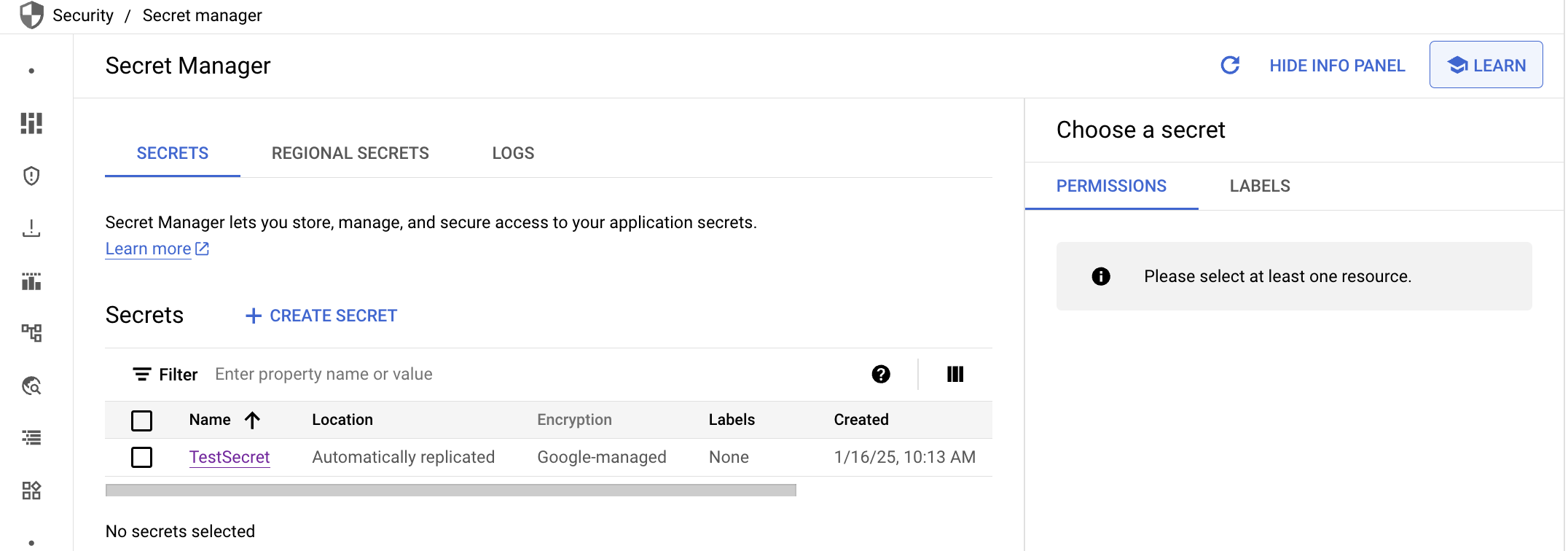
openmetadata to a different one, we have
to change the property clusterName in our openmetadata.yaml. Also, if you inform the prefix value, it will be
added before the clusterName, i.e., /<prefix>/<clusterName>/<key>
You can inform the tags as well as a list of strings [key1:value1,key2:value2,...]. These tags will be added
to the resource created in GCP.