> ## Documentation Index
> Fetch the complete documentation index at: https://docs.getcollate.io/llms.txt
> Use this file to discover all available pages before exploring further.
# Apache Ranger
export const MetadataIngestionUi = ({connector, selectServicePath, addNewServicePath, serviceConnectionPath}) => {
return <>
To ingest metadata from your sources, you need to create a service connection.
The service connects your source system with Collate. Once you create
a service, you can use it to configure your ingestion workflows.
To create a service connection and ingest your metadata, follow the steps below:
-
On the left navigation bar, click Settings.
-
On the next page, click Services, and then select the service.
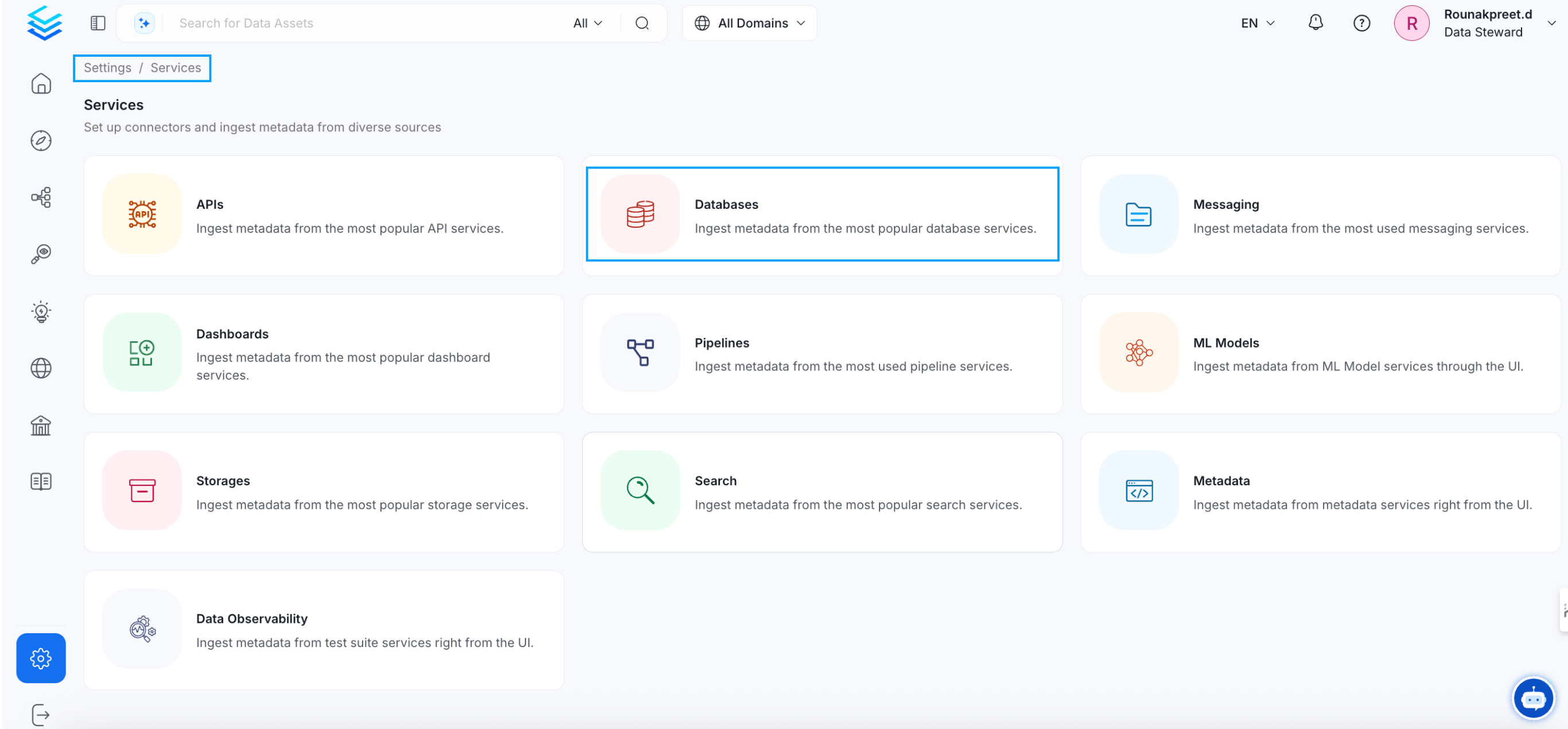
To add a new service connection, click Add New Service.
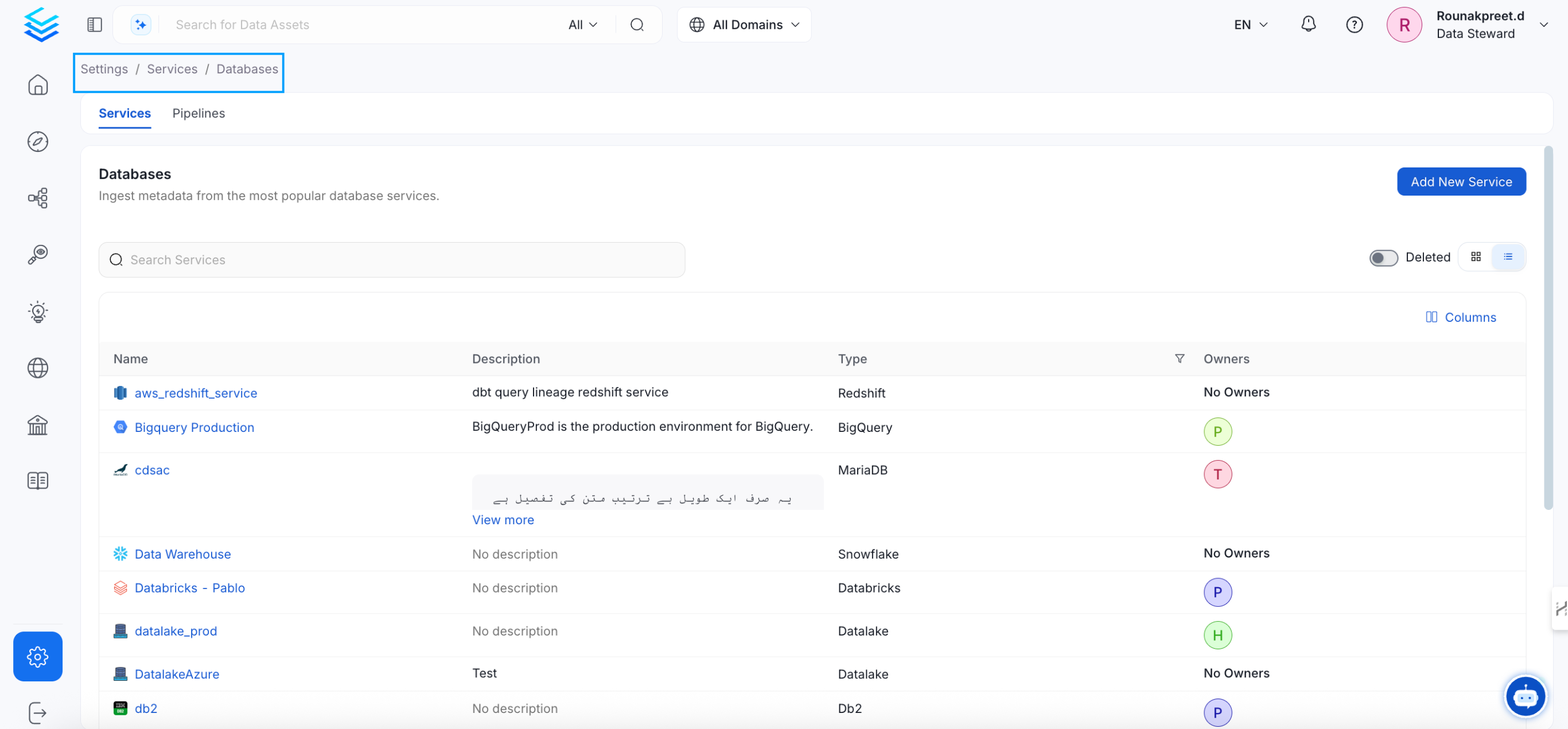 Select {connector} as the service type and click Next.
{selectServicePath &&
Select {connector} as the service type and click Next.
{selectServicePath &&  }
Enter a unique, descriptive Service Name and Description.
}
Enter a unique, descriptive Service Name and Description.
- Service Name: Collate identifies services by their service name. Enter a name that distinguishes this deployment from other services, including other {connector} services you are ingesting metadata from.
The service name cannot be changed after it is set.
{addNewServicePath &&  }
Set up the connection settings required for {connector}.
}
Set up the connection settings required for {connector}.
Configure the following connection options to set up the service and start ingesting metadata from your sources. The right-hand panel displays help documentation for the selected connection type in the product UI
{serviceConnectionPath &&  }
;
};
export const ConnectorDetailsHeader = ({name, icon, stage, availableFeatures, unavailableFeatures = [], availableFeaturesCollate = []}) => {
const showSubHeading = availableFeatures?.length > 0 || unavailableFeatures?.length > 0 || availableFeaturesCollate?.length > 0;
const totalAvailableFeatures = [...availableFeatures || [], ...availableFeaturesCollate || []];
return
}
;
};
export const ConnectorDetailsHeader = ({name, icon, stage, availableFeatures, unavailableFeatures = [], availableFeaturesCollate = []}) => {
const showSubHeading = availableFeatures?.length > 0 || unavailableFeatures?.length > 0 || availableFeaturesCollate?.length > 0;
const totalAvailableFeatures = [...availableFeatures || [], ...availableFeaturesCollate || []];
return
{icon &&
}
{name}
{stage}
{showSubHeading &&
Feature List
{totalAvailableFeatures.map(feature =>
✓ {feature}
)}
{unavailableFeatures.map(feature =>
✕ {feature}
)}
}
;
};
In this section, we provide guides and references to use the Apache Ranger connector for reverse metadata ingestion.
Configure and schedule Apache Ranger reverse metadata workflows from the Collate UI:
* [Requirements](#requirements)
* [Reverse Metadata](#reverse-metadata)
* [Connection Details](#connection-details)
* [Troubleshooting](/connectors/security/ranger/troubleshooting)
## Requirements
### Apache Ranger Setup
Apache Ranger 2.0 or greater is required. The user should have access to the Apache Ranger Admin API with appropriate privileges to manage policies and tags.
### Permissions
The user connecting to Apache Ranger should have the following permissions:
* Access to Apache Ranger Admin API endpoints
* Write access to policies and tag definitions
* Write access to tag management
* Read access to service definitions for verification
```bash theme={null}
# Create a service user in Apache Ranger with the following permissions:
# - Write access to tag management
# - Write access to policy management
# - Read access to service definitions
```
### Connection Details
We support Apache Ranger with Basic Authentication using username and password.
## Reverse Metadata
The Apache Ranger connector is designed specifically for **reverse metadata ingestion**. This means that OpenMetadata will sync metadata information (primarily tags) from your data sources back to Apache Ranger.
### How Reverse Metadata Works
1. **Configure Ranger as Sink Service**: Set up Apache Ranger as a sink service in your reverse metadata configuration
2. **Source Service Integration**: When you ingest metadata from source services like Snowflake, Trino, or other databases, OpenMetadata can sync this metadata back to Ranger
3. **Tag Synchronization**: Currently, we sync tag information from OpenMetadata to Apache Ranger, allowing you to manage security policies based on discovered metadata
4. **Policy Management**: While we sync tags to Ranger, the communication between Ranger and your specific data sources needs to be configured separately
### Important Considerations
* **Service Name Matching**: The service name configured in Apache Ranger must match exactly with the service name in OpenMetadata for reverse metadata synchronization to work properly
* **Tag Synchronization**: Currently, we only sync tag information to Ranger.
* **Source-Ranger Communication**: You are responsible for configuring the communication between Apache Ranger and your actual data sources. OpenMetadata only handles the metadata synchronization to Ranger
* **Bidirectional Sync**: This is currently a one-way sync from OpenMetadata to Ranger
### Tag Synchronization Details
Understanding how tag synchronization works between OpenMetadata and Apache Ranger is crucial for proper implementation.
#### What Gets Created During Reverse Metadata Ingestion
During reverse metadata ingestion, OpenMetadata creates **only the mapping** between:
* **Ranger Resources**: The specific entity (database, schema, table, or column)
* **Tags**: The tag name and tag value
**Important:** We do **not** create or depend on tag policies during the reverse metadata workflow. The policy creation is **not mandatory** for the workflow to function. Policies can be created in Ranger after the reverse metadata workflow completes.
#### Policy Management
The actual application of tag-based policies—such as access control, data masking, or row-level filtering—is handled **entirely by Apache Ranger**. Collate's role is limited to:
1. Syncing tag metadata from OpenMetadata to actual data sources
2. Creating tag-to-resource mappings in Ranger
3. Keeping these mappings synchronized as tags change in OpenMetadata
#### Supported Tag Levels
We provide comprehensive tag support at multiple levels:
* **Database level**: Tags applied to entire databases
* **Schema level**: Tags applied to schemas
* **Table level**: Tags applied to tables
* **Column level**: Tags applied to individual columns
This multi-level support allows you to implement fine-grained governance policies based on your organization's requirements.
#### Tag Naming Convention
OpenMetadata uses a clear and consistent tag naming convention when syncing to Ranger. Tags are formatted as:
```
classification.tag
```
**Example:**
* A tag named `Sensitive` under the `PII` classification in OpenMetadata
* Will be synced to Ranger as: `PII.Sensitive`
This naming convention ensures clarity and prevents naming conflicts in Ranger.
 #### Complete Workflow Example
1. **In OpenMetadata**: You apply the tag `PII.Sensitive` to a column `customer_email` in table `users`
2. **Reverse Metadata Sync**: OpenMetadata creates a mapping in Ranger linking the resource `database.schema.users.customer_email` to tag `PII.Sensitive`
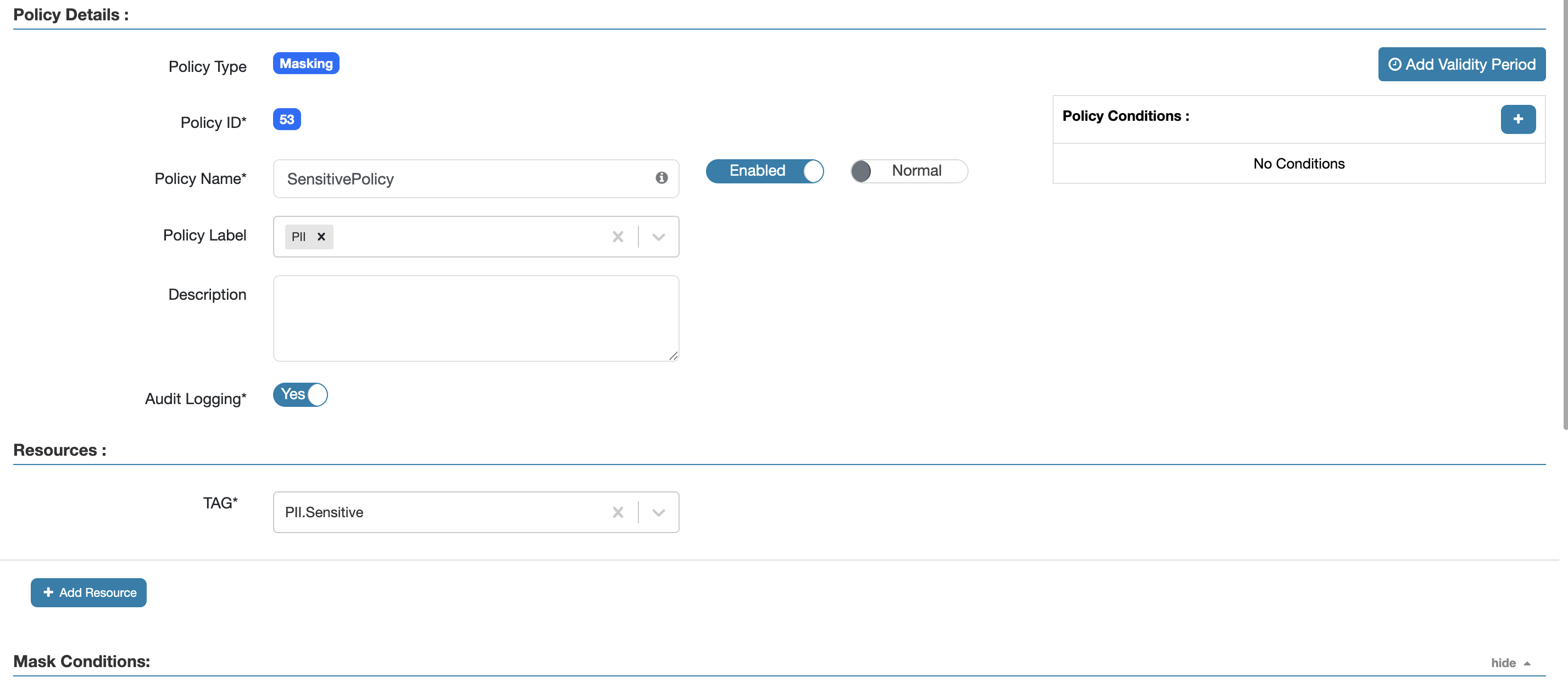
3. **In Apache Ranger**: You create a policy that applies masking to all resources tagged with `PII.Sensitive`
4. **Result**: The policy automatically applies to `customer_email` and any other resources tagged as `PII.Sensitive`
## Metadata Ingestion
## Troubleshooting
Learn more about how to troubleshoot common Ranger connector issues and resolve configuration or ingestion errors.
#### Complete Workflow Example
1. **In OpenMetadata**: You apply the tag `PII.Sensitive` to a column `customer_email` in table `users`
2. **Reverse Metadata Sync**: OpenMetadata creates a mapping in Ranger linking the resource `database.schema.users.customer_email` to tag `PII.Sensitive`
3. **In Apache Ranger**: You create a policy that applies masking to all resources tagged with `PII.Sensitive`
4. **Result**: The policy automatically applies to `customer_email` and any other resources tagged as `PII.Sensitive`
## Metadata Ingestion
## Troubleshooting
Learn more about how to troubleshoot common Ranger connector issues and resolve configuration or ingestion errors.