> ## Documentation Index
> Fetch the complete documentation index at: https://docs.getcollate.io/llms.txt
> Use this file to discover all available pages before exploring further.
# Collibra Connector | Official Documentation
> Connect Collibra to OpenMetadata seamlessly with our comprehensive connector guide. Learn setup, configuration, and metadata synchronization steps.
export const ConnectorDetailsHeader = ({name, icon, stage, availableFeatures, unavailableFeatures = [], availableFeaturesCollate = []}) => {
const showSubHeading = availableFeatures?.length > 0 || unavailableFeatures?.length > 0 || availableFeaturesCollate?.length > 0;
const totalAvailableFeatures = [...availableFeatures || [], ...availableFeaturesCollate || []];
return
{icon &&
}
{name}
{stage}
{showSubHeading &&
Feature List
{totalAvailableFeatures.map(feature =>
✓ {feature}
)}
{unavailableFeatures.map(feature =>
✕ {feature}
)}
}
;
};
export const MetadataIngestionUi = ({connector, selectServicePath, addNewServicePath, serviceConnectionPath}) => {
return <>
To ingest metadata from your sources, you need to create a service connection.
The service connects your source system with Collate. Once you create
a service, you can use it to configure your ingestion workflows.
To create a service connection and ingest your metadata, follow the steps below:
-
On the left navigation bar, click Settings.
-
On the next page, click Services, and then select the service.
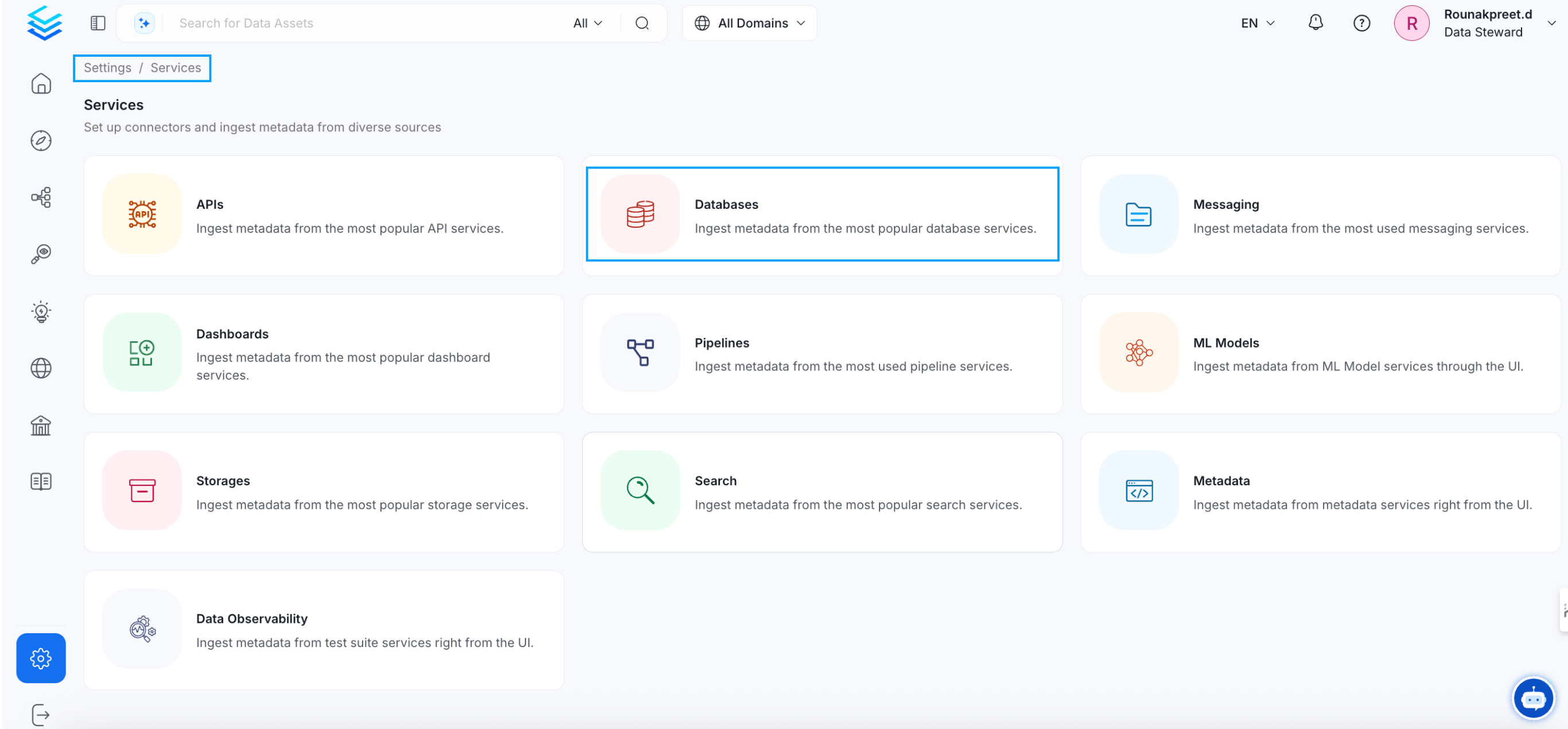
To add a new service connection, click Add New Service.
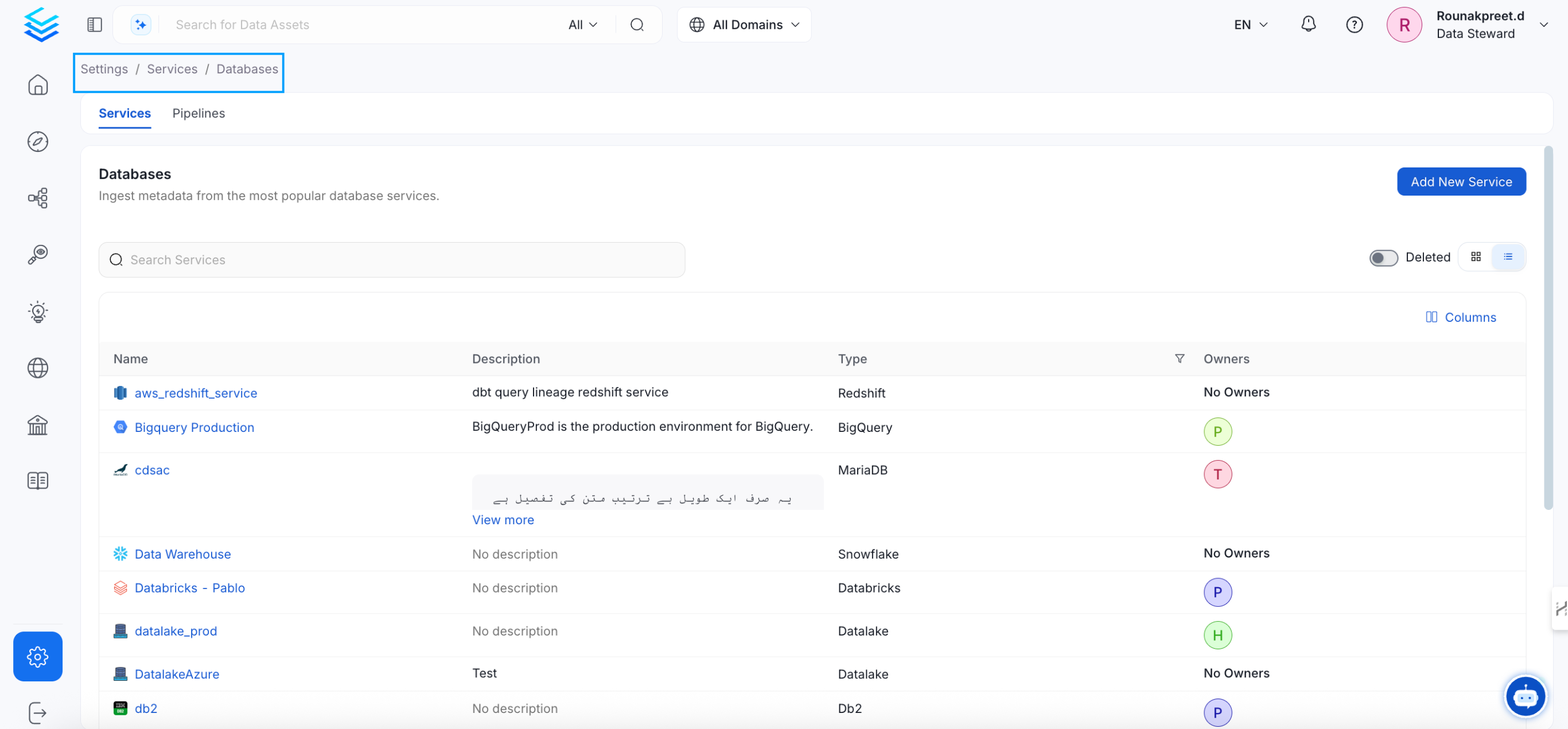 Select {connector} as the service type and click Next.
{selectServicePath &&
Select {connector} as the service type and click Next.
{selectServicePath &&  }
Enter a unique, descriptive Service Name and Description.
}
Enter a unique, descriptive Service Name and Description.
- Service Name: Collate identifies services by their service name. Enter a name that distinguishes this deployment from other services, including other {connector} services you are ingesting metadata from.
The service name cannot be changed after it is set.
{addNewServicePath &&  }
Set up the connection settings required for {connector}.
}
Set up the connection settings required for {connector}.
Configure the following connection options to set up the service and start ingesting metadata from your sources. The right-hand panel displays help documentation for the selected connection type in the product UI
{serviceConnectionPath &&  }
;
};
In this section, we provide guides and references to use the Collibra connector.
Configure and schedule Collibra metadata workflow from the Collate UI:
* [Requirements](#requirements)
* [Data Mapping and Assumptions](#data-mapping-and-assumptions)
* [Metadata Ingestion](#metadata-ingestion)
* [Troubleshooting](/connectors/metadata/collibra/troubleshooting)
## How to Run the Connector Externally
To run the Ingestion via the UI you'll need to use the OpenMetadata Ingestion Container, which comes shipped with
custom Airflow plugins to handle the workflow deployment.
If, instead, you want to manage your workflows externally on your preferred orchestrator, you can check
the following docs to run the Ingestion Framework **anywhere**.
Get more information about running the Ingestion Framework Externally
## Requirements
To connect to Collibra, you will need:
* **Username**: A user account with privileges to read all metadata in Collibra
* **Password**: The password for the user account
* **Host and Port**: The URL of your Collibra instance (e.g., `https://.collibra.com`)
## Data Mapping and Assumptions
Following entities are supported and will be mapped to the OpenMetadata entities as shown below.
| Collibra Entity | OpenMetadata Entity |
| :-------------- | :------------------ |
| Glossary | Glossary |
| Glossary Terms | Glossary Terms |
| Domains | Domains |
| Communities | Domains |
* Collibra glossaries will be mapped to OpenMetadata glossaries with their terms and relationships preserved.
* When **Enable Asset Enrichment** is enabled, the connector will match Collibra assets to existing OpenMetadata entities and enrich them with descriptions, tags, and ownership information from Collibra without creating new assets.
* Use the glossaryFilterPattern to include or exclude specific glossaries based on their names.
* Use the domainFilterPattern to include or exclude specific domains and communities based on their names.
## Metadata Ingestion
## Connection Options
**hostPort**: Host and port of the Collibra instance.
```bash theme={null}
https://.collibra.com
```
**username**: Username to connect to Collibra. This user should have privileges to read all the metadata in Collibra.
**password**: Password for the Collibra user account.
**glossaryFilterPattern**: Regex pattern to include or exclude glossaries based on their names. Use this to control which glossaries are ingested.
Examples:
* Include specific glossaries: `^(BusinessGlossary|DataGlossary)$`
* Exclude test glossaries: `^(?!.*test).*$`
**domainFilterPattern**: Regex pattern to include or exclude domains and communities based on their names.
Examples:
* Include specific domains: `^(Finance|Sales)$`
* Exclude archived domains: `^(?!.*archived).*$`
**enableEnrichment**: When enabled, the connector will enrich existing OpenMetadata assets with metadata from Collibra (descriptions, tags, owners) by matching Collibra assets to OpenMetadata entities. This will not create new assets, only update existing ones.
By default, this is set to `false`.
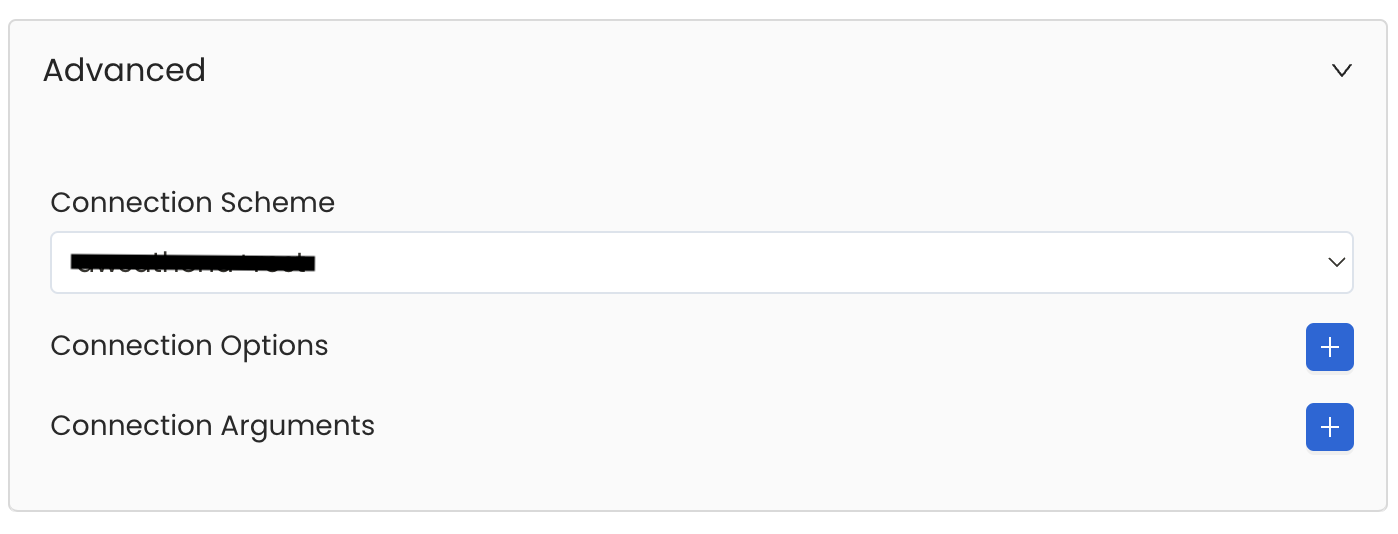
Database Services have an Advanced Configuration section, where you can pass extra arguments to the connector
and, if needed, change the connection Scheme.
This would only be required to handle advanced connectivity scenarios or customizations.
* **Connection Options (Optional)**: Enter the details for any additional connection options that can be sent to database during the connection. These details must be added as Key-Value pairs.
* **Connection Arguments (Optional)**: Enter the details for any additional connection arguments such as security or protocol configs that can be sent during the connection. These details must be added as Key-Value pairs.
}
;
};
In this section, we provide guides and references to use the Collibra connector.
Configure and schedule Collibra metadata workflow from the Collate UI:
* [Requirements](#requirements)
* [Data Mapping and Assumptions](#data-mapping-and-assumptions)
* [Metadata Ingestion](#metadata-ingestion)
* [Troubleshooting](/connectors/metadata/collibra/troubleshooting)
## How to Run the Connector Externally
To run the Ingestion via the UI you'll need to use the OpenMetadata Ingestion Container, which comes shipped with
custom Airflow plugins to handle the workflow deployment.
If, instead, you want to manage your workflows externally on your preferred orchestrator, you can check
the following docs to run the Ingestion Framework **anywhere**.
Get more information about running the Ingestion Framework Externally
## Requirements
To connect to Collibra, you will need:
* **Username**: A user account with privileges to read all metadata in Collibra
* **Password**: The password for the user account
* **Host and Port**: The URL of your Collibra instance (e.g., `https://.collibra.com`)
## Data Mapping and Assumptions
Following entities are supported and will be mapped to the OpenMetadata entities as shown below.
| Collibra Entity | OpenMetadata Entity |
| :-------------- | :------------------ |
| Glossary | Glossary |
| Glossary Terms | Glossary Terms |
| Domains | Domains |
| Communities | Domains |
* Collibra glossaries will be mapped to OpenMetadata glossaries with their terms and relationships preserved.
* When **Enable Asset Enrichment** is enabled, the connector will match Collibra assets to existing OpenMetadata entities and enrich them with descriptions, tags, and ownership information from Collibra without creating new assets.
* Use the glossaryFilterPattern to include or exclude specific glossaries based on their names.
* Use the domainFilterPattern to include or exclude specific domains and communities based on their names.
## Metadata Ingestion
## Connection Options
**hostPort**: Host and port of the Collibra instance.
```bash theme={null}
https://.collibra.com
```
**username**: Username to connect to Collibra. This user should have privileges to read all the metadata in Collibra.
**password**: Password for the Collibra user account.
**glossaryFilterPattern**: Regex pattern to include or exclude glossaries based on their names. Use this to control which glossaries are ingested.
Examples:
* Include specific glossaries: `^(BusinessGlossary|DataGlossary)$`
* Exclude test glossaries: `^(?!.*test).*$`
**domainFilterPattern**: Regex pattern to include or exclude domains and communities based on their names.
Examples:
* Include specific domains: `^(Finance|Sales)$`
* Exclude archived domains: `^(?!.*archived).*$`
**enableEnrichment**: When enabled, the connector will enrich existing OpenMetadata assets with metadata from Collibra (descriptions, tags, owners) by matching Collibra assets to OpenMetadata entities. This will not create new assets, only update existing ones.
By default, this is set to `false`.
Database Services have an Advanced Configuration section, where you can pass extra arguments to the connector
and, if needed, change the connection Scheme.
This would only be required to handle advanced connectivity scenarios or customizations.
* **Connection Options (Optional)**: Enter the details for any additional connection options that can be sent to database during the connection. These details must be added as Key-Value pairs.
* **Connection Arguments (Optional)**: Enter the details for any additional connection arguments such as security or protocol configs that can be sent during the connection. These details must be added as Key-Value pairs.
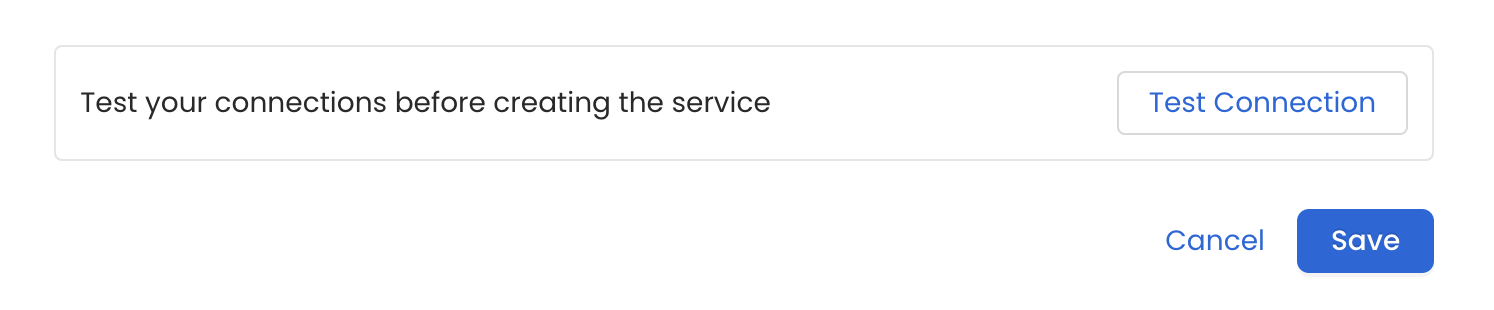
 Once the credentials have been added, click on *Test Connection* and *Save* the changes.
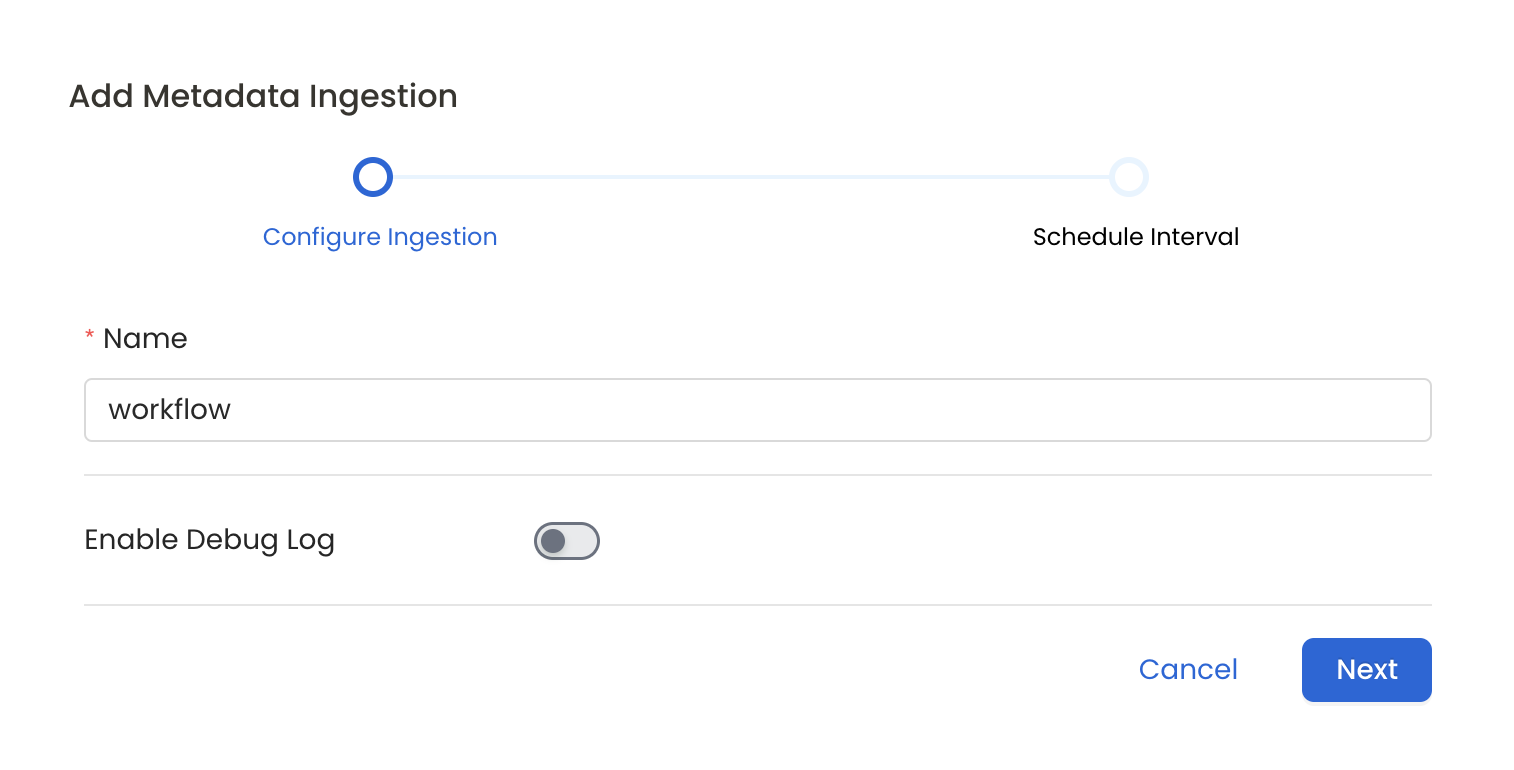
 In this step we will configure the metadata ingestion pipeline,
Please follow the instructions below
In this step we will configure the metadata ingestion pipeline,
Please follow the instructions below
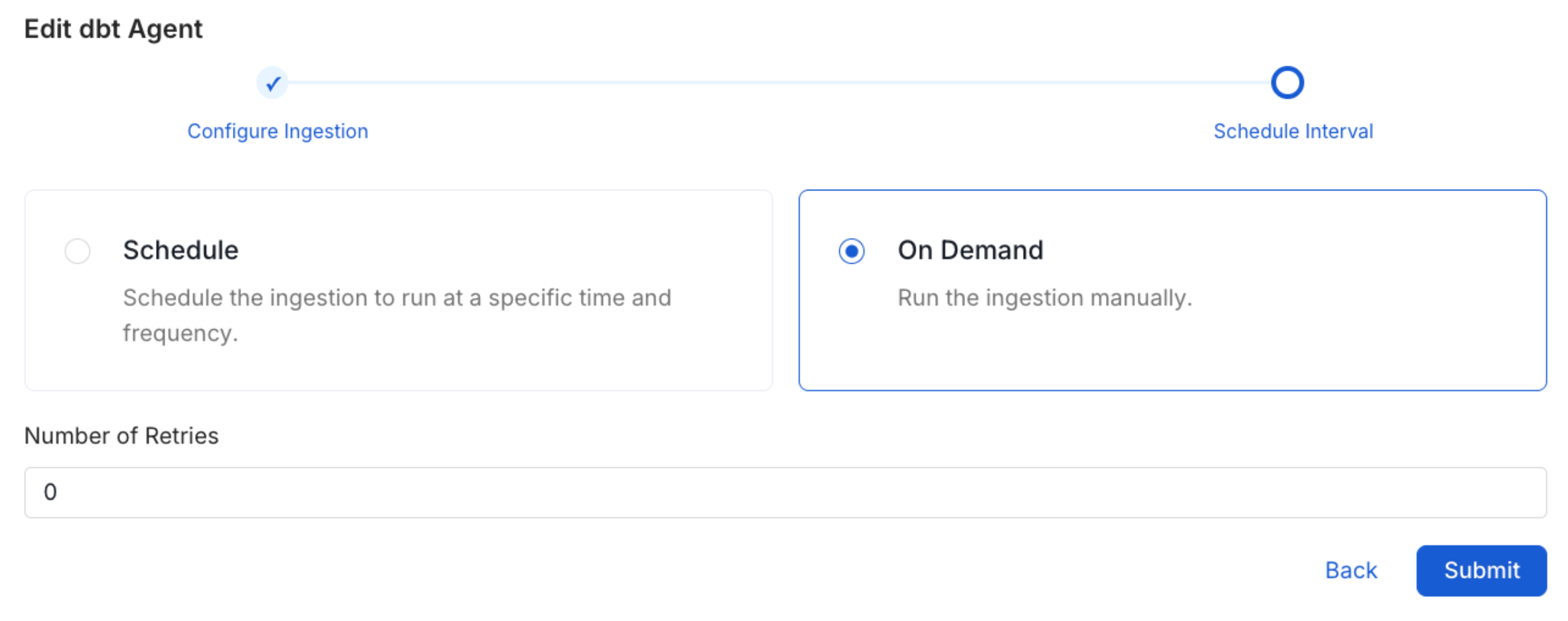
 Scheduling can be set up at an hourly, daily, weekly, or manual cadence. The
timezone is in UTC. Select a Start Date to schedule for ingestion. It is
optional to add an End Date.
Review your configuration settings. If they match what you intended,
click Deploy to create the service and schedule metadata ingestion.
If something doesn't look right, click the Back button to return to the
appropriate step and change the settings as needed.
After configuring the workflow, you can click on Deploy to create the
pipeline.
Scheduling can be set up at an hourly, daily, weekly, or manual cadence. The
timezone is in UTC. Select a Start Date to schedule for ingestion. It is
optional to add an End Date.
Review your configuration settings. If they match what you intended,
click Deploy to create the service and schedule metadata ingestion.
If something doesn't look right, click the Back button to return to the
appropriate step and change the settings as needed.
After configuring the workflow, you can click on Deploy to create the
pipeline.
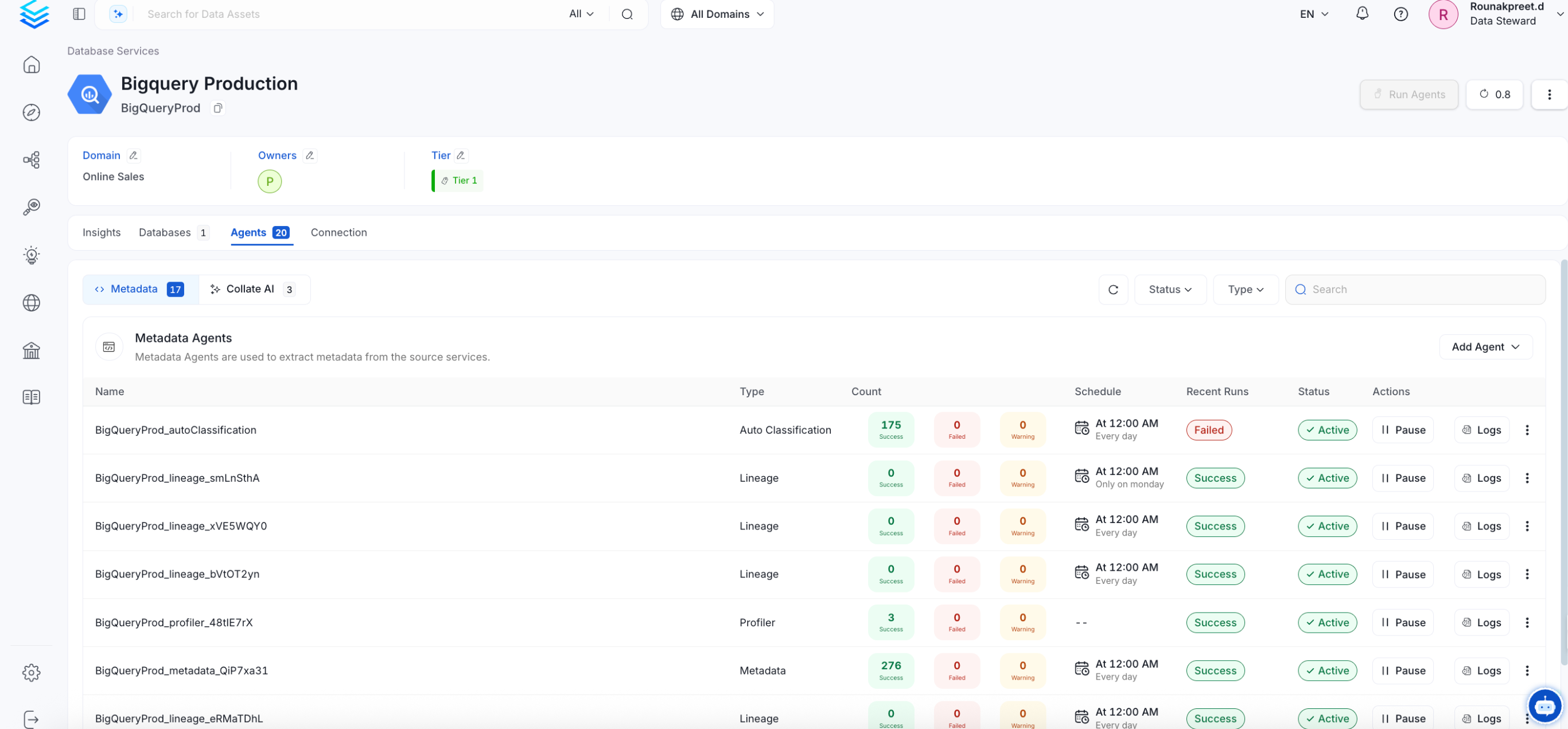
 Once the workflow has been successfully deployed, you can view the
Ingestion Pipeline running from the Service Page.
Once the workflow has been successfully deployed, you can view the
Ingestion Pipeline running from the Service Page.
 If [AutoPilot](/how-to-guides/admin-guide/applications/autopilot) is enabled, workflows like usage tracking, data lineage, and similar tasks will be handled automatically. Users don’t need to set up or manage them - AutoPilot takes care of everything in the system.
When using a **Hybrid Ingestion Runner**, any sensitive credential fields—such as passwords, API keys, or private keys—must reference secrets using the following format:
```
password: secret:/my/database/password
```
This applies **only to fields marked as secrets** in the connection form (these typically mask input and show a visibility toggle icon).
For a complete guide on managing secrets in hybrid setups, see the [Hybrid Ingestion Runner Secret Management Guide](https://docs.getcollate.io/getting-started/day-1/hybrid-saas/hybrid-ingestion-runner#3.-manage-secrets-securely).
## Troubleshooting
Learn more about how to troubleshoot common Collibra connector issues and resolve configuration or ingestion errors.
If [AutoPilot](/how-to-guides/admin-guide/applications/autopilot) is enabled, workflows like usage tracking, data lineage, and similar tasks will be handled automatically. Users don’t need to set up or manage them - AutoPilot takes care of everything in the system.
When using a **Hybrid Ingestion Runner**, any sensitive credential fields—such as passwords, API keys, or private keys—must reference secrets using the following format:
```
password: secret:/my/database/password
```
This applies **only to fields marked as secrets** in the connection form (these typically mask input and show a visibility toggle icon).
For a complete guide on managing secrets in hybrid setups, see the [Hybrid Ingestion Runner Secret Management Guide](https://docs.getcollate.io/getting-started/day-1/hybrid-saas/hybrid-ingestion-runner#3.-manage-secrets-securely).
## Troubleshooting
Learn more about how to troubleshoot common Collibra connector issues and resolve configuration or ingestion errors.
 }
}