> ## Documentation Index
> Fetch the complete documentation index at: https://docs.getcollate.io/llms.txt
> Use this file to discover all available pages before exploring further.
# PostgreSQL Connector | Collate Database Integration
> Connect PostgreSQL to Collate with our comprehensive database connector guide. Step-by-step setup, configuration examples, and metadata extraction tips.
export const MetadataIngestionUi = ({connector, selectServicePath, addNewServicePath, serviceConnectionPath}) => {
return <>
To ingest metadata from your sources, you need to create a service connection.
The service connects your source system with Collate. Once you create
a service, you can use it to configure your ingestion workflows.
To create a service connection and ingest your metadata, follow the steps below:
-
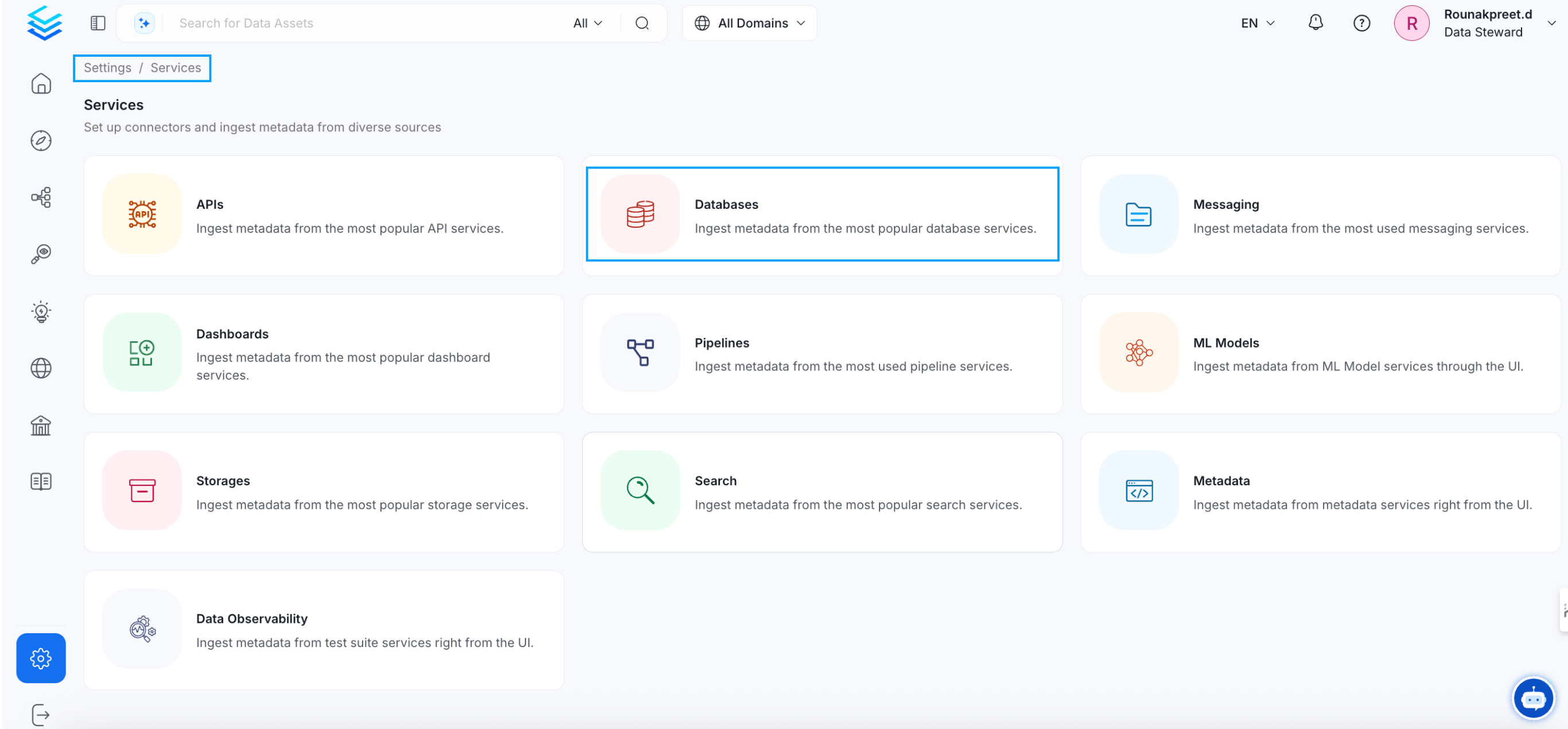
On the left navigation bar, click Settings.
-
On the next page, click Services, and then select the service.
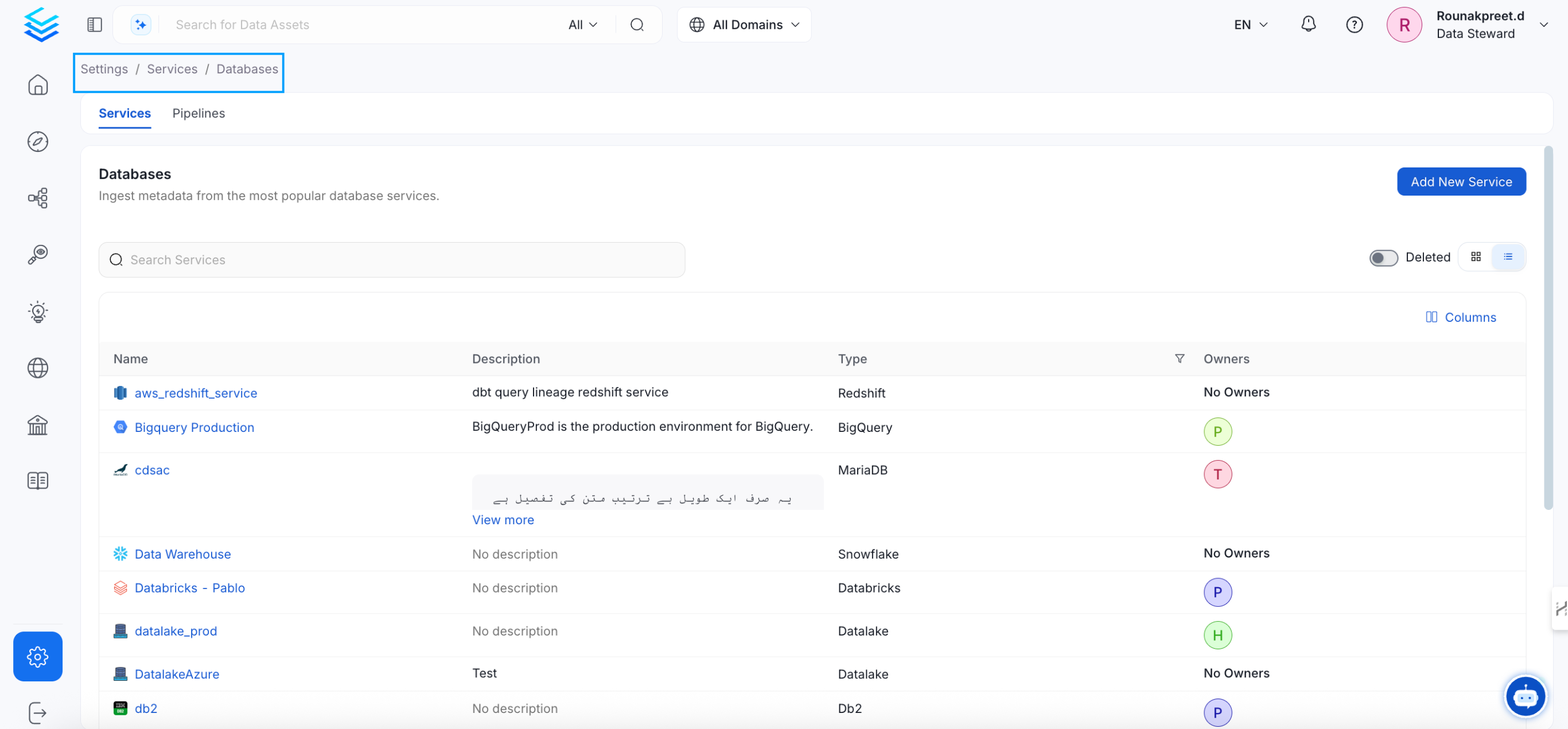
To add a new service connection, click Add New Service.
 Select {connector} as the service type and click Next.
{selectServicePath &&
Select {connector} as the service type and click Next.
{selectServicePath &&  }
Enter a unique, descriptive Service Name and Description.
}
Enter a unique, descriptive Service Name and Description.
- Service Name: Collate identifies services by their service name. Enter a name that distinguishes this deployment from other services, including other {connector} services you are ingesting metadata from.
The service name cannot be changed after it is set.
{addNewServicePath &&  }
Set up the connection settings required for {connector}.
}
Set up the connection settings required for {connector}.
Configure the following connection options to set up the service and start ingesting metadata from your sources. The right-hand panel displays help documentation for the selected connection type in the product UI
{serviceConnectionPath &&  }
;
};
export const ConnectorDetailsHeader = ({name, icon, stage, availableFeatures, unavailableFeatures = [], availableFeaturesCollate = []}) => {
const showSubHeading = availableFeatures?.length > 0 || unavailableFeatures?.length > 0 || availableFeaturesCollate?.length > 0;
const totalAvailableFeatures = [...availableFeatures || [], ...availableFeaturesCollate || []];
return
}
;
};
export const ConnectorDetailsHeader = ({name, icon, stage, availableFeatures, unavailableFeatures = [], availableFeaturesCollate = []}) => {
const showSubHeading = availableFeatures?.length > 0 || unavailableFeatures?.length > 0 || availableFeaturesCollate?.length > 0;
const totalAvailableFeatures = [...availableFeatures || [], ...availableFeaturesCollate || []];
return
{icon &&
}
{name}
{stage}
{showSubHeading &&
Feature List
{totalAvailableFeatures.map(feature =>
✓ {feature}
)}
{unavailableFeatures.map(feature =>
✕ {feature}
)}
}
;
};
In this section, we provide guides and references to use the PostgreSQL connector.
Configure and schedule PostgreSQL metadata and profiler workflows from the Collate UI:
* [Requirements](#requirements)
* [Metadata Ingestion](#metadata-ingestion)
* [Query Usage](/how-to-guides/guide-for-data-users/ingestion/workflows/usage)
* [Data Profiler](/how-to-guides/data-quality-observability/profiler/profiler-workflow)
* [Data Quality](/how-to-guides/data-quality-observability/quality)
* [Lineage](/how-to-guides/guide-for-data-users/ingestion/lineage)
* [dbt Integration](/connectors/database/dbt)
* [Enable Security](#securing-postgres-connection-with-ssl-in-openmetadata)
* [Troubleshooting](/connectors/database/postgres/troubleshooting)
* [Reverse Metadata](#reverse-metadata)
## Requirements
Note that we only support officially supported PostgreSQL versions. You can check the version list [here](https://www.postgresql.org/support/versioning/).
### Usage & Lineage
For the usage and lineage workflow, OpenMetadata relies on the [`pg_stat_statements`](https://www.postgresql.org/docs/current/pgstatstatements.html) extension to read query history. You need to enable the extension and grant your user read access to query statistics.
**1. Load the extension at server startup** by adding the following to your `postgresql.conf`:
```ini theme={null}
shared_preload_libraries = 'pg_stat_statements'
```
After making this change, restart the PostgreSQL server.
**2. Enable the extension and grant access** by running the following SQL as a superuser:
```sql theme={null}
CREATE EXTENSION IF NOT EXISTS pg_stat_statements;
-- Grant read access to the OpenMetadata user
GRANT pg_read_all_stats TO your_user;
```
You can find more information on the usage workflow [here](/how-to-guides/guide-for-data-users/ingestion/workflows/usage) and the lineage workflow [here](/how-to-guides/guide-for-data-users/ingestion/lineage).
`pg_stat_statements` is **not a query log** — it is a fixed-size, in-memory statistics collector. This has important implications for lineage and usage completeness:
* **Entry eviction**: It stores entries in a hash table controlled by `pg_stat_statements.max` (default: **5000**). When full, the least-executed entries are silently evicted. Queries can disappear before OpenMetadata reads them.
* **Query normalization**: Queries are deduplicated by shape — literal values are replaced with placeholders (e.g., `SELECT * FROM users WHERE id = $1`). Individual executions are not stored.
* **No timestamps**: There is no time data. Only cumulative `calls` count and `total_exec_time` since the last reset are tracked. The **query log duration** setting in OpenMetadata will have no impact — only the **query limit** matters.
* **Resets clear everything**: A server restart or `pg_stat_statements_reset()` wipes all entries.
To get the most complete lineage and usage data, we recommend:
* **Increase `pg_stat_statements.max`** to at least `10000` (or higher) in `postgresql.conf` to reduce entry eviction.
* **Set `pg_stat_statements.track = 'all'`** in `postgresql.conf` to capture queries inside functions and procedures.
* **Schedule frequent ingestion runs** (e.g., every 1–2 hours) to capture queries before they are evicted.
* **Avoid calling `pg_stat_statements_reset()`** before ingestion. If periodic resets are needed, schedule them after ingestion completes.
If your organization restricts direct access to `pg_stat_statements`, or if you need more control over query retention, you can set the **Query Statement Source** connection property to a custom view or table (e.g., `my_schema.custom_query_history`). The custom source must expose the same columns that OpenMetadata reads from `pg_stat_statements`: `userid` (oid), `dbid` (oid), `query` (text), and either `total_exec_time` (double precision, PostgreSQL 13+) or `total_time` (double precision, PostgreSQL \< 13). If not set, OpenMetadata defaults to `pg_stat_statements`.
### IAM Authentication
In order to be able to connect via IAM, you need to have the following:
1. Database is configured to use IAM authentication
Ensure that the RDS has IAM DB authentication enabled. Otherwise, you can click on Modify to enable it.
2. The user has the necessary IAM permissions
Even if you use IAM to connect to postgres, you need to specify a user to prepare the connection. You need to create a user as follows:
```sql theme={null}
CREATE USER iam_user WITH LOGIN;
GRANT rds_iam TO iam_user;
```
3. The AWS Role has the necessary permissions
The role that is going to be used to perform the ingestion, needs to have the following permissions:
```json theme={null}
{
"Version": "2012-10-17",
"Statement": [
{
"Effect": "Allow",
"Action": [
"rds-db:connect"
],
"Resource": [
"arn:aws:rds-db:eu-west-1::dbuser:/"
]
}
]
}
```
Otherwise, you might be finding issues such as
PAM authentication failed for user "\"
## Stored Procedures
When executing stored procedures in PostgreSQL, lineage extraction relies on capturing the SQL queries executed within the procedure. However, by default, PostgreSQL does not track the internal queries of a stored procedure in `pg_stat_statements`.
### Enabling Query Tracking for Lineage
To ensure OpenMetadata captures lineage from stored procedures, follow these steps:
1. **Enable Logging for All Statements**
Modify the `postgresql.conf` file and set:
`ini
log_statement = 'all'
`
This will log all executed SQL statements, including those inside stored procedures.
2. **Configure `pg_stat_statements` to Track Nested Queries**
By default, `pg_stat_statements` may only capture top-level procedure calls and not the internal queries. To change this behavior, update:
`ini
pg_stat_statements.track = 'all'
`
This ensures that statements executed within procedures are recorded.
## Metadata Ingestion
## Connection Details
* **Username**: Specify the User to connect to PostgreSQL. It should have enough privileges to read all the metadata.
* **Auth Type**: Basic Auth or IAM based auth to connect to instances / cloud rds.
* **Basic Auth**:
* **Password**: Password to connect to PostgreSQL.
* **IAM Based Auth**:
* **AWS Access Key ID** & **AWS Secret Access Key**: When you interact with AWS, you specify your AWS security credentials to verify who you are and whether you have
permission to access the resources that you are requesting. AWS uses the security credentials to authenticate and
authorize your requests ([docs](https://docs.aws.amazon.com/IAM/latest/UserGuide/security-creds.html)).
Access keys consist of two parts: An **access key ID** (for example, `AKIAIOSFODNN7EXAMPLE`), and a **secret access key** (for example, `wJalrXUtnFEMI/K7MDENG/bPxRfiCYEXAMPLEKEY`).
You must use both the access key ID and secret access key together to authenticate your requests.
You can find further information on how to manage your access keys [here](https://docs.aws.amazon.com/IAM/latest/UserGuide/id_credentials_access-keys.html).
* **AWS Region**: Each AWS Region is a separate geographic area in which AWS clusters data centers ([docs](https://docs.aws.amazon.com/AmazonRDS/latest/UserGuide/Concepts.RegionsAndAvailabilityZones.html)).
As AWS can have instances in multiple regions, we need to know the region the service you want reach belongs to.
Note that the AWS Region is the only required parameter when configuring a connection. When connecting to the
services programmatically, there are different ways in which we can extract and use the rest of AWS configurations.
You can find further information about configuring your credentials [here](https://boto3.amazonaws.com/v1/documentation/api/latest/guide/credentials.html#configuring-credentials).
* **AWS Session Token (optional)**: If you are using temporary credentials to access your services, you will need to inform the AWS Access Key ID
and AWS Secrets Access Key. Also, these will include an AWS Session Token.
You can find more information on [Using temporary credentials with AWS resources](https://docs.aws.amazon.com/IAM/latest/UserGuide/id_credentials_temp_use-resources.html).
* **Endpoint URL (optional)**: To connect programmatically to an AWS service, you use an endpoint. An *endpoint* is the URL of the
entry point for an AWS web service. The AWS SDKs and the AWS Command Line Interface (AWS CLI) automatically use the
default endpoint for each service in an AWS Region. But you can specify an alternate endpoint for your API requests.
Find more information on [AWS service endpoints](https://docs.aws.amazon.com/general/latest/gr/rande.html).
* **Profile Name**: A named profile is a collection of settings and credentials that you can apply to a AWS CLI command.
When you specify a profile to run a command, the settings and credentials are used to run that command.
Multiple named profiles can be stored in the config and credentials files.
You can inform this field if you'd like to use a profile other than `default`.
Find here more information about [Named profiles for the AWS CLI](https://docs.aws.amazon.com/cli/latest/userguide/cli-configure-profiles.html).
* **Assume Role Arn**: Typically, you use `AssumeRole` within your account or for cross-account access. In this field you'll set the
`ARN` (Amazon Resource Name) of the policy of the other account.
A user who wants to access a role in a different account must also have permissions that are delegated from the account
administrator. The administrator must attach a policy that allows the user to call `AssumeRole` for the `ARN` of the role in the other account.
This is a required field if you'd like to `AssumeRole`.
Find more information on [AssumeRole](https://docs.aws.amazon.com/STS/latest/APIReference/API_AssumeRole.html).
When using Assume Role authentication, ensure you provide the following details:
* **AWS Region**: Specify the AWS region for your deployment.
* **Assume Role ARN**: Provide the ARN of the role in your AWS account that OpenMetadata will assume.
* **Assume Role Session Name**: An identifier for the assumed role session. Use the role session name to uniquely identify a session when the same role
is assumed by different principals or for different reasons.
By default, we'll use the name `OpenMetadataSession`.
Find more information about the [Role Session Name](https://docs.aws.amazon.com/STS/latest/APIReference/API_AssumeRole.html#:~:text=An%20identifier%20for%20the%20assumed%20role%20session.).
* **Assume Role Source Identity**: The source identity specified by the principal that is calling the `AssumeRole` operation. You can use source identity
information in AWS CloudTrail logs to determine who took actions with a role.
Find more information about [Source Identity](https://docs.aws.amazon.com/STS/latest/APIReference/API_AssumeRole.html#:~:text=Required%3A%20No-,SourceIdentity,-The%20source%20identity).
* **Host and Port**: Enter the fully qualified hostname and port number for your PostgreSQL deployment in the Host and Port field.
**SSL Modes**
There are a couple of types of SSL modes that PostgreSQL supports which can be added to ConnectionArguments, they are as follows:
* **disable**: SSL is disabled and the connection is not encrypted.
* **allow**: SSL is used if the server requires it.
* **prefer**: SSL is used if the server supports it.
* **require**: SSL is required.
* **verify-ca**: SSL must be used and the server certificate must be verified.
* **verify-full**: SSL must be used. The server certificate must be verified, and the server hostname must match the hostname attribute on the certificate.
**SSL Configuration**
In order to integrate SSL in the Metadata Ingestion Config, the user will have to add the SSL config under sslConfig which is placed in the source.
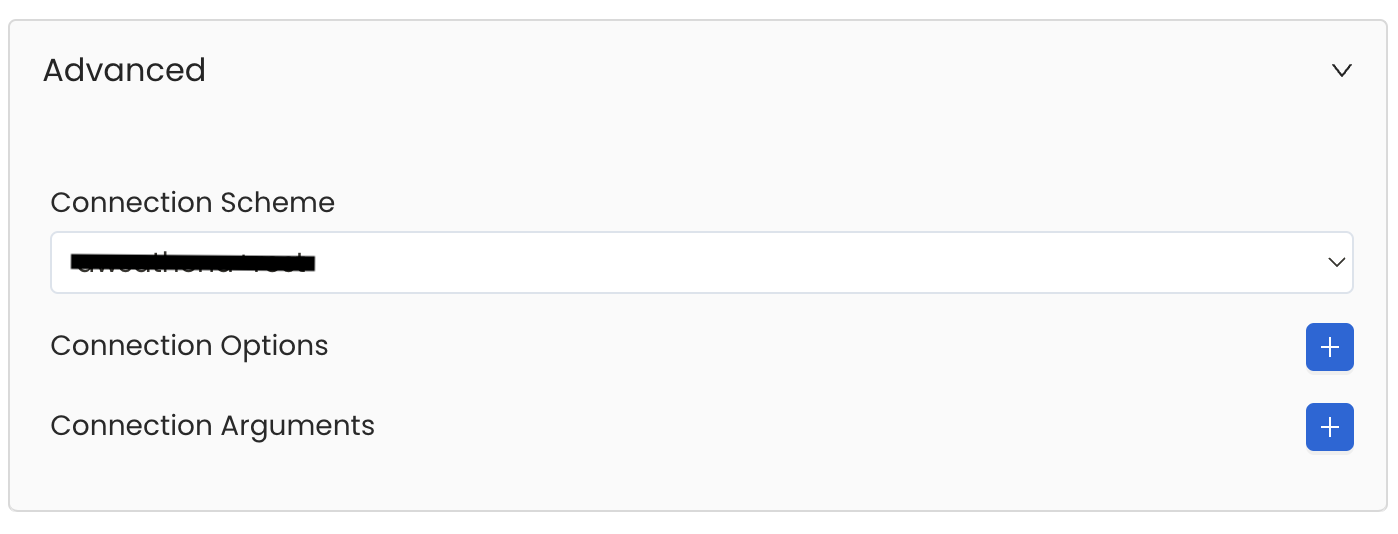
Database Services have an Advanced Configuration section, where you can pass extra arguments to the connector
and, if needed, change the connection Scheme.
This would only be required to handle advanced connectivity scenarios or customizations.
* **Connection Options (Optional)**: Enter the details for any additional connection options that can be sent to database during the connection. These details must be added as Key-Value pairs.
* **Connection Arguments (Optional)**: Enter the details for any additional connection arguments such as security or protocol configs that can be sent during the connection. These details must be added as Key-Value pairs.
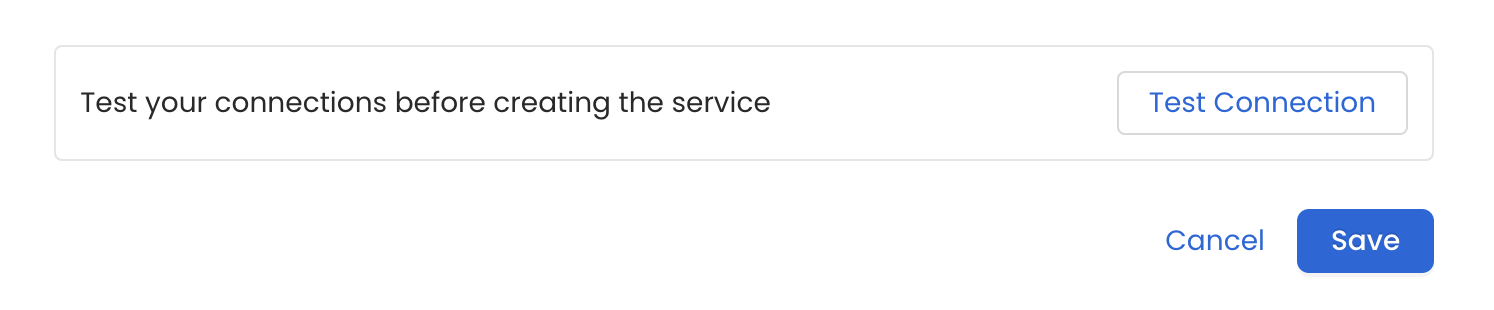
 Once the credentials have been added, click on *Test Connection* and *Save* the changes.
 In this step we will configure the metadata ingestion pipeline,
Please follow the instructions below
In this step we will configure the metadata ingestion pipeline,
Please follow the instructions below
 #### Metadata Ingestion Options
If the owner's name is openmetadata, you need to enter `openmetadata@domain.com` in the name section of add team/user form, click [here](/connectors/database/dbt/ingest-dbt-owner#following-steps-shows-adding-a-user-to-openmetadata) for more info.
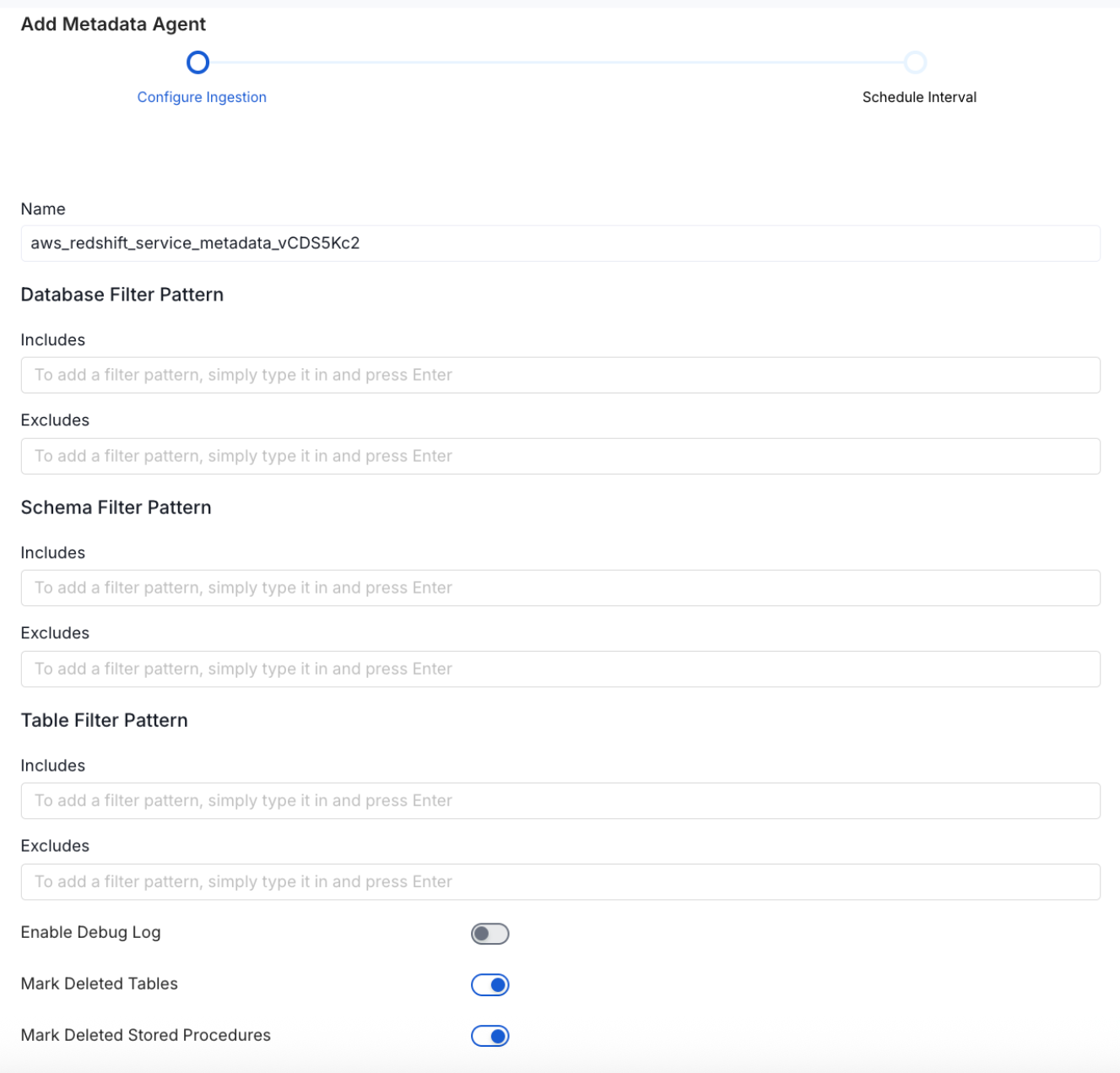
* **Name**: This field refers to the name of ingestion pipeline, you can customize the name or use the generated name.
* **Database Filter Pattern (Optional)**: Use to database filter patterns to control whether or not to include database as part of metadata ingestion.
* **Include**: Explicitly include databases by adding a list of comma-separated regular expressions to the Include field. OpenMetadata will include all databases with names matching one or more of the supplied regular expressions. All other databases will be excluded.
* **Exclude**: Explicitly exclude databases by adding a list of comma-separated regular expressions to the Exclude field. OpenMetadata will exclude all databases with names matching one or more of the supplied regular expressions. All other databases will be included.
* **Schema Filter Pattern (Optional)**: Use to schema filter patterns to control whether to include schemas as part of metadata ingestion.
* **Include**: Explicitly include schemas by adding a list of comma-separated regular expressions to the Include field. OpenMetadata will include all schemas with names matching one or more of the supplied regular expressions. All other schemas will be excluded.
* **Exclude**: Explicitly exclude schemas by adding a list of comma-separated regular expressions to the Exclude field. OpenMetadata will exclude all schemas with names matching one or more of the supplied regular expressions. All other schemas will be included.
* **Table Filter Pattern (Optional)**: Use to table filter patterns to control whether to include tables as part of metadata ingestion.
* **Include**: Explicitly include tables by adding a list of comma-separated regular expressions to the Include field. OpenMetadata will include all tables with names matching one or more of the supplied regular expressions. All other tables will be excluded.
* **Exclude**: Explicitly exclude tables by adding a list of comma-separated regular expressions to the Exclude field. OpenMetadata will exclude all tables with names matching one or more of the supplied regular expressions. All other tables will be included.
* **Enable Debug Log (toggle)**: Set the Enable Debug Log toggle to set the default log level to debug.
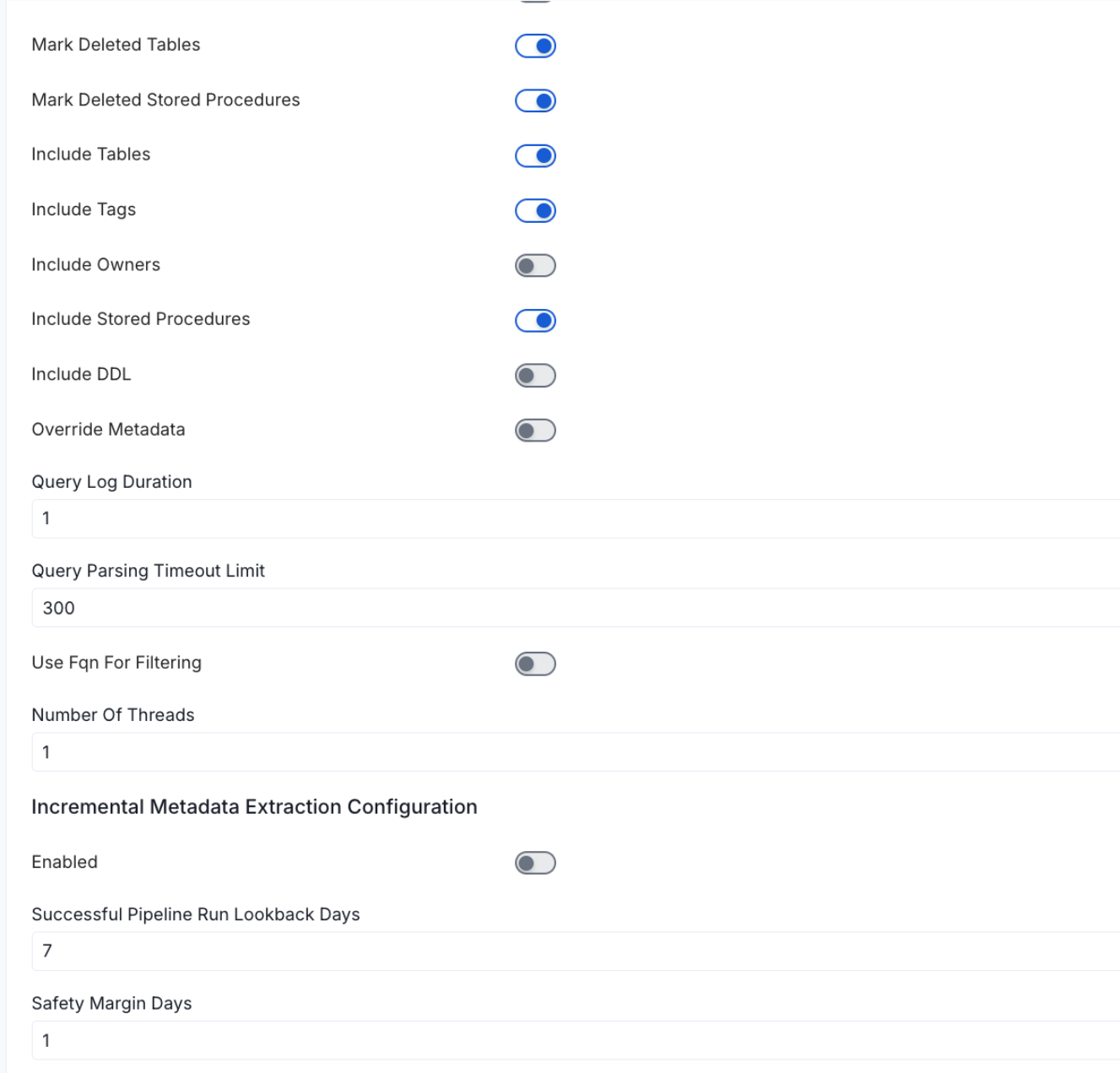
* **Mark Deleted Tables (toggle)**: Set the Mark Deleted Tables toggle to flag tables as soft-deleted if they are not present anymore in the source system.
* **Mark Deleted Tables from Filter Only (toggle)**: Set the Mark Deleted Tables from Filter Only toggle to flag tables as soft-deleted if they are not present anymore within the filtered schema or database only. This flag is useful when you have more than one ingestion pipelines. For example if you have a schema
* **includeTables (toggle)**: Optional configuration to turn off fetching metadata for tables.
* **includeViews (toggle)**: Set the Include views toggle to control whether to include views as part of metadata ingestion.
* **includeTags (toggle)**: Set the 'Include Tags' toggle to control whether to include tags as part of metadata ingestion.
* **includeOwners (toggle)**: Set the 'Include Owners' toggle to control whether to include owners to the ingested entity if the owner email matches with a user stored in the OM server as part of metadata ingestion. If the ingested entity already exists and has an owner, the owner will not be overwritten.
* **includeStoredProcedures (toggle)**: Optional configuration to toggle the Stored Procedures ingestion.
* **includeDDL (toggle)**: Optional configuration to toggle the DDL Statements ingestion.
* **queryLogDuration (Optional)**: Configuration to tune how far we want to look back in query logs to process Stored Procedures results.
* **queryParsingTimeoutLimit (Optional)**: Configuration to set the timeout for parsing the query in seconds.
* **useFqnForFiltering (toggle)**: Regex will be applied on fully qualified name (e.g service\_name.db\_name.schema\_name.table\_name) instead of raw name (e.g. table\_name).
* **Incremental (Beta)**: Use Incremental Metadata Extraction after the first execution. This is done by getting the changed tables instead of all of them. **Only Available for BigQuery, Redshift and Snowflake**
* **Enabled**: If `True`, enables Metadata Extraction to be Incremental.
* **lookback Days**: Number of days to search back for a successful pipeline run. The timestamp of the last found successful pipeline run will be used as a base to search for updated entities.
* **Safety Margin Days**: Number of days to add to the last successful pipeline run timestamp to search for updated entities.
* **Threads (Beta)**: Use a Multithread approach for Metadata Extraction. You can define here the number of threads you would like to run concurrently.
Note that the right-hand side panel in the Collate UI will also share useful documentation when configuring the ingestion.
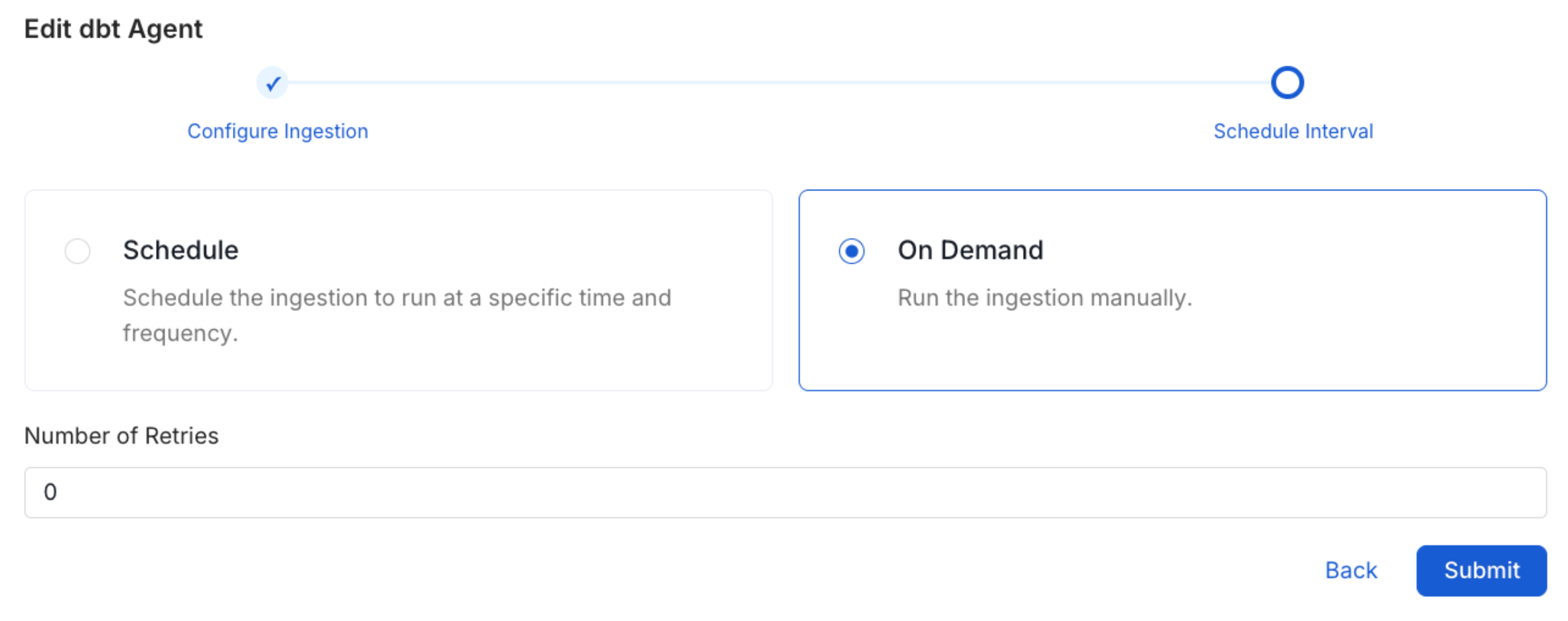
Scheduling can be set up at an hourly, daily, weekly, or manual cadence. The
timezone is in UTC. Select a Start Date to schedule for ingestion. It is
optional to add an End Date.
Review your configuration settings. If they match what you intended,
click Deploy to create the service and schedule metadata ingestion.
If something doesn't look right, click the Back button to return to the
appropriate step and change the settings as needed.
After configuring the workflow, you can click on Deploy to create the
pipeline.
#### Metadata Ingestion Options
If the owner's name is openmetadata, you need to enter `openmetadata@domain.com` in the name section of add team/user form, click [here](/connectors/database/dbt/ingest-dbt-owner#following-steps-shows-adding-a-user-to-openmetadata) for more info.
* **Name**: This field refers to the name of ingestion pipeline, you can customize the name or use the generated name.
* **Database Filter Pattern (Optional)**: Use to database filter patterns to control whether or not to include database as part of metadata ingestion.
* **Include**: Explicitly include databases by adding a list of comma-separated regular expressions to the Include field. OpenMetadata will include all databases with names matching one or more of the supplied regular expressions. All other databases will be excluded.
* **Exclude**: Explicitly exclude databases by adding a list of comma-separated regular expressions to the Exclude field. OpenMetadata will exclude all databases with names matching one or more of the supplied regular expressions. All other databases will be included.
* **Schema Filter Pattern (Optional)**: Use to schema filter patterns to control whether to include schemas as part of metadata ingestion.
* **Include**: Explicitly include schemas by adding a list of comma-separated regular expressions to the Include field. OpenMetadata will include all schemas with names matching one or more of the supplied regular expressions. All other schemas will be excluded.
* **Exclude**: Explicitly exclude schemas by adding a list of comma-separated regular expressions to the Exclude field. OpenMetadata will exclude all schemas with names matching one or more of the supplied regular expressions. All other schemas will be included.
* **Table Filter Pattern (Optional)**: Use to table filter patterns to control whether to include tables as part of metadata ingestion.
* **Include**: Explicitly include tables by adding a list of comma-separated regular expressions to the Include field. OpenMetadata will include all tables with names matching one or more of the supplied regular expressions. All other tables will be excluded.
* **Exclude**: Explicitly exclude tables by adding a list of comma-separated regular expressions to the Exclude field. OpenMetadata will exclude all tables with names matching one or more of the supplied regular expressions. All other tables will be included.
* **Enable Debug Log (toggle)**: Set the Enable Debug Log toggle to set the default log level to debug.
* **Mark Deleted Tables (toggle)**: Set the Mark Deleted Tables toggle to flag tables as soft-deleted if they are not present anymore in the source system.
* **Mark Deleted Tables from Filter Only (toggle)**: Set the Mark Deleted Tables from Filter Only toggle to flag tables as soft-deleted if they are not present anymore within the filtered schema or database only. This flag is useful when you have more than one ingestion pipelines. For example if you have a schema
* **includeTables (toggle)**: Optional configuration to turn off fetching metadata for tables.
* **includeViews (toggle)**: Set the Include views toggle to control whether to include views as part of metadata ingestion.
* **includeTags (toggle)**: Set the 'Include Tags' toggle to control whether to include tags as part of metadata ingestion.
* **includeOwners (toggle)**: Set the 'Include Owners' toggle to control whether to include owners to the ingested entity if the owner email matches with a user stored in the OM server as part of metadata ingestion. If the ingested entity already exists and has an owner, the owner will not be overwritten.
* **includeStoredProcedures (toggle)**: Optional configuration to toggle the Stored Procedures ingestion.
* **includeDDL (toggle)**: Optional configuration to toggle the DDL Statements ingestion.
* **queryLogDuration (Optional)**: Configuration to tune how far we want to look back in query logs to process Stored Procedures results.
* **queryParsingTimeoutLimit (Optional)**: Configuration to set the timeout for parsing the query in seconds.
* **useFqnForFiltering (toggle)**: Regex will be applied on fully qualified name (e.g service\_name.db\_name.schema\_name.table\_name) instead of raw name (e.g. table\_name).
* **Incremental (Beta)**: Use Incremental Metadata Extraction after the first execution. This is done by getting the changed tables instead of all of them. **Only Available for BigQuery, Redshift and Snowflake**
* **Enabled**: If `True`, enables Metadata Extraction to be Incremental.
* **lookback Days**: Number of days to search back for a successful pipeline run. The timestamp of the last found successful pipeline run will be used as a base to search for updated entities.
* **Safety Margin Days**: Number of days to add to the last successful pipeline run timestamp to search for updated entities.
* **Threads (Beta)**: Use a Multithread approach for Metadata Extraction. You can define here the number of threads you would like to run concurrently.
Note that the right-hand side panel in the Collate UI will also share useful documentation when configuring the ingestion.
Scheduling can be set up at an hourly, daily, weekly, or manual cadence. The
timezone is in UTC. Select a Start Date to schedule for ingestion. It is
optional to add an End Date.
Review your configuration settings. If they match what you intended,
click Deploy to create the service and schedule metadata ingestion.
If something doesn't look right, click the Back button to return to the
appropriate step and change the settings as needed.
After configuring the workflow, you can click on Deploy to create the
pipeline.
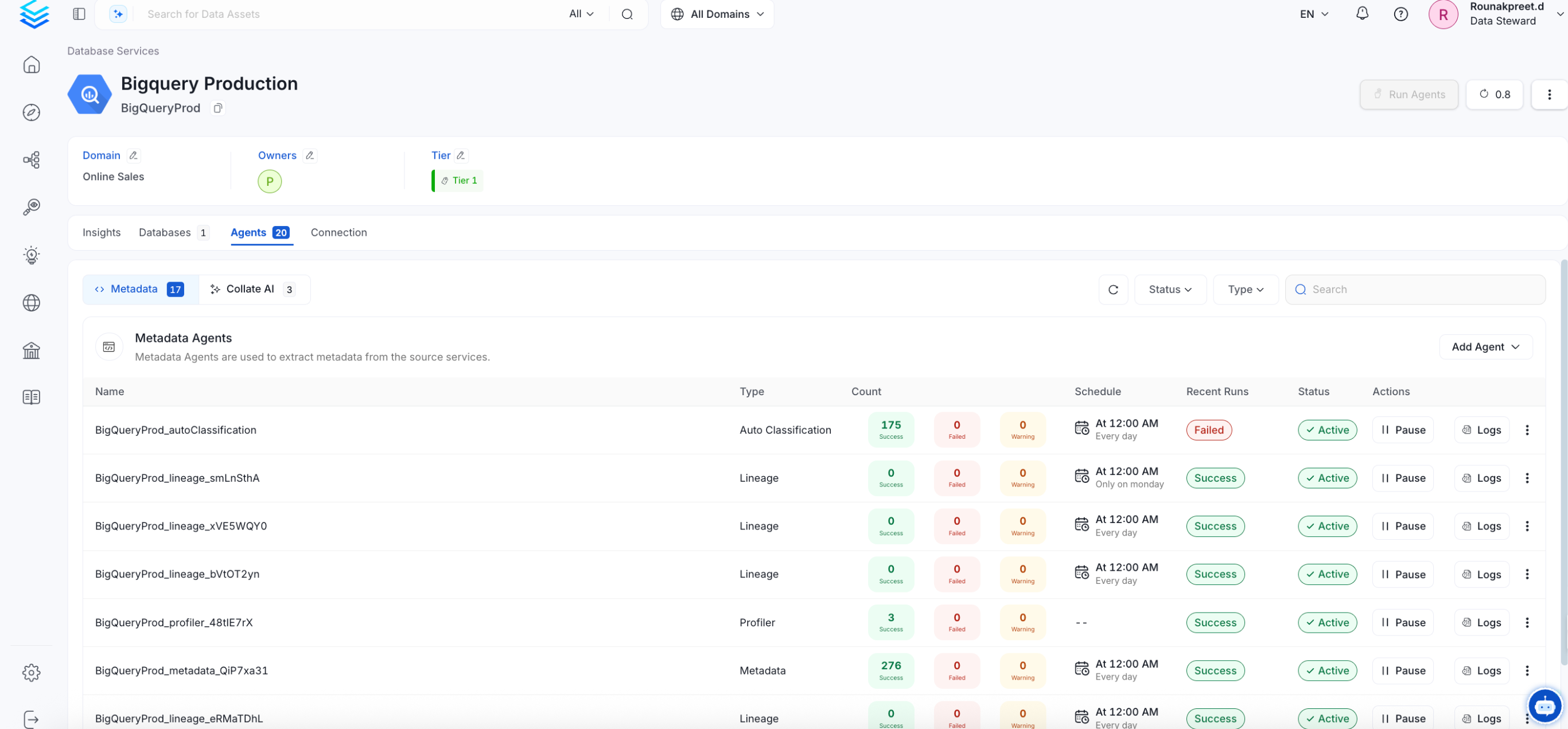
 Once the workflow has been successfully deployed, you can view the
Ingestion Pipeline running from the Service Page.
Once the workflow has been successfully deployed, you can view the
Ingestion Pipeline running from the Service Page.
 If [AutoPilot](/how-to-guides/admin-guide/applications/autopilot) is enabled, workflows like usage tracking, data lineage, and similar tasks will be handled automatically. Users don’t need to set up or manage them - AutoPilot takes care of everything in the system.
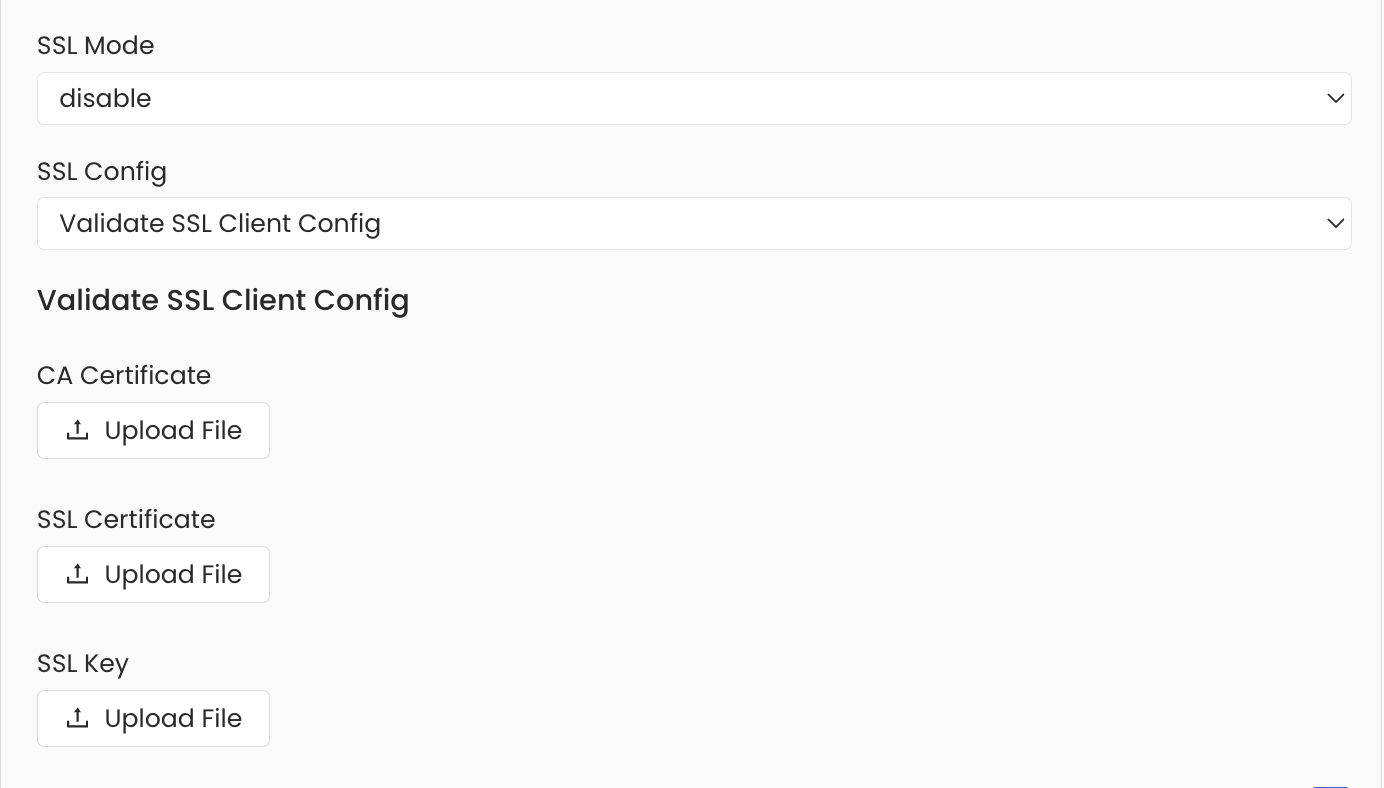
## Securing PostgreSQL Connection with SSL in OpenMetadata
To establish secure connections between OpenMetadata and a PostgreSQL database, you can configure SSL using different SSL modes provided by PostgreSQL, each offering varying levels of security.
Under `Advanced Config`, specify the SSL mode appropriate for your connection, such as `prefer`, `verify-ca`, `allow`, and others. After selecting the SSL mode, provide the CA certificate used for SSL validation (`caCertificate`). Note that PostgreSQL requires only the CA certificate for SSL validation.
For IAM authentication, it is recommended to choose the `allow` mode or another SSL mode that fits your specific requirements.
If [AutoPilot](/how-to-guides/admin-guide/applications/autopilot) is enabled, workflows like usage tracking, data lineage, and similar tasks will be handled automatically. Users don’t need to set up or manage them - AutoPilot takes care of everything in the system.
## Securing PostgreSQL Connection with SSL in OpenMetadata
To establish secure connections between OpenMetadata and a PostgreSQL database, you can configure SSL using different SSL modes provided by PostgreSQL, each offering varying levels of security.
Under `Advanced Config`, specify the SSL mode appropriate for your connection, such as `prefer`, `verify-ca`, `allow`, and others. After selecting the SSL mode, provide the CA certificate used for SSL validation (`caCertificate`). Note that PostgreSQL requires only the CA certificate for SSL validation.
For IAM authentication, it is recommended to choose the `allow` mode or another SSL mode that fits your specific requirements.
 ## Reverse Metadata
### Description Management
PostgreSQL supports description updates at all levels:
* Database level
* Schema level
* Table level
* Column level
### Owner Management
PostgreSQL supports owner management at the following levels:
* Database level
* Schema level
* Table level
### Tag Management
❌ Tag management is not supported for PostgreSQL.
### Custom SQL Template
PostgreSQL supports custom SQL templates for metadata changes. The template is interpreted using python f-strings.
Here are examples of custom SQL queries for metadata changes:
```sql theme={null}
-- Update database owner
ALTER DATABASE {database} OWNER TO {owner};
```
The list of variables for custom SQL can be found [here](/how-to-guides/admin-guide/applications/reverse-metadata#custom-sql-template).
For more information about reverse metadata ingestion, see [Reverse Metadata Application](/how-to-guides/admin-guide/applications/reverse-metadata).
### Requirements for Reverse Metadata
In addition to the basic ingestion requirements, for reverse metadata ingestion the user needs:
* `SUPERUSER` privilege to the user
```sql theme={null}
-- Grant superuser privilege to the user
ALTER ROLE USER_NAME SUPERUSER;
```
## Troubleshooting
Learn more about how to troubleshoot common PostgreSQL connector issues and resolve configuration or ingestion errors.
## Related
Learn more about how to configure the Usage Workflow to ingest Query information from the UI.
Learn more about how to configure the Lineage from the UI.
Learn more about how to configure the Data Profiler from the UI.
Learn more about how to configure the Data Quality tests from the UI.
Learn more about how to ingest dbt models' definitions and their lineage.
## Reverse Metadata
### Description Management
PostgreSQL supports description updates at all levels:
* Database level
* Schema level
* Table level
* Column level
### Owner Management
PostgreSQL supports owner management at the following levels:
* Database level
* Schema level
* Table level
### Tag Management
❌ Tag management is not supported for PostgreSQL.
### Custom SQL Template
PostgreSQL supports custom SQL templates for metadata changes. The template is interpreted using python f-strings.
Here are examples of custom SQL queries for metadata changes:
```sql theme={null}
-- Update database owner
ALTER DATABASE {database} OWNER TO {owner};
```
The list of variables for custom SQL can be found [here](/how-to-guides/admin-guide/applications/reverse-metadata#custom-sql-template).
For more information about reverse metadata ingestion, see [Reverse Metadata Application](/how-to-guides/admin-guide/applications/reverse-metadata).
### Requirements for Reverse Metadata
In addition to the basic ingestion requirements, for reverse metadata ingestion the user needs:
* `SUPERUSER` privilege to the user
```sql theme={null}
-- Grant superuser privilege to the user
ALTER ROLE USER_NAME SUPERUSER;
```
## Troubleshooting
Learn more about how to troubleshoot common PostgreSQL connector issues and resolve configuration or ingestion errors.
## Related
Learn more about how to configure the Usage Workflow to ingest Query information from the UI.
Learn more about how to configure the Lineage from the UI.
Learn more about how to configure the Data Profiler from the UI.
Learn more about how to configure the Data Quality tests from the UI.
Learn more about how to ingest dbt models' definitions and their lineage.