Custom Connectors
Each of the services support providing a Custom Connector. It should be a Python class available in the Python environment running the ingestion process (e.g., EC2 instance, Airflow host, Docker Image…). It should also match specific constraints on the methods to implement and how to send the Entities to be created. In this guide, we’ll walk through a possible implementation. The example is based on a Database Service, but the process is the same for Pipelines, Dashboard or Messaging services. Watch Collate’s Webinar on Custom ConnectorsSteps to Set Up a Custom Connector
Step 1 - Prepare your Connector
A connector is a class that extends fromfrom metadata.ingestion.api.steps import Source. It should implement
all the required methods (docs).
See the custom database source example for a minimal implementation.
Note that the important method is _iter. This is the generator function that will be iterated over
to send all the Create Entity Requests to the Sink. Read more about the Workflow here.
Step 2 - Yield the Data
TheSink is expecting Create Entity Requests. To get familiar with the Python SDK and understand how to create
the different Entities, a recommended read is the Python SDK docs.
We do not have docs and examples of all the supported Services. A way to get examples on how to create and fetch
other types of Entities is to directly refer to the ometa integration tests.
Either & StackTraceError
When weyield the data, we are now wrapping the state of the execution being correct or not with an Either class:
Either will have a left or right, and we will either return:
rightwith the correctCreateEntityRequestleftwith the exception that we want to track withStackTraceError.
Step 3 - Prepare the Package Installation
We’ll need to package the code so that it can be shipped to the ingestion container and used there. In this demo you can find a simplesetup.py that builds the connector module.
Step 4 - Prepare the Ingestion Image
If you want to use the connector from the UI, the Python environment running the ingestion process should contain the new code you just created. For example, if running via Docker, theopenmetadata-ingestion image should be
aware of your new package.
We will be running the demo against the OpenMetadata version 2.0.2, therefore, our Dockerfile looks like:
Step 5 - Run OpenMetadata with the Custom Ingestion Image
We have aMakefile prepared for you to run make run. This will get OpenMetadata up in Docker Compose using the
custom Ingestion image.
Step 6 - Configure the Connector
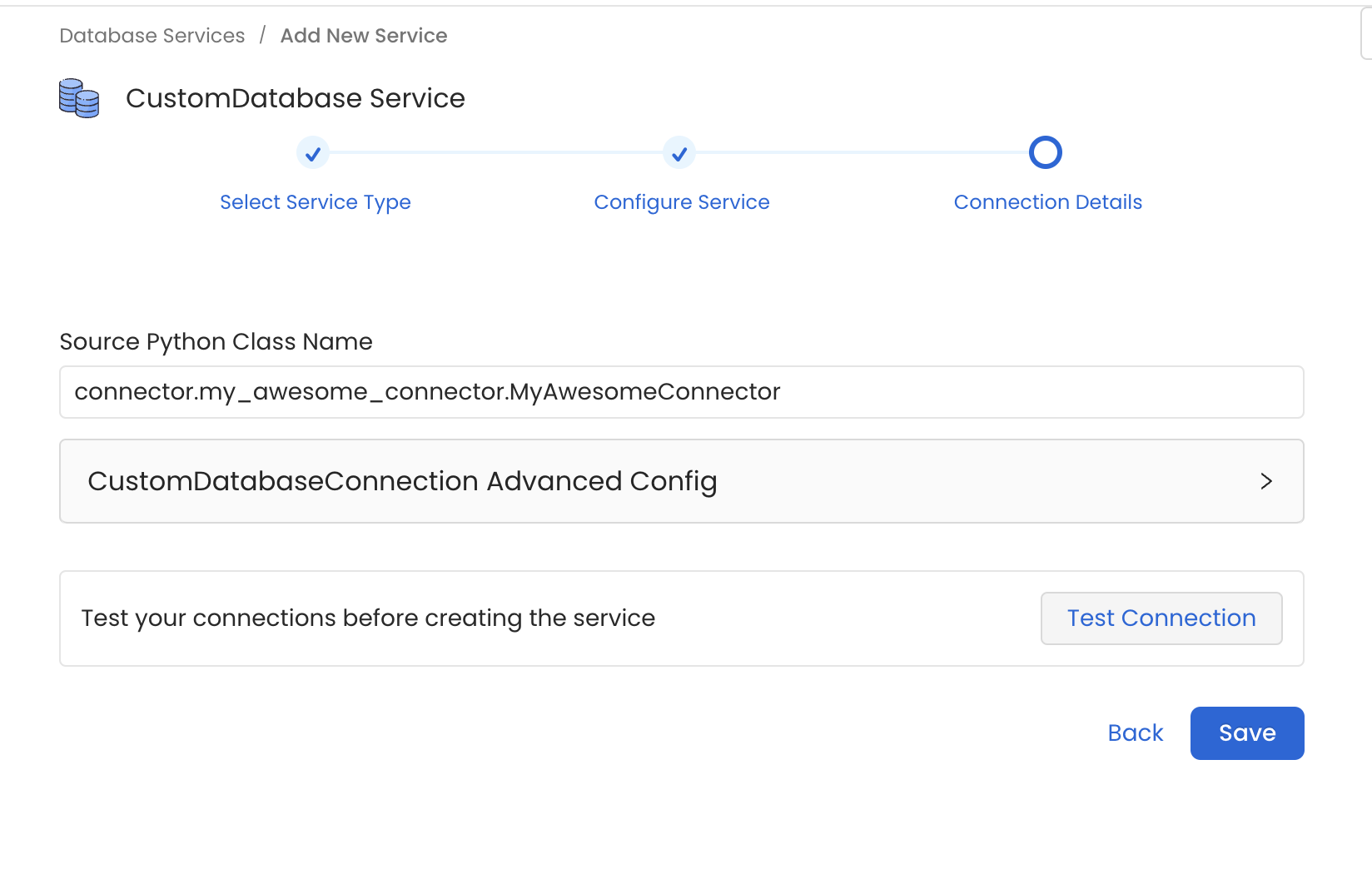
In the example we prepared a Database Connector. Thus, go toDatabase Services > Add New Service > Custom
and set the Source Python Class Name as connector.my_awesome_connector.MyAwesomeConnector.
Note how we are specifying the full module name so that the Ingestion Framework can import the Source class.