> ## Documentation Index
> Fetch the complete documentation index at: https://docs.getcollate.io/llms.txt
> Use this file to discover all available pages before exploring further.
# How to Use Collate AI
# How to Use Collate AI
## 1. Setting Up Collate AI
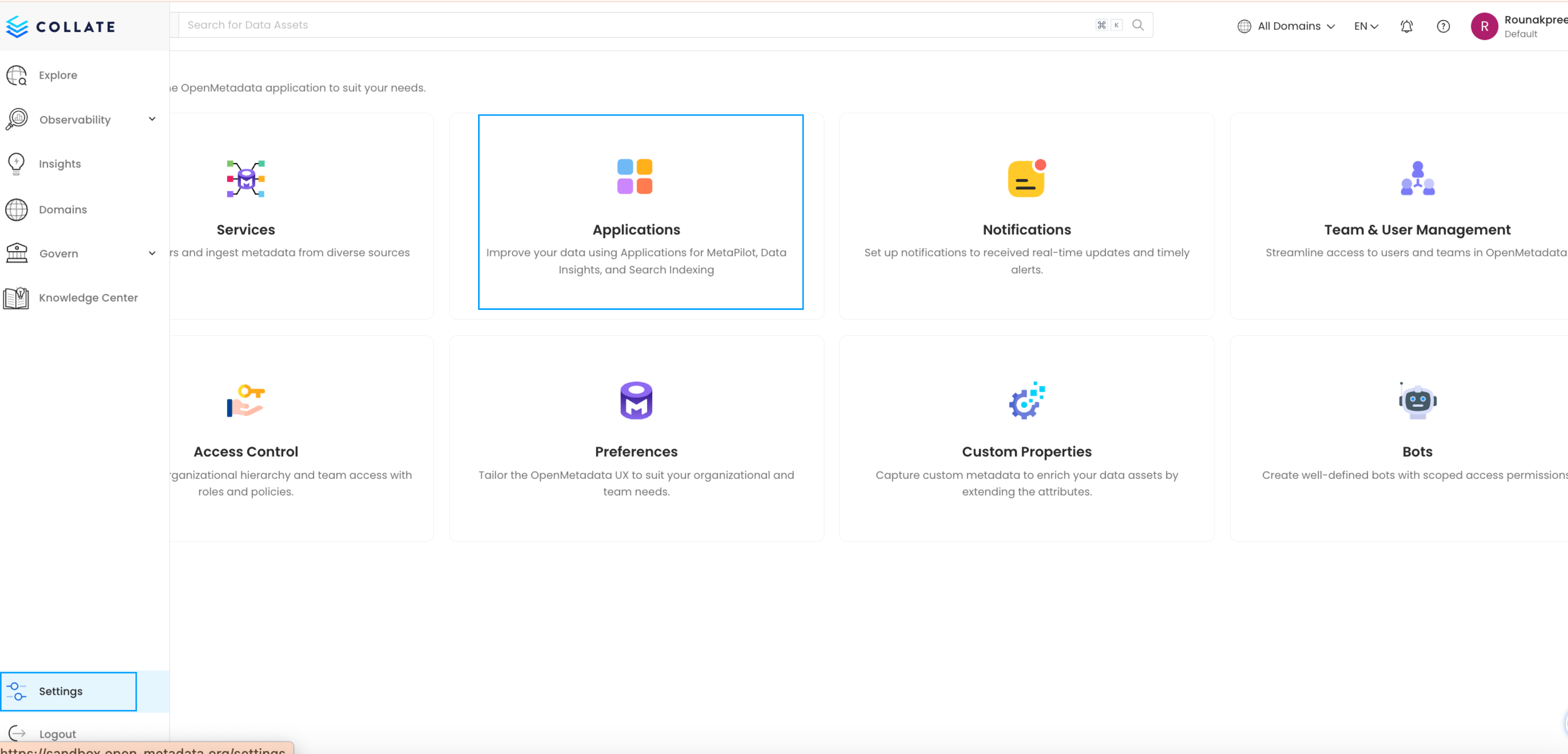
* Navigate to **Settings > Applications** in the Collate platform.
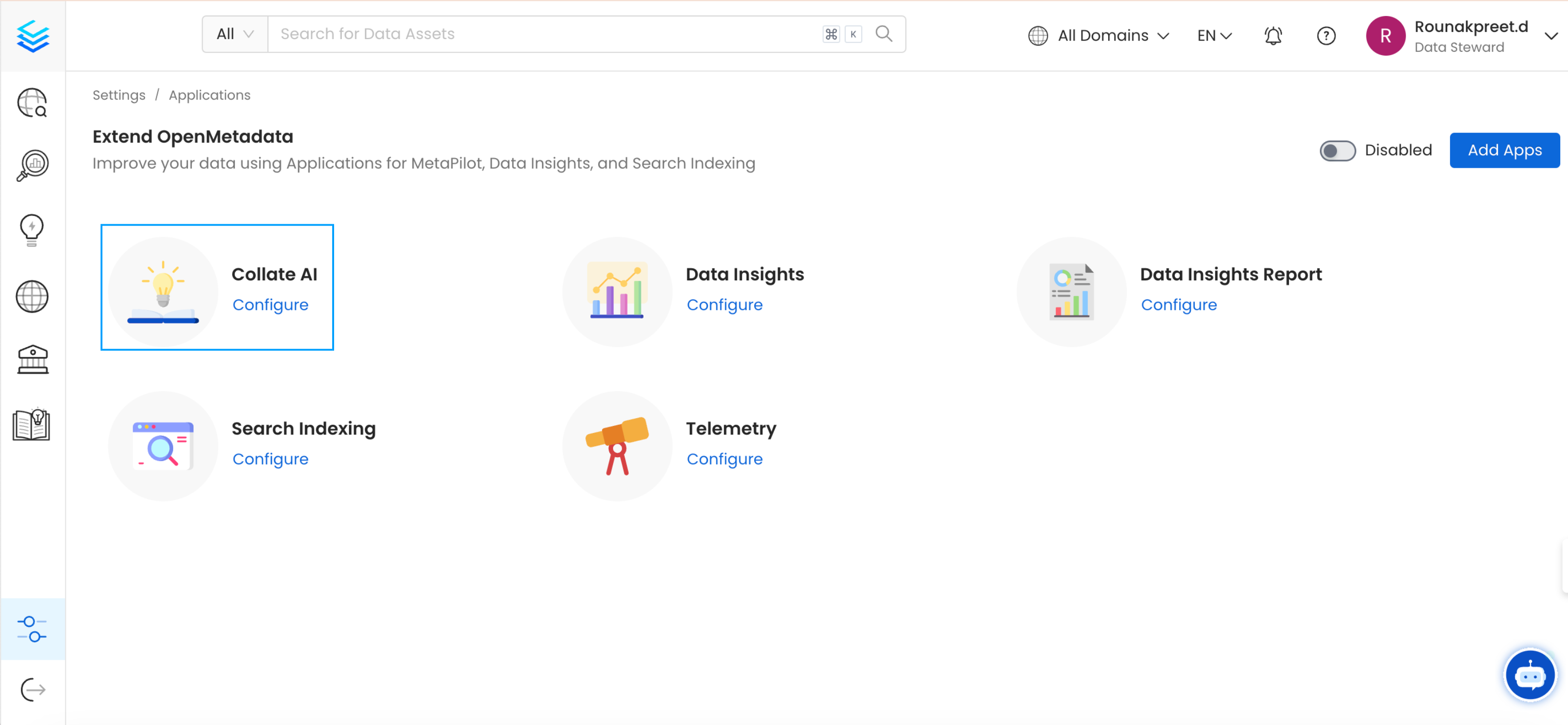
 * Install Collate AI by following the on-screen instructions.
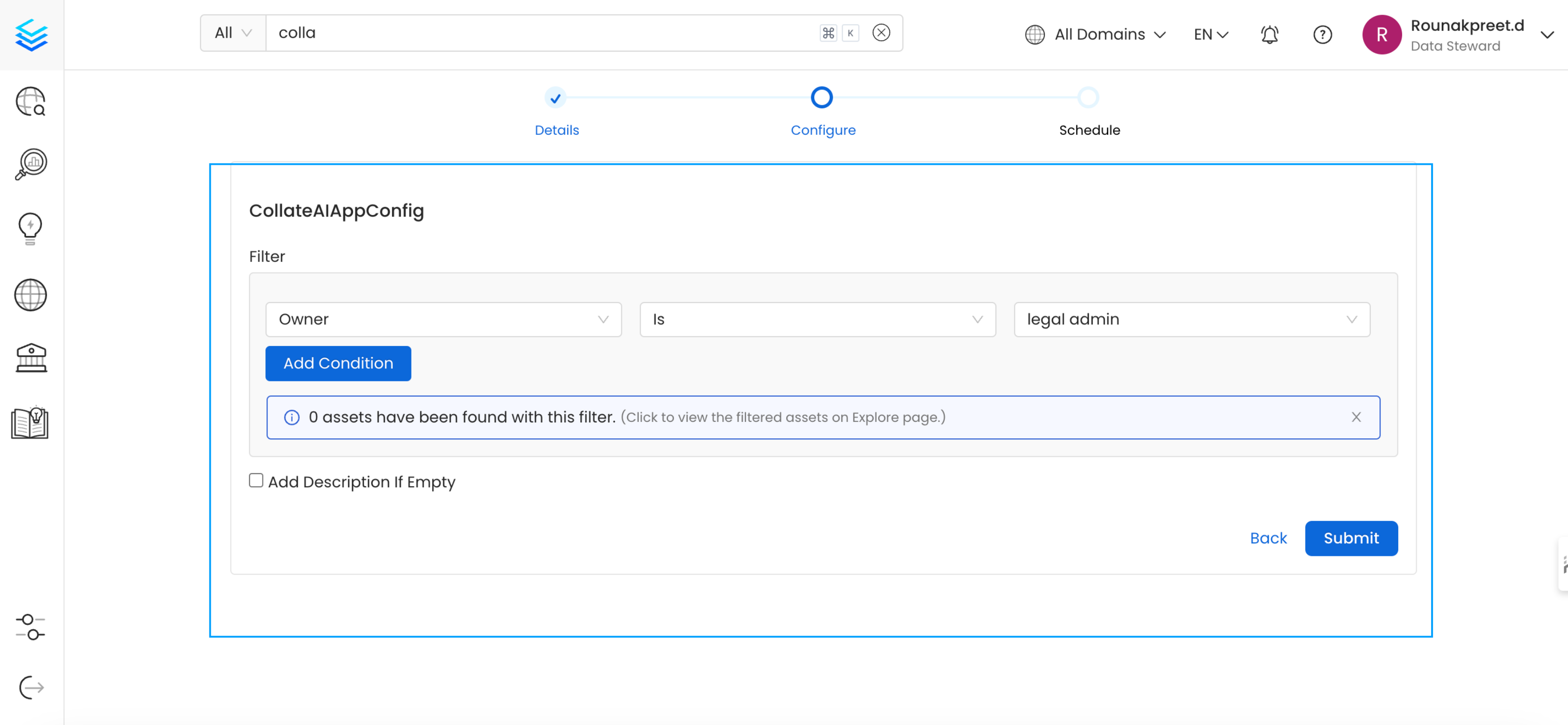
 * Configure and add filters based on criteria such as owner, schema, database, service, and more. You can also combine multiple conditions to meet your specific requirements.
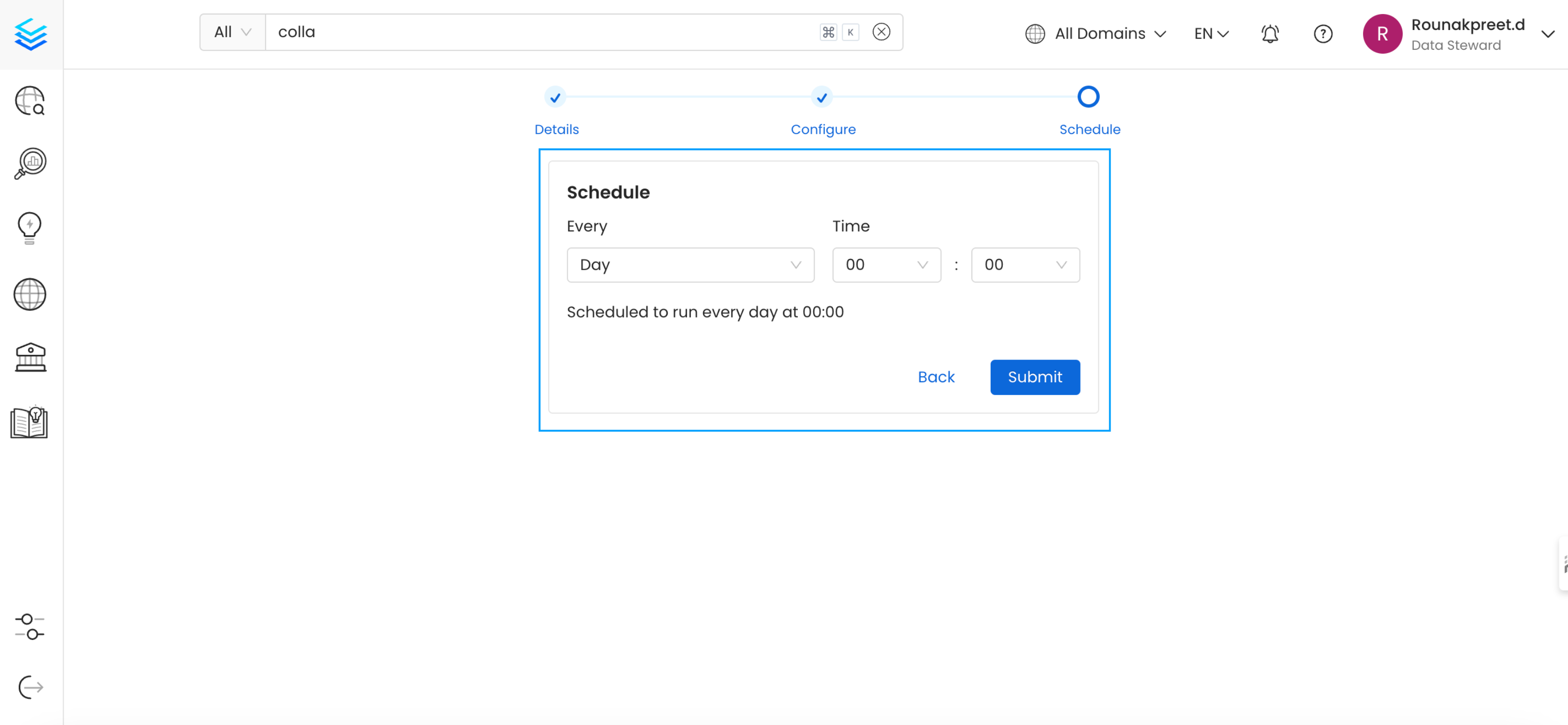
 * **Scheduling**: Schedule Collate AI to run regularly, automatically generating metadata at predefined intervals (e.g., weekly).
 ## 2. Using the Collate AI Chatbot
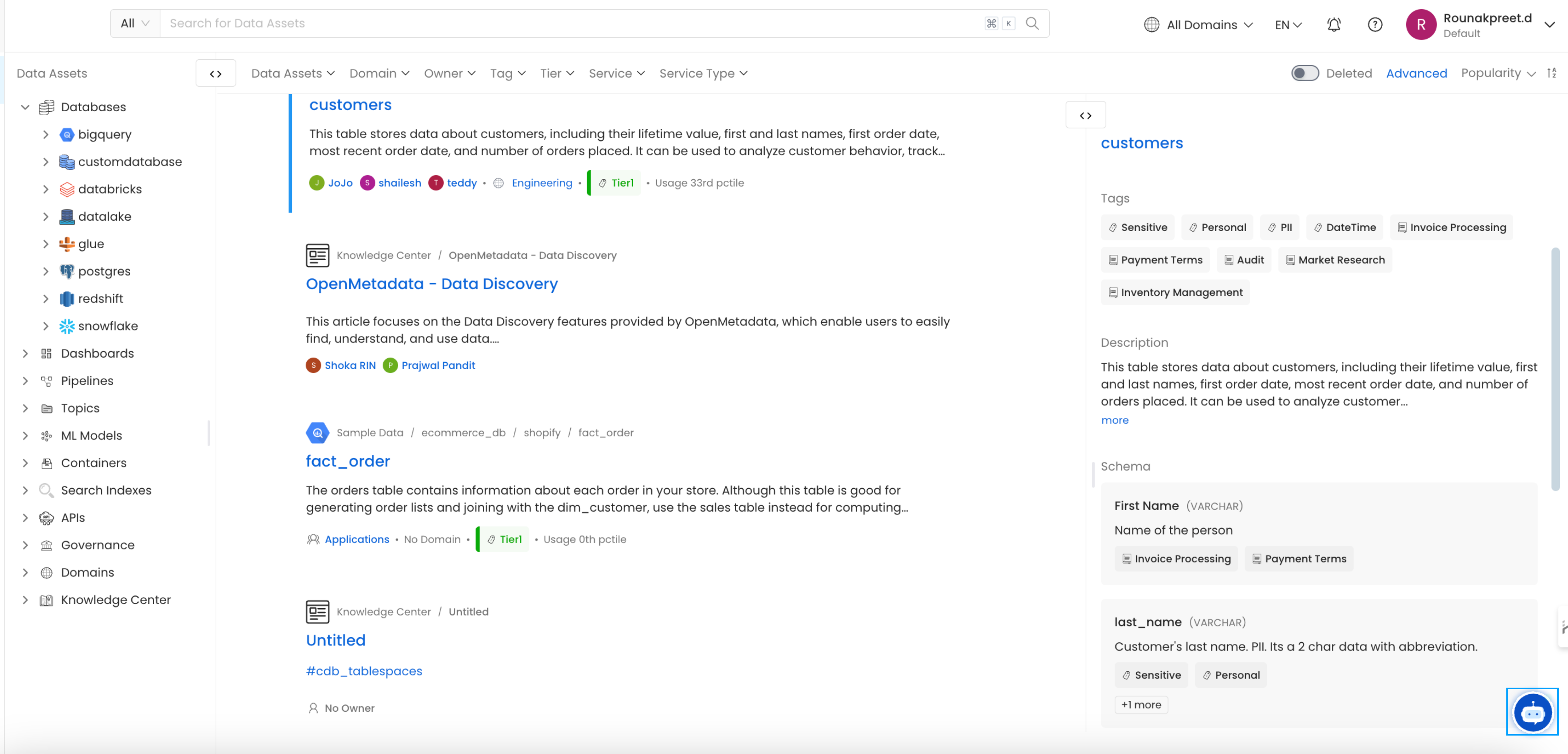
* The Collate AI chatbot icon appears on every page after installation.
## 2. Using the Collate AI Chatbot
* The Collate AI chatbot icon appears on every page after installation.
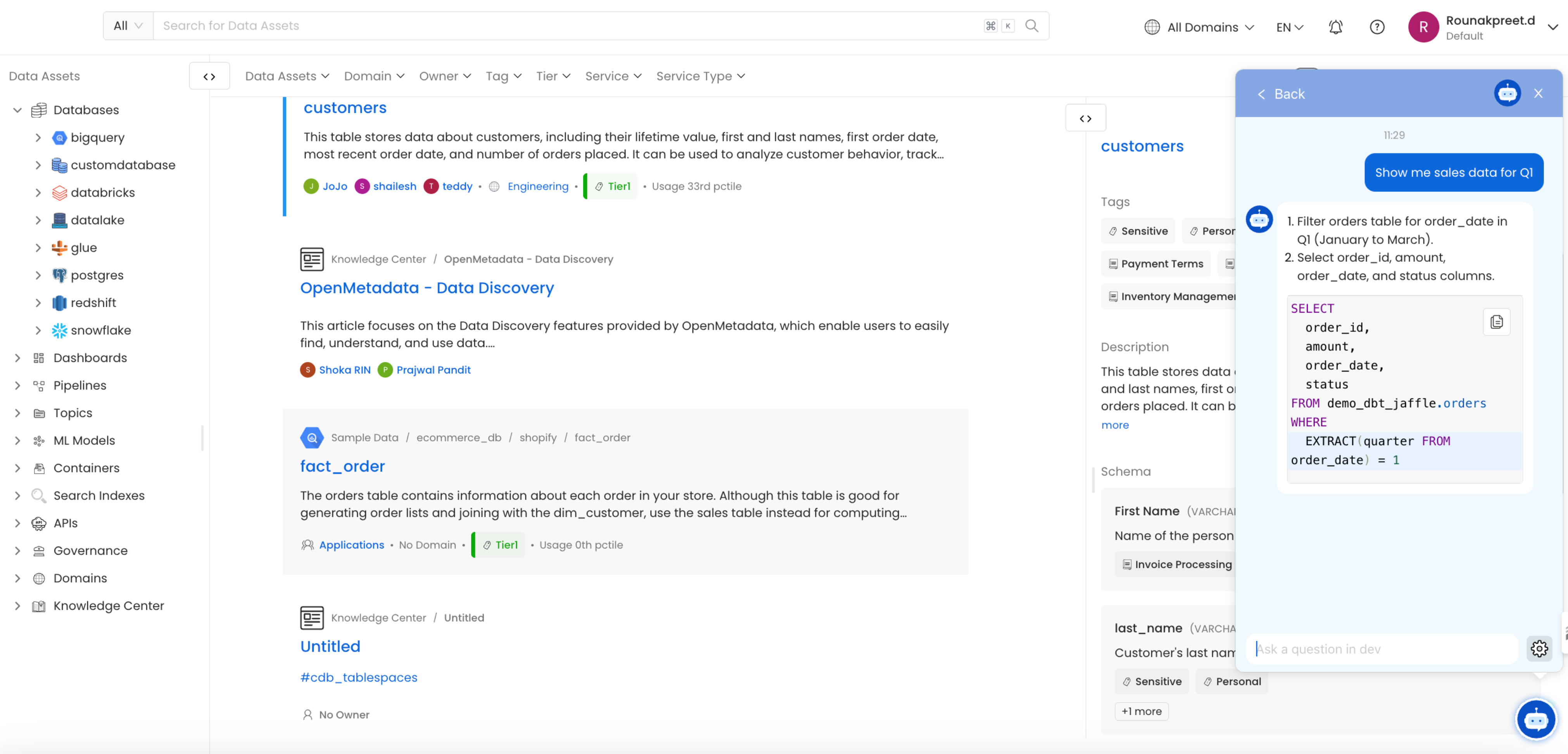
 * Interact with the chatbot by typing natural language questions. For example:
* “Show me sales data for Q1.”
* “What is the average revenue per customer?”
* Collate AI will generate the corresponding SQL query and provide a detailed explanation of the query logic.
* Interact with the chatbot by typing natural language questions. For example:
* “Show me sales data for Q1.”
* “What is the average revenue per customer?”
* Collate AI will generate the corresponding SQL query and provide a detailed explanation of the query logic.
 * Users can refine queries by providing further instructions, and the chatbot will adjust the SQL query accordingly.
## 3. Optimizing and Fixing SQL Queries
* The **Metadata Usage** workflows will ingest the queries being run against the tables. You can see how long each query has been executed in the **Queries** tab.
* Users can refine queries by providing further instructions, and the chatbot will adjust the SQL query accordingly.
## 3. Optimizing and Fixing SQL Queries
* The **Metadata Usage** workflows will ingest the queries being run against the tables. You can see how long each query has been executed in the **Queries** tab.
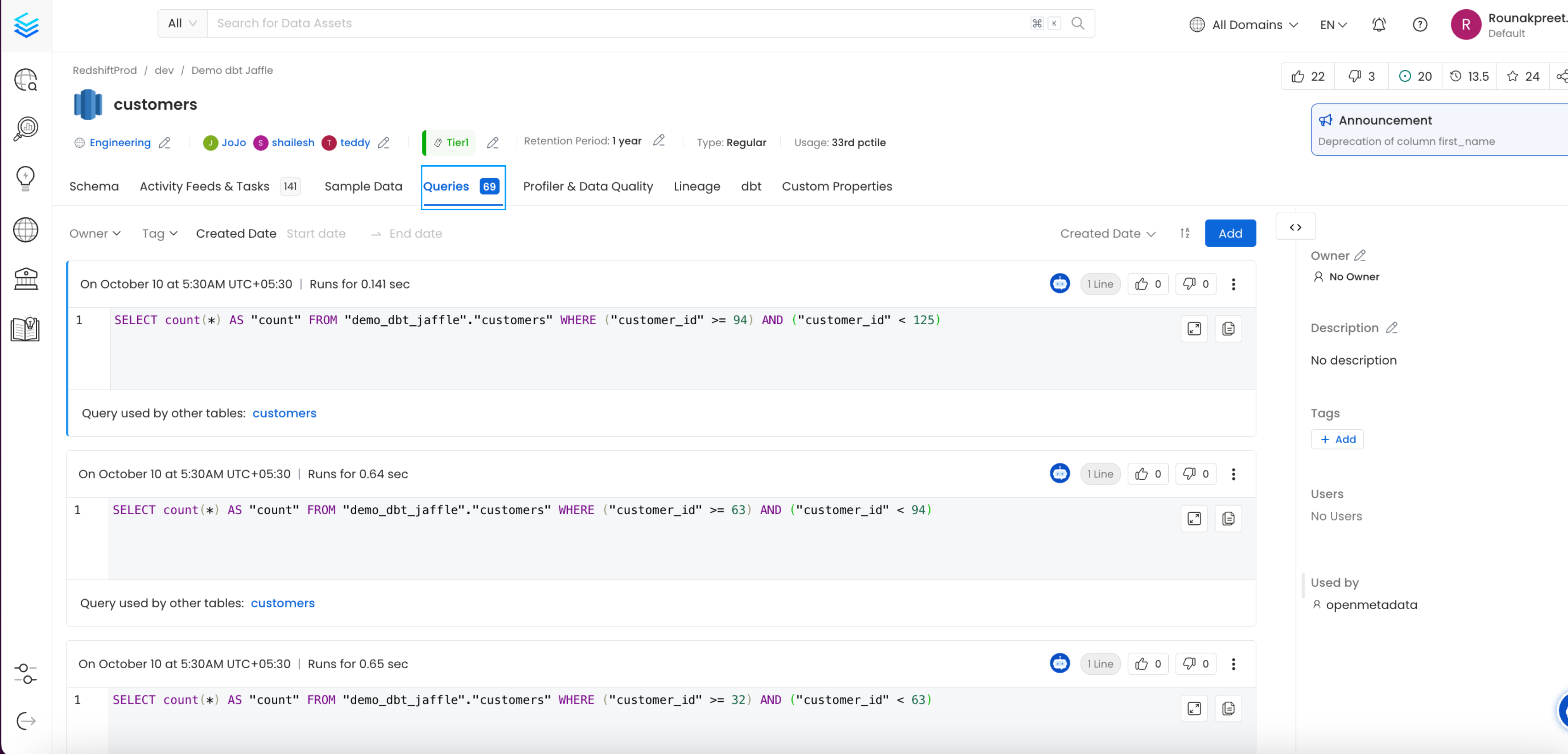 * If a query runs inefficiently, ask the chatbot to optimize it by typing: “Optimize this query.”
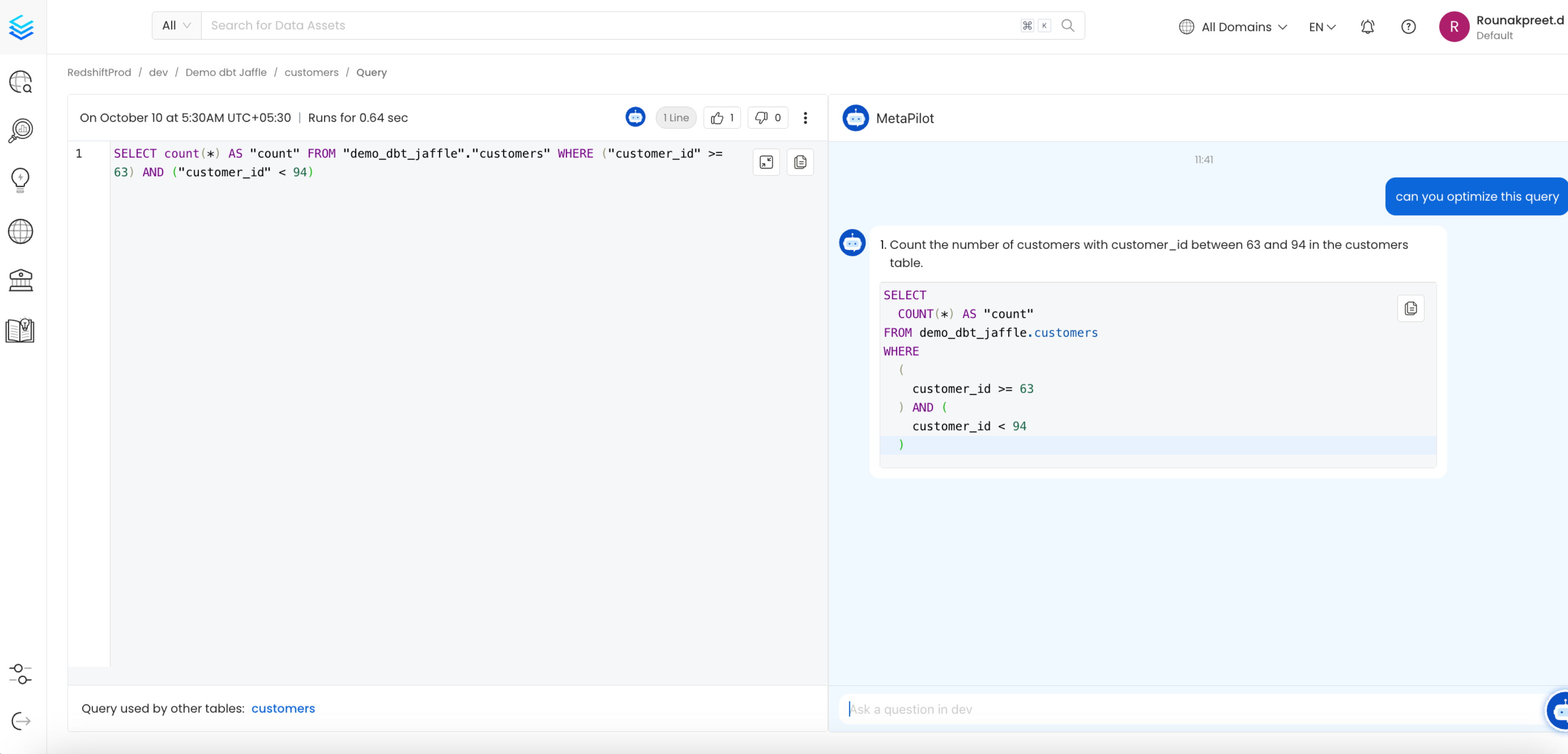 * Collate AI will return a more efficient version of the SQL query, which you can then copy and execute in your database.
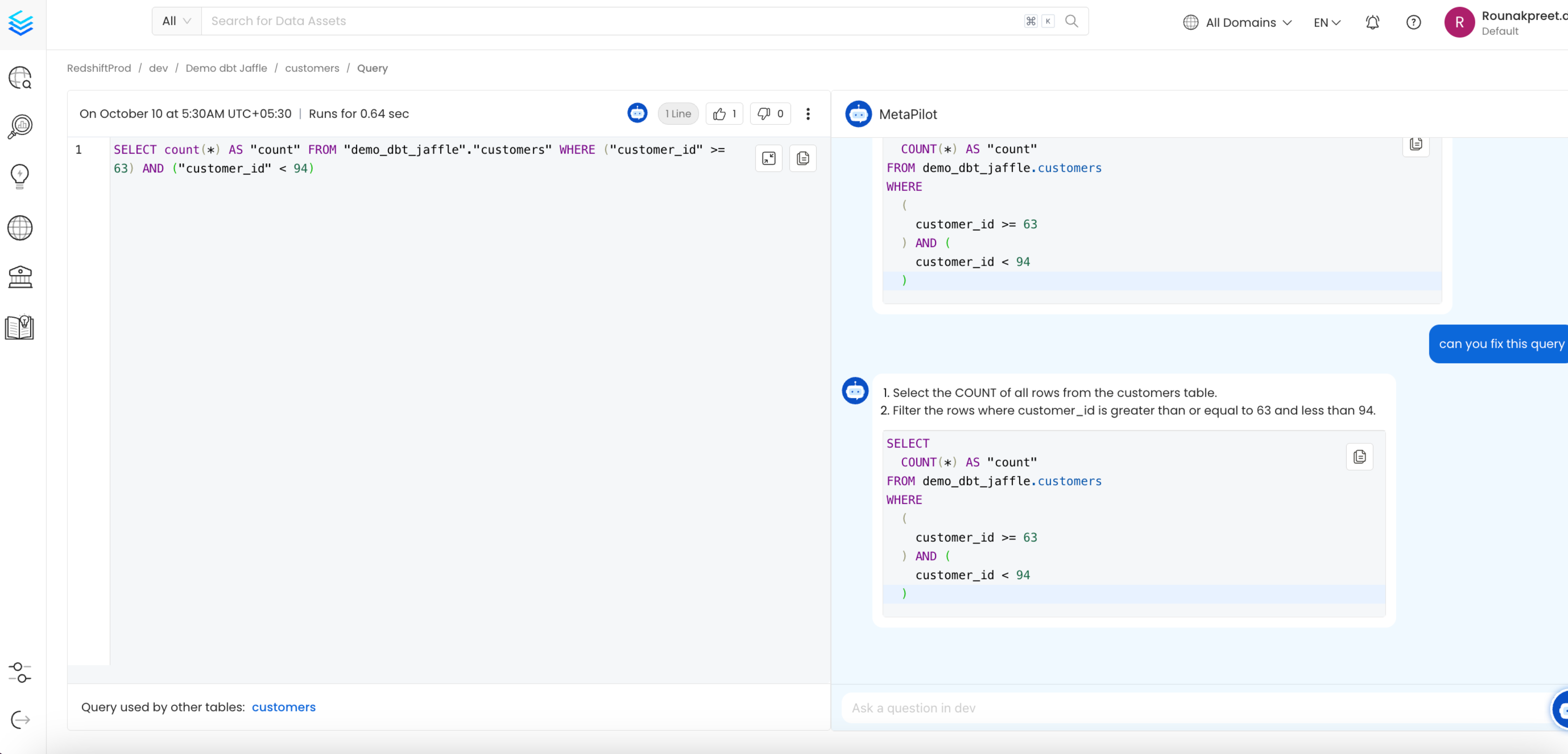
* If the query contains errors or isn’t functioning correctly, ask Collate AI: “Can you fix this query?”
* Collate AI will correct the query and provide a working version.
* Collate AI will return a more efficient version of the SQL query, which you can then copy and execute in your database.
* If the query contains errors or isn’t functioning correctly, ask Collate AI: “Can you fix this query?”
* Collate AI will correct the query and provide a working version.
 ## 4. Reviewing Generated Metadata
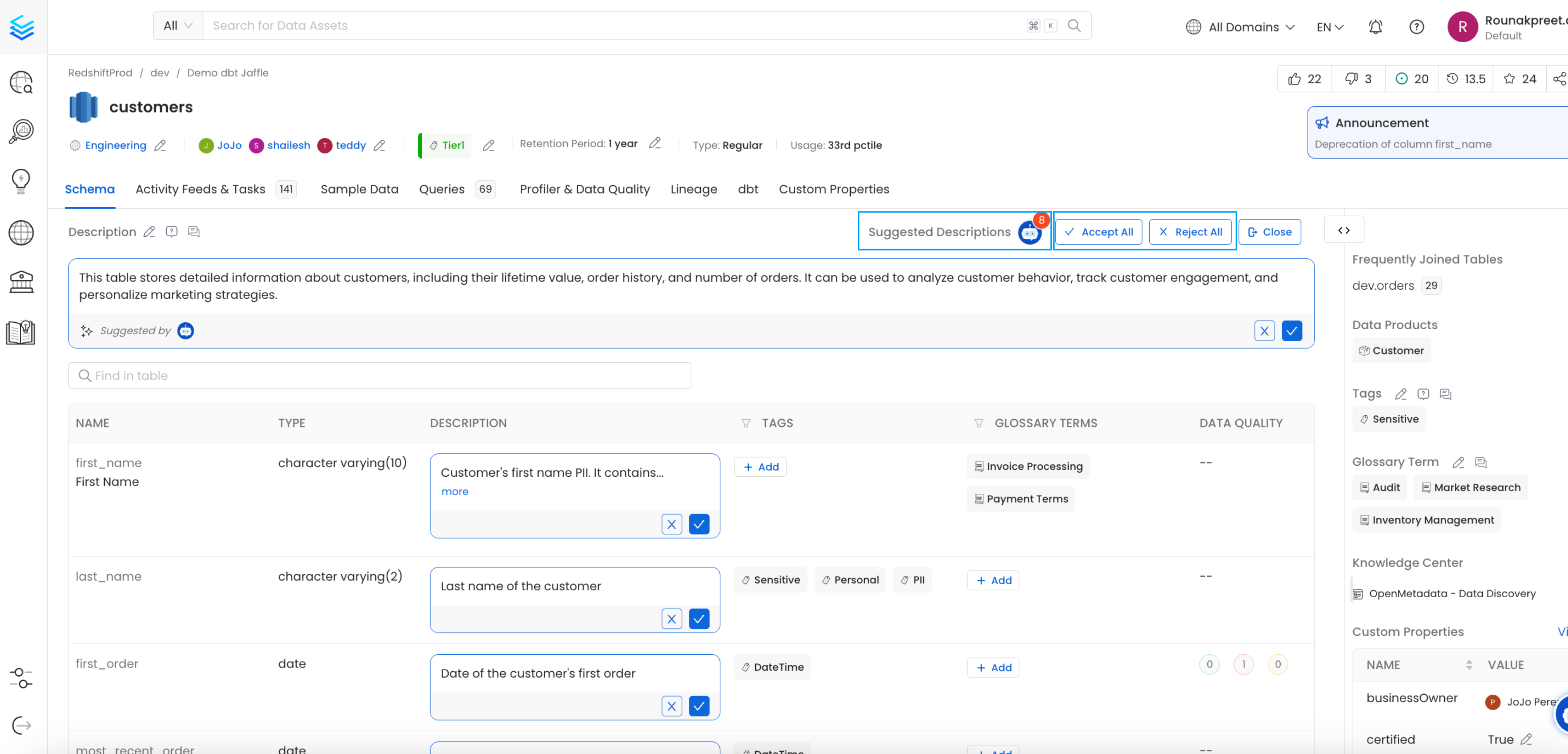
* Once Collate AI generates descriptions for tables and columns, navigate to the **database view** to review the metadata.
* You can accept or reject each suggestion individually or choose to accept all suggestions in bulk.
## 4. Reviewing Generated Metadata
* Once Collate AI generates descriptions for tables and columns, navigate to the **database view** to review the metadata.
* You can accept or reject each suggestion individually or choose to accept all suggestions in bulk.
 * Collate AI allows you to document entire datasets in a matter of minutes, significantly reducing the manual effort required to maintain metadata.
## Best Practices
* **Regular Scheduling**: Schedule Collate AI to run at regular intervals to ensure your metadata is always up-to-date, especially when dealing with frequently changing datasets.
* **Leverage the Chatbot for Query Writing**: Encourage both technical and non-technical users to use the Collate AI chatbot for SQL query generation. It simplifies complex query writing and ensures accurate results.
* **Optimize Queries Regularly**: Monitor the performance of your queries and use Collate AI to optimize them, especially when working with large datasets or queries that require complex joins and filters.
* Collate AI allows you to document entire datasets in a matter of minutes, significantly reducing the manual effort required to maintain metadata.
## Best Practices
* **Regular Scheduling**: Schedule Collate AI to run at regular intervals to ensure your metadata is always up-to-date, especially when dealing with frequently changing datasets.
* **Leverage the Chatbot for Query Writing**: Encourage both technical and non-technical users to use the Collate AI chatbot for SQL query generation. It simplifies complex query writing and ensures accurate results.
* **Optimize Queries Regularly**: Monitor the performance of your queries and use Collate AI to optimize them, especially when working with large datasets or queries that require complex joins and filters.