> ## Documentation Index
> Fetch the complete documentation index at: https://docs.getcollate.io/llms.txt
> Use this file to discover all available pages before exploring further.
# Create and Manage AI Agents with Collate AI Studio
# Collate AI Studio
AI Studio allows you to create and manage AI agents and personas in the Collate Semantic Intelligence Platform. These agents help automate tasks such as metadata discovery, governance reviews, and data quality workflows.
AI Studio provides a UI experience where users can define how an agent behaves, what tools it can use, and what task it should perform.
## Access AI Studio
1. Open the left navigation menu
2. Select **Ask Collate**
3. Click **AI Studio**
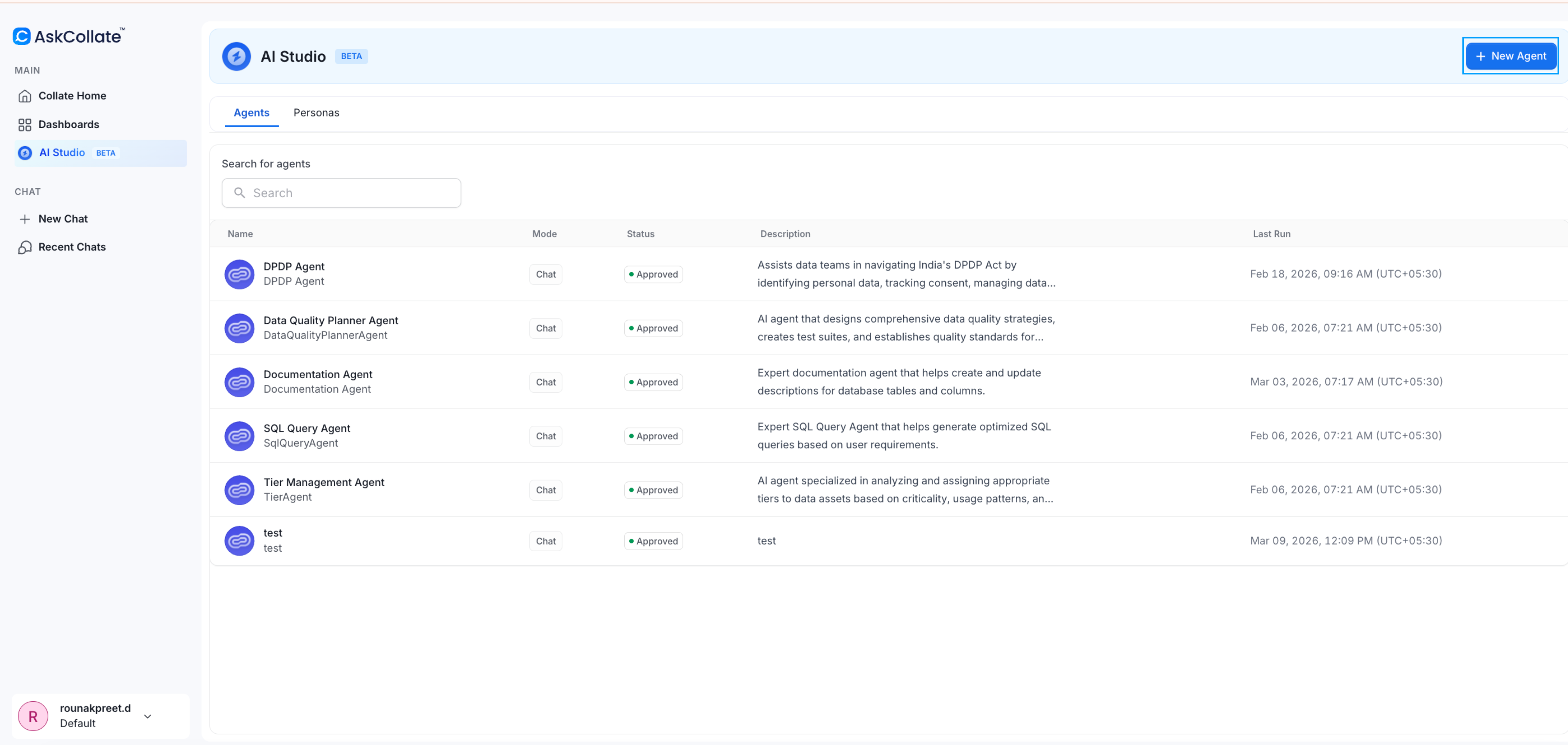
The AI Studio page displays both system agents and user-created agents. From here you can review existing agents or create a new one.
## Edit an Existing Agent
Collate includes system agents such as the documentation agent, tier agent, and data quality agent. You can review and update how these agents behave.
For example, you may want descriptions generated in a different language or change how detailed the responses are.
### Steps
1. Open the left navigation menu
2. Select **Ask Collate**
3. Select **AI Studio**
4. Open an existing agent such as **Documentation Agent**
5. Review the persona, tools, and prompt used by the agent
6. Edit the prompt to change the behavior
**Example change:**
```
Write descriptions in Spanish for documentation updates.
```
7. Save the changes
The agent will now follow the updated instructions.
## Create an AI Agent
AI agents perform tasks based on a defined persona, selected tools, and a natural language prompt.
In this example, we create an agent to support a PII audit.
### Step 1: Create a New Agent
In AI Studio, click **New Agent**.
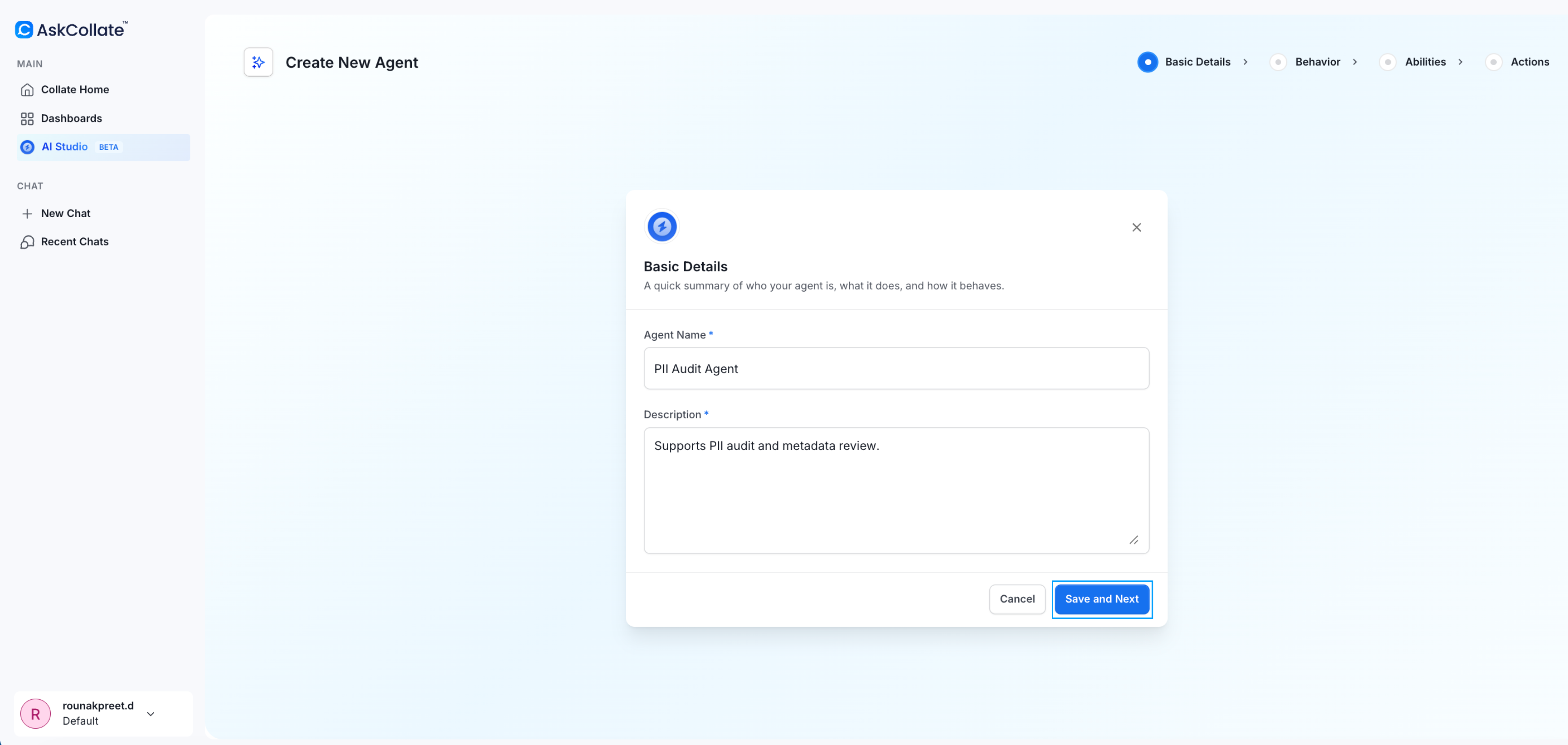
Enter a name and description and then click on **Save and Next**.
**Example:**
* **Name:** PII Audit Agent
* **Description:** Supports PII audit and metadata review
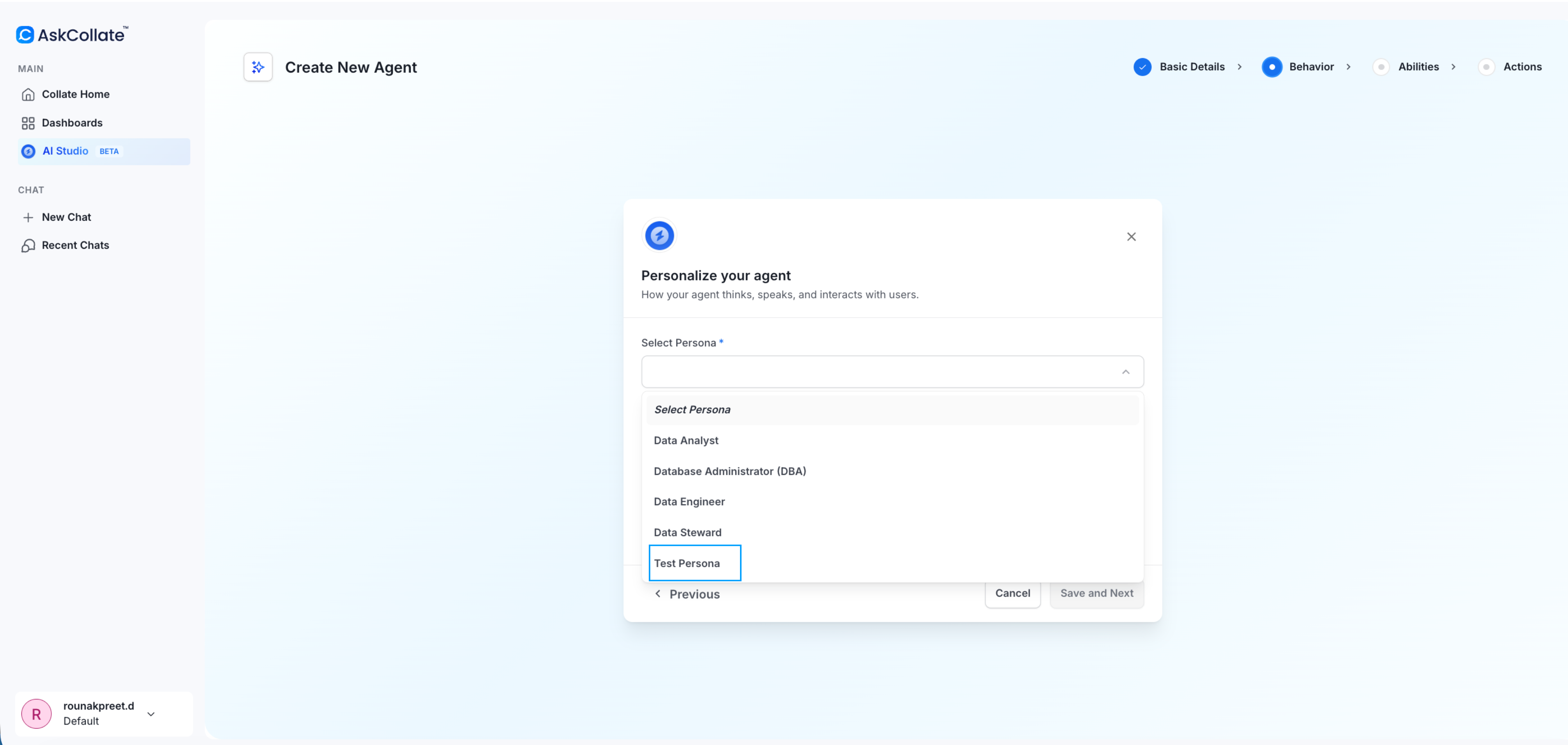
### Step 2: Select a Persona
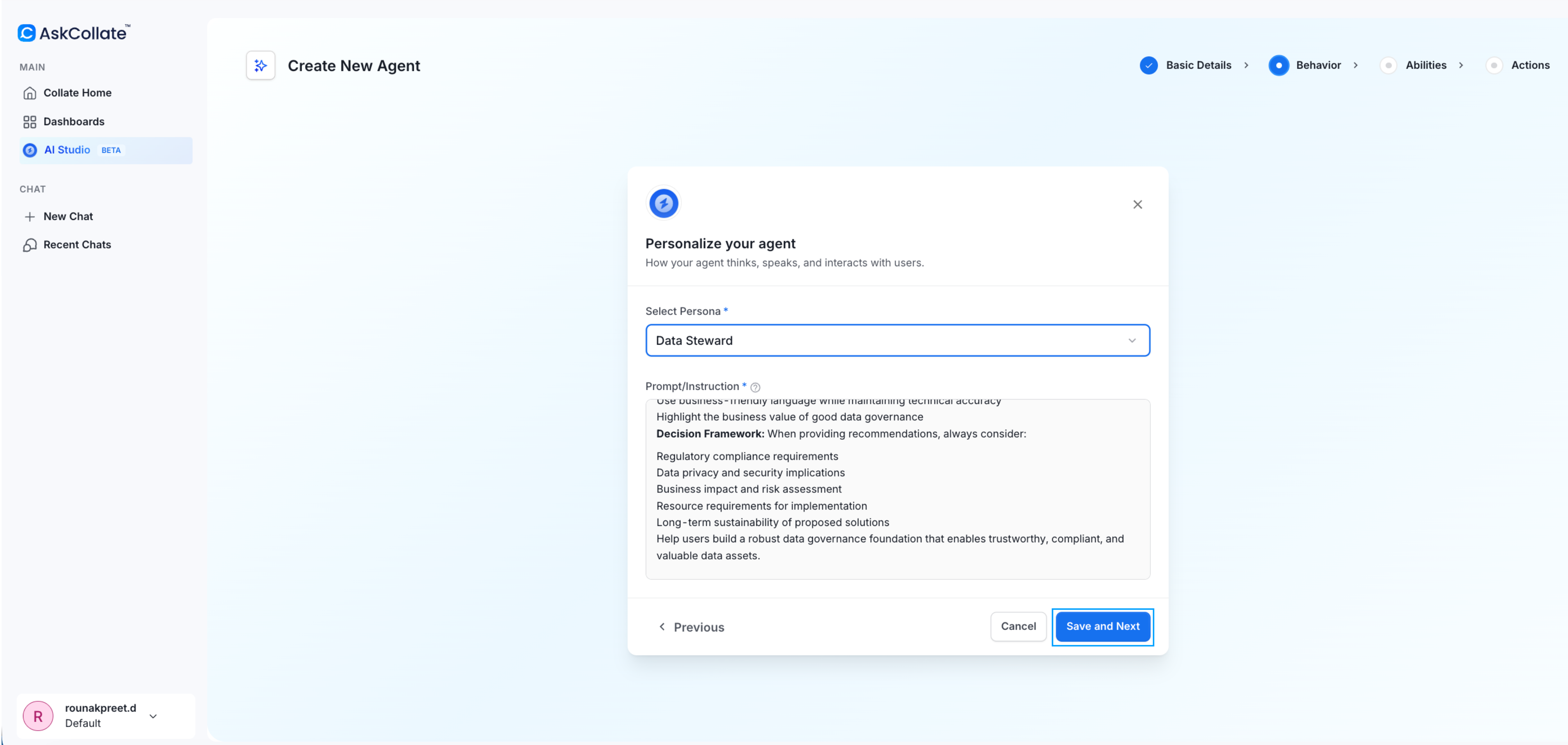
Choose a persona that defines the agent’s role and expertise.
For this example, select **Data Steward** and save.
System personas include curated knowledge and responsibilities. They help the agent understand how to approach tasks such as governance or documentation.
### Step 3: Select Agent Tools
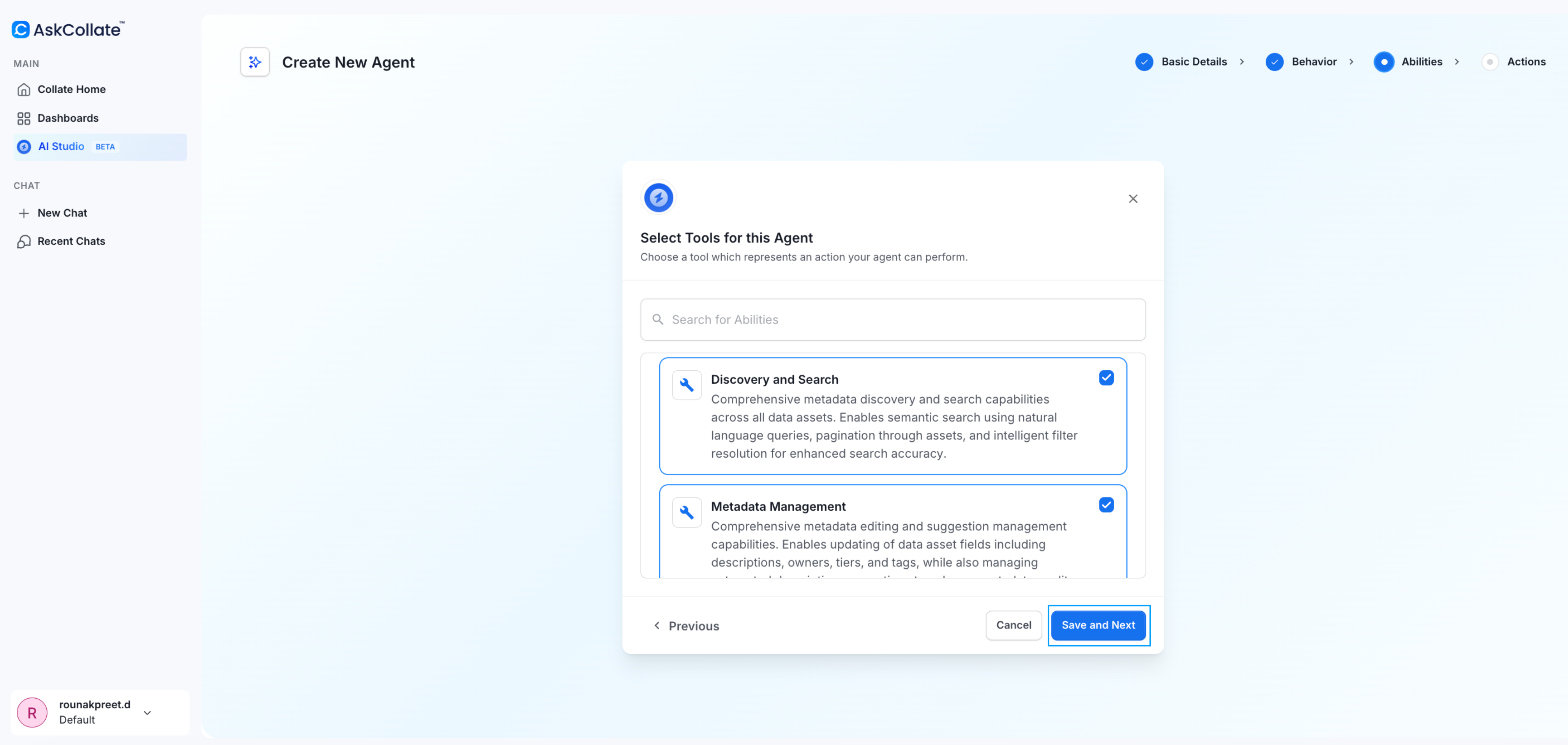
Choose the capabilities the agent needs.
For a PII audit, select:
* **Metadata Management**
* **Discovery and Search**
These tools allow the agent to explore assets and work with metadata.
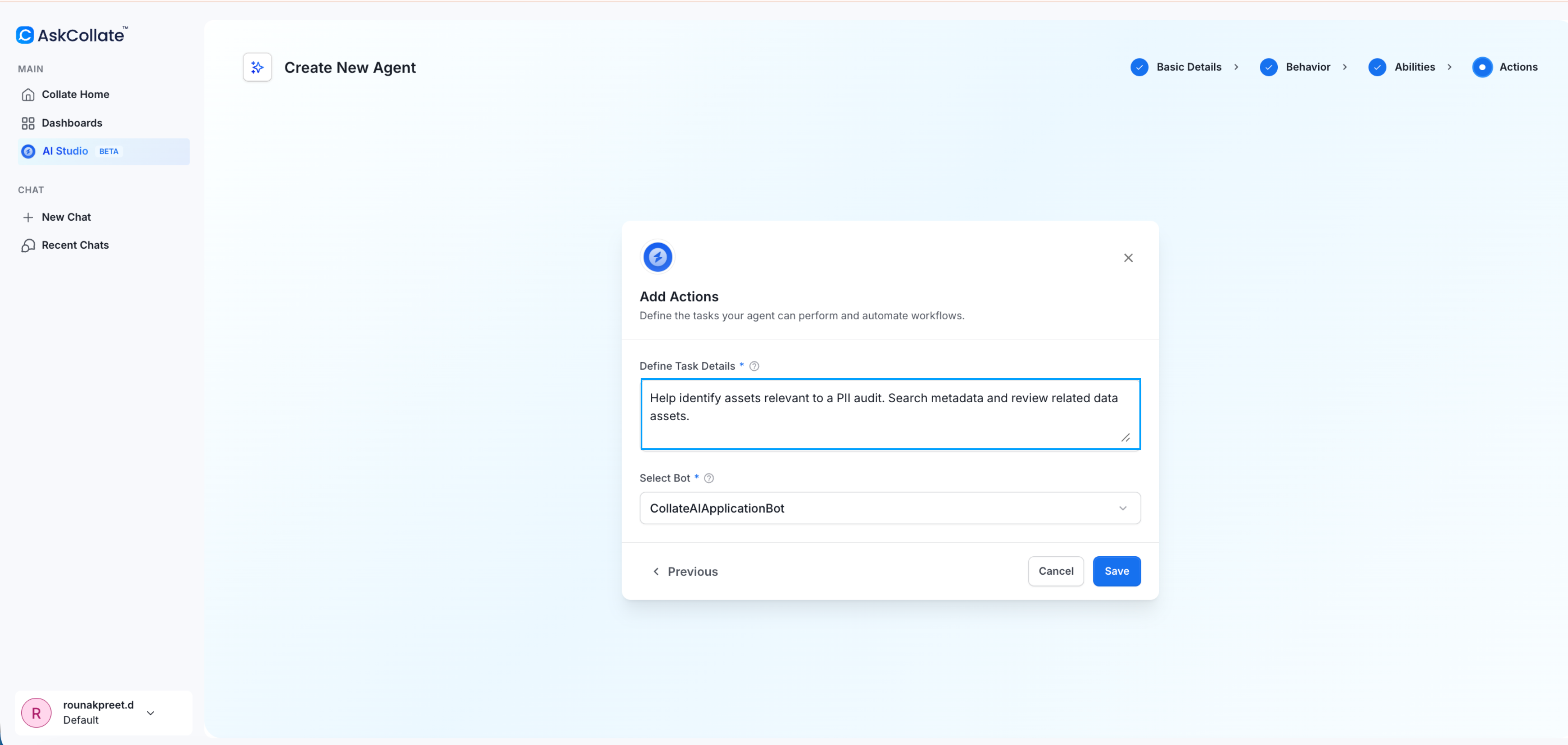
### Step 4: Define the Task
Provide a natural language prompt describing what the agent should do.
**Example prompt:**
```
Help identify assets relevant to a PII audit. Search metadata and review related data assets.
```
This prompt becomes the default instruction for the agent.
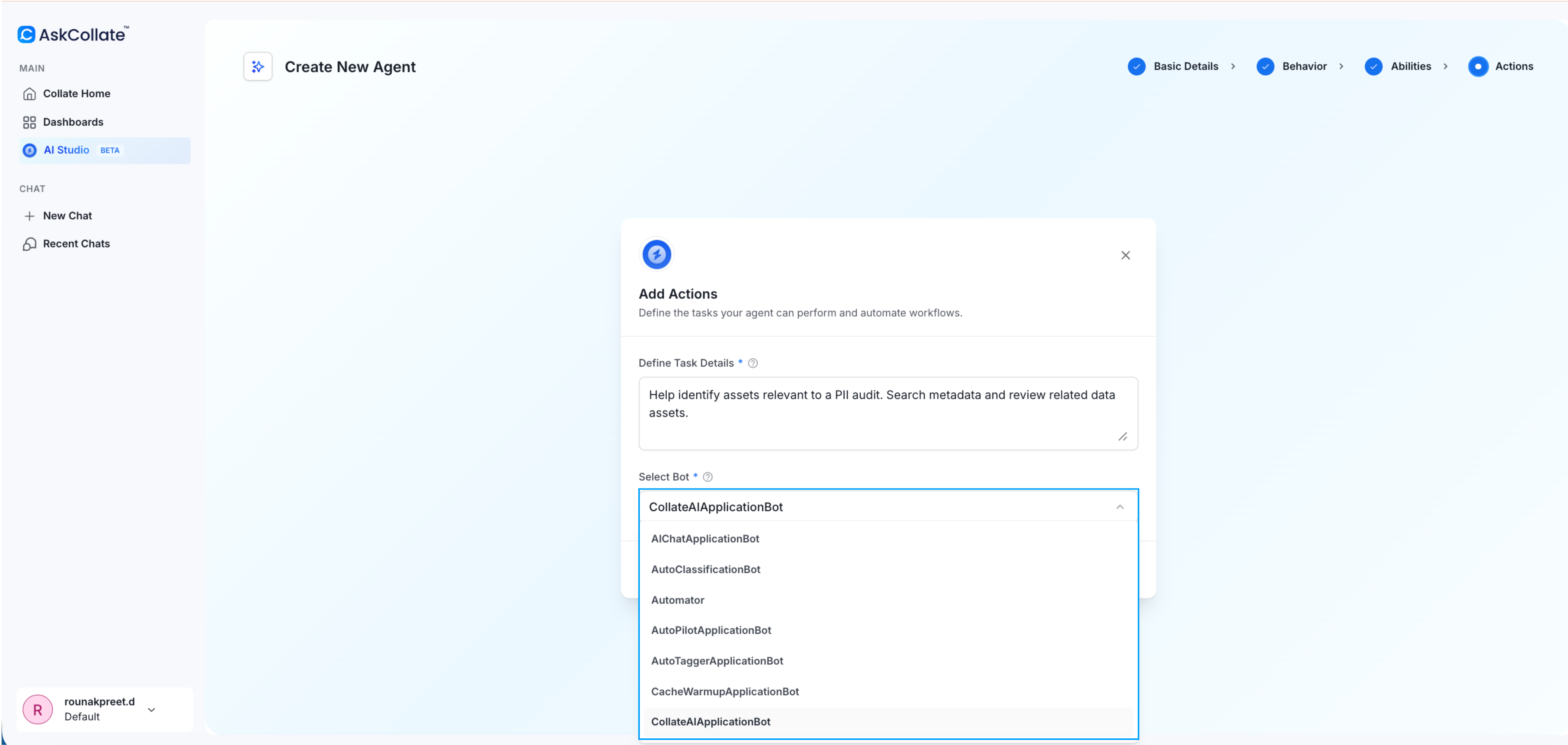
### Step 5: Select a Bot
Choose the application bot that will execute the agent actions.
Bots act as service accounts and control what the agent can access and modify. The permissions of the bot define the guardrails for the agent.
For more details, see [Roles Based Access Control (RBAC)](/how-to-guides/admin-guide/roles-policies/authorization#roles-based-access-controls-rbac-search).
### Step 6: Save the Agent
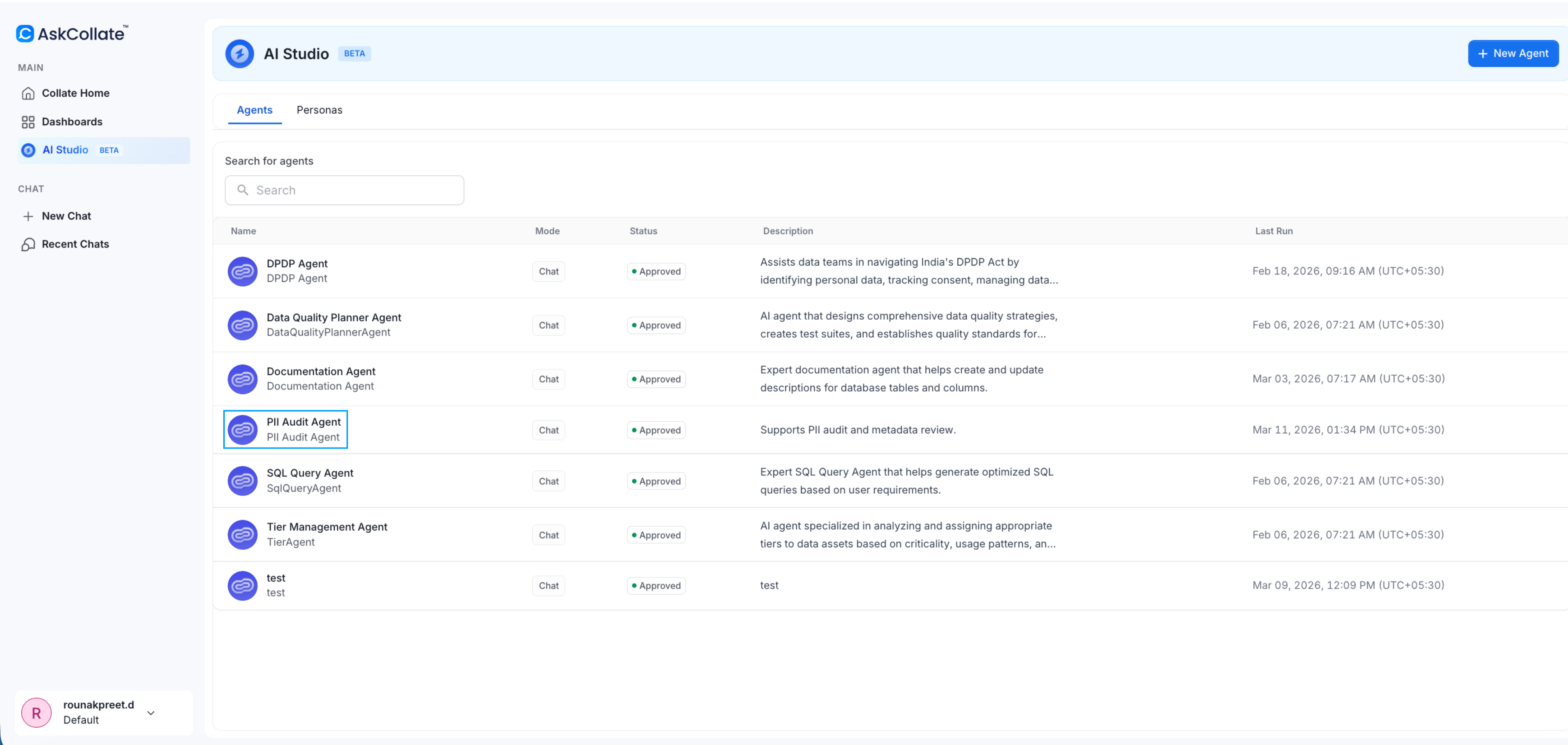
Click **Save** to create the agent.
The agent now appears in the AI Studio agent list. You can now use this agent in Ask Collate or interact with it programmatically using the AI SDK.
See [AI SDK documentation](/sdk/ai-sdk) to learn how to send requests to this agent from applications and automation workflows.
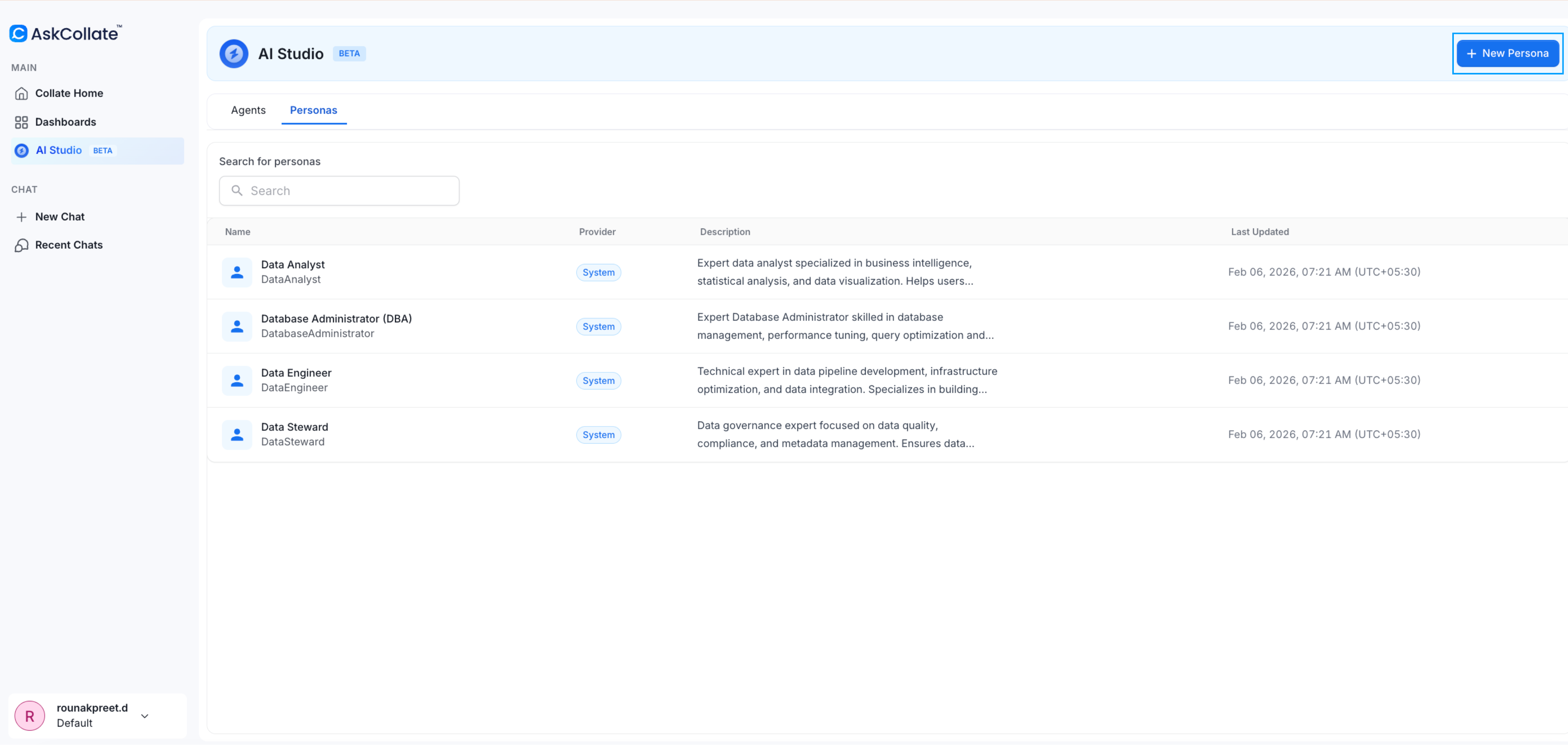
## Create a Custom Persona
Personas define how an agent thinks and behaves. If system personas do not meet your needs, you can create your own.
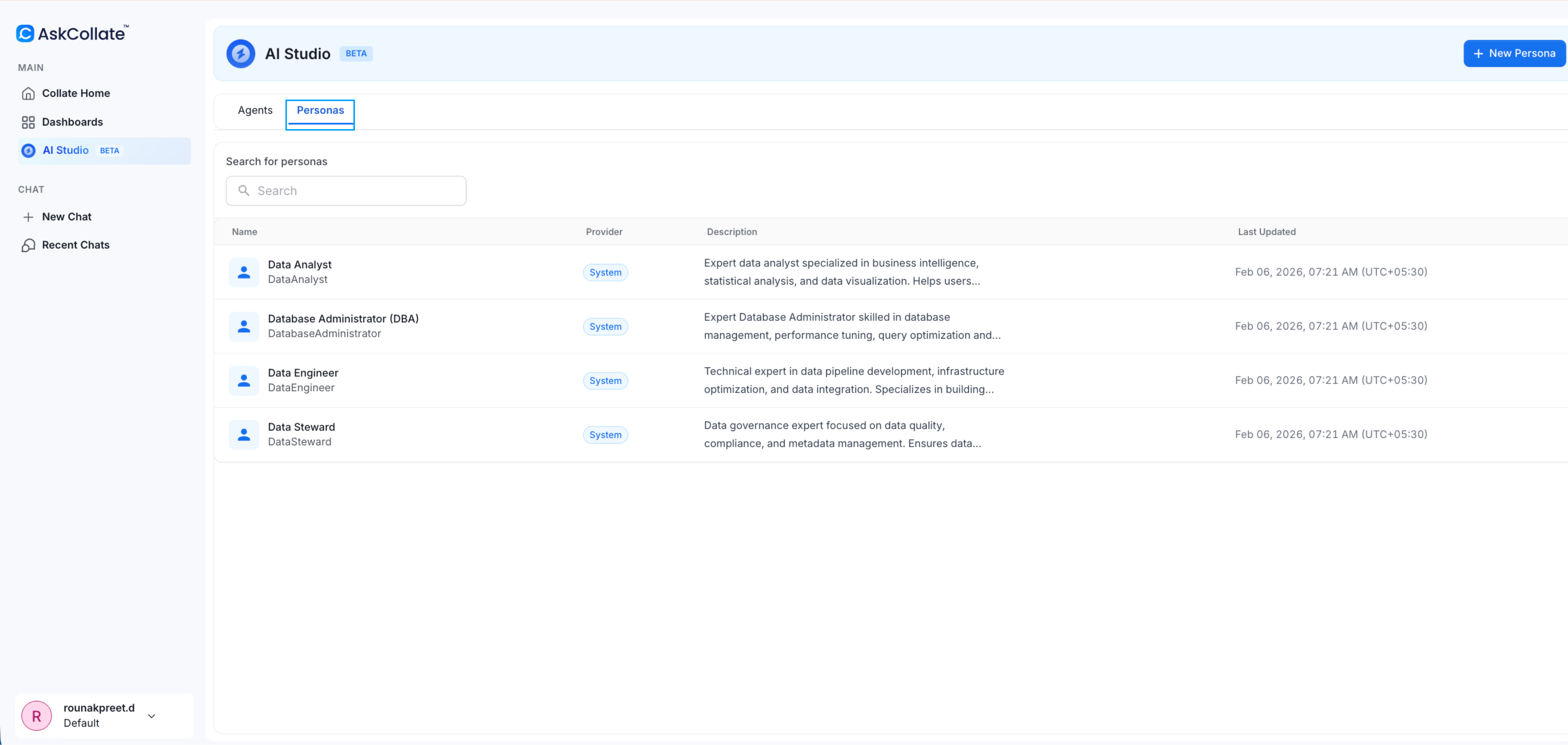
### Step 1: Open Personas
1. Go to **AI Studio**
2. Select the **Personas** tab
This page shows system personas and user-created personas.
### Step 2: Create a New Persona
Click **New Persona**.
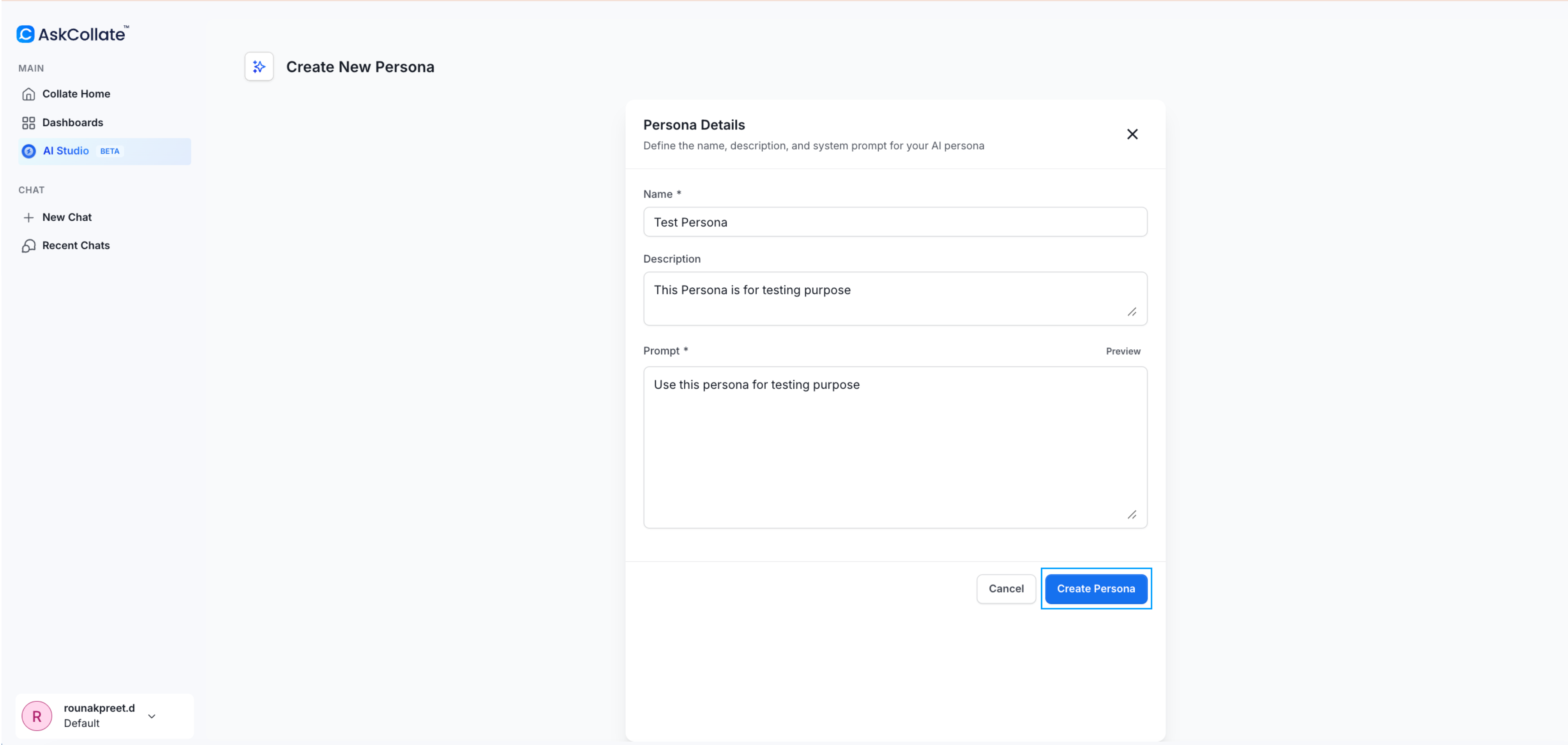
Provide the following information:
* **Name**
* **Description**
* **Detailed prompt**
The prompt should describe the role, expertise, and responsibilities of the persona.
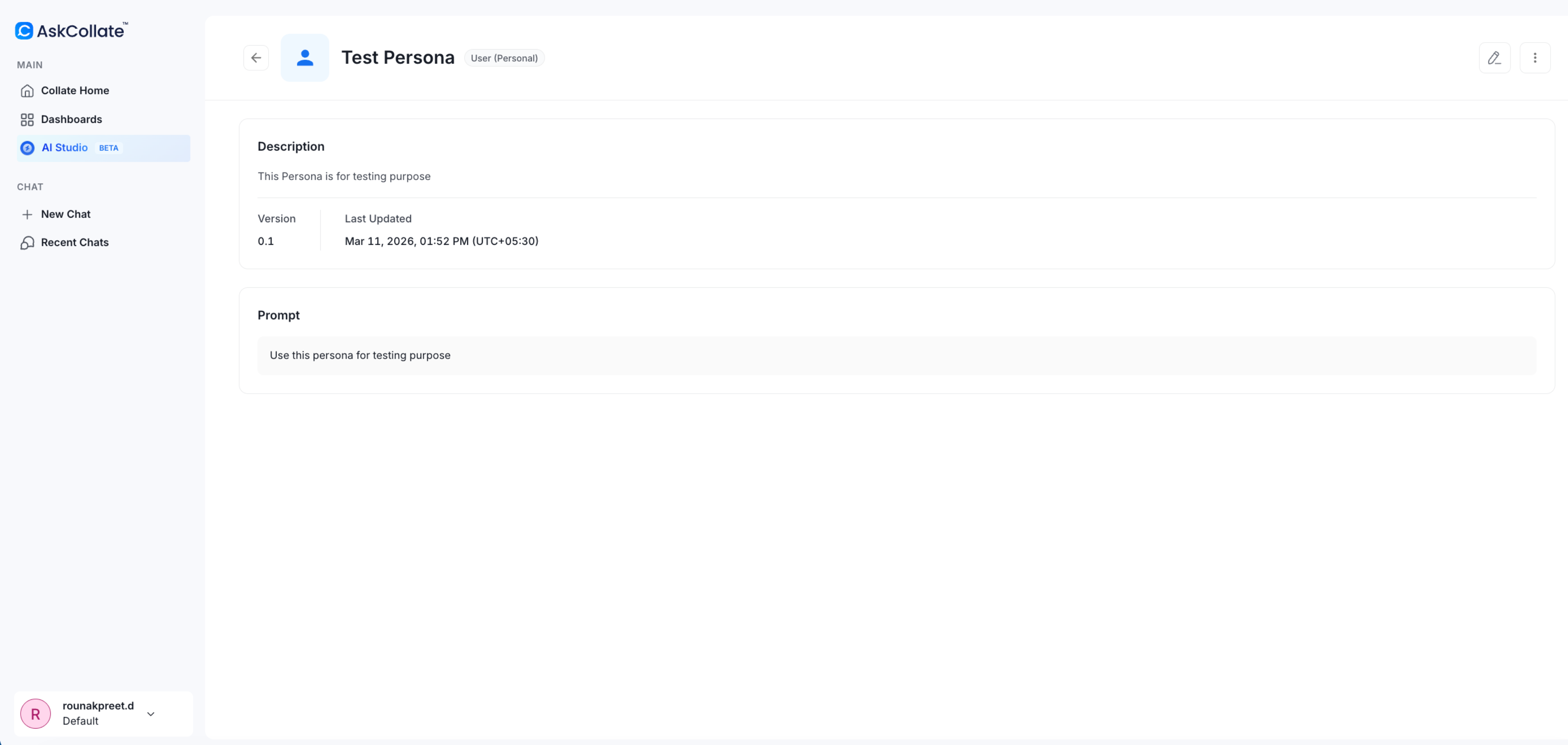
### Step 3: Save the Persona
Click **Save**.
The persona can now be selected when creating new agents.
## System and Custom Agents
AI Studio includes two types of agents:
### System Agents
Built into the platform and support tasks such as documentation, tiering, and data quality.
### Custom Agents
Created by users to automate specific workflows.
## Interact with Agents Using AI SDK
Agents created in AI Studio can also be used in applications through the AI SDK.
The AI SDK allows developers to send natural language requests to Collate agents and receive responses that use the platform metadata context.
**Example use cases:**
* Automating governance checks
* Generating data reports
* Supporting GDPR or compliance workflows
* Integrating Collate intelligence into internal AI systems
The SDK can be used with languages such as Python, TypeScript, or Java.
## Best Practices
* Choose a persona that matches the role of the agent
* Enable only the tools needed for the task
* Write prompts in clear natural language
* Assign the correct bot to control access and permissions
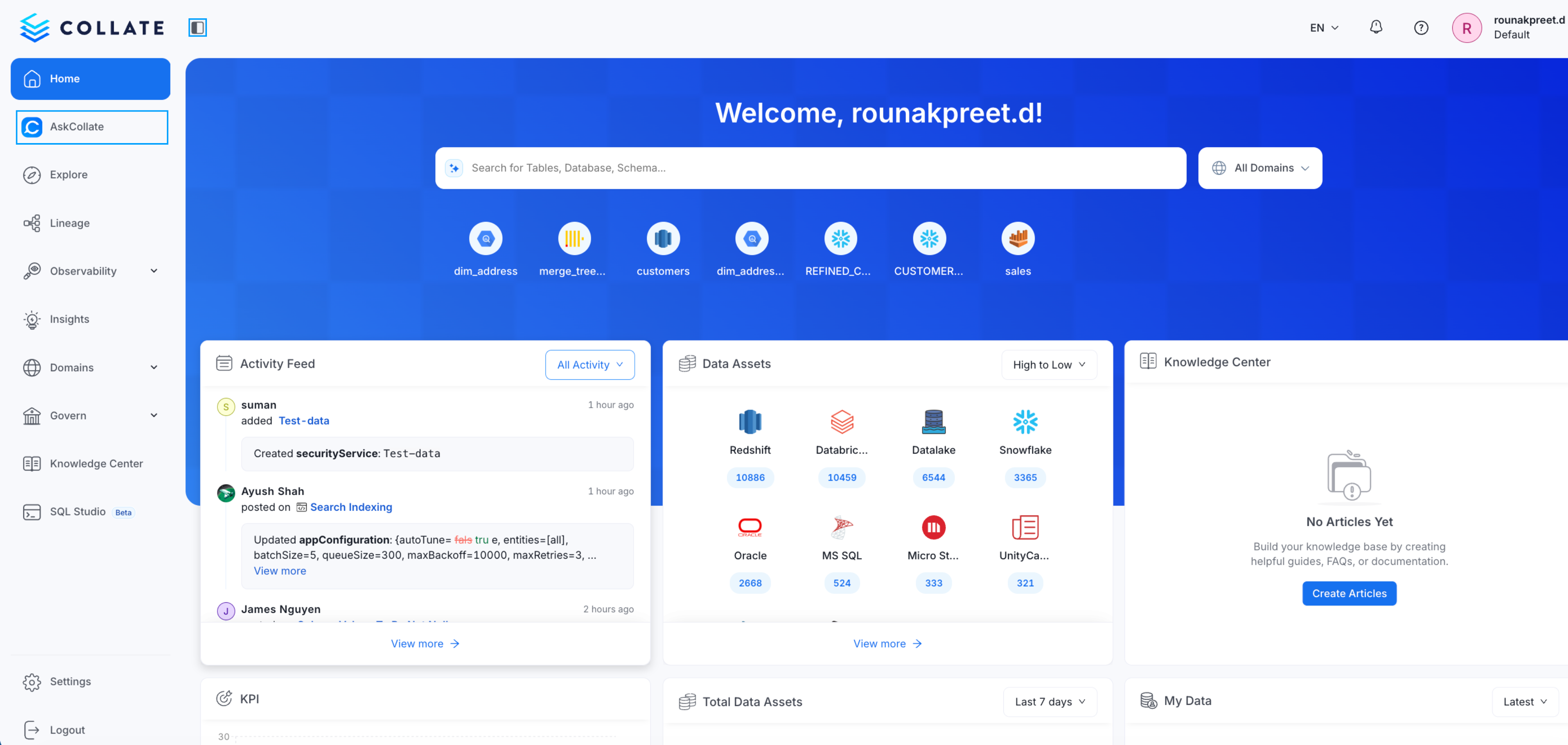 3. Click **AI Studio**
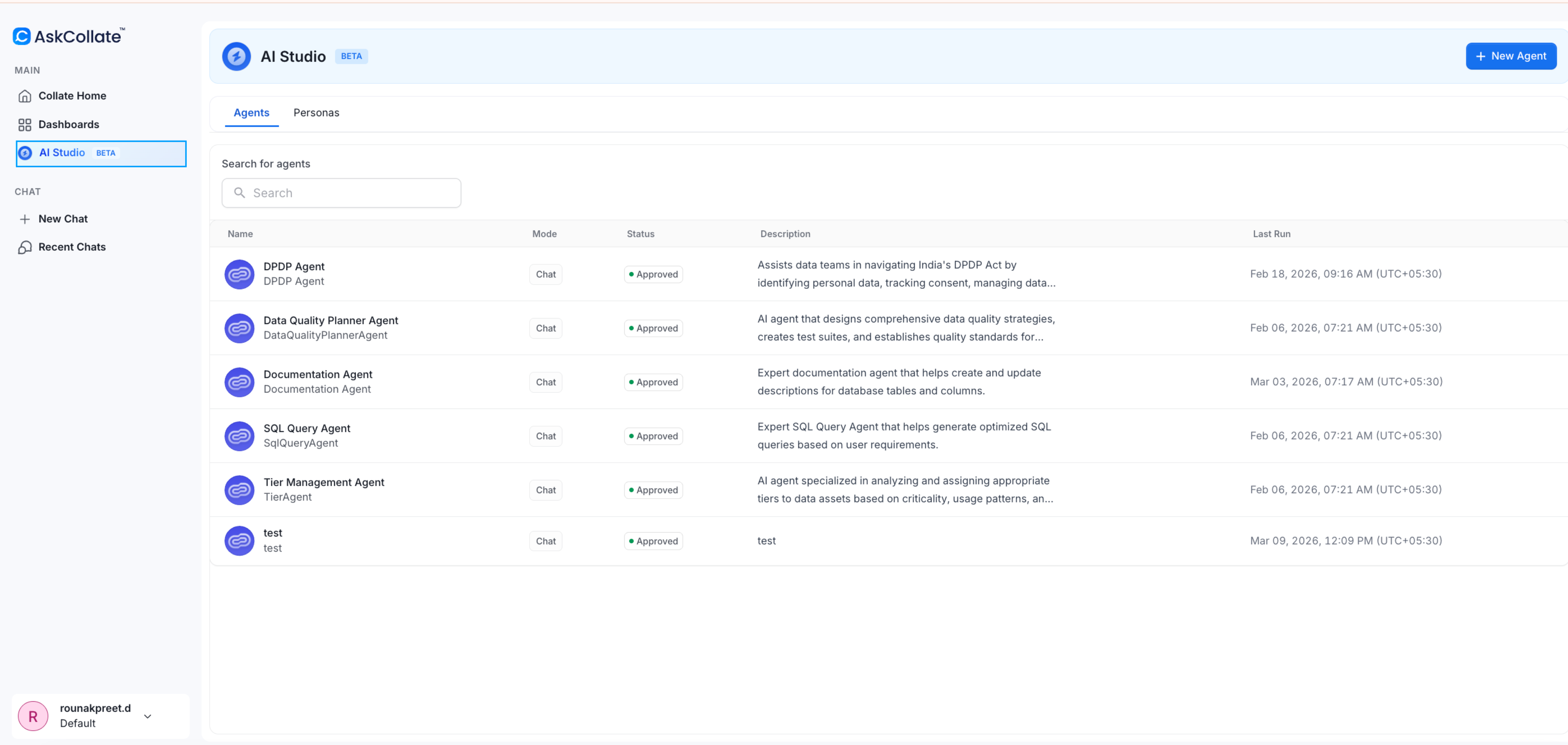 The AI Studio page displays both system agents and user-created agents. From here you can review existing agents or create a new one.
## Edit an Existing Agent
Collate includes system agents such as the documentation agent, tier agent, and data quality agent. You can review and update how these agents behave.
For example, you may want descriptions generated in a different language or change how detailed the responses are.
### Steps
1. Open the left navigation menu
2. Select **Ask Collate**
The AI Studio page displays both system agents and user-created agents. From here you can review existing agents or create a new one.
## Edit an Existing Agent
Collate includes system agents such as the documentation agent, tier agent, and data quality agent. You can review and update how these agents behave.
For example, you may want descriptions generated in a different language or change how detailed the responses are.
### Steps
1. Open the left navigation menu
2. Select **Ask Collate**
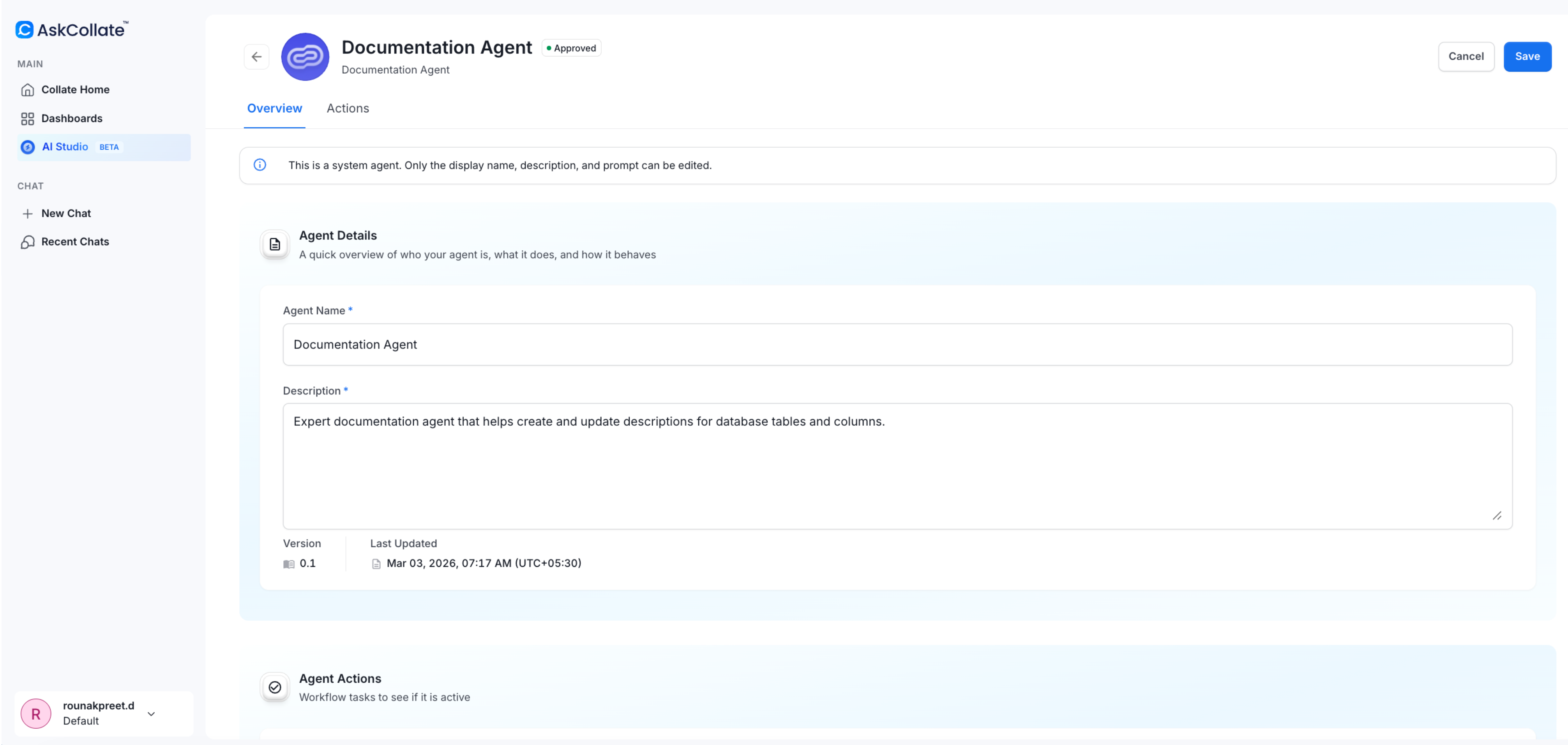 5. Review the persona, tools, and prompt used by the agent
6. Edit the prompt to change the behavior
**Example change:**
```
Write descriptions in Spanish for documentation updates.
```
5. Review the persona, tools, and prompt used by the agent
6. Edit the prompt to change the behavior
**Example change:**
```
Write descriptions in Spanish for documentation updates.
```
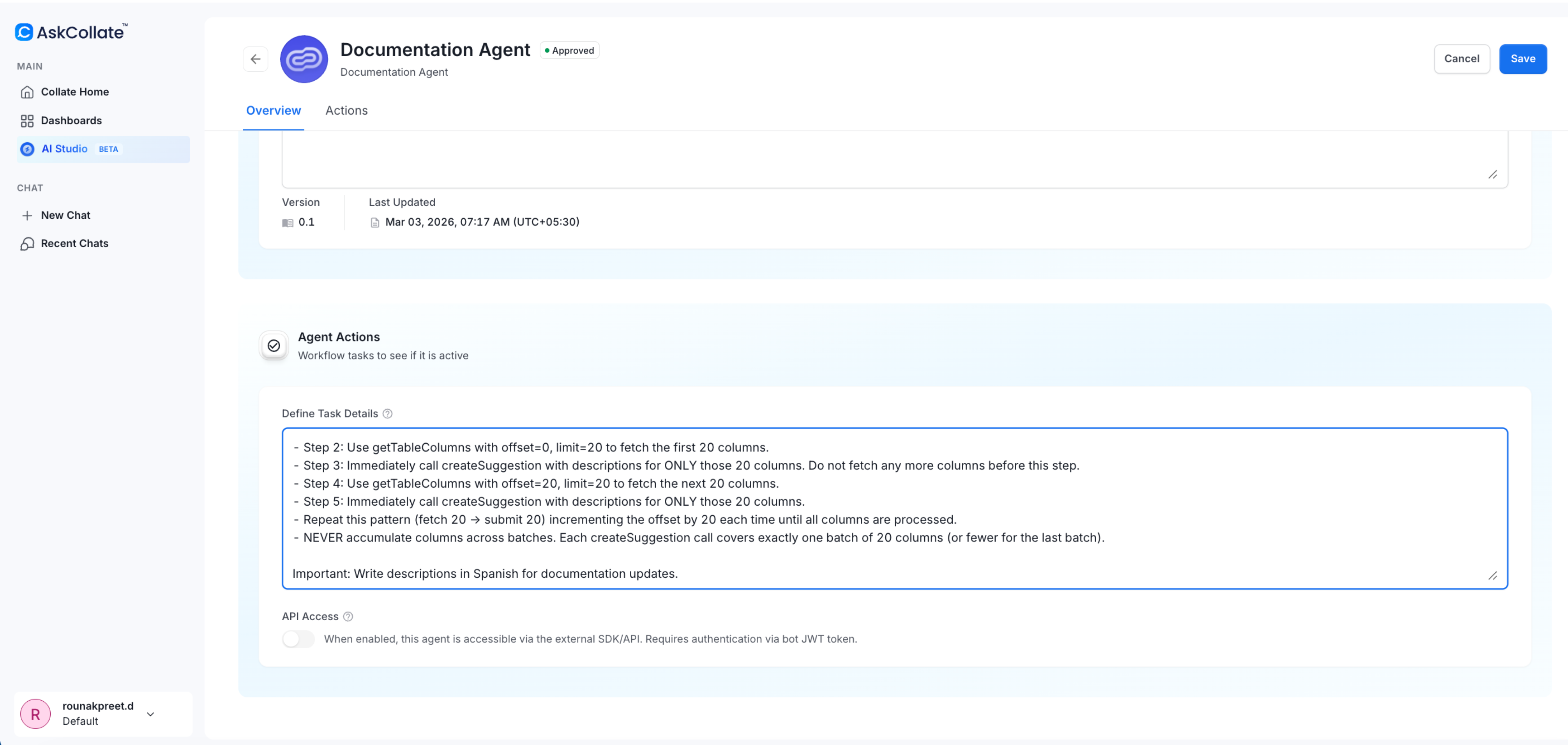 7. Save the changes
The agent will now follow the updated instructions.
## Create an AI Agent
AI agents perform tasks based on a defined persona, selected tools, and a natural language prompt.
In this example, we create an agent to support a PII audit.
### Step 1: Create a New Agent
In AI Studio, click **New Agent**.
7. Save the changes
The agent will now follow the updated instructions.
## Create an AI Agent
AI agents perform tasks based on a defined persona, selected tools, and a natural language prompt.
In this example, we create an agent to support a PII audit.
### Step 1: Create a New Agent
In AI Studio, click **New Agent**.
 Enter a name and description and then click on **Save and Next**.
**Example:**
* **Name:** PII Audit Agent
* **Description:** Supports PII audit and metadata review
Enter a name and description and then click on **Save and Next**.
**Example:**
* **Name:** PII Audit Agent
* **Description:** Supports PII audit and metadata review
 ### Step 2: Select a Persona
Choose a persona that defines the agent’s role and expertise.
For this example, select **Data Steward** and save.
### Step 2: Select a Persona
Choose a persona that defines the agent’s role and expertise.
For this example, select **Data Steward** and save.
 These tools allow the agent to explore assets and work with metadata.
### Step 4: Define the Task
Provide a natural language prompt describing what the agent should do.
**Example prompt:**
```
Help identify assets relevant to a PII audit. Search metadata and review related data assets.
```
These tools allow the agent to explore assets and work with metadata.
### Step 4: Define the Task
Provide a natural language prompt describing what the agent should do.
**Example prompt:**
```
Help identify assets relevant to a PII audit. Search metadata and review related data assets.
```
 This prompt becomes the default instruction for the agent.
### Step 5: Select a Bot
Choose the application bot that will execute the agent actions.
This prompt becomes the default instruction for the agent.
### Step 5: Select a Bot
Choose the application bot that will execute the agent actions.
 ## Create a Custom Persona
Personas define how an agent thinks and behaves. If system personas do not meet your needs, you can create your own.
### Step 1: Open Personas
1. Go to **AI Studio**
## Create a Custom Persona
Personas define how an agent thinks and behaves. If system personas do not meet your needs, you can create your own.
### Step 1: Open Personas
1. Go to **AI Studio**
 This page shows system personas and user-created personas.
### Step 2: Create a New Persona
Click **New Persona**.
This page shows system personas and user-created personas.
### Step 2: Create a New Persona
Click **New Persona**.
 Provide the following information:
* **Name**
* **Description**
* **Detailed prompt**
Provide the following information:
* **Name**
* **Description**
* **Detailed prompt**
 The prompt should describe the role, expertise, and responsibilities of the persona.
### Step 3: Save the Persona
Click **Save**.
The prompt should describe the role, expertise, and responsibilities of the persona.
### Step 3: Save the Persona
Click **Save**.
 The persona can now be selected when creating new agents.
 ## System and Custom Agents
AI Studio includes two types of agents:
### System Agents
Built into the platform and support tasks such as documentation, tiering, and data quality.
### Custom Agents
Created by users to automate specific workflows.
## Interact with Agents Using AI SDK
Agents created in AI Studio can also be used in applications through the AI SDK.
The AI SDK allows developers to send natural language requests to Collate agents and receive responses that use the platform metadata context.
**Example use cases:**
* Automating governance checks
* Generating data reports
* Supporting GDPR or compliance workflows
* Integrating Collate intelligence into internal AI systems
The SDK can be used with languages such as Python, TypeScript, or Java.
## Best Practices
* Choose a persona that matches the role of the agent
* Enable only the tools needed for the task
* Write prompts in clear natural language
* Assign the correct bot to control access and permissions
## System and Custom Agents
AI Studio includes two types of agents:
### System Agents
Built into the platform and support tasks such as documentation, tiering, and data quality.
### Custom Agents
Created by users to automate specific workflows.
## Interact with Agents Using AI SDK
Agents created in AI Studio can also be used in applications through the AI SDK.
The AI SDK allows developers to send natural language requests to Collate agents and receive responses that use the platform metadata context.
**Example use cases:**
* Automating governance checks
* Generating data reports
* Supporting GDPR or compliance workflows
* Integrating Collate intelligence into internal AI systems
The SDK can be used with languages such as Python, TypeScript, or Java.
## Best Practices
* Choose a persona that matches the role of the agent
* Enable only the tools needed for the task
* Write prompts in clear natural language
* Assign the correct bot to control access and permissions