> ## Documentation Index
> Fetch the complete documentation index at: https://docs.getcollate.io/llms.txt
> Use this file to discover all available pages before exploring further.
# LDAP SSO Configuration
> Step-by-step guide to configure LDAP-based SSO using Active Directory, OpenLDAP, or other LDAP-compatible directory services for secure enterprise authentication and federated login in Collate.
# LDAP SSO Configuration
* [Troubleshooting](#troubleshooting)
LDAP (Lightweight Directory Access Protocol) authentication enables users to log in using their enterprise directory credentials from systems such as **Active Directory**, **OpenLDAP**, or other LDAP-compatible identity providers.
This guide explains how to configure LDAP as an authentication source in Collate.
## Overview
Collate supports Single Sign-On (SSO) integration with various identity providers, enabling secure, centralized user authentication.
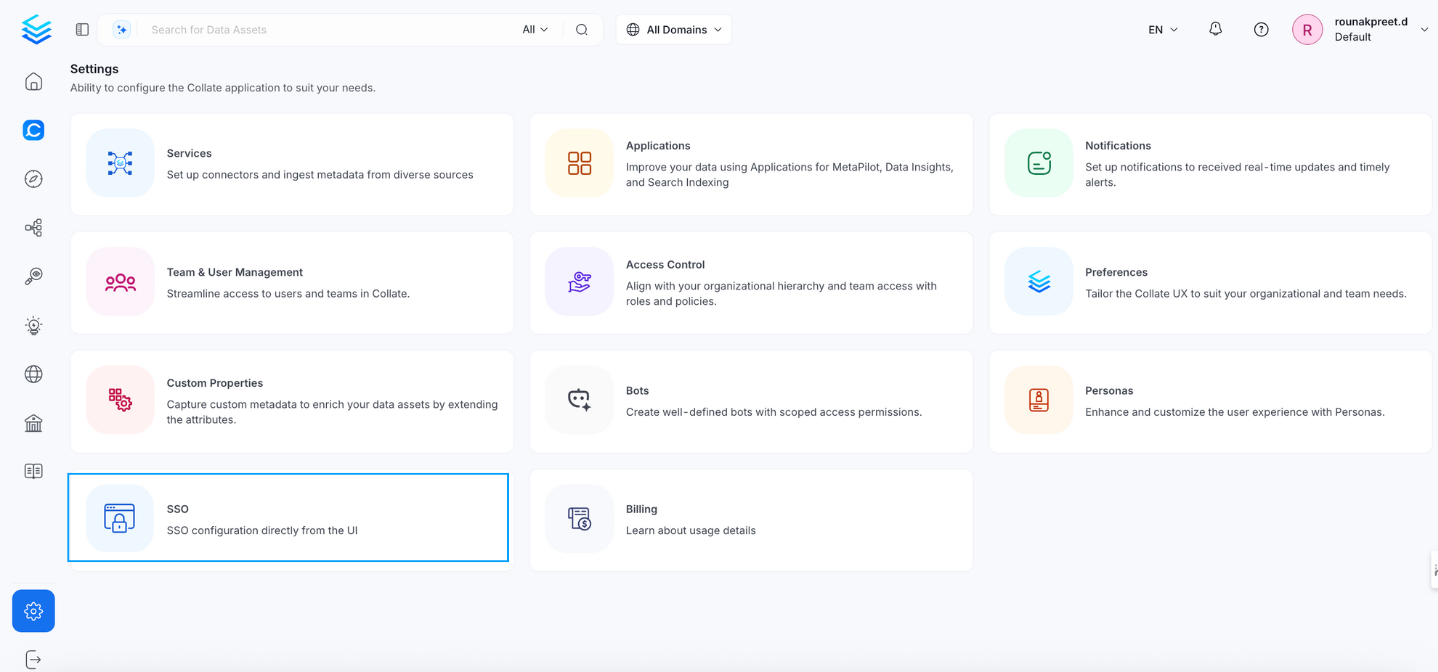
1. Navigate to **Settings** > **SSO**.
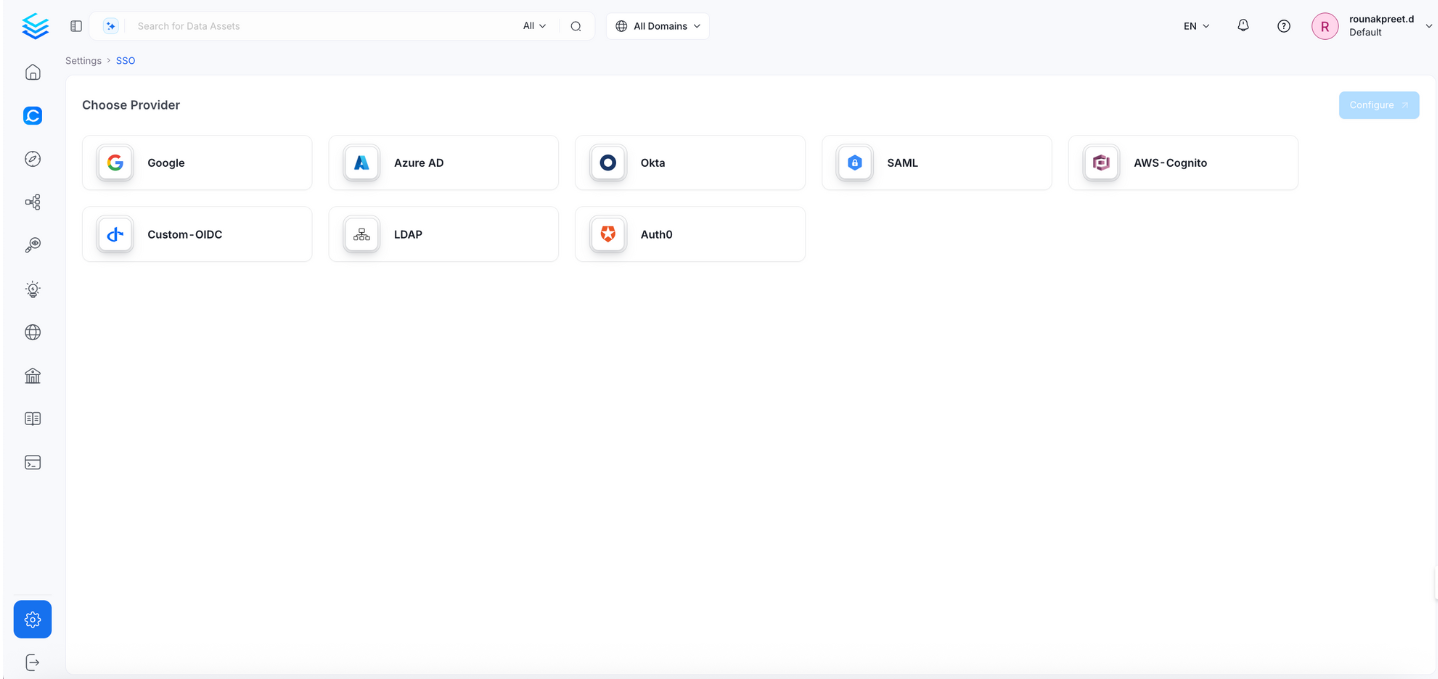
 2. Select the service provider.
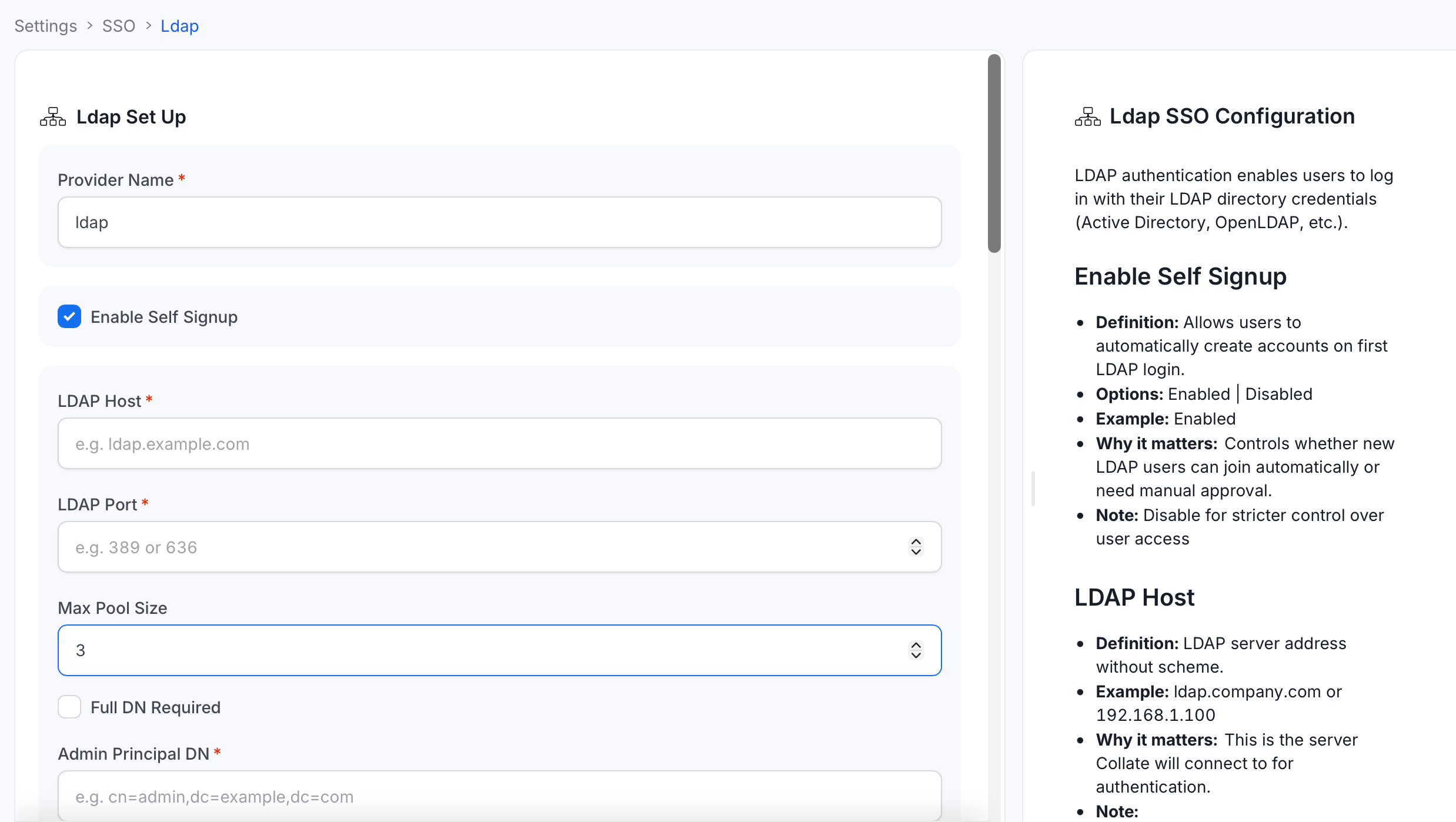
 3. Click **Configure** to set up Single Sign-On (SSO). See [Configuration Fields](#configuration-fields).
 4. Click **Save** to finish the SSO configuration.
## Configuration Fields
This section lists all fields in the order they appear in the Collate SSO configuration form.
### General Configuration
#### Provider Name
* **Definition**: A human-readable name for this LDAP SSO configuration instance.
* **Example**: `Company LDAP`, `Active Directory`, `OpenLDAP`
* **Why it matters**: Helps identify this SSO configuration in logs and user interfaces.
* **Note**: This is a display name and doesn't affect authentication functionality.
#### Enable Self Signup
* **Definition**: Allows users to automatically create Collate accounts on their first LDAP login.
* **Options**: Enabled | Disabled
* **Example**: Enabled
* **Why it matters**: Controls whether new LDAP users are auto-provisioned in Collate.
* **Note**: Disable for stricter access control.
#### LDAP Host
* **Definition**: Hostname or IP address of your LDAP server (without scheme).
* **Example**: `ldap.company.com` or `192.168.1.10`
* **Why it matters**: This is the server Collate will connect to for authentication.
* **Note**: Do not include `ldap://` or `ldaps://`.
#### LDAP Port
* **Definition**: Port number for the LDAP server connection.
* **Example**: `389` (standard LDAP), `636` (LDAPS)
* **Why it matters**: Must match your LDAP server's configured port.
* **Note**:
* Standard LDAP: `389`
* Secure LDAP (LDAPS): `636`
#### Max Pool Size
* **Definition**: Maximum number of concurrent connections in the LDAP connection pool.
* **Default**: 3
* **Example**: 5
* **Why it matters**: Controls connection performance and resource usage.
* **Note**: Higher values support more concurrent users but use more resources.
#### Full DN Required
* **Definition**: Whether users must log in using their full Distinguished Name (DN).
* **Default**: false
* **Example**: false
* **Why it matters**: Affects user experience — full DN login is more complex.
* **Note**:
* `false`: Users can log in with username only.
* `true`: Requires full DN (for example, `cn=john,ou=users,dc=company,dc=com`).
#### Admin Principal DN
* **Definition**: Distinguished Name of the LDAP admin user with search capabilities.
* **Example**: `cn=admin,ou=system,dc=company,dc=com`
* **Why it matters**: Collate uses this account to search for and authenticate users.
* **Note**: This user needs read access to user and group entries.
#### Admin Password
* **Definition**: Password for the LDAP admin user.
* **Example**: `adminPassword123`
* **Why it matters**: Required for Collate to authenticate as the admin user.
* **Note**: Store securely (for example, in a secret manager). Use a dedicated service account.
#### SSL Enabled
* **Definition**: Whether to use LDAPS (secure LDAP) for the connection.
* **Default**: false
* **Example**: true
* **Why it matters**: Encrypts communication between Collate and the LDAP server.
* **Note**:
* `true`: Use LDAPS (typically port 636).
* `false`: Use plain LDAP (typically port 389).
#### User Base DN
* **Definition**: Base Distinguished Name where user accounts are located.
* **Example**: `ou=users,dc=company,dc=com`
* **Why it matters**: Tells Collate where to search for user accounts in the directory.
* **Note**: Should contain all users who need access to Collate.
#### Group Base DN
* **Definition**: Base Distinguished Name where group objects are located.
* **Example**: `ou=groups,dc=company,dc=com`
* **Why it matters**: Used for group-based authorization and role mapping.
* **Note**: Optional if not using LDAP groups for authorization.
#### Admin Role Name
* **Definition**: Special marker used in role mapping to grant admin privileges.
* **Example**: `Admin`
* **Why it matters**: When this value appears in Auth Roles Mapping, users receive admin access instead of having a role created.
* **Note**:
* This is **not** an LDAP group name — it is a special string used as a value in **Auth Roles Mapping**.
* Example: Map `cn=admins,ou=groups,dc=company,dc=com` → `["Admin"]` to grant admin privileges.
#### All Attribute Name
* **Definition**: Wildcard character to retrieve all attributes from LDAP group objects.
* **Default**: `*`
* **Why it matters**: Determines which attributes are returned when searching for user groups.
* **Note**: Always use `*` (asterisk). This is used internally and rarely needs to be changed.
#### Mail Attribute Name
* **Definition**: LDAP attribute that contains user email addresses.
* **Example**: `mail`
* **Why it matters**: Collate searches LDAP for users by email and uses this as the primary identifier. The username is derived as the part of the email before `@`.
* **Note**:
* This is the most important LDAP field — if wrong, authentication will fail.
* Active Directory: `mail` or `userPrincipalName`.
* OpenLDAP: `mail` or `email`.
#### Group Attribute Name
* **Definition**: Attribute name used to identify and filter group objects in LDAP.
* **Example**: `objectClass`
* **Why it matters**: Used together with **Group Attribute Value** to find groups in the Group Base DN.
* **Note**:
* Creates LDAP filter: `(groupAttributeName=groupAttributeValue)`.
* Open a group object in your directory browser to find which attribute identifies the group type.
#### Group Attribute Value
* **Definition**: Value for the group attribute to identify group objects.
* **Example**: `groupOfNames`
* **Why it matters**: Specifies which type of group objects to search for.
* **Note**:
* Creates LDAP filter: `(objectClass=groupOfNames)` to find all groupOfNames objects.
* Common values: `groupOfNames`, `groupOfUniqueNames`, `posixGroup`.
#### Group Member Attribute Name
* **Definition**: Attribute in group objects that lists the members of that group.
* **Example**: `member`
* **Why it matters**: Collate checks if a user is a member of a group by looking for the user's DN in this attribute.
* **Note**:
* `groupOfNames` → use `member`.
* `groupOfUniqueNames` → use `uniqueMember`.
* `posixGroup` → use `memberUid`.
#### Recursive Group Membership
* **Definition**: Whether to resolve nested group memberships recursively.
* **Default**: false
* **Why it matters**: Required for Active Directory environments where users belong to nested groups. Without this, only direct group memberships are evaluated.
* **Note**: Enable when using Active Directory with nested security groups.
#### Auth Roles Mapping
* **Definition**: Mapping between LDAP groups and Collate roles.
* **Example**: `{"cn=admins,ou=groups,dc=company,dc=com": ["Admin"]}`
* **Why it matters**: Automatically assigns Collate roles based on LDAP group membership.
* **Note**:
* Use full LDAP Group Distinguished Names (DN) as keys.
* Map to existing Collate role names.
* Use the **Admin Role Name** value to grant admin privileges.
#### Auth Reassign Roles
* **Definition**: Roles that are re-evaluated and reassigned on every login.
* **Example**: `["Admin", "DataConsumer"]`
* **Why it matters**: Ensures role assignments stay synchronized with LDAP group membership.
* **Note**: Leave empty to only assign roles on first login.
### Authorizer Configuration
Control which users and domains are permitted to access Collate.
#### Admin Principals
* **Definition**: Users granted admin access in Collate.
* **Example**: `["john.doe", "jane.admin"]`
* **Why it matters**: These users will have full administrative privileges in Collate.
* **Note**: Enter **usernames only — not email addresses**. The username is derived from the email address configured in the **Mail Attribute Name** field — it is the part before `@` (for example, `john.doe@company.com` → `john.doe`).
#### Principal Domain
* **Definition**: Default domain for user principals.
* **Example**: `company.com`
* **Why it matters**: Used to construct full user principals when only a username is provided.
* **Note**: Typically your organization's domain.
#### Enforce Principal Domain
* **Definition**: Restricts login to users belonging to the configured Principal Domain.
* **Default**: `false`
* **Example**: `true`
* **Why it matters**: Adds an extra layer of security by limiting access to a specific domain.
#### Enable Secure Socket Connection
* **Definition**: Enables SSL/TLS for all SSO communication.
* **Default**: `false`
* **Example**: `true`
* **Why it matters**: Ensures encrypted communication between Collate and the LDAP server.
* **Note**: Recommended in production environments.
#### Allowed Domains
* **Definition**: List of email domains permitted to authenticate with Collate.
* **Example**: `["company.com", "partner.com"]`
* **Why it matters**: Provides fine-grained control over which email domains can authenticate via LDAP.
* **Note**:
* Works in conjunction with **Enforce Principal Domain**.
* Leave empty if you only use a single domain configured in **Principal Domain**.
#### Default OAuth Role
* **Definition**: Default role assigned to new users when they first sign in via SSO self-signup.
* **Example**: `DataConsumer`
* **Why it matters**: Controls the starting permission level for new users who join through self-signup.
* **Note**: Leave empty to create users without any role. Requires **Enable Self Signup** to be active. The role must already exist in Collate.
## Advanced Configuration
The following fields configure SSL/TLS trust settings for secure LDAP (LDAPS) connections.
### SSL/TLS Settings
#### Trust Store Config Type
* **Definition**: Type of SSL truststore configuration for secure LDAP connections.
* **Options**: `TrustAll` | `JVMDefault` | `HostName` | `CustomTrustStore`
* **Example**: `CustomTrustStore`
* **Why it matters**: Determines how SSL certificates are validated.
* **Note**:
* `TrustAll`: Accept all certificates (unsafe for production).
* `JVMDefault`: Use Java's default certificate store.
* `HostName`: Verify hostname matching.
* `CustomTrustStore`: Use a custom certificate store.
#### Verify Hostname
* **Definition**: Whether to verify that the certificate hostname matches the LDAP server hostname.
* **Default**: false
* **Example**: true
* **Why it matters**: Prevents man-in-the-middle attacks by ensuring the certificate hostname matches.
* **Note**: Enable for production security.
#### Check Certificate Validity
* **Definition**: Check if certificates are within their valid date range.
* **Default**: false
* **Example**: true
* **Why it matters**: Prevents using expired or not-yet-valid certificates.
* **Note**: Should be enabled in production.
#### Trust Store File Path
* **Definition**: Path to the Java truststore file containing trusted CA certificates.
* **Example**: `/path/to/truststore.jks`
* **Why it matters**: Specifies which certificates are trusted for SSL connections.
* **Note**: Required when using `CustomTrustStore`.
#### Trust Store Password
* **Definition**: Password to access the truststore file.
* **Example**: `truststorePassword123`
* **Why it matters**: Required to read certificates from the truststore.
* **Note**: Store securely and use strong passwords.
#### Trust Store Format
* **Definition**: Format of the truststore file.
* **Default**: `JKS`
* **Example**: `JKS` or `PKCS12`
* **Why it matters**: Tells the system how to read the truststore file.
* **Note**: JKS is the traditional Java format; PKCS12 is the modern standard.
#### Allow Wildcards
* **Definition**: Whether to accept wildcard certificates (for example, `*.company.com`).
* **Default**: false
* **Example**: true
* **Why it matters**: Controls acceptance of wildcard SSL certificates.
* **Note**: Enable if your LDAP server uses wildcard certificates.
#### Acceptable Host Names
* **Definition**: List of hostnames valid for SSL certificate validation.
* **Example**: `["ldap.company.com", "ldap-backup.company.com"]`
* **Why it matters**: Defines which hostnames are trusted for connections.
* **Note**: Add all valid LDAP server hostnames.
#### Enable Auto Redirect
* **Definition**: Automatically redirects users to the LDAP Identity Provider without showing the Collate login page.
* **Default**: false
* **Why it matters**: Provides a seamless SSO experience — users are directed straight to LDAP authentication.
* **Note**: Disable if you need users to be able to choose between SSO and other login methods.
## Summary Table
| **Field** | **Example / Default** |
| ------------------------------- | ------------------------------------------- |
| Provider Name | Company LDAP |
| Enable Self Signup | Enabled |
| LDAP Host | ldap.company.com |
| LDAP Port | 636 |
| Max Pool Size | 3 |
| Full DN Required | false |
| Admin Principal DN | cn=admin,ou=system,dc=company,dc=com |
| Admin Password | (stored securely) |
| SSL Enabled | true |
| User Base DN | ou=users,dc=company,dc=com |
| Group Base DN | ou=groups,dc=company,dc=com |
| Admin Role Name | Admin |
| All Attribute Name | \* |
| Mail Attribute Name | mail |
| Group Attribute Name | objectClass |
| Group Attribute Value | groupOfNames |
| Group Member Attribute Name | member |
| Recursive Group Membership | false |
| Auth Roles Mapping | `{"cn=admins,...": ["Admin"]}` |
| Auth Reassign Roles | `["Admin", "DataConsumer"]` |
| Trust Store Config Type | CustomTrustStore |
| Verify Hostname | true |
| Check Certificate Validity | true |
| Trust Store File Path | /opt/openmetadata/certs/ldap-truststore.jks |
| Trust Store Password | (stored securely) |
| Trust Store Format | JKS |
| Allow Wildcards | false |
| Acceptable Host Names | `["ldap.company.com"]` |
| Enable Auto Redirect | false |
| Admin Principals | `["john.doe", "jane.admin"]` |
| Principal Domain | company.com |
| Enforce Principal Domain | false |
| Enable Secure Socket Connection | true |
| Allowed Domains | `["company.com"]` |
| Default OAuth Role | DataConsumer |
## Troubleshooting
If users are automatically logged out and unable to log in again due to a bad authentication configuration, you can reset the security setup using the following command:
```
./bootstrap/openmetadata-ops.sh remove-security-config --force
```
After executing the command, **restart the server**. The authentication values from your YAML or Helm chart will then be reapplied on startup. The following tiles detail how to apply this configuration:
Configure Auth0 SSO to access the UI and APIs.
Configure Azure SSO to access the UI and APIs.
Configure a custom OIDC SSO to access the UI and APIs.
Configure Google SSO to access the UI and APIs.
Configure Okta SSO to access the UI and APIs.
Configure Amazon Cognito SSO to access the UI and APIs.
Configure SAML SSO to access the UI and APIs.
Configure LDAP SSO to access the UI and APIs.
4. Click **Save** to finish the SSO configuration.
## Configuration Fields
This section lists all fields in the order they appear in the Collate SSO configuration form.
### General Configuration
#### Provider Name
* **Definition**: A human-readable name for this LDAP SSO configuration instance.
* **Example**: `Company LDAP`, `Active Directory`, `OpenLDAP`
* **Why it matters**: Helps identify this SSO configuration in logs and user interfaces.
* **Note**: This is a display name and doesn't affect authentication functionality.
#### Enable Self Signup
* **Definition**: Allows users to automatically create Collate accounts on their first LDAP login.
* **Options**: Enabled | Disabled
* **Example**: Enabled
* **Why it matters**: Controls whether new LDAP users are auto-provisioned in Collate.
* **Note**: Disable for stricter access control.
#### LDAP Host
* **Definition**: Hostname or IP address of your LDAP server (without scheme).
* **Example**: `ldap.company.com` or `192.168.1.10`
* **Why it matters**: This is the server Collate will connect to for authentication.
* **Note**: Do not include `ldap://` or `ldaps://`.
#### LDAP Port
* **Definition**: Port number for the LDAP server connection.
* **Example**: `389` (standard LDAP), `636` (LDAPS)
* **Why it matters**: Must match your LDAP server's configured port.
* **Note**:
* Standard LDAP: `389`
* Secure LDAP (LDAPS): `636`
#### Max Pool Size
* **Definition**: Maximum number of concurrent connections in the LDAP connection pool.
* **Default**: 3
* **Example**: 5
* **Why it matters**: Controls connection performance and resource usage.
* **Note**: Higher values support more concurrent users but use more resources.
#### Full DN Required
* **Definition**: Whether users must log in using their full Distinguished Name (DN).
* **Default**: false
* **Example**: false
* **Why it matters**: Affects user experience — full DN login is more complex.
* **Note**:
* `false`: Users can log in with username only.
* `true`: Requires full DN (for example, `cn=john,ou=users,dc=company,dc=com`).
#### Admin Principal DN
* **Definition**: Distinguished Name of the LDAP admin user with search capabilities.
* **Example**: `cn=admin,ou=system,dc=company,dc=com`
* **Why it matters**: Collate uses this account to search for and authenticate users.
* **Note**: This user needs read access to user and group entries.
#### Admin Password
* **Definition**: Password for the LDAP admin user.
* **Example**: `adminPassword123`
* **Why it matters**: Required for Collate to authenticate as the admin user.
* **Note**: Store securely (for example, in a secret manager). Use a dedicated service account.
#### SSL Enabled
* **Definition**: Whether to use LDAPS (secure LDAP) for the connection.
* **Default**: false
* **Example**: true
* **Why it matters**: Encrypts communication between Collate and the LDAP server.
* **Note**:
* `true`: Use LDAPS (typically port 636).
* `false`: Use plain LDAP (typically port 389).
#### User Base DN
* **Definition**: Base Distinguished Name where user accounts are located.
* **Example**: `ou=users,dc=company,dc=com`
* **Why it matters**: Tells Collate where to search for user accounts in the directory.
* **Note**: Should contain all users who need access to Collate.
#### Group Base DN
* **Definition**: Base Distinguished Name where group objects are located.
* **Example**: `ou=groups,dc=company,dc=com`
* **Why it matters**: Used for group-based authorization and role mapping.
* **Note**: Optional if not using LDAP groups for authorization.
#### Admin Role Name
* **Definition**: Special marker used in role mapping to grant admin privileges.
* **Example**: `Admin`
* **Why it matters**: When this value appears in Auth Roles Mapping, users receive admin access instead of having a role created.
* **Note**:
* This is **not** an LDAP group name — it is a special string used as a value in **Auth Roles Mapping**.
* Example: Map `cn=admins,ou=groups,dc=company,dc=com` → `["Admin"]` to grant admin privileges.
#### All Attribute Name
* **Definition**: Wildcard character to retrieve all attributes from LDAP group objects.
* **Default**: `*`
* **Why it matters**: Determines which attributes are returned when searching for user groups.
* **Note**: Always use `*` (asterisk). This is used internally and rarely needs to be changed.
#### Mail Attribute Name
* **Definition**: LDAP attribute that contains user email addresses.
* **Example**: `mail`
* **Why it matters**: Collate searches LDAP for users by email and uses this as the primary identifier. The username is derived as the part of the email before `@`.
* **Note**:
* This is the most important LDAP field — if wrong, authentication will fail.
* Active Directory: `mail` or `userPrincipalName`.
* OpenLDAP: `mail` or `email`.
#### Group Attribute Name
* **Definition**: Attribute name used to identify and filter group objects in LDAP.
* **Example**: `objectClass`
* **Why it matters**: Used together with **Group Attribute Value** to find groups in the Group Base DN.
* **Note**:
* Creates LDAP filter: `(groupAttributeName=groupAttributeValue)`.
* Open a group object in your directory browser to find which attribute identifies the group type.
#### Group Attribute Value
* **Definition**: Value for the group attribute to identify group objects.
* **Example**: `groupOfNames`
* **Why it matters**: Specifies which type of group objects to search for.
* **Note**:
* Creates LDAP filter: `(objectClass=groupOfNames)` to find all groupOfNames objects.
* Common values: `groupOfNames`, `groupOfUniqueNames`, `posixGroup`.
#### Group Member Attribute Name
* **Definition**: Attribute in group objects that lists the members of that group.
* **Example**: `member`
* **Why it matters**: Collate checks if a user is a member of a group by looking for the user's DN in this attribute.
* **Note**:
* `groupOfNames` → use `member`.
* `groupOfUniqueNames` → use `uniqueMember`.
* `posixGroup` → use `memberUid`.
#### Recursive Group Membership
* **Definition**: Whether to resolve nested group memberships recursively.
* **Default**: false
* **Why it matters**: Required for Active Directory environments where users belong to nested groups. Without this, only direct group memberships are evaluated.
* **Note**: Enable when using Active Directory with nested security groups.
#### Auth Roles Mapping
* **Definition**: Mapping between LDAP groups and Collate roles.
* **Example**: `{"cn=admins,ou=groups,dc=company,dc=com": ["Admin"]}`
* **Why it matters**: Automatically assigns Collate roles based on LDAP group membership.
* **Note**:
* Use full LDAP Group Distinguished Names (DN) as keys.
* Map to existing Collate role names.
* Use the **Admin Role Name** value to grant admin privileges.
#### Auth Reassign Roles
* **Definition**: Roles that are re-evaluated and reassigned on every login.
* **Example**: `["Admin", "DataConsumer"]`
* **Why it matters**: Ensures role assignments stay synchronized with LDAP group membership.
* **Note**: Leave empty to only assign roles on first login.
### Authorizer Configuration
Control which users and domains are permitted to access Collate.
#### Admin Principals
* **Definition**: Users granted admin access in Collate.
* **Example**: `["john.doe", "jane.admin"]`
* **Why it matters**: These users will have full administrative privileges in Collate.
* **Note**: Enter **usernames only — not email addresses**. The username is derived from the email address configured in the **Mail Attribute Name** field — it is the part before `@` (for example, `john.doe@company.com` → `john.doe`).
#### Principal Domain
* **Definition**: Default domain for user principals.
* **Example**: `company.com`
* **Why it matters**: Used to construct full user principals when only a username is provided.
* **Note**: Typically your organization's domain.
#### Enforce Principal Domain
* **Definition**: Restricts login to users belonging to the configured Principal Domain.
* **Default**: `false`
* **Example**: `true`
* **Why it matters**: Adds an extra layer of security by limiting access to a specific domain.
#### Enable Secure Socket Connection
* **Definition**: Enables SSL/TLS for all SSO communication.
* **Default**: `false`
* **Example**: `true`
* **Why it matters**: Ensures encrypted communication between Collate and the LDAP server.
* **Note**: Recommended in production environments.
#### Allowed Domains
* **Definition**: List of email domains permitted to authenticate with Collate.
* **Example**: `["company.com", "partner.com"]`
* **Why it matters**: Provides fine-grained control over which email domains can authenticate via LDAP.
* **Note**:
* Works in conjunction with **Enforce Principal Domain**.
* Leave empty if you only use a single domain configured in **Principal Domain**.
#### Default OAuth Role
* **Definition**: Default role assigned to new users when they first sign in via SSO self-signup.
* **Example**: `DataConsumer`
* **Why it matters**: Controls the starting permission level for new users who join through self-signup.
* **Note**: Leave empty to create users without any role. Requires **Enable Self Signup** to be active. The role must already exist in Collate.
## Advanced Configuration
The following fields configure SSL/TLS trust settings for secure LDAP (LDAPS) connections.
### SSL/TLS Settings
#### Trust Store Config Type
* **Definition**: Type of SSL truststore configuration for secure LDAP connections.
* **Options**: `TrustAll` | `JVMDefault` | `HostName` | `CustomTrustStore`
* **Example**: `CustomTrustStore`
* **Why it matters**: Determines how SSL certificates are validated.
* **Note**:
* `TrustAll`: Accept all certificates (unsafe for production).
* `JVMDefault`: Use Java's default certificate store.
* `HostName`: Verify hostname matching.
* `CustomTrustStore`: Use a custom certificate store.
#### Verify Hostname
* **Definition**: Whether to verify that the certificate hostname matches the LDAP server hostname.
* **Default**: false
* **Example**: true
* **Why it matters**: Prevents man-in-the-middle attacks by ensuring the certificate hostname matches.
* **Note**: Enable for production security.
#### Check Certificate Validity
* **Definition**: Check if certificates are within their valid date range.
* **Default**: false
* **Example**: true
* **Why it matters**: Prevents using expired or not-yet-valid certificates.
* **Note**: Should be enabled in production.
#### Trust Store File Path
* **Definition**: Path to the Java truststore file containing trusted CA certificates.
* **Example**: `/path/to/truststore.jks`
* **Why it matters**: Specifies which certificates are trusted for SSL connections.
* **Note**: Required when using `CustomTrustStore`.
#### Trust Store Password
* **Definition**: Password to access the truststore file.
* **Example**: `truststorePassword123`
* **Why it matters**: Required to read certificates from the truststore.
* **Note**: Store securely and use strong passwords.
#### Trust Store Format
* **Definition**: Format of the truststore file.
* **Default**: `JKS`
* **Example**: `JKS` or `PKCS12`
* **Why it matters**: Tells the system how to read the truststore file.
* **Note**: JKS is the traditional Java format; PKCS12 is the modern standard.
#### Allow Wildcards
* **Definition**: Whether to accept wildcard certificates (for example, `*.company.com`).
* **Default**: false
* **Example**: true
* **Why it matters**: Controls acceptance of wildcard SSL certificates.
* **Note**: Enable if your LDAP server uses wildcard certificates.
#### Acceptable Host Names
* **Definition**: List of hostnames valid for SSL certificate validation.
* **Example**: `["ldap.company.com", "ldap-backup.company.com"]`
* **Why it matters**: Defines which hostnames are trusted for connections.
* **Note**: Add all valid LDAP server hostnames.
#### Enable Auto Redirect
* **Definition**: Automatically redirects users to the LDAP Identity Provider without showing the Collate login page.
* **Default**: false
* **Why it matters**: Provides a seamless SSO experience — users are directed straight to LDAP authentication.
* **Note**: Disable if you need users to be able to choose between SSO and other login methods.
## Summary Table
| **Field** | **Example / Default** |
| ------------------------------- | ------------------------------------------- |
| Provider Name | Company LDAP |
| Enable Self Signup | Enabled |
| LDAP Host | ldap.company.com |
| LDAP Port | 636 |
| Max Pool Size | 3 |
| Full DN Required | false |
| Admin Principal DN | cn=admin,ou=system,dc=company,dc=com |
| Admin Password | (stored securely) |
| SSL Enabled | true |
| User Base DN | ou=users,dc=company,dc=com |
| Group Base DN | ou=groups,dc=company,dc=com |
| Admin Role Name | Admin |
| All Attribute Name | \* |
| Mail Attribute Name | mail |
| Group Attribute Name | objectClass |
| Group Attribute Value | groupOfNames |
| Group Member Attribute Name | member |
| Recursive Group Membership | false |
| Auth Roles Mapping | `{"cn=admins,...": ["Admin"]}` |
| Auth Reassign Roles | `["Admin", "DataConsumer"]` |
| Trust Store Config Type | CustomTrustStore |
| Verify Hostname | true |
| Check Certificate Validity | true |
| Trust Store File Path | /opt/openmetadata/certs/ldap-truststore.jks |
| Trust Store Password | (stored securely) |
| Trust Store Format | JKS |
| Allow Wildcards | false |
| Acceptable Host Names | `["ldap.company.com"]` |
| Enable Auto Redirect | false |
| Admin Principals | `["john.doe", "jane.admin"]` |
| Principal Domain | company.com |
| Enforce Principal Domain | false |
| Enable Secure Socket Connection | true |
| Allowed Domains | `["company.com"]` |
| Default OAuth Role | DataConsumer |
## Troubleshooting
If users are automatically logged out and unable to log in again due to a bad authentication configuration, you can reset the security setup using the following command:
```
./bootstrap/openmetadata-ops.sh remove-security-config --force
```
After executing the command, **restart the server**. The authentication values from your YAML or Helm chart will then be reapplied on startup. The following tiles detail how to apply this configuration:
Configure Auth0 SSO to access the UI and APIs.
Configure Azure SSO to access the UI and APIs.
Configure a custom OIDC SSO to access the UI and APIs.
Configure Google SSO to access the UI and APIs.
Configure Okta SSO to access the UI and APIs.
Configure Amazon Cognito SSO to access the UI and APIs.
Configure SAML SSO to access the UI and APIs.
Configure LDAP SSO to access the UI and APIs.