> ## Documentation Index
> Fetch the complete documentation index at: https://docs.getcollate.io/llms.txt
> Use this file to discover all available pages before exploring further.
# Getting Started with Goose Desktop
> Learn how to connect Goose Desktop with MCP Server, create tokens, and enable secure AI-powered access to your data platform.
# Getting Started with Goose Desktop
Configure Collate's MCP Server to interact with the [Goose](https://github.com/aaif-goose/goose) AI agent.
## Prerequisites
For this guide, you'll need:
* [nvm](https://github.com/nvm-sh/nvm) and npx/node version 22.
* Collate v1.8.0 or later. Upgrade your version of Collate with [this guide](https://docs.open-metadata.org/latest/deployment/upgrade).
* [Goose Desktop](https://goose-docs.ai/docs/quickstart/).
* The Collate [MCP Application installed and a Personal Access Token generated](/ai-2-0/how-to-guides/mcp#adding-an-mcp-server-to-collate).
## Adding your Collate MCP Server to Goose Desktop
This how-to guide uses Goose Desktop for macOS. Make sure you already have an [LLM Provider configured](https://goose-docs.ai/docs/quickstart/#configure-provider) before prompting.
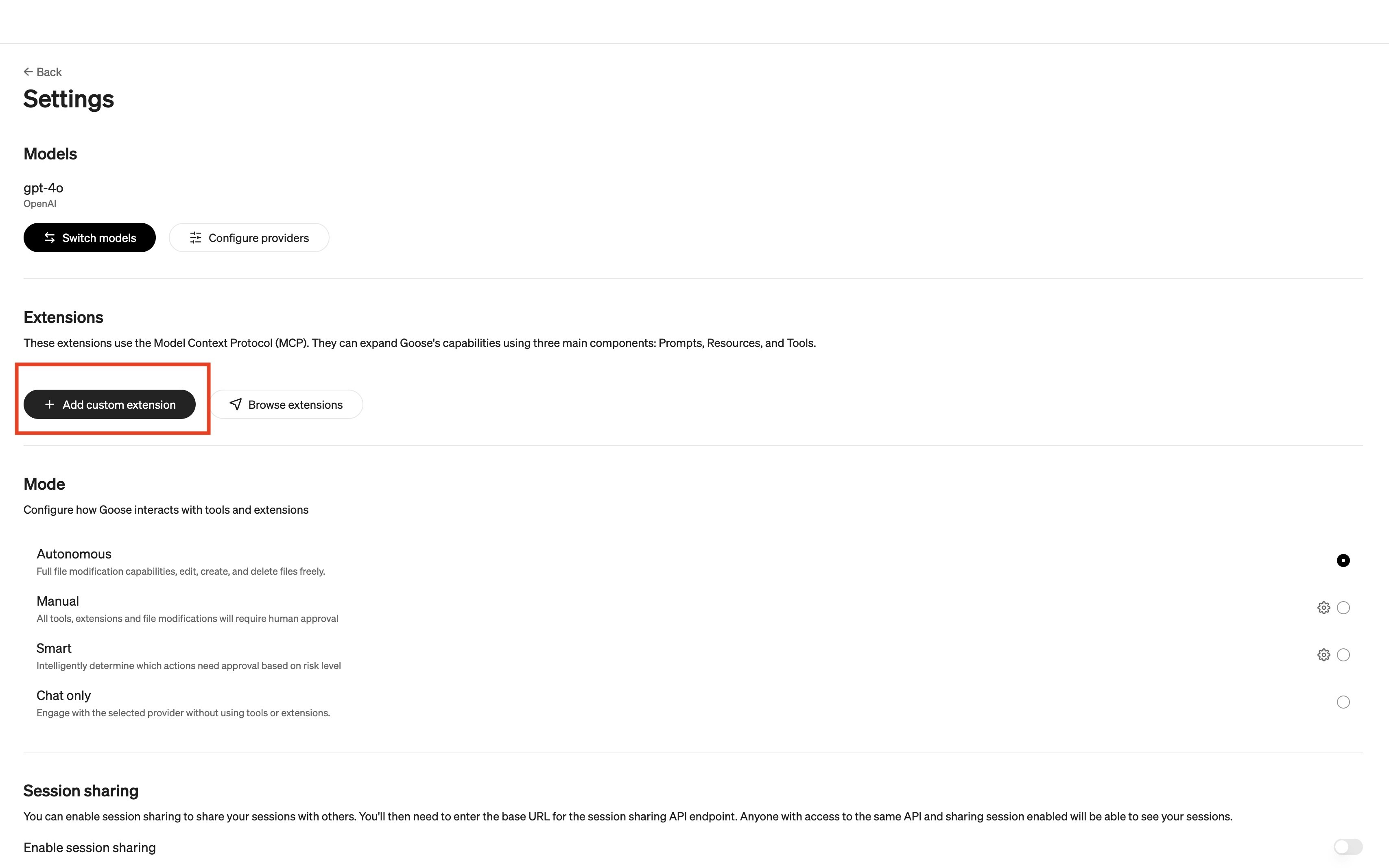
* Navigate to Goose Desktop's Settings, then under **Extensions**, select **+Add custom extension**.
 * The custom extension should have the following information:
* **Extension Name**: `Collate`.
* **Command**: paste the following command:
```
npx -y mcp-remote /mcp --auth-server-url=/mcp --client-id=Collate --verbose --clean --header Authorization:${AUTH_HEADER}
```
* If you're running [it locally](https://docs.open-metadata.org/latest/quick-start/local-docker-deployment), your command will look like this:
```
npx -y mcp-remote http://localhost:8585/mcp --auth-server-url=http://localhost:8585/mcp --client-id=Collate --verbose --clean --header Authorization:${AUTH_HEADER}
```
* Add one **Environment Variable**:
* **Variable name** is `AUTH_HEADER`.
* **Value** is `Bearer `.
* The custom extension should have the following information:
* **Extension Name**: `Collate`.
* **Command**: paste the following command:
```
npx -y mcp-remote /mcp --auth-server-url=/mcp --client-id=Collate --verbose --clean --header Authorization:${AUTH_HEADER}
```
* If you're running [it locally](https://docs.open-metadata.org/latest/quick-start/local-docker-deployment), your command will look like this:
```
npx -y mcp-remote http://localhost:8585/mcp --auth-server-url=http://localhost:8585/mcp --client-id=Collate --verbose --clean --header Authorization:${AUTH_HEADER}
```
* Add one **Environment Variable**:
* **Variable name** is `AUTH_HEADER`.
* **Value** is `Bearer `.
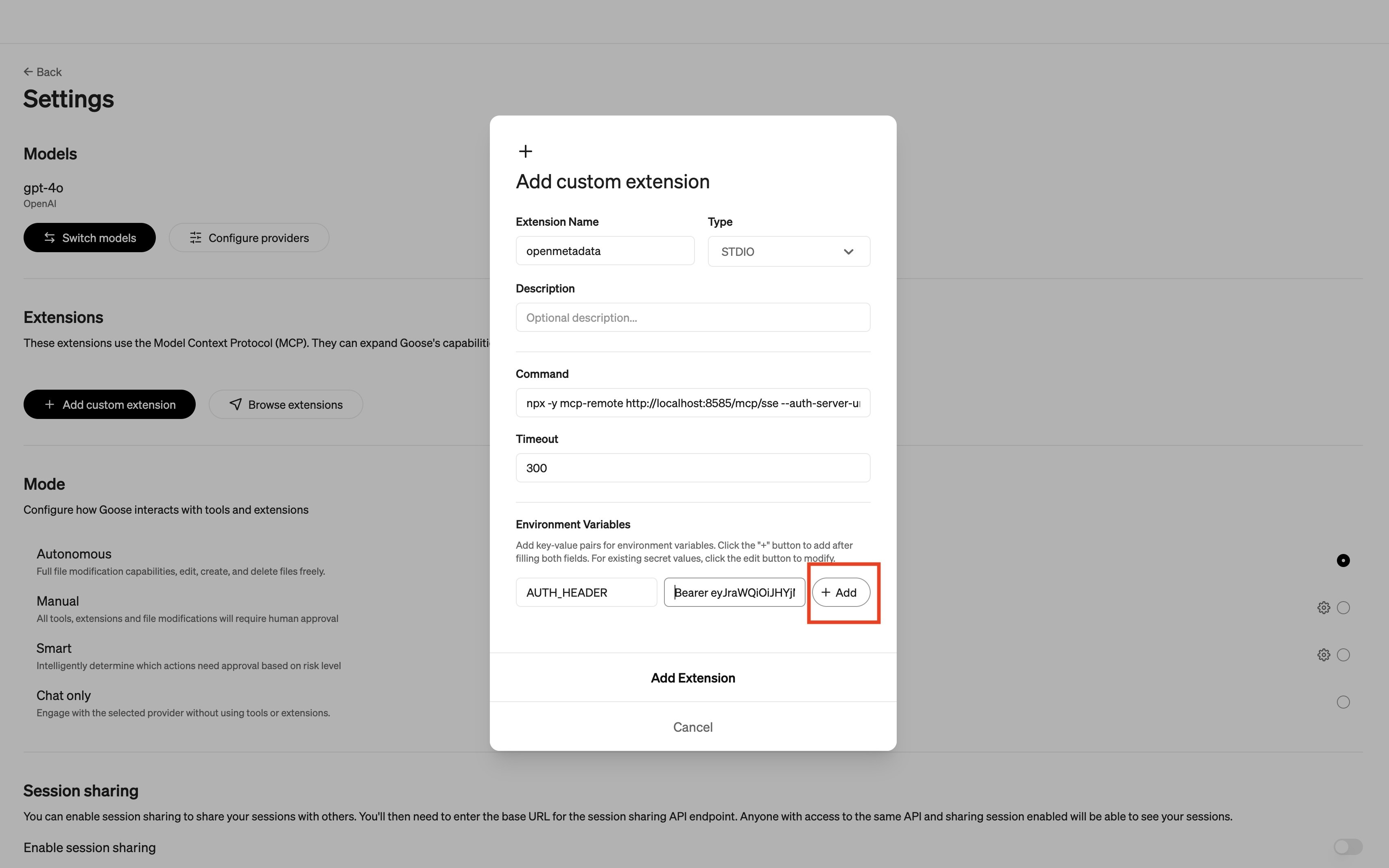 * Select **+Add** to store this environment variable.
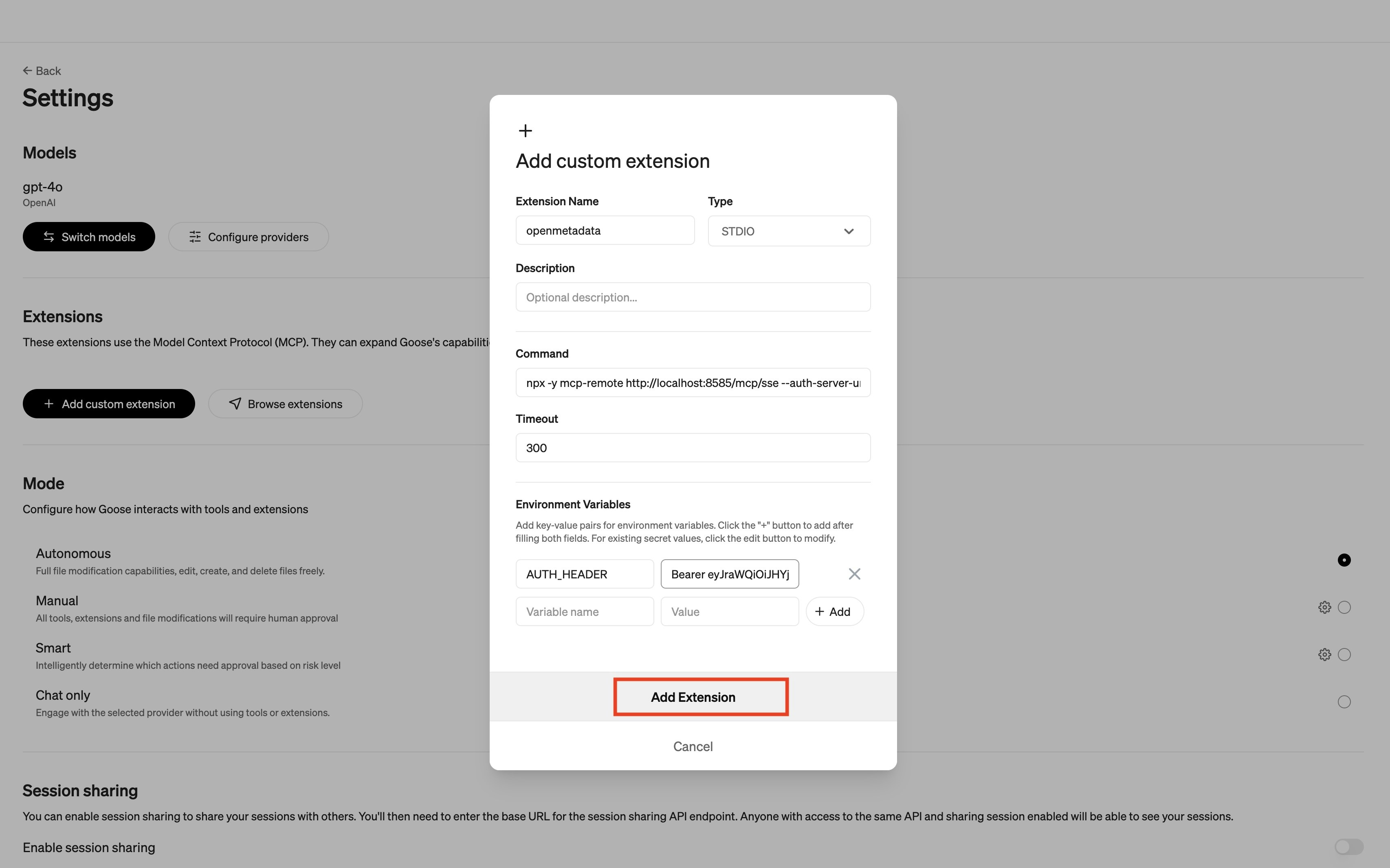
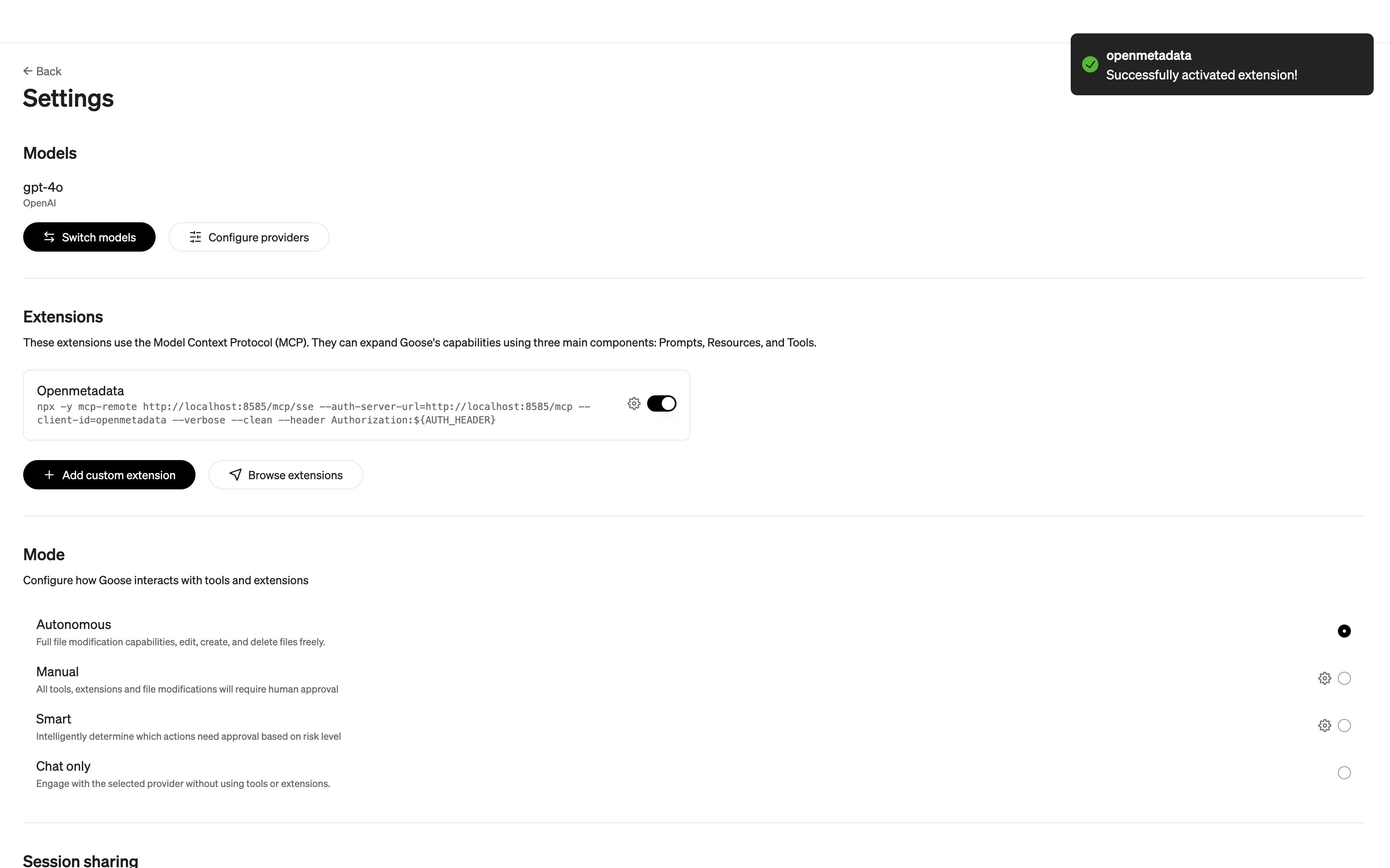
* Select **Add Extension**.
* Select **+Add** to store this environment variable.
* Select **Add Extension**.
 ## Prompt to Read from Collate
This part of the guide assumes that you have assets in Collate. Add data assets into Collate using the [connectors guide](https://docs.open-metadata.org/latest/connectors).
Select a model from Goose and paste the following prompt to have it read from Collate:
```
What tables do you have access to in Collate?
```
For more sample use cases with MCP, check out [our blog](https://collatedata.medium.com/mcp-sample-uses-in-collate-b7846864f63b).
### Reach Out on Slack
With MCP, Collate users are finding new ways to use the platform all the time. If you've got a great new use case, show it off in [Slack](https://slack.open-metadata.org/).
## Prompt to Read from Collate
This part of the guide assumes that you have assets in Collate. Add data assets into Collate using the [connectors guide](https://docs.open-metadata.org/latest/connectors).
Select a model from Goose and paste the following prompt to have it read from Collate:
```
What tables do you have access to in Collate?
```
For more sample use cases with MCP, check out [our blog](https://collatedata.medium.com/mcp-sample-uses-in-collate-b7846864f63b).
### Reach Out on Slack
With MCP, Collate users are finding new ways to use the platform all the time. If you've got a great new use case, show it off in [Slack](https://slack.open-metadata.org/).