> ## Documentation Index
> Fetch the complete documentation index at: https://docs.getcollate.io/llms.txt
> Use this file to discover all available pages before exploring further.
# Customize Collate Interface
> Brand your Collate instance with a custom logo, monogram, favicon, and color scheme to match your organization's identity.
# Customize Collate Interface
Admins can customize the Collate interface to match their organization's branding — including logos, favicon, and a full color palette.
## Setting Collate Theme
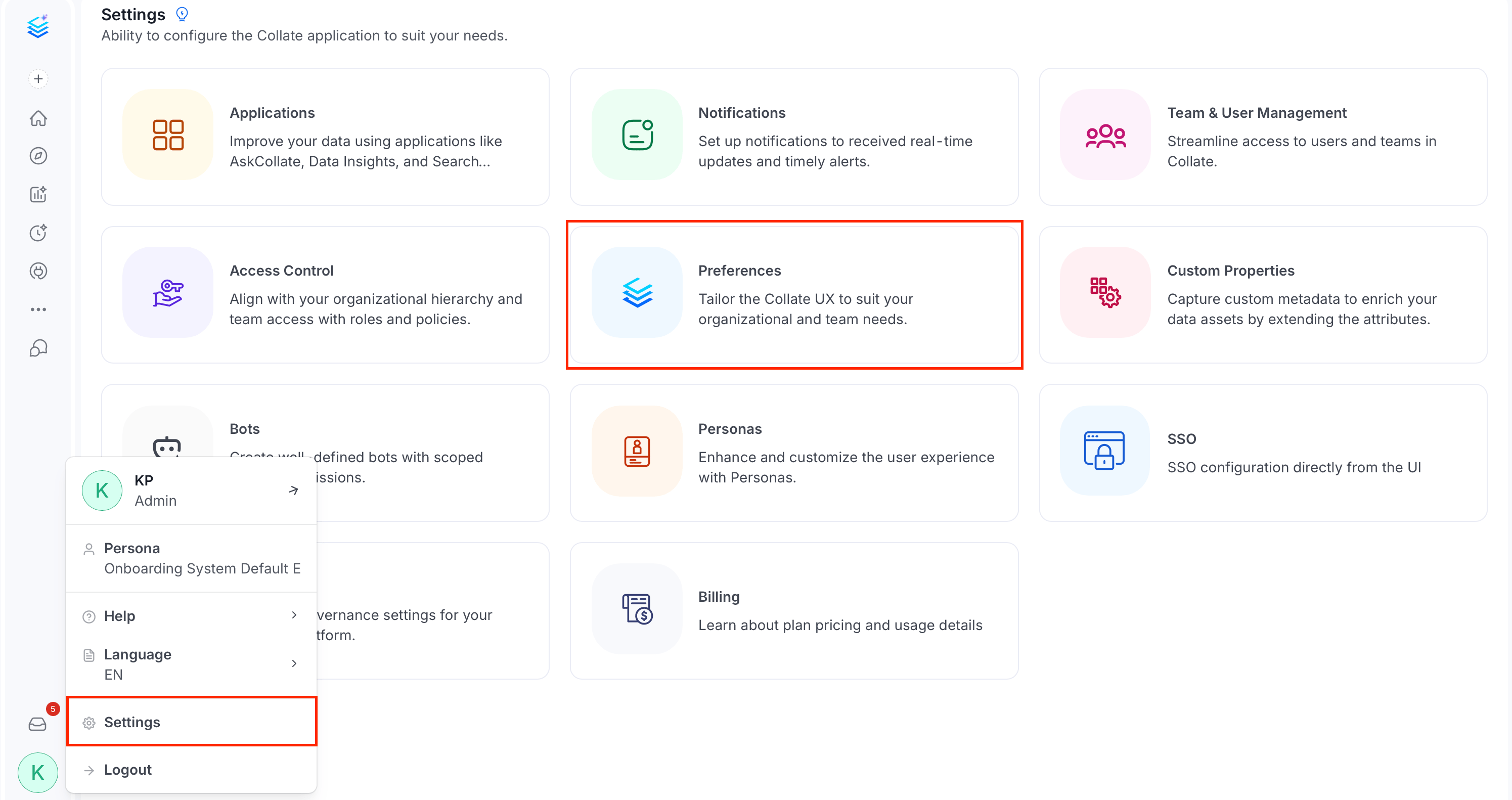
1. Click your **Profile** icon and navigate to **Settings** > **Preferences**.
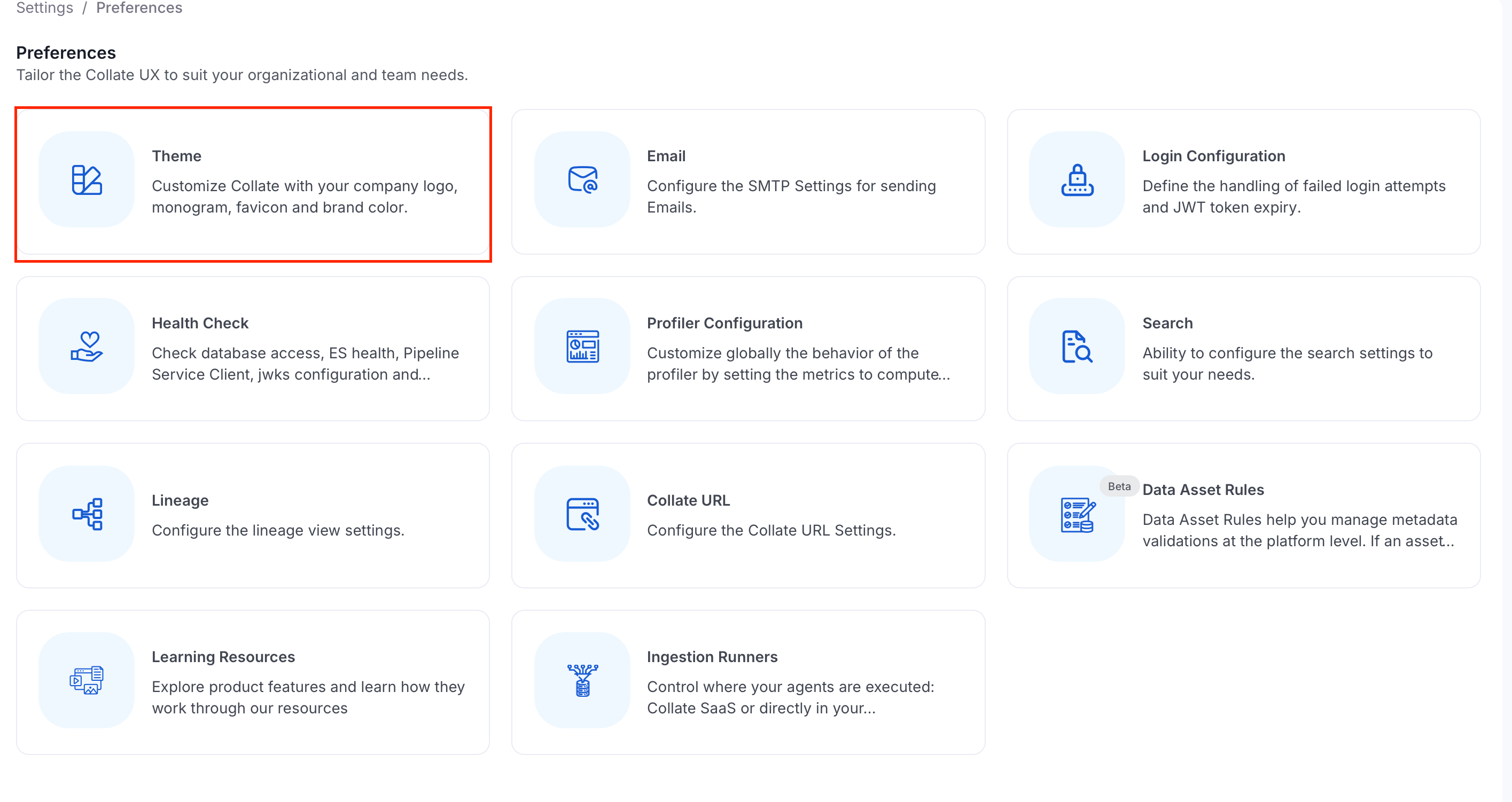
 2. Click **Theme**.
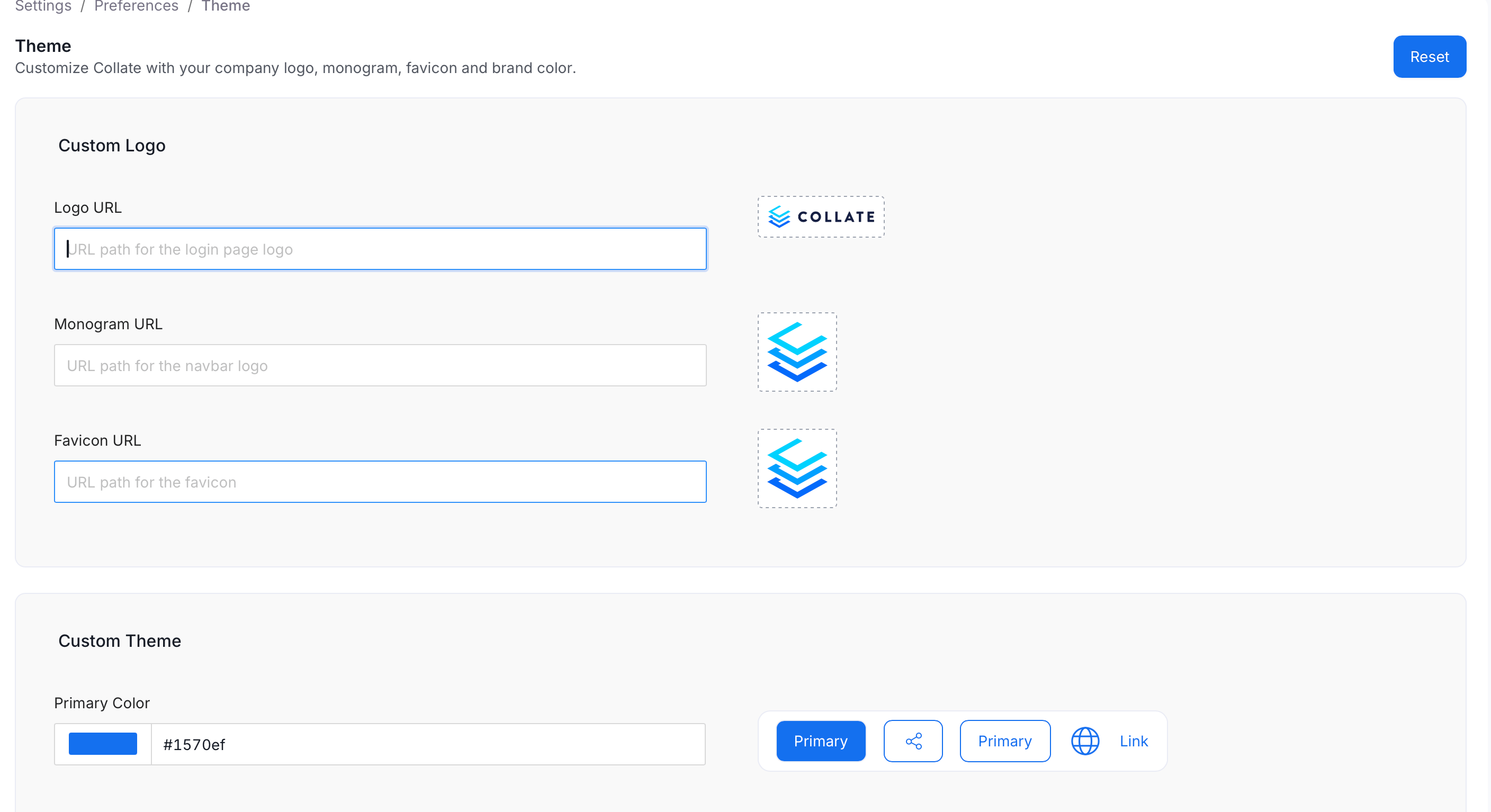
 3. Customize your Collate interface.
## Custom Logo
The **Custom Logo** section lets you replace the default Collate branding assets:
| **Field** | **Description** |
| :--------------- | :------------------------------- |
| **Logo URL** | URL path for the login page logo |
| **Monogram URL** | URL path for the navbar logo |
| **Favicon URL** | URL path for the favicon |
3. Customize your Collate interface.
## Custom Logo
The **Custom Logo** section lets you replace the default Collate branding assets:
| **Field** | **Description** |
| :--------------- | :------------------------------- |
| **Logo URL** | URL path for the login page logo |
| **Monogram URL** | URL path for the navbar logo |
| **Favicon URL** | URL path for the favicon |
 **Sizing requirements**:
* **Logo**: Use a 16:9 aspect ratio.
* **Monogram** and **Favicon**: Use a 1:1 aspect ratio.
After entering the URLs, click **Save**. Refresh the page to see the updated logos and favicon.
## Custom Theme
The **Custom Theme** section lets you define brand colors used across the interface. Each field accepts a HEX color code or a color picker selection — the preview on the right updates in real time.
| **Color** | **Applied to** |
| :------------------------- | :------------------------------------------------- |
| **Primary Color** | Primary buttons, links, and key UI elements |
| **Selected Color** | Selected state on data assets and navigation items |
| **Hover Color** | Background highlight on interactive elements |
| **Panel Background Color** | Panel and sidebar backgrounds |
| **Error Color** | Error messages and destructive action indicators |
| **Success Color** | Success confirmations and positive states |
| **Warning Color** | Warning messages and caution alerts |
After configuring colors, click **Save** to apply.
**Tip**: Click **Reset** at the top of the Theme page to restore all default Collate logos and colors.
**Sizing requirements**:
* **Logo**: Use a 16:9 aspect ratio.
* **Monogram** and **Favicon**: Use a 1:1 aspect ratio.
After entering the URLs, click **Save**. Refresh the page to see the updated logos and favicon.
## Custom Theme
The **Custom Theme** section lets you define brand colors used across the interface. Each field accepts a HEX color code or a color picker selection — the preview on the right updates in real time.
| **Color** | **Applied to** |
| :------------------------- | :------------------------------------------------- |
| **Primary Color** | Primary buttons, links, and key UI elements |
| **Selected Color** | Selected state on data assets and navigation items |
| **Hover Color** | Background highlight on interactive elements |
| **Panel Background Color** | Panel and sidebar backgrounds |
| **Error Color** | Error messages and destructive action indicators |
| **Success Color** | Success confirmations and positive states |
| **Warning Color** | Warning messages and caution alerts |
After configuring colors, click **Save** to apply.
**Tip**: Click **Reset** at the top of the Theme page to restore all default Collate logos and colors.