> ## Documentation Index
> Fetch the complete documentation index at: https://docs.getcollate.io/llms.txt
> Use this file to discover all available pages before exploring further.
# Delete a Data Asset
> Delete outdated or test assets from your catalog to maintain clean, relevant metadata and simplify search results.
# Delete a Data Asset
Data assets have a lot of user-generated metadata, such as descriptions, tags, ownership, tiering. There’s also rich metadata generated by Collate through the data profiler, usage data, lineage, test results, and other graph relationships with other data assets. When a data asset is deleted, all of this rich information is lost, and it’s not easy to recreate it. Collate supports both soft delete and hard delete.
To delete a data asset:
1. Navigate to the **Explore Assets** page and select the data asset you want to delete.
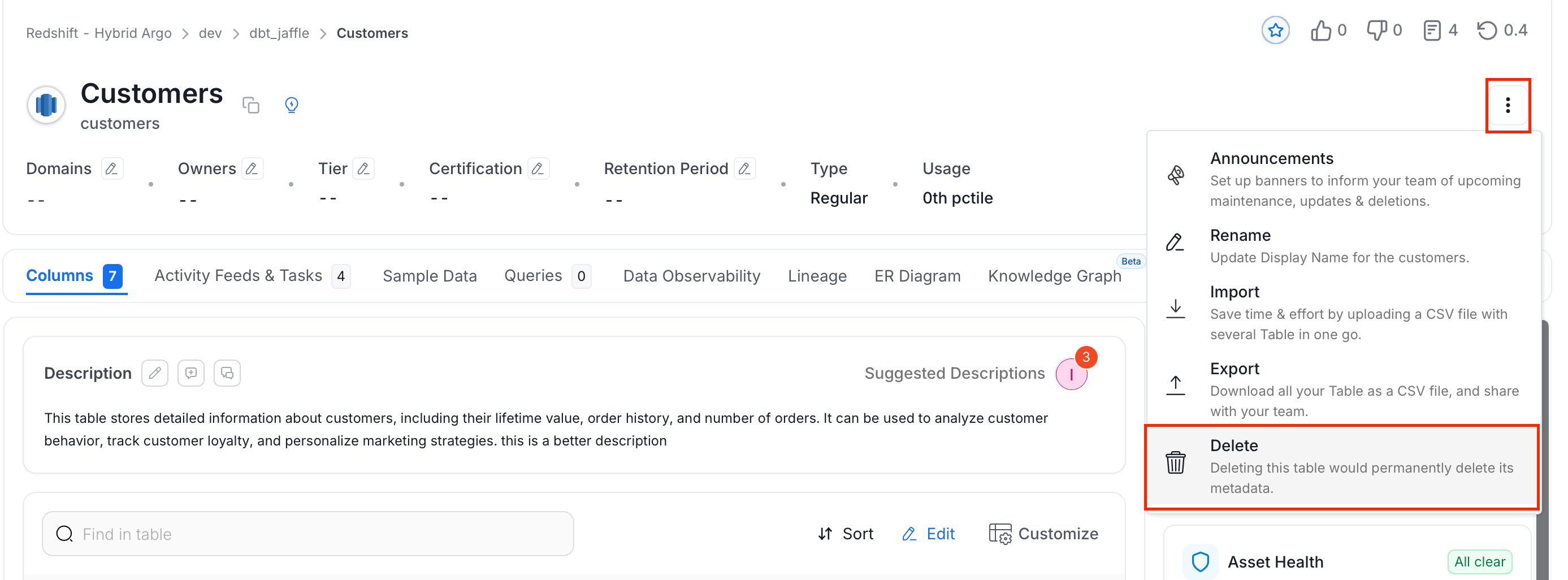
2. Click the **⋮** icon and click on **Delete**.
 3. Choose any of the following delete options:
* **Soft Delete**: Disables the data asset and you can restore it later.
* **Hard Delete**: Permanently deletes the data asset and its metadata. Can't be restor again.
3. Choose any of the following delete options:
* **Soft Delete**: Disables the data asset and you can restore it later.
* **Hard Delete**: Permanently deletes the data asset and its metadata. Can't be restor again.
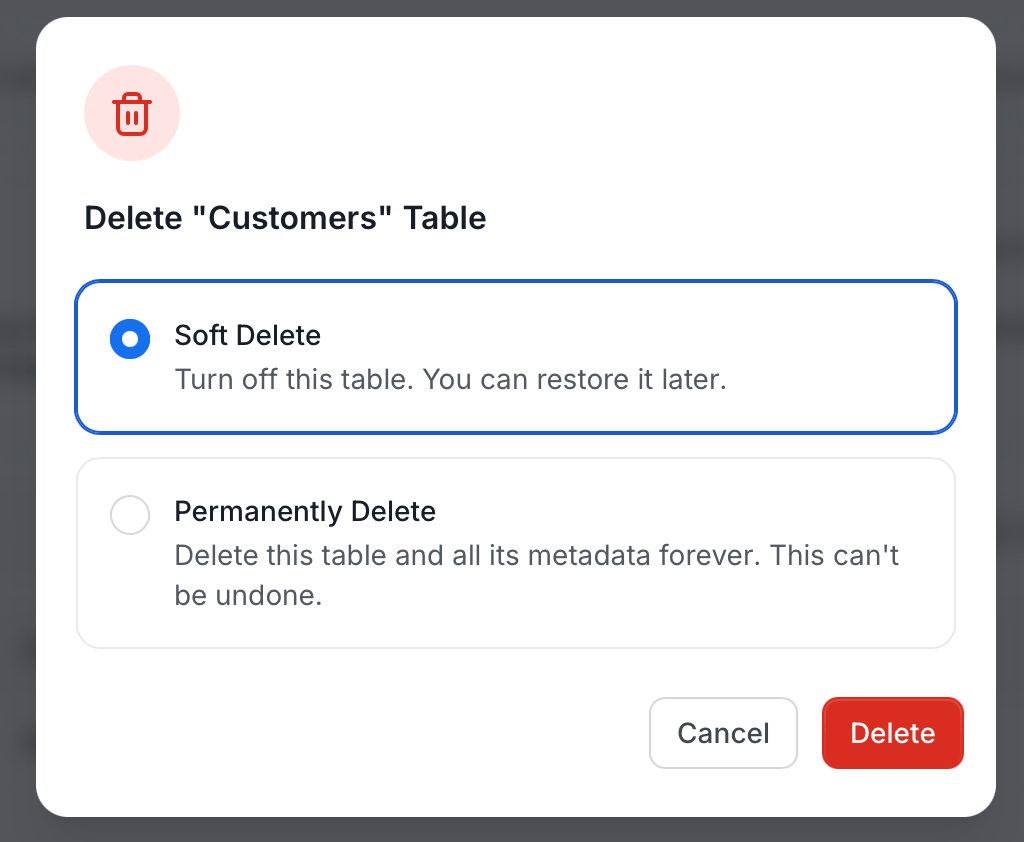 4. Click **Delete**.
**Tip**:
**Tip:** Notify team members of data changes by creating [Announcement](/ai-2-0/how-to-guides/data-collaboration/announcements).
4. Click **Delete**.
**Tip**:
**Tip:** Notify team members of data changes by creating [Announcement](/ai-2-0/how-to-guides/data-collaboration/announcements).