> ## Documentation Index
> Fetch the complete documentation index at: https://docs.getcollate.io/llms.txt
> Use this file to discover all available pages before exploring further.
# Custom Property for a Data Asset
> Customize data asset pages by configuring fields, tabs, and layouts to match your organization's metadata strategy.
# Custom Property for a Data Asset
Collate uses a schema-first approach and supports custom properties for all types of data assets. Organizations can extend the default attributes to capture metadata that matters to them — such as business owner, SLA tier, compliance classification, and more.
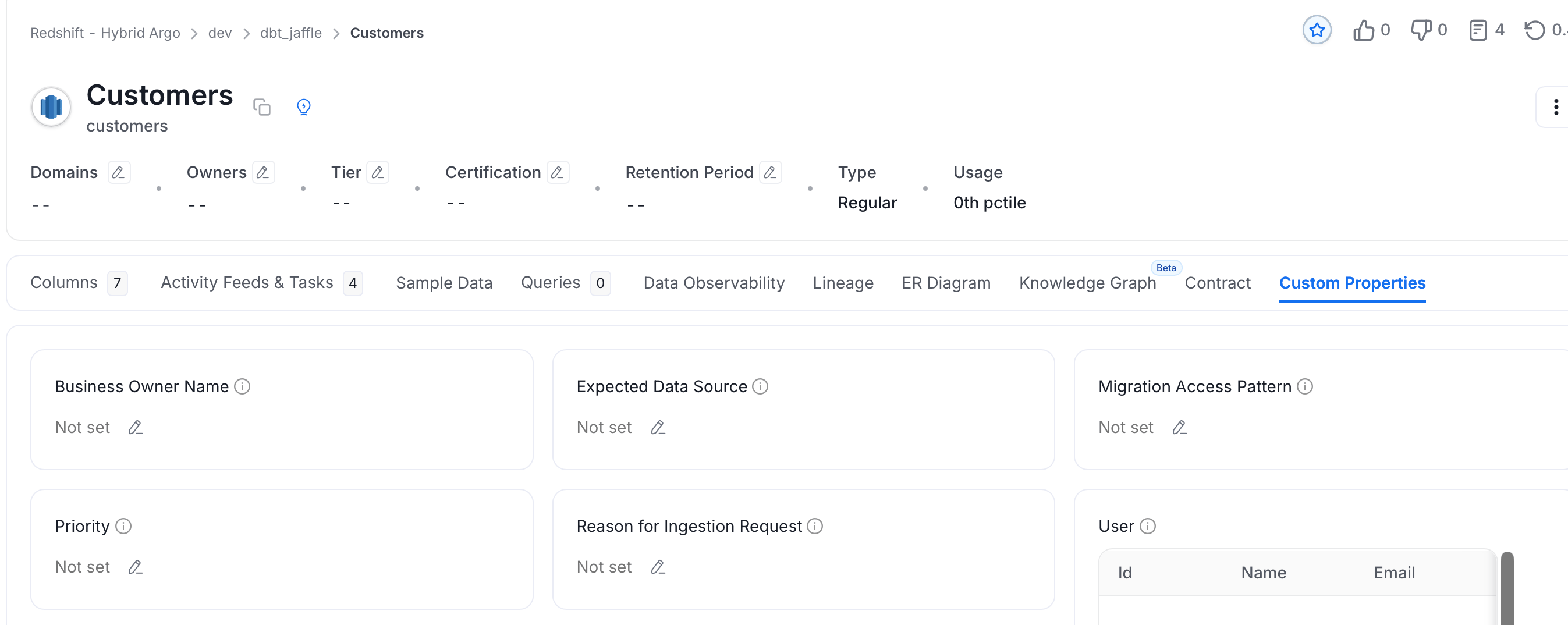
Custom property values can be viewed and edited from the **Custom Properties** tab on any data asset detail page.
## Creating a Custom Property
1. Click your **Profile** icon in the bottom-left navigation and select **Settings**. Then click **Custom Properties**.
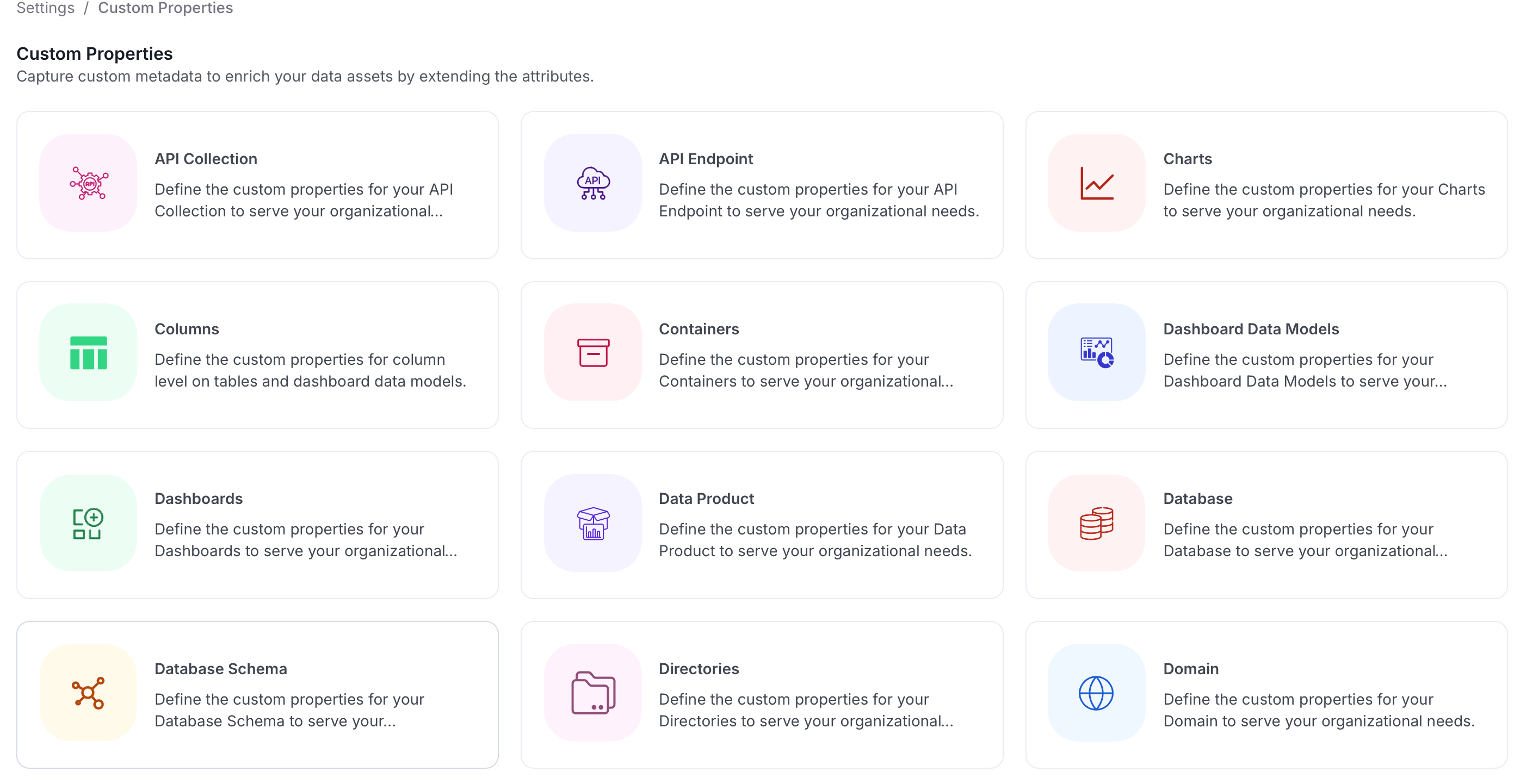
 2. Choose the type of data asset you want to define a custom property for — for example, **Database**, **Table**, **Dashboard**, and so on.
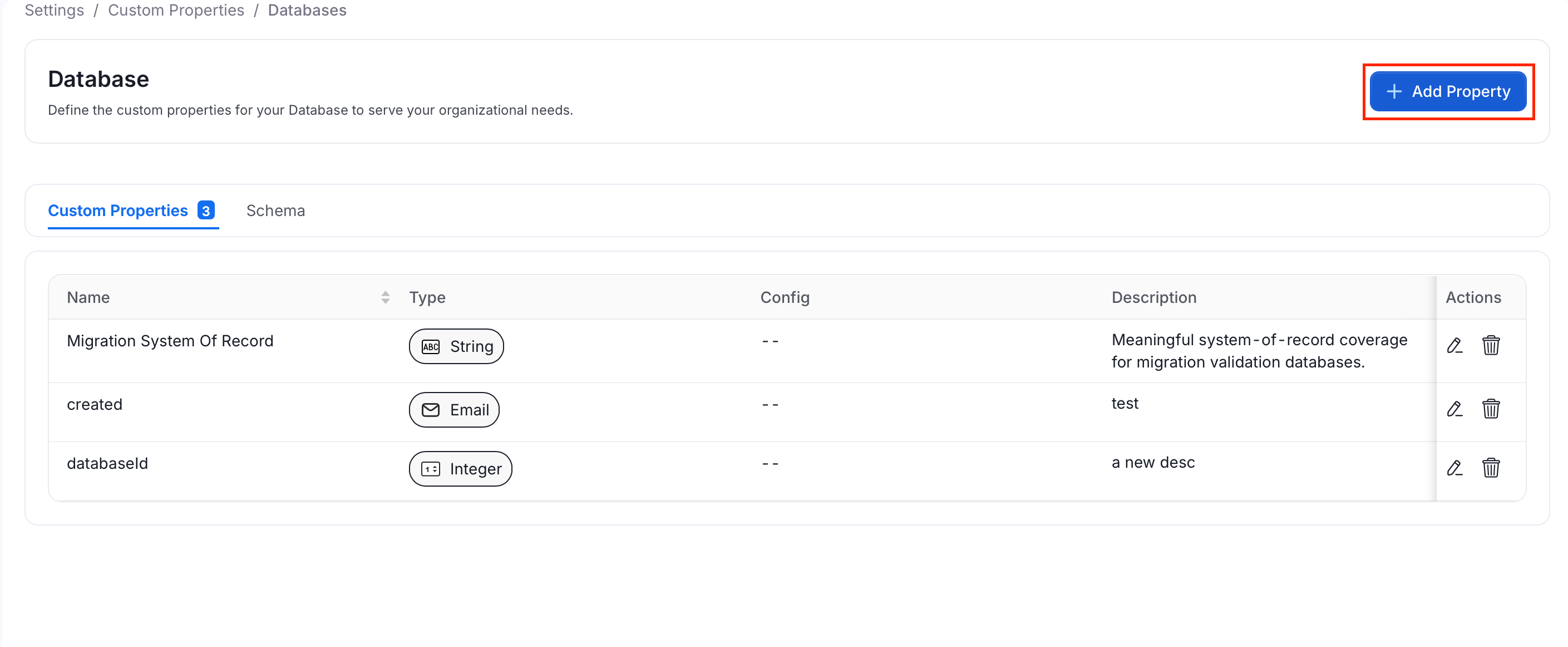
 3. On the asset type page, click **Add Property**.
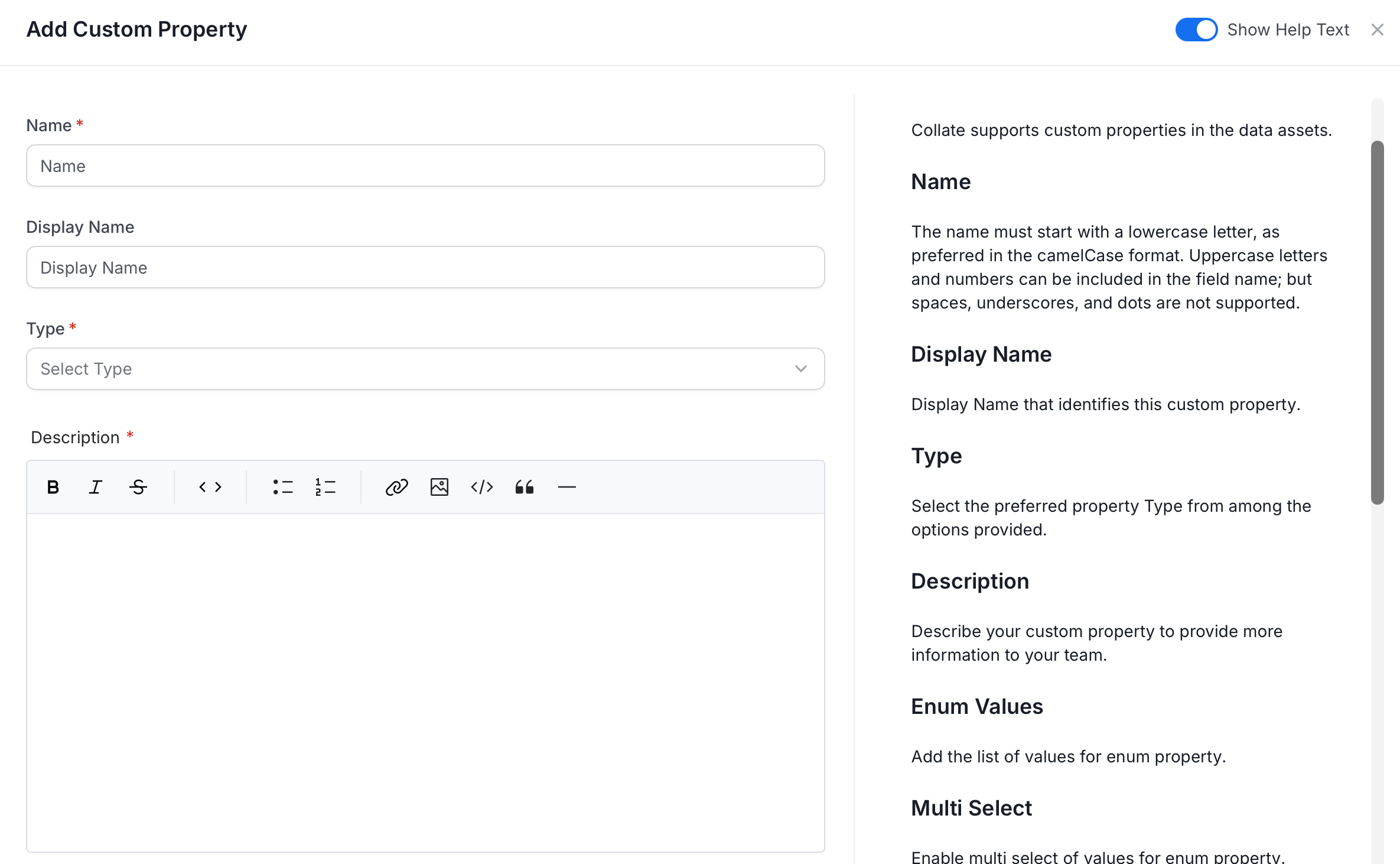
 4. In the **Add Custom Property** form , fill the following fields:
* **Name** *(required)* — Must start with a lowercase letter in camelCase format. Uppercase letters and numbers are allowed; spaces, underscores, and dots are not.
* **Display Name** — A human-readable label shown on the data asset page.
* **Type** *(required)* — The data type for this property. See [Supported Property Types](#supported-property-types) below.
* **Description** *(required)* — Describe what this property captures to help your team understand its purpose.
4. In the **Add Custom Property** form , fill the following fields:
* **Name** *(required)* — Must start with a lowercase letter in camelCase format. Uppercase letters and numbers are allowed; spaces, underscores, and dots are not.
* **Display Name** — A human-readable label shown on the data asset page.
* **Type** *(required)* — The data type for this property. See [Supported Property Types](#supported-property-types) below.
* **Description** *(required)* — Describe what this property captures to help your team understand its purpose.
 5. Click **Create** to save the property.
## Supported Property Types
When adding a custom property, select one of the following types from the **Type** dropdown:
5. Click **Create** to save the property.
## Supported Property Types
When adding a custom property, select one of the following types from the **Type** dropdown:
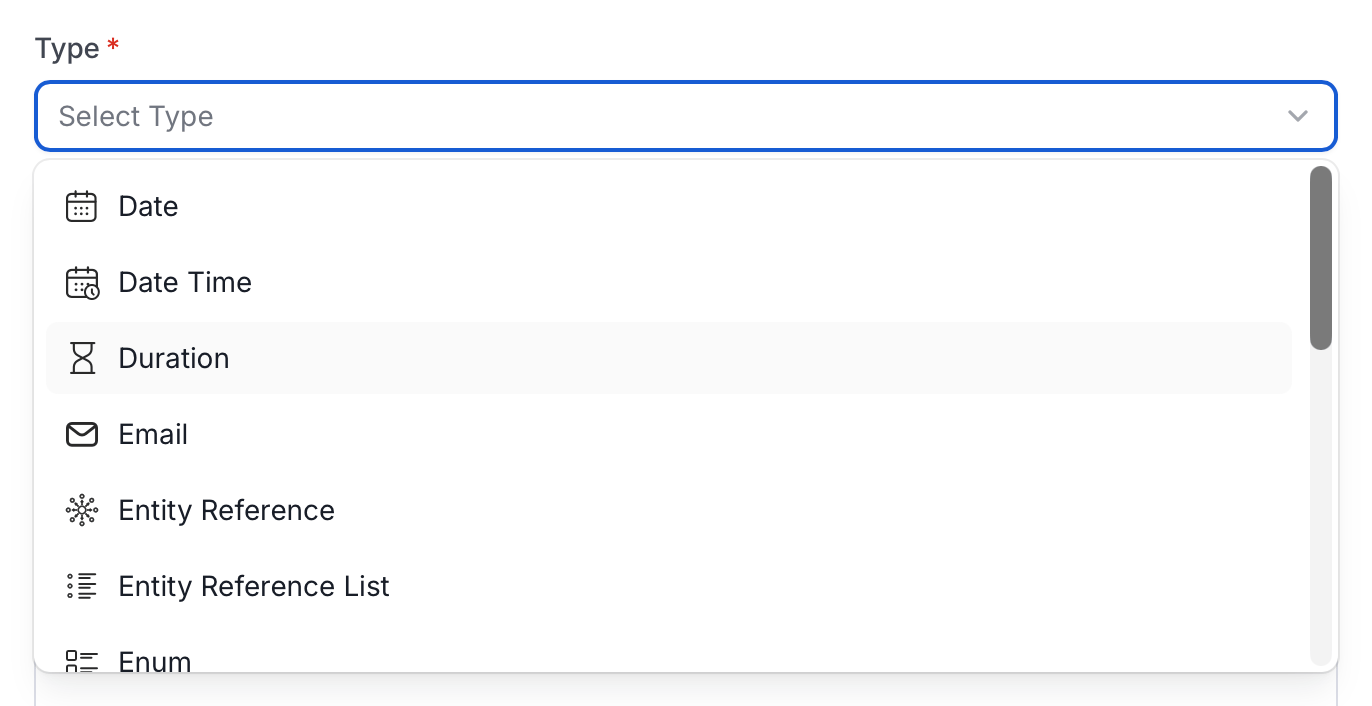 | **Type** | **Description** |
| :------------------------ | :------------------------------------------------------------ |
| **Date** | A calendar date (year, month, day) |
| **Date Time** | A date combined with a time value |
| **Duration** | A time duration (e.g., ISO 8601 format) |
| **Email** | An email address |
| **Entity Reference** | A reference to a single Collate entity (e.g., a user or team) |
| **Entity Reference List** | A list of references to Collate entities |
| **Enum** | A fixed set of selectable values; supports multi-select |
| **Integer** | A whole number |
| **Markdown** | Rich text content formatted with Markdown |
| **Number** | A numeric value including decimals |
| **SQL Query** | A SQL query string |
| **String** | Free-form plain text |
| **Table** | A structured table of values |
| **Time** | A time of day |
| **Time Interval** | A range between two time values |
| **Timestamp** | A Unix timestamp |
## Adding Values to Custom Properties
After a custom property is defined, you can set its value directly from the data asset detail page:
1. Open any data asset and click the **Custom Properties** tab.
2. Click the **Edit** icon next to the property you want to update.
3. Enter the value and save.
| **Type** | **Description** |
| :------------------------ | :------------------------------------------------------------ |
| **Date** | A calendar date (year, month, day) |
| **Date Time** | A date combined with a time value |
| **Duration** | A time duration (e.g., ISO 8601 format) |
| **Email** | An email address |
| **Entity Reference** | A reference to a single Collate entity (e.g., a user or team) |
| **Entity Reference List** | A list of references to Collate entities |
| **Enum** | A fixed set of selectable values; supports multi-select |
| **Integer** | A whole number |
| **Markdown** | Rich text content formatted with Markdown |
| **Number** | A numeric value including decimals |
| **SQL Query** | A SQL query string |
| **String** | Free-form plain text |
| **Table** | A structured table of values |
| **Time** | A time of day |
| **Time Interval** | A range between two time values |
| **Timestamp** | A Unix timestamp |
## Adding Values to Custom Properties
After a custom property is defined, you can set its value directly from the data asset detail page:
1. Open any data asset and click the **Custom Properties** tab.
2. Click the **Edit** icon next to the property you want to update.
3. Enter the value and save.
 ## Edit or Delete Custom Properties
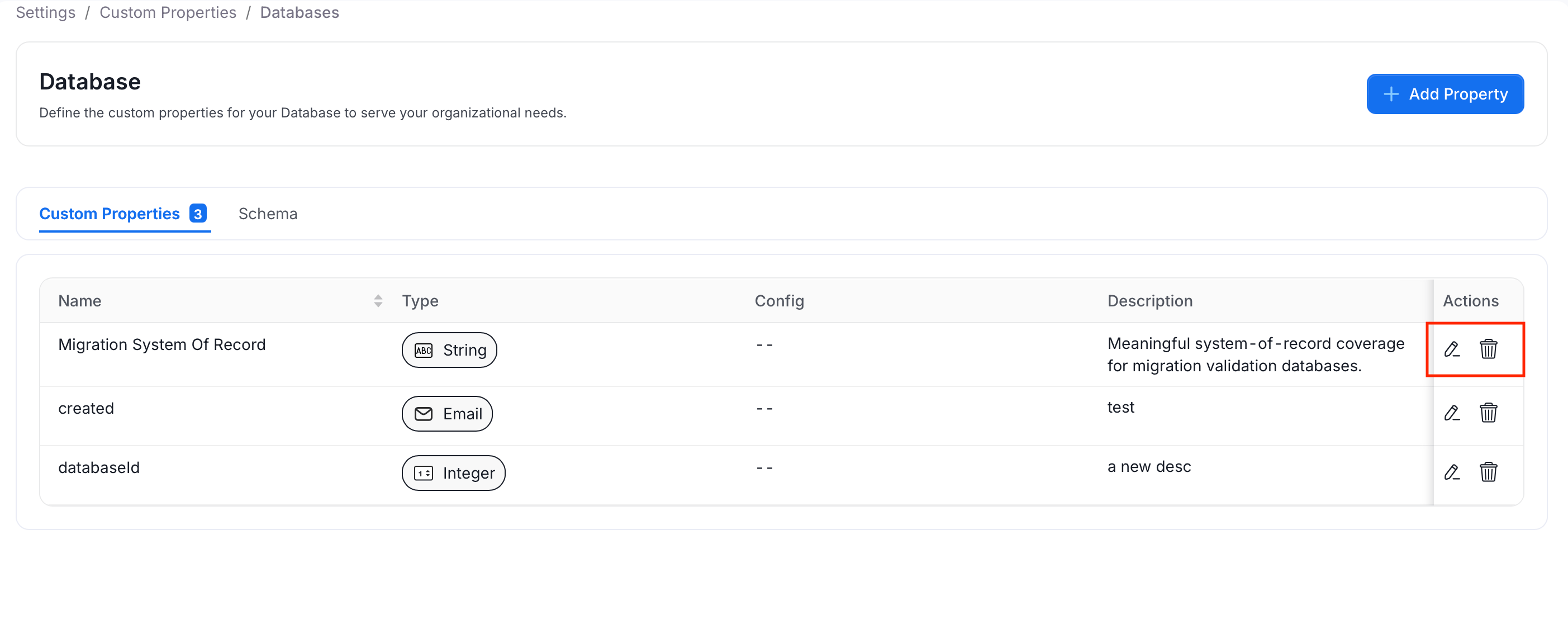
To edit or delete a custom property definition:
1. Click the **Profile** icon and navigate to **Settings** > **Custom Properties**.
2. Select an asset type.
3. In the Actions field, do the following:
* To edit, click the **Edit** icon and update the property's display name, type, or description.
* To delete, click the **Delete** icon and permanently remove the property and all its values.
## Edit or Delete Custom Properties
To edit or delete a custom property definition:
1. Click the **Profile** icon and navigate to **Settings** > **Custom Properties**.
2. Select an asset type.
3. In the Actions field, do the following:
* To edit, click the **Edit** icon and update the property's display name, type, or description.
* To delete, click the **Delete** icon and permanently remove the property and all its values.
 Learn more about the announcements in Collate