> ## Documentation Index
> Fetch the complete documentation index at: https://docs.getcollate.io/llms.txt
> Use this file to discover all available pages before exploring further.
# Test Library | Custom SQL-Based Data Quality Tests
> Create reusable custom data quality tests using SQL queries with dynamic parameters for table and column-level validations.
# Test Library
The **Test Library** lets administrators create custom, reusable data quality test definitions using SQL queries. Define SQL-based validation rules with dynamic parameters that are resolved at runtime. This provides a flexible way to implement organization-specific data quality checks without writing custom code.
## Key Features
* **SQL-Based Test Definitions**: Write custom validation logic using SQL queries
* **Dynamic Parameters**: Use reserved and user-defined parameters that are resolved at runtime
* **Reusable Tests**: Create test definitions once and apply them across multiple tables and columns
* **Table and Column Level**: Support for both table-level and column-level validations
* **Enable/Disable Tests**: Control which test definitions are available for use
## Accessing the Test Library
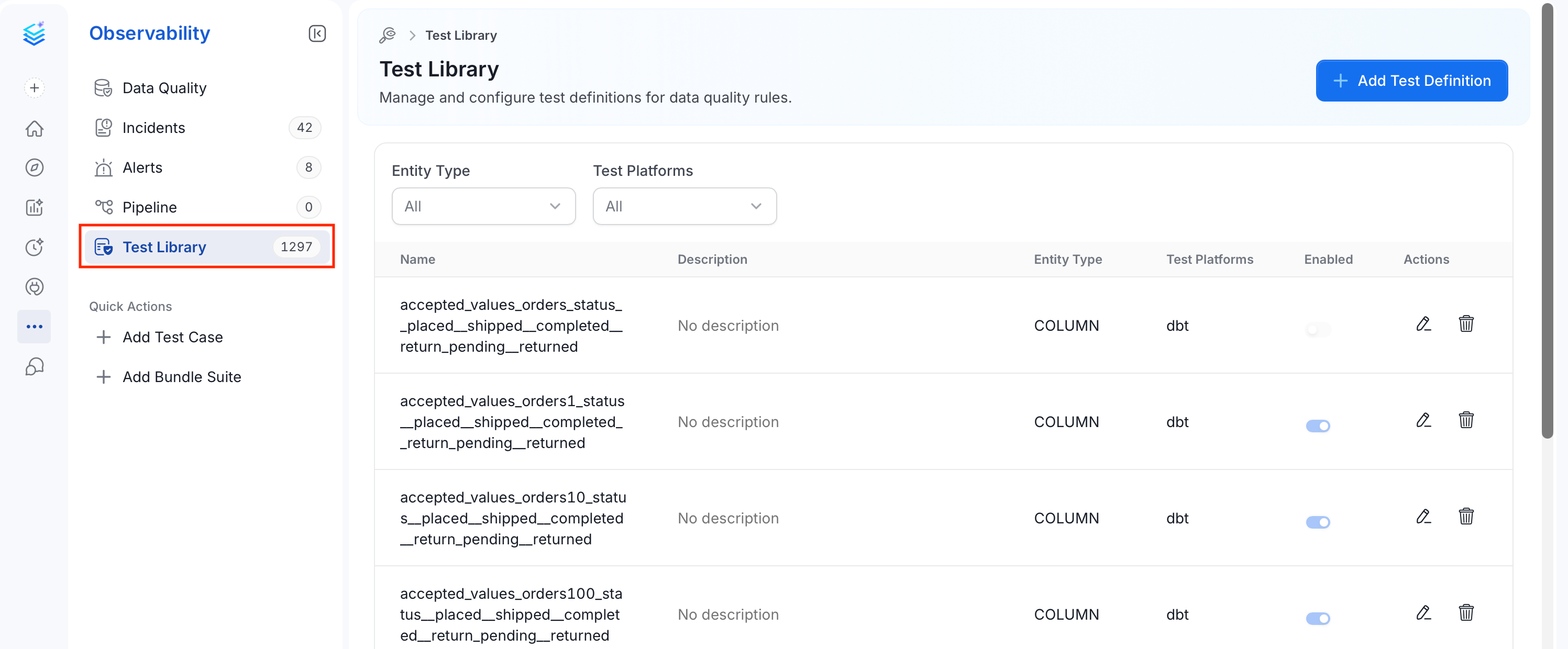
The Test Library is accessible to administrators through the **Observability** menu. To access, navigate to **Observability** > **Test Library** to manage your custom test definitions.
 ## Creating a Custom Test Definition
Follow these steps to add a new test definition to the Test Library.
### Step 1: Add Test Definition
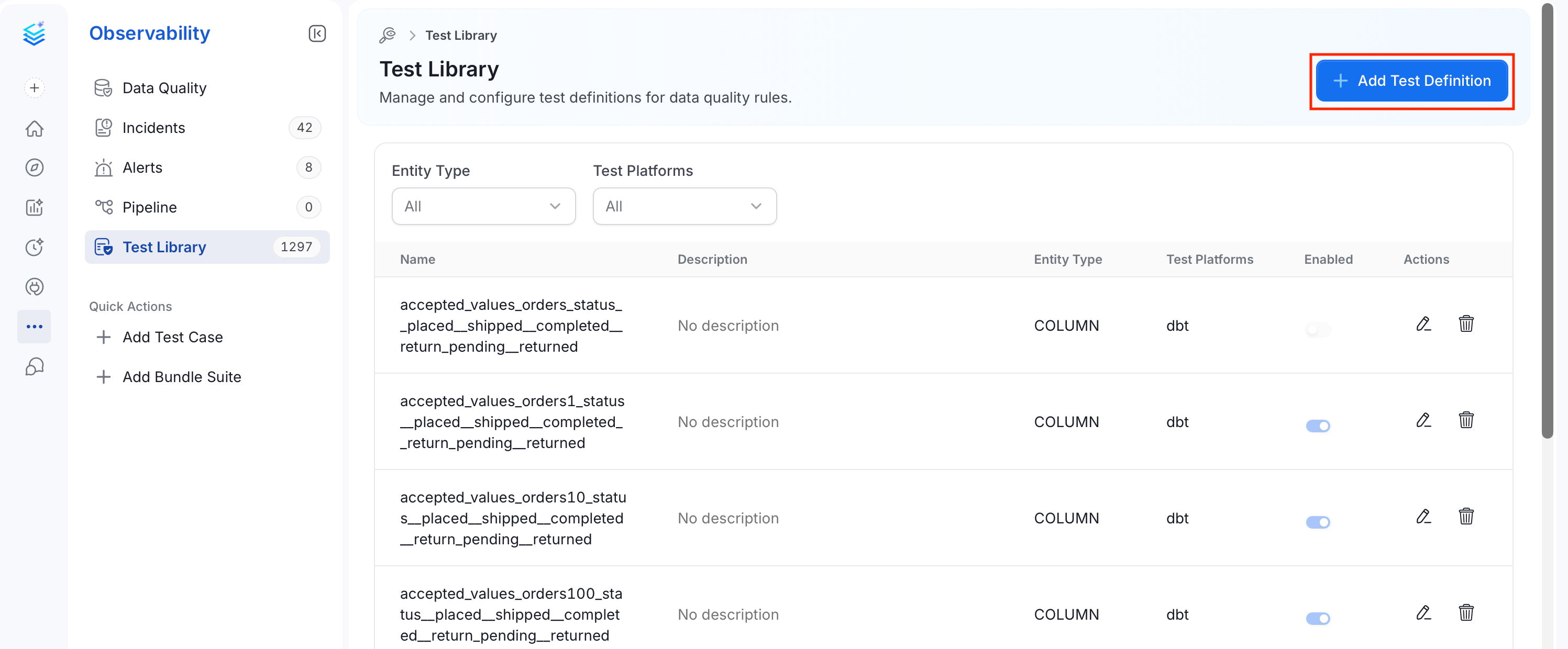
On the **Test Library** page, click **Add Test Definition**.
## Creating a Custom Test Definition
Follow these steps to add a new test definition to the Test Library.
### Step 1: Add Test Definition
On the **Test Library** page, click **Add Test Definition**.
 ### Step 2: Configure the Test Definition
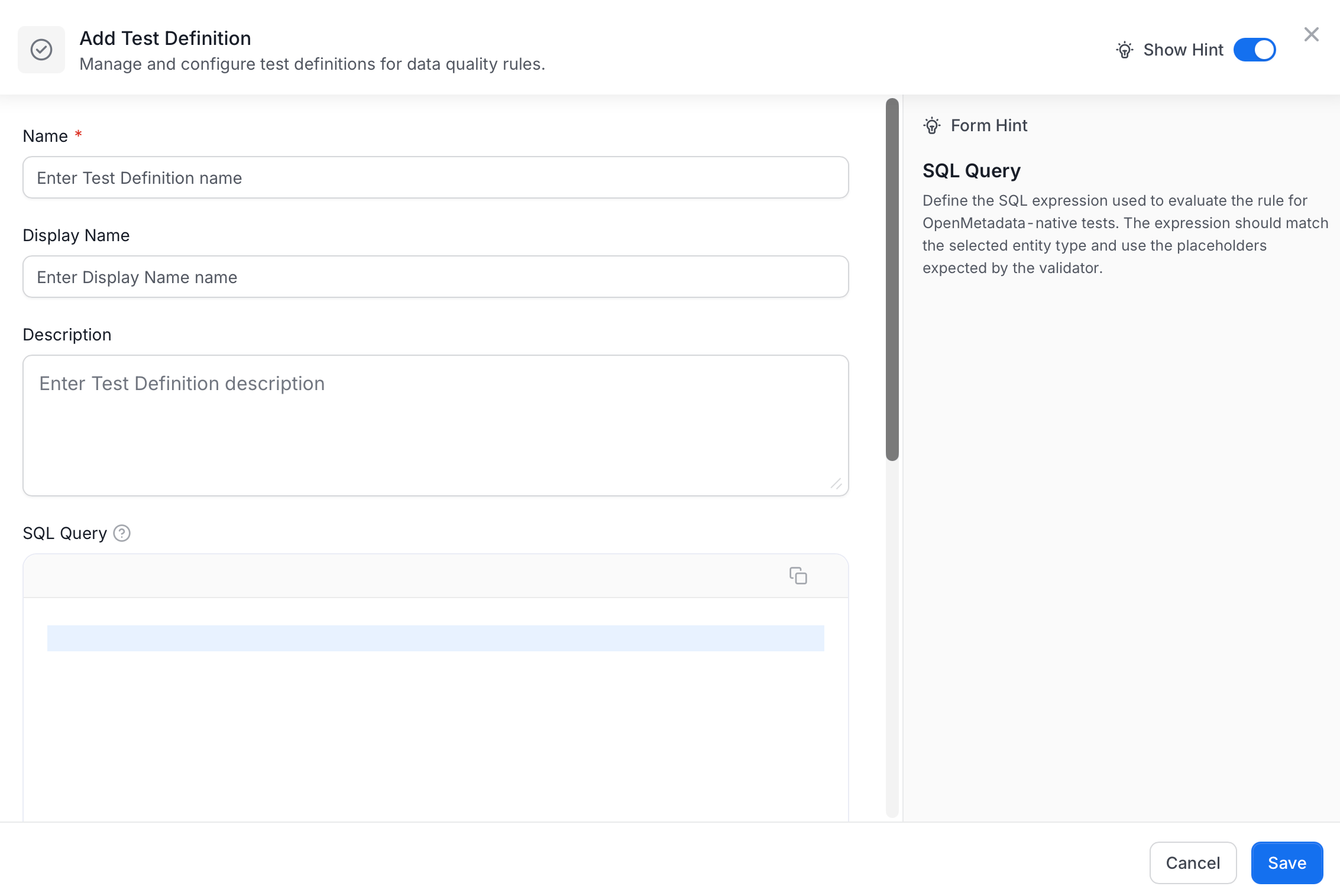
On the **Add Test Definition** pop-up, enter the following details:
| Field | Description | Required |
| -------------------------- | ---------------------------------------------------------------------------------------------------------------------------- | -------- |
| **Name** | A unique identifier for the test definition | Yes |
| **Display Name** | A human-friendly label shown in the UI | No |
| **Description** | A clear description of what the test validates | No |
| **SQL Query** | The SQL expression that defines the validation logic. See [Writing the SQL Query](#writing-the-sql-query). | No |
| **Entity Type** | Whether the test applies to `TABLE` or `COLUMN` | Yes |
| **Test Platforms** | Platforms that can execute this test. Must include `OpenMetadata` for Collate to run it natively. Defaults to `OpenMetadata` | Yes |
| **Data Quality Dimension** | The quality category this test belongs to (for example, Completeness, Accuracy) | No |
| **Supported Services** | Database services where this test can run. Leave empty to support all services | No |
| **Supported Data Types** | Column data types this test applies to | No |
| **Parameters** | User-defined arguments for the SQL query. See [Defining Parameters](#defining-parameters). | No |
**Important**: If you want the test to run natively within Collate, the **Test Platforms** field must include `OpenMetadata`. Tests configured with other platforms (for example, dbt, Soda, GreatExpectations) are intended for tracking results from external test frameworks and will not be executed by Collate's data quality engine.
### Step 2: Configure the Test Definition
On the **Add Test Definition** pop-up, enter the following details:
| Field | Description | Required |
| -------------------------- | ---------------------------------------------------------------------------------------------------------------------------- | -------- |
| **Name** | A unique identifier for the test definition | Yes |
| **Display Name** | A human-friendly label shown in the UI | No |
| **Description** | A clear description of what the test validates | No |
| **SQL Query** | The SQL expression that defines the validation logic. See [Writing the SQL Query](#writing-the-sql-query). | No |
| **Entity Type** | Whether the test applies to `TABLE` or `COLUMN` | Yes |
| **Test Platforms** | Platforms that can execute this test. Must include `OpenMetadata` for Collate to run it natively. Defaults to `OpenMetadata` | Yes |
| **Data Quality Dimension** | The quality category this test belongs to (for example, Completeness, Accuracy) | No |
| **Supported Services** | Database services where this test can run. Leave empty to support all services | No |
| **Supported Data Types** | Column data types this test applies to | No |
| **Parameters** | User-defined arguments for the SQL query. See [Defining Parameters](#defining-parameters). | No |
**Important**: If you want the test to run natively within Collate, the **Test Platforms** field must include `OpenMetadata`. Tests configured with other platforms (for example, dbt, Soda, GreatExpectations) are intended for tracking results from external test frameworks and will not be executed by Collate's data quality engine.
 ### Step 3: Save the Test Definition
Click **Save** to create the test definition. It now appears in the Test Library and is available for creating test cases.
## Writing the SQL Query
The SQL expression defines your validation logic. The test **fails if the query returns one or more rows**.
### Reserved Parameters
The following parameters are automatically resolved at runtime:
| Parameter | Description |
| ------------------- | ------------------------------------------------------------ |
| `{{ table_name }}` | The fully qualified name of the table being tested |
| `{{ column_name }}` | The name of the column being tested (for column-level tests) |
### User-Defined Parameters
Define custom parameters that users will provide values for when creating test cases. Use the `{{ parameter_name }}` syntax in your SQL expression.
### SQL Expression Examples
The following examples show common validation patterns you can adapt for your own tests.
* **Example 1: Column Values Greater Than Threshold**
This test validates that all values in a column are greater than or equal to a specified minimum value.
```sql theme={null}
SELECT {{ column_name }} AS col
FROM {{ table_name }}
WHERE {{ column_name }} < {{ min_value }}
```
**Parameters**:
* `min_value`: The minimum acceptable value
**Usage**: When creating a test case, the user specifies `min_value = 0` to ensure no negative values exist in the column.
* **Example 2: Column Values Within Range**
This test validates that column values fall within a specified range.
```sql theme={null}
SELECT {{ column_name }} AS col
FROM {{ table_name }}
WHERE {{ column_name }} < {{ min_value }} OR {{ column_name }} > {{ max_value }}
```
**Parameters**:
* `min_value`: The minimum acceptable value
* `max_value`: The maximum acceptable value
* **Example 3: No Null Values in Required Columns**
This test ensures a column contains no NULL values.
```sql theme={null}
SELECT {{ column_name }}
FROM {{ table_name }}
WHERE {{ column_name }} IS NULL
```
**Parameters**: None required (uses only reserved parameters)
* **Example 4: Table Row Count Within Expected Range**
This table-level test validates that the row count is within expected bounds.
```sql theme={null}
SELECT COUNT(*) AS row_count
FROM {{ table_name }}
HAVING COUNT(*) < {{ min_rows }} OR COUNT(*) > {{ max_rows }}
```
**Parameters**:
* `min_rows`: The minimum expected row count
* `max_rows`: The maximum expected row count
* **Example 5: Referential Integrity Check**
This test validates that all values in a column exist in a reference table.
```sql theme={null}
SELECT t.{{ column_name }}
FROM {{ table_name }} t
LEFT JOIN {{ reference_table }} r ON t.{{ column_name }} = r.{{ reference_column }}
WHERE r.{{ reference_column }} IS NULL
AND t.{{ column_name }} IS NOT NULL
```
**Parameters**:
* `reference_table`: The fully qualified name of the reference table
* `reference_column`: The column in the reference table to match against
* **Example 6: Date Freshness Check**
This table-level test ensures that recent data exists in a date column.
```sql theme={null}
SELECT MAX({{ date_column }}) AS latest_date
FROM {{ table_name }}
HAVING MAX({{ date_column }}) < CURRENT_DATE - INTERVAL '{{ max_age_days }}' DAY
```
**Parameters**:
* `date_column`: The date/timestamp column to check
* `max_age_days`: Maximum age of the most recent record in days
**Note**: The date interval syntax may vary depending on your database. Adjust the SQL accordingly for your supported data sources.
## Defining Parameters
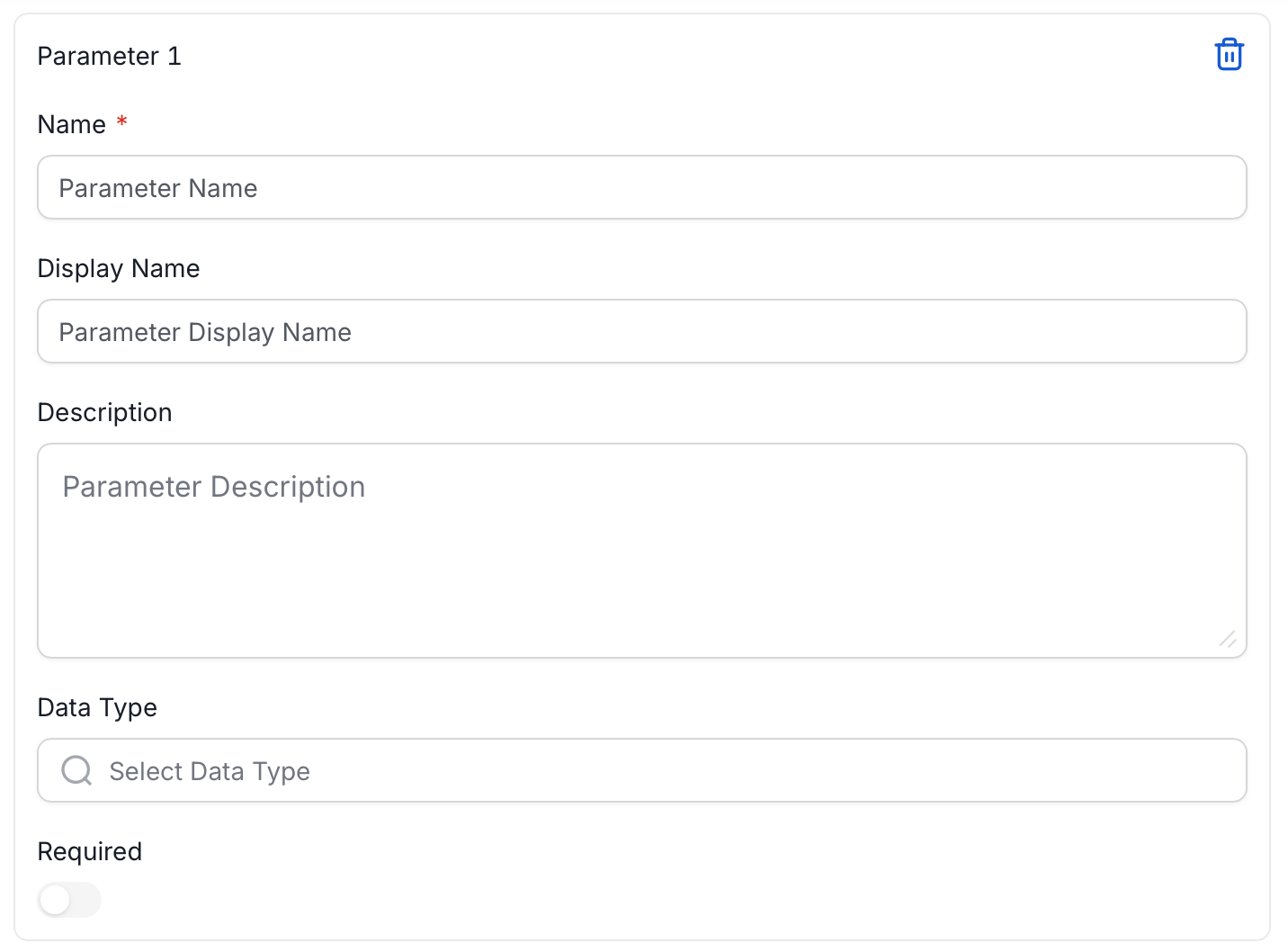
For each user-defined parameter in your SQL query, add a parameter definition:
1. Click **Add Parameter**.
2. Enter the parameter **Name** (required). This must match the placeholder in your SQL — for example, `min_value`.
3. Optionally, enter a **Display Name** — a human-friendly label shown to users when creating a test case.
4. Optionally, add a **Description** to explain what value to provide.
5. Optionally, select a **Data Type** to restrict the values users can enter.
6. Toggle **Required** on if the parameter must be provided when creating a test case.
### Step 3: Save the Test Definition
Click **Save** to create the test definition. It now appears in the Test Library and is available for creating test cases.
## Writing the SQL Query
The SQL expression defines your validation logic. The test **fails if the query returns one or more rows**.
### Reserved Parameters
The following parameters are automatically resolved at runtime:
| Parameter | Description |
| ------------------- | ------------------------------------------------------------ |
| `{{ table_name }}` | The fully qualified name of the table being tested |
| `{{ column_name }}` | The name of the column being tested (for column-level tests) |
### User-Defined Parameters
Define custom parameters that users will provide values for when creating test cases. Use the `{{ parameter_name }}` syntax in your SQL expression.
### SQL Expression Examples
The following examples show common validation patterns you can adapt for your own tests.
* **Example 1: Column Values Greater Than Threshold**
This test validates that all values in a column are greater than or equal to a specified minimum value.
```sql theme={null}
SELECT {{ column_name }} AS col
FROM {{ table_name }}
WHERE {{ column_name }} < {{ min_value }}
```
**Parameters**:
* `min_value`: The minimum acceptable value
**Usage**: When creating a test case, the user specifies `min_value = 0` to ensure no negative values exist in the column.
* **Example 2: Column Values Within Range**
This test validates that column values fall within a specified range.
```sql theme={null}
SELECT {{ column_name }} AS col
FROM {{ table_name }}
WHERE {{ column_name }} < {{ min_value }} OR {{ column_name }} > {{ max_value }}
```
**Parameters**:
* `min_value`: The minimum acceptable value
* `max_value`: The maximum acceptable value
* **Example 3: No Null Values in Required Columns**
This test ensures a column contains no NULL values.
```sql theme={null}
SELECT {{ column_name }}
FROM {{ table_name }}
WHERE {{ column_name }} IS NULL
```
**Parameters**: None required (uses only reserved parameters)
* **Example 4: Table Row Count Within Expected Range**
This table-level test validates that the row count is within expected bounds.
```sql theme={null}
SELECT COUNT(*) AS row_count
FROM {{ table_name }}
HAVING COUNT(*) < {{ min_rows }} OR COUNT(*) > {{ max_rows }}
```
**Parameters**:
* `min_rows`: The minimum expected row count
* `max_rows`: The maximum expected row count
* **Example 5: Referential Integrity Check**
This test validates that all values in a column exist in a reference table.
```sql theme={null}
SELECT t.{{ column_name }}
FROM {{ table_name }} t
LEFT JOIN {{ reference_table }} r ON t.{{ column_name }} = r.{{ reference_column }}
WHERE r.{{ reference_column }} IS NULL
AND t.{{ column_name }} IS NOT NULL
```
**Parameters**:
* `reference_table`: The fully qualified name of the reference table
* `reference_column`: The column in the reference table to match against
* **Example 6: Date Freshness Check**
This table-level test ensures that recent data exists in a date column.
```sql theme={null}
SELECT MAX({{ date_column }}) AS latest_date
FROM {{ table_name }}
HAVING MAX({{ date_column }}) < CURRENT_DATE - INTERVAL '{{ max_age_days }}' DAY
```
**Parameters**:
* `date_column`: The date/timestamp column to check
* `max_age_days`: Maximum age of the most recent record in days
**Note**: The date interval syntax may vary depending on your database. Adjust the SQL accordingly for your supported data sources.
## Defining Parameters
For each user-defined parameter in your SQL query, add a parameter definition:
1. Click **Add Parameter**.
2. Enter the parameter **Name** (required). This must match the placeholder in your SQL — for example, `min_value`.
3. Optionally, enter a **Display Name** — a human-friendly label shown to users when creating a test case.
4. Optionally, add a **Description** to explain what value to provide.
5. Optionally, select a **Data Type** to restrict the values users can enter.
6. Toggle **Required** on if the parameter must be provided when creating a test case.
 ## Managing Test Definitions
After creating test definitions, edit, enable, disable, or delete them from the Test Library.
### Editing a Test Definition
1. In the **Actions** column, click the **Edit** icon next to the test definition you want to edit.
## Managing Test Definitions
After creating test definitions, edit, enable, disable, or delete them from the Test Library.
### Editing a Test Definition
1. In the **Actions** column, click the **Edit** icon next to the test definition you want to edit.
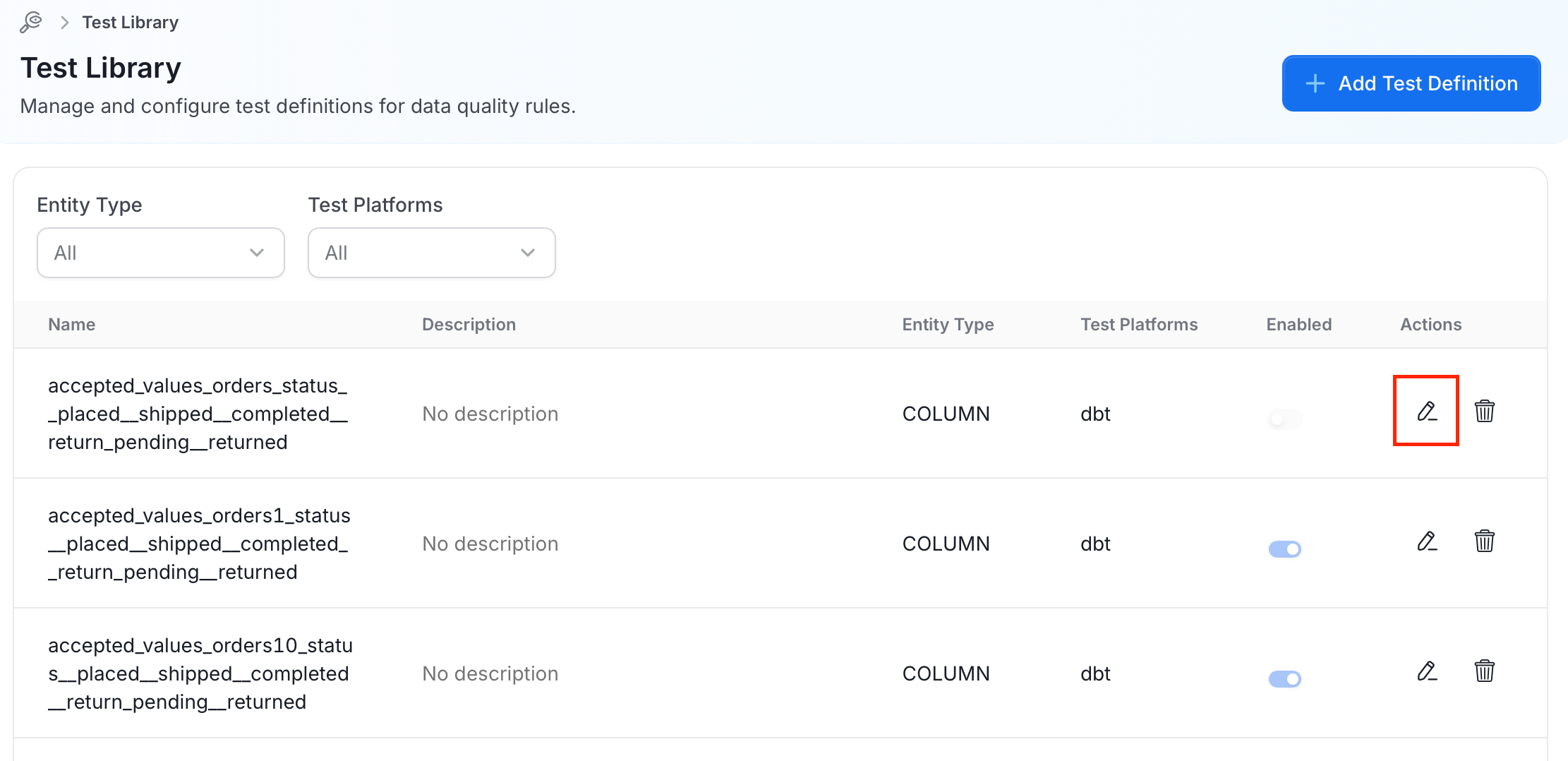 2. Modify the fields as needed and click **Save**.
### Enabling/Disabling Test Definitions
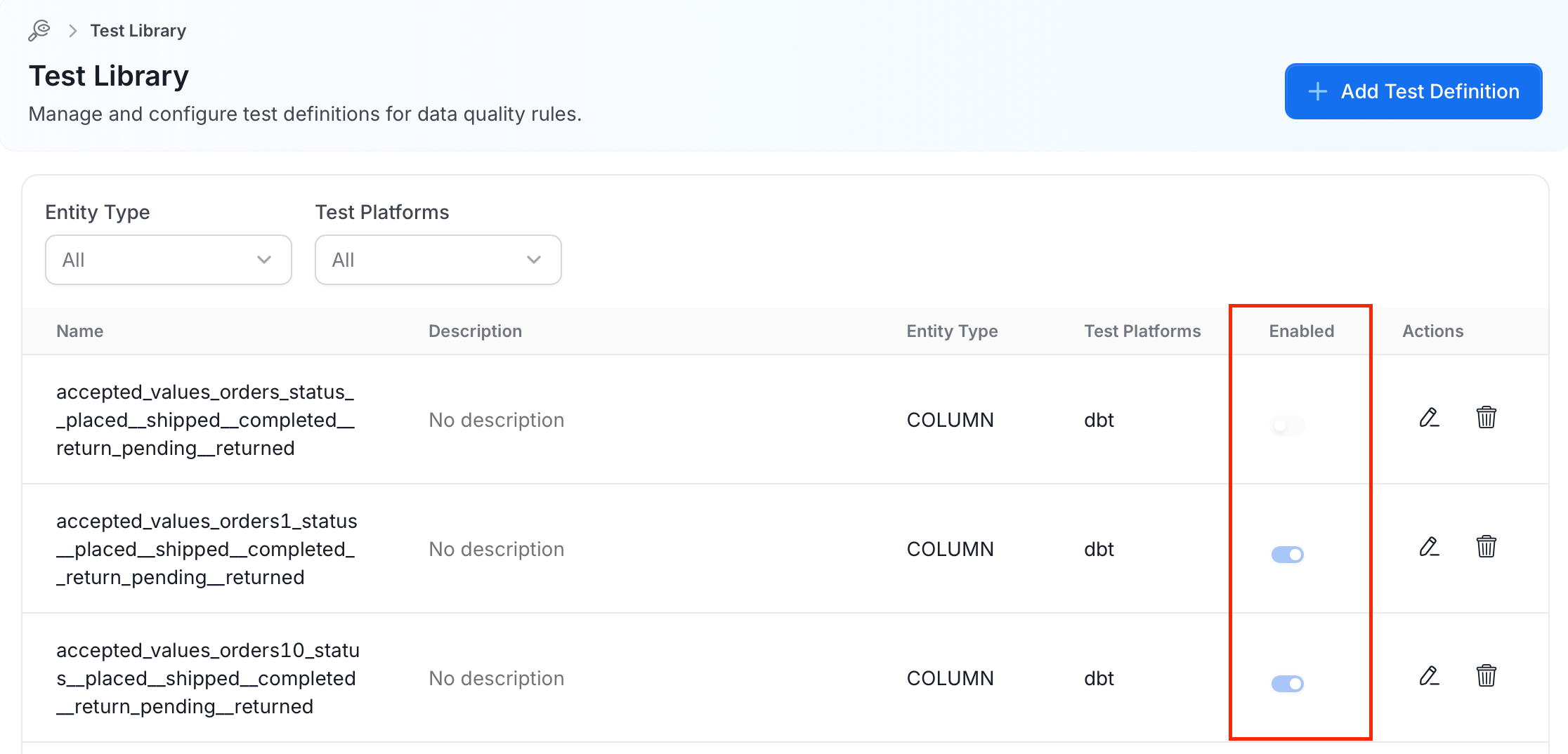
Enable or disable test definitions to control their availability using a toggle in the **Enabled** column.
* **Enabled**: The test definition can be used to create new test cases.
* **Disabled**: The test definition is hidden from the test case creation flow, but existing test cases using it will continue to work.
2. Modify the fields as needed and click **Save**.
### Enabling/Disabling Test Definitions
Enable or disable test definitions to control their availability using a toggle in the **Enabled** column.
* **Enabled**: The test definition can be used to create new test cases.
* **Disabled**: The test definition is hidden from the test case creation flow, but existing test cases using it will continue to work.
 Enable the test definition while adding it using the **Enabled** toggle.
### Deleting a Test Definition
To delete a test definition, click the **Delete** icon next to it in the **Actions** column.
**Note**: You cannot delete a test definition that has associated test cases.
## Using Custom Test Definitions
Once you have created a test definition in the Test Library, it becomes available when creating test cases.
### Creating a Test Case from a Custom Definition
1. Navigate to the table or column where you want to add a test.
2. Go to the **Data Quality** tab.
3. Click **Add Test**.
4. Select your custom test definition from the list.
5. Provide values for any user-defined parameters.
6. Save the test case.
The test will execute as part of your data quality workflow, and the SQL expression will be evaluated with the actual table/column names and parameter values substituted.
## Best Practices
Follow these guidelines to write reliable, maintainable custom test definitions.
### Writing Effective SQL Expressions
* **Return failing rows**: Structure your query to return rows that fail the validation. An empty result set means the test passes.
* **Be specific**: Write targeted queries that check one specific condition.
* **Consider performance**: Use appropriate WHERE clauses and avoid full table scans when possible.
* **Test your SQL**: Validate your SQL expression manually before creating the test definition.
### Naming Conventions
* Use descriptive names that indicate what the test validates (for example, `columnValuesInRange`, `noOrphanedRecords`)
* Follow a consistent naming pattern across your organization
### Documentation
* Provide clear descriptions for test definitions and parameters
* Include examples of expected parameter values in descriptions
* Document any database-specific syntax requirements
## Permissions
The Test Library is restricted to administrators. The following permissions apply:
| Action | Required Role |
| ------------------------------ | ------------- |
| View Test Library | Admin |
| Create Test Definition | Admin |
| Edit Test Definition | Admin |
| Delete Test Definition | Admin |
| Enable/Disable Test Definition | Admin |
Regular users can use enabled test definitions when creating test cases but cannot modify the definitions themselves.
Enable the test definition while adding it using the **Enabled** toggle.
### Deleting a Test Definition
To delete a test definition, click the **Delete** icon next to it in the **Actions** column.
**Note**: You cannot delete a test definition that has associated test cases.
## Using Custom Test Definitions
Once you have created a test definition in the Test Library, it becomes available when creating test cases.
### Creating a Test Case from a Custom Definition
1. Navigate to the table or column where you want to add a test.
2. Go to the **Data Quality** tab.
3. Click **Add Test**.
4. Select your custom test definition from the list.
5. Provide values for any user-defined parameters.
6. Save the test case.
The test will execute as part of your data quality workflow, and the SQL expression will be evaluated with the actual table/column names and parameter values substituted.
## Best Practices
Follow these guidelines to write reliable, maintainable custom test definitions.
### Writing Effective SQL Expressions
* **Return failing rows**: Structure your query to return rows that fail the validation. An empty result set means the test passes.
* **Be specific**: Write targeted queries that check one specific condition.
* **Consider performance**: Use appropriate WHERE clauses and avoid full table scans when possible.
* **Test your SQL**: Validate your SQL expression manually before creating the test definition.
### Naming Conventions
* Use descriptive names that indicate what the test validates (for example, `columnValuesInRange`, `noOrphanedRecords`)
* Follow a consistent naming pattern across your organization
### Documentation
* Provide clear descriptions for test definitions and parameters
* Include examples of expected parameter values in descriptions
* Document any database-specific syntax requirements
## Permissions
The Test Library is restricted to administrators. The following permissions apply:
| Action | Required Role |
| ------------------------------ | ------------- |
| View Test Library | Admin |
| Create Test Definition | Admin |
| Edit Test Definition | Admin |
| Delete Test Definition | Admin |
| Enable/Disable Test Definition | Admin |
Regular users can use enabled test definitions when creating test cases but cannot modify the definitions themselves.