> ## Documentation Index
> Fetch the complete documentation index at: https://docs.getcollate.io/llms.txt
> Use this file to discover all available pages before exploring further.
# Data Quality | Quality Management Guide
> Ensure observability through alerts, test results, and profiler signals for better data quality.
# Overview of Data Quality
Collate makes it easy to build trust in your data. Create no-code tests to verify that data is complete, fresh, and accurate — directly from the UI, no engineering required. Tests run at the table and column level across all supported database connectors.
## What's on the Data Quality Page
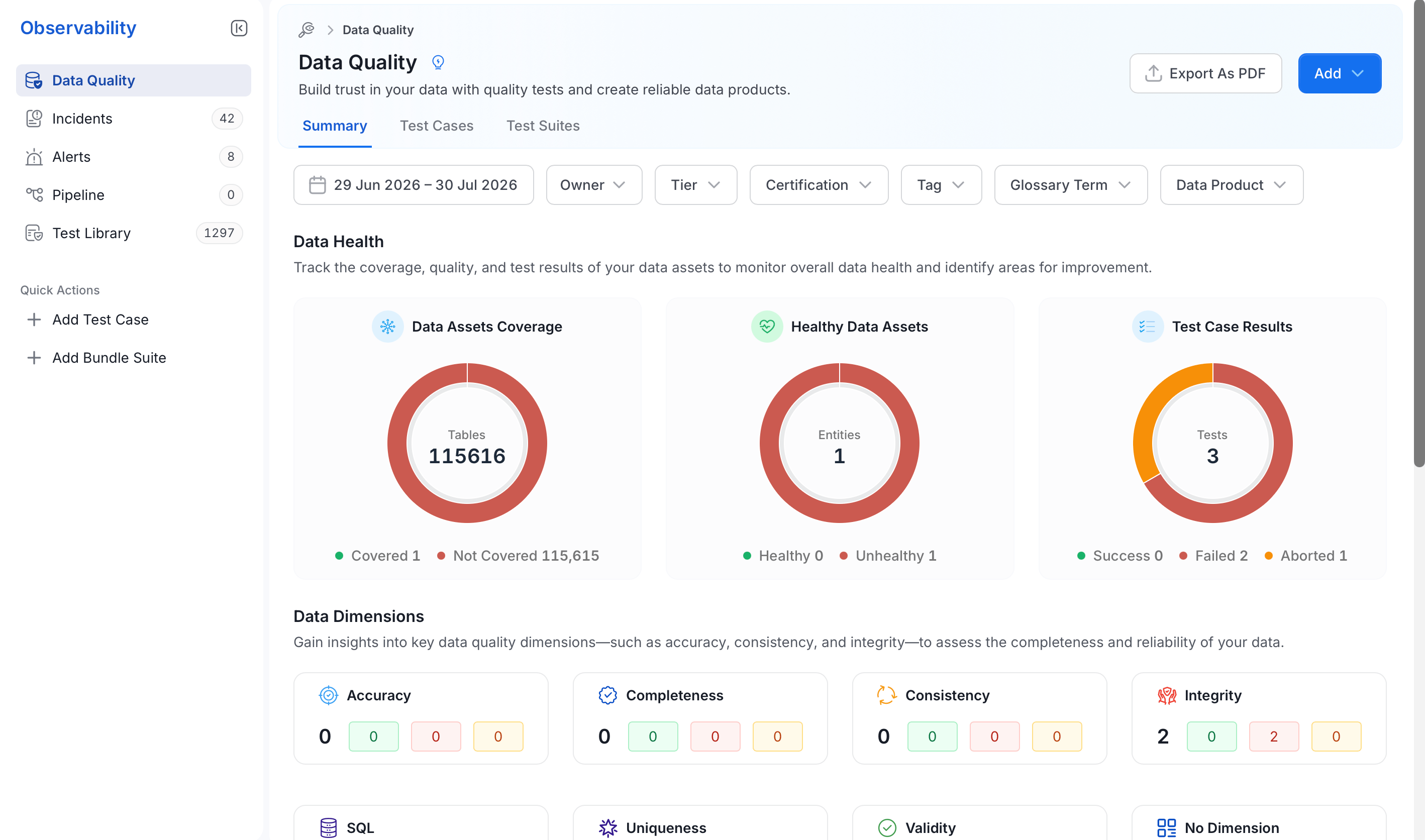
The Data Quality page has three tabs:
* **Summary**: Covers health, dimensions, test trends, and incident metrics
* **Test Cases**: Browse, filter, and manage test cases across your data assets
* **Test Suites**: Organize tests into suites for scheduling and ownership
From the **Add** menu, quickly add a Test Case or create a Bundle Suite.
## Summary Dashboard
The Summary tab gives you a quick snapshot of your data quality, broken into four sections:
### Data Health
Three donut charts show the overall state of your data:
* **Data Assets Coverage**: How many tables have at least one test
* **Healthy Data Assets**: Entities where all tests are passing
* **Test Case Results**: Total test count, broken down by Success, Failed, and Aborted
### Data Dimensions
Cards group your test results by quality dimension, showing where failures are concentrated. All eight dimensions are:
* **Accuracy**: Values match expected real-world values
* **Completeness**: No missing or null values
* **Consistency**: Data stays consistent through processing
* **Integrity**: Entity attributes meet structural expectations
* **SQL**: Custom SQL-based test definitions
* **Uniqueness**: No unexpected duplicates
* **Validity**: Values conform to domain rules and formats
* **No Dimension**: Tests not yet assigned to a dimension
### Test Case Status
Trend charts show how Success, Failed, and Aborted test counts have changed over time, helping you spot patterns and catch regressions early.
### Incident Metrics
This section tracks the health of your incident workflow: open incidents, resolved incidents, time to response, and time to resolution.
## Filters
Use the date range and attribute filters (Owner, Tier, Certification, Tag, Glossary Term, Data Product) to focus the dashboard on a subset of your data assets.
## Data Observability Across Entities
**Domain**, **Tag**, and **Glossary Term** pages each include a **Data Observability** tab. This tab reuses the same dashboard with filters automatically applied to the selected entity, letting you analyze data quality in context without manually setting filters.
## Table-Level Observability
For deeper analysis at the dataset level, each table page includes:
* A **Data Observability** section scoped to the table
* An **Overview** tab showing:
* Open incidents
* Upstream failures
* Quick access to lineage
* Links to incident investigation
See test results, status, and coverage for any table at a glance.
Track data quality across six dimensions: Completeness, Accuracy, Consistency, Validity, Uniqueness, and Integrity.
Add table and column-level tests without writing any code.
Set up and schedule data quality pipelines with Collate's built-in tests.
Break down test results by business segments to pinpoint exactly where quality issues occur.
Define and run data quality tests programmatically using the Collate SDK.
Build a shared library of reusable SQL-based test definitions across your organization.
Write your own test cases and test suites for custom validation logic.
Watch the video to understand Collate's native Data Profiler and Data Quality tests.
Watch the video on Data Quality Simplified to effortlessly build, deploy, monitor, and configure alerts using Collate's no-code platform.
Here's the latest on Collate's data quality.
 ## What's on the Data Quality Page
The Data Quality page has three tabs:
* **Summary**: Covers health, dimensions, test trends, and incident metrics
* **Test Cases**: Browse, filter, and manage test cases across your data assets
* **Test Suites**: Organize tests into suites for scheduling and ownership
From the **Add** menu, quickly add a Test Case or create a Bundle Suite.
## Summary Dashboard
The Summary tab gives you a quick snapshot of your data quality, broken into four sections:
### Data Health
Three donut charts show the overall state of your data:
* **Data Assets Coverage**: How many tables have at least one test
* **Healthy Data Assets**: Entities where all tests are passing
* **Test Case Results**: Total test count, broken down by Success, Failed, and Aborted
### Data Dimensions
Cards group your test results by quality dimension, showing where failures are concentrated. All eight dimensions are:
* **Accuracy**: Values match expected real-world values
* **Completeness**: No missing or null values
* **Consistency**: Data stays consistent through processing
* **Integrity**: Entity attributes meet structural expectations
* **SQL**: Custom SQL-based test definitions
* **Uniqueness**: No unexpected duplicates
* **Validity**: Values conform to domain rules and formats
* **No Dimension**: Tests not yet assigned to a dimension
### Test Case Status
Trend charts show how Success, Failed, and Aborted test counts have changed over time, helping you spot patterns and catch regressions early.
### Incident Metrics
This section tracks the health of your incident workflow: open incidents, resolved incidents, time to response, and time to resolution.
## Filters
Use the date range and attribute filters (Owner, Tier, Certification, Tag, Glossary Term, Data Product) to focus the dashboard on a subset of your data assets.
## Data Observability Across Entities
**Domain**, **Tag**, and **Glossary Term** pages each include a **Data Observability** tab. This tab reuses the same dashboard with filters automatically applied to the selected entity, letting you analyze data quality in context without manually setting filters.
## Table-Level Observability
For deeper analysis at the dataset level, each table page includes:
* A **Data Observability** section scoped to the table
* An **Overview** tab showing:
* Open incidents
* Upstream failures
* Quick access to lineage
* Links to incident investigation
## What's on the Data Quality Page
The Data Quality page has three tabs:
* **Summary**: Covers health, dimensions, test trends, and incident metrics
* **Test Cases**: Browse, filter, and manage test cases across your data assets
* **Test Suites**: Organize tests into suites for scheduling and ownership
From the **Add** menu, quickly add a Test Case or create a Bundle Suite.
## Summary Dashboard
The Summary tab gives you a quick snapshot of your data quality, broken into four sections:
### Data Health
Three donut charts show the overall state of your data:
* **Data Assets Coverage**: How many tables have at least one test
* **Healthy Data Assets**: Entities where all tests are passing
* **Test Case Results**: Total test count, broken down by Success, Failed, and Aborted
### Data Dimensions
Cards group your test results by quality dimension, showing where failures are concentrated. All eight dimensions are:
* **Accuracy**: Values match expected real-world values
* **Completeness**: No missing or null values
* **Consistency**: Data stays consistent through processing
* **Integrity**: Entity attributes meet structural expectations
* **SQL**: Custom SQL-based test definitions
* **Uniqueness**: No unexpected duplicates
* **Validity**: Values conform to domain rules and formats
* **No Dimension**: Tests not yet assigned to a dimension
### Test Case Status
Trend charts show how Success, Failed, and Aborted test counts have changed over time, helping you spot patterns and catch regressions early.
### Incident Metrics
This section tracks the health of your incident workflow: open incidents, resolved incidents, time to response, and time to resolution.
## Filters
Use the date range and attribute filters (Owner, Tier, Certification, Tag, Glossary Term, Data Product) to focus the dashboard on a subset of your data assets.
## Data Observability Across Entities
**Domain**, **Tag**, and **Glossary Term** pages each include a **Data Observability** tab. This tab reuses the same dashboard with filters automatically applied to the selected entity, letting you analyze data quality in context without manually setting filters.
## Table-Level Observability
For deeper analysis at the dataset level, each table page includes:
* A **Data Observability** section scoped to the table
* An **Overview** tab showing:
* Open incidents
* Upstream failures
* Quick access to lineage
* Links to incident investigation