> ## Documentation Index
> Fetch the complete documentation index at: https://docs.getcollate.io/llms.txt
> Use this file to discover all available pages before exploring further.
# Domains
> Organize datasets into domains to group related data assets, assign responsibilities, and support distributed data ownership.
# Domains
Domains group related data assets under a common area of ownership. Use them to organize your data catalog by business area, assign accountability, and control access.
## Add a Domain
Follow these steps to create a new domain in Collate.
### Step 1: Access Domains
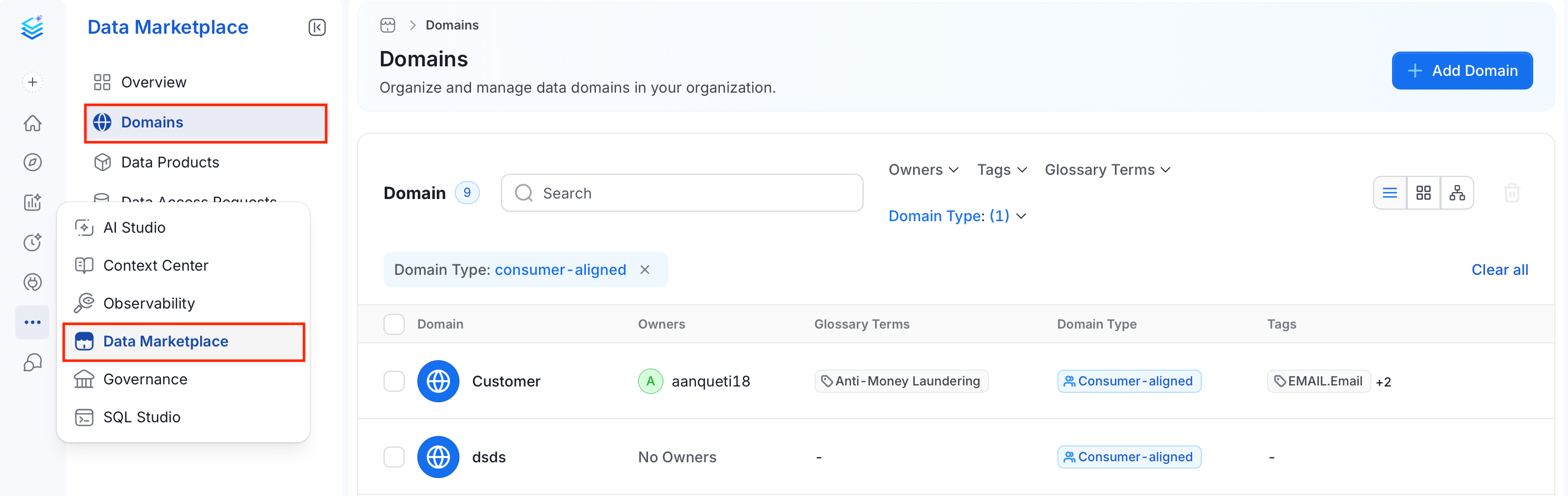
1. In the left navigation bar, click **Data Marketplace** > **Domains**.
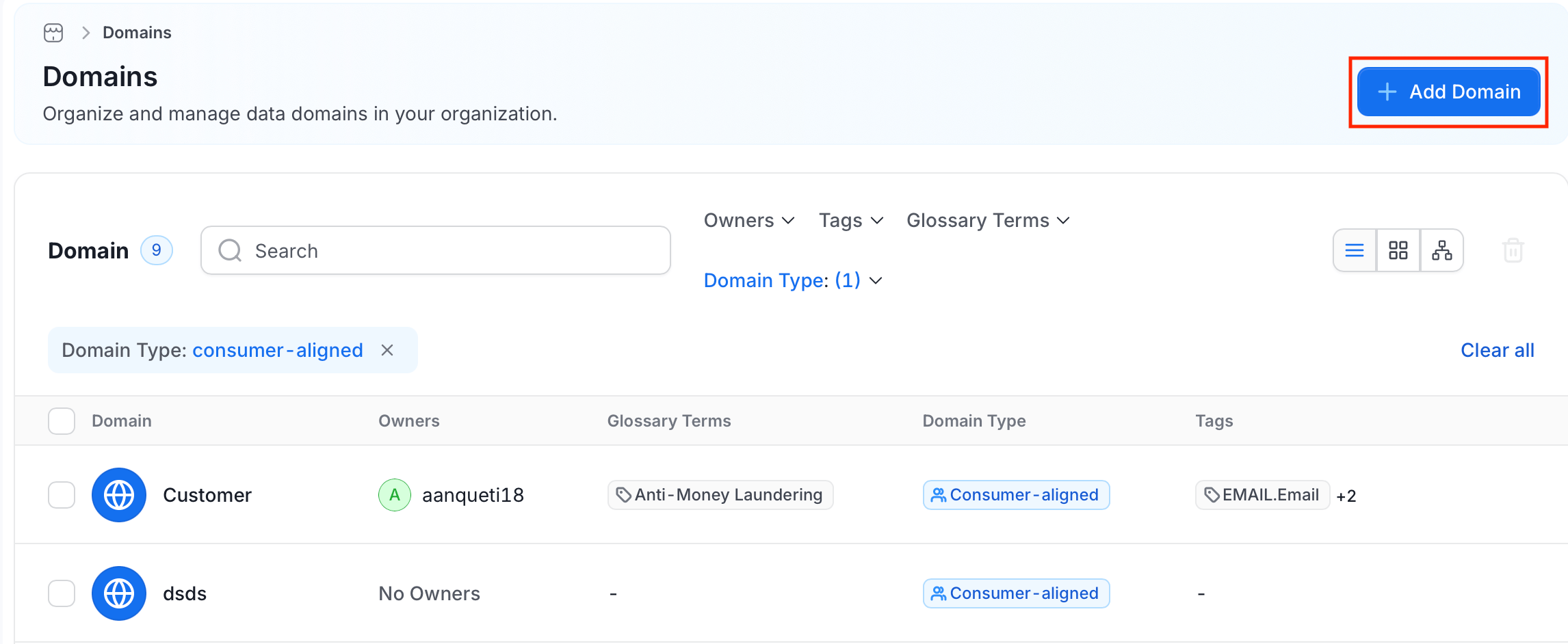
 2. Click **Add Domain**. The Add Domain panel opens.
 ### Step 2: Enter Domain Details
* **Name** (required): Enter a unique identifier for the domain. Letters, numbers, hyphens, and underscores only; maximum 128 characters.
* **Display Name**: Enter a human-readable label shown throughout the Collate UI.
* **Description** (required): Write a description that explains the domain's purpose, the types of data it contains, and any relevant context for other users.
* Optionally, upload a **Cover Image** as a banner for the domain page, and select an **Icon** and **Color** to visually distinguish the domain in the catalog.
### Step 3: Add Tags and Glossary Terms
* **Tags**: Select classification tags to categorize the domain.
* **Glossary Terms**: Link the domain to relevant glossary terms.
### Step 4: Select a Domain Type
Choose the type that best describes the domain's role in your data architecture:
| Type | Description |
| -------------------- | ---------------------------------------------------------------------------------------------------- |
| **Source-aligned** | Domains tied to online services and transactional databases, including event and transactional data. |
| **Aggregate** | Domains that curate data from multiple source-aligned domains, such as Customer 360. |
| **Consumer-aligned** | User-facing domains combining data from multiple domains for business users or data citizens. |
### Step 5: Assign Owners and Experts
* **Owners**: Select users or teams responsible for managing the domain.
* **Experts**: Select individual users with deep domain knowledge who can answer questions from other users.
### Step 6: Save Domain
Click **Save**. The domain appears in the Domains list.
## Add Data Assets to the Domain
**From Domain Details Page**
1. On the **Domains** page, select the domain.
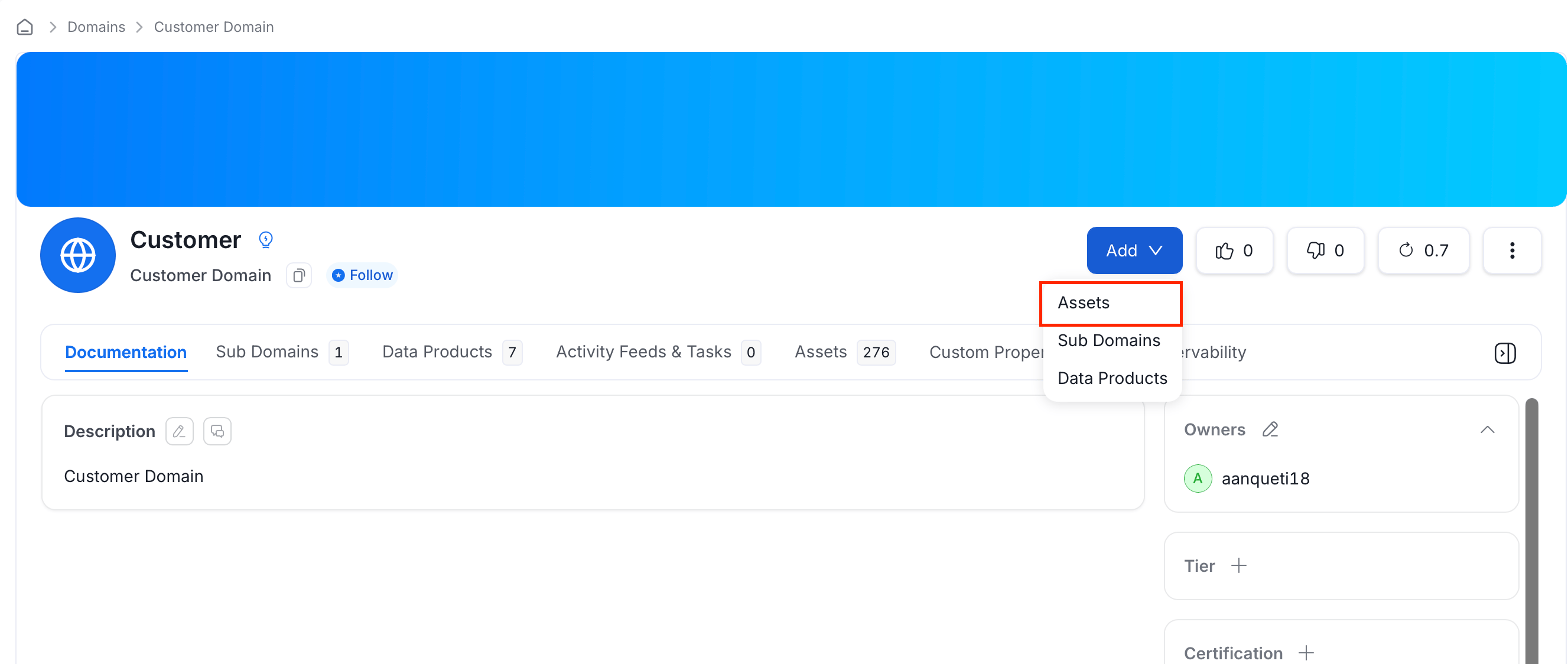
2. Click **Add**, then select **Assets**.
### Step 2: Enter Domain Details
* **Name** (required): Enter a unique identifier for the domain. Letters, numbers, hyphens, and underscores only; maximum 128 characters.
* **Display Name**: Enter a human-readable label shown throughout the Collate UI.
* **Description** (required): Write a description that explains the domain's purpose, the types of data it contains, and any relevant context for other users.
* Optionally, upload a **Cover Image** as a banner for the domain page, and select an **Icon** and **Color** to visually distinguish the domain in the catalog.
### Step 3: Add Tags and Glossary Terms
* **Tags**: Select classification tags to categorize the domain.
* **Glossary Terms**: Link the domain to relevant glossary terms.
### Step 4: Select a Domain Type
Choose the type that best describes the domain's role in your data architecture:
| Type | Description |
| -------------------- | ---------------------------------------------------------------------------------------------------- |
| **Source-aligned** | Domains tied to online services and transactional databases, including event and transactional data. |
| **Aggregate** | Domains that curate data from multiple source-aligned domains, such as Customer 360. |
| **Consumer-aligned** | User-facing domains combining data from multiple domains for business users or data citizens. |
### Step 5: Assign Owners and Experts
* **Owners**: Select users or teams responsible for managing the domain.
* **Experts**: Select individual users with deep domain knowledge who can answer questions from other users.
### Step 6: Save Domain
Click **Save**. The domain appears in the Domains list.
## Add Data Assets to the Domain
**From Domain Details Page**
1. On the **Domains** page, select the domain.
2. Click **Add**, then select **Assets**.
 3. Search for assets, or use the filters (entity type, owner, tag, tier, service, service type) to narrow the results.
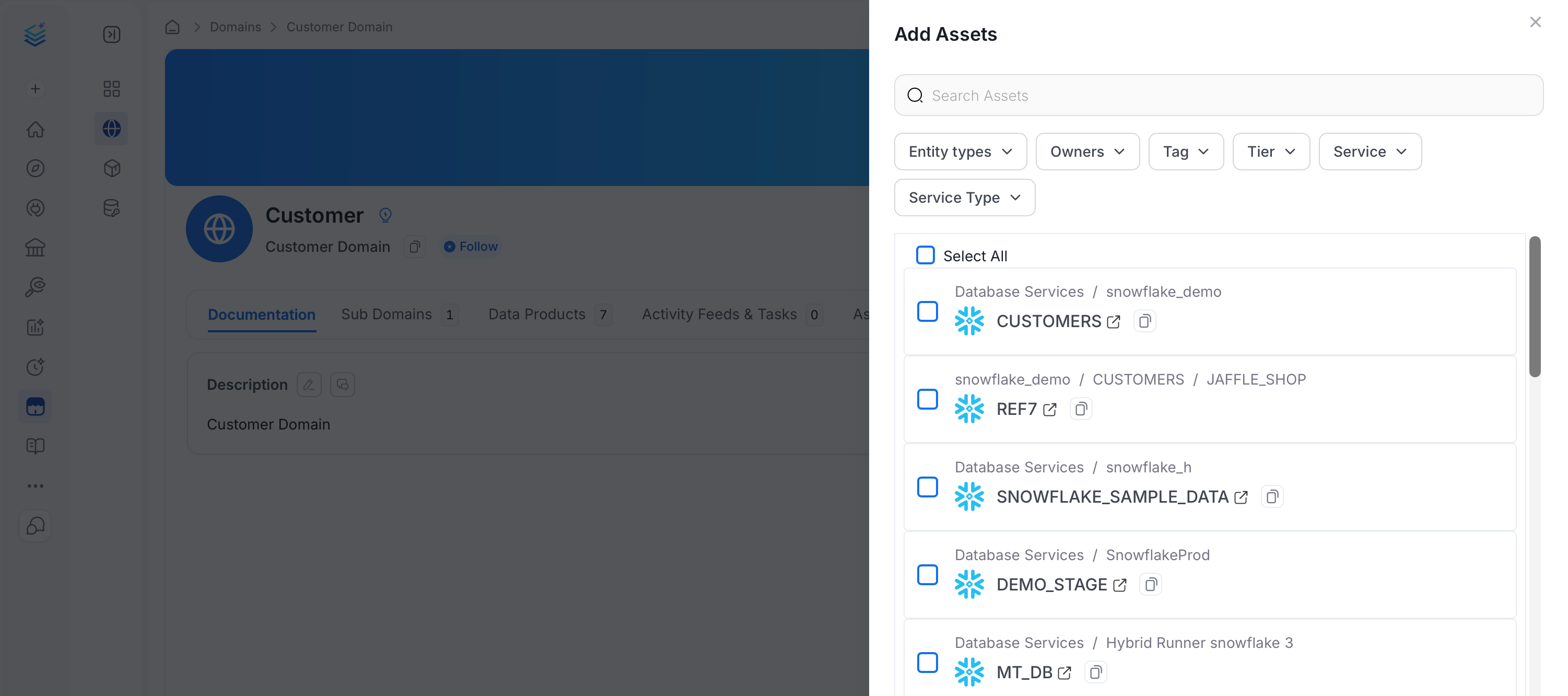 4. Select the assets to include, then click **Save**.
**From Data Assets Details Page**
After creating the domain, navigate to any data asset and assign it to the domain from its details page.
1. In the left navigation bar, click **Explore**.
2. On the **Explore Assets** page, find and open the asset to which you want to set the domains.
3. Click the Edit icon next to the **Domain** header.
4. Select the assets to include, then click **Save**.
**From Data Assets Details Page**
After creating the domain, navigate to any data asset and assign it to the domain from its details page.
1. In the left navigation bar, click **Explore**.
2. On the **Explore Assets** page, find and open the asset to which you want to set the domains.
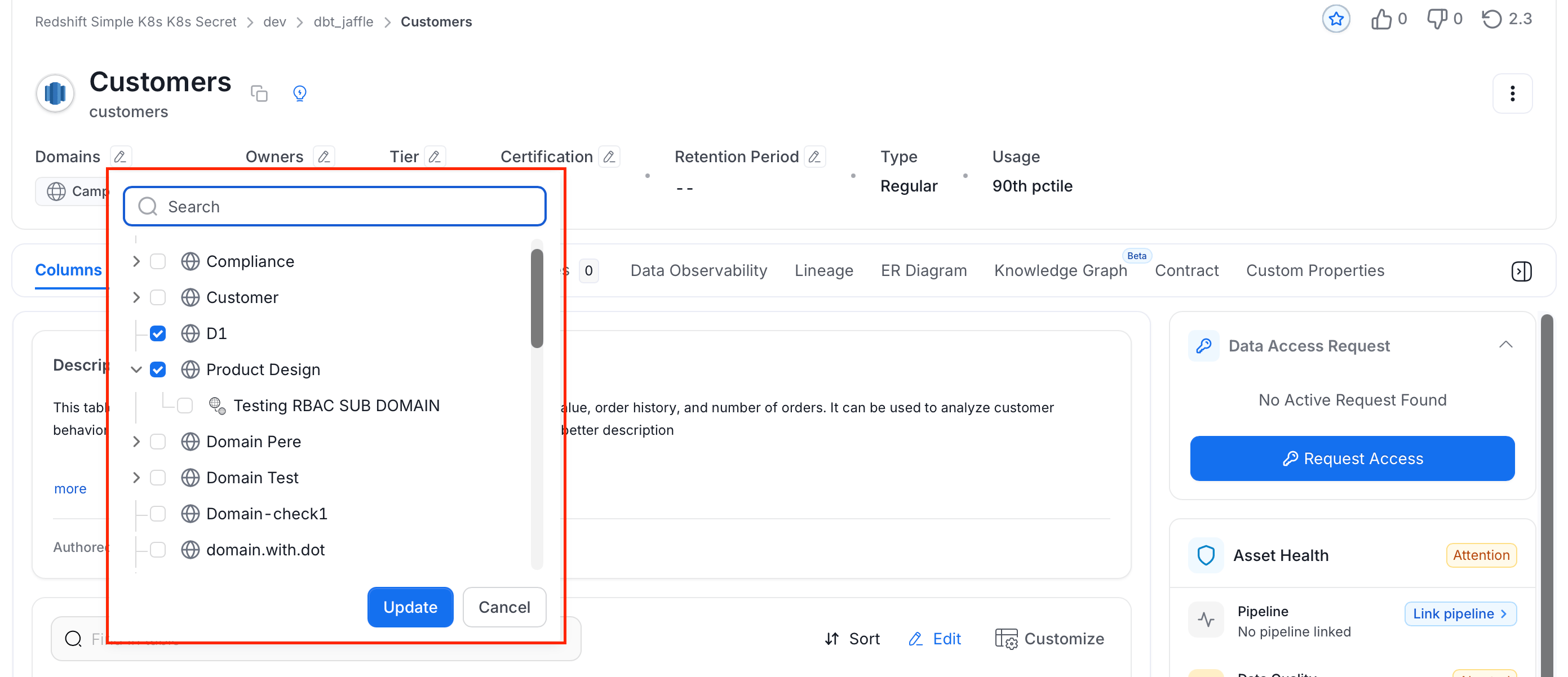
3. Click the Edit icon next to the **Domain** header.
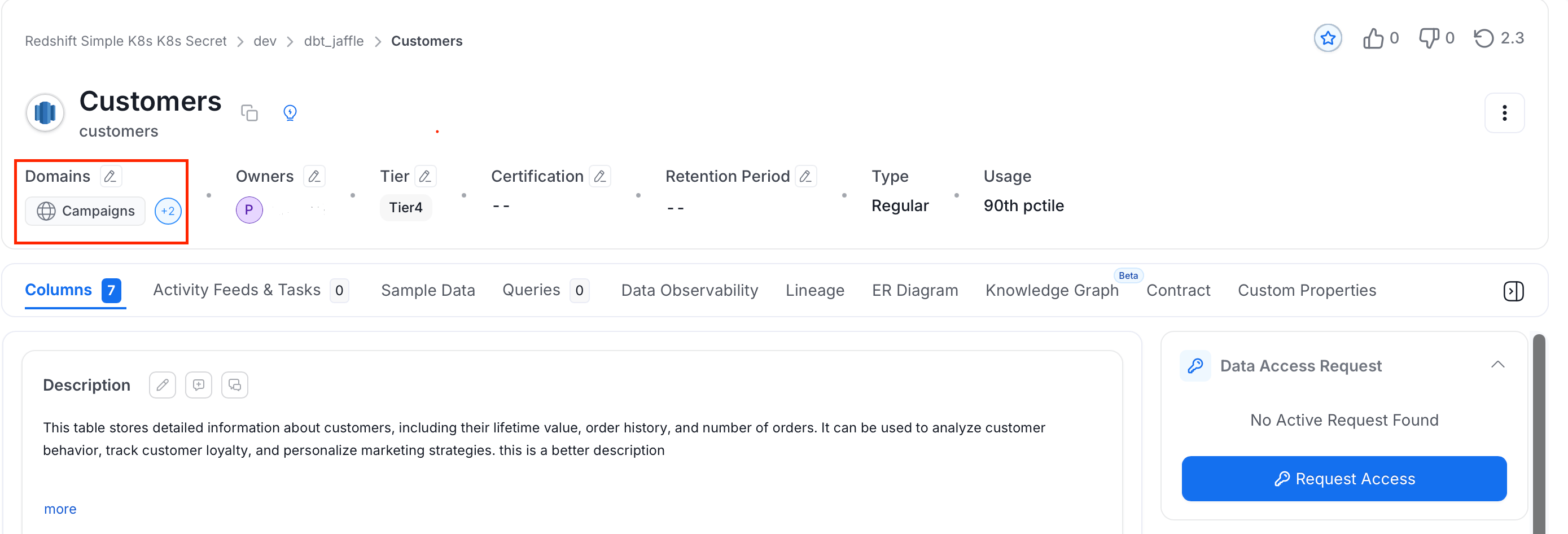 4. Select the domains and click **Update**.
 ## Domain Details Page
Open a domain from the **Domains** page to view its details, manage its assets, and track changes.
## Domain Details Page
Open a domain from the **Domains** page to view its details, manage its assets, and track changes.
 ### Domain Tabs
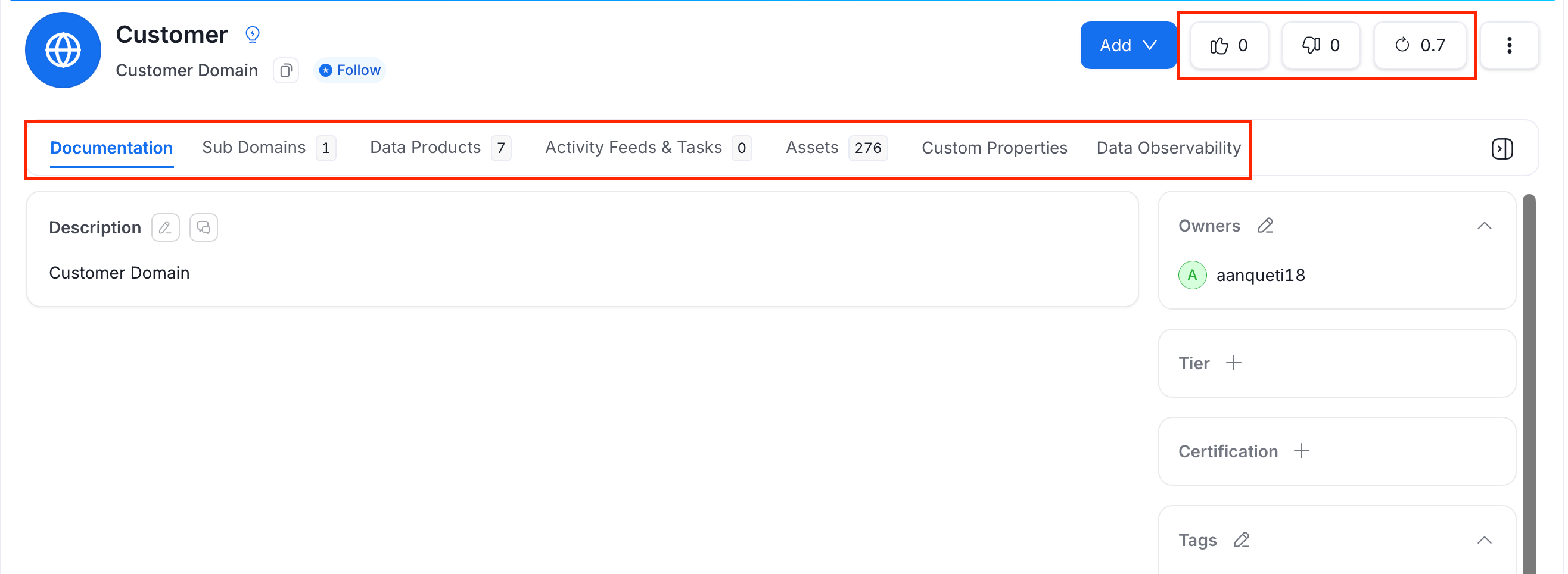
A domain's detail page organizes its information into tabs:
* **Documentation**: The default tab. View and edit the domain's description, and manage its Owners, Experts, Domain Type, Tags, and Tier from the side panel.
* **Sub Domains**: Lists the domains nested under this one. Add a sub domain directly from this tab.
* **Data Products**: Lists the data products that belong to this domain. Add a data product directly from this tab.
* **Activity Feeds & Tasks**: Shows conversations, tasks, and activity history related to the domain.
* **Assets**: Lists the data assets assigned to this domain.
* **Custom Properties**: Shows any administrator-configured custom property fields for the domain.
* **Data Observability**: Displays data quality and incident information for the data product's assets.
### Domains Actions
* **Votes**: The thumbs-up and thumbs-down icons let users upvote or downvote the data product, helping the team signal its quality and trustworthiness at a glance.
* **Version**: Shows the data product's current version number. Click it to open the Version History panel. See [Data Asset Versioning](/ai-2-0/how-to-guides/guide-for-data-users/versions) for details.
## Manage a Domain
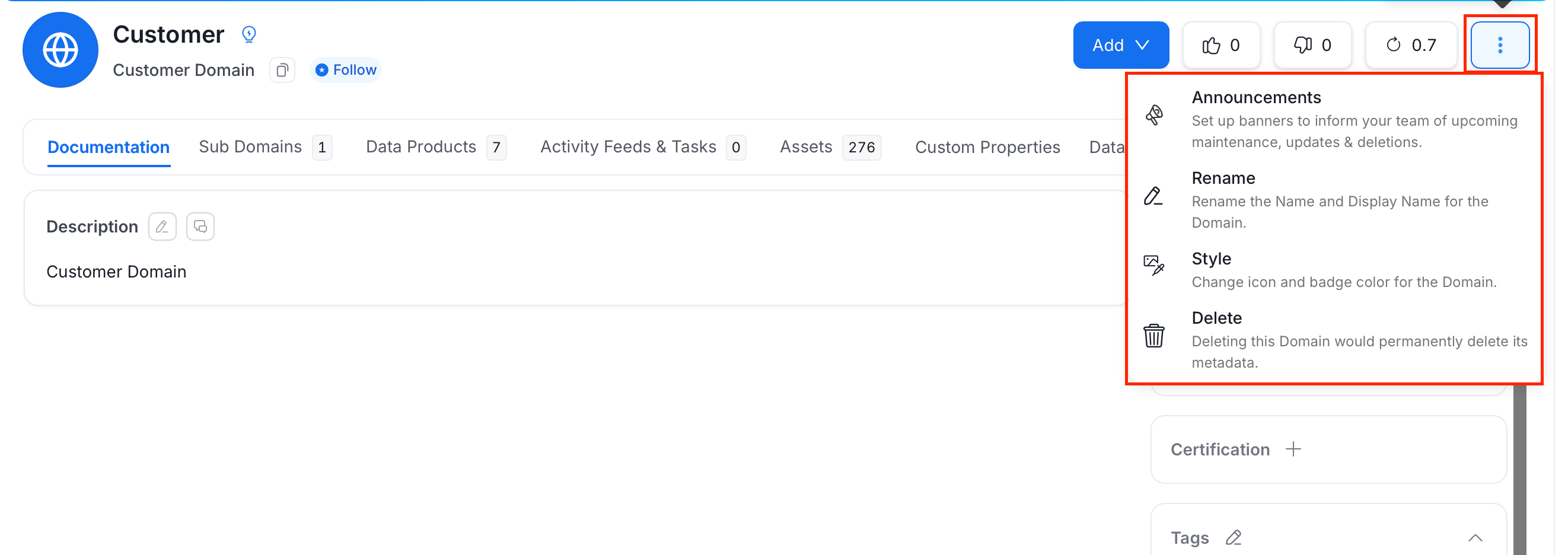
To rename, restyle, delete, or set up announcements for a domain, click the **⋮** menu next to **Add**:
* **Announcements**: Set up banners to inform your team of upcoming maintenance, updates, or deletions.
* **Rename**: Rename the domain's Name and Display Name.
* **Style**: Change the domain's icon and badge color.
* **Delete**: Permanently delete the domain and its metadata.
### Domain Tabs
A domain's detail page organizes its information into tabs:
* **Documentation**: The default tab. View and edit the domain's description, and manage its Owners, Experts, Domain Type, Tags, and Tier from the side panel.
* **Sub Domains**: Lists the domains nested under this one. Add a sub domain directly from this tab.
* **Data Products**: Lists the data products that belong to this domain. Add a data product directly from this tab.
* **Activity Feeds & Tasks**: Shows conversations, tasks, and activity history related to the domain.
* **Assets**: Lists the data assets assigned to this domain.
* **Custom Properties**: Shows any administrator-configured custom property fields for the domain.
* **Data Observability**: Displays data quality and incident information for the data product's assets.
### Domains Actions
* **Votes**: The thumbs-up and thumbs-down icons let users upvote or downvote the data product, helping the team signal its quality and trustworthiness at a glance.
* **Version**: Shows the data product's current version number. Click it to open the Version History panel. See [Data Asset Versioning](/ai-2-0/how-to-guides/guide-for-data-users/versions) for details.
## Manage a Domain
To rename, restyle, delete, or set up announcements for a domain, click the **⋮** menu next to **Add**:
* **Announcements**: Set up banners to inform your team of upcoming maintenance, updates, or deletions.
* **Rename**: Rename the domain's Name and Display Name.
* **Style**: Change the domain's icon and badge color.
* **Delete**: Permanently delete the domain and its metadata.
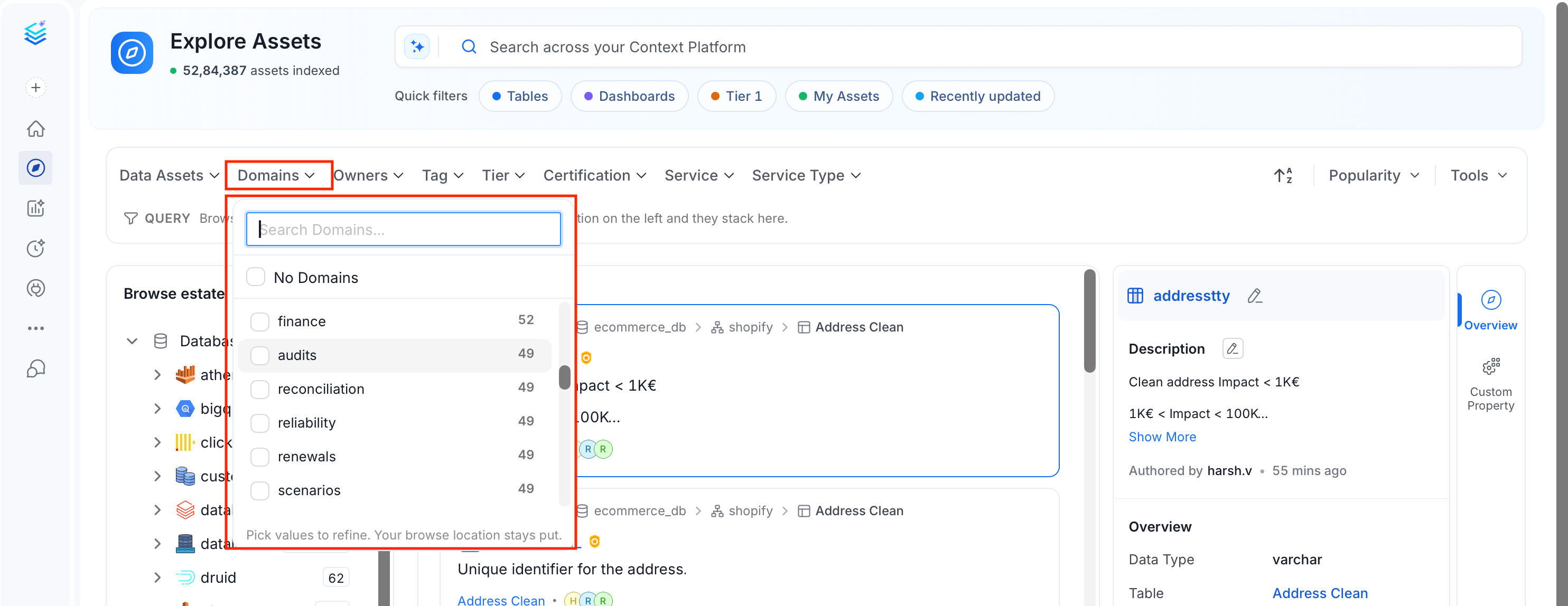
 ## Filter Data Assets by Domain on the Explore Page
On the **Explore Assets** page, use the domain filter in the left panel to view all assets assigned to a specific domain.
## Filter Data Assets by Domain on the Explore Page
On the **Explore Assets** page, use the domain filter in the left panel to view all assets assigned to a specific domain.
 Watch the video below to see domains in action.
Learn about the Data Products.
Watch the video below to see domains in action.
Learn about the Data Products.