> ## Documentation Index
> Fetch the complete documentation index at: https://docs.getcollate.io/llms.txt
> Use this file to discover all available pages before exploring further.
# Data Access Requests
> Request and track access to governed data assets through the Collate Data Marketplace.
# Data Access Requests
Data Access Requests let users request access to governed data assets directly from the Data Marketplace. When a request is submitted, the data product owner receives a notification and approves or rejects it from within Collate. All requests are tracked and auditable for governance and compliance.
## Create a Data Access Request
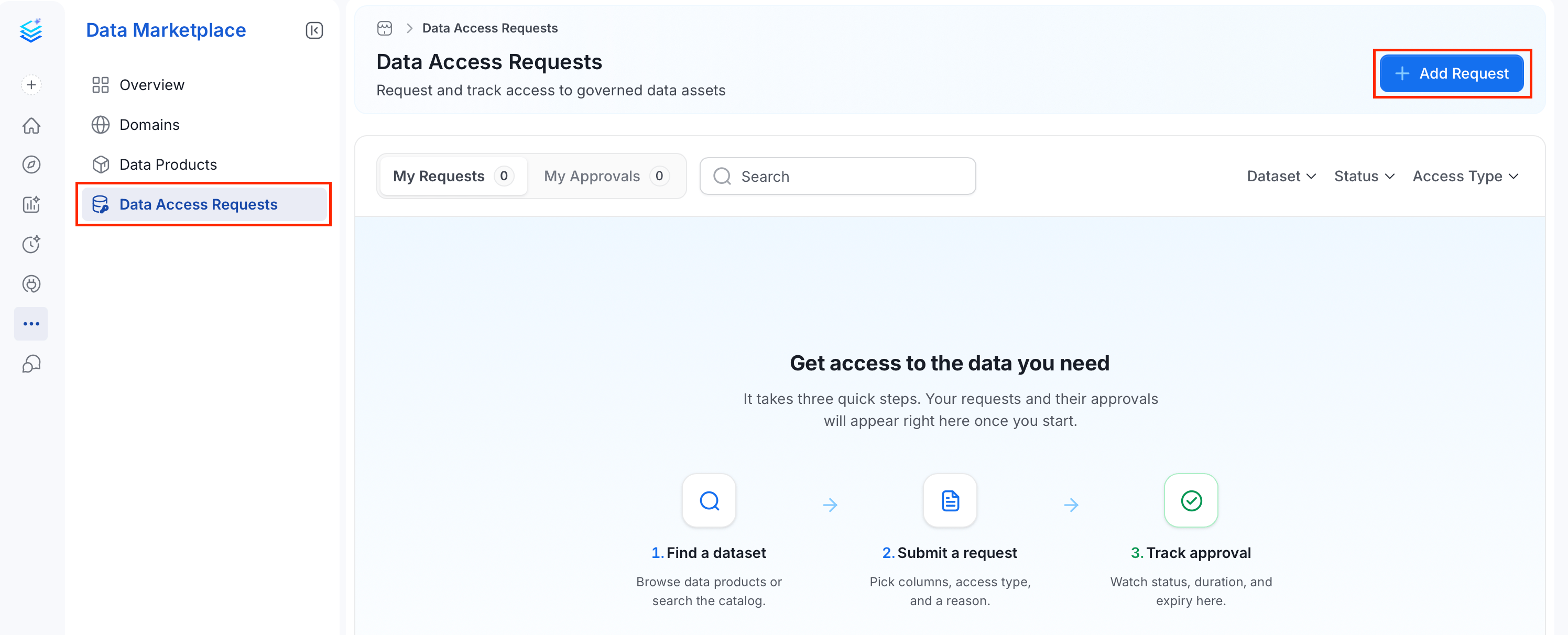
1. In the left navigation bar, click **Data Marketplace** > **Data Access Requests**.
2. Click **Add Request**. The Request Data Access panel opens.
 3. Fill in the request form:
* **Dataset** (required): Search for and select the table or data product you need access to.
* **Access Type** (required): Choose the scope of access:
| Access Type | Description |
| ---------------- | ----------------------------------------------------- |
| **Full Access** | Access to the entire table with all columns included. |
| **Column Level** | Access to selected columns only. |
| **Masked** | Masked or anonymized access to the table. |
* **Permission Level** (required): Select **Read**, **Write**, or **Admin**.
* **Access period** (required): Set the expiration date. Defaults to 14 days from today.
* **Reason for Access** (required): Provide a business justification for the request.
3. Fill in the request form:
* **Dataset** (required): Search for and select the table or data product you need access to.
* **Access Type** (required): Choose the scope of access:
| Access Type | Description |
| ---------------- | ----------------------------------------------------- |
| **Full Access** | Access to the entire table with all columns included. |
| **Column Level** | Access to selected columns only. |
| **Masked** | Masked or anonymized access to the table. |
* **Permission Level** (required): Select **Read**, **Write**, or **Admin**.
* **Access period** (required): Set the expiration date. Defaults to 14 days from today.
* **Reason for Access** (required): Provide a business justification for the request.
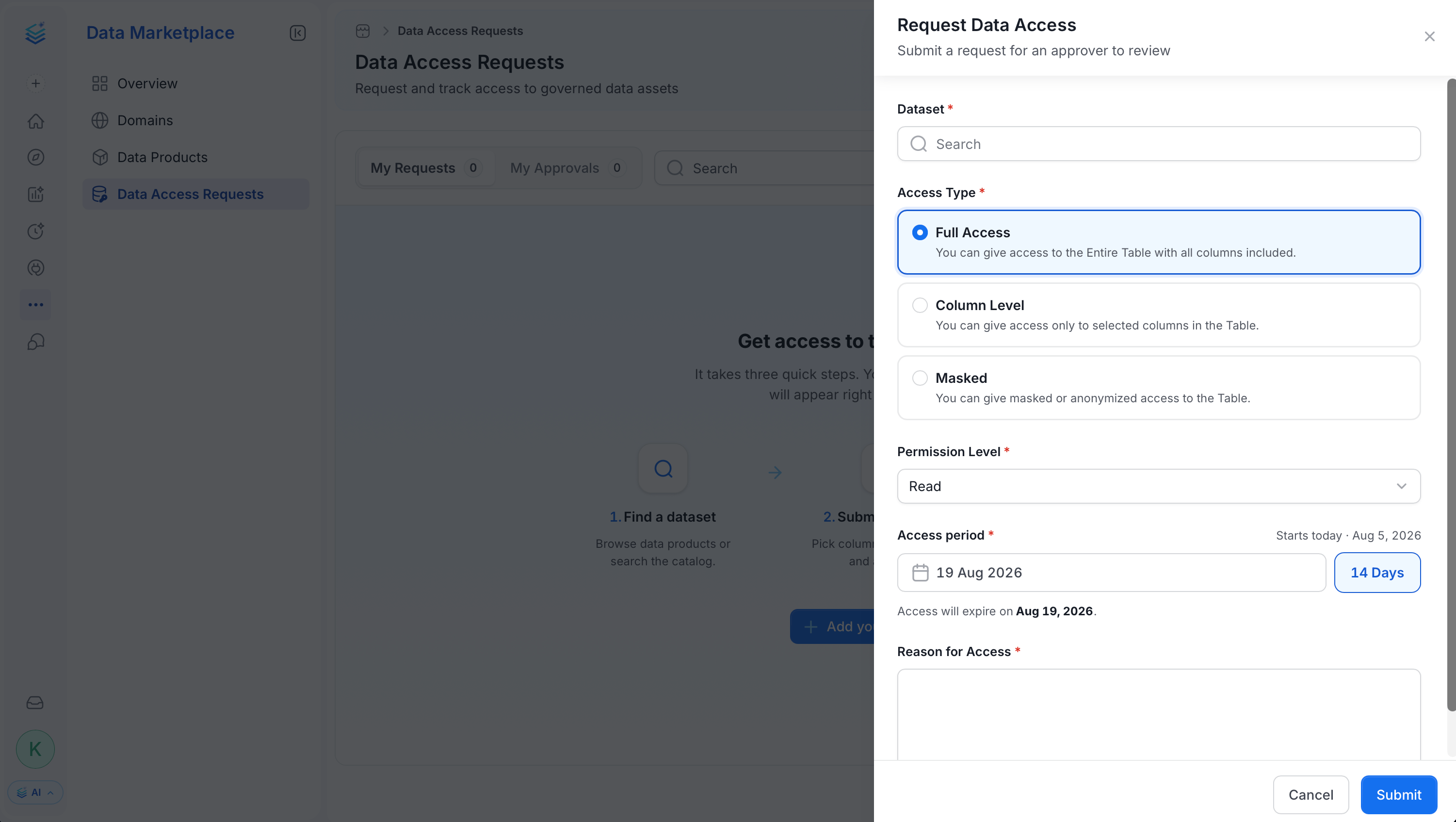 4. Click **Submit**. The request is routed to the data product owner for approval.
## Request Access From Data Assset Details Page
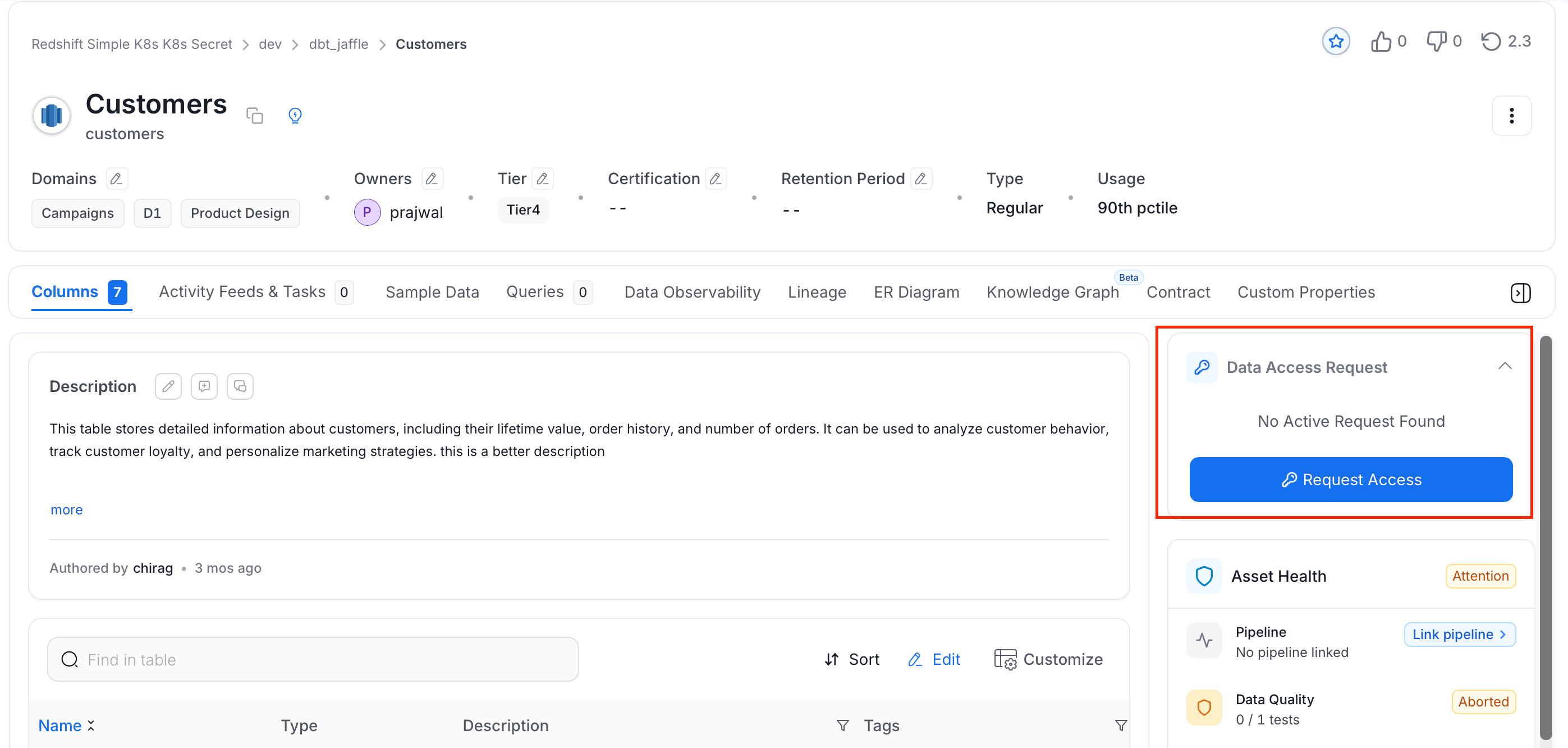
You can request access to specific data from data assets details page. To request access, follow these steps:
1. In the left navigation menu, click **Connections** and select the data asset whose access you need.
2. On the data asset details page, click **Request Access**.
4. Click **Submit**. The request is routed to the data product owner for approval.
## Request Access From Data Assset Details Page
You can request access to specific data from data assets details page. To request access, follow these steps:
1. In the left navigation menu, click **Connections** and select the data asset whose access you need.
2. On the data asset details page, click **Request Access**.
 3. Fill the following details:
* **Access Type** (required): Choose the scope of access:
| Access Type | Description |
| ---------------- | ----------------------------------------------------- |
| **Full Access** | Access to the entire table with all columns included. |
| **Column Level** | Access to selected columns only. |
| **Masked** | Masked or anonymized access to the table. |
* **Permission Level** (required): Select **Read**, **Write**, or **Admin**.
* **Access period** (required): Set the expiration date. Defaults to 14 days from today.
* **Reason for Access** (required): Provide a business justification for the request.
4. Click **Submit**. The request is routed to the data product owner for approval.
## Track Your Requests
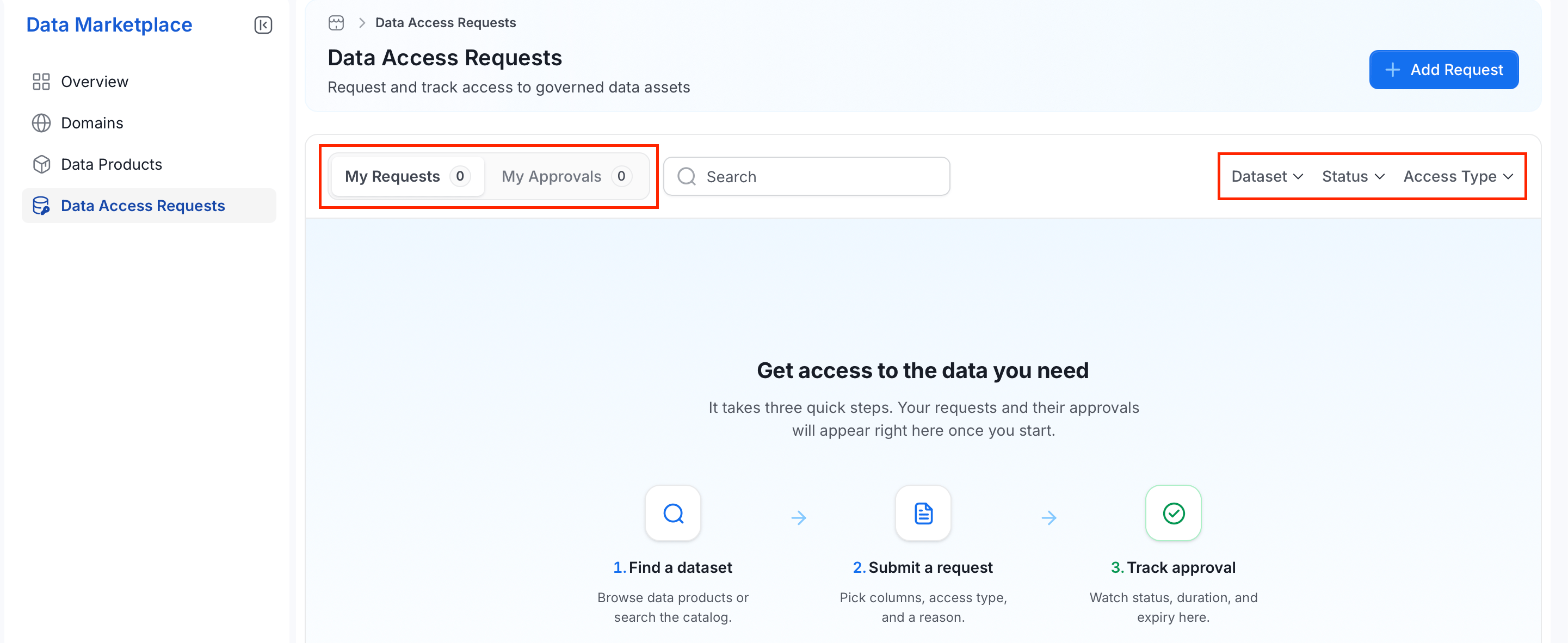
After submitting, track the status of your requests from the **Data Access Requests** page.
* **My Requests**: Lists all requests you have submitted.
* **My Approvals**: Lists requests assigned to you for review (visible to data product owners).
3. Fill the following details:
* **Access Type** (required): Choose the scope of access:
| Access Type | Description |
| ---------------- | ----------------------------------------------------- |
| **Full Access** | Access to the entire table with all columns included. |
| **Column Level** | Access to selected columns only. |
| **Masked** | Masked or anonymized access to the table. |
* **Permission Level** (required): Select **Read**, **Write**, or **Admin**.
* **Access period** (required): Set the expiration date. Defaults to 14 days from today.
* **Reason for Access** (required): Provide a business justification for the request.
4. Click **Submit**. The request is routed to the data product owner for approval.
## Track Your Requests
After submitting, track the status of your requests from the **Data Access Requests** page.
* **My Requests**: Lists all requests you have submitted.
* **My Approvals**: Lists requests assigned to you for review (visible to data product owners).
 ### Filter Options
Use the **Search** bar to filter by dataset name or request reason. Use the dropdown filters to narrow results further:
* **Dataset** — filter by a specific dataset.
* **Status** — filter by request state:
| Status | Meaning |
| -------------------------- | ----------------------------------------------- |
| **In Progress** | Request is pending owner review. |
| **Approved** | Owner has approved the request. |
| **Granted** | Access has been granted to the requester. |
| **Awaiting Manual Revoke** | Access has expired but requires manual removal. |
| **Rejected** | Owner has rejected the request. |
| **Revoked** | Access was revoked before the expiration date. |
| **Expired** | Access period has ended. |
* **Access Type** — filter by Full Access, Column Level, or Masked.
## Review and Approve a Request
Data product and table owners (or configured reviewers) receive requests for their assets under **My Approvals**. If an asset has no owner or reviewer configured, the request routes to platform admins instead.
1. Go to **Data Access Requests** > **My Approvals**.
2. Open a pending request to review the dataset, access type, permission level, access period, and reason for access.
3. Click **Approve** to move the request forward, or **Reject** and provide a required comment explaining why.
A rejected request is final — the requester must submit a new request if they still need access.
## How Access Is Granted
Once approved, Collate attempts to provision access automatically:
* **Automated**: If the target service has a Policy Agent configured, Collate grants the requested access directly on the source system — no further action needed. The request moves straight to **Granted**.
* **Manual**: If no Policy Agent is configured, or automated provisioning couldn't complete, the request moves to **Approved** ("awaiting grant"). An owner or reviewer provisions access outside Collate, then clicks **Mark as Granted**.
## Revoking Access
Owners and reviewers can revoke a **Granted** request at any time:
1. Open the request and click **Revoke Access**.
2. Provide a required comment explaining why.
Collate attempts to automatically remove the access it granted. If that isn't possible (no Policy Agent configured, or removal fails), the request moves to **Awaiting Manual Revoke** — an owner or reviewer must remove access outside Collate, then click **Mark as Revoked** to close it out.
## Access Expiration
Every request has an access period that defaults to 14 days but can be extended when creating the request. What happens at expiration depends on the request's stage:
* **Not yet granted** (still **Approved**): the request closes automatically as **Expired** — no access was ever provisioned, so nothing needs to be torn down.
* **Already granted**: expiration triggers the same process as a manual revoke. If Collate can remove access automatically, the request closes as **Revoked**; otherwise it moves to **Awaiting Manual Revoke**.
## If Automatic Provisioning Fails
If Collate can't fully grant or revoke access automatically — for example, the source system rejects the change, or the request spans multiple assets and only some succeed — the request falls back to the manual **Approved** or **Awaiting Manual Revoke** stage instead of failing silently. The request detail view shows the reason so an owner knows exactly what to finish by hand.
## Audit Trail
Every request keeps a running history for compliance and troubleshooting:
* **Activity timeline**: who submitted the request and when, who approved or rejected it, and who ultimately granted or revoked access.
* **Comments**: requesters and approvers can leave comments on a request, which stay attached to it as a discussion record.
### Filter Options
Use the **Search** bar to filter by dataset name or request reason. Use the dropdown filters to narrow results further:
* **Dataset** — filter by a specific dataset.
* **Status** — filter by request state:
| Status | Meaning |
| -------------------------- | ----------------------------------------------- |
| **In Progress** | Request is pending owner review. |
| **Approved** | Owner has approved the request. |
| **Granted** | Access has been granted to the requester. |
| **Awaiting Manual Revoke** | Access has expired but requires manual removal. |
| **Rejected** | Owner has rejected the request. |
| **Revoked** | Access was revoked before the expiration date. |
| **Expired** | Access period has ended. |
* **Access Type** — filter by Full Access, Column Level, or Masked.
## Review and Approve a Request
Data product and table owners (or configured reviewers) receive requests for their assets under **My Approvals**. If an asset has no owner or reviewer configured, the request routes to platform admins instead.
1. Go to **Data Access Requests** > **My Approvals**.
2. Open a pending request to review the dataset, access type, permission level, access period, and reason for access.
3. Click **Approve** to move the request forward, or **Reject** and provide a required comment explaining why.
A rejected request is final — the requester must submit a new request if they still need access.
## How Access Is Granted
Once approved, Collate attempts to provision access automatically:
* **Automated**: If the target service has a Policy Agent configured, Collate grants the requested access directly on the source system — no further action needed. The request moves straight to **Granted**.
* **Manual**: If no Policy Agent is configured, or automated provisioning couldn't complete, the request moves to **Approved** ("awaiting grant"). An owner or reviewer provisions access outside Collate, then clicks **Mark as Granted**.
## Revoking Access
Owners and reviewers can revoke a **Granted** request at any time:
1. Open the request and click **Revoke Access**.
2. Provide a required comment explaining why.
Collate attempts to automatically remove the access it granted. If that isn't possible (no Policy Agent configured, or removal fails), the request moves to **Awaiting Manual Revoke** — an owner or reviewer must remove access outside Collate, then click **Mark as Revoked** to close it out.
## Access Expiration
Every request has an access period that defaults to 14 days but can be extended when creating the request. What happens at expiration depends on the request's stage:
* **Not yet granted** (still **Approved**): the request closes automatically as **Expired** — no access was ever provisioned, so nothing needs to be torn down.
* **Already granted**: expiration triggers the same process as a manual revoke. If Collate can remove access automatically, the request closes as **Revoked**; otherwise it moves to **Awaiting Manual Revoke**.
## If Automatic Provisioning Fails
If Collate can't fully grant or revoke access automatically — for example, the source system rejects the change, or the request spans multiple assets and only some succeed — the request falls back to the manual **Approved** or **Awaiting Manual Revoke** stage instead of failing silently. The request detail view shows the reason so an owner knows exactly what to finish by hand.
## Audit Trail
Every request keeps a running history for compliance and troubleshooting:
* **Activity timeline**: who submitted the request and when, who approved or rejected it, and who ultimately granted or revoked access.
* **Comments**: requesters and approvers can leave comments on a request, which stay attached to it as a discussion record.