> ## Documentation Index
> Fetch the complete documentation index at: https://docs.getcollate.io/llms.txt
> Use this file to discover all available pages before exploring further.
# Edit Lineage
> Manually build lineage by defining upstream and downstream relationships between datasets and transformations.
# Overview
Collate's no-code lineage editor lets you drag and drop data assets — tables, topics, dashboards, ML models, containers, and pipelines — onto the lineage graph. Add new edges, remove existing ones, and link individual columns to build a complete picture of how your data flows.
You can edit both table-level and column-level lineage manually — useful for capturing relationships that ingestion doesn't automatically detect.
## Edit a Lineage
Build lineage by connecting source and destination nodes in the editor.
### Step 1: Open the Lineage Editor
Navigate to the data asset you want to use as the starting point.
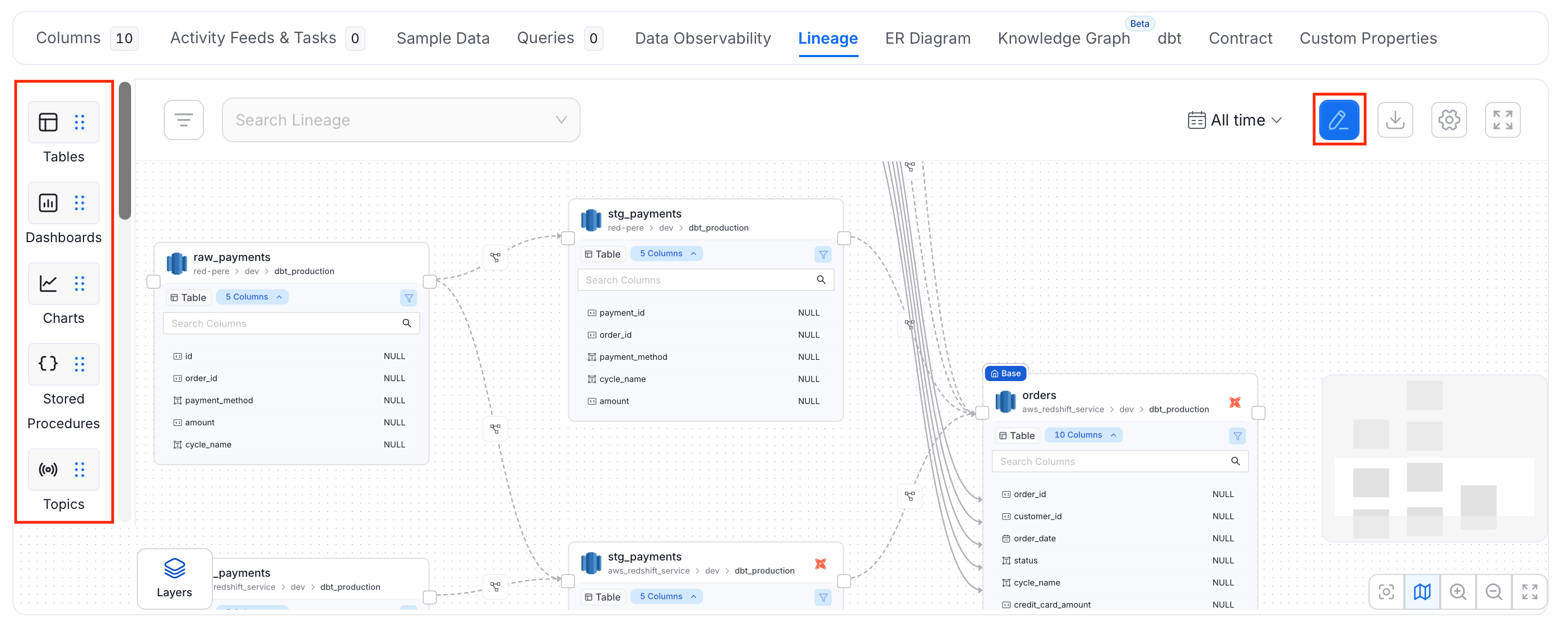
1. Go to your database service and open a table.
2. On the table details page, click the **Lineage** tab.
3. Click the **Edit** icon to enable the lineage editor.
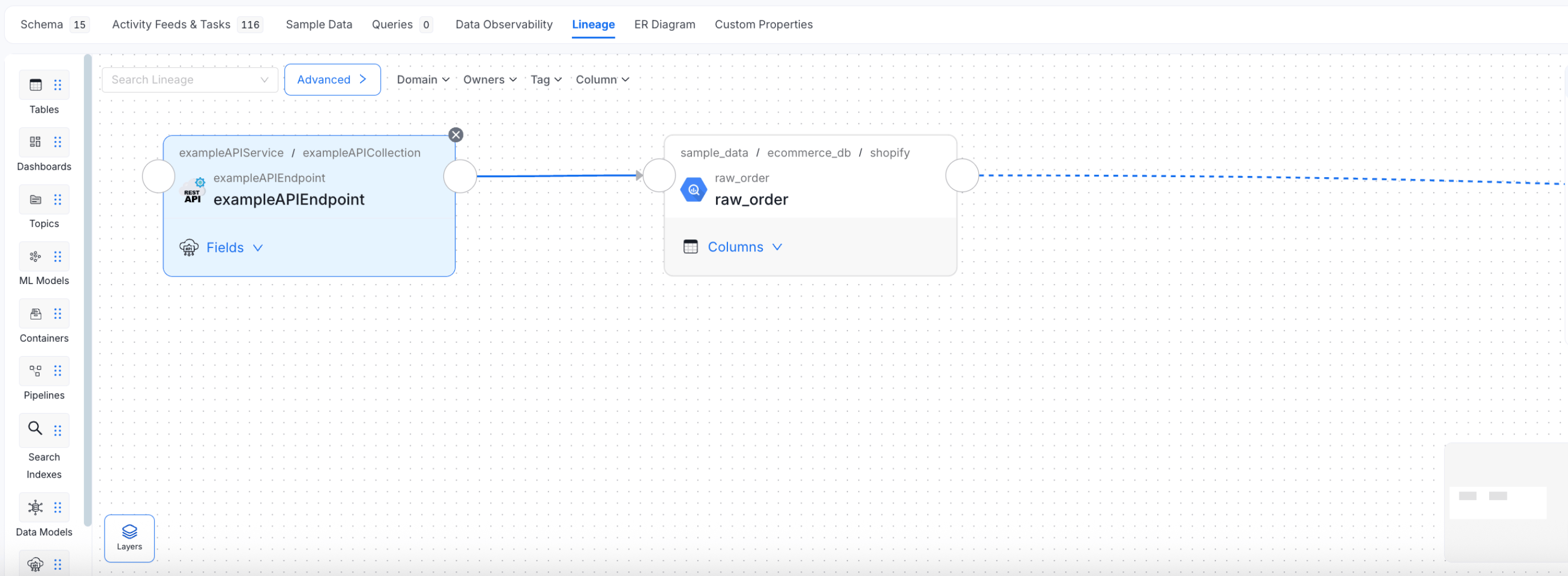
### Step 2: Connect a Destination Asset
Select the data asset you want to link as a downstream node.
1. Choose the type of asset to connect — table, topic, dashboard, ML model, container, or pipeline.
2. Search for and select the specific asset.
3. Draw an edge between the two assets to create the lineage connection.
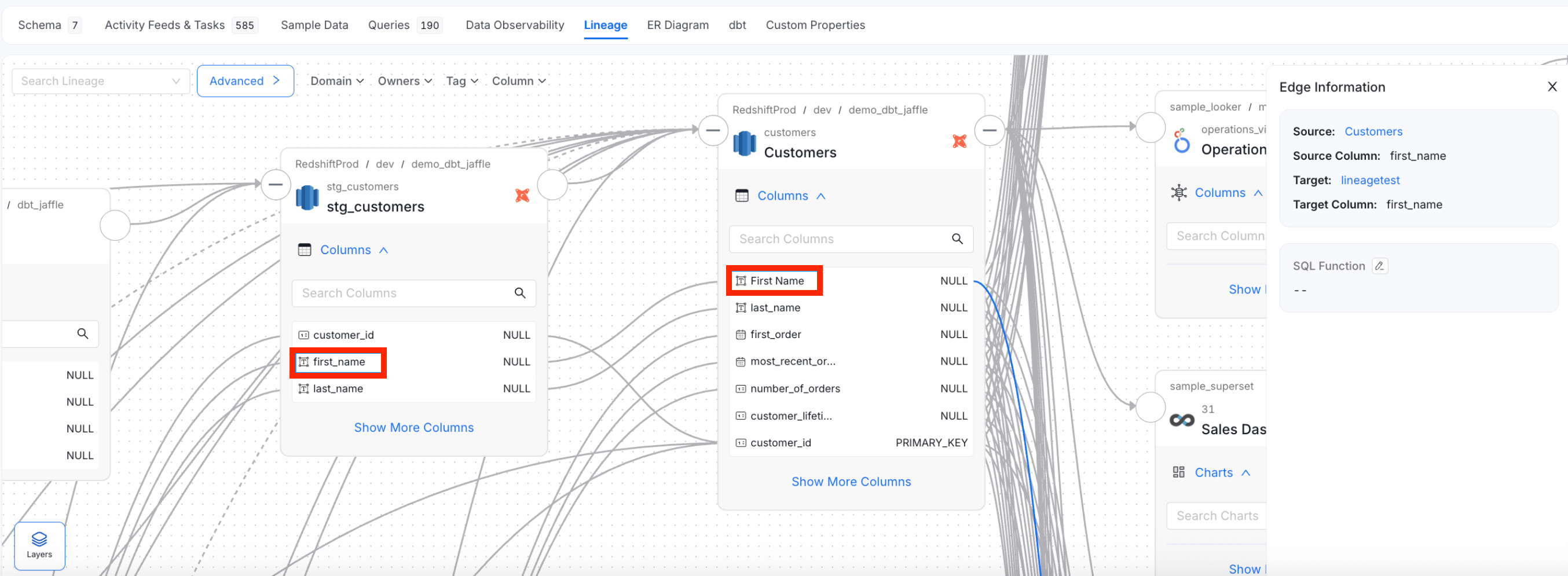
### Step 3: Add Column-Level Lineage
Expand a table node to link individual columns and trace field-level dependencies.
1. Click a table node to expand it and reveal its columns.
2. Use the column anchor points to draw connections between matching columns across assets.
## Video Walkthrough
Watch a quick demo of manually adding lineage.
Watch the lineage segment from the Collate Webinar (13:30 – 15:50).
 ### Step 2: Connect a Destination Asset
Select the data asset you want to link as a downstream node.
1. Choose the type of asset to connect — table, topic, dashboard, ML model, container, or pipeline.
2. Search for and select the specific asset.
3. Draw an edge between the two assets to create the lineage connection.
### Step 2: Connect a Destination Asset
Select the data asset you want to link as a downstream node.
1. Choose the type of asset to connect — table, topic, dashboard, ML model, container, or pipeline.
2. Search for and select the specific asset.
3. Draw an edge between the two assets to create the lineage connection.
 ### Step 3: Add Column-Level Lineage
Expand a table node to link individual columns and trace field-level dependencies.
1. Click a table node to expand it and reveal its columns.
2. Use the column anchor points to draw connections between matching columns across assets.
### Step 3: Add Column-Level Lineage
Expand a table node to link individual columns and trace field-level dependencies.
1. Click a table node to expand it and reveal its columns.
2. Use the column anchor points to draw connections between matching columns across assets.
 ## Video Walkthrough
Watch a quick demo of manually adding lineage.
Watch the lineage segment from the Collate Webinar (13:30 – 15:50).
## Video Walkthrough
Watch a quick demo of manually adding lineage.
Watch the lineage segment from the Collate Webinar (13:30 – 15:50).