> ## Documentation Index
> Fetch the complete documentation index at: https://docs.getcollate.io/llms.txt
> Use this file to discover all available pages before exploring further.
# Git Sink Workflow | Data Governance
> Synchronize metadata changes in Collate to a Git repository automatically using Git Sink workflows for version control and governance tracking.
## Overview
Collate 1.12 introduces Git Sink, a workflow capability that automatically synchronizes metadata changes in Collate to a Git repository.
Many organizations are adopting a metadata as code approach. Just like application code, metadata benefits from version control, review workflows, and historical tracking.
Git Sink captures metadata updates in Collate and commits them to GitHub. Teams can maintain version history, review governance changes, and integrate metadata management with existing engineering workflows.
Collate remains the main interface for managing metadata while Git stores the version history.
## Why Git Sink Matters
Metadata changes frequently as data platforms evolve. Teams document tables, add tags, create test cases, and update governance classifications.
Without version control, these updates are hard to track.
Git Sink helps organizations:
* Track metadata history
* Review governance updates through Git workflows
* Integrate metadata with DevOps processes
* Manage metadata using version control
Teams can treat metadata as code while continuing to manage it through the Collate interface.
## How Git Sink Works
Git Sink uses the Collate workflow engine.
A workflow listens for metadata events and writes those changes to a Git repository.
Examples of events include:
* Creating a test case
* Updating a table description
* Adding tags or tiers
* Updating glossary assignments
When these events occur, the workflow commits the updated metadata to Git.
## Creating a Git Sink Workflow
Follow these steps to create a workflow that captures metadata events and syncs them to Git.
**Note**:
**Limitation**: Currently, Git Sink workflows only support Start and End nodes. You cannot add additional intermediate nodes beyond the Git Sink node itself.
1. From the left navigation bar, navigate to **Governance** > **Workflows**. Click **Create Workflow**.
2. Enter a **Workflow Name** and **Description**, then click **Save and Next**.
3. Drag the **Start** node onto the canvas and fill in the following fields:
* **Data Asset**: Select the entity types the workflow monitors (for example, `Table`).
* **Data Asset Filter** (Optional): Add filters to narrow which assets the workflow acts on.
* **Trigger Type**: Choose **Event Based** to trigger when an asset changes, or **Periodic Batch** to run on a schedule.
4. Click **Save**.
5. Drag the **Git Sink** node onto the canvas and connect it to the Start node. Enter the GitHub connection details — for full configuration options, see [GitHub Configuration](#github-configuration) below.
6. Click **Save**.
7. Drag an **End** node onto the canvas and connect it to the Git Sink node.
8. Click **Save**, then toggle the workflow to **Active**.
After activated, the workflow looks for metadata changes and pushes them to GitHub.
## GitHub Configuration
The Git Sink node requires the following details:
**Repository URL**: Enter the URL of the GitHub repository where Collate stores metadata files.
**Access Token**: Create a GitHub personal access token in GitHub Developer Settings and use it for authentication.
**Conflict Resolution**: Choose how Collate handles conflicts:
* Overwrite external changes
* Preserve existing changes
* Fail on conflict
Most organizations treat Collate as the primary metadata source.
## Repository Structure
Collate stores synced metadata in GitHub as YAML files.
The structure reflects the hierarchy of the data platform.
**Example**
```
service
database
schema
tables
customer.yaml
```
Each file includes metadata such as:
* Fully qualified name
* Columns
* Tags and classifications
* Descriptions
* Timestamps and user information
This makes it easy to track metadata changes and maintain a clear history.
## Example Workflow
1. A Git Sink workflow is active.
2. A user updates a table in Collate.
3. The update triggers a metadata event.
4. The workflow commits the change to GitHub.
5. The repository stores the updated metadata in YAML format.
Future updates create additional commits, letting you track metadata changes over time.
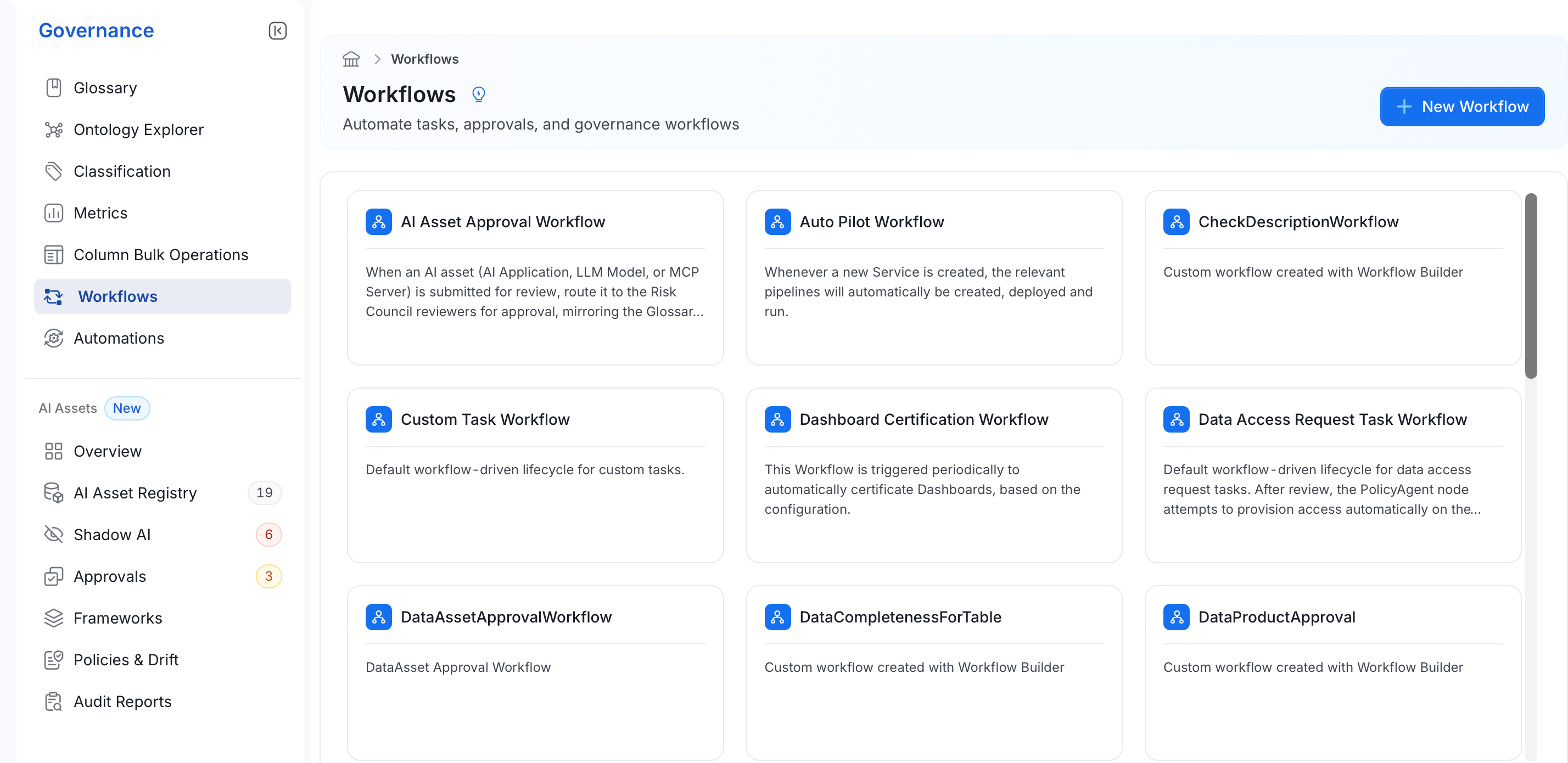 2. Enter a **Workflow Name** and **Description**, then click **Save and Next**.
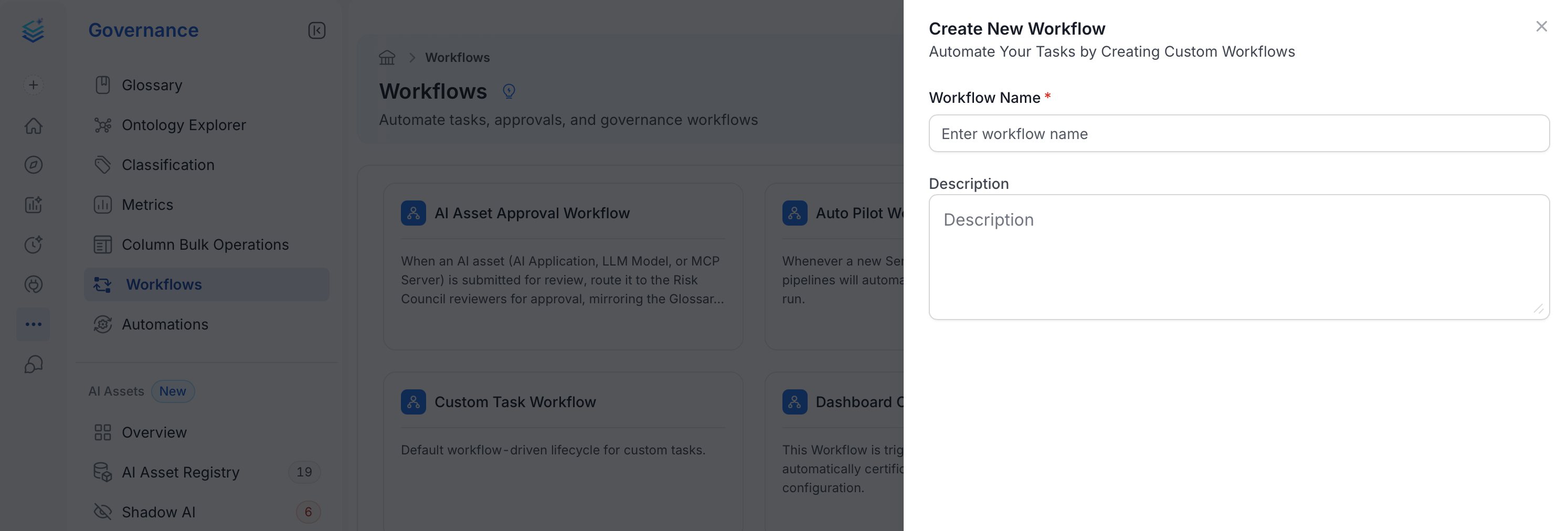 3. Drag the **Start** node onto the canvas and fill in the following fields:
* **Data Asset**: Select the entity types the workflow monitors (for example, `Table`).
* **Data Asset Filter** (Optional): Add filters to narrow which assets the workflow acts on.
* **Trigger Type**: Choose **Event Based** to trigger when an asset changes, or **Periodic Batch** to run on a schedule.
3. Drag the **Start** node onto the canvas and fill in the following fields:
* **Data Asset**: Select the entity types the workflow monitors (for example, `Table`).
* **Data Asset Filter** (Optional): Add filters to narrow which assets the workflow acts on.
* **Trigger Type**: Choose **Event Based** to trigger when an asset changes, or **Periodic Batch** to run on a schedule.
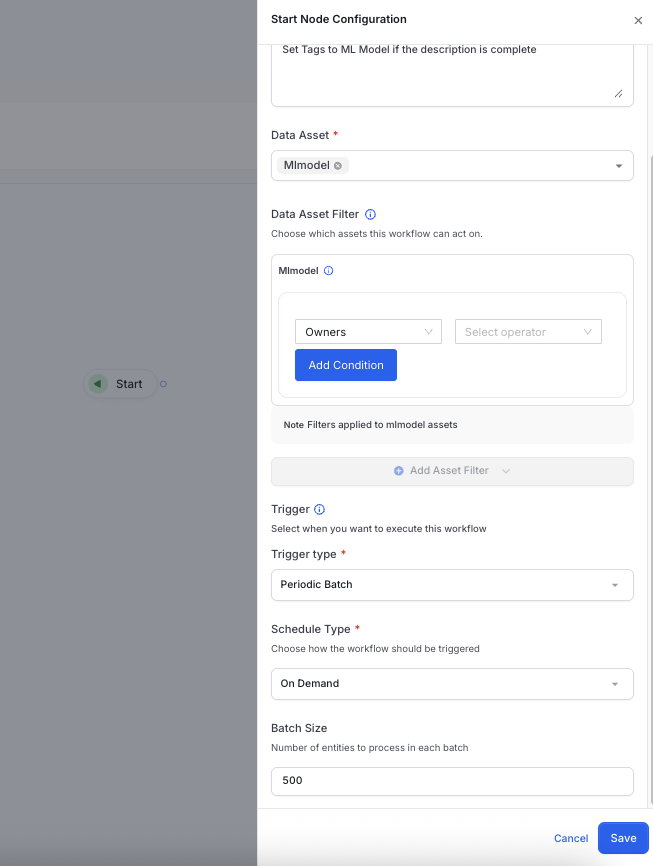 4. Click **Save**.
5. Drag the **Git Sink** node onto the canvas and connect it to the Start node. Enter the GitHub connection details — for full configuration options, see [GitHub Configuration](#github-configuration) below.
4. Click **Save**.
5. Drag the **Git Sink** node onto the canvas and connect it to the Start node. Enter the GitHub connection details — for full configuration options, see [GitHub Configuration](#github-configuration) below.
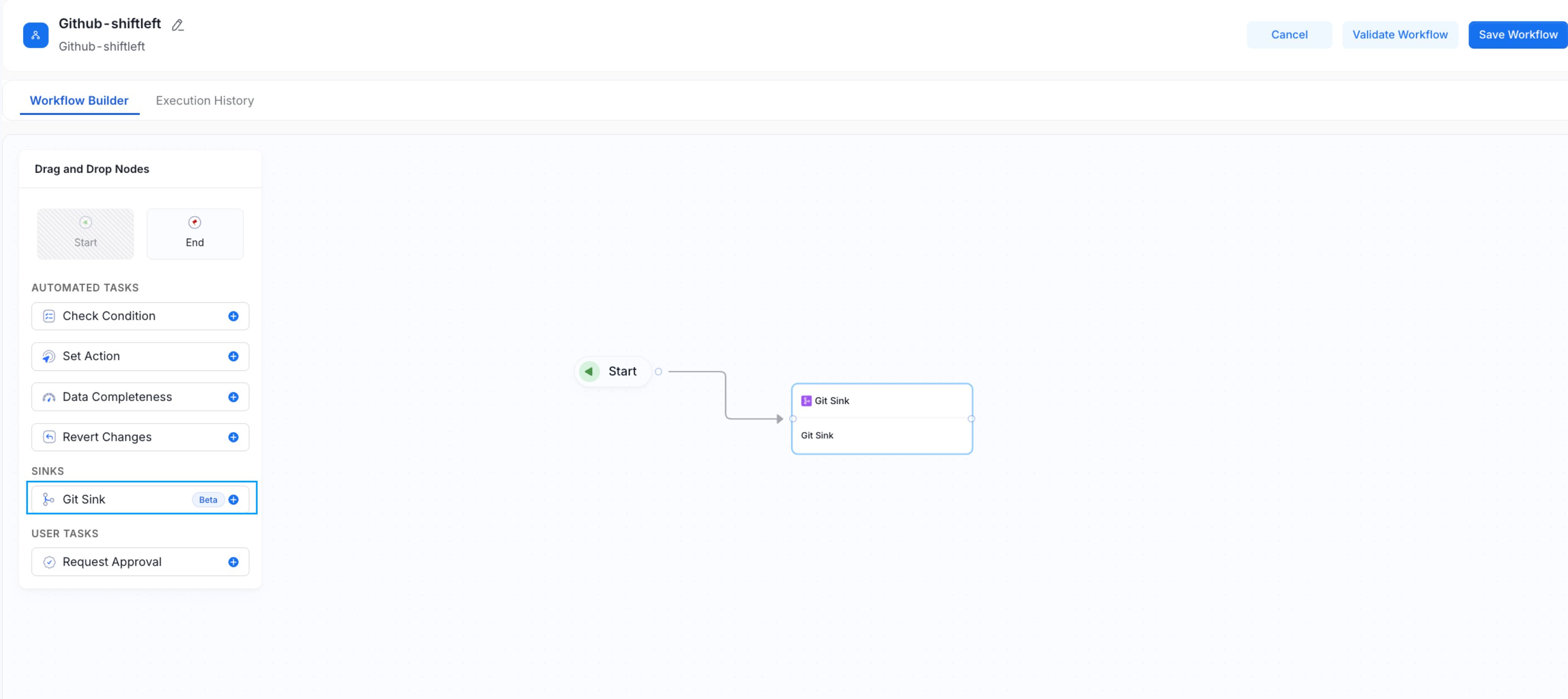
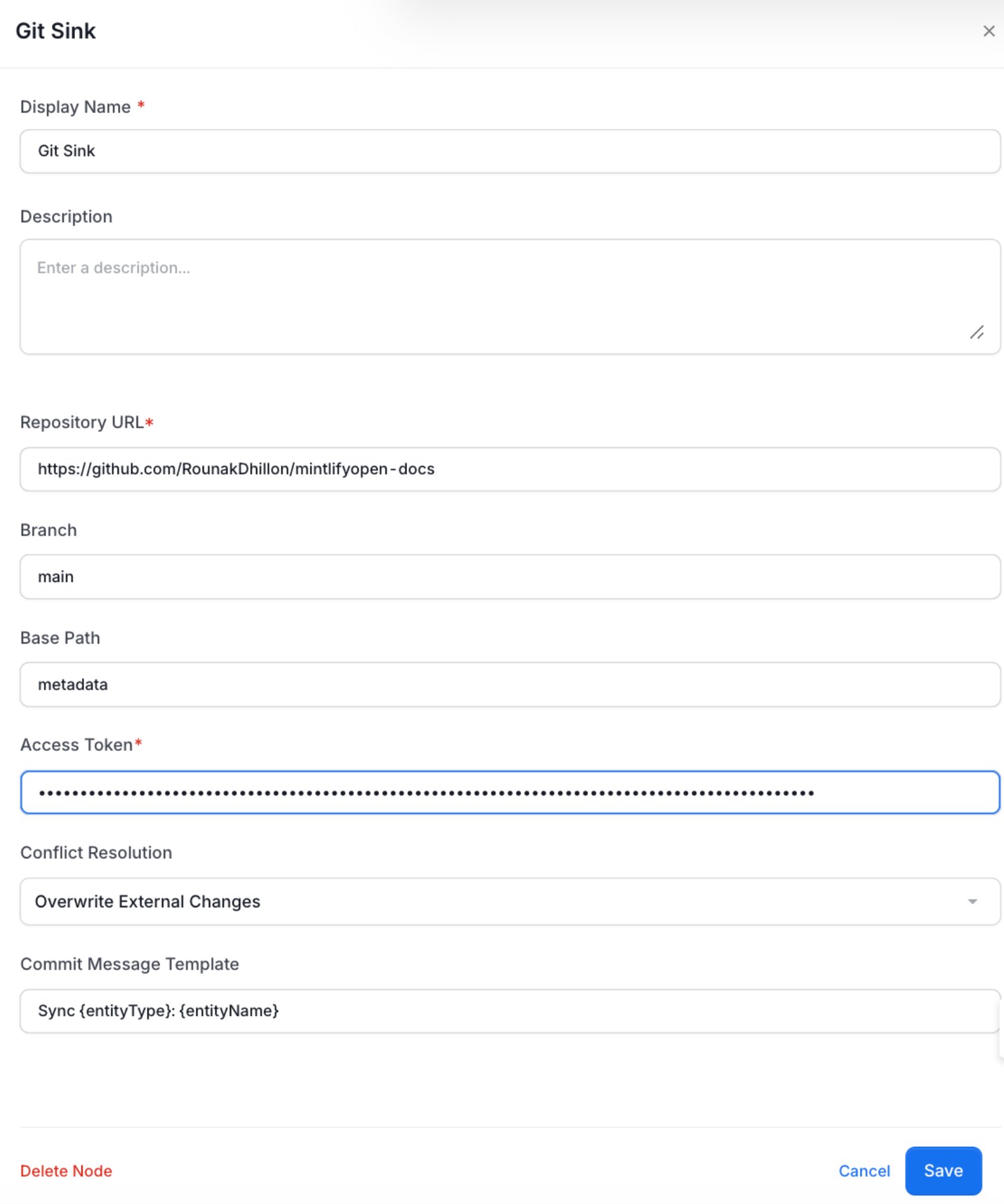 6. Click **Save**.
7. Drag an **End** node onto the canvas and connect it to the Git Sink node.
6. Click **Save**.
7. Drag an **End** node onto the canvas and connect it to the Git Sink node.
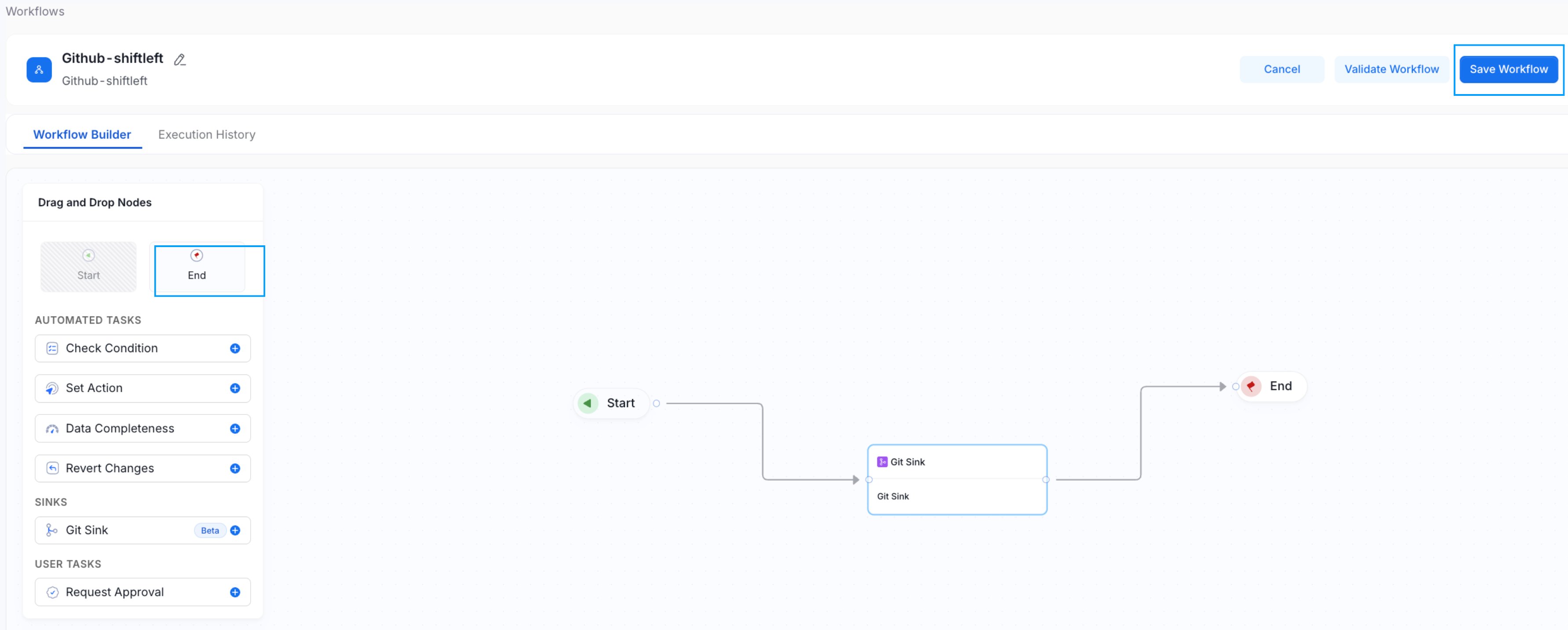 8. Click **Save**, then toggle the workflow to **Active**.
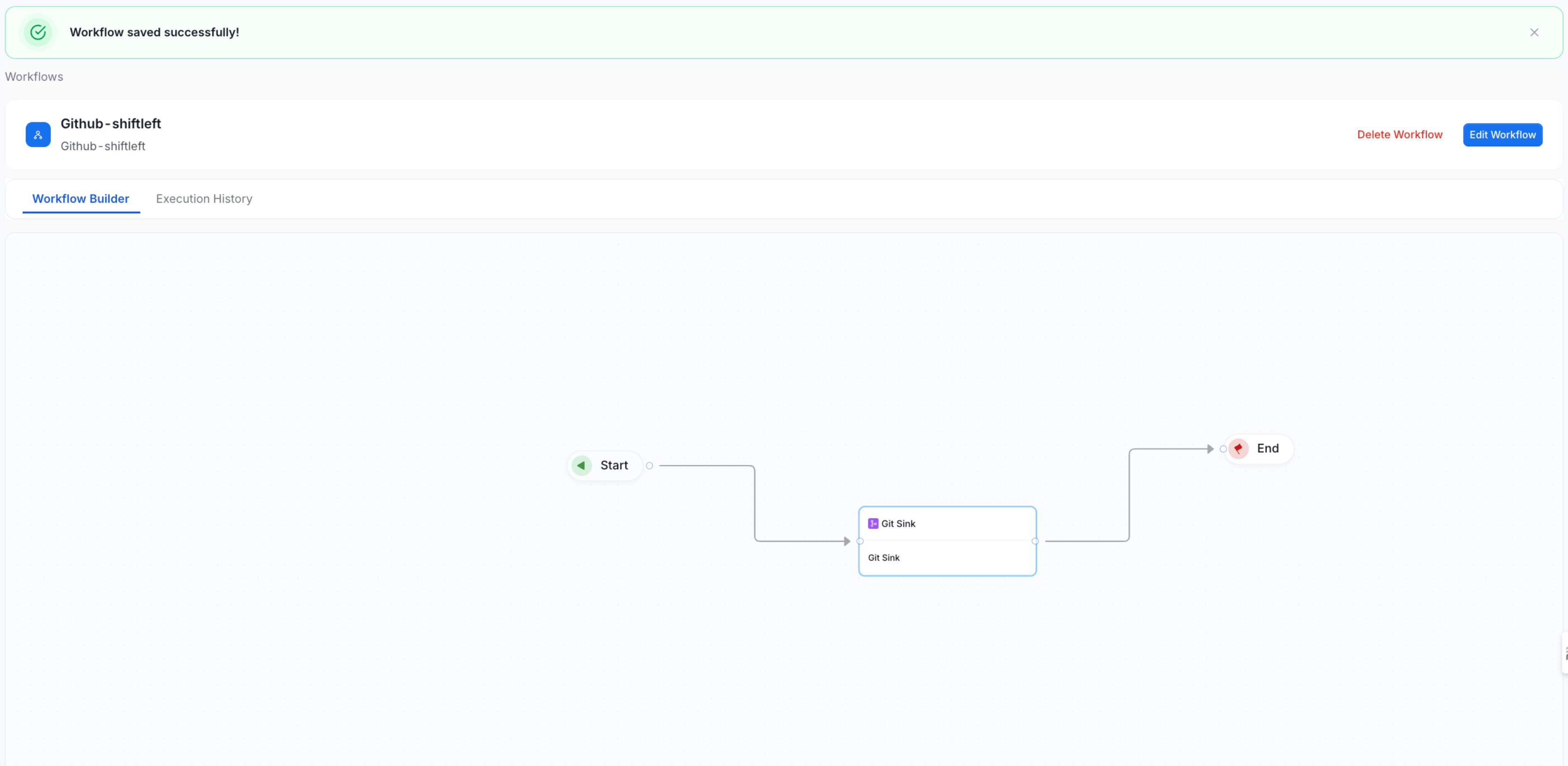 After activated, the workflow looks for metadata changes and pushes them to GitHub.
## GitHub Configuration
After activated, the workflow looks for metadata changes and pushes them to GitHub.
## GitHub Configuration