> ## Documentation Index
> Fetch the complete documentation index at: https://docs.getcollate.io/llms.txt
> Use this file to discover all available pages before exploring further.
# Glossary Styling | Glossary Customization
> Style your glossary with custom headers, icons, and formats to reflect organizational tone and branding.
# Glossary Styling
Collate supports glossary styling using colors and icons. Users can get a one-glance view of the related concepts and terms by color-coding the terms and by adding icons. When the glossary terms are color-coded and used for tagging the data assets, it is easier to differentiate and identify the data assets visually.
To stylize your glossary terms:
1. Navigate to the **glossary term** you want to style.
2. Click the **⋮** icon and select **Style**.
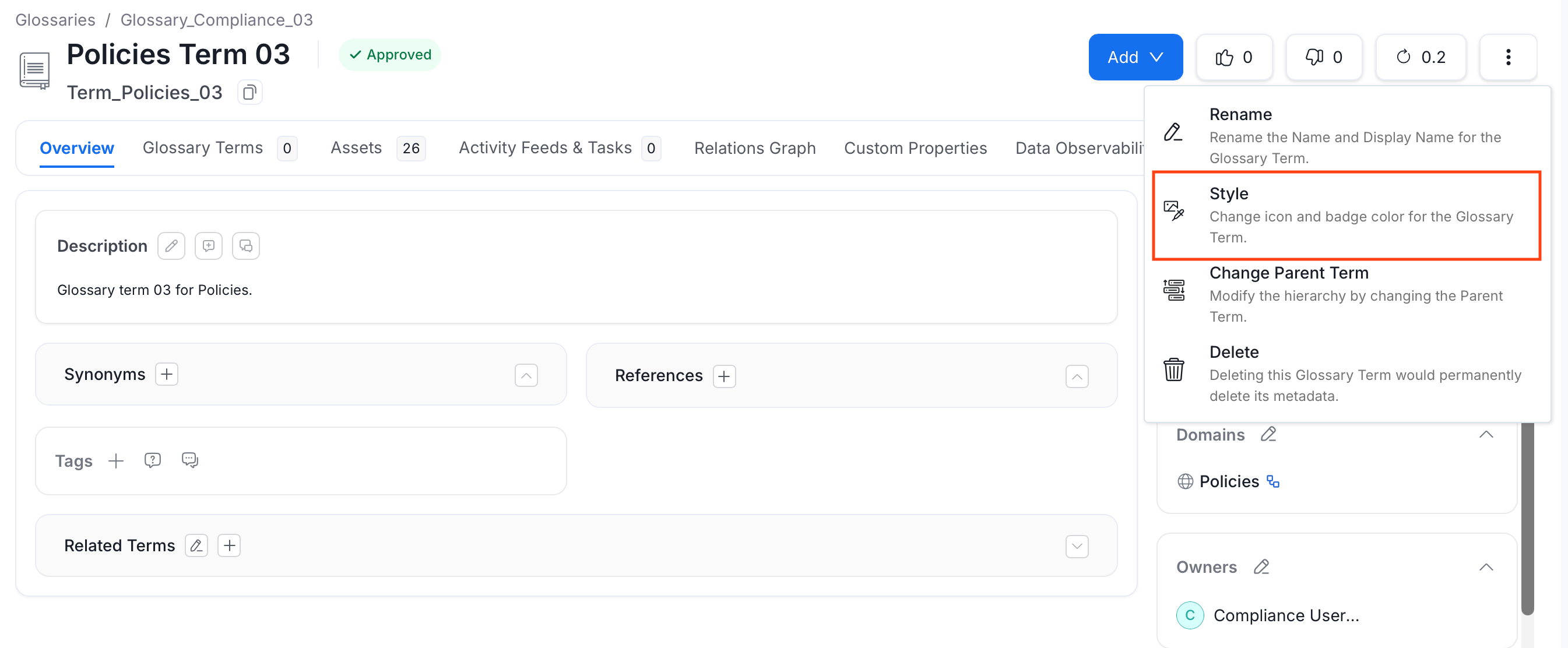 * Add a link to the **icon image**. You can also change the **font color**. Click **Submit** to save the changes.
 After you save the style, the glossary term font color changes and an icon is added.
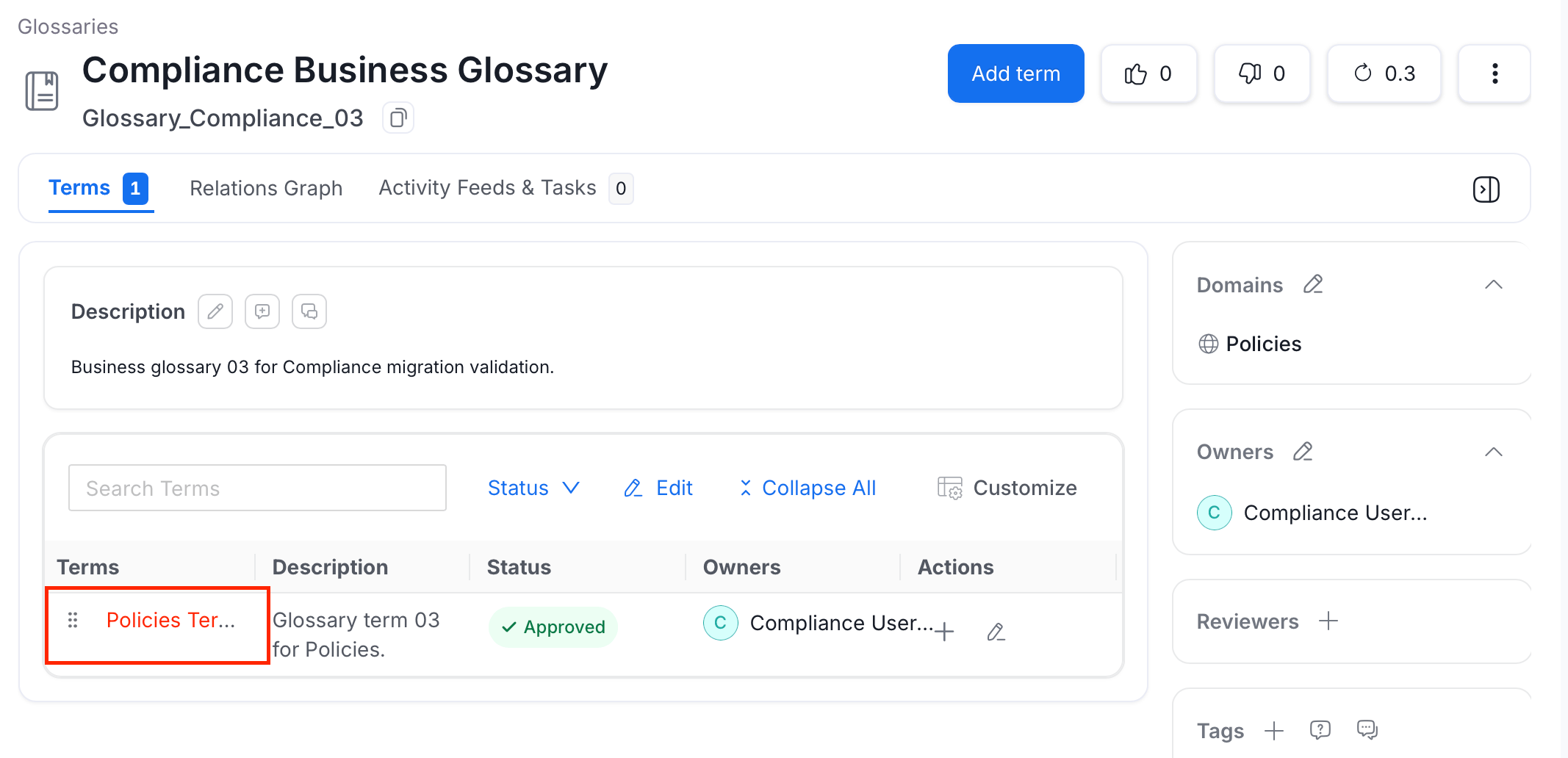 When data assets are tagged with the Glossary terms, the color-coding helps with easier identification of the relevant data assets.
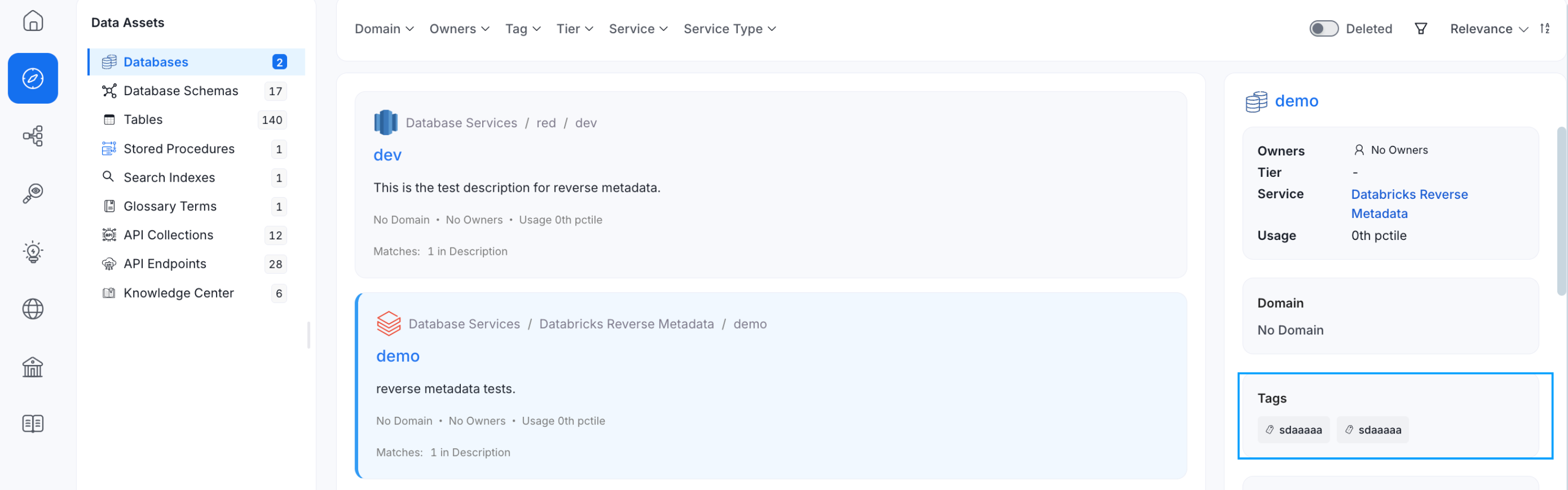 Associate glossary terms to data assets making it easier for data discovery.