> ## Documentation Index
> Fetch the complete documentation index at: https://docs.getcollate.io/llms.txt
> Use this file to discover all available pages before exploring further.
# What is a Glossary Term
> Create glossary terms with definitions, synonyms, status, and linked entities to support semantic understanding.
# What is a Glossary Term
A Glossary Term is a preferred terminology for a concept. In a Glossary term, you can add tags, synonyms, related terms to build a conceptual semantic graph, and also add reference links.
**Tip**:
**Tip:** Glossary terms help to organize as well as discover data assets.
The glossary term can include additional information as follows:
* **Description** - A unique and clear definition to establish consistent usage and understanding of the term. This is a mandatory requirement.
* **Tags** - Classification tags can be added to glossary terms. When adding a glossary term to assets, it will also add the associated tags to that asset. This helps to further describe and categorize the data assets.
* **Synonyms** - Other terms that are used for the same concept. For example, for a term ‘Customer’, the synonyms can be ‘Client’, ‘Shopper’, ‘Purchaser’.
* **Child Terms** - Child terms help to build a conceptual hierarchy (Parent-Child relationship) to go from generic to specific concepts. For example, for a term ‘Customer’, the child terms can be ‘Loyal Customer’, ‘New Customer’, ‘Online Customer’.
* **Related Terms** - These terms can build a network of concepts to capture an associative relationship. For example, for a term ‘Customer’, the related terms can be ‘Customer LTV (LifeTime Value)’, ‘Customer Acquisition Cost (CAC)’.
* **References** - Add links from the internet from where you inherited the term.
* **Mutually Exclusive** - There are cases where only one term from a particular glossary is relevant for a data asset. For example, an asset can either be ‘PII-Sensitive’ or a ‘PII-NonSensitive’. It cannot be both. For such cases, a Glossary or a Glossary Term can be created where the child terms can be mutually exclusive. If this configuration is enabled, you won’t be able to assign multiple terms from the same Glossary/Term to the same data asset.
* **Reviewers** - A term also has a set of Reviewers who review and accept the changes to the Glossary for Governance. Multiple reviewers can be added.
* **Assets** - After creating a glossary term, data assets can be associated with the term, which helps in data discovery.
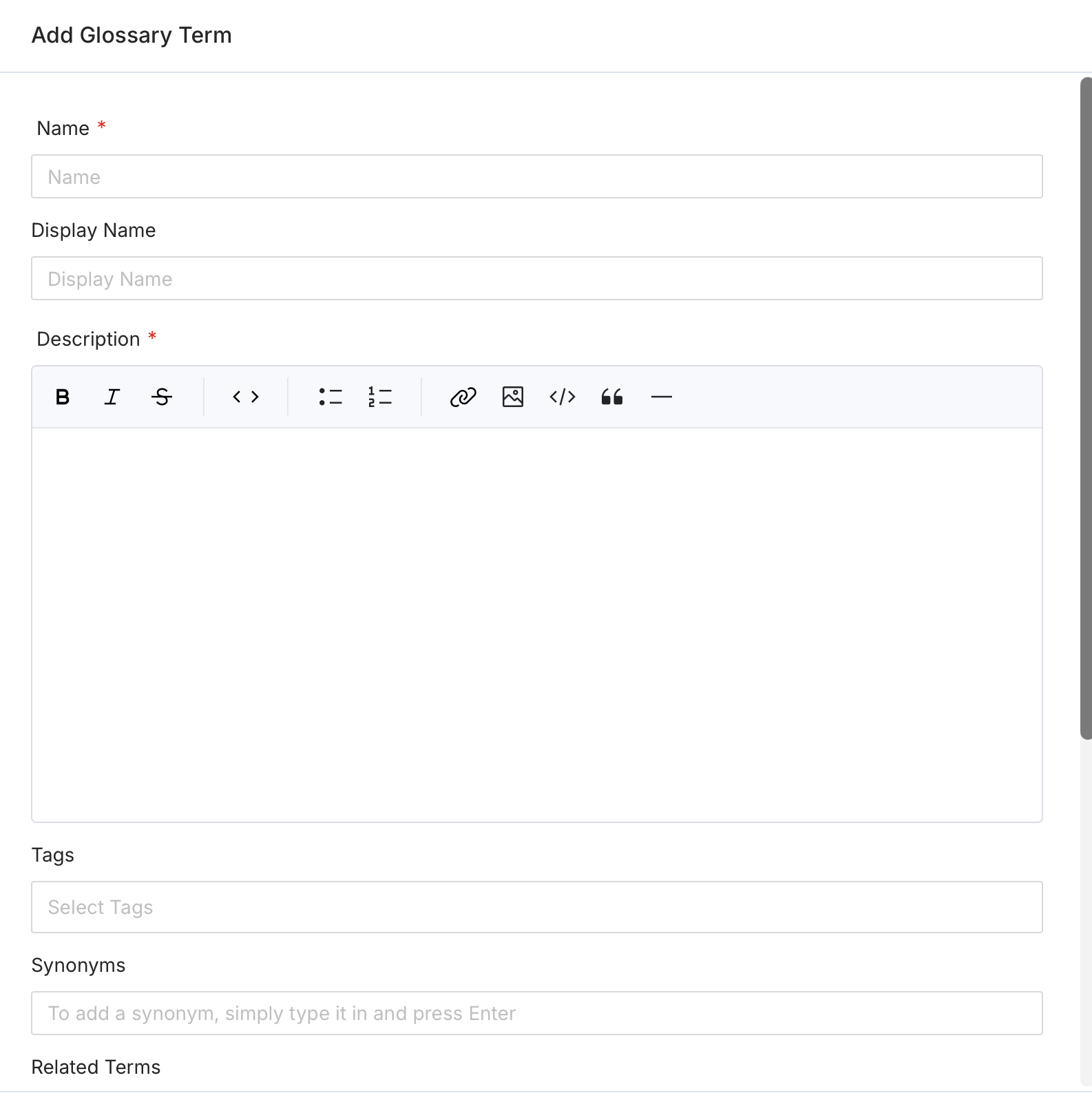 Each term has a **life cycle status** (e.g., Draft, Approved). Glossary terms can be added manually. You can also [export or bulk import the glossary terms](/ai-2-0/how-to-guides/data-governance/glossary/import) using a CSV file.
## Details of a Glossary Term
The details of a Glossary Term in Collate are displayed across seven tabs: Overview, Glossary Terms, Assets, Activity Feeds & Tasks, Relations Graph, Custom Properties, and Data Observability.
### Overview Tab
The **Overview tab** displays the details of the term, along with the synonyms, related terms, references, and tags. It also displays the Owner and the Reviewers for the Glossary Term.
Each term has a **life cycle status** (e.g., Draft, Approved). Glossary terms can be added manually. You can also [export or bulk import the glossary terms](/ai-2-0/how-to-guides/data-governance/glossary/import) using a CSV file.
## Details of a Glossary Term
The details of a Glossary Term in Collate are displayed across seven tabs: Overview, Glossary Terms, Assets, Activity Feeds & Tasks, Relations Graph, Custom Properties, and Data Observability.
### Overview Tab
The **Overview tab** displays the details of the term, along with the synonyms, related terms, references, and tags. It also displays the Owner and the Reviewers for the Glossary Term.
 ### Glossary Term Tab
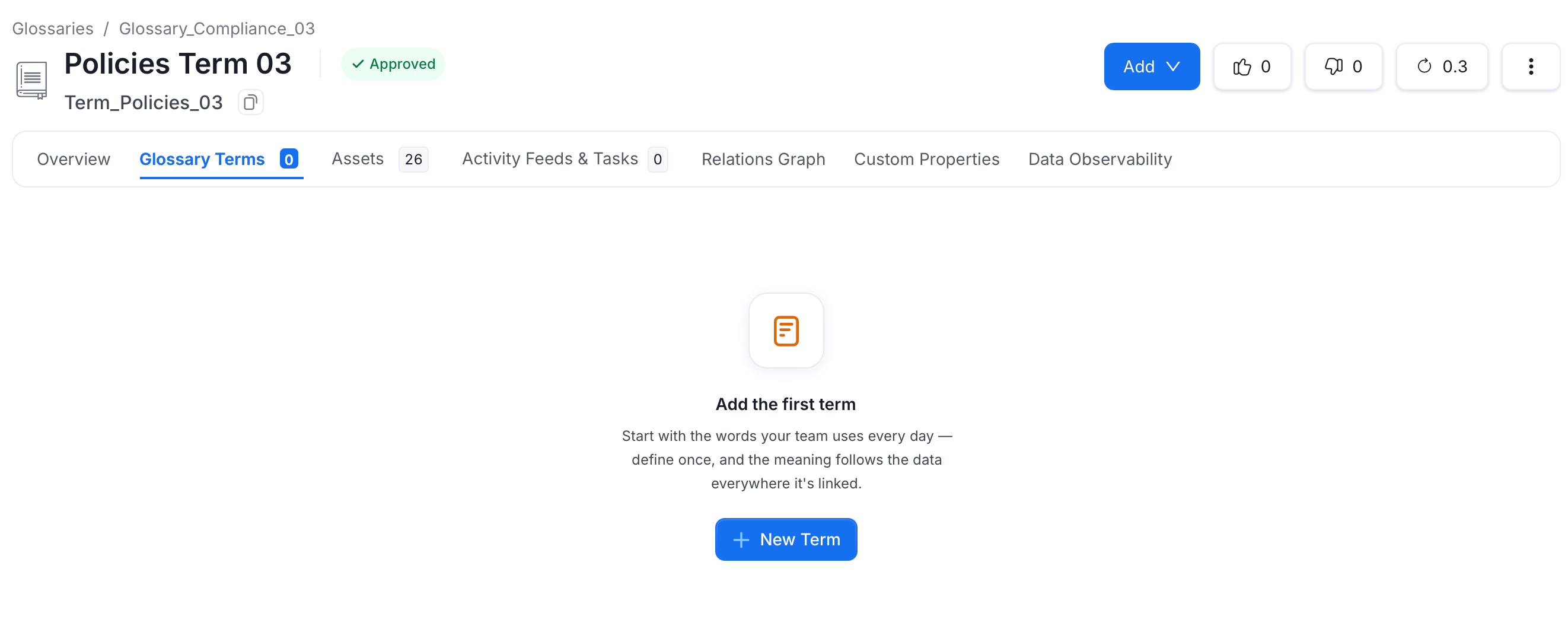
The **Glossary Term Tab** displays all the child terms associated with the parent term. You can also add more child terms from this tab.
### Glossary Term Tab
The **Glossary Term Tab** displays all the child terms associated with the parent term. You can also add more child terms from this tab.
 ### Assets Tab
The **Assets Tab** displays all the assets that are associated with the glossary term. These data assets are further subgrouped on the basis of databases. The right side panel shows a preview of the data assets selected.
### Assets Tab
The **Assets Tab** displays all the assets that are associated with the glossary term. These data assets are further subgrouped on the basis of databases. The right side panel shows a preview of the data assets selected.
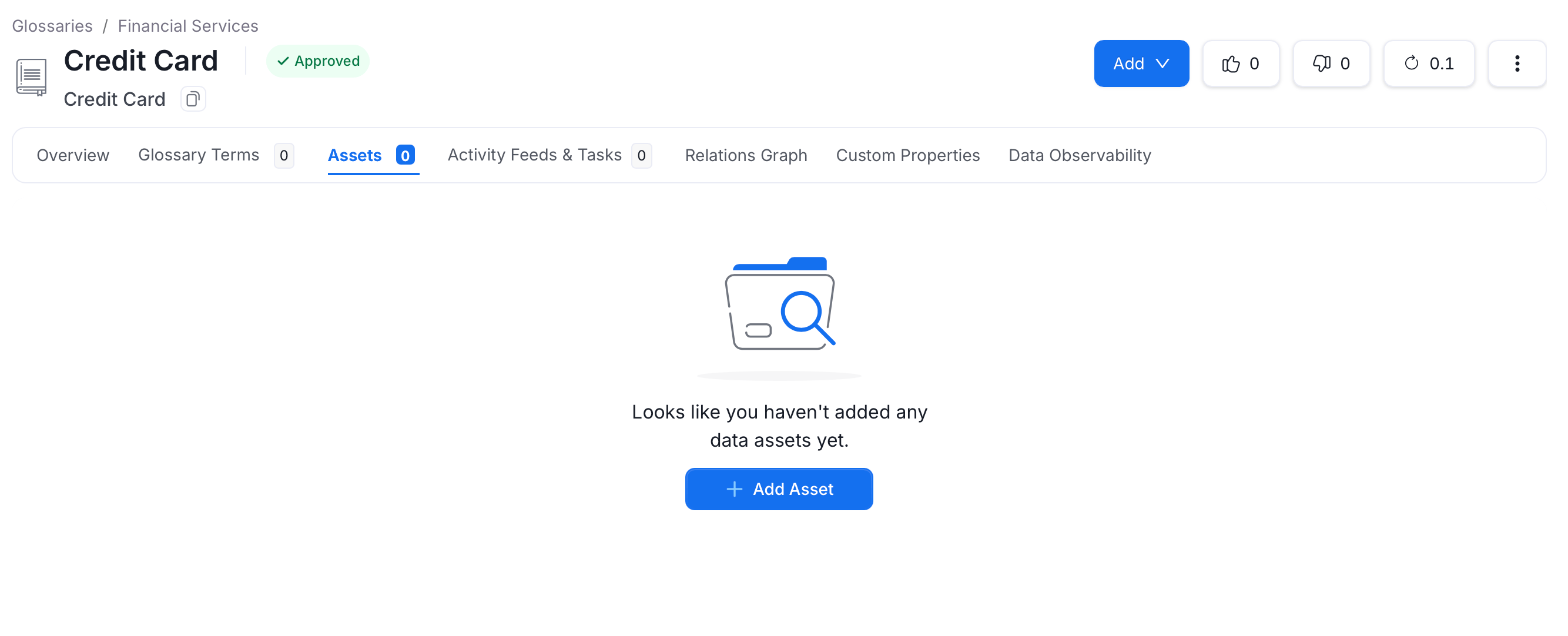 To add an asset:
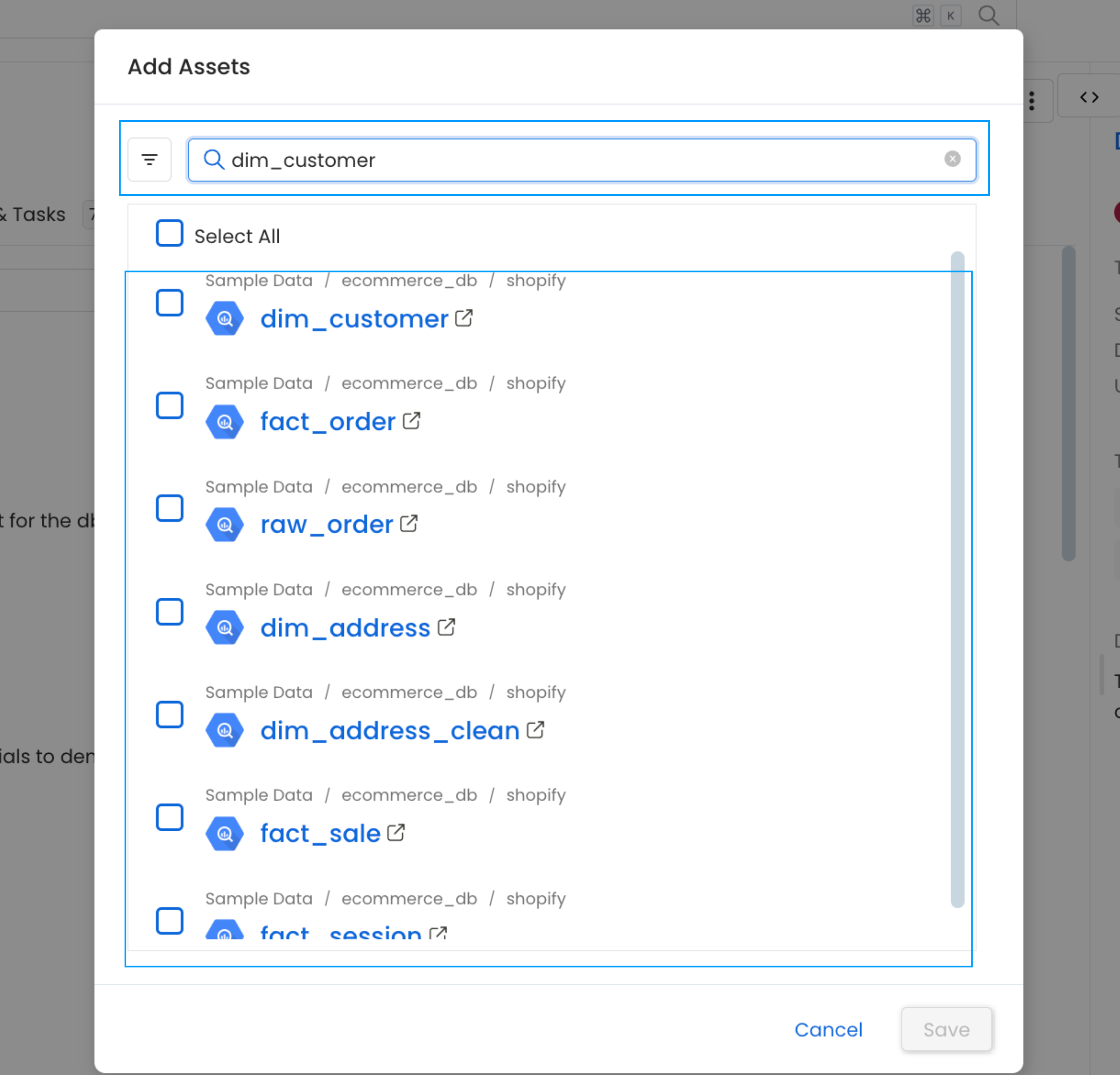
1. Click **Add** > **Assets**.
2. Search and filter assets by type or select the relevant assets and click **Save**.
To add an asset:
1. Click **Add** > **Assets**.
2. Search and filter assets by type or select the relevant assets and click **Save**.
 The glossary term lists the Assets, which makes it easy to discover all the data assets related to the term.
### Activity Feeds & Tasks Tab
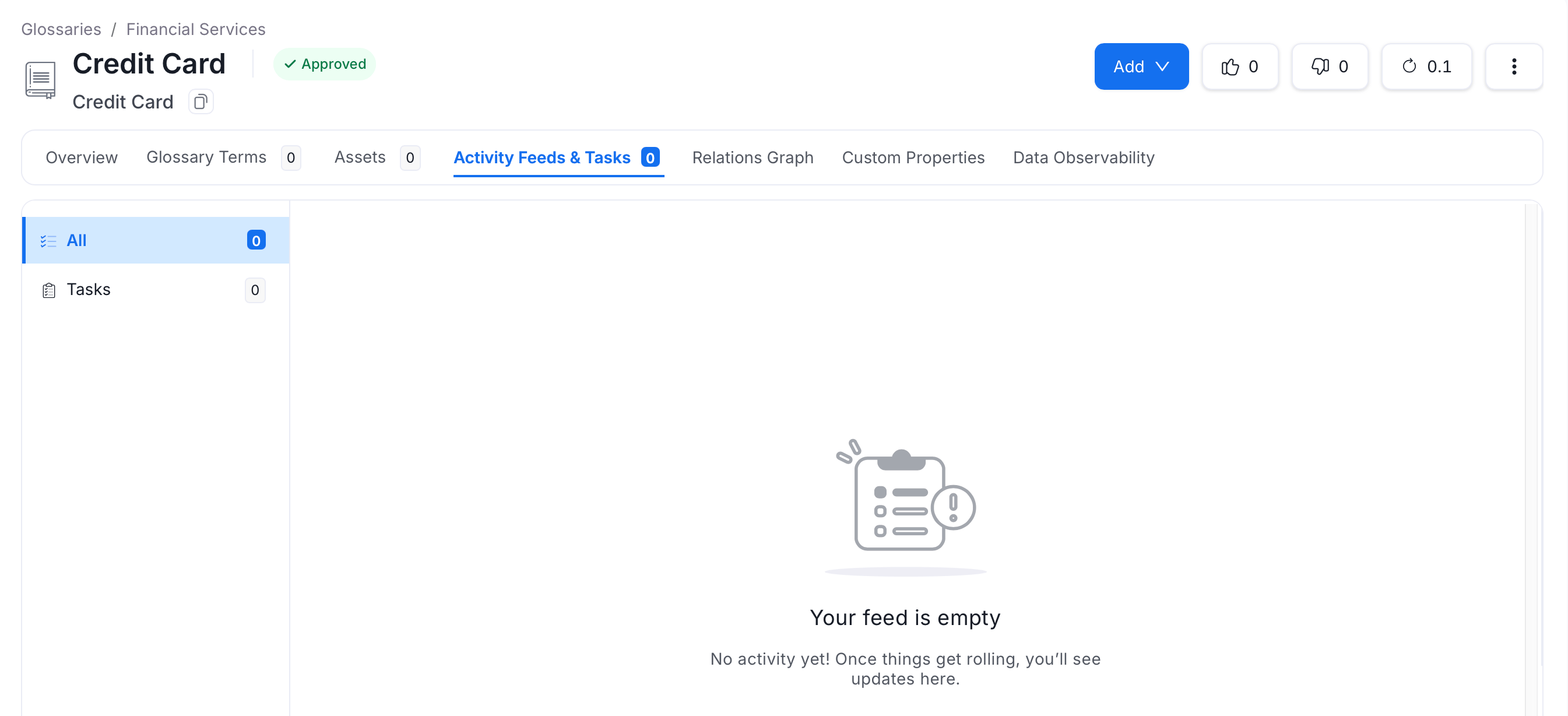
The **Activity Feeds & Tasks tab** displays all activity and mentions related to the glossary term — including updates to its definition, ownership changes, and any open tasks. Use this tab to track conversations and follow up on pending actions.
The glossary term lists the Assets, which makes it easy to discover all the data assets related to the term.
### Activity Feeds & Tasks Tab
The **Activity Feeds & Tasks tab** displays all activity and mentions related to the glossary term — including updates to its definition, ownership changes, and any open tasks. Use this tab to track conversations and follow up on pending actions.
 ### Relations Graph Tab
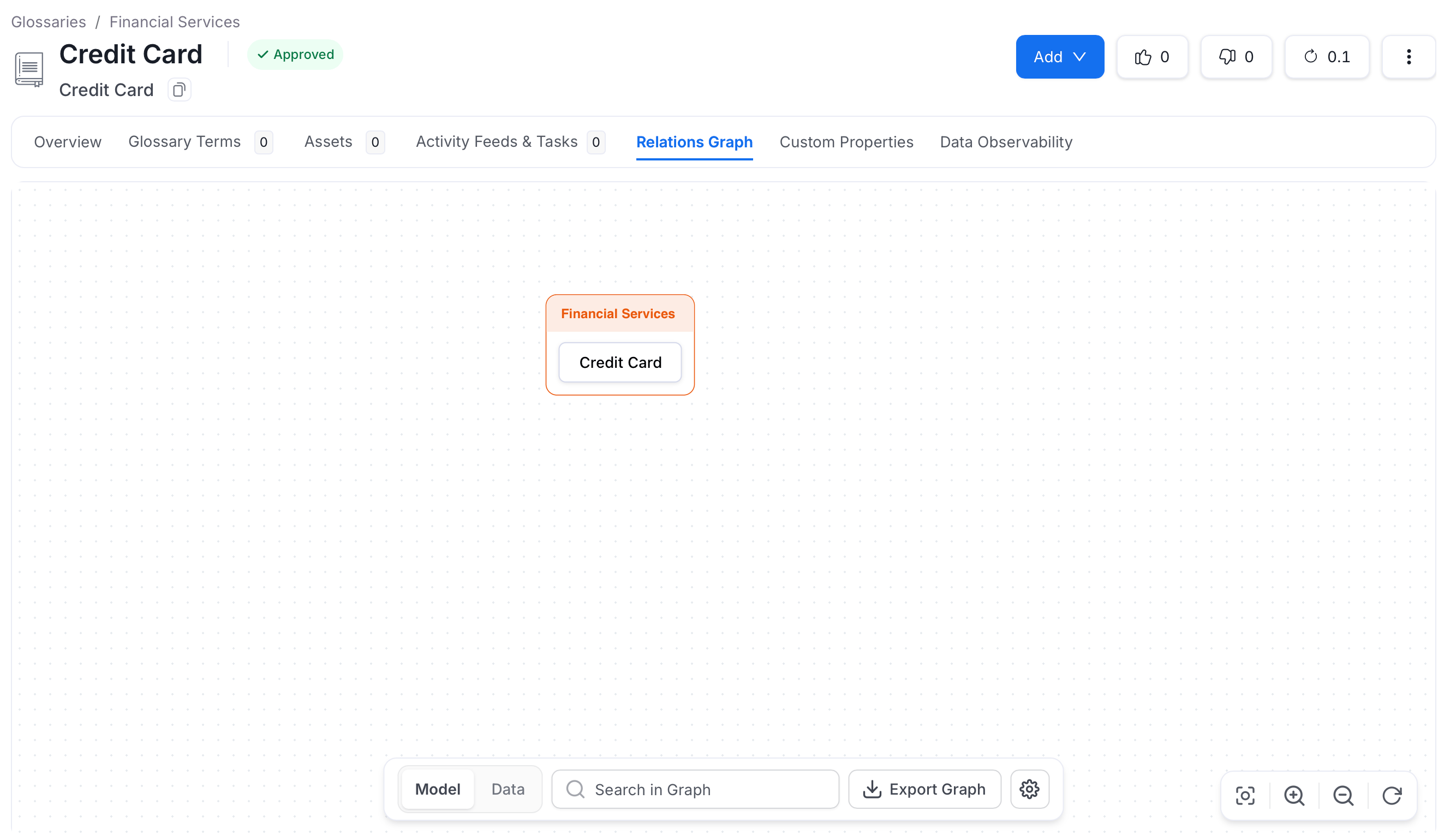
The **Relations Graph tab** displays a visual graph of how the glossary term relates to other terms — including synonyms, child terms, and associated concepts. This helps you understand the broader context of a term within your organization's vocabulary.
### Relations Graph Tab
The **Relations Graph tab** displays a visual graph of how the glossary term relates to other terms — including synonyms, child terms, and associated concepts. This helps you understand the broader context of a term within your organization's vocabulary.
 ### Custom Properties Tab
The **Custom Properties tab** displays any additional metadata fields your organization has defined for glossary terms. Use this tab to view or edit custom attributes that extend the standard term definition.
### Custom Properties Tab
The **Custom Properties tab** displays any additional metadata fields your organization has defined for glossary terms. Use this tab to view or edit custom attributes that extend the standard term definition.
 ### Data Observability Tab
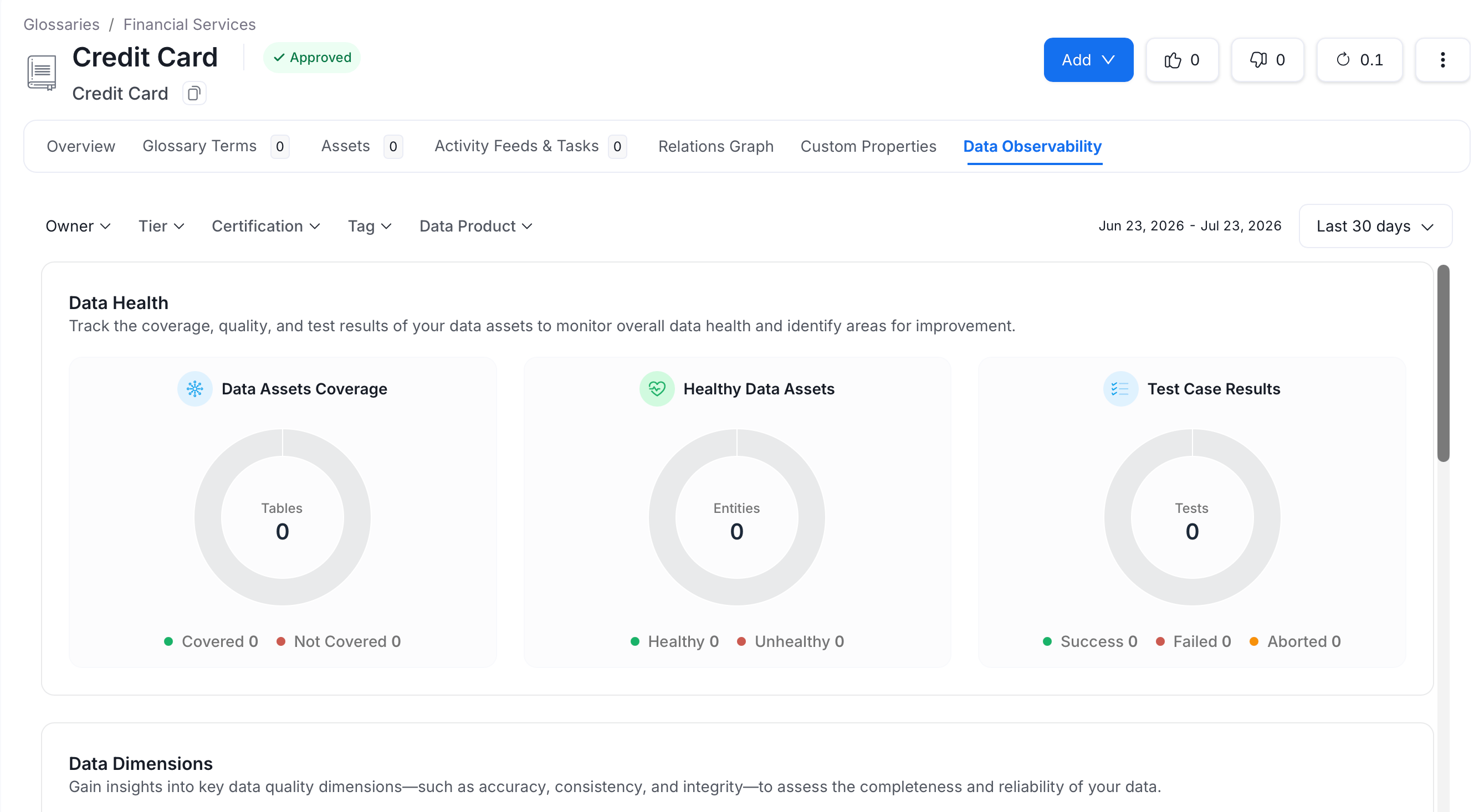
The **Data Observability tab** provides a governance-level view of data quality across all assets associated with this glossary term. It shows test results, coverage, and incidents for assets tagged with this term — making it easy to assess the health of data under a specific business concept.
### Data Observability Tab
The **Data Observability tab** provides a governance-level view of data quality across all assets associated with this glossary term. It shows test results, coverage, and incidents for assets tagged with this term — making it easy to assess the health of data under a specific business concept.
 **Tip**:
**Tip:** The Global Search in Collate also helps discover related Glossary Terms and Tags.
**Tip**:
**Tip:** The Global Search in Collate also helps discover related Glossary Terms and Tags.
 ## Glossary and Glossary Term Version History
The glossary as well as the terms maintain a version history, which can be viewed on the top right. Clicking on the number will display the details of the **Version History**.
## Glossary and Glossary Term Version History
The glossary as well as the terms maintain a version history, which can be viewed on the top right. Clicking on the number will display the details of the **Version History**.
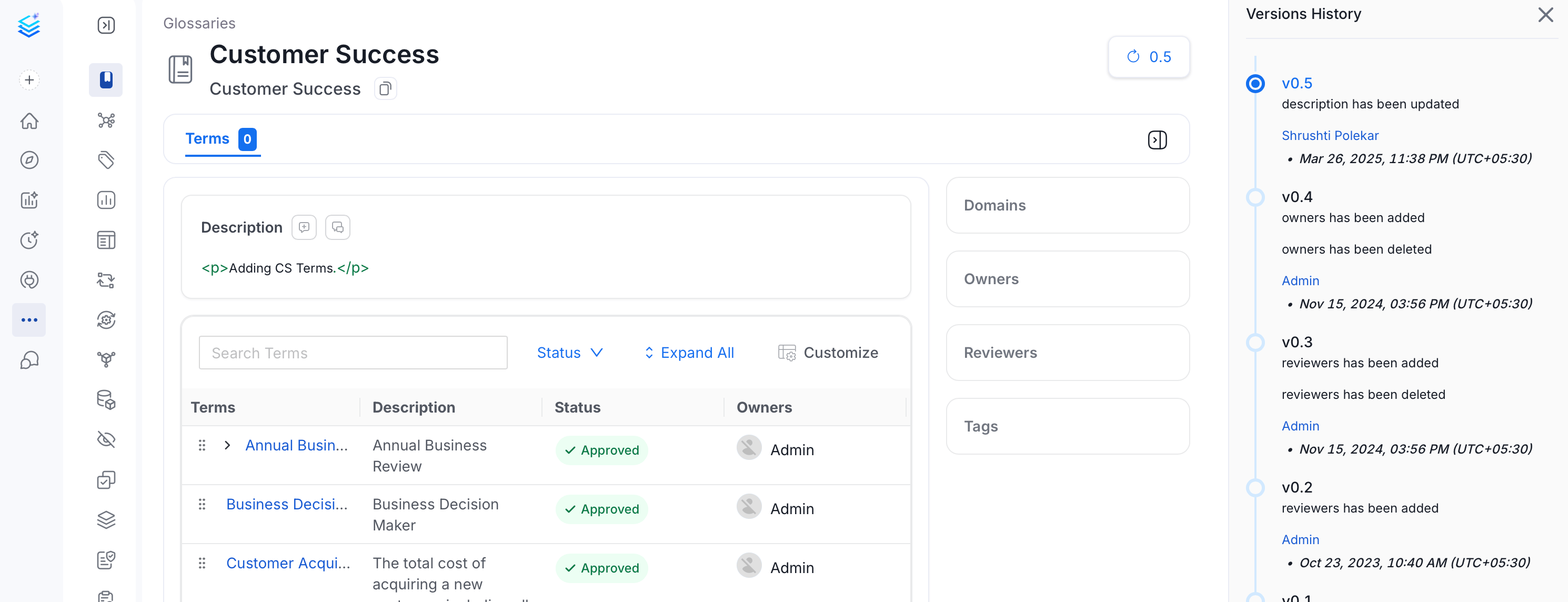 The Backward compatible changes result in a **Minor** version change. A change in the description, tags, or ownership will increase the version of the entity metadata by **0.1** (e.g., from 0.1 to 0.2).
The Backward incompatible changes result in a **Major** version change. For example, when a term is deleted, the version increases by **1.0** (e.g., from 0.2 to 1.2).
Learn how to set up a glossary manually in Collate.
The Backward compatible changes result in a **Minor** version change. A change in the description, tags, or ownership will increase the version of the entity metadata by **0.1** (e.g., from 0.1 to 0.2).
The Backward incompatible changes result in a **Major** version change. For example, when a term is deleted, the version increases by **1.0** (e.g., from 0.2 to 1.2).
Learn how to set up a glossary manually in Collate.