> ## Documentation Index
> Fetch the complete documentation index at: https://docs.getcollate.io/llms.txt
> Use this file to discover all available pages before exploring further.
# Add Assets to Glossary Terms
> Link glossary terms to assets so users can explore definitions directly from datasets, dashboards, and columns.
# Add Assets to Glossary Terms
After creating a glossary term, you can associate data assets with the term. In the **Glossary Term** > **Assets Tab**, Collate displays all assets associated with the glossary term, grouped by type — Tables, Topics, Dashboards, and more.
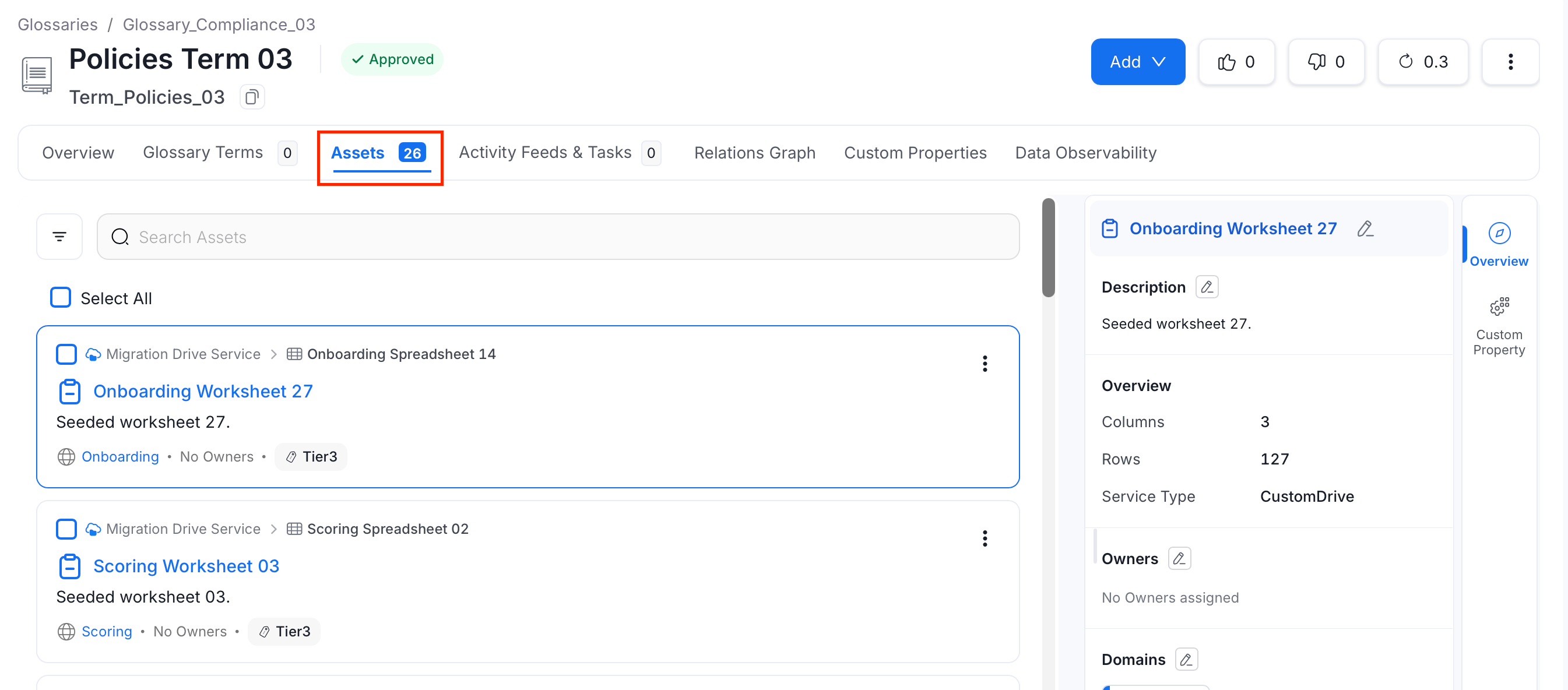 To add asset to glossary terms:
1. In the glossary term page, click **Add** > **Assets**.
To add asset to glossary terms:
1. In the glossary term page, click **Add** > **Assets**.
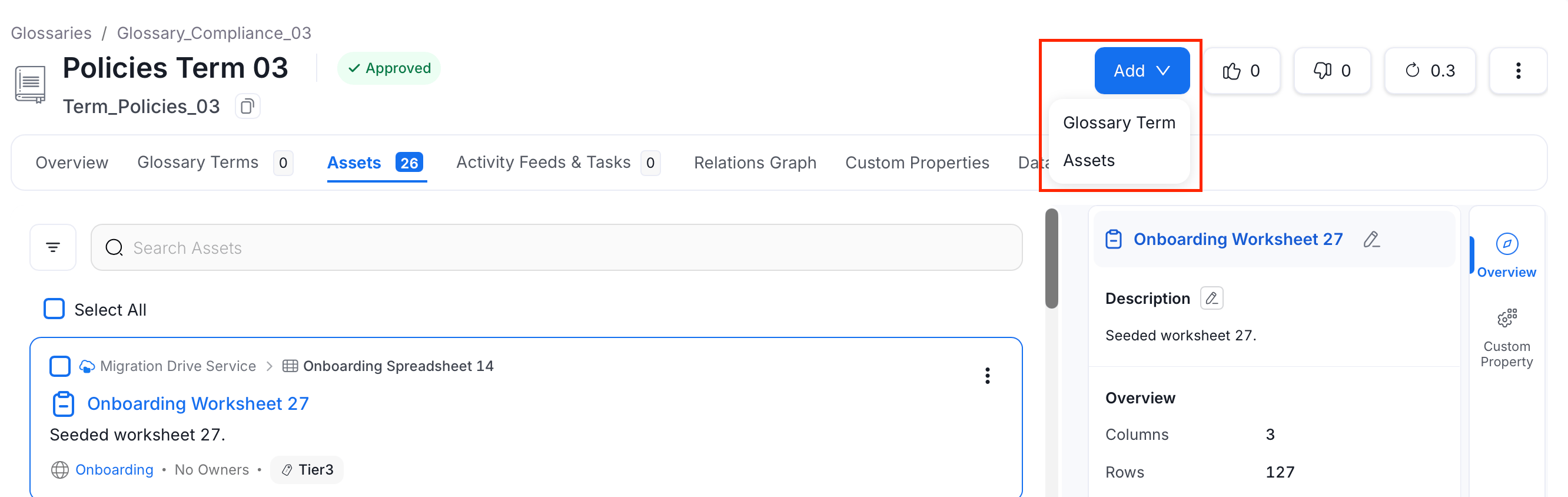 2. Search and filter assets by type or select the relevant assets and click **Save**.
 The glossary term lists the Assets, which makes it easy to discover all the data assets related to the term.
## Glossary Terms and Tags
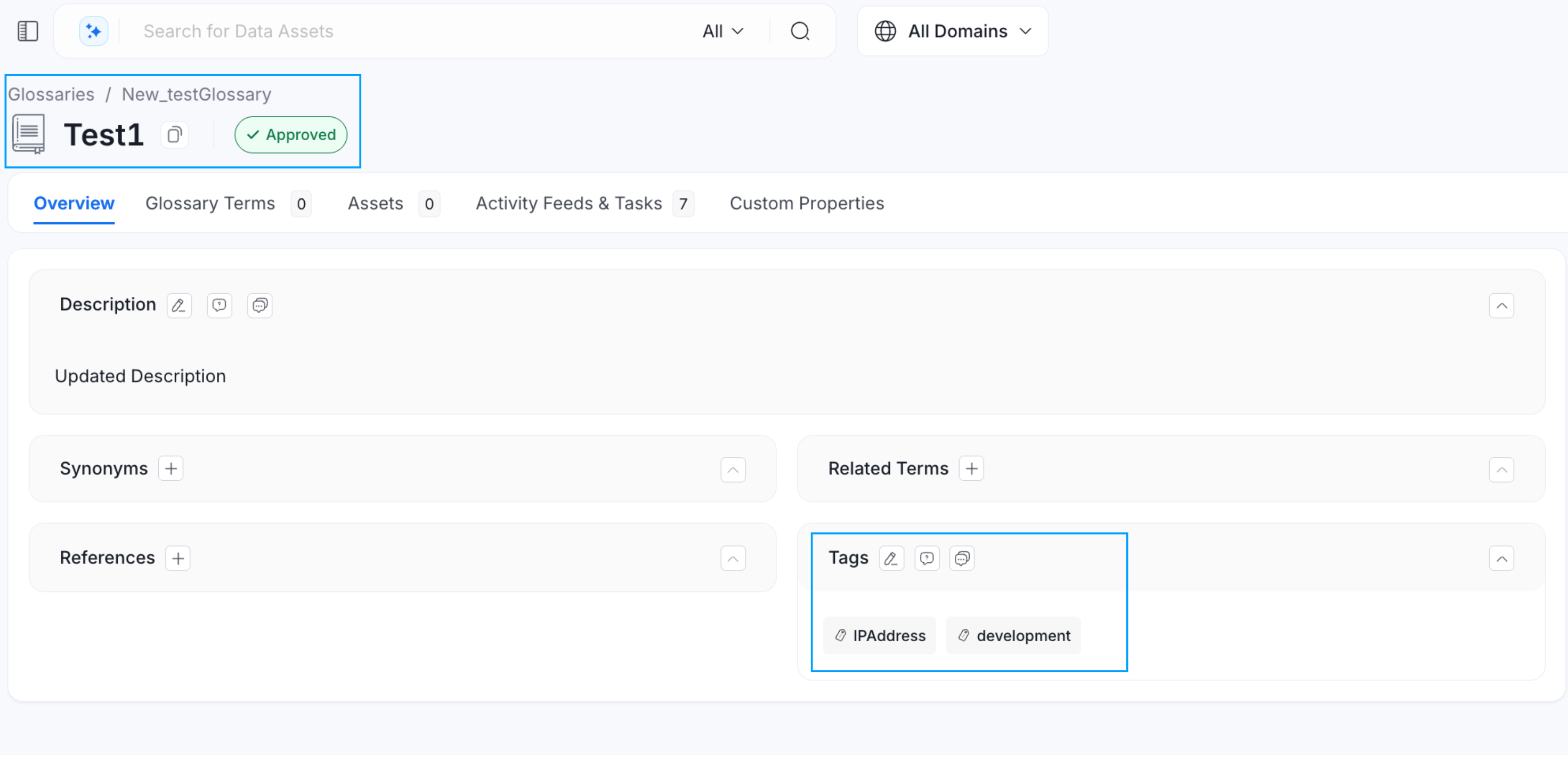
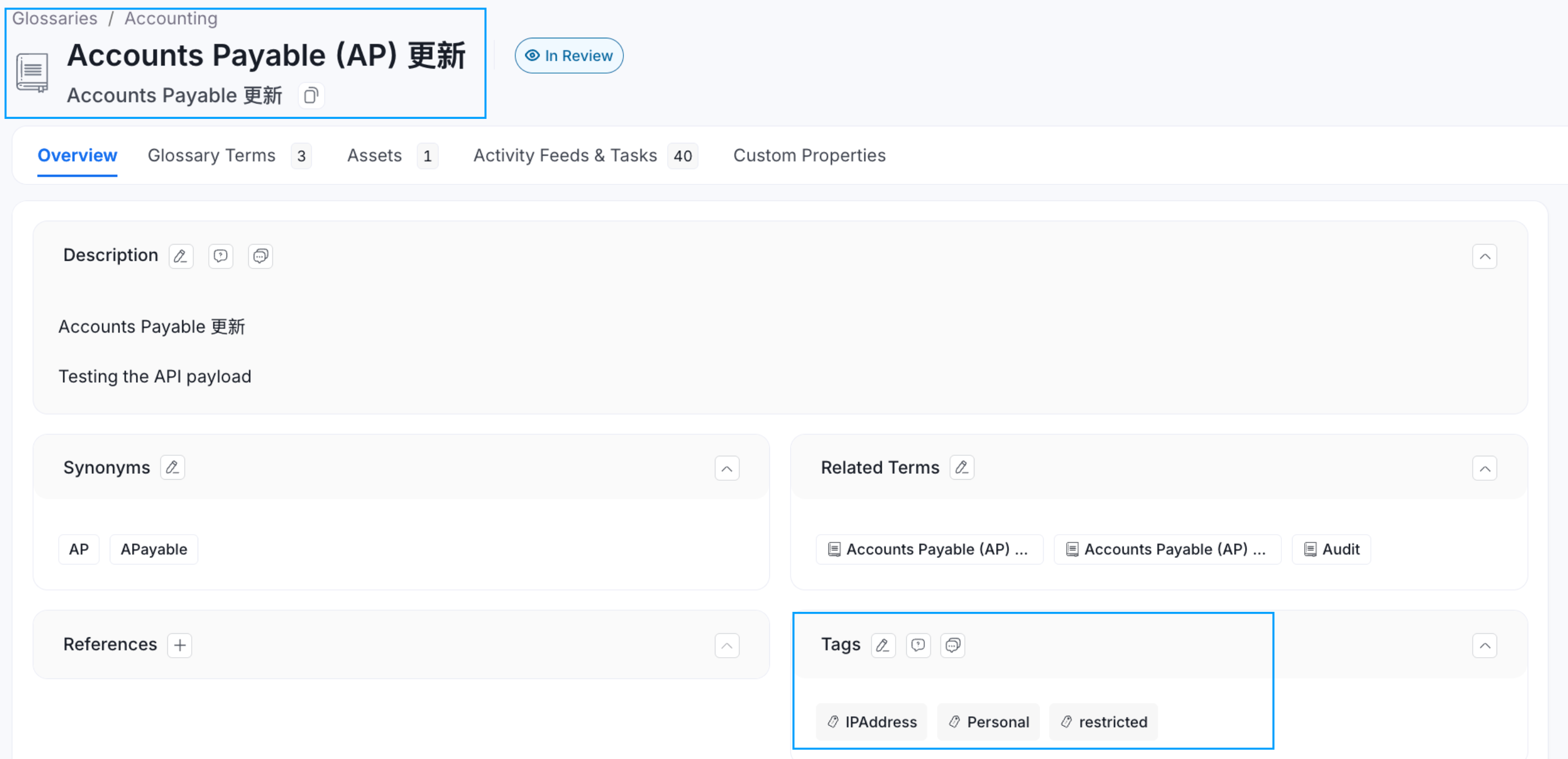
If **Tags** are associated with a **Glossary Term**, then applying that glossary term to a data asset, will also automatically apply the associated tags to that data asset. For example, the glossary term ‘Account’ has a PII.Sensitive tag associated with it. When you add a glossary term to a data asset, the associated tags also get added.
The glossary term lists the Assets, which makes it easy to discover all the data assets related to the term.
## Glossary Terms and Tags
If **Tags** are associated with a **Glossary Term**, then applying that glossary term to a data asset, will also automatically apply the associated tags to that data asset. For example, the glossary term ‘Account’ has a PII.Sensitive tag associated with it. When you add a glossary term to a data asset, the associated tags also get added.
 Here are the Top 8 Best Practices around Terminologies.