> ## Documentation Index
> Fetch the complete documentation index at: https://docs.getcollate.io/llms.txt
> Use this file to discover all available pages before exploring further.
# Column Bulk Operations
# Column Bulk Operations
## Overview
Modern data platforms collect data from many systems. APIs generate application data. Databases such as MySQL, PostgreSQL, and Oracle store operational records. Data warehouses such as Snowflake or BigQuery power analytics. Files land in storage systems like S3. Search indexes also hold structured data.
Across all these systems, many columns represent the same concept. For example:
* `customer_id`
* `customer_email`
* `address`
* `order_id`
These columns can appear thousands of times across tables and services.
Managing governance metadata for each instance individually becomes difficult. You must update descriptions, tags, and glossary terms one asset at a time.
Column Bulk Operations solves this problem by identifying unique column names across the platform and allowing you to manage their metadata in one place. A single update propagates across every instance of that column.
## How Column Bulk Operations Works
The feature groups columns by their name across the entire metadata platform.
For example, a column named `customer_id` might appear in:
* MySQL tables
* PostgreSQL tables
* Snowflake warehouse tables
* Data lake tables
* Search indexes
Although these columns live in different systems, they represent the same logical field. Column Bulk Operations treats them as a unique column group and lets you manage them together.
## Accessing Column Bulk Operations
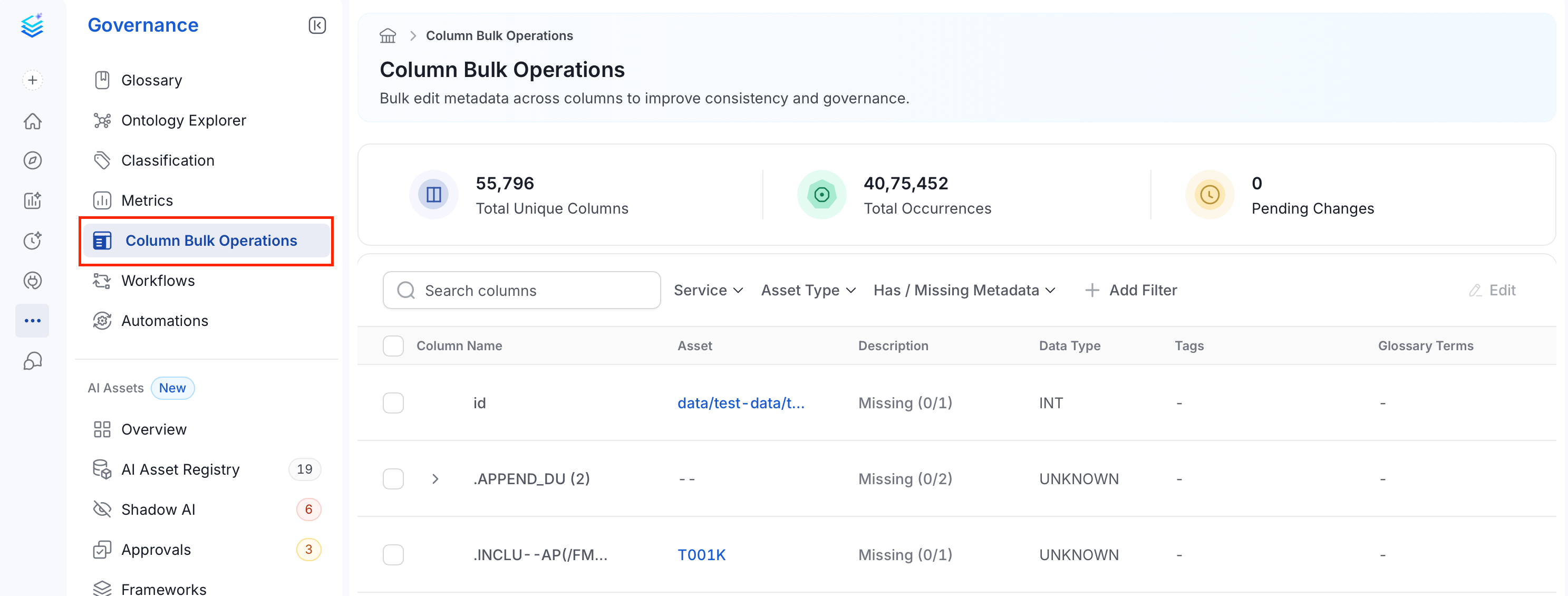
From the left navigation bar, select **Governance** > **Column Bulk Operations**.
This page provides a centralized view of all unique columns along with:
* Number of occurrences
* Metadata completeness
* Governance metadata
This view helps you quickly identify where documentation or governance updates are missing.
## Updating Columns in Bulk
Instead of editing columns one table at a time, you can apply governance metadata across all occurrences of a column in a single update.
1. From the left navigation bar, navigate to **Governance** > **Column Bulk Operations**.
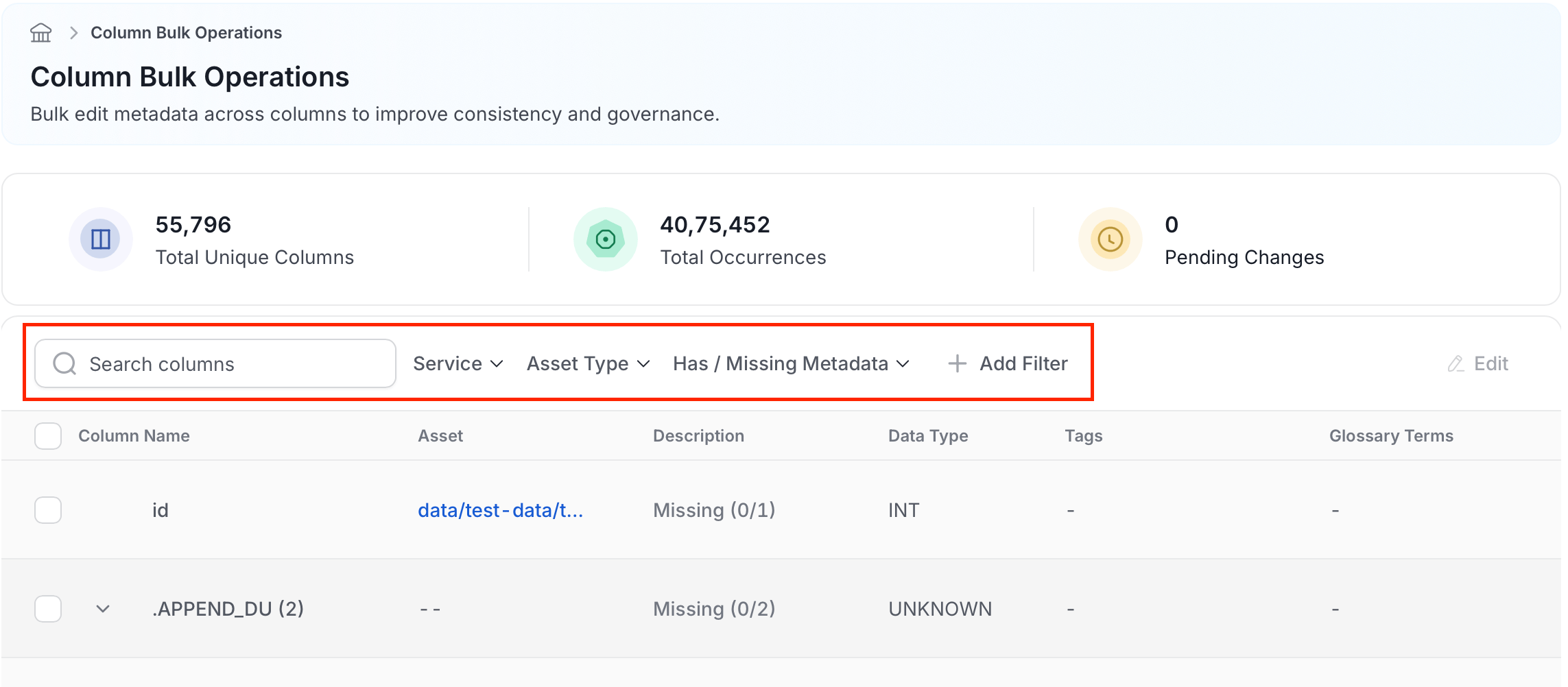
2. Use the **Search columns** bar to find a column by name, or use the **Service**, **Asset Type**, or **Has / Missing Metadata** filters to narrow the list.
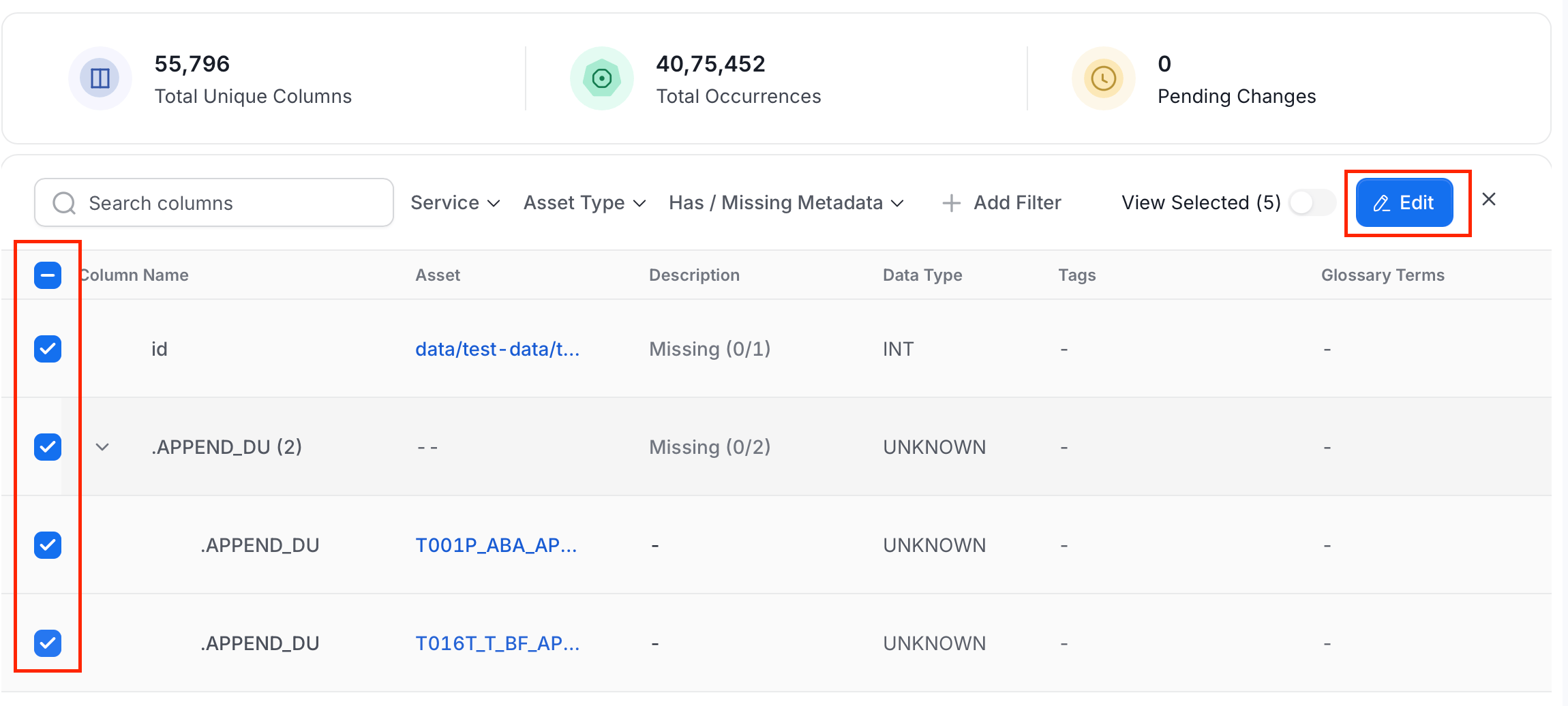
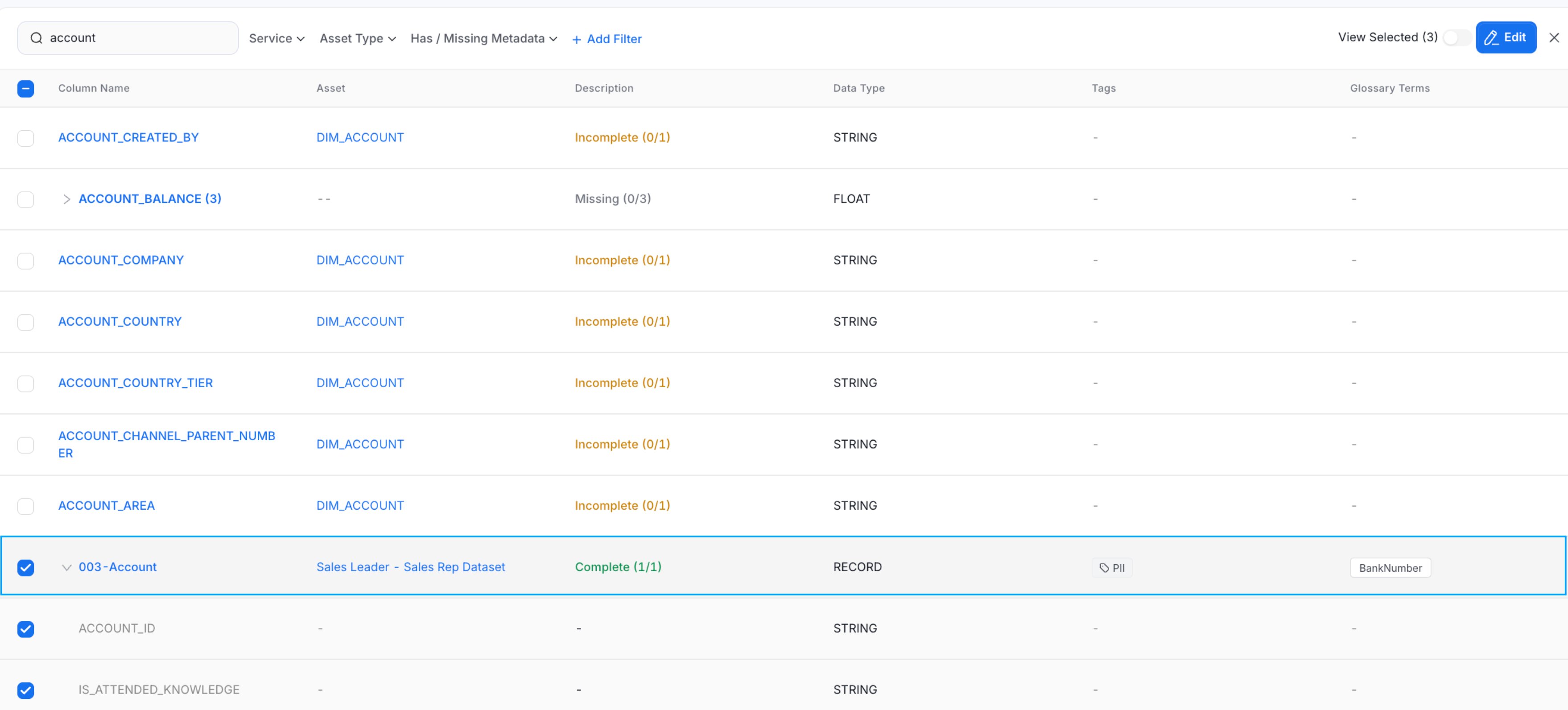
3. Expand a column group to view individual occurrences across assets, then select the rows you want to update using the checkboxes.
4. Click **Edit** (top right) to open the edit panel.
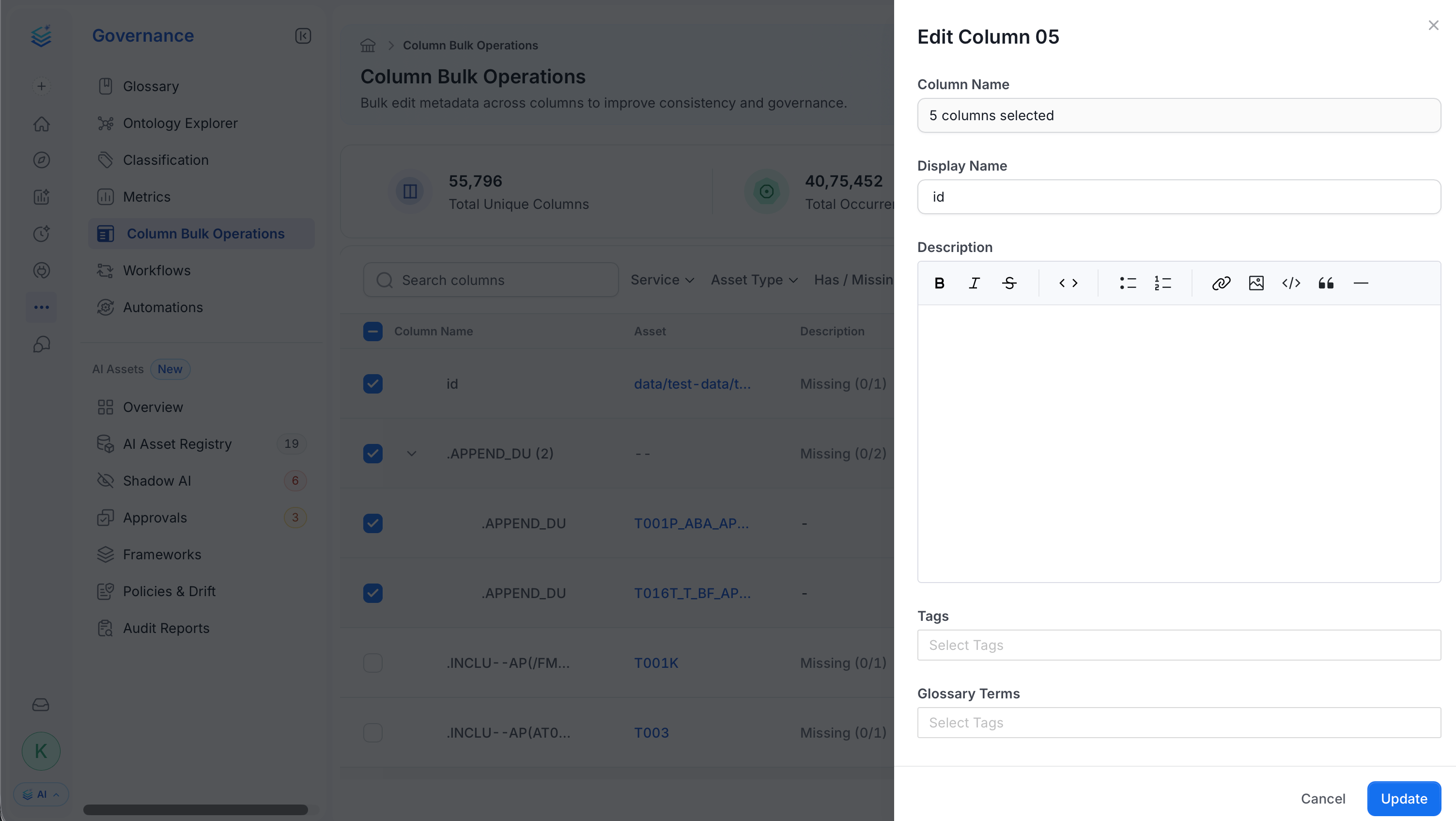
5. Fill in the following fields:
* **Display Name**: Enter a human-readable name for the column.
* **Description**: Provide a consistent business definition.
* **Tags**: Apply classification labels such as PII or Sensitive.
* **Glossary Terms**: Link the column to business concepts.
6. Click **Save**. Collate applies the update to every selected occurrence.
## Metadata You Can Update
Column Bulk Operations supports the following governance updates:
* **Display Name**: Standardize a human-readable label across all occurrences.
* **Description**: Provide a consistent business definition.
* **Tags**: Apply classification labels such as PII or Sensitive.
* **Glossary Terms**: Connect columns to business concepts.
These updates ensure that the same column meaning is maintained across the data ecosystem.
## Metadata Status
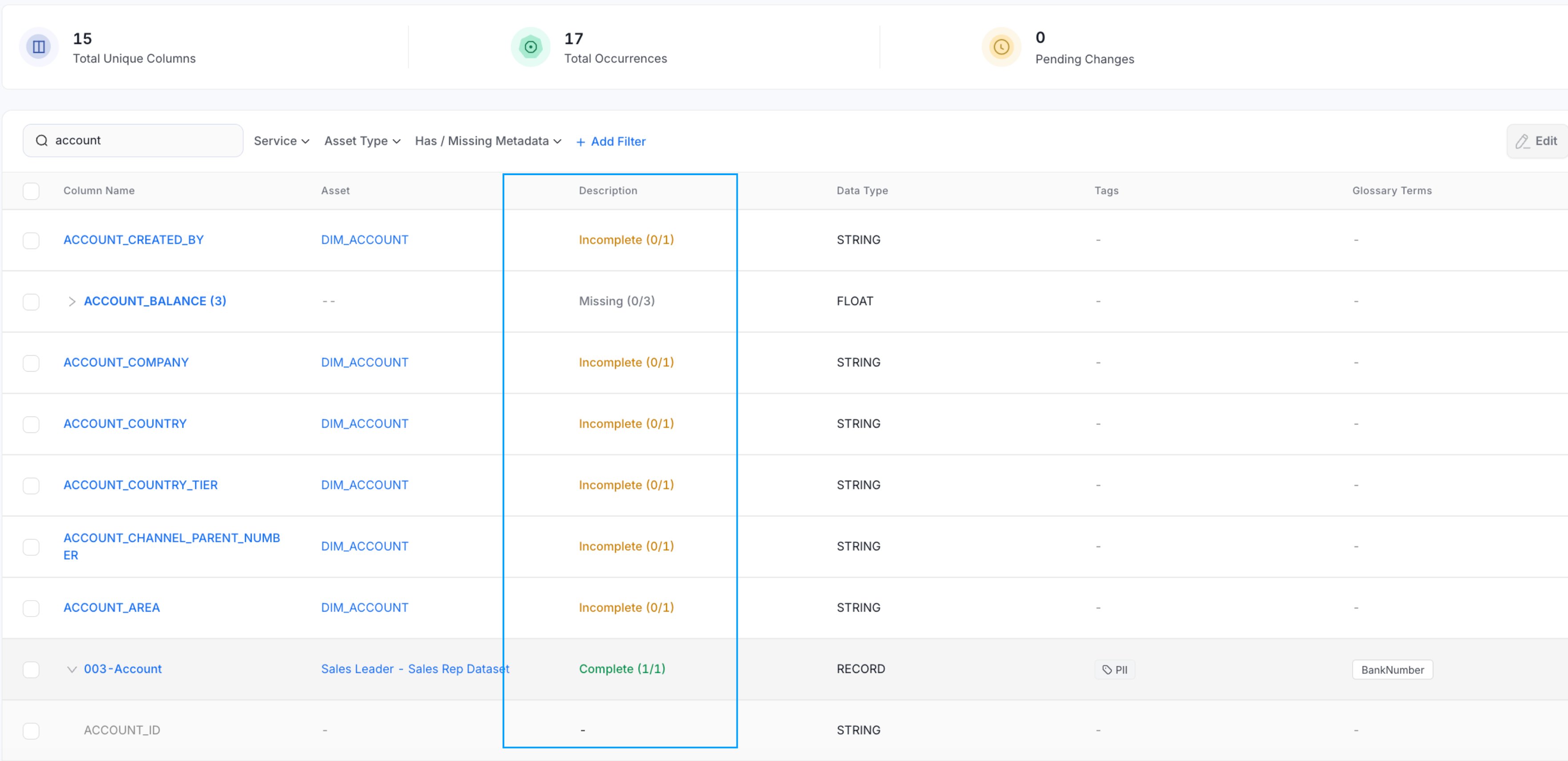
Use the **Has / Missing Metadata** filter to narrow columns by their metadata quality. The available statuses are:
* **Missing**: Columns with no description, tags, or glossary terms across any occurrence.
* **Incomplete**: Columns where some occurrences have metadata but others do not.
* **Inconsistent**: Columns where metadata differs across occurrences — for example, different descriptions or tags.
* **Complete**: Columns where all occurrences have consistent metadata.
These statuses help you quickly identify columns that need attention.
## Columns Filters
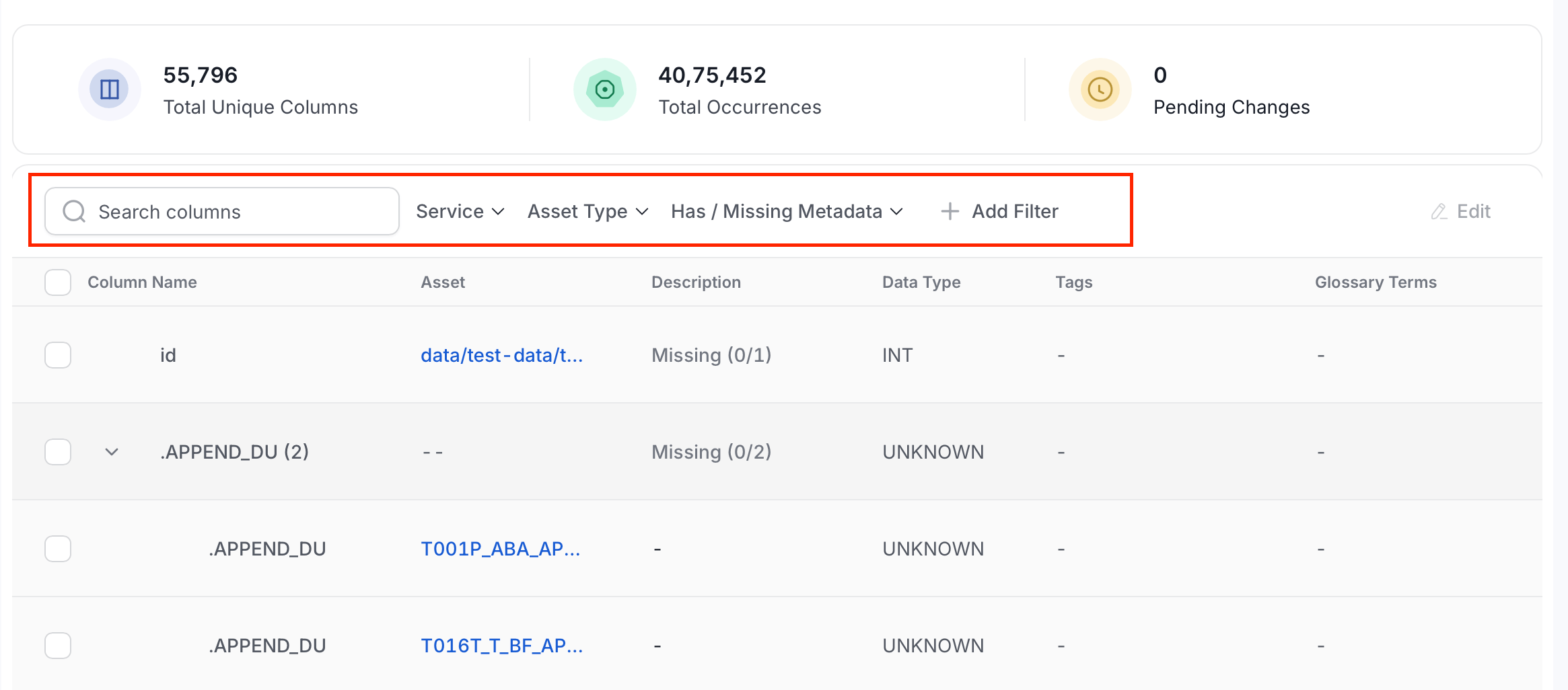
Use filters to narrow the scope of governance work.
You can filter by:
* **Service**: Narrow to a specific connected service such as Snowflake or BigQuery.
* **Asset Type**: Filter by entity type such as Table, Topic, or Container.
* **Has / Missing Metadata**: Filter by metadata status — Missing, Incomplete, Inconsistent, or Complete.
* **Add Filter**: Add additional filters by Domain, Tags, or Glossary Terms.
This lets you focus on specific domains or systems.
## Lineage Propagation
Column Bulk Operations also works with lineage. As columns move through pipelines and transformations, the governance metadata remains consistent across the data flow. This ensures column definitions stay aligned even as data moves across systems.
 ## Updating Columns in Bulk
Instead of editing columns one table at a time, you can apply governance metadata across all occurrences of a column in a single update.
1. From the left navigation bar, navigate to **Governance** > **Column Bulk Operations**.
2. Use the **Search columns** bar to find a column by name, or use the **Service**, **Asset Type**, or **Has / Missing Metadata** filters to narrow the list.
## Updating Columns in Bulk
Instead of editing columns one table at a time, you can apply governance metadata across all occurrences of a column in a single update.
1. From the left navigation bar, navigate to **Governance** > **Column Bulk Operations**.
2. Use the **Search columns** bar to find a column by name, or use the **Service**, **Asset Type**, or **Has / Missing Metadata** filters to narrow the list.
 3. Expand a column group to view individual occurrences across assets, then select the rows you want to update using the checkboxes.
4. Click **Edit** (top right) to open the edit panel.
3. Expand a column group to view individual occurrences across assets, then select the rows you want to update using the checkboxes.
4. Click **Edit** (top right) to open the edit panel.
 5. Fill in the following fields:
* **Display Name**: Enter a human-readable name for the column.
* **Description**: Provide a consistent business definition.
* **Tags**: Apply classification labels such as PII or Sensitive.
* **Glossary Terms**: Link the column to business concepts.
5. Fill in the following fields:
* **Display Name**: Enter a human-readable name for the column.
* **Description**: Provide a consistent business definition.
* **Tags**: Apply classification labels such as PII or Sensitive.
* **Glossary Terms**: Link the column to business concepts.
 6. Click **Save**. Collate applies the update to every selected occurrence.
 ## Metadata You Can Update
Column Bulk Operations supports the following governance updates:
* **Display Name**: Standardize a human-readable label across all occurrences.
* **Description**: Provide a consistent business definition.
* **Tags**: Apply classification labels such as PII or Sensitive.
* **Glossary Terms**: Connect columns to business concepts.
These updates ensure that the same column meaning is maintained across the data ecosystem.
## Metadata You Can Update
Column Bulk Operations supports the following governance updates:
* **Display Name**: Standardize a human-readable label across all occurrences.
* **Description**: Provide a consistent business definition.
* **Tags**: Apply classification labels such as PII or Sensitive.
* **Glossary Terms**: Connect columns to business concepts.
These updates ensure that the same column meaning is maintained across the data ecosystem.
 These statuses help you quickly identify columns that need attention.
## Columns Filters
Use filters to narrow the scope of governance work.
You can filter by:
* **Service**: Narrow to a specific connected service such as Snowflake or BigQuery.
* **Asset Type**: Filter by entity type such as Table, Topic, or Container.
* **Has / Missing Metadata**: Filter by metadata status — Missing, Incomplete, Inconsistent, or Complete.
* **Add Filter**: Add additional filters by Domain, Tags, or Glossary Terms.
These statuses help you quickly identify columns that need attention.
## Columns Filters
Use filters to narrow the scope of governance work.
You can filter by:
* **Service**: Narrow to a specific connected service such as Snowflake or BigQuery.
* **Asset Type**: Filter by entity type such as Table, Topic, or Container.
* **Has / Missing Metadata**: Filter by metadata status — Missing, Incomplete, Inconsistent, or Complete.
* **Add Filter**: Add additional filters by Domain, Tags, or Glossary Terms.
 This lets you focus on specific domains or systems.
## Lineage Propagation
Column Bulk Operations also works with lineage. As columns move through pipelines and transformations, the governance metadata remains consistent across the data flow. This ensures column definitions stay aligned even as data moves across systems.
This lets you focus on specific domains or systems.
## Lineage Propagation
Column Bulk Operations also works with lineage. As columns move through pipelines and transformations, the governance metadata remains consistent across the data flow. This ensures column definitions stay aligned even as data moves across systems.