> ## Documentation Index
> Fetch the complete documentation index at: https://docs.getcollate.io/llms.txt
> Use this file to discover all available pages before exploring further.
# How to Request for Classification Tags
> Use request tags to improve collaboration and feedback on data assets by enabling users to flag and annotate classification needs.
# How to Request for Classification Tags
Apart from adding the tags directly, users can also request to update tags. This is typically done when the user wants another opinion on the tag being added, or if the user does not have access to add tags directly.
1. On the data asset detail page, click the  icon next to **Tags** in the right panel.
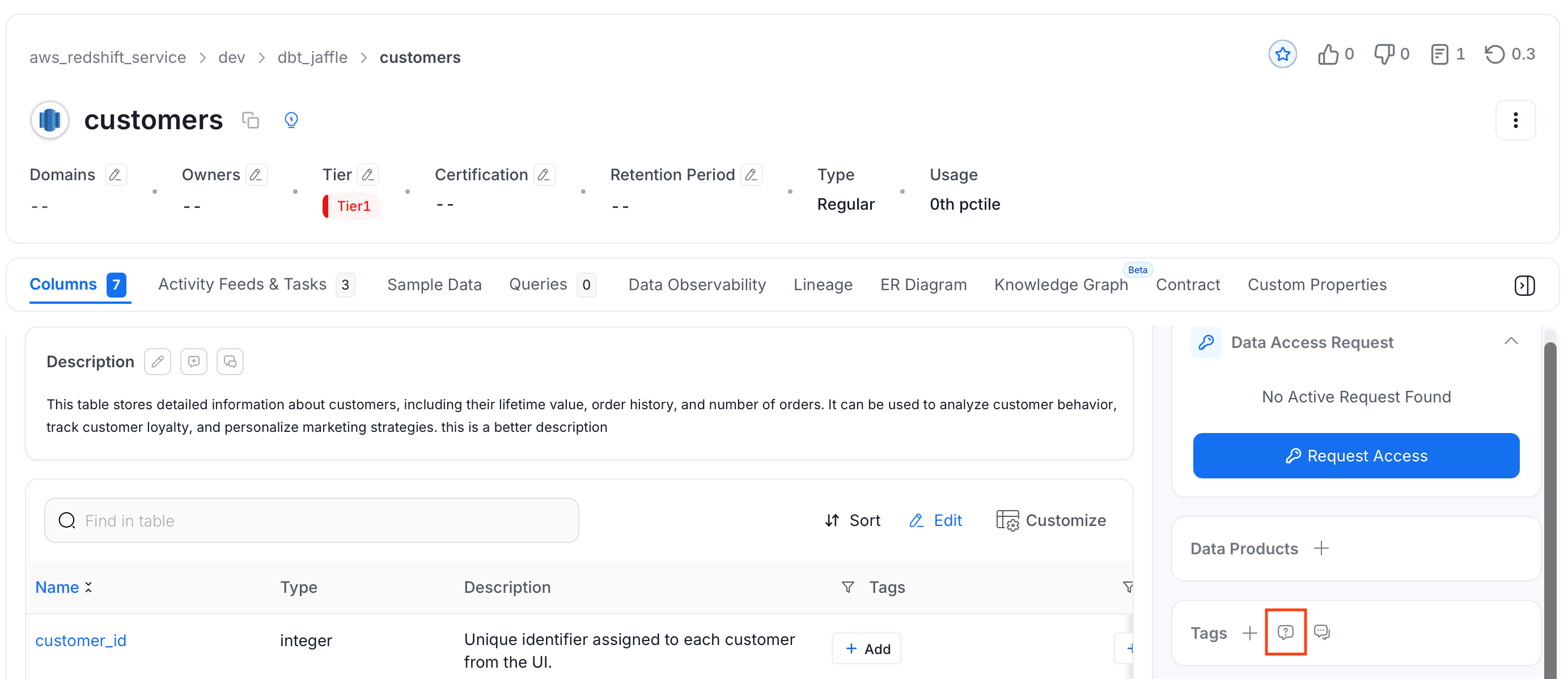 2. A **Create Task** form opens with the following fields:
* **Task Title**: Pre-populated with a default title (for example, "Request tags for table customers").
* **Assignees** (required): Search and select one or more users to assign the task to.
* **Tags To Add**: Use the three tabs to manage the tag update:
* **Current**: View the tags currently applied to the asset.
* **New**: Select the new tags you want to request.
* **Diff**: Preview the difference between the current and new tags.
2. A **Create Task** form opens with the following fields:
* **Task Title**: Pre-populated with a default title (for example, "Request tags for table customers").
* **Assignees** (required): Search and select one or more users to assign the task to.
* **Tags To Add**: Use the three tabs to manage the tag update:
* **Current**: View the tags currently applied to the asset.
* **New**: Select the new tags you want to request.
* **Diff**: Preview the difference between the current and new tags.
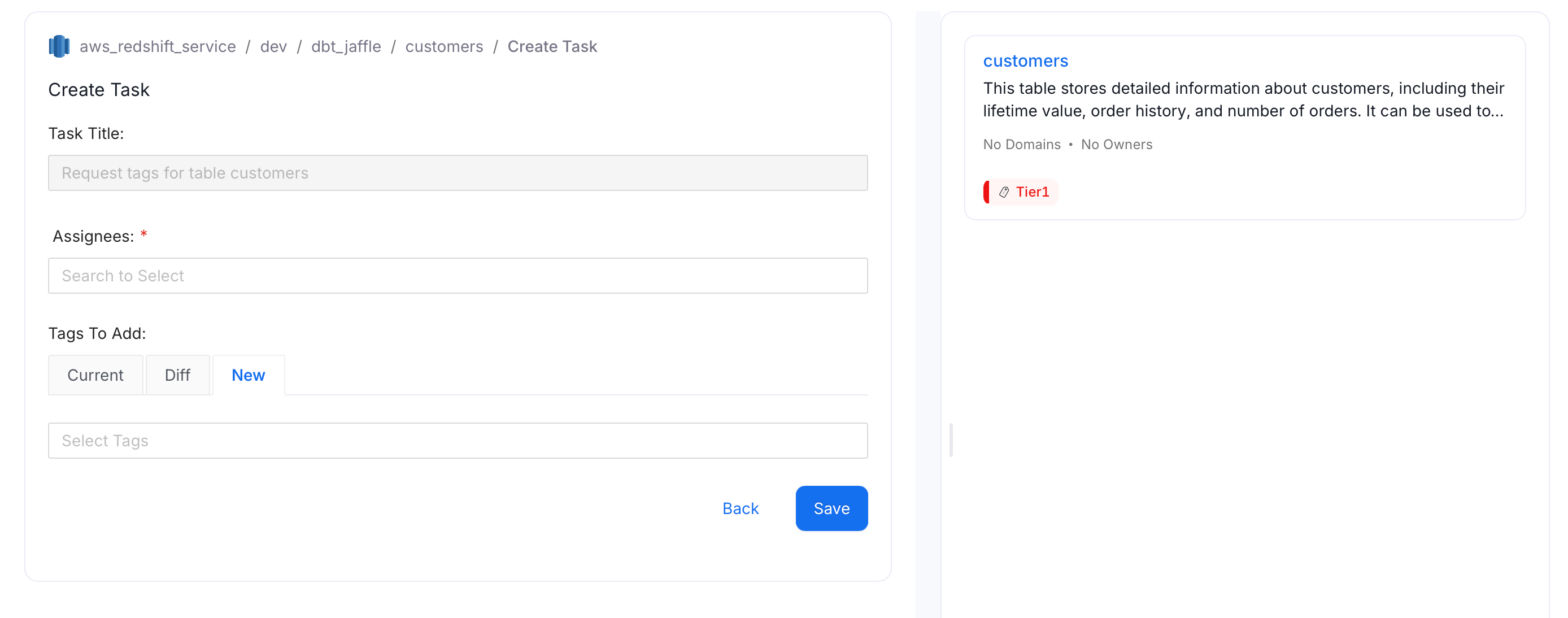 3. Click **Save** to submit the request.
After you create the request, it appears in the **Activity Feeds & Tasks** tab for that data asset. Assignees can either `Accept the Suggestion` or `Edit and Accept the Suggestion`. They can also add a **Comment** or assign additional **Assignees**.
3. Click **Save** to submit the request.
After you create the request, it appears in the **Activity Feeds & Tasks** tab for that data asset. Assignees can either `Accept the Suggestion` or `Edit and Accept the Suggestion`. They can also add a **Comment** or assign additional **Assignees**.
 ## Conversations around Classification
You can start a conversation around the tags assigned to a data asset to discuss and collaborate with your team.
1. On the data asset detail page, click the **Conversation** icon next to **Tags** in the right panel.
## Conversations around Classification
You can start a conversation around the tags assigned to a data asset to discuss and collaborate with your team.
1. On the data asset detail page, click the **Conversation** icon next to **Tags** in the right panel.
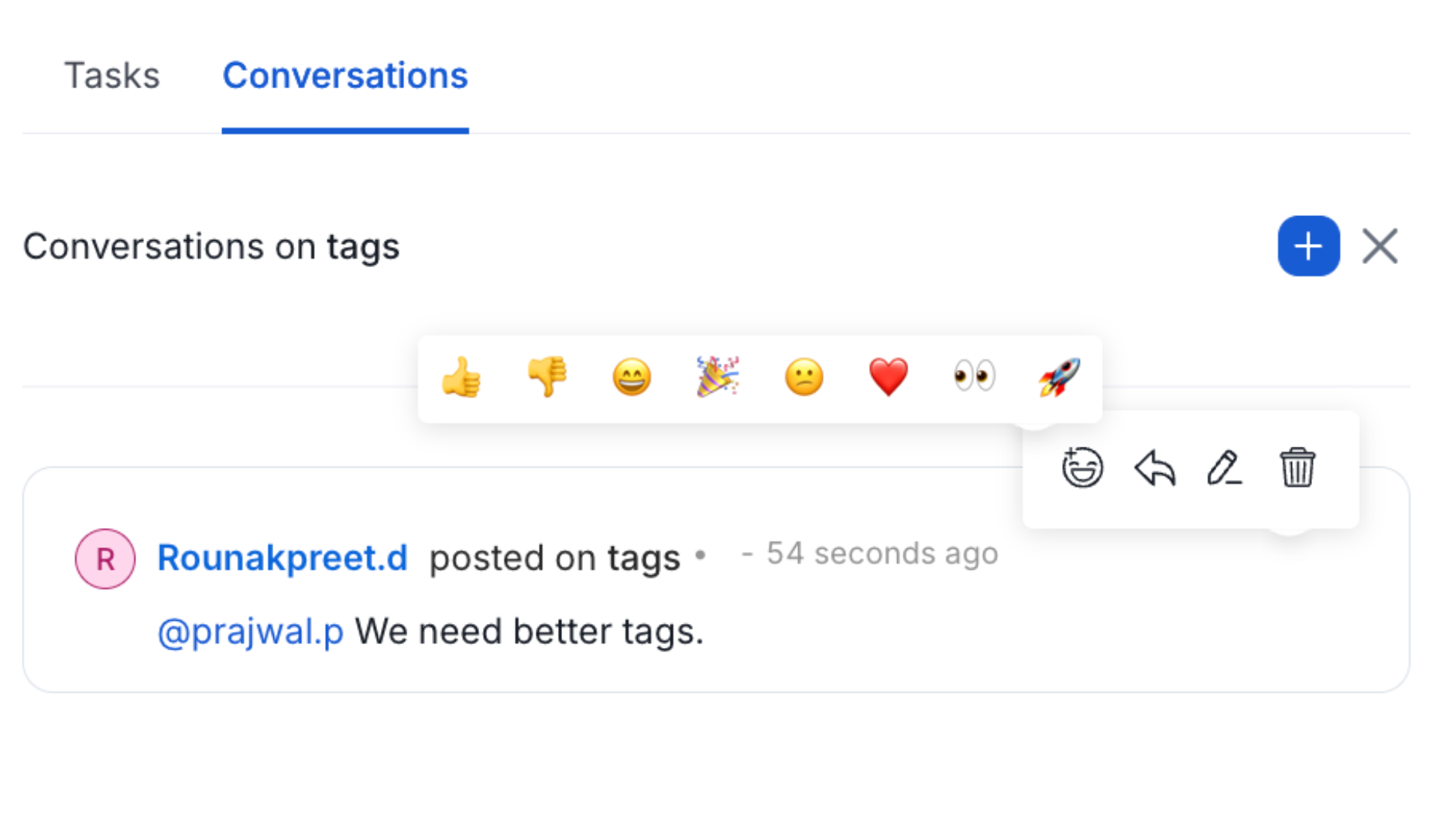
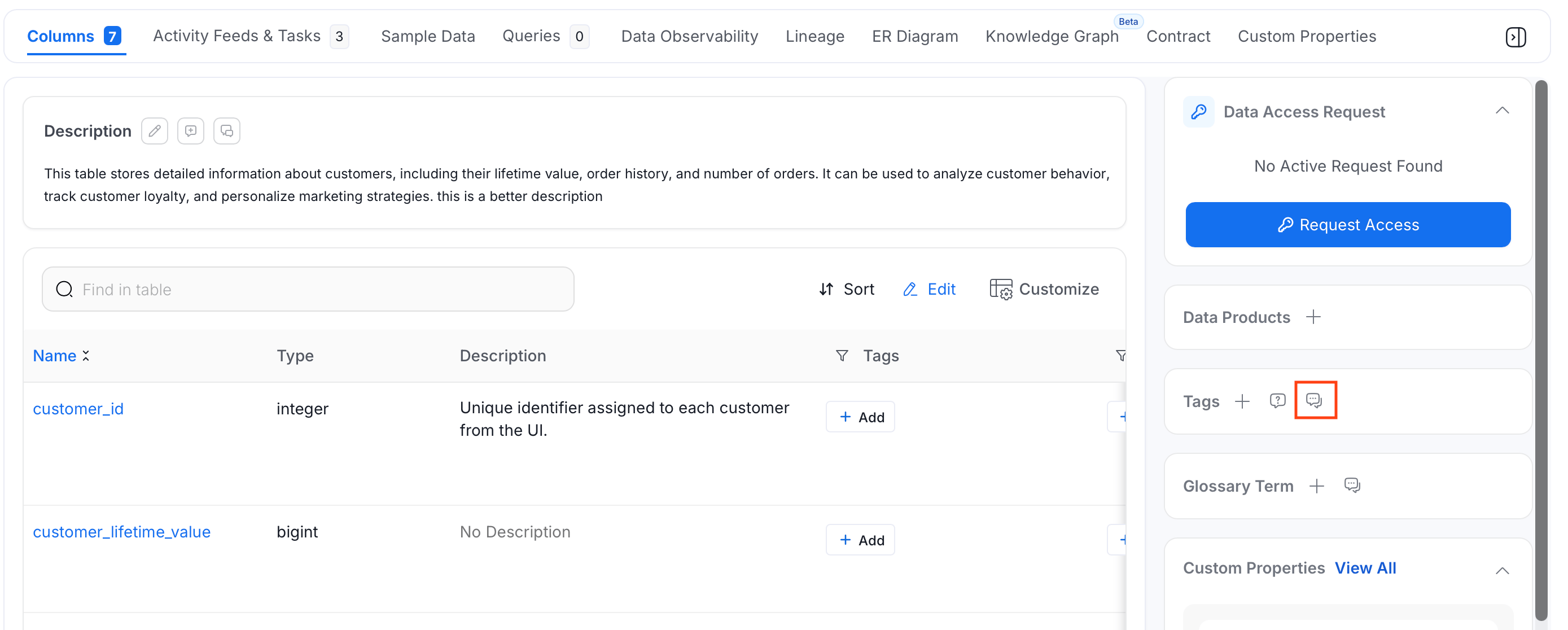 2. A **Conversations** panel opens. Type your message in the text editor. Use **@mention** to tag a user or team, and **#mention** to reference a data asset. Click the send button to post.
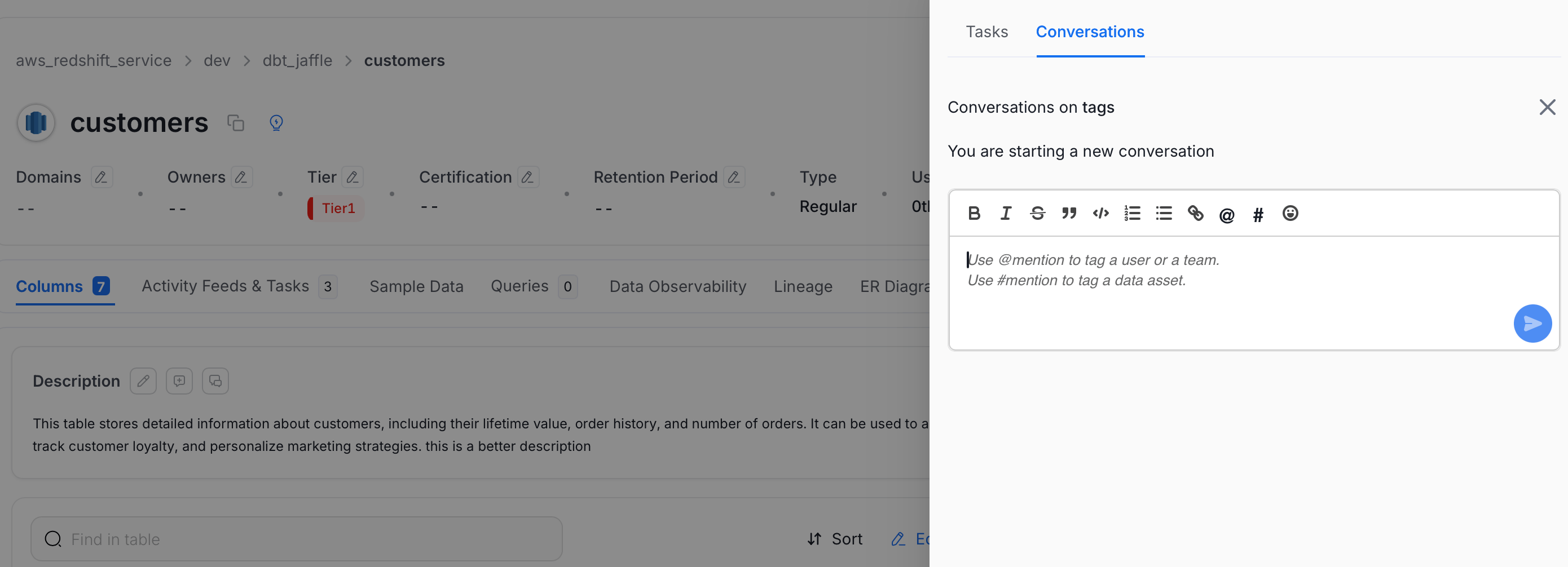 3. Your message appears in the **Conversations** tab. You can add **Reactions**, **Reply** to continue the discussion, or **Edit** and **Delete** your message.
 Learn how Collate identifies PII data and auto tags or suggests the tags.