> ## Documentation Index
> Fetch the complete documentation index at: https://docs.getcollate.io/llms.txt
> Use this file to discover all available pages before exploring further.
# Managing and Editing Table Constraints
> Learn how to view, edit, and manage table constraints in Collate to track relationships, enhance lineage, and support data governance.
# Table Constraints
Table constraints define the rules and relationships that apply to columns in a table — such as primary keys, foreign keys, and unique constraints. In Collate, these constraints are automatically captured during metadata ingestion and displayed on the table's detail page, giving you a clear picture of how your tables relate to one another.
Understanding table constraints helps with:
* **Data discovery:** Quickly see which columns are keys or references to other tables.
* **Lineage tracking:** Foreign key relationships feed into Collate's lineage graph.
* **Data governance:** Enforce and communicate structural rules about your data.
## Viewing Table Constraints
Once metadata ingestion is complete:
1. Open the table you want to inspect.
2. Click the **Columns** tab (selected by default).
3. Scroll down the right panel to find the **Table Constraints** section.
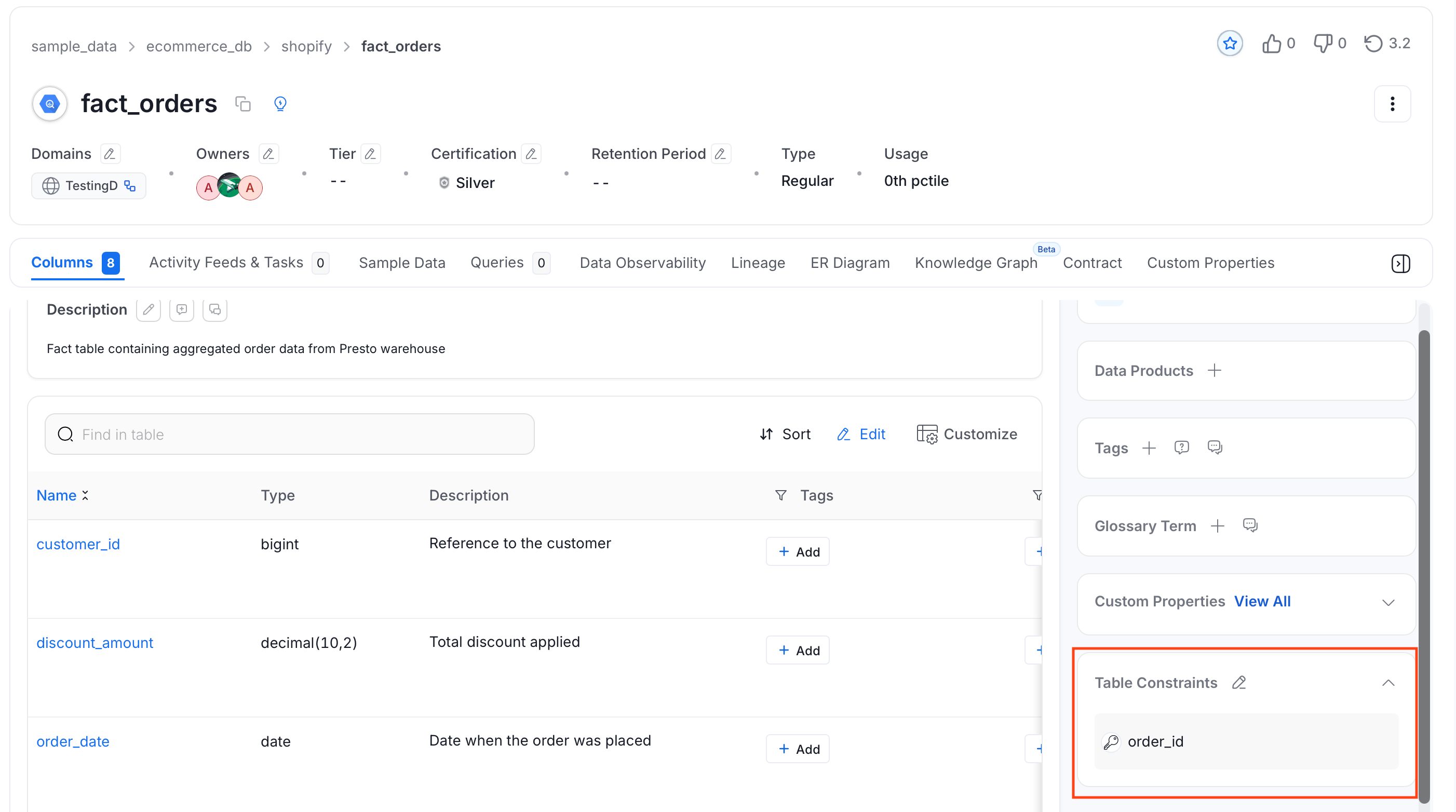 Each constraint is shown with an icon indicating its type — for example, a key icon (🔑) indicates a primary key column. Foreign key constraints also show the referenced table and column, making it easy to trace relationships across your data.
## Editing Table Constraints
You can manually add or modify table constraints directly from the Collate UI if they were not captured during ingestion or need correction.
### Before You Begin
Make sure you have **Edit** permissions on the table. If the edit option is grayed out, contact your Collate administrator to request the appropriate role.
### Steps to Edit
1. Navigate to the table's detail page and open the **Columns** tab.
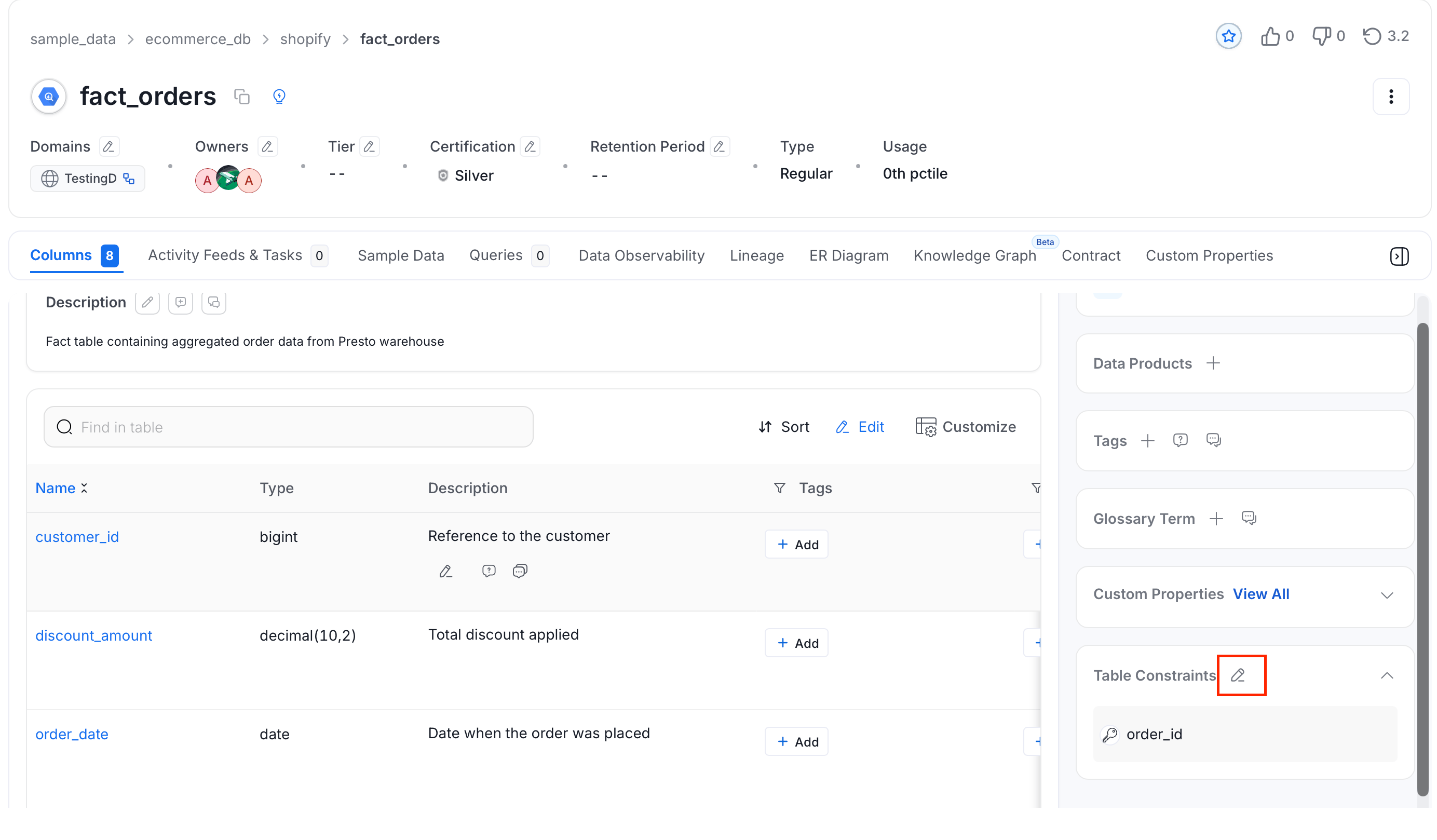
2. Click the **Edit** (pencil) icon next to the **Table Constraints** section in the right panel.
Each constraint is shown with an icon indicating its type — for example, a key icon (🔑) indicates a primary key column. Foreign key constraints also show the referenced table and column, making it easy to trace relationships across your data.
## Editing Table Constraints
You can manually add or modify table constraints directly from the Collate UI if they were not captured during ingestion or need correction.
### Before You Begin
Make sure you have **Edit** permissions on the table. If the edit option is grayed out, contact your Collate administrator to request the appropriate role.
### Steps to Edit
1. Navigate to the table's detail page and open the **Columns** tab.
2. Click the **Edit** (pencil) icon next to the **Table Constraints** section in the right panel.
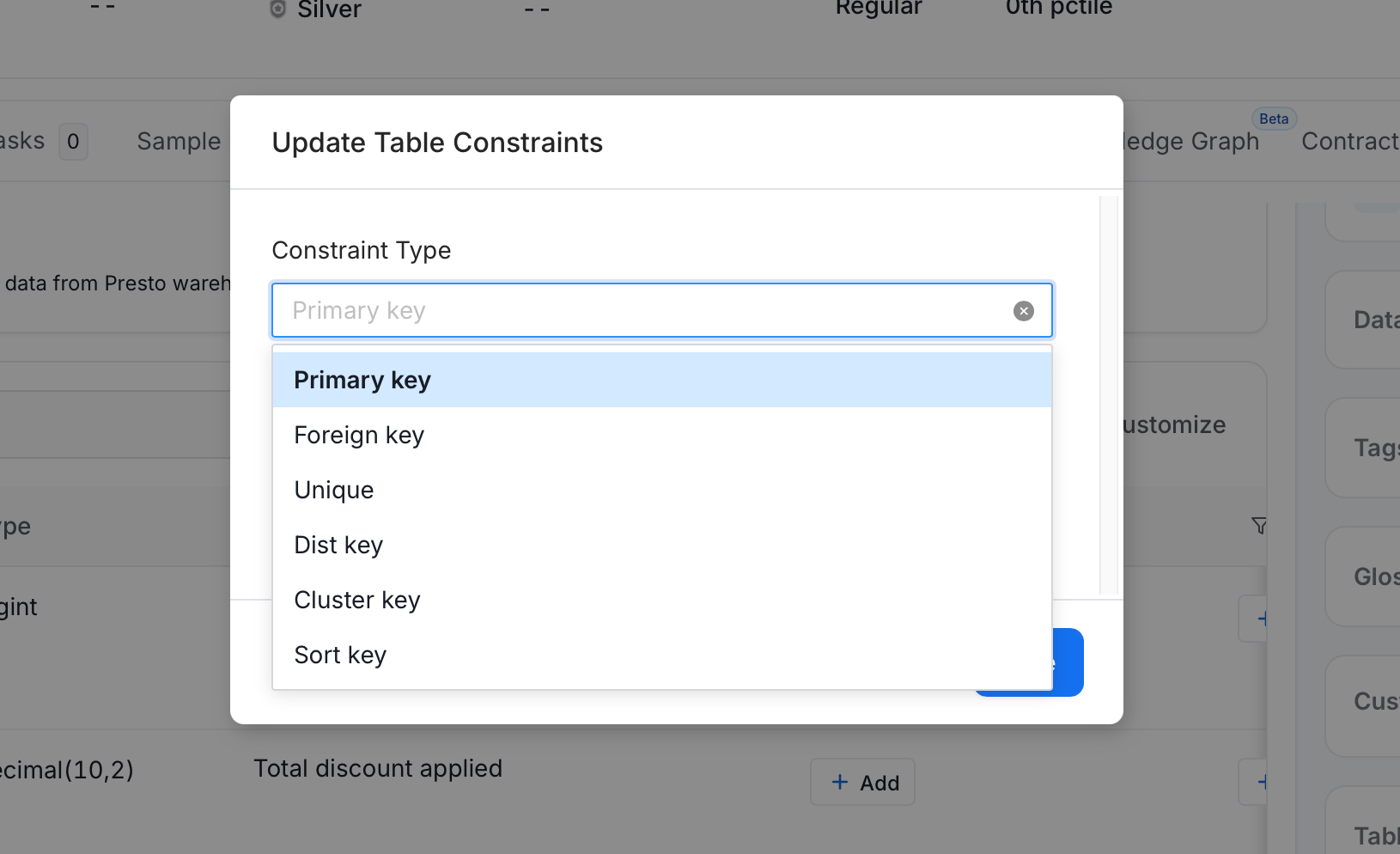
 3. An editing panel appears where you can add, update, or remove constraints. For each constraint, select the **Constraint Type** and the **Column(s)** it applies to. Collate supports the following constraint types:
* **Primary Key** — Identifies each row in the table uniquely. Select one or more columns that form the primary key.
* **Foreign Key** — Links a column in this table to a column in another table. After selecting the columns, specify the referenced table and column, and choose the relationship type (One to One, One to Many, Many to One, Many to Many).
* **Unique** — Ensures all values in the selected column(s) are distinct.
* **Dist Key** — Marks the column used to distribute rows across nodes (common in Redshift and Snowflake).
* **Sort Key** — Marks the column used to sort rows on disk for faster queries (common in Redshift and Snowflake).
* **Cluster Key** — Marks the column used for clustering (common in BigQuery and Snowflake).
3. An editing panel appears where you can add, update, or remove constraints. For each constraint, select the **Constraint Type** and the **Column(s)** it applies to. Collate supports the following constraint types:
* **Primary Key** — Identifies each row in the table uniquely. Select one or more columns that form the primary key.
* **Foreign Key** — Links a column in this table to a column in another table. After selecting the columns, specify the referenced table and column, and choose the relationship type (One to One, One to Many, Many to One, Many to Many).
* **Unique** — Ensures all values in the selected column(s) are distinct.
* **Dist Key** — Marks the column used to distribute rows across nodes (common in Redshift and Snowflake).
* **Sort Key** — Marks the column used to sort rows on disk for faster queries (common in Redshift and Snowflake).
* **Cluster Key** — Marks the column used for clustering (common in BigQuery and Snowflake).
 4. Save your changes.
If the editing option is unavailable, it may indicate insufficient permissions or that the feature requires a newer version of Collate. In that case, consult your administrator.
4. Save your changes.
If the editing option is unavailable, it may indicate insufficient permissions or that the feature requires a newer version of Collate. In that case, consult your administrator.