> ## Documentation Index
> Fetch the complete documentation index at: https://docs.getcollate.io/llms.txt
> Use this file to discover all available pages before exploring further.
# Inbox and Activity Feeds
> Use the Inbox to monitor activity, manage tasks, and view the health of data assets you own or follow.
# Inbox and Activity Feeds
The **Inbox** surfaces all activity and tasks related to data assets you own or follow, in one dedicated place.
## Accessing the Inbox
Select the **Inbox** icon at the bottom of the left sidebar. The badge on the icon shows a combined count of open tasks and unread activity — so you can see at a glance when something needs attention.
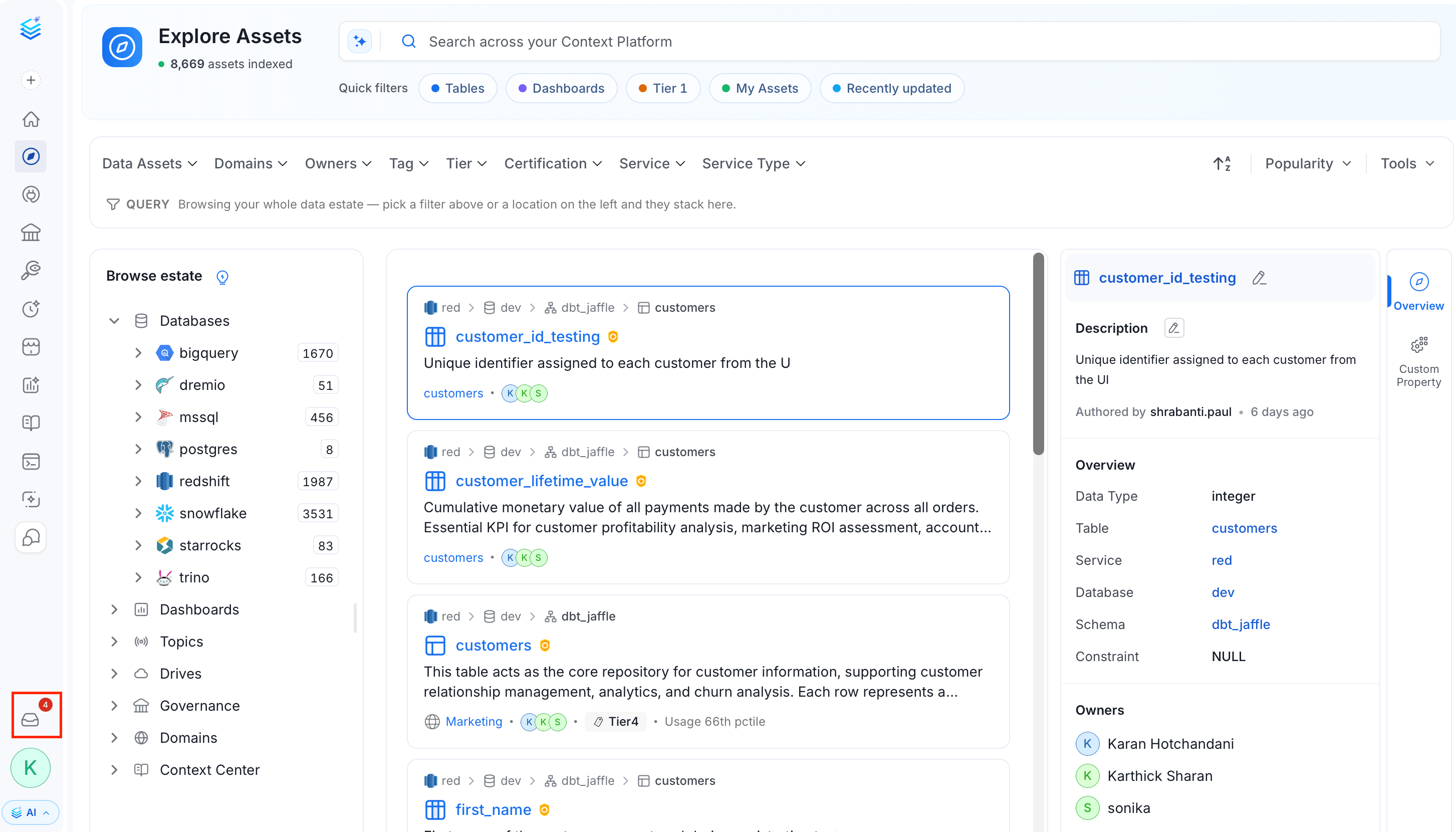 If you have open tasks, selecting the Inbox icon takes you directly to the **Tasks** sub-tab. Otherwise, it opens the **Activity** sub-tab.
## Triage Tab
The **Triage** tab is the main workspace for activity and tasks. Use the sub-tabs to switch between them.
### Activity
The **Activity** tab shows all activity related to data assets you own, follow, or where you are mentioned — including @mentions — in a single unified feed.
If you have open tasks, selecting the Inbox icon takes you directly to the **Tasks** sub-tab. Otherwise, it opens the **Activity** sub-tab.
## Triage Tab
The **Triage** tab is the main workspace for activity and tasks. Use the sub-tabs to switch between them.
### Activity
The **Activity** tab shows all activity related to data assets you own, follow, or where you are mentioned — including @mentions — in a single unified feed.
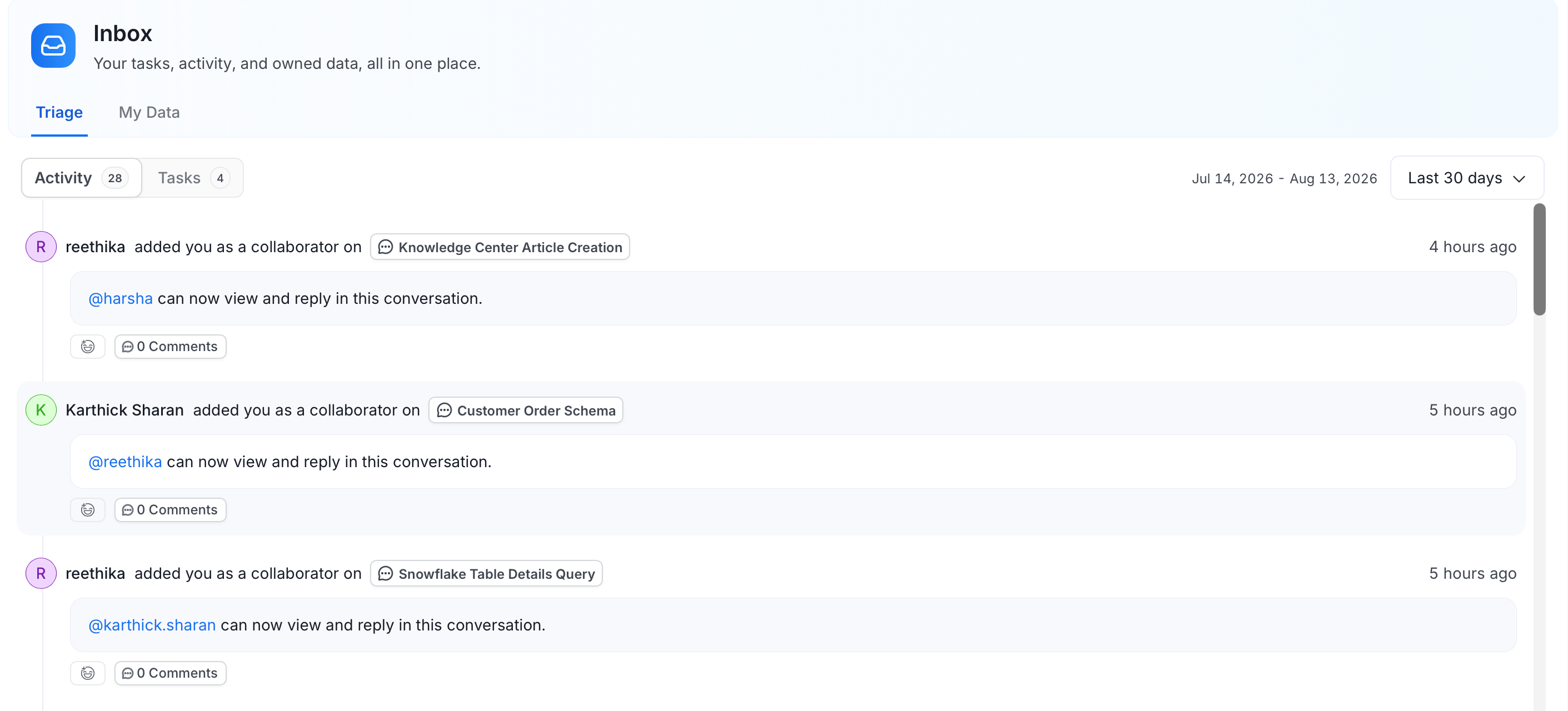 From any feed item, you can:
* **Reply** to continue a discussion
* **React** with an emoji
* **Edit** or **Delete** your own messages
Use **@mention** to tag a user or team in a reply, and **#mention** to tag a data asset.
### Tasks
The **Tasks** sub-tab shows tasks created by you or assigned to you, with three filter tabs:
* **All** — every task regardless of status
* **Open** (default) — tasks that still need action
* **Closed** — resolved or rejected tasks
Each filter tab shows a count badge so you can see at a glance how many tasks are in each state.
From any feed item, you can:
* **Reply** to continue a discussion
* **React** with an emoji
* **Edit** or **Delete** your own messages
Use **@mention** to tag a user or team in a reply, and **#mention** to tag a data asset.
### Tasks
The **Tasks** sub-tab shows tasks created by you or assigned to you, with three filter tabs:
* **All** — every task regardless of status
* **Open** (default) — tasks that still need action
* **Closed** — resolved or rejected tasks
Each filter tab shows a count badge so you can see at a glance how many tasks are in each state.
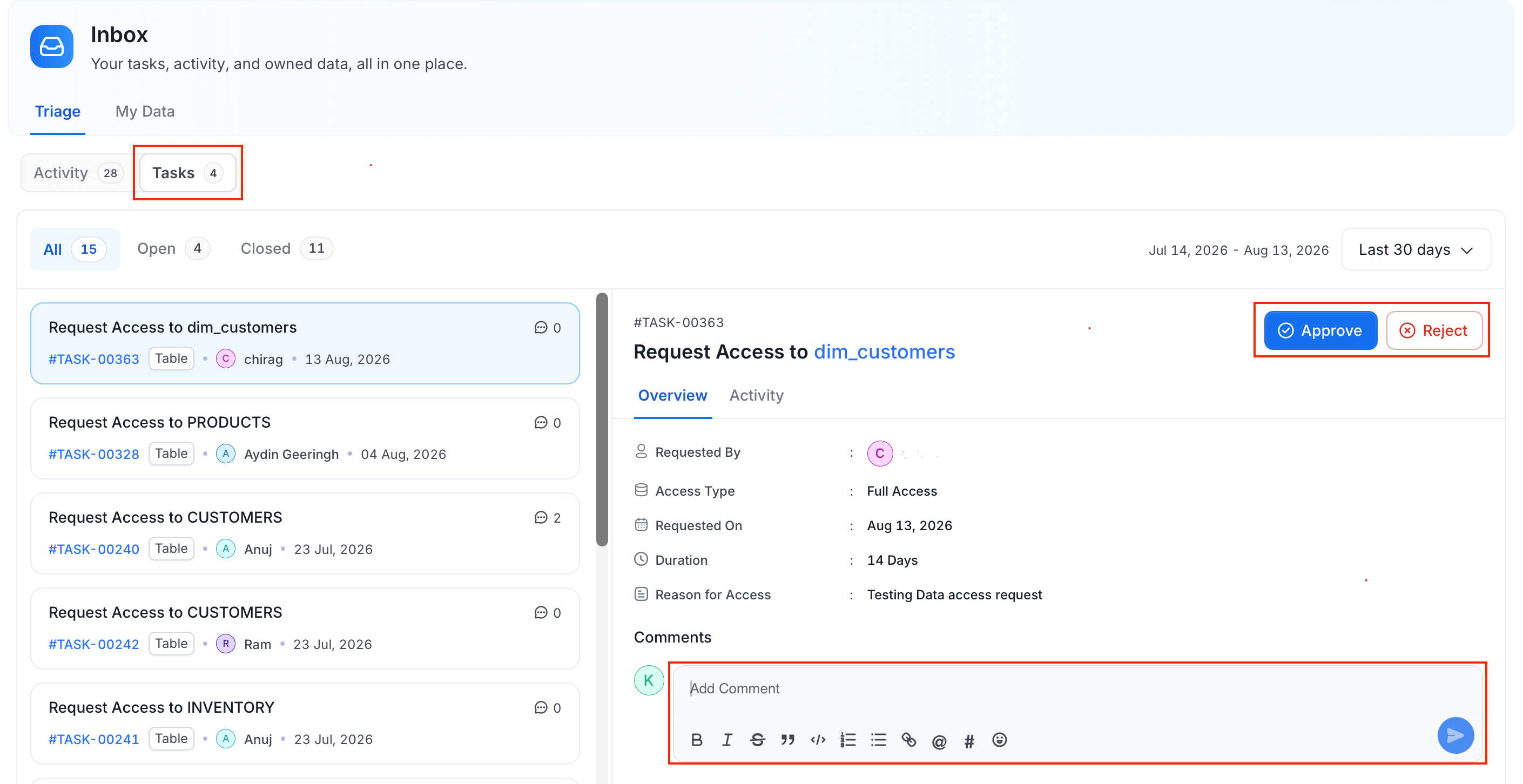 Selecting a task opens a detail panel on the right. From there you can approve, reject, add a comment, or reassign the task without navigating to the data asset.
### Date Filter
Both sub-tabs include a **date filter** that defaults to the last 30 days. Select the date range text to open the picker and adjust the window.
## My Data Tab
The **My Data** tab gives you a quick overview of all data assets you own, along with their health status.
Selecting a task opens a detail panel on the right. From there you can approve, reject, add a comment, or reassign the task without navigating to the data asset.
### Date Filter
Both sub-tabs include a **date filter** that defaults to the last 30 days. Select the date range text to open the picker and adjust the window.
## My Data Tab
The **My Data** tab gives you a quick overview of all data assets you own, along with their health status.
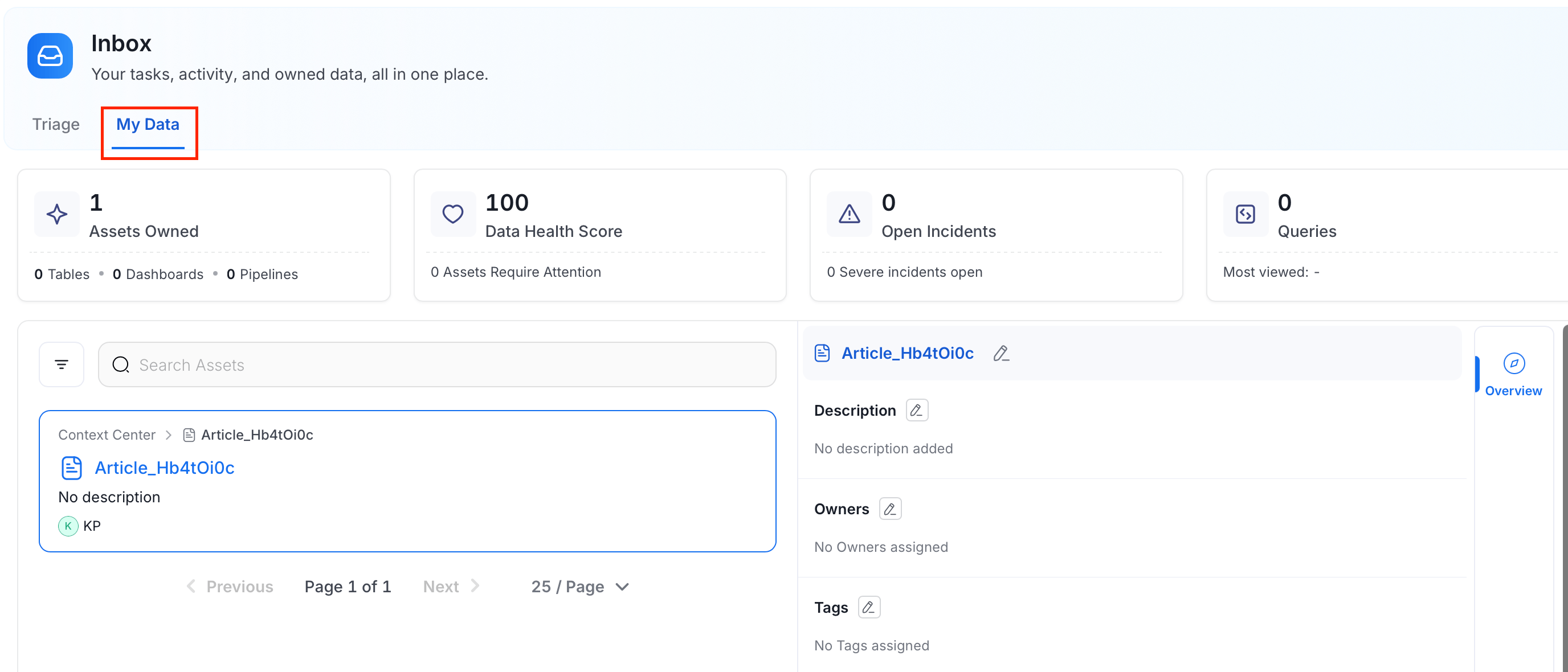 It displays four summary cards:
* **Assets Owned** — total count, broken down by Tables, Dashboards, and Pipelines
* **Data Health Score** — number of assets that require attention
* **Open Incidents** — number of active incidents, with a severity breakdown
* **Queries** — query count for your owned tables, with a link to the most-viewed table
Below the cards, a list of your owned data assets is displayed with direct links to each asset page.
It displays four summary cards:
* **Assets Owned** — total count, broken down by Tables, Dashboards, and Pipelines
* **Data Health Score** — number of assets that require attention
* **Open Incidents** — number of active incidents, with a severity breakdown
* **Queries** — query count for your owned tables, with a link to the most-viewed table
Below the cards, a list of your owned data assets is displayed with direct links to each asset page.