> ## Documentation Index
> Fetch the complete documentation index at: https://docs.getcollate.io/llms.txt
> Use this file to discover all available pages before exploring further.
# How to Grant Temporary Access to Collate Support Team Members
> Grant temporary access to customer support team members in Collate, including external email setup and SSO domain settings.
# How to Grant Temporary Access to Collate Support Team Members
This guide outlines the steps required to give temporary support access in the Collate platform for the support team.
## Steps to Grant Access
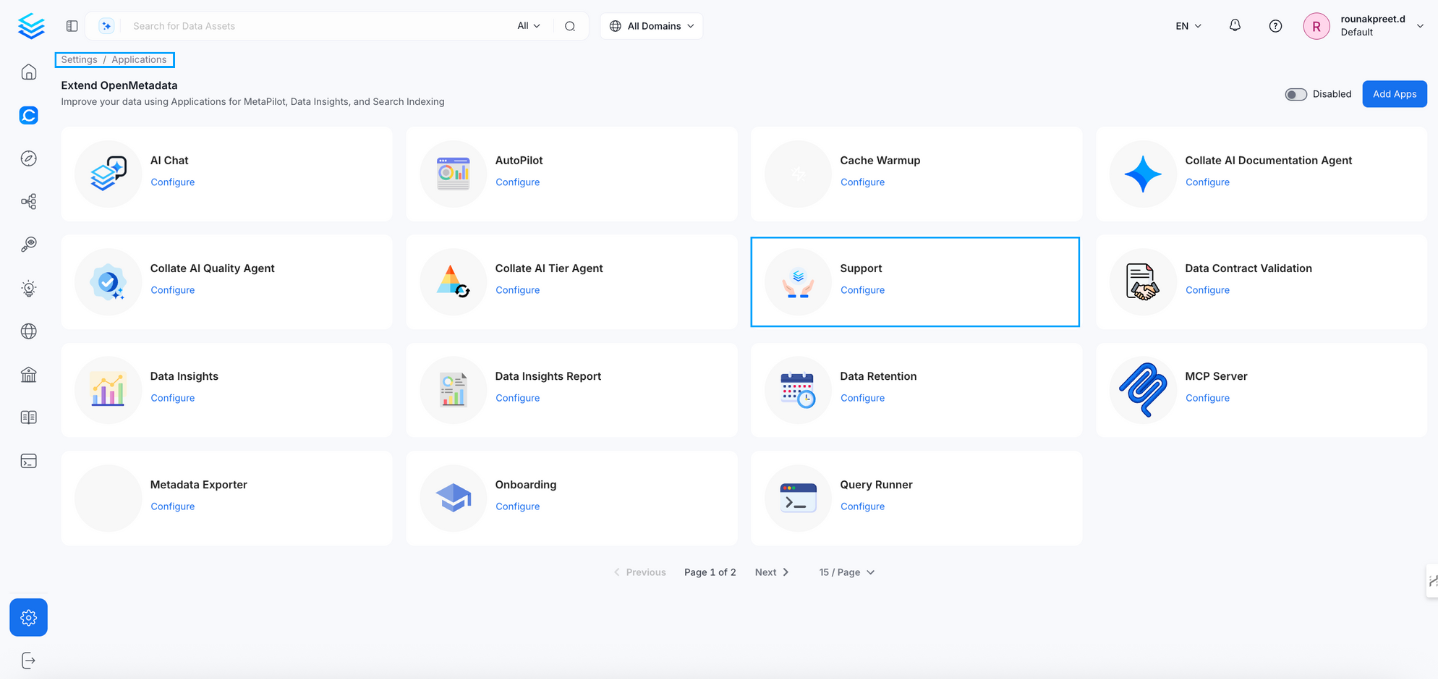
### 1. Navigate to the Support Application
Go to **Settings** > **Applications** > **Support**.
 ### 2. Add the Collate Support Access
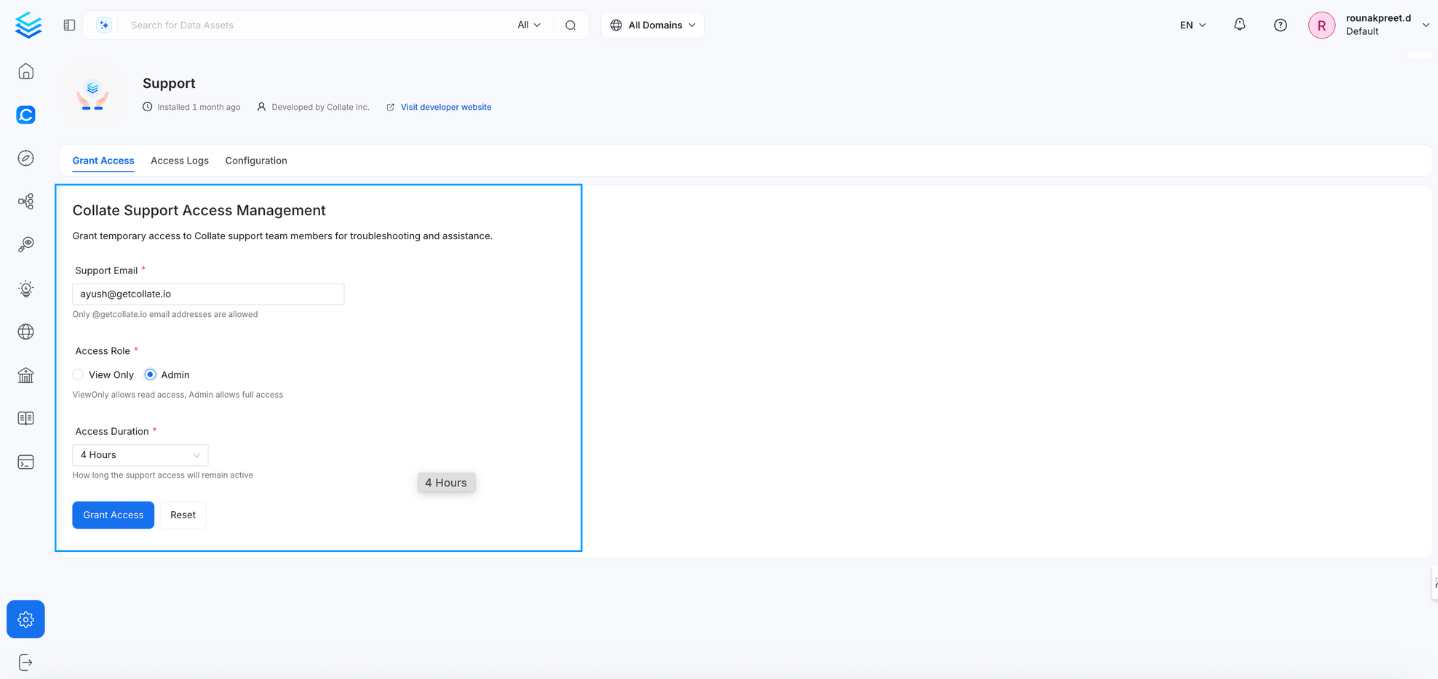
In the **Add Support** section:
* Enter the support email, for example `ayush@getcollate.io`.
* Set **Access Role** to `View Only` or `Admin`.
* Set the **Access Duration** to `1 hour`, `2 hours`, or `4 hours`.
### 2. Add the Collate Support Access
In the **Add Support** section:
* Enter the support email, for example `ayush@getcollate.io`.
* Set **Access Role** to `View Only` or `Admin`.
* Set the **Access Duration** to `1 hour`, `2 hours`, or `4 hours`.
 ### 3. Grant Access
Click the **Grant Access** button.
### 3. Grant Access
Click the **Grant Access** button.
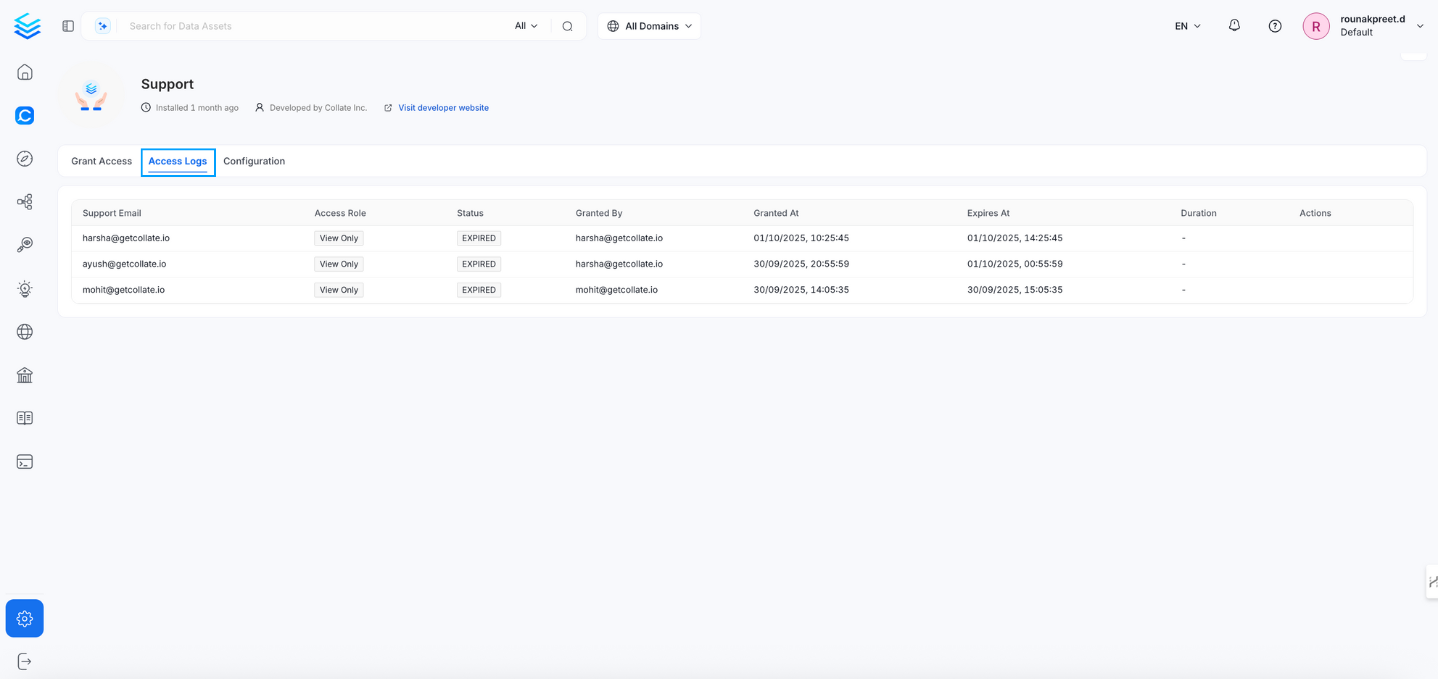
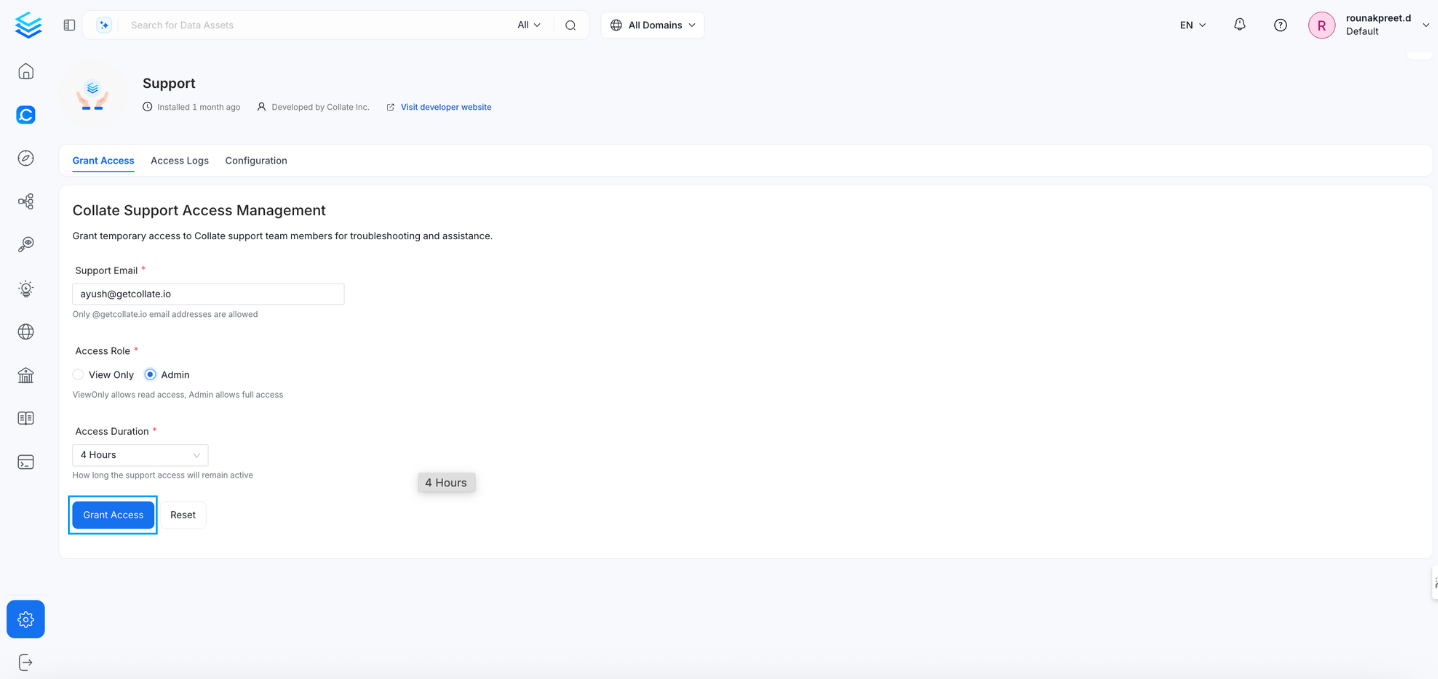 Access is granted to the specified support email address with the configured role and duration. Verify this in the access logs.
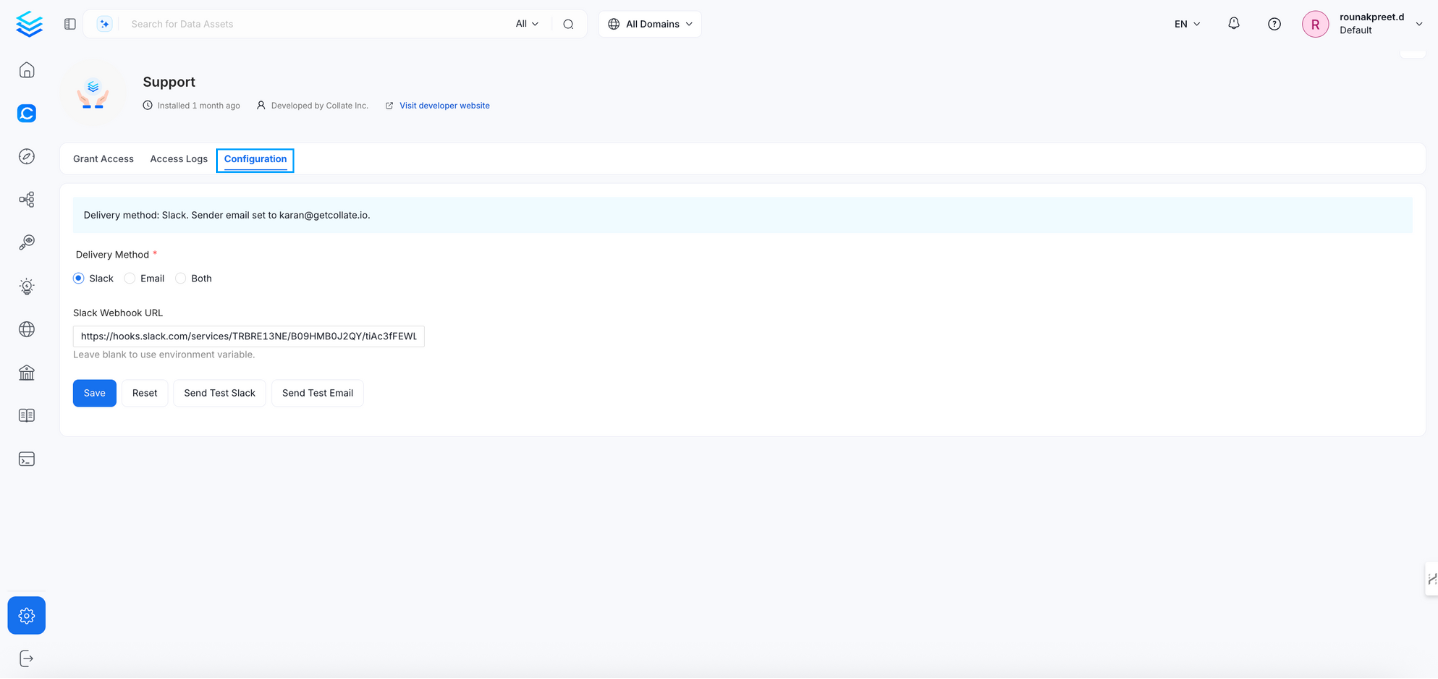
 In the configuration section, select the delivery method: Email, Slack, or both.
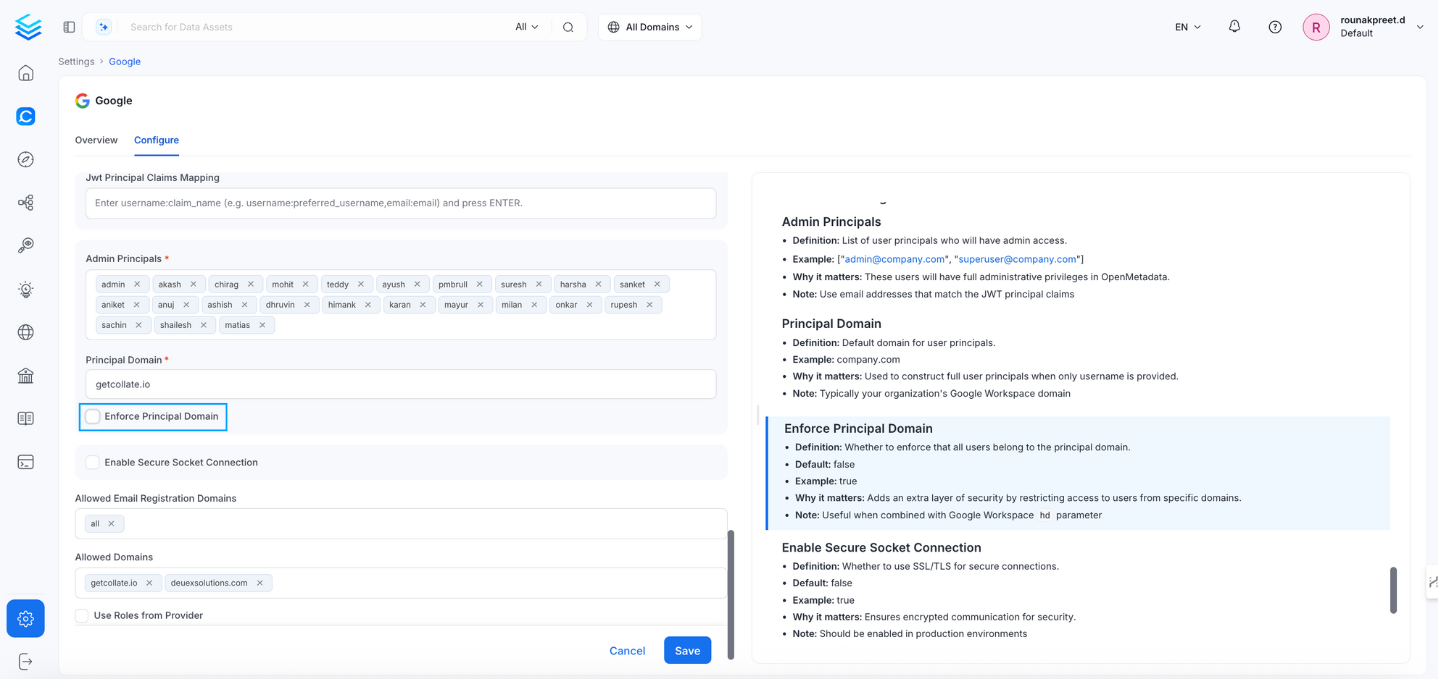
 ### 4. Disable Enforce Principal Domain for SSO Organizations
If your organization uses Single Sign-On (SSO), disable **Enforce Principal Domain** to allow access for emails from other domains (for example, `gmail.com`). Navigate to **Settings** > **SSO** > **Configure** to disable the **Enforce Principal Domain** setting.
### 4. Disable Enforce Principal Domain for SSO Organizations
If your organization uses Single Sign-On (SSO), disable **Enforce Principal Domain** to allow access for emails from other domains (for example, `gmail.com`). Navigate to **Settings** > **SSO** > **Configure** to disable the **Enforce Principal Domain** setting.