> ## Documentation Index
> Fetch the complete documentation index at: https://docs.getcollate.io/llms.txt
> Use this file to discover all available pages before exploring further.
# Ingest Glossary from dbt
> Import glossary definitions from dbt projects to align semantic metadata with business context and governance.
# Ingest Glossary from dbt
Collate reads table-level and column-level glossary term assignments from your dbt `manifest.json` file and links them to the matching assets in Collate.
**Tip**: The glossary terms must already exist in Collate before ingestion runs. Collate won't create new terms automatically.
## How to Assign Glossary Terms from dbt
Follow these steps to link glossary terms from dbt to your tables and columns in Collate.
### Step 1: Create or Select a Glossary Term in Collate
Make sure the glossary terms you want to assign already exist in Collate before running ingestion.
A glossary term is a preferred name for a concept. You can add tags, synonyms, related terms, and reference links to build a semantic graph. Collate also supports nested terms — for example, `Test_Glossary.term_two.nested_term.more_nested_term`.
For details on creating glossary terms, see [Create Glossary Terms](/ai-2-0/how-to-guides/data-governance/glossary/create-terms).
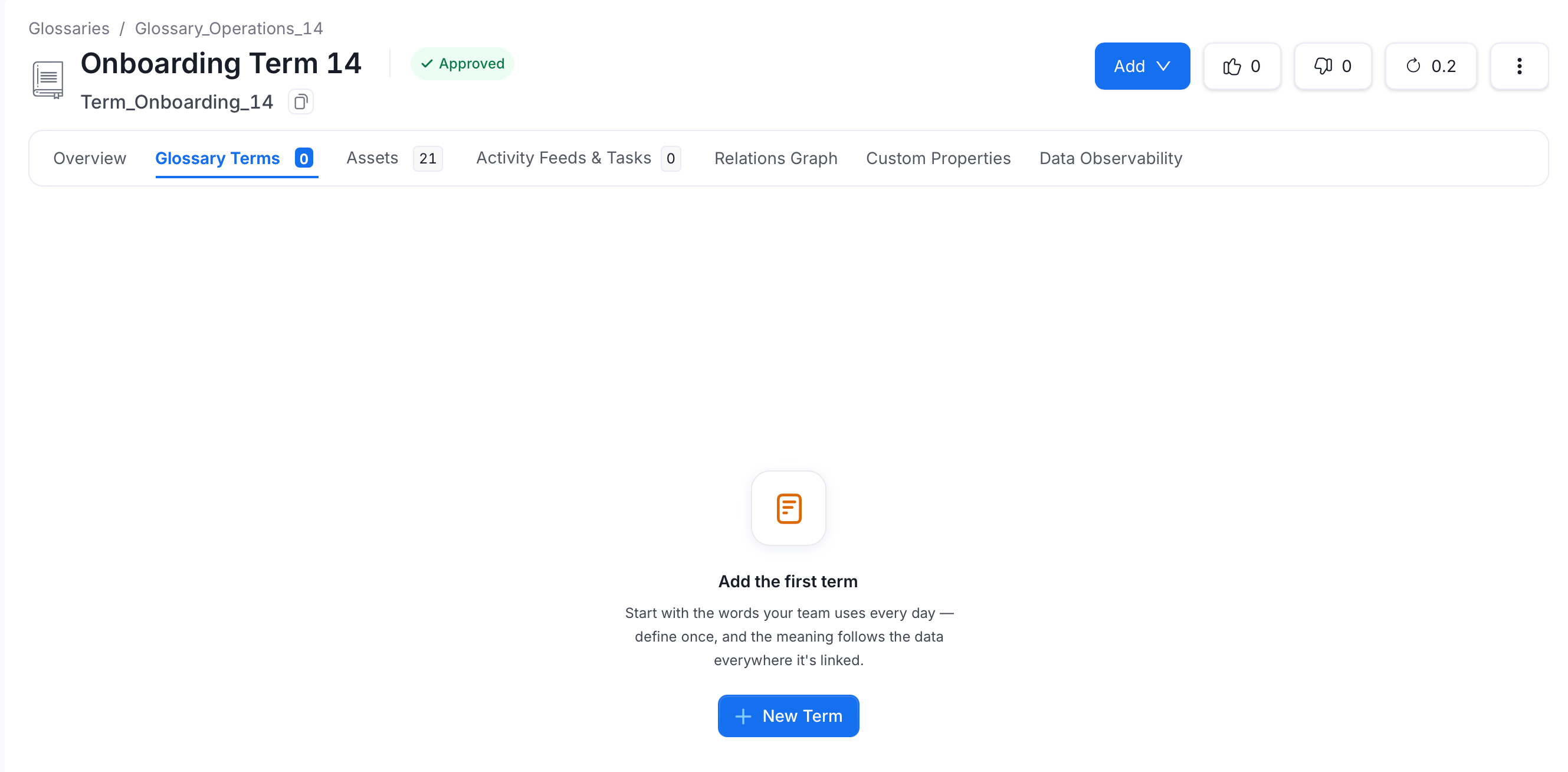
To view existing terms:
1. Navigate to **Governance** > **Glossary**.
2. Open the glossary and click the term under **Terms** column.
3. Navigate to the **Glossary Terms** tab and view the glossary terms listed there.
 ### Step 2: Add Glossary Terms at the Table Level
Tell dbt which glossary terms apply to each table by adding their FQNs to your `schema.yml`.
**Finding a glossary term FQN**: Navigate to the term in Collate (**Govern** > **Glossary**) and copy the FQN from the page URL. For example:
* `Test_Glossary.term_one` → URL path ends in `/glossary/Test_Glossary.term_one`
* `Test_Glossary.term_two.nested_term.more_nested_term` → URL path ends in `/glossary/Test_Glossary.term_two.nested_term.more_nested_term`
### Step 2: Add Glossary Terms at the Table Level
Tell dbt which glossary terms apply to each table by adding their FQNs to your `schema.yml`.
**Finding a glossary term FQN**: Navigate to the term in Collate (**Govern** > **Glossary**) and copy the FQN from the page URL. For example:
* `Test_Glossary.term_one` → URL path ends in `/glossary/Test_Glossary.term_one`
* `Test_Glossary.term_two.nested_term.more_nested_term` → URL path ends in `/glossary/Test_Glossary.term_two.nested_term.more_nested_term`

 Add the FQNs as a list under `model → meta → openmetadata → glossary` in your `schema.yml`. For more details on the dbt `meta` field, see the [dbt meta configuration reference](https://docs.getdbt.com/reference/resource-configs/meta).
```yaml theme={null}
models:
- name: customers
meta:
openmetadata:
glossary: [
'Test_Glossary.term_one',
'Test_Glossary.term_two.nested_term.more_nested_term',
]
description: This table has basic information about a customer, as well as some derived facts based on a customer's orders
columns:
- name: customer_id
description: This is a unique identifier for a customer
tests:
- unique
- not_null
```
After you save and run your dbt workflow, the generated `manifest.json` will include the glossary FQNs under `node_name → meta → openmetadata → glossary`:
```json theme={null}
"model.jaffle_shop.customers": {
"raw_sql": "sample_raw_sql",
"compiled": true,
"resource_type": "model",
"depends_on": {},
"database": "dev",
"schema": "dbt_jaffle",
"config": {
"enabled": true,
"alias": null,
"meta": {
"openmetadata": {
"glossary": [
"Test_Glossary.term_one",
"Test_Glossary.term_two.nested_term.more_nested_term"
]
}
}
}
}
```
### Step 3: Add Glossary Terms at the Column Level
Assign glossary terms to individual columns by adding their FQNs under the column definition in `schema.yml`.
Add the FQNs under `columns → [column name] → meta → openmetadata → glossary`:
```yaml theme={null}
models:
- name: customers
meta:
openmetadata:
glossary: [
'Test_Glossary.term_one',
'Test_Glossary.term_two.nested_term.more_nested_term',
]
description: This table has basic information about a customer, as well as some derived facts based on a customer's orders
columns:
- name: customer_id
description: This is a unique identifier for a customer
meta:
openmetadata:
glossary: [
'Test_Glossary.term_two.nested_term'
]
tests:
- unique
- not_null
```
After you save and run your dbt workflow, the generated `manifest.json` will include the column-level FQNs under `node_name → columns → [column name] → meta → openmetadata → glossary`:
```json theme={null}
"model.jaffle_shop.customers": {
"raw_sql": "sample_raw_sql",
"compiled": true,
"resource_type": "model",
"depends_on": {},
"database": "dev",
"schema": "dbt_jaffle",
"columns": {
"customer_id": {
"name": "customer_id",
"description": "This is a unique identifier for a customer",
"meta": {
"openmetadata": {
"glossary": [
"Test_Glossary.term_two.nested_term"
]
}
},
"data_type": null,
"constraints": [],
"quote": null,
"tags": []
}
}
}
```
### Step 4: Verify
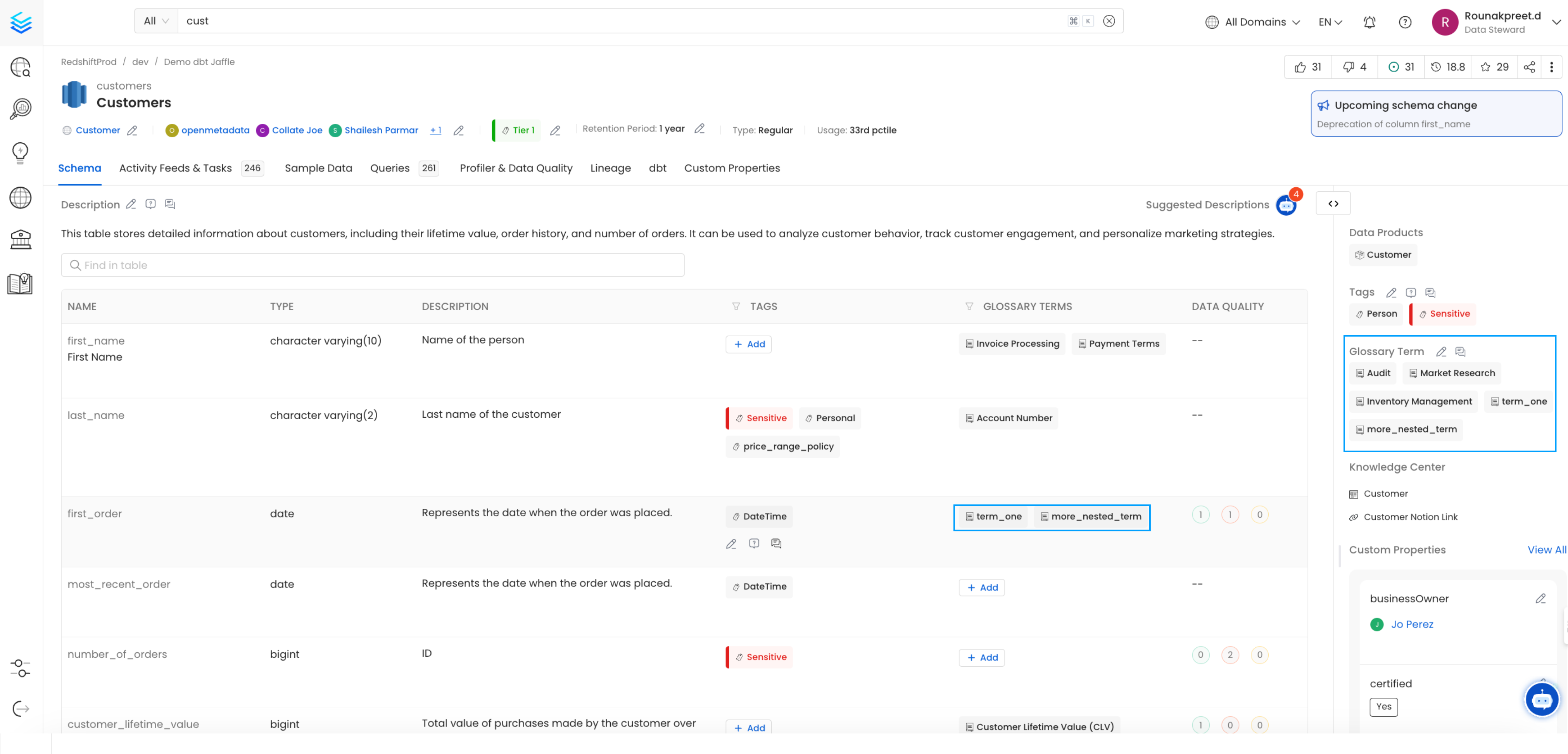
Confirm the glossary terms appear on the table and column pages after ingestion completes.
Add the FQNs as a list under `model → meta → openmetadata → glossary` in your `schema.yml`. For more details on the dbt `meta` field, see the [dbt meta configuration reference](https://docs.getdbt.com/reference/resource-configs/meta).
```yaml theme={null}
models:
- name: customers
meta:
openmetadata:
glossary: [
'Test_Glossary.term_one',
'Test_Glossary.term_two.nested_term.more_nested_term',
]
description: This table has basic information about a customer, as well as some derived facts based on a customer's orders
columns:
- name: customer_id
description: This is a unique identifier for a customer
tests:
- unique
- not_null
```
After you save and run your dbt workflow, the generated `manifest.json` will include the glossary FQNs under `node_name → meta → openmetadata → glossary`:
```json theme={null}
"model.jaffle_shop.customers": {
"raw_sql": "sample_raw_sql",
"compiled": true,
"resource_type": "model",
"depends_on": {},
"database": "dev",
"schema": "dbt_jaffle",
"config": {
"enabled": true,
"alias": null,
"meta": {
"openmetadata": {
"glossary": [
"Test_Glossary.term_one",
"Test_Glossary.term_two.nested_term.more_nested_term"
]
}
}
}
}
```
### Step 3: Add Glossary Terms at the Column Level
Assign glossary terms to individual columns by adding their FQNs under the column definition in `schema.yml`.
Add the FQNs under `columns → [column name] → meta → openmetadata → glossary`:
```yaml theme={null}
models:
- name: customers
meta:
openmetadata:
glossary: [
'Test_Glossary.term_one',
'Test_Glossary.term_two.nested_term.more_nested_term',
]
description: This table has basic information about a customer, as well as some derived facts based on a customer's orders
columns:
- name: customer_id
description: This is a unique identifier for a customer
meta:
openmetadata:
glossary: [
'Test_Glossary.term_two.nested_term'
]
tests:
- unique
- not_null
```
After you save and run your dbt workflow, the generated `manifest.json` will include the column-level FQNs under `node_name → columns → [column name] → meta → openmetadata → glossary`:
```json theme={null}
"model.jaffle_shop.customers": {
"raw_sql": "sample_raw_sql",
"compiled": true,
"resource_type": "model",
"depends_on": {},
"database": "dev",
"schema": "dbt_jaffle",
"columns": {
"customer_id": {
"name": "customer_id",
"description": "This is a unique identifier for a customer",
"meta": {
"openmetadata": {
"glossary": [
"Test_Glossary.term_two.nested_term"
]
}
},
"data_type": null,
"constraints": [],
"quote": null,
"tags": []
}
}
}
```
### Step 4: Verify
Confirm the glossary terms appear on the table and column pages after ingestion completes.