{icon &&
 }
}
{name}
{stage}Feature List
{totalAvailableFeatures.map(feature =>
✓ {feature}
)}
{unavailableFeatures.map(feature =>
✕ {feature}
)}
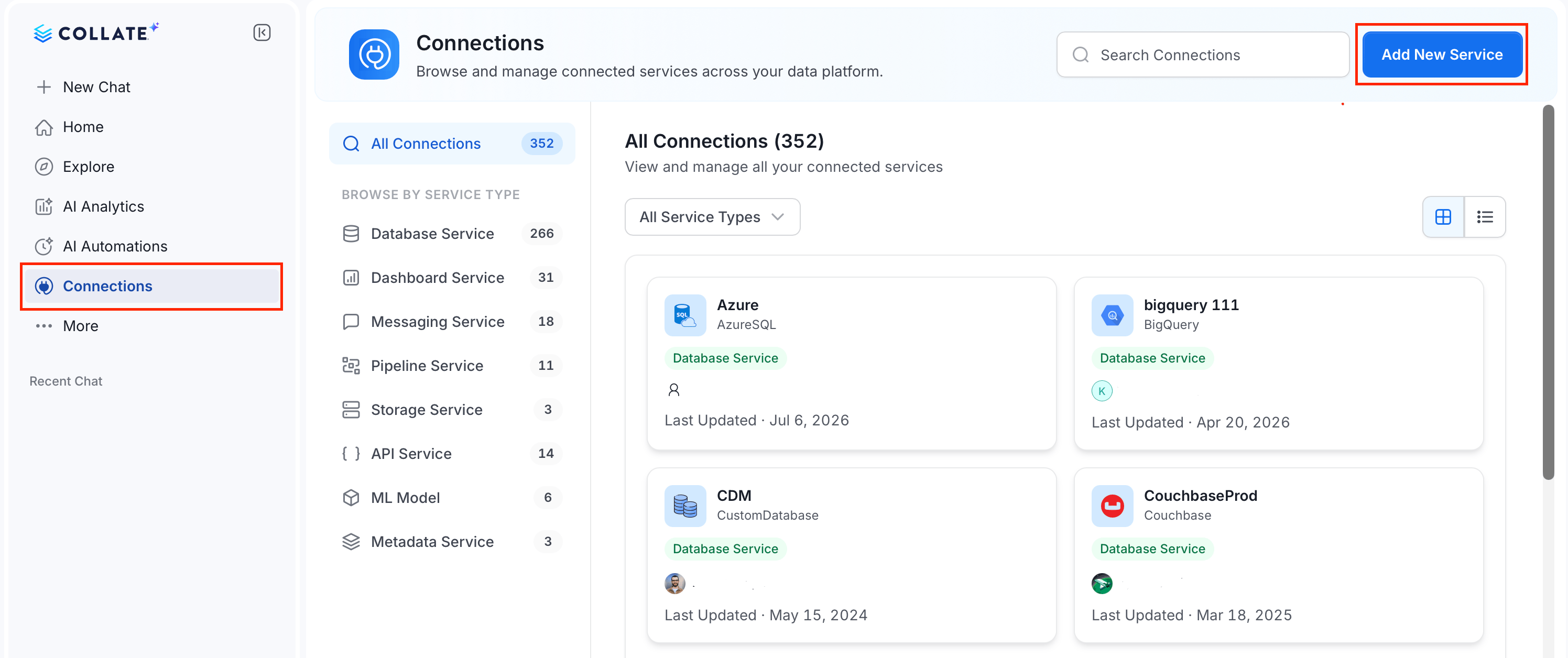 ### Step 2: Select a Service and Connector
From the service type dropdown, select **Dashboard Services**, then click the **Rill** connector tile.
### Step 2: Select a Service and Connector
From the service type dropdown, select **Dashboard Services**, then click the **Rill** connector tile.
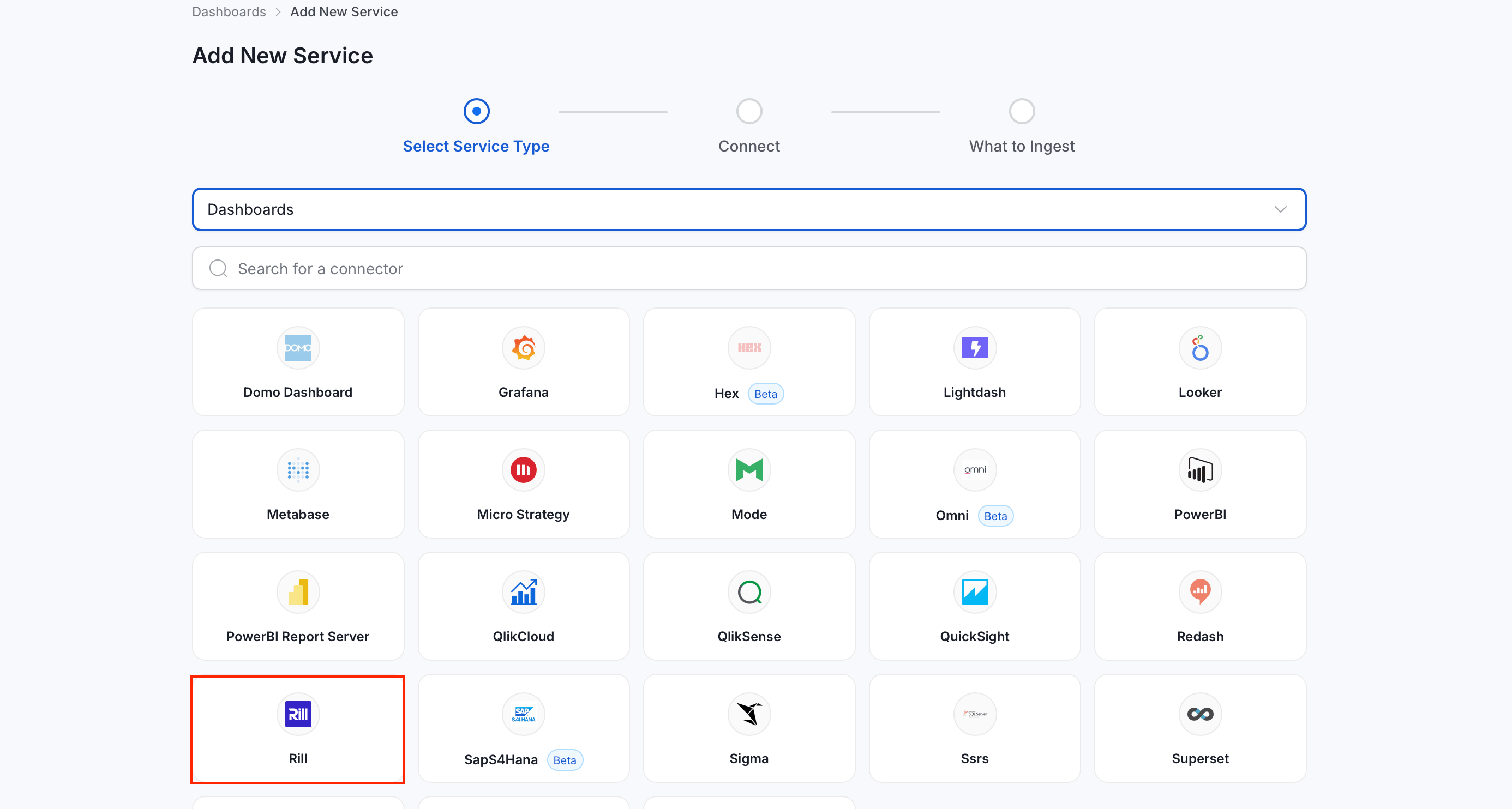 ### Step 3: Add Service Name and Description
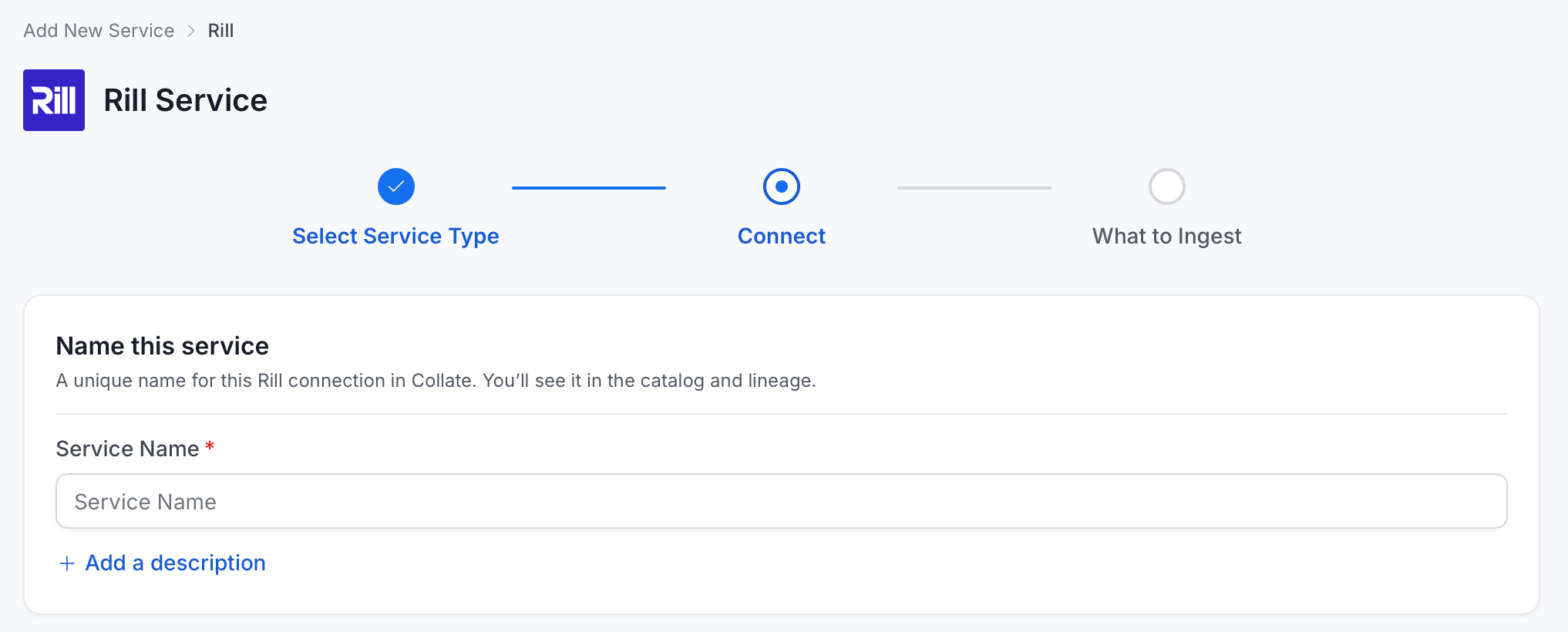
* Enter a unique, descriptive **Service Name**. Collate identifies services by their service name. Enter a name that distinguishes this deployment from other Rill services you are ingesting metadata from.
* Optional: Enter a **Description** for the service.
### Step 3: Add Service Name and Description
* Enter a unique, descriptive **Service Name**. Collate identifies services by their service name. Enter a name that distinguishes this deployment from other Rill services you are ingesting metadata from.
* Optional: Enter a **Description** for the service.
 #### Enter Connection Details
Enter the connection details for Rill. The right-hand panel in the UI displays inline help for each field.
#### Enter Connection Details
Enter the connection details for Rill. The right-hand panel in the UI displays inline help for each field.
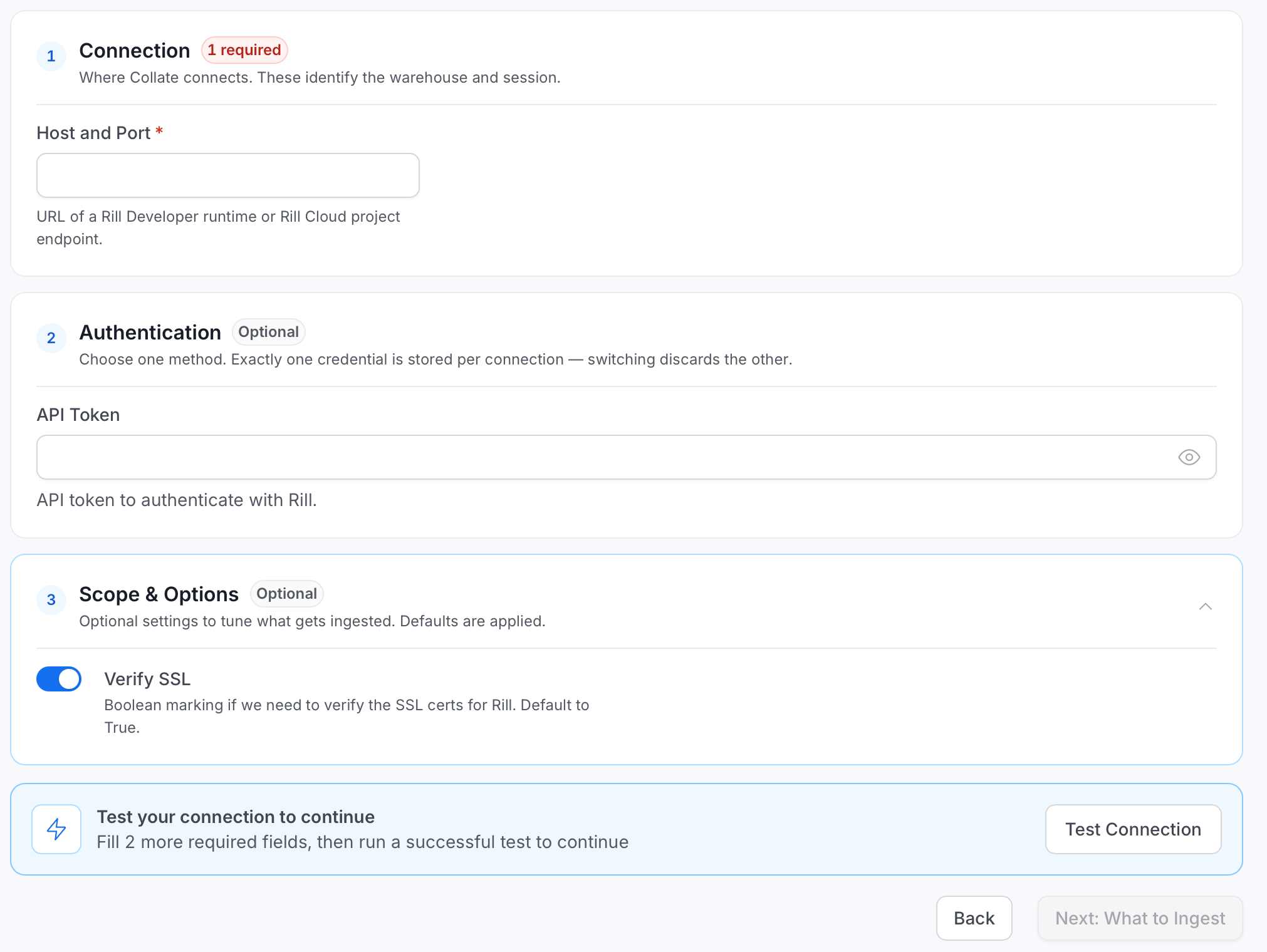 * **Host and Port**: URL of a Rill Developer runtime or a Rill Cloud project endpoint. For a local Rill Developer runtime, use something like `http://localhost:9009`. For Rill Cloud, use the project endpoint, for example `https://api.rilldata.com/v1/orgs/
 ### Step 5: Configure Ingestion Options
In the **What to Ingest** step, use filter rules to control which dashboards, charts, and data models Collate ingests from the source.
#### How Filter Rules Work
Each rule matches asset names using one of five match types:
* **contains**: matches any name containing the value. For example, `sales` matches `my_sales_data` and `sales_2024`.
* **starts with**: matches names beginning with the value. For example, `prod_` matches `prod_db` and `prod_schema`.
* **ends with**: matches names ending with the value. For example, `_raw` matches `events_raw` and `logs_raw`.
* **is exactly**: matches the exact name only. For example, `analytics` matches only `analytics`.
* **matches regex**: matches names using a regular expression. For example, `^prod_.*_v\d+$` matches `prod_events_v1`.
When include and exclusion rules both match an asset, the exclusion rule takes priority.
### Step 5: Configure Ingestion Options
In the **What to Ingest** step, use filter rules to control which dashboards, charts, and data models Collate ingests from the source.
#### How Filter Rules Work
Each rule matches asset names using one of five match types:
* **contains**: matches any name containing the value. For example, `sales` matches `my_sales_data` and `sales_2024`.
* **starts with**: matches names beginning with the value. For example, `prod_` matches `prod_db` and `prod_schema`.
* **ends with**: matches names ending with the value. For example, `_raw` matches `events_raw` and `logs_raw`.
* **is exactly**: matches the exact name only. For example, `analytics` matches only `analytics`.
* **matches regex**: matches names using a regular expression. For example, `^prod_.*_v\d+$` matches `prod_events_v1`.
When include and exclusion rules both match an asset, the exclusion rule takes priority.
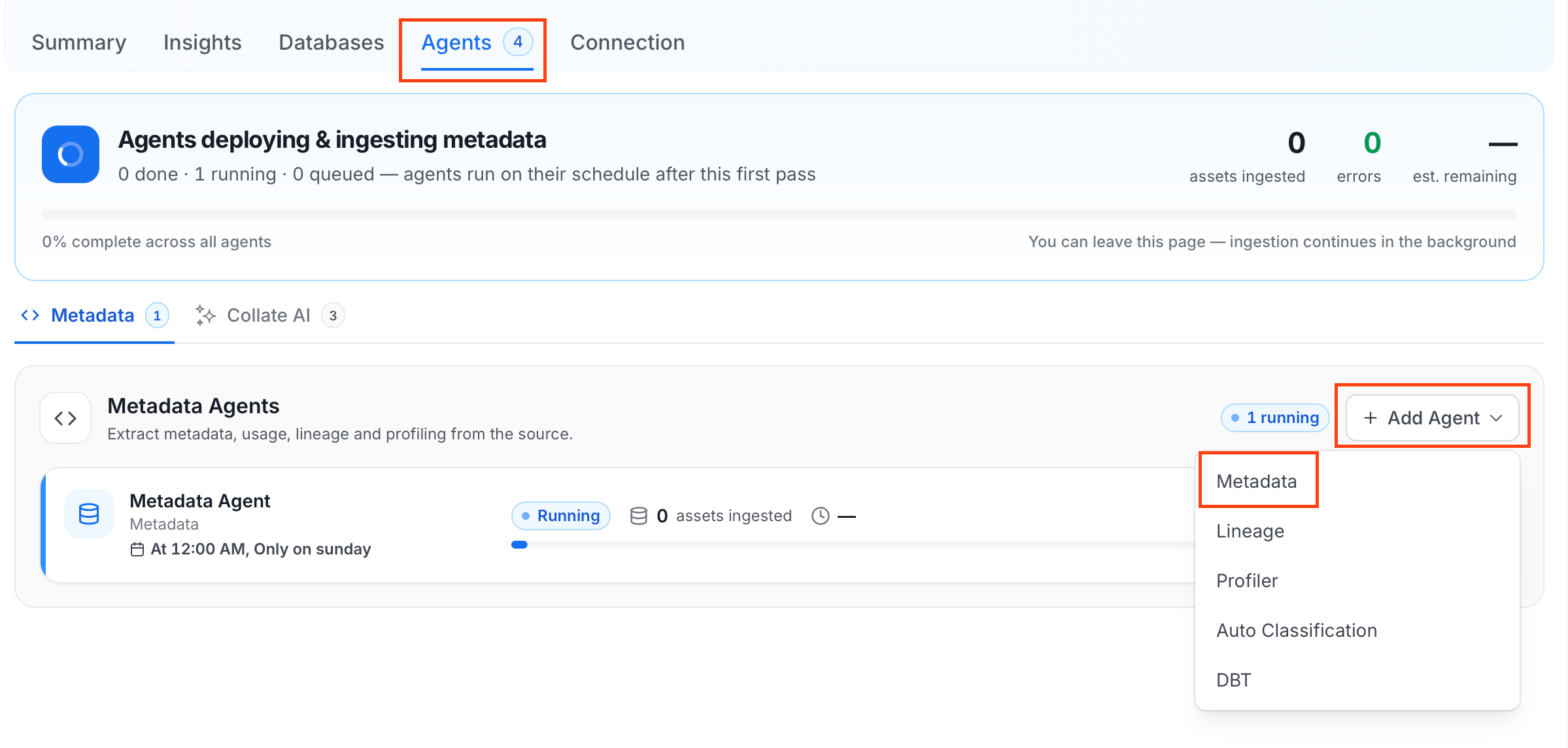 For some services, the dropdown is not available and clicking **Add Agent** takes you directly to the agent configuration page.
4. On the **Configure Ingestion** page, do the following and click **Next**.
* **Name this Ingestion**: Enter a unique, recognizable name for this ingestion pipeline.
For some services, the dropdown is not available and clicking **Add Agent** takes you directly to the agent configuration page.
4. On the **Configure Ingestion** page, do the following and click **Next**.
* **Name this Ingestion**: Enter a unique, recognizable name for this ingestion pipeline.
 * **Agent Setup**: Configure ingestion parameters. The following fields are available:
| Field | Default | Description |
| - | - | - |
| Db Service Prefixes | — | List of database service name prefixes used to resolve lineage between dashboards and database assets. Accepted formats: `DBService`, `DBService.Database`, `DBService.Database.Schema`, `DBService.Database.Schema.Table`. |
| Query Parser Type | Auto | Select the SQL parser used for lineage extraction from dashboard queries. **Auto** selects the best available parser automatically. **SqlGlot** is a high-performance parser with excellent dialect support; falls back to SqlParse on failure. **SqlFluff** is a comprehensive parser with strong dialect support; falls back to SqlParse on failure. |
| Mark Deleted Dashboards | On | Soft-delete dashboards in Collate when they are removed from the source. Associated lineage is also deleted. |
| Mark Deleted Data Models | On | Soft-delete data models in Collate when they are removed from the source. Associated lineage is also deleted. |
| Mark Deleted Charts | On | Soft-delete charts in Collate when they are removed from the source. |
| Include Data Models | On | Ingest data model metadata. |
| Include Draft Dashboards | On | Ingest dashboards that are in draft state. |
| Include Usage | On | Collect and ingest usage statistics for dashboards. |
* **Agent Setup**: Configure ingestion parameters. The following fields are available:
| Field | Default | Description |
| - | - | - |
| Db Service Prefixes | — | List of database service name prefixes used to resolve lineage between dashboards and database assets. Accepted formats: `DBService`, `DBService.Database`, `DBService.Database.Schema`, `DBService.Database.Schema.Table`. |
| Query Parser Type | Auto | Select the SQL parser used for lineage extraction from dashboard queries. **Auto** selects the best available parser automatically. **SqlGlot** is a high-performance parser with excellent dialect support; falls back to SqlParse on failure. **SqlFluff** is a comprehensive parser with strong dialect support; falls back to SqlParse on failure. |
| Mark Deleted Dashboards | On | Soft-delete dashboards in Collate when they are removed from the source. Associated lineage is also deleted. |
| Mark Deleted Data Models | On | Soft-delete data models in Collate when they are removed from the source. Associated lineage is also deleted. |
| Mark Deleted Charts | On | Soft-delete charts in Collate when they are removed from the source. |
| Include Data Models | On | Ingest data model metadata. |
| Include Draft Dashboards | On | Ingest dashboards that are in draft state. |
| Include Usage | On | Collect and ingest usage statistics for dashboards. |
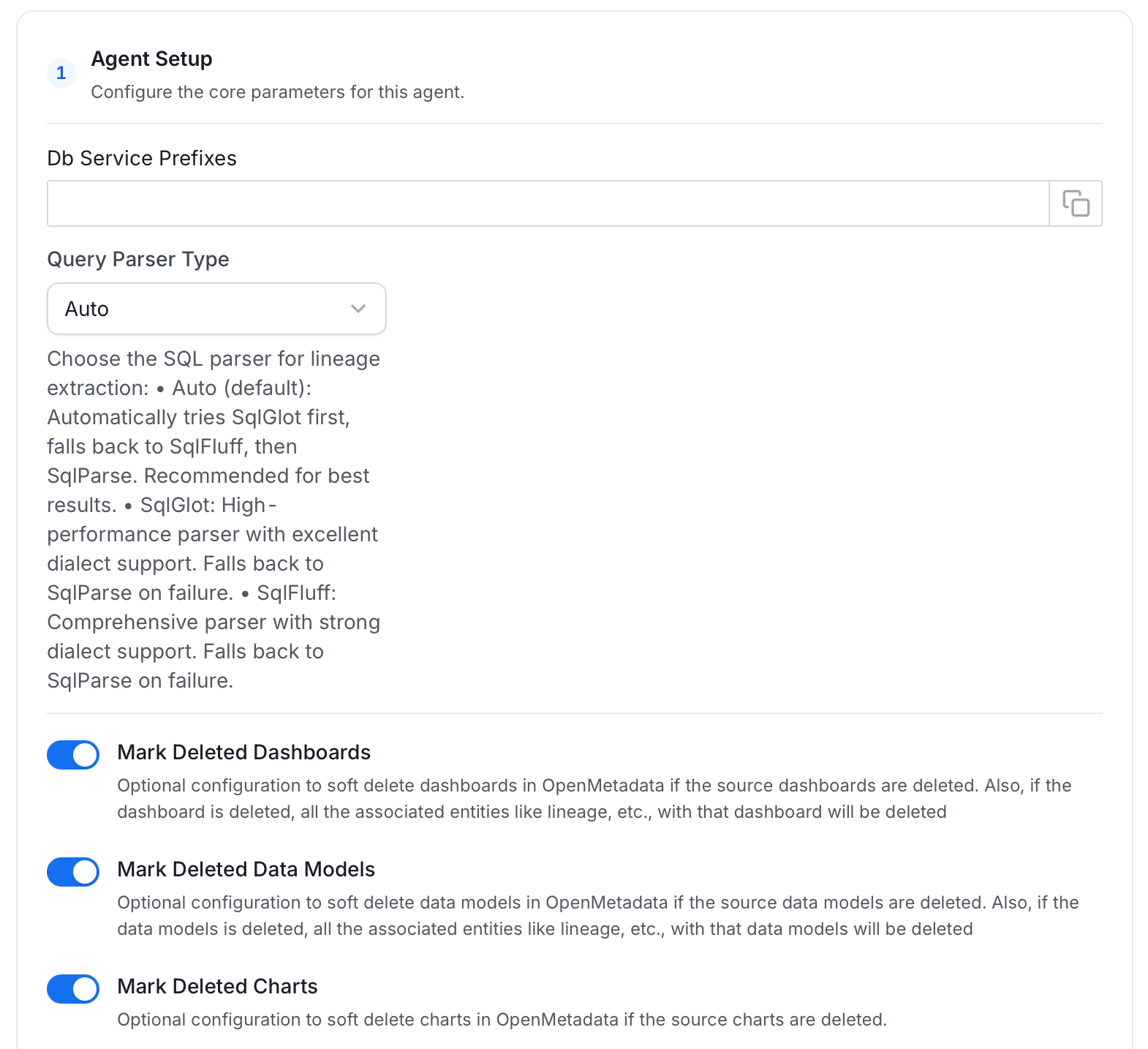 * **Filter Patterns**: Apply include or exclude rules to scope which dashboards, charts, data models, and projects this agent ingests. These follow the same filter options described in **Step 5**.
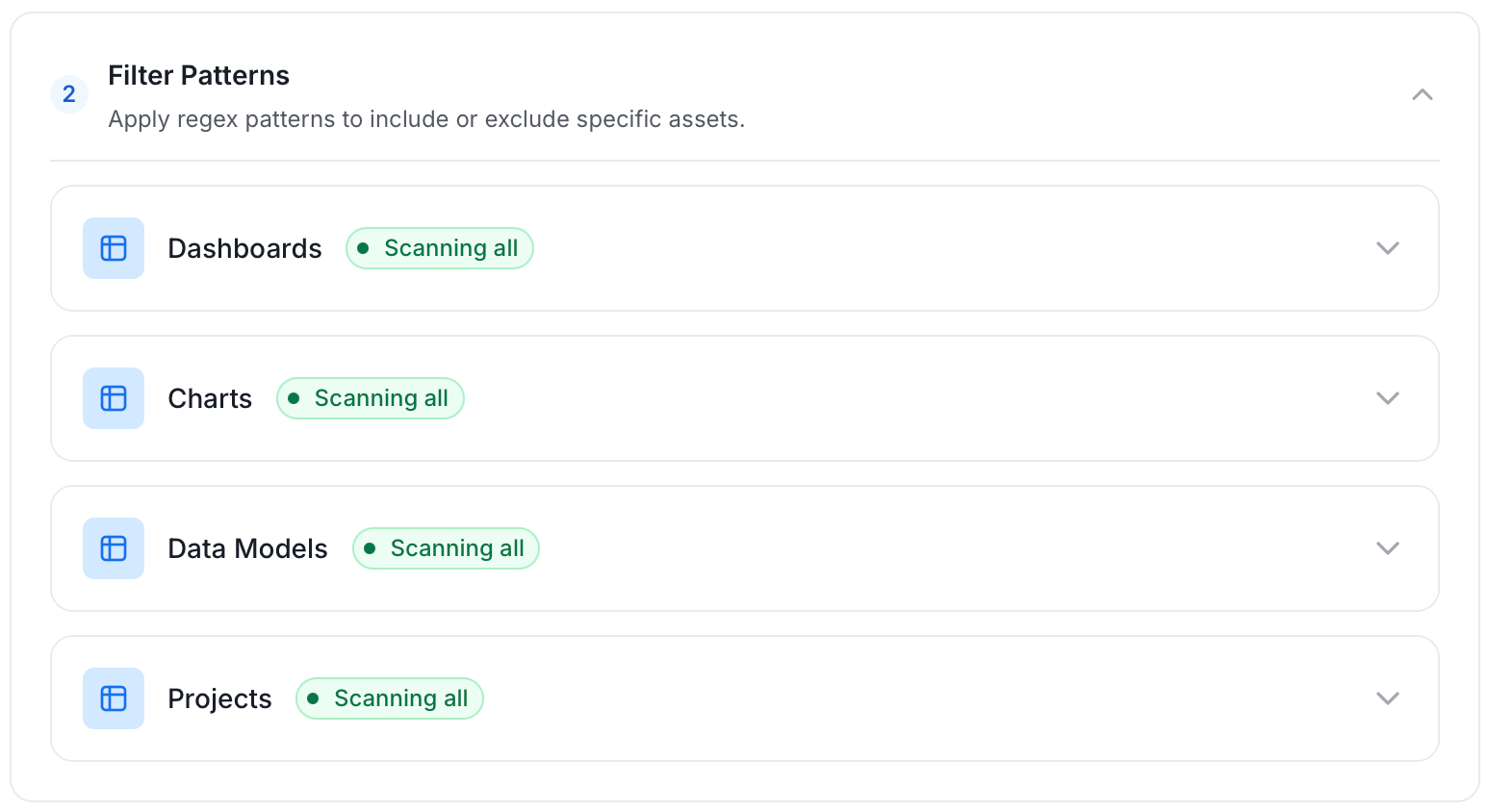 * **Scope & Behaviour**: Control what metadata to include and how to handle deletions. Toggle each option on or off based on your needs:
| Toggle | Default | Description |
| - | - | - |
| Enable Debug Log | Off | Sets the ingestion log level to DEBUG. Useful for troubleshooting. |
| Include Current Owners | Off | When enabled, replaces the current owner with a new owner from the source if the current owner is null. Recommended to keep enabled during the first metadata ingestion to capture owner information. |
| Include Tags | On | Ingest tags from the source. |
| Override Metadata | Off | When on, source values overwrite existing descriptions, tags, owners, and display names in Collate. A description or display name that the source doesn't send never replaces an existing value. When off, Collate only updates fields that have no existing value. |
| Override Lineage | Off | When on, existing lineage is replaced with newly extracted lineage on each run. |
* **Scope & Behaviour**: Control what metadata to include and how to handle deletions. Toggle each option on or off based on your needs:
| Toggle | Default | Description |
| - | - | - |
| Enable Debug Log | Off | Sets the ingestion log level to DEBUG. Useful for troubleshooting. |
| Include Current Owners | Off | When enabled, replaces the current owner with a new owner from the source if the current owner is null. Recommended to keep enabled during the first metadata ingestion to capture owner information. |
| Include Tags | On | Ingest tags from the source. |
| Override Metadata | Off | When on, source values overwrite existing descriptions, tags, owners, and display names in Collate. A description or display name that the source doesn't send never replaces an existing value. When off, Collate only updates fields that have no existing value. |
| Override Lineage | Off | When on, existing lineage is replaced with newly extracted lineage on each run. |
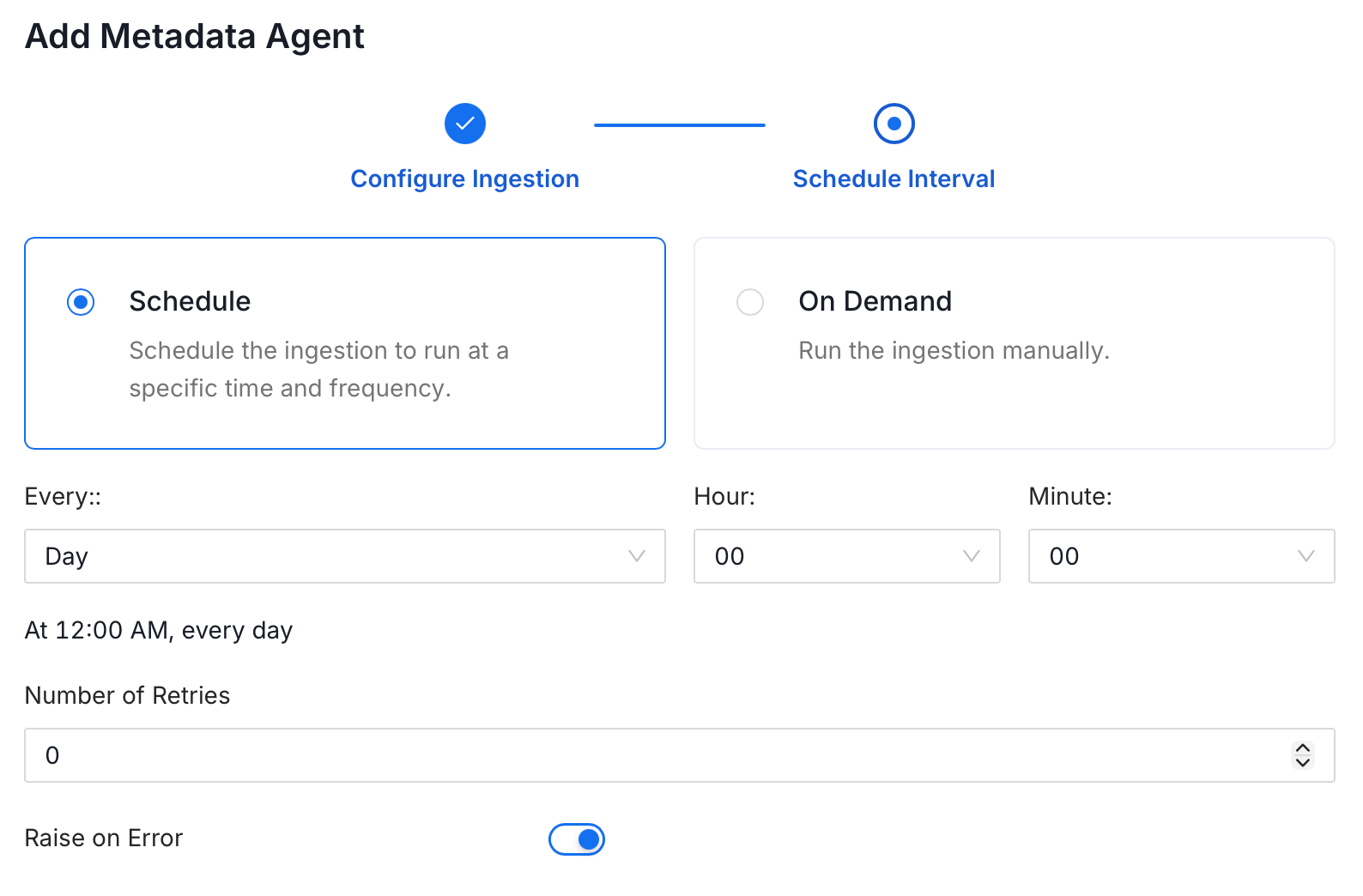
 5. On the **Schedule Interval** page, set when the agent runs:
* **Schedule**: Choose a preset interval (Hourly, Daily, Weekly, Monthly) or enter a custom cron expression.
* **On-Demand**: No automatic schedule; trigger the agent manually when needed.
5. On the **Schedule Interval** page, set when the agent runs:
* **Schedule**: Choose a preset interval (Hourly, Daily, Weekly, Monthly) or enter a custom cron expression.
* **On-Demand**: No automatic schedule; trigger the agent manually when needed.
 6. Click **Add** to deploy the agent.
## Troubleshooting
6. Click **Add** to deploy the agent.
## Troubleshooting