> ## Documentation Index
> Fetch the complete documentation index at: https://docs.getcollate.io/llms.txt
> Use this file to discover all available pages before exploring further.
# Articles
> Long-form pages your team writes and maintains, indexed for Collate AI Chat.
# Articles
Articles are Context Center's internal knowledge base—long-form pages your team writes, organizes, and maintains, authored for people and indexed for Collate AI Chat to search. Use them for durable, structured knowledge that's worth maintaining as a page: data governance policies, classification standards, incident playbooks, internal API documentation, or any reference material a team writes once and keeps up to date.
## Create an Article
1. From the left sidebar, navigate to **Context Center** > **Articles**.
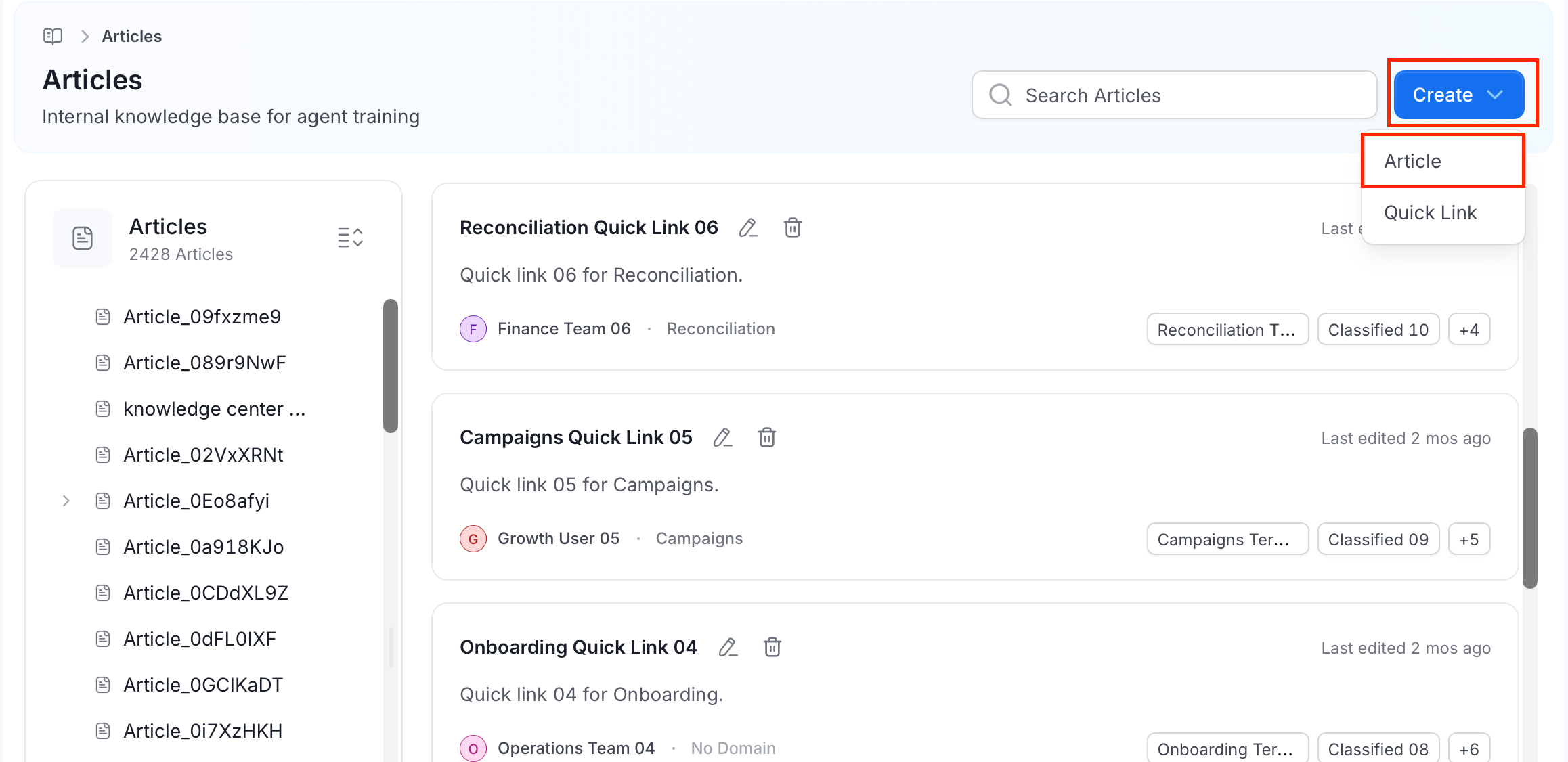
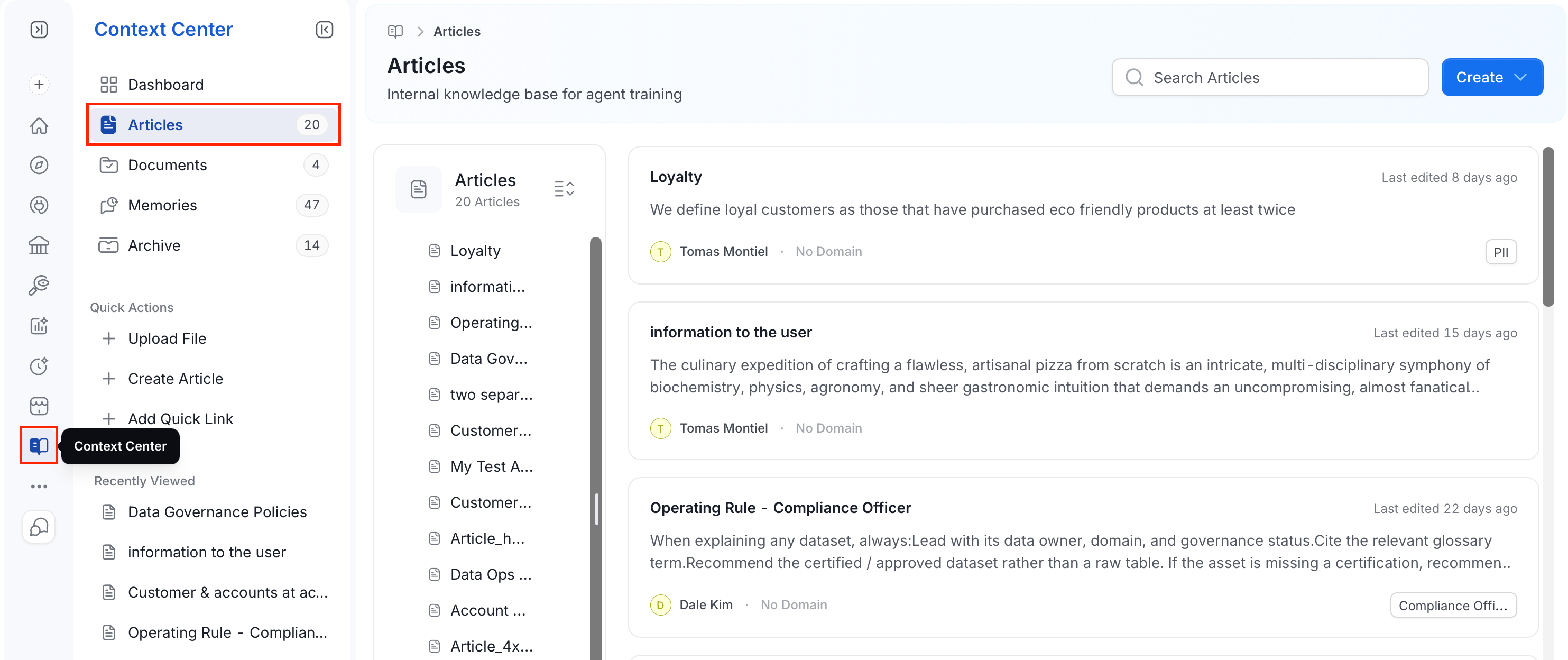 2. Do any of the following to create or add an article:
* Click **Create** and choose:
* **Article**: Opens a blank page in the rich text editor. Give it a title and start writing—slash commands, text formatting, and nested lists are all supported.
* **Quick Link**: Bookmarks an external URL as an article instead of writing new content. Add a title, description, the target URL, an owner or team, and tags.
2. Do any of the following to create or add an article:
* Click **Create** and choose:
* **Article**: Opens a blank page in the rich text editor. Give it a title and start writing—slash commands, text formatting, and nested lists are all supported.
* **Quick Link**: Bookmarks an external URL as an article instead of writing new content. Add a title, description, the target URL, an owner or team, and tags.
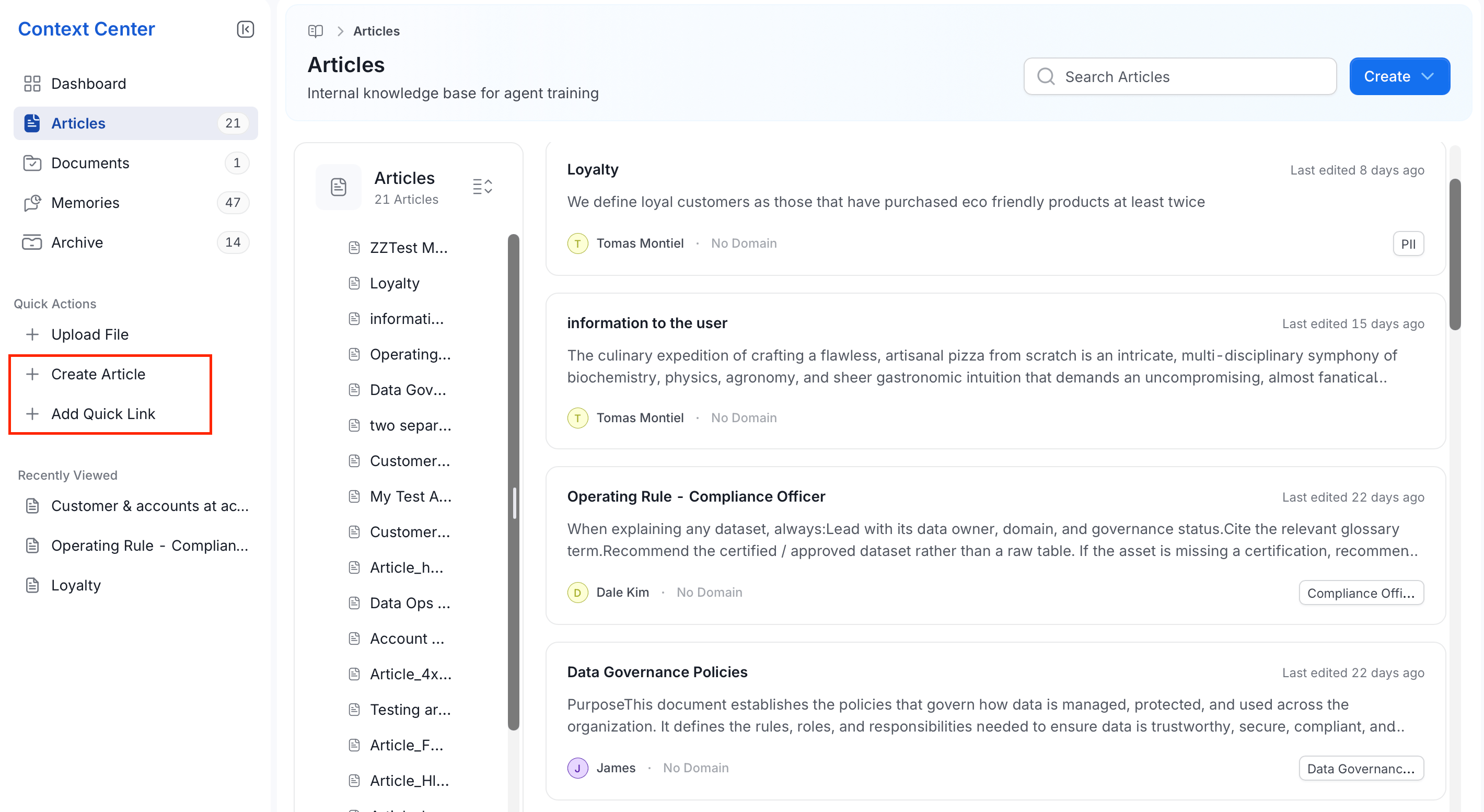
 * Use **Quick Actions** in the sidebar: **Create Article** or **Add Quick Link** do the same thing from anywhere in Context Center.
 Articles autosave as you type—there's no separate publish step.
## Viewe and Manage Articles
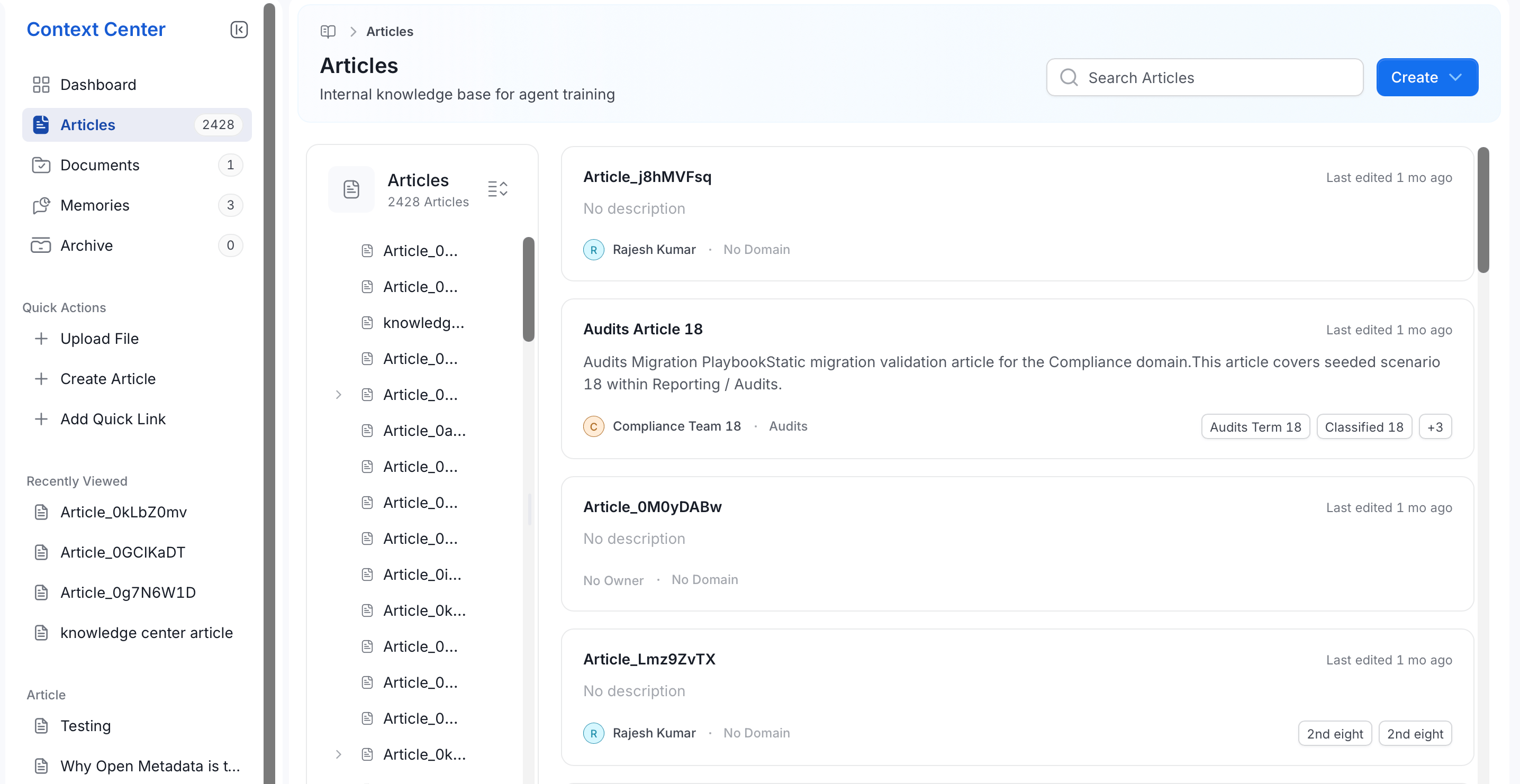
The **Articles** list page helps you find and browse existing articles:
* A search bar to look up articles by title.
* A left-hand hierarchy panel that organizes articles into folders, so related articles—for example, everything under a "Compliance" or "Engineering" folder—stay grouped together.
* A card for each article, showing its title, a short description (or "No description" if none is set), when it was last edited, its owner, its domain, and any tags applied to it.
Articles autosave as you type—there's no separate publish step.
## Viewe and Manage Articles
The **Articles** list page helps you find and browse existing articles:
* A search bar to look up articles by title.
* A left-hand hierarchy panel that organizes articles into folders, so related articles—for example, everything under a "Compliance" or "Engineering" folder—stay grouped together.
* A card for each article, showing its title, a short description (or "No description" if none is set), when it was last edited, its owner, its domain, and any tags applied to it.
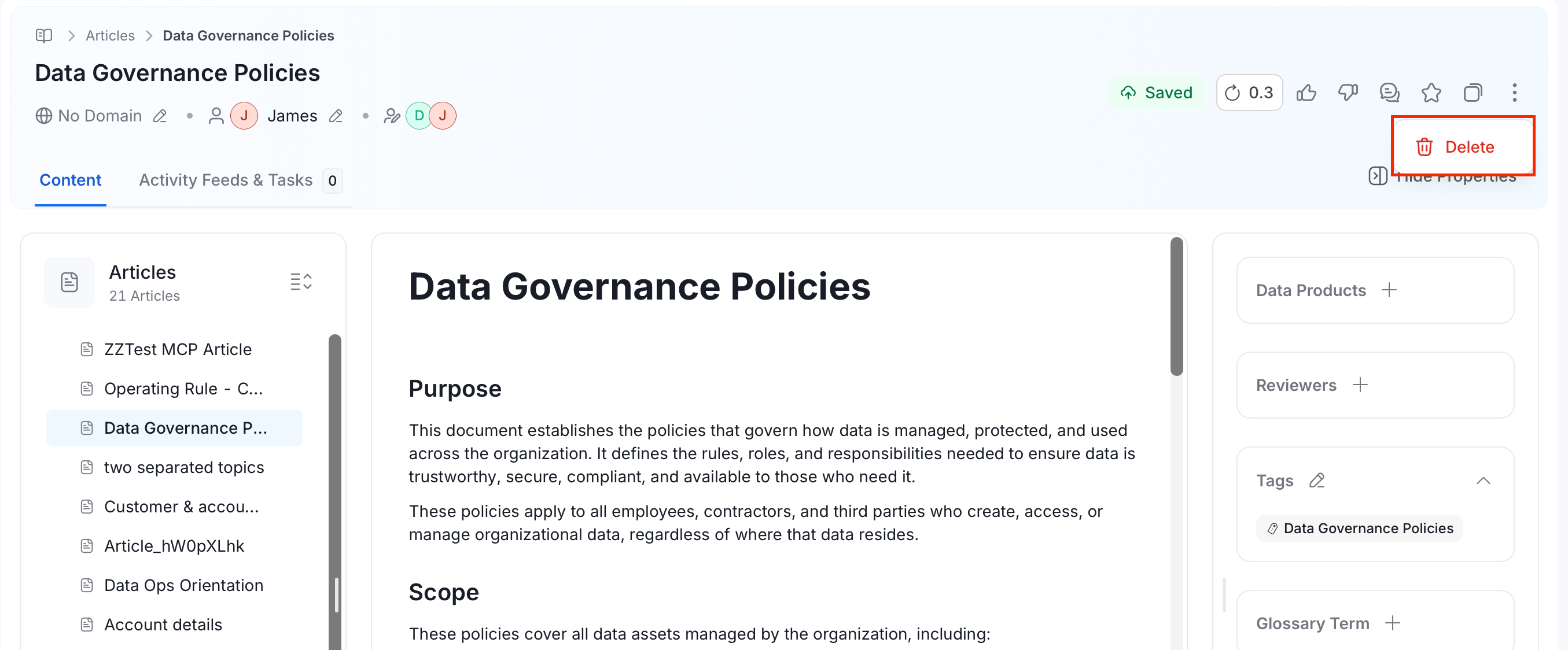
 Opening an article takes you to its detail page, which includes:
* **Header information**: The article's domain, owner, and reviewer (once one is assigned), each shown as a chip you can edit inline by clicking the pencil icon next to it.
* **Save status and version**: A **Saved** indicator confirms your latest edit was captured automatically, and a version number—for example, `0.2`—increases each time the article is updated, so you can track how much it's changed over time.
* **Status badge**: If the article has an open review request, a badge such as **In Review** appears next to its title.
* **Toolbar actions**, next to the Saved indicator:
* **Feedback**: Thumbs up or thumbs down on the article.
* **Conversation**: Open a comment thread on the article.
* **Favorite**: Bookmark the article so it's easy to find again later.
* **Copy**: Use the copy icon to copy and paste the article.
* **Delete**: Open the **⋮** menu and select **Delete** to remove the article.
Opening an article takes you to its detail page, which includes:
* **Header information**: The article's domain, owner, and reviewer (once one is assigned), each shown as a chip you can edit inline by clicking the pencil icon next to it.
* **Save status and version**: A **Saved** indicator confirms your latest edit was captured automatically, and a version number—for example, `0.2`—increases each time the article is updated, so you can track how much it's changed over time.
* **Status badge**: If the article has an open review request, a badge such as **In Review** appears next to its title.
* **Toolbar actions**, next to the Saved indicator:
* **Feedback**: Thumbs up or thumbs down on the article.
* **Conversation**: Open a comment thread on the article.
* **Favorite**: Bookmark the article so it's easy to find again later.
* **Copy**: Use the copy icon to copy and paste the article.
* **Delete**: Open the **⋮** menu and select **Delete** to remove the article.
 * **Content** and **Activity Feeds & Tasks** tabs:
* **Content** is the article body itself, where you write and edit using the rich text editor.
* **Activity Feeds & Tasks** tracks everything that's happened on the article, split into two views:
* **All**: A chronological feed of every change—who created or updated the article and when—with a short description of what changed. React to an entry with an emoji, or reply to start a thread on it.
* **Tasks**: Request-driven items on the article, such as an open review request, tracked separately from the general activity feed.
* **Content** and **Activity Feeds & Tasks** tabs:
* **Content** is the article body itself, where you write and edit using the rich text editor.
* **Activity Feeds & Tasks** tracks everything that's happened on the article, split into two views:
* **All**: A chronological feed of every change—who created or updated the article and when—with a short description of what changed. React to an entry with an emoji, or reply to start a thread on it.
* **Tasks**: Request-driven items on the article, such as an open review request, tracked separately from the general activity feed.
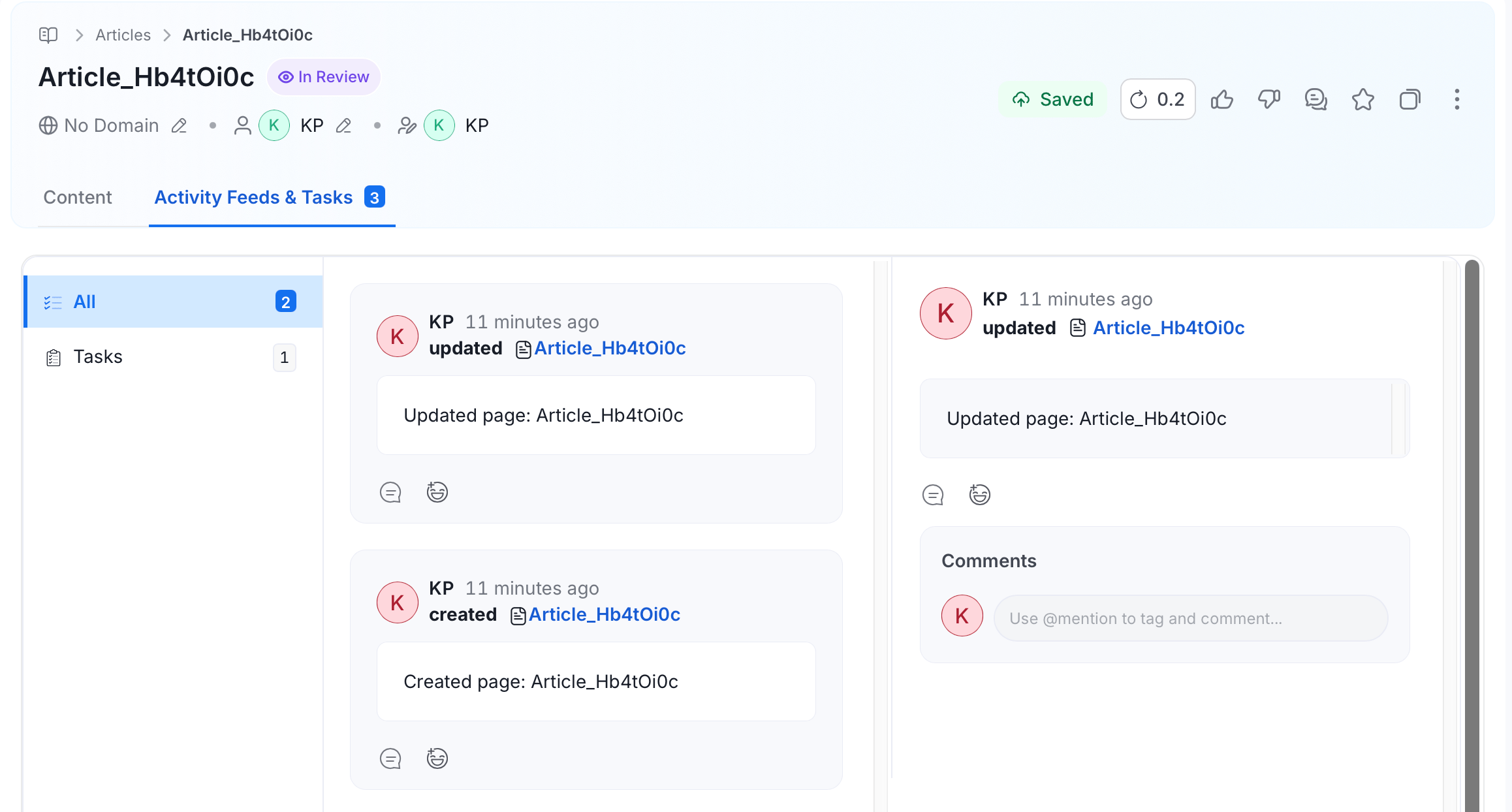 * Selecting an entry opens its details on the right, along with a **Comments** panel where you can add a comment and use `@mention` to tag a teammate.
* **Properties panel**: Attach **Data Products**, **Reviewers**, **Tags**, a **Glossary Term**, related **Data Assets**, or **Attachments** to the article, each with its own `+` button.
Quick Links, unlike written articles, show **Edit** and **Delete** icons directly on their card in the list, since there's no separate detail page to open.
* Selecting an entry opens its details on the right, along with a **Comments** panel where you can add a comment and use `@mention` to tag a teammate.
* **Properties panel**: Attach **Data Products**, **Reviewers**, **Tags**, a **Glossary Term**, related **Data Assets**, or **Attachments** to the article, each with its own `+` button.
Quick Links, unlike written articles, show **Edit** and **Delete** icons directly on their card in the list, since there's no separate detail page to open.