> ## Documentation Index
> Fetch the complete documentation index at: https://docs.getcollate.io/llms.txt
> Use this file to discover all available pages before exploring further.
# Workers | AI Studio
> Configure and manage workers in Collate AI Studio.
# Workers
A worker is a specialized AI agent that handles a specific domain of tasks within **Collate AI Chat** — such as running analytics queries, managing governance metadata, or processing data marketplace requests. Workers are part of the Collate AI Chat agentic fleet: when you ask a question in chat, the planner routes your request to the right worker automatically. You interact with workers through chat, not through AI Automations.
Workers differ from agents in one key way: instead of a Persona step, workers use **Planner Routing** — which controls how the worker decomposes and routes tasks to the right tools and environments.
## System Workers
Collate includes the following built-in system workers. System workers are pre-installed and cannot be deleted, but can be disabled.
| Worker | Internal Name | Description |
| -------------------------- | -------------------------- | ----------------------------------------------------------------------------------------------------- |
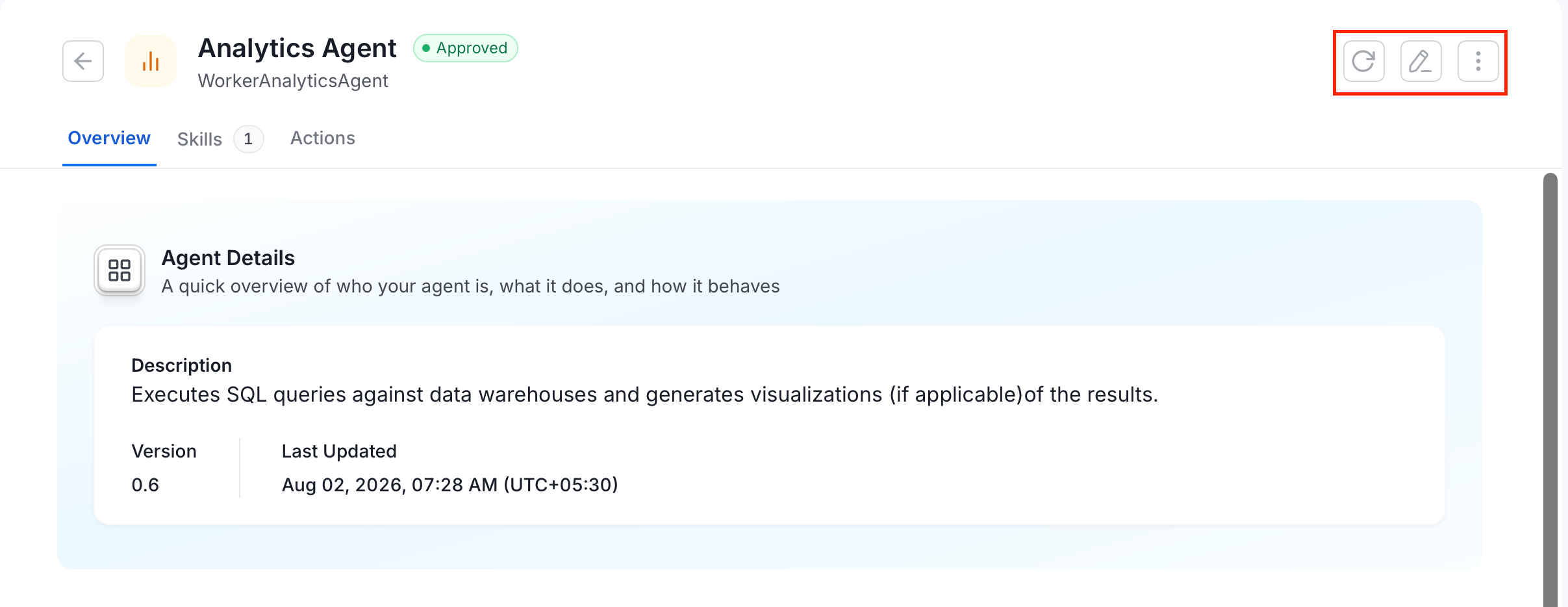
| **Analytics Agent** | WorkerAnalyticsAgent | Executes SQL queries against data warehouses and generates visualizations of the results. |
| **Automations Agent** | WorkerAutomationsAgent | Manages AI Automations — scheduled prompts that run a dynamic agent over a set of entities. |
| **Data Marketplace Agent** | WorkerDataMarketPlaceAgent | Manages the Data Marketplace surface: domains, data products, and data access requests. |
| **Governance Agent** | WorkerGovernanceAgent | Creates and updates metadata entities including glossaries, glossary terms, metrics, and entity tags. |
| **Insights Agent** | WorkerInsightsAgent | Queries Data Insights to generate charts about metadata health and governance coverage. |
| **Integration Agent** | WorkerIntegrationAgent | Sends Slack notifications using Block Kit format. |
## Creating a Worker
Follow the steps below to create a new worker in AI Studio.
### Step 1: Navigate to the Workers Tab
1. In the left navigation menu, click **More** > **AI Studio**.
2. Navigate to the **Workers** tab, and click **New Worker**.
 ### Step 2: Add Basic Details
Enter the following details:
* **Agent Name**: A unique name for this worker.
* **Description**: What this worker does and which domain it handles.
### Step 2: Add Basic Details
Enter the following details:
* **Agent Name**: A unique name for this worker.
* **Description**: What this worker does and which domain it handles.
 Click **Save and Next** to continue.
### Step 3: Select the Skills
Select the **Skills** this worker can use. Skills define the specific actions the worker is allowed to take — for example, reading asset metadata, running queries, or sending notifications.
Search for skills by name and select the checkboxes next to the ones you want to attach. To create or manage skills, go to the [Skills](/ai-2-0/collate-ai/ai-studio/skills) tab.
Click **Save and Next** to continue.
### Step 3: Select the Skills
Select the **Skills** this worker can use. Skills define the specific actions the worker is allowed to take — for example, reading asset metadata, running queries, or sending notifications.
Search for skills by name and select the checkboxes next to the ones you want to attach. To create or manage skills, go to the [Skills](/ai-2-0/collate-ai/ai-studio/skills) tab.
 Click **Save and Next** to continue.
### Step 4: Planner Routing
The **Planner Routing** step configures how the worker decomposes incoming tasks and routes them to the right tools or sub-agents. This replaces the Persona step used in agent creation — workers use routing logic rather than a conversational persona to decide how to handle each request.
**Tip**: The recommended approach is to click **Auto-fill with AI** and let Collate AI suggest the planner configuration based on your worker's name and description. Only configure it manually if you have a specific routing requirement — the AI-generated configuration is a reliable starting point for most use cases.
Click **Save and Next** to continue.
### Step 5: Add Actions
* **Select Bot** (required): Choose the bot identity this worker will use to perform actions in Collate. Select the bot that matches this worker's domain.
Click **Save** to create the worker.
## Manage Workers
The **Workers** tab lists all workers with their name, provider (System or User), status, description, and last updated date.
* To edit a worker, click the **Edit** icon and modify the required details.
* To delete a worker, click the **⋮** (three-dot menu) icon and select **Delete**. System workers cannot be deleted — only disabled.
* To reload the worker's configuration with the latest changes, click the **Refresh** icon.
Click **Save and Next** to continue.
### Step 4: Planner Routing
The **Planner Routing** step configures how the worker decomposes incoming tasks and routes them to the right tools or sub-agents. This replaces the Persona step used in agent creation — workers use routing logic rather than a conversational persona to decide how to handle each request.
**Tip**: The recommended approach is to click **Auto-fill with AI** and let Collate AI suggest the planner configuration based on your worker's name and description. Only configure it manually if you have a specific routing requirement — the AI-generated configuration is a reliable starting point for most use cases.
Click **Save and Next** to continue.
### Step 5: Add Actions
* **Select Bot** (required): Choose the bot identity this worker will use to perform actions in Collate. Select the bot that matches this worker's domain.
Click **Save** to create the worker.
## Manage Workers
The **Workers** tab lists all workers with their name, provider (System or User), status, description, and last updated date.
* To edit a worker, click the **Edit** icon and modify the required details.
* To delete a worker, click the **⋮** (three-dot menu) icon and select **Delete**. System workers cannot be deleted — only disabled.
* To reload the worker's configuration with the latest changes, click the **Refresh** icon.