> ## Documentation Index
> Fetch the complete documentation index at: https://docs.getcollate.io/llms.txt
> Use this file to discover all available pages before exploring further.
# Plugins | AI Studio
> Connect agents to external tools and data sources using plugins in Collate AI Studio.
# Plugins
Plugins connect external tools and data sources to Collate AI agents via MCP servers. Each plugin imports the tools exposed by that server, which you can then attach to agents in AI Studio. When a plugin is connected, agents can pull in context from that external tool — for example, finding a Confluence page that describes a data model and linking it to the relevant tables in Collate, or checking whether a GitHub issue already covers a data quality failure you're investigating.
To manage your organization's own knowledge — Articles, Documents, and Memories — instead of connecting an external tool, see [Context Center](/ai-2-0/collate-ai/context-center).
## Supported Plugins
| Plugin | What agents can access |
| -------------- | ------------------------------------------------------------------------------------------- |
| **Collate** | Built-in Collate tools for metadata management, search, governance, data quality, and more. |
| **Confluence** | Pages and content across your Confluence site. |
| **GitHub** | Repository files, pull request descriptions, and issues. |
| **Custom** | Any other MCP server you provide a URL and credentials for. |
## Add a Plugin
Follow the steps below to add a new plugin in AI Studio.
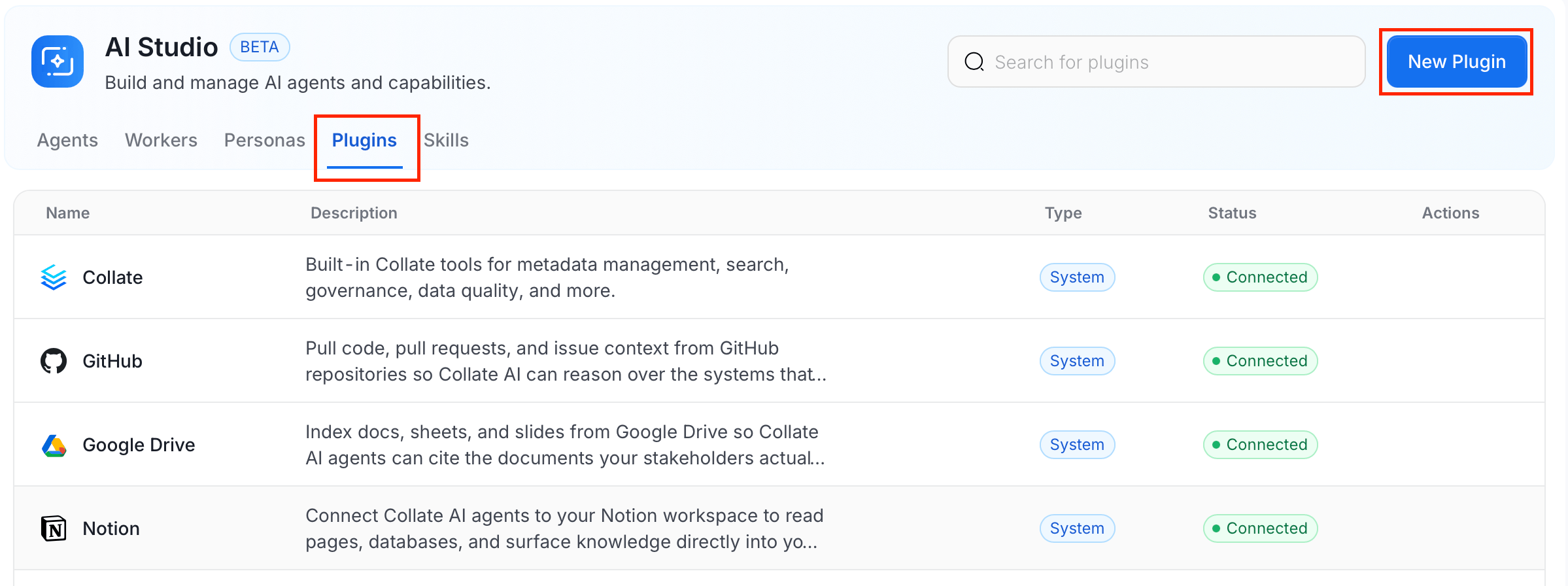
### Step 1: Navigate to the Plugins Tab
1. In the left navigation menu, click **More** > **AI Studio**.
2. Navigate to the **Plugins** tab, and click **New Plugin**.
 ### Step 2: Fill in Plugin Details
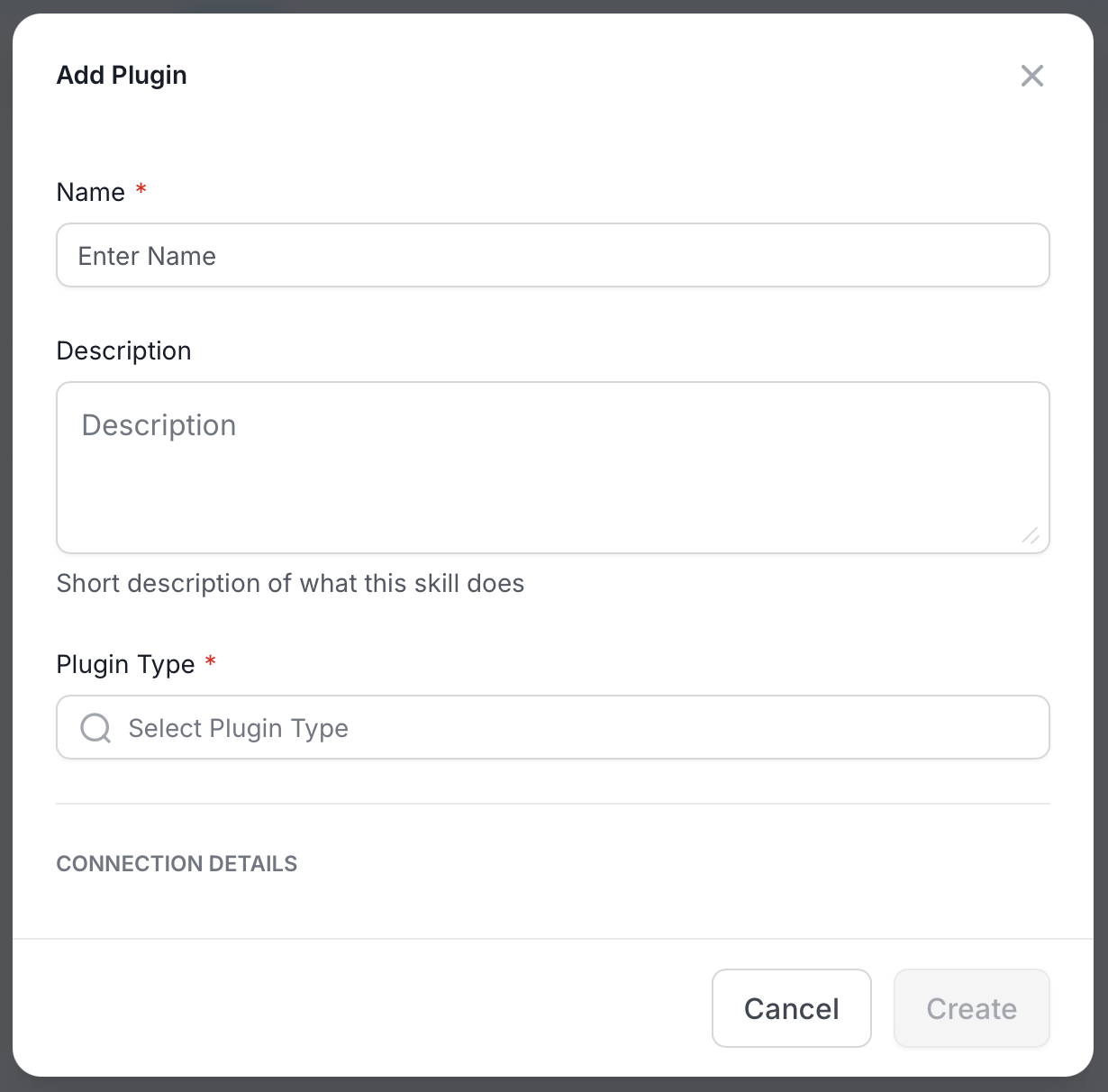
Enter the following details:
* **Name** (required): A unique name for this plugin.
* **Description** (optional): A short description of what this plugin provides.
* **Plugin Type** (required): Select a plugin type. You can use **Custom** to add any other plugin if your plugin is not listed in dropdown.
### Step 2: Fill in Plugin Details
Enter the following details:
* **Name** (required): A unique name for this plugin.
* **Description** (optional): A short description of what this plugin provides.
* **Plugin Type** (required): Select a plugin type. You can use **Custom** to add any other plugin if your plugin is not listed in dropdown.
 ### Step 3: Fill in Connection Details
Connection fields vary by plugin type. Use the following settings to configure your plugin type:
* **Confluence**
| Field | Required | Description |
| ----------------------- | -------- | --------------------------------------------------------------- |
| **URL** | Yes | MCP server URL. Defaults to `https://mcp.atlassian.com/v1/mcp`. |
| **Email** | Yes | Your Atlassian account email. |
| **API Token** | Yes | An Atlassian API token for authentication. |
| **Cloud ID** | No | Your Atlassian Cloud instance ID. |
| **Confluence Site URL** | No | The base URL of your Confluence site. |
* **GitHub**
| Field | Required | Description |
| ------------------------- | -------- | ----------------------------------------------------------------------------- |
| **URL** | Yes | MCP server URL. Defaults to `https://api.githubcopilot.com/mcp/`. |
| **Personal Access Token** | Yes | A GitHub personal access token with read access to the relevant repositories. |
* **Custom**
| Field | Required | Description |
| --------------------- | -------- | --------------------------------------------------------------------------------- |
| **URL** | Yes | The URL of your MCP server. |
| **API Token** | No | Authentication token for the server. |
| **Auth Scheme** | No | How the token is passed — Bearer, Basic, or None. |
| **Token Header Name** | No | The HTTP header name that carries the token. |
| **Headers** | No | Any additional HTTP headers the server requires. Click **+ Add** to include more. |
Click **Create** to save the plugin. After the plugin is connected, Collate discovers the tools available on that MCP server, and agents begin referencing the plugin when it's relevant.
## Using Plugins
After a plugin is connected, agents automatically consider external context when formulating answers. You don't need to explicitly invoke a plugin — agents determine when external context is relevant and fetch it as part of their reasoning.
You can also ask explicitly in Collate AI Chat. For example:
* "Find the Confluence page about our Q3 data model and link it to the relevant tables in Collate."
* "Is there a GitHub issue open for the data quality failures on the orders table?"
## Permissions
Plugins are shared resources, visible to everyone in your organization after connecting. Access follows the standard permission model:
| Action | Permission required |
| --------------- | ------------------- |
| Create a plugin | Create |
| View plugins | ViewBasic |
| Edit a plugin | EditAll |
| Delete a plugin | Delete |
Whoever has Edit access to a plugin can see and update its connection details, including rotating its token. After a plugin is connected, agents use it on behalf of any user asking a relevant question — it doesn't check that individual user's access in the external tool.
### Step 3: Fill in Connection Details
Connection fields vary by plugin type. Use the following settings to configure your plugin type:
* **Confluence**
| Field | Required | Description |
| ----------------------- | -------- | --------------------------------------------------------------- |
| **URL** | Yes | MCP server URL. Defaults to `https://mcp.atlassian.com/v1/mcp`. |
| **Email** | Yes | Your Atlassian account email. |
| **API Token** | Yes | An Atlassian API token for authentication. |
| **Cloud ID** | No | Your Atlassian Cloud instance ID. |
| **Confluence Site URL** | No | The base URL of your Confluence site. |
* **GitHub**
| Field | Required | Description |
| ------------------------- | -------- | ----------------------------------------------------------------------------- |
| **URL** | Yes | MCP server URL. Defaults to `https://api.githubcopilot.com/mcp/`. |
| **Personal Access Token** | Yes | A GitHub personal access token with read access to the relevant repositories. |
* **Custom**
| Field | Required | Description |
| --------------------- | -------- | --------------------------------------------------------------------------------- |
| **URL** | Yes | The URL of your MCP server. |
| **API Token** | No | Authentication token for the server. |
| **Auth Scheme** | No | How the token is passed — Bearer, Basic, or None. |
| **Token Header Name** | No | The HTTP header name that carries the token. |
| **Headers** | No | Any additional HTTP headers the server requires. Click **+ Add** to include more. |
Click **Create** to save the plugin. After the plugin is connected, Collate discovers the tools available on that MCP server, and agents begin referencing the plugin when it's relevant.
## Using Plugins
After a plugin is connected, agents automatically consider external context when formulating answers. You don't need to explicitly invoke a plugin — agents determine when external context is relevant and fetch it as part of their reasoning.
You can also ask explicitly in Collate AI Chat. For example:
* "Find the Confluence page about our Q3 data model and link it to the relevant tables in Collate."
* "Is there a GitHub issue open for the data quality failures on the orders table?"
## Permissions
Plugins are shared resources, visible to everyone in your organization after connecting. Access follows the standard permission model:
| Action | Permission required |
| --------------- | ------------------- |
| Create a plugin | Create |
| View plugins | ViewBasic |
| Edit a plugin | EditAll |
| Delete a plugin | Delete |
Whoever has Edit access to a plugin can see and update its connection details, including rotating its token. After a plugin is connected, agents use it on behalf of any user asking a relevant question — it doesn't check that individual user's access in the external tool.