> ## Documentation Index
> Fetch the complete documentation index at: https://docs.getcollate.io/llms.txt
> Use this file to discover all available pages before exploring further.
# Frameworks
> Enable built-in AI regulatory frameworks or create a custom one, and track how your AI estate is tracking against each framework's controls.
# Frameworks
A framework is a library of controls that drives your compliance assessments, such as the EU AI Act or ISO/IEC 42001. Enabling a framework applies its controls automatically to any AI asset whose region, deployment, or risk class falls in scope, so you don't have to manually track which regulations apply to which assets.
## Why It Matters
Regulatory requirements for AI vary by region and by how an asset is used. Frameworks give you a way to manage that without tracking it by hand:
* **Coverage is calculated automatically.** Once a framework is enabled, Collate scopes it to the right assets and tracks how many of its controls are met.
* **Built-in frameworks cover the major regulations**, so you don't have to build a controls library from scratch for common standards.
* **Custom frameworks handle what's specific to you**, such as an internal AI acceptable-use policy or an industry standard not covered out of the box.
## Access Frameworks
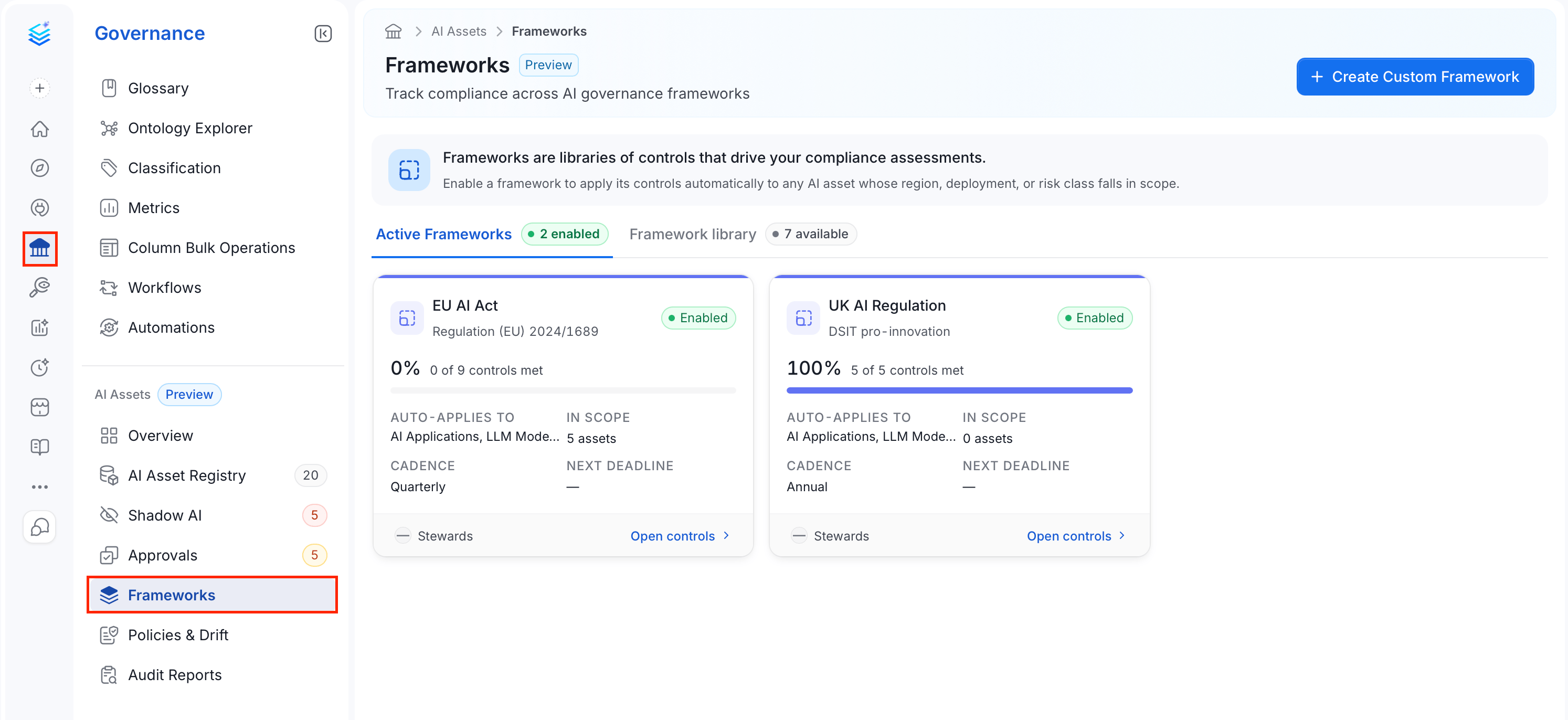
1. In the left navigation bar, select **Governance**.
2. Under the **AI Assets** section, select **Frameworks**.
 ## Creating a Custom Framework
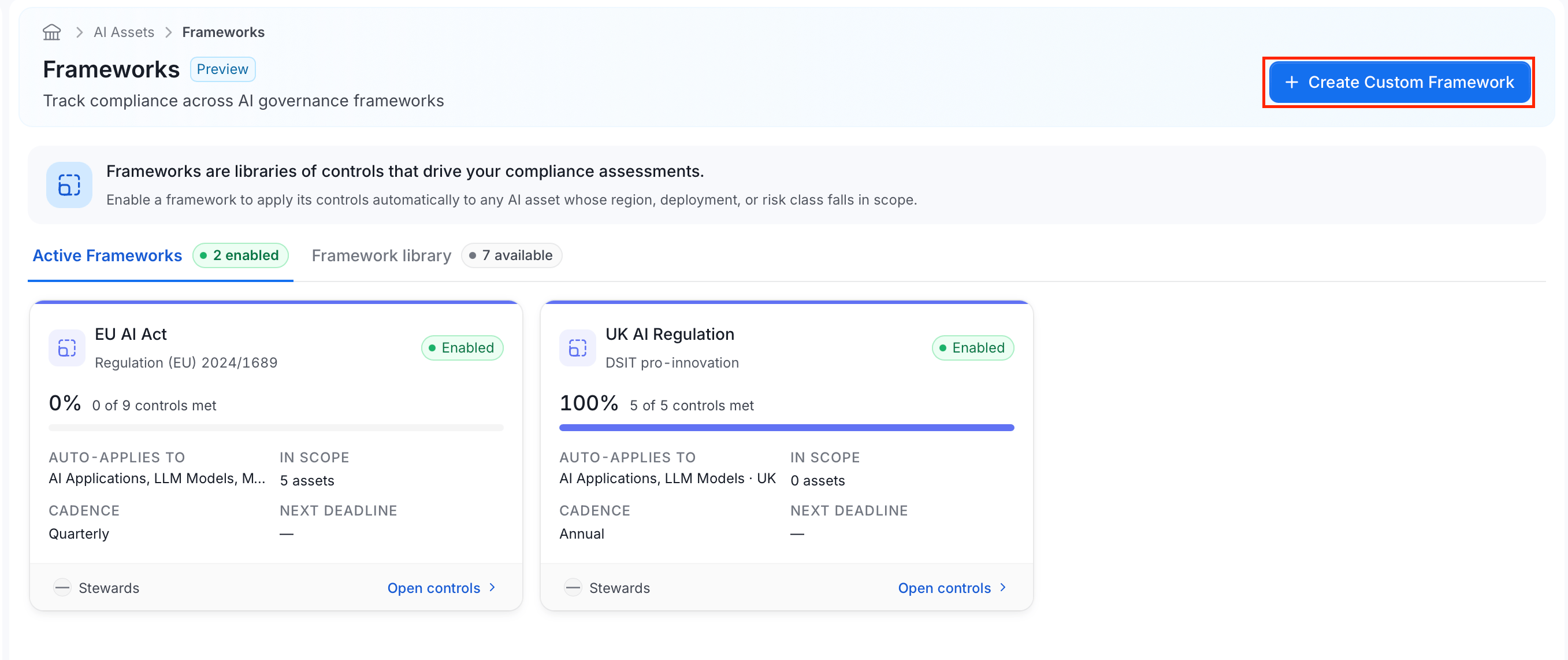
1. On the **Frameworks** page, click **Create Custom Framework** to build one for a policy or standard that isn't in the library.
## Creating a Custom Framework
1. On the **Frameworks** page, click **Create Custom Framework** to build one for a policy or standard that isn't in the library.
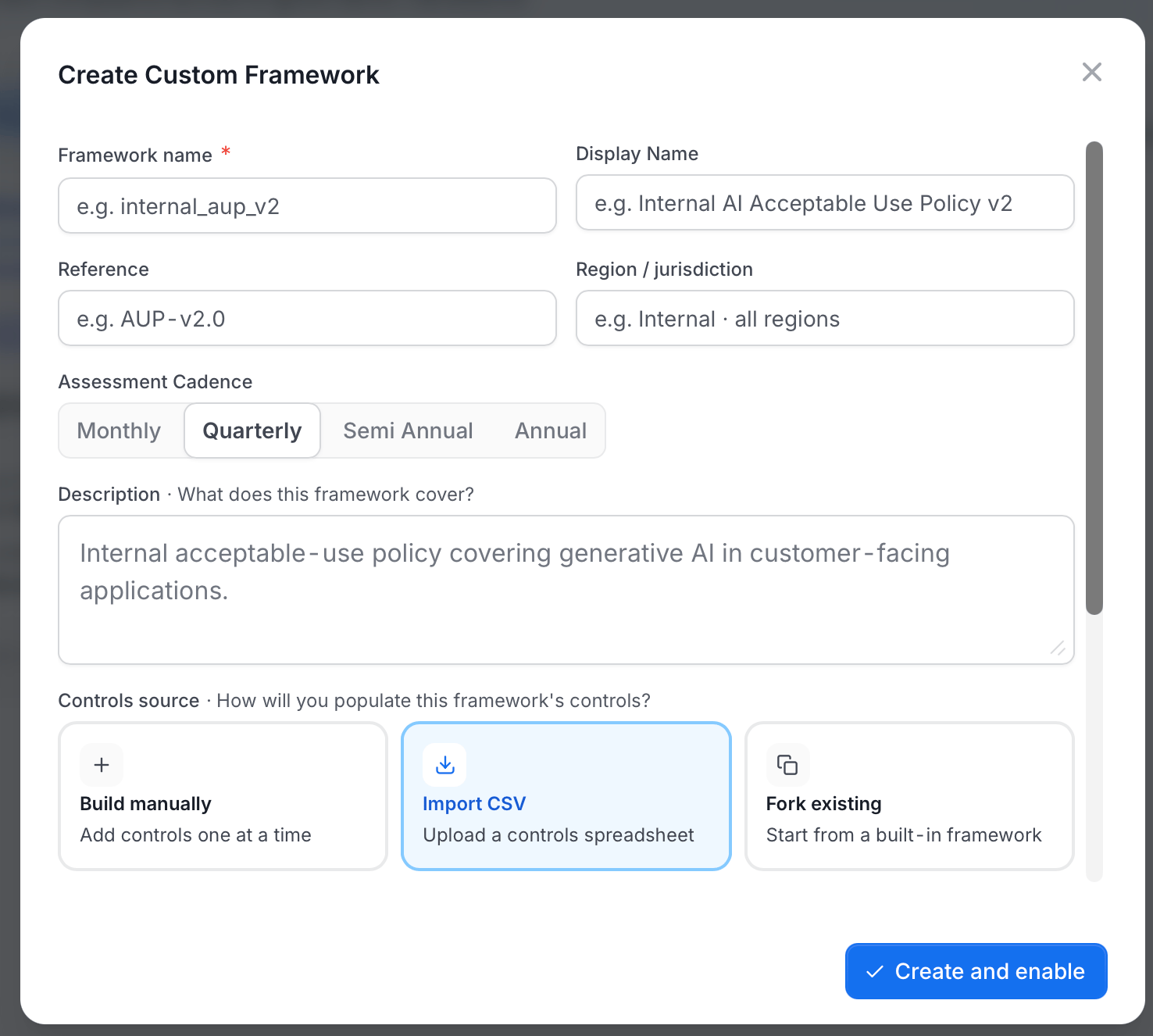
 2. On the **Create Custom Framework** dialog, do the following:
* Enter a **Framework name** (required) and an optional **Display Name**.
* Enter a **Reference**. A citation or version identifier for the policy or standard this framework is based on, such as an internal document name or an external standard's version number. For example, "AUP-v2.0".
* Enter a **Region / jurisdiction**. A free-text label describing where or to whom this framework applies. This is descriptive only. It doesn't control scoping on its own. Use the **Regions** auto-apply rule below for that. For example, "Internal · all regions" for a company-wide policy that isn't tied to a specific country.
* Select an **Assessment Cadence**: Monthly, Quarterly, Semi Annual, or Annual.
* Enter a **Description** of what the framework covers.
* Choose a **Controls source**:
| Option | What it does |
| - | - |
| **Build manually** | Add controls one at a time through the form. Best for a short list of controls you're still defining. |
| **Import CSV** | Upload a spreadsheet of controls in one step. Best if you already maintain your control library outside Collate. |
| **Fork existing** | Copy every control from a built-in framework into this one as a starting point, then edit or remove what doesn't apply. Best when your policy is a variation of an existing standard. |
2. On the **Create Custom Framework** dialog, do the following:
* Enter a **Framework name** (required) and an optional **Display Name**.
* Enter a **Reference**. A citation or version identifier for the policy or standard this framework is based on, such as an internal document name or an external standard's version number. For example, "AUP-v2.0".
* Enter a **Region / jurisdiction**. A free-text label describing where or to whom this framework applies. This is descriptive only. It doesn't control scoping on its own. Use the **Regions** auto-apply rule below for that. For example, "Internal · all regions" for a company-wide policy that isn't tied to a specific country.
* Select an **Assessment Cadence**: Monthly, Quarterly, Semi Annual, or Annual.
* Enter a **Description** of what the framework covers.
* Choose a **Controls source**:
| Option | What it does |
| - | - |
| **Build manually** | Add controls one at a time through the form. Best for a short list of controls you're still defining. |
| **Import CSV** | Upload a spreadsheet of controls in one step. Best if you already maintain your control library outside Collate. |
| **Fork existing** | Copy every control from a built-in framework into this one as a starting point, then edit or remove what doesn't apply. Best when your policy is a variation of an existing standard. |
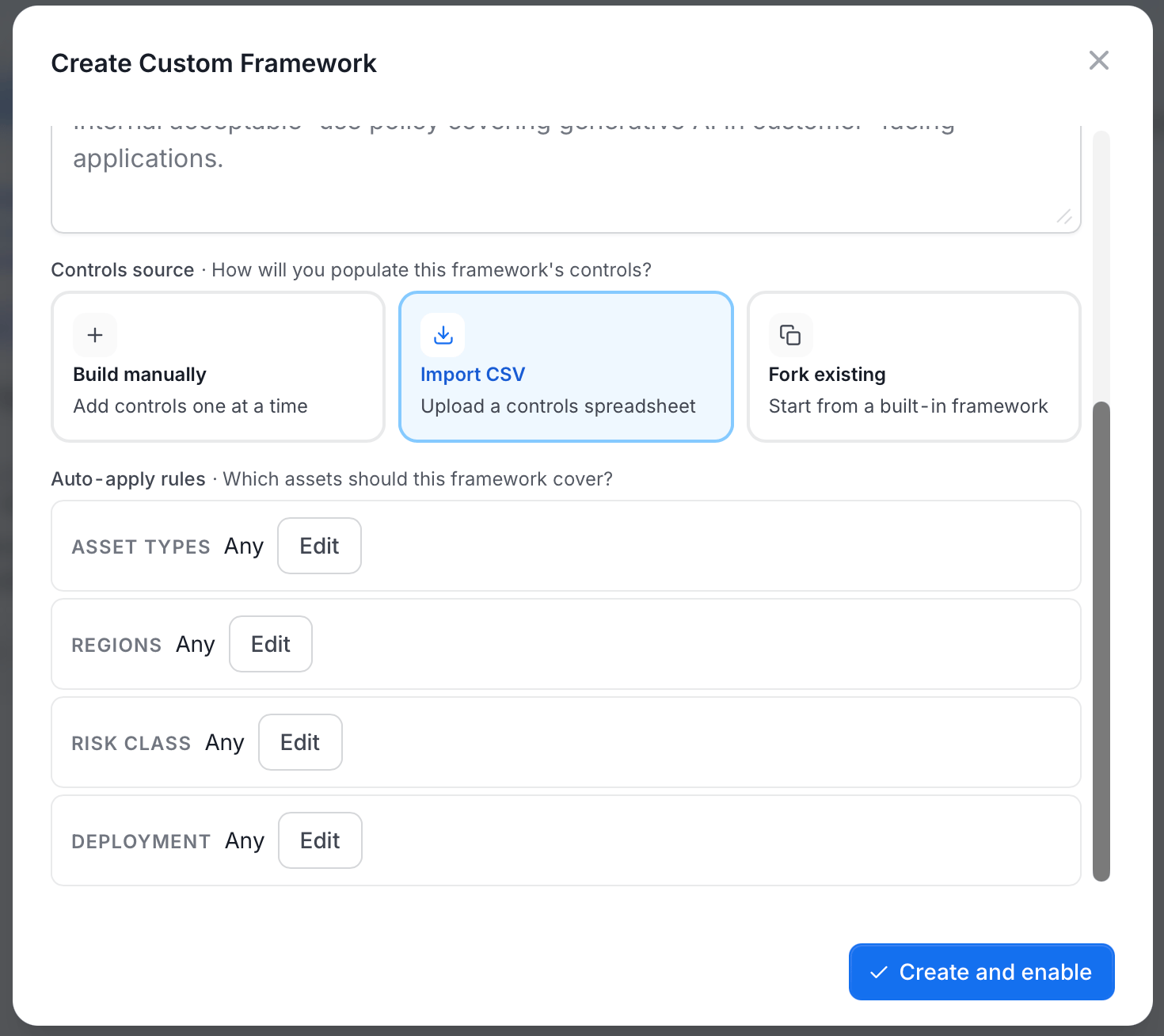
 * Set **Auto-apply rules** to define which assets this framework should cover. Each rule defaults to "Any" until you edit it:
| Rule | Options |
| - | - |
| **Asset Types** | AI Applications, LLM Models, MCP Servers |
| **Regions** | EU, US, UK, APAC, CA, LATAM, MENA |
| **Risk Class** | Unacceptable, High, Limited, Minimal |
| **Deployment** | Production, Staging, Development |
* Set **Auto-apply rules** to define which assets this framework should cover. Each rule defaults to "Any" until you edit it:
| Rule | Options |
| - | - |
| **Asset Types** | AI Applications, LLM Models, MCP Servers |
| **Regions** | EU, US, UK, APAC, CA, LATAM, MENA |
| **Risk Class** | Unacceptable, High, Limited, Minimal |
| **Deployment** | Production, Staging, Development |
 3. Click **Create and enable** to save the framework.
## Active Frameworks
Each enabled framework appears as a card showing:
* Its name and reference (for example, "Regulation (EU) 2024/1689" for the EU AI Act).
* A coverage percentage and controls-met count (for example, "0 of 18 controls met").
* **Auto-applies to**: Which asset types and regions the framework's controls apply to.
* **In scope**: How many of your assets currently fall under this framework.
* **Cadence**: How often assessments are expected. The card shows `SemiAnnual` for the **Semi Annual** form option.
* **Next deadline**: The date of the next scheduled assessment, if one is set.
* **Stewards**: Who's responsible for this framework, if anyone has been assigned.
3. Click **Create and enable** to save the framework.
## Active Frameworks
Each enabled framework appears as a card showing:
* Its name and reference (for example, "Regulation (EU) 2024/1689" for the EU AI Act).
* A coverage percentage and controls-met count (for example, "0 of 18 controls met").
* **Auto-applies to**: Which asset types and regions the framework's controls apply to.
* **In scope**: How many of your assets currently fall under this framework.
* **Cadence**: How often assessments are expected. The card shows `SemiAnnual` for the **Semi Annual** form option.
* **Next deadline**: The date of the next scheduled assessment, if one is set.
* **Stewards**: Who's responsible for this framework, if anyone has been assigned.
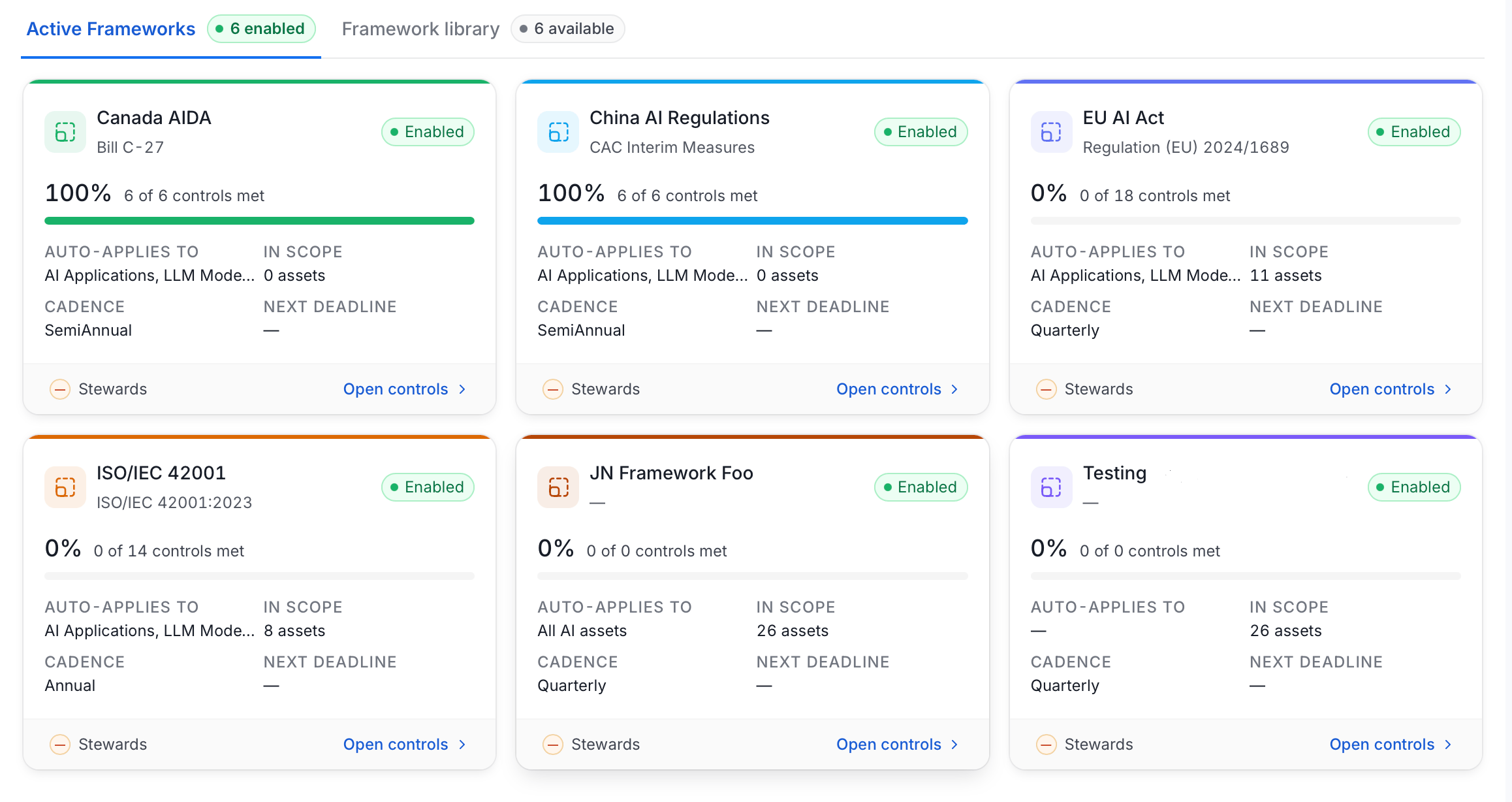 Select **Open controls** on a card to see its full [control list](#framework-detail).
## Framework Library
The library starts with nine built-in frameworks you haven't enabled yet:
| Framework | Region | Reference |
| - | - | - |
| **Canada AIDA** | Canada | Bill C-27 |
| **China AI Regulations** | China | CAC Interim Measures |
| **EU AI Act** | European Union | Regulation (EU) 2024/1689 |
| **ISO/IEC 42001** | Global | ISO/IEC 42001:2023 |
| **NIST AI RMF** | United States | AI 100-1 |
| **Singapore Model AI Governance Framework** | Singapore | IMDA MGF |
| **SOC 2 (AI addendum)** | Global | AICPA |
| **UK AI Regulation** | United Kingdom | DSIT pro-innovation |
| **US AI Bill of Rights** | United States | OSTP Blueprint |
Select **Open controls** on a card to see its full [control list](#framework-detail).
## Framework Library
The library starts with nine built-in frameworks you haven't enabled yet:
| Framework | Region | Reference |
| - | - | - |
| **Canada AIDA** | Canada | Bill C-27 |
| **China AI Regulations** | China | CAC Interim Measures |
| **EU AI Act** | European Union | Regulation (EU) 2024/1689 |
| **ISO/IEC 42001** | Global | ISO/IEC 42001:2023 |
| **NIST AI RMF** | United States | AI 100-1 |
| **Singapore Model AI Governance Framework** | Singapore | IMDA MGF |
| **SOC 2 (AI addendum)** | Global | AICPA |
| **UK AI Regulation** | United Kingdom | DSIT pro-innovation |
| **US AI Bill of Rights** | United States | OSTP Blueprint |
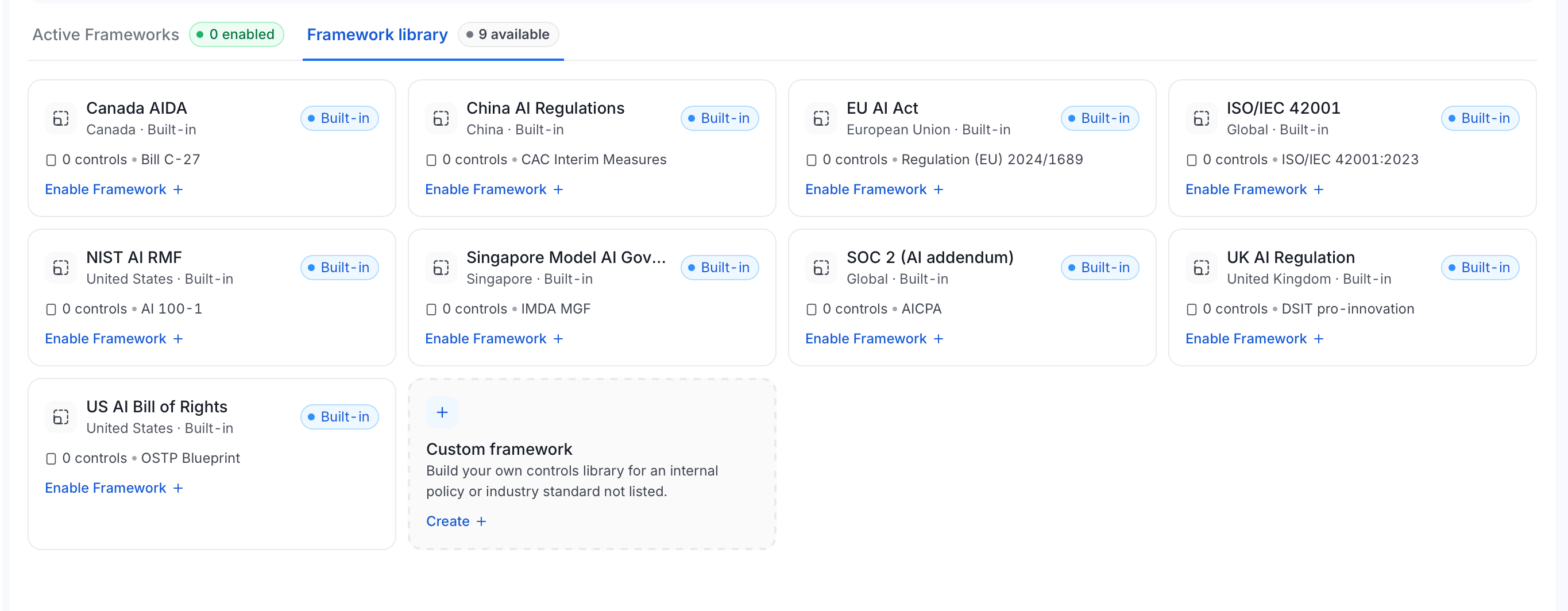 Select **Enable Framework** on any card to turn it on. It then moves to the Active Frameworks tab and starts scoping to your assets.
## Framework Detail
Select a framework to open its detail page:
Select **Enable Framework** on any card to turn it on. It then moves to the Active Frameworks tab and starts scoping to your assets.
## Framework Detail
Select a framework to open its detail page:
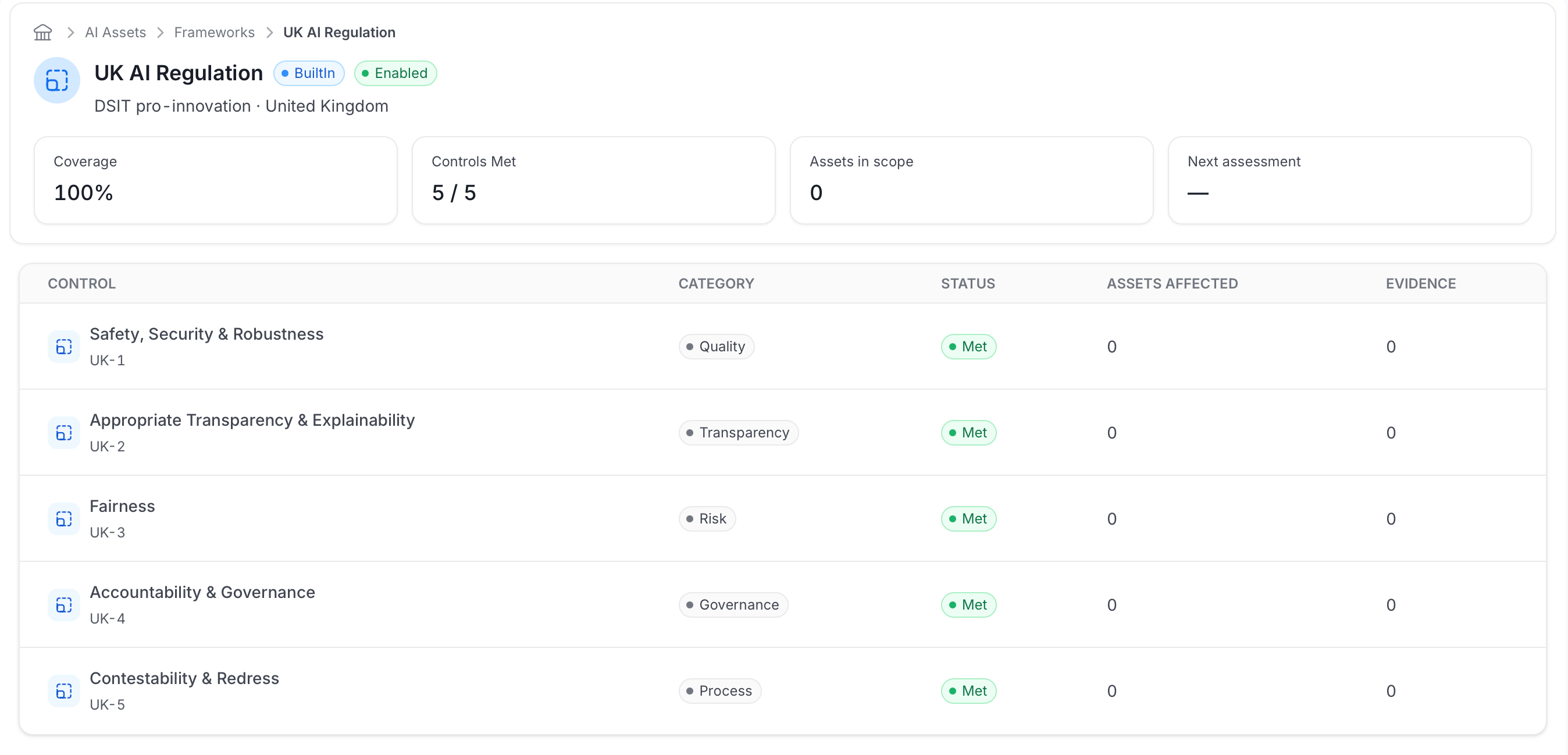 Four stat cards summarize the framework: **Coverage** (percentage of controls met), **Controls Met** (as a fraction), **Assets in scope**, and the date of the **Next assessment**.
Below that, the controls table lists each control in the framework:
* **Control**: The control's name and short code (for example, "Safety, Security & Robustness" / UK-1).
* **Category**: What kind of control it is, such as Quality, Transparency, Risk, Governance, or Process.
* **Status**: Whether the control is currently **Met**.
* **Assets Affected**: How many of your assets this control applies to.
* **Evidence**: How many pieces of evidence are attached to support this control.
Four stat cards summarize the framework: **Coverage** (percentage of controls met), **Controls Met** (as a fraction), **Assets in scope**, and the date of the **Next assessment**.
Below that, the controls table lists each control in the framework:
* **Control**: The control's name and short code (for example, "Safety, Security & Robustness" / UK-1).
* **Category**: What kind of control it is, such as Quality, Transparency, Risk, Governance, or Process.
* **Status**: Whether the control is currently **Met**.
* **Assets Affected**: How many of your assets this control applies to.
* **Evidence**: How many pieces of evidence are attached to support this control.