> ## Documentation Index
> Fetch the complete documentation index at: https://docs.getcollate.io/llms.txt
> Use this file to discover all available pages before exploring further.
# Approvals
> Review AI assets pending registration, check their intake status, and approve or reject them.
# Approvals
The **Approvals** page lists every AI Application, LLM Model, and MCP Server waiting on a decision: either submitted through the [registration wizard](/ai-2-0/collate-ai/ai-governance/asset-registry) or registered from a [Shadow AI](/ai-2-0/collate-ai/ai-governance/shadow-ai) detection. Anyone with edit access to that asset type can approve or reject it from here.
## Why It Matters
Registration only gets an asset into the inventory. Approval is what decides whether it's actually cleared for use:
* **One queue for every pending asset**, regardless of whether it came from a manual registration or a Shadow AI detection.
* **Intake checks up front**, so a reviewer can see at a glance what's missing (an owner, a risk classification, fairness evidence) before deciding.
* **A decision, not just a review.** Approve or reject directly from the queue, with a required reason when rejecting.
## Access Approvals
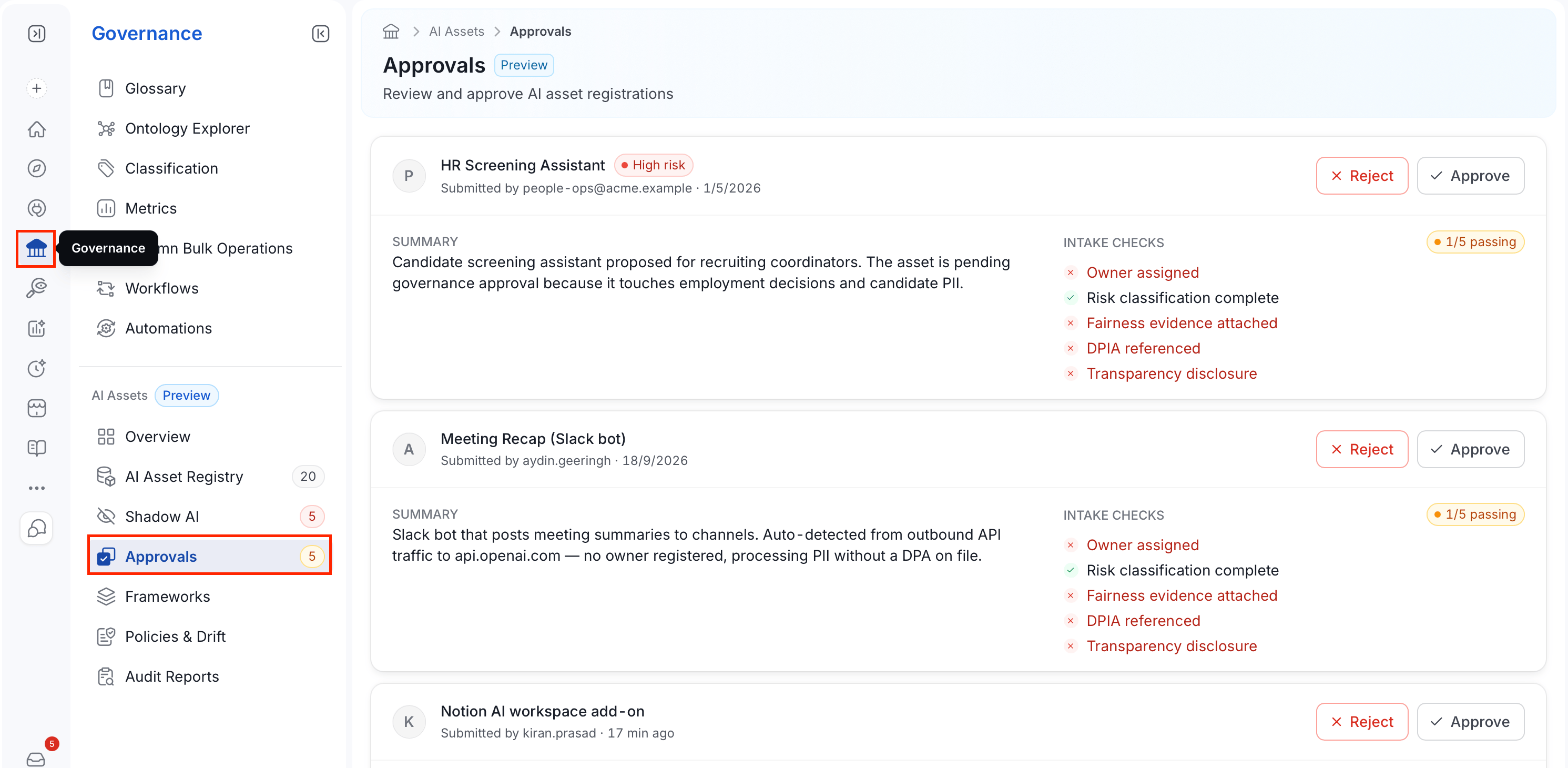
1. In the left navigation bar, select **Governance**.
2. Under the **AI Assets** section, select **Approvals**.
 ## Reviewing a Submission
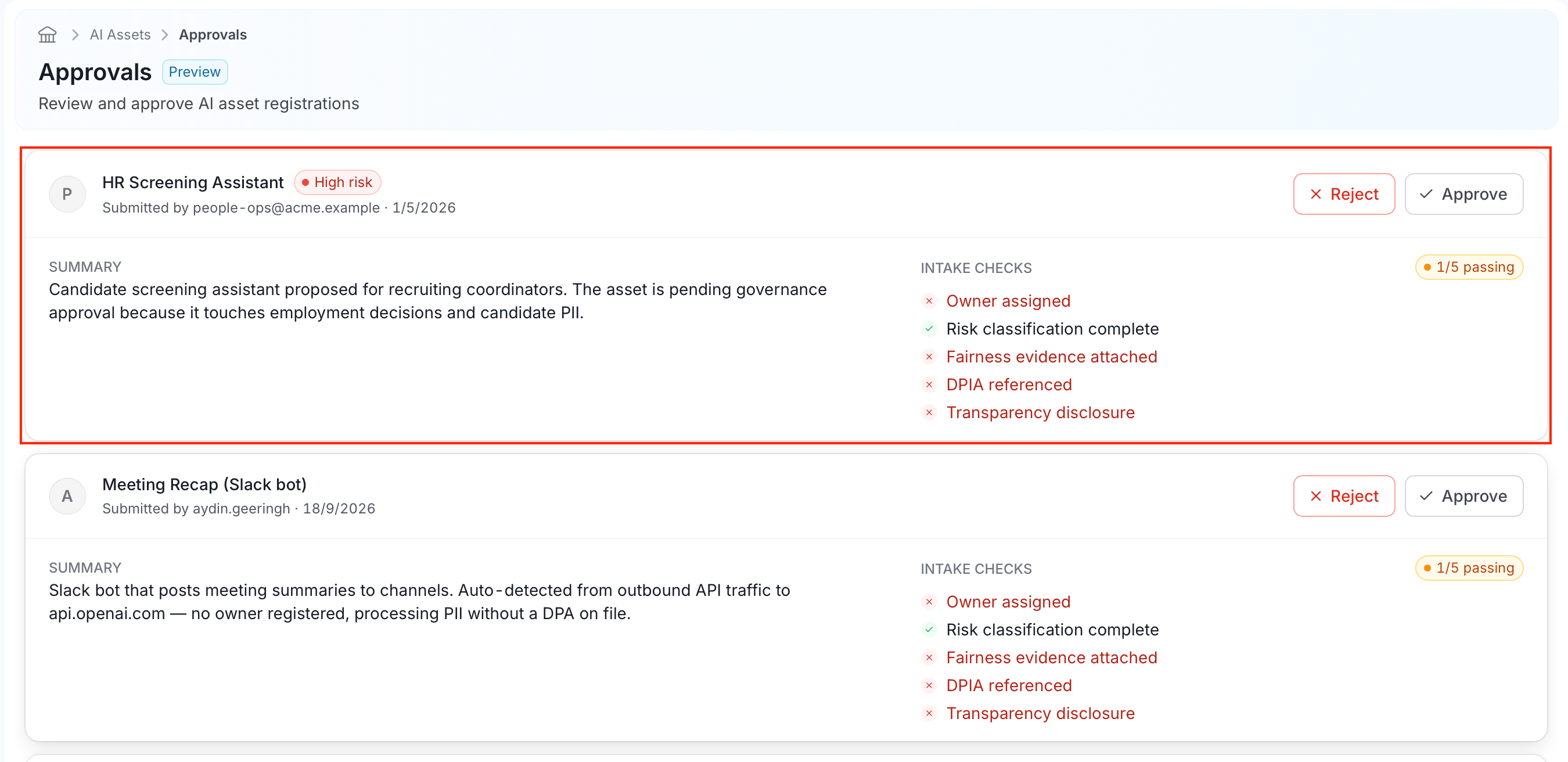
Each pending asset appears as a card:
* The asset's **name**, with a risk badge (for example, **High risk**) if it was classified High or Unacceptable during registration.
* **Submitted by** the user who registered it, and when.
* A **Summary** of what the asset does and why it needs approval.
* **Intake Checks**, with a passing count (for example, "1/5 passing") and five individual checks:
| Check | What it confirms |
| - | - |
| **Owner assigned** | The asset has an owner. |
| **Risk classification complete** | A risk tier was set during registration. |
| **Fairness evidence attached** | Evidence of a fairness or bias evaluation is on file. |
| **DPIA referenced** | A Data Protection Impact Assessment is linked. |
| **Transparency disclosure** | The asset discloses to users that they're interacting with AI. |
## Reviewing a Submission
Each pending asset appears as a card:
* The asset's **name**, with a risk badge (for example, **High risk**) if it was classified High or Unacceptable during registration.
* **Submitted by** the user who registered it, and when.
* A **Summary** of what the asset does and why it needs approval.
* **Intake Checks**, with a passing count (for example, "1/5 passing") and five individual checks:
| Check | What it confirms |
| - | - |
| **Owner assigned** | The asset has an owner. |
| **Risk classification complete** | A risk tier was set during registration. |
| **Fairness evidence attached** | Evidence of a fairness or bias evaluation is on file. |
| **DPIA referenced** | A Data Protection Impact Assessment is linked. |
| **Transparency disclosure** | The asset discloses to users that they're interacting with AI. |
 A missing check doesn't block you from approving. It's a signal for the reviewer to weigh, not a hard gate.
## Approving or Rejecting
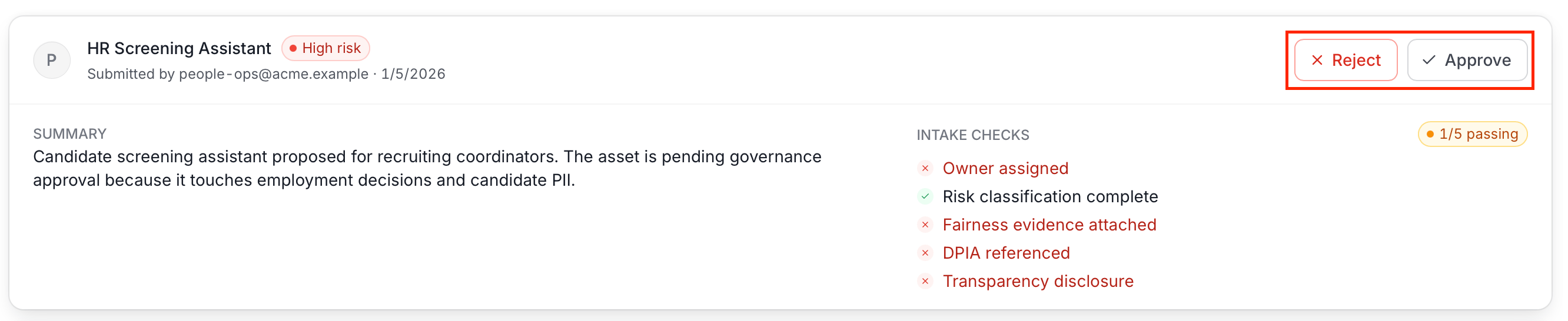
* To approve an AI asset, click **Approve** on its card.
* To reject an AI asset:
1. Click **Reject** on its card.
A missing check doesn't block you from approving. It's a signal for the reviewer to weigh, not a hard gate.
## Approving or Rejecting
* To approve an AI asset, click **Approve** on its card.
* To reject an AI asset:
1. Click **Reject** on its card.
 2. In the reject dialog, add a comment explaining why, so the submitter knows what to fix before registering again.
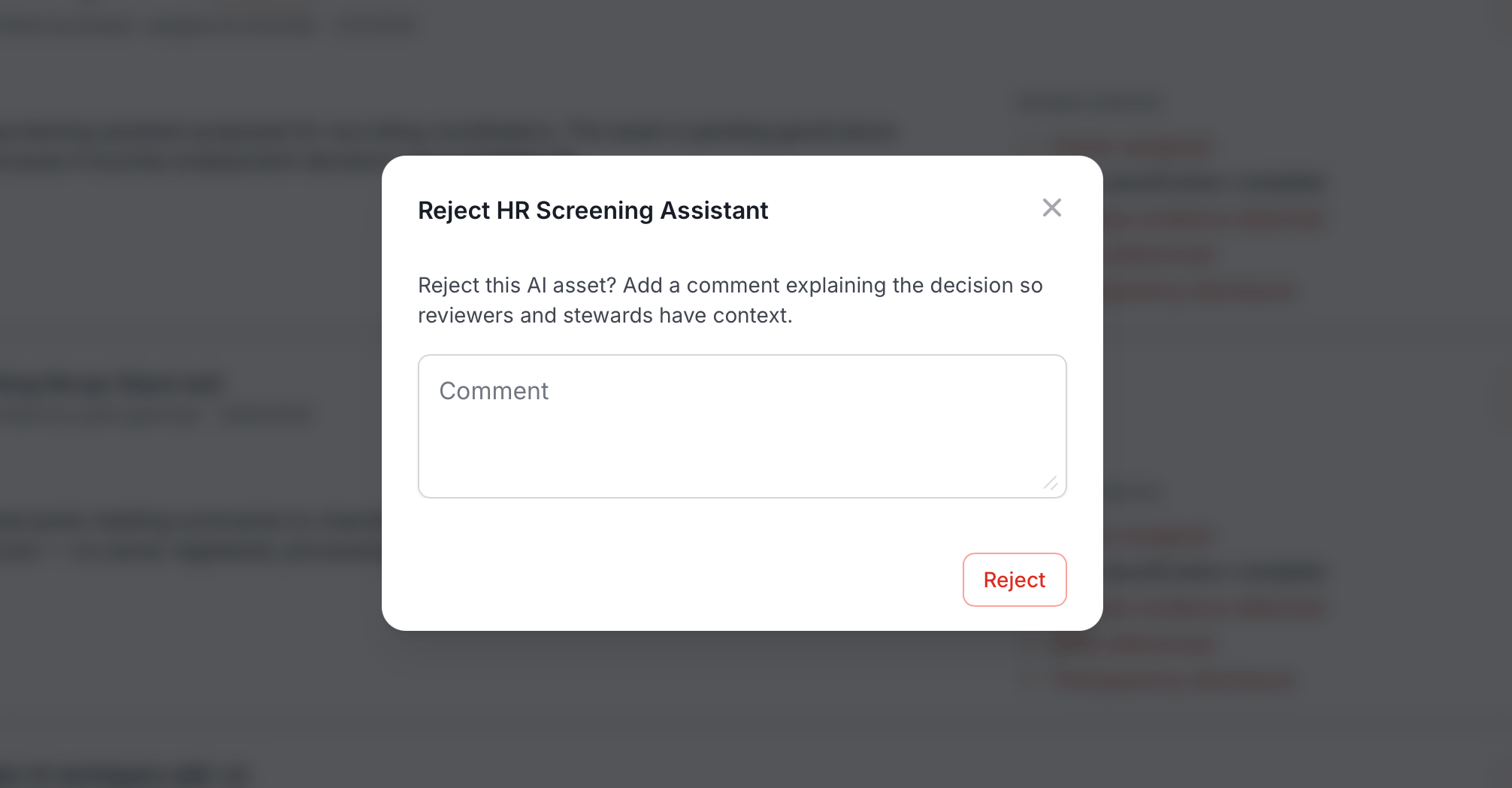 3. Click **Reject**.