> ## Documentation Index
> Fetch the complete documentation index at: https://docs.getcollate.io/llms.txt
> Use this file to discover all available pages before exploring further.
# AI Automations
> Build and schedule AI agents that document, test, classify, and report on your data assets in Collate.
# AI Automations
**Note**: AI Automations is significantly expanded in Collate 2.0: a guided creation wizard, six ready-made templates, scheduled or on-demand runs, and configurable destinations for every run. See the sections below for details. Collate 2.0 also introduces the [Weekly Insight Digest](/ai-2-0/admin-guide/data-insights) app.
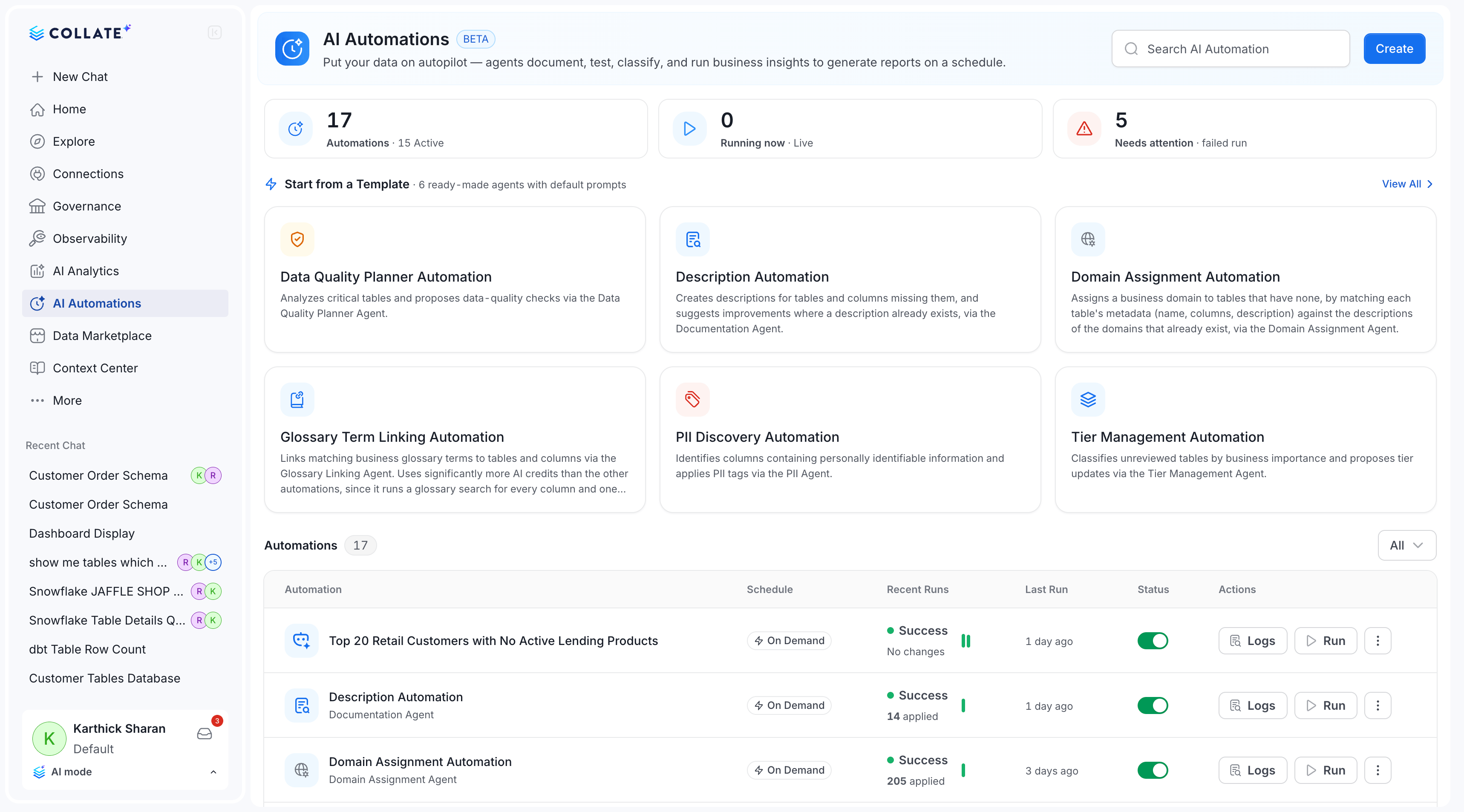
AI Automations put your data on autopilot: agents document, test, classify, and generate business insight reports for your data assets on a schedule you define. Open **AI Automations** from the left sidebar to view, create, and manage automations.
Dynamic Agent Apps (Documentation, Tier, and Data Quality), previously installed from the marketplace, are now handled here as Automations instead. If you had a Dynamic Agent App configured, Collate created a disabled, unscheduled automation mirroring it, carrying over its existing filter. Review these automations, then enable and set a schedule for the ones you want to keep running. `CollateAIApplicationBot`, previously used by the documentation agent, has been removed. If you were relying on the API or SDK with `CollateAIApplicationBot`, update your tokens: the more generic `CollateAIAutomationBot` now handles this.
 Autopilot is a separate, related capability that automatically triggers agents when a new data service is added, without requiring you to create an automation manually. See [Autopilot](/ai-2-0/collate-ai/autopilot).
## Create an Automation
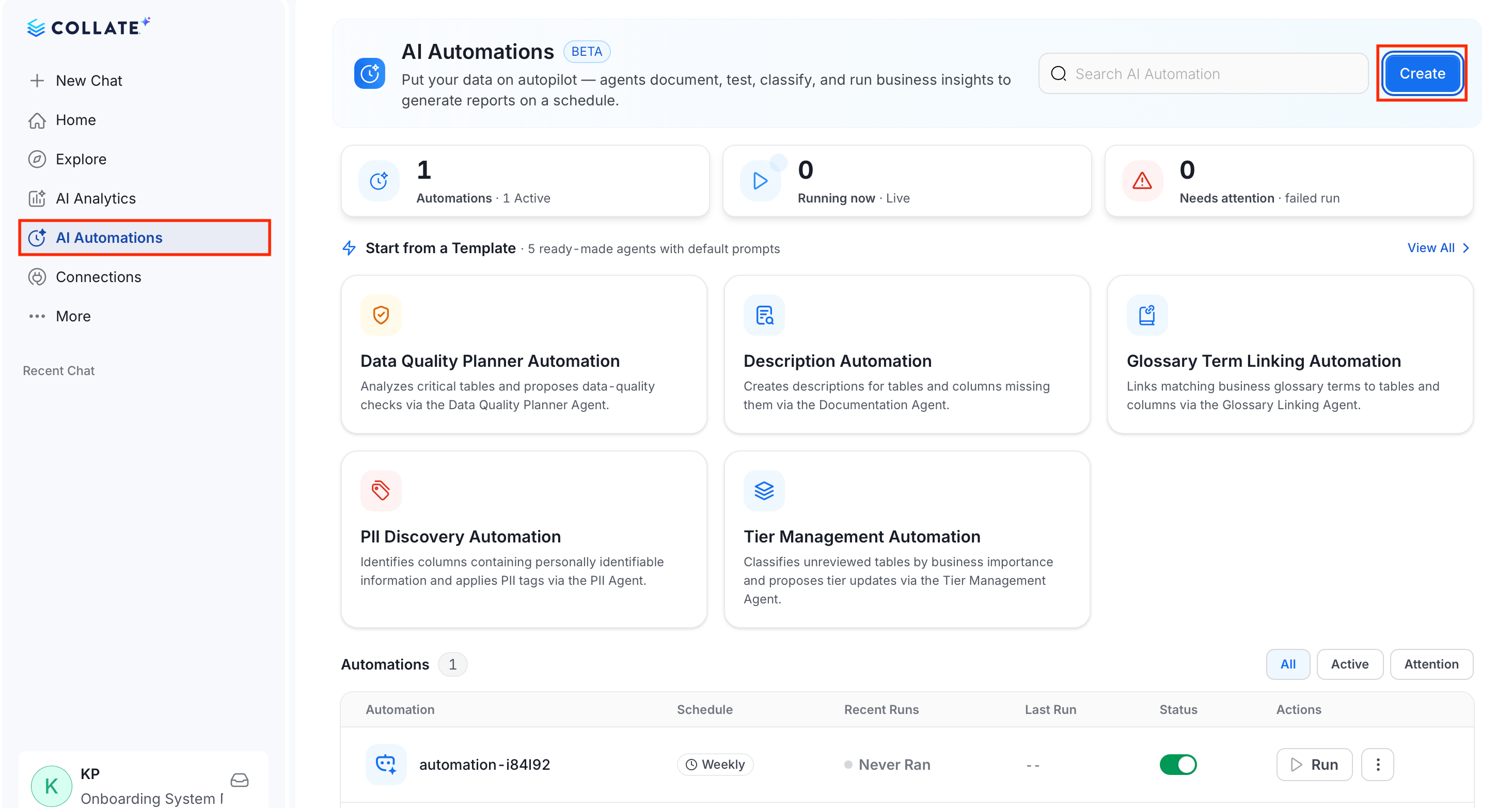
1. In the left side bar, select **AI Automations** and click **Create**.
Autopilot is a separate, related capability that automatically triggers agents when a new data service is added, without requiring you to create an automation manually. See [Autopilot](/ai-2-0/collate-ai/autopilot).
## Create an Automation
1. In the left side bar, select **AI Automations** and click **Create**.
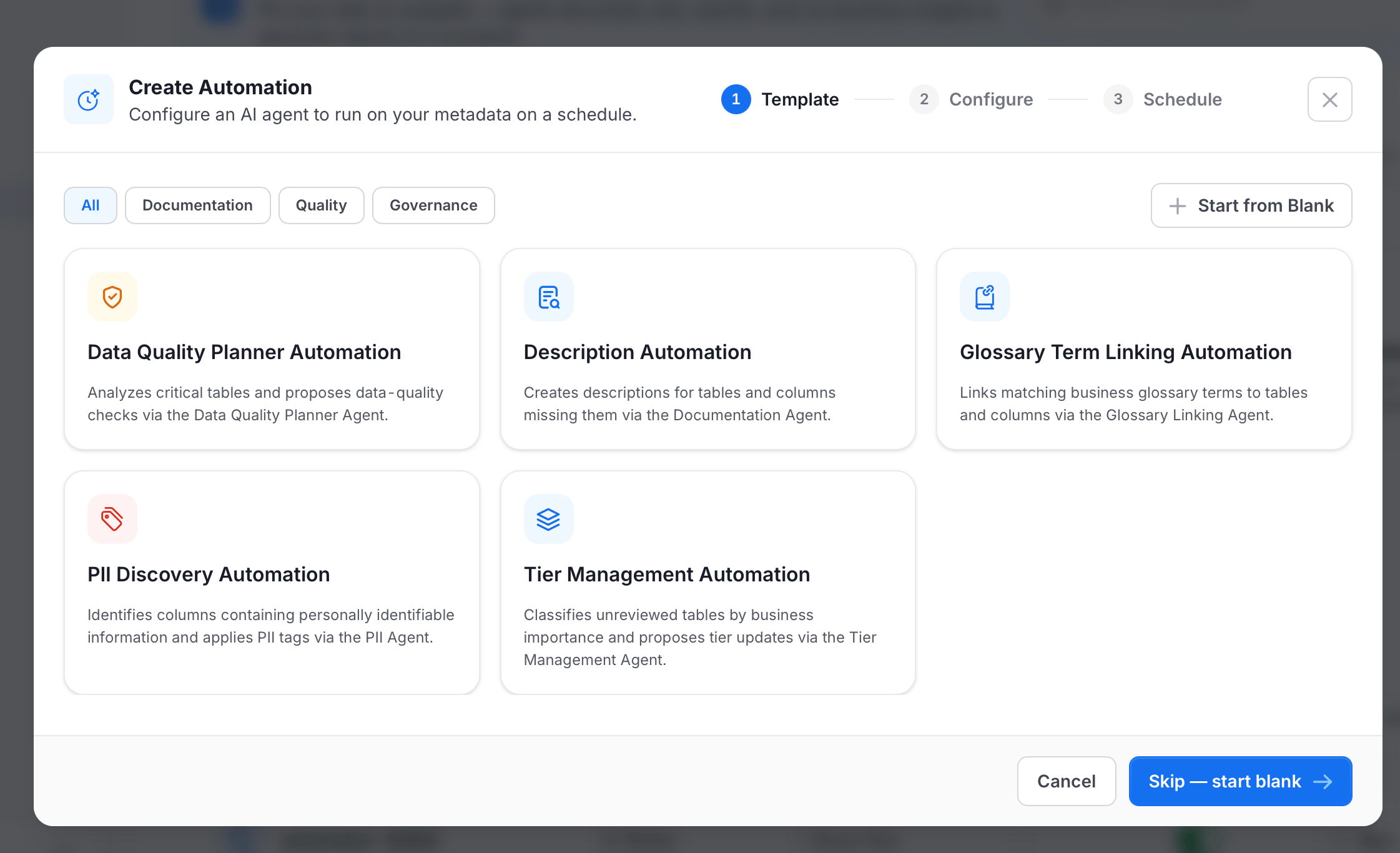
 2. Choose a template, or click **Start from Blank**. Filter templates by category: **All**, **Documentation**, **Quality**, or **Governance**.
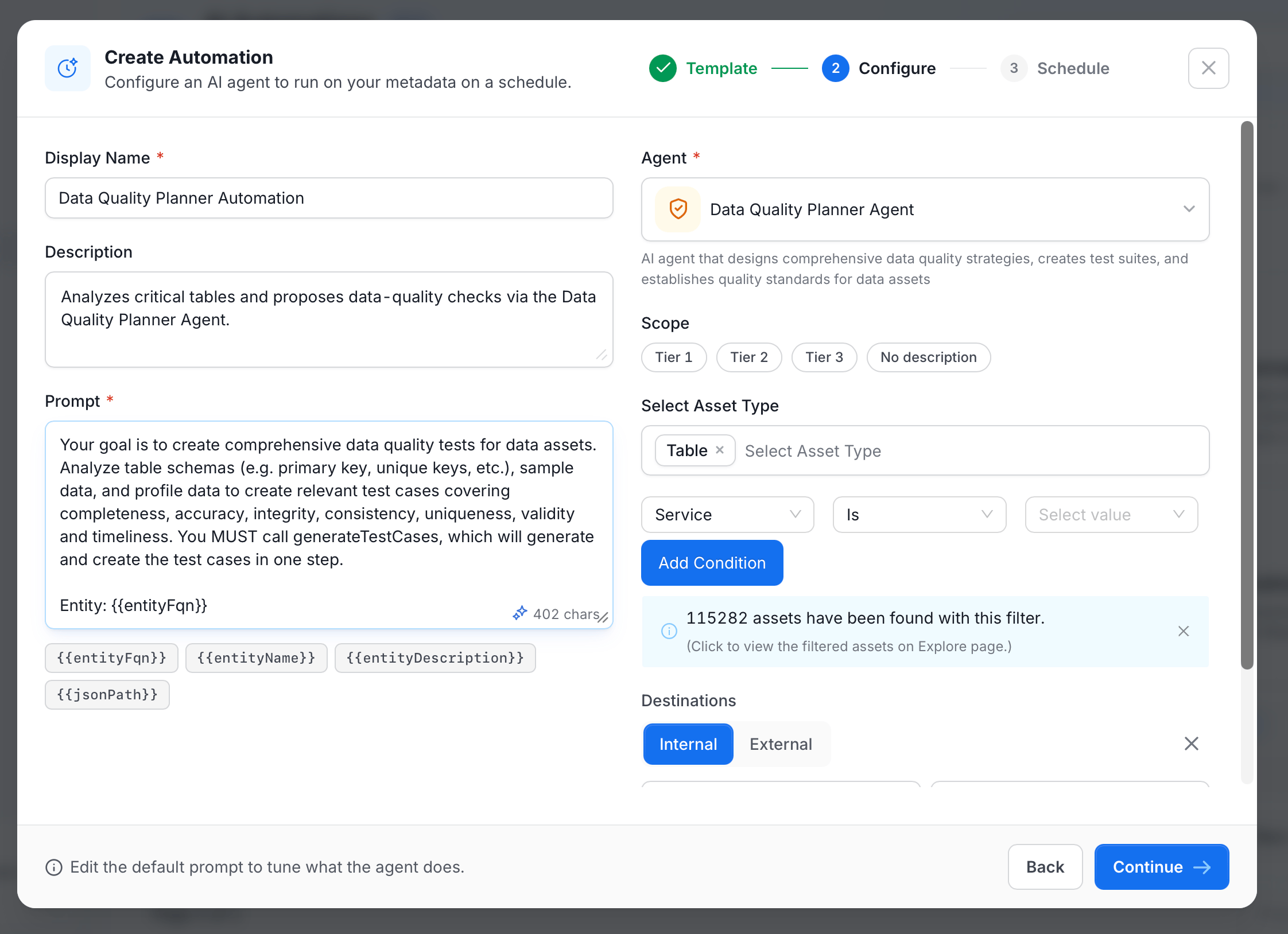
 3. Configure the automation:
* **Display Name**: Enter a name for the automation, for example **Auto-document warehouse**.
* (Optional) **Description**: Enter what the automation should accomplish.
* **Prompt**: Enter the task instructions for the agent. Insert `{{entityFqn}}`, `{{entityName}}`, `{{entityDescription}}`, or `{{jsonPath}}` to reference details about each asset the automation processes.
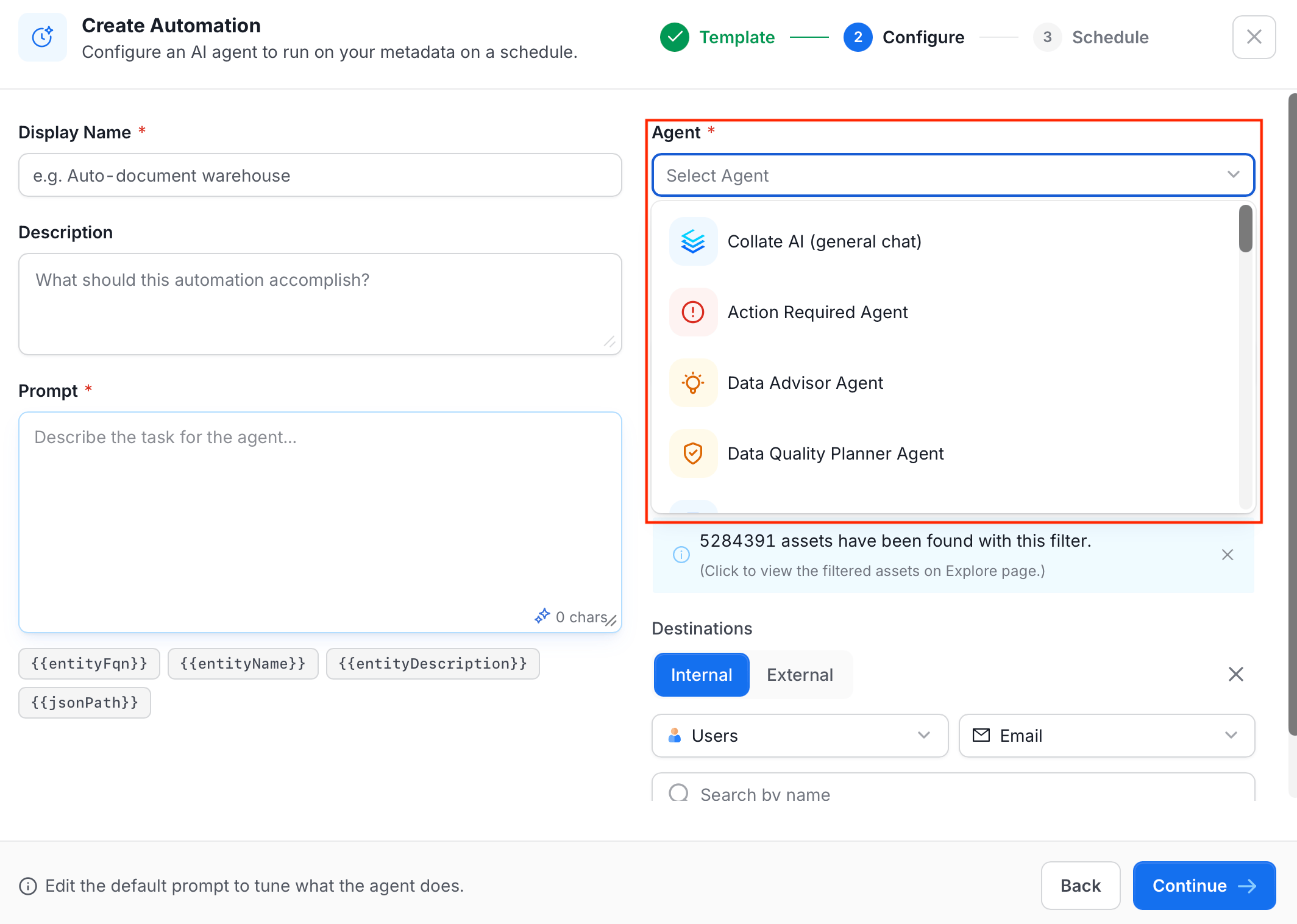
* **Agent**: Select the agent that runs the automation. See [Automation Templates](#automation-templates) for ready-made template agents, or [Agents](#agents) for the full list of available agents.
* (Optional) **Scope**: The assets the automation runs on. See [Setting the Scope](#setting-the-scope).
* (Optional) **Destinations**: Who is notified when a run completes. See [Choosing Destinations](#choosing-destinations).
3. Configure the automation:
* **Display Name**: Enter a name for the automation, for example **Auto-document warehouse**.
* (Optional) **Description**: Enter what the automation should accomplish.
* **Prompt**: Enter the task instructions for the agent. Insert `{{entityFqn}}`, `{{entityName}}`, `{{entityDescription}}`, or `{{jsonPath}}` to reference details about each asset the automation processes.
* **Agent**: Select the agent that runs the automation. See [Automation Templates](#automation-templates) for ready-made template agents, or [Agents](#agents) for the full list of available agents.
* (Optional) **Scope**: The assets the automation runs on. See [Setting the Scope](#setting-the-scope).
* (Optional) **Destinations**: Who is notified when a run completes. See [Choosing Destinations](#choosing-destinations).
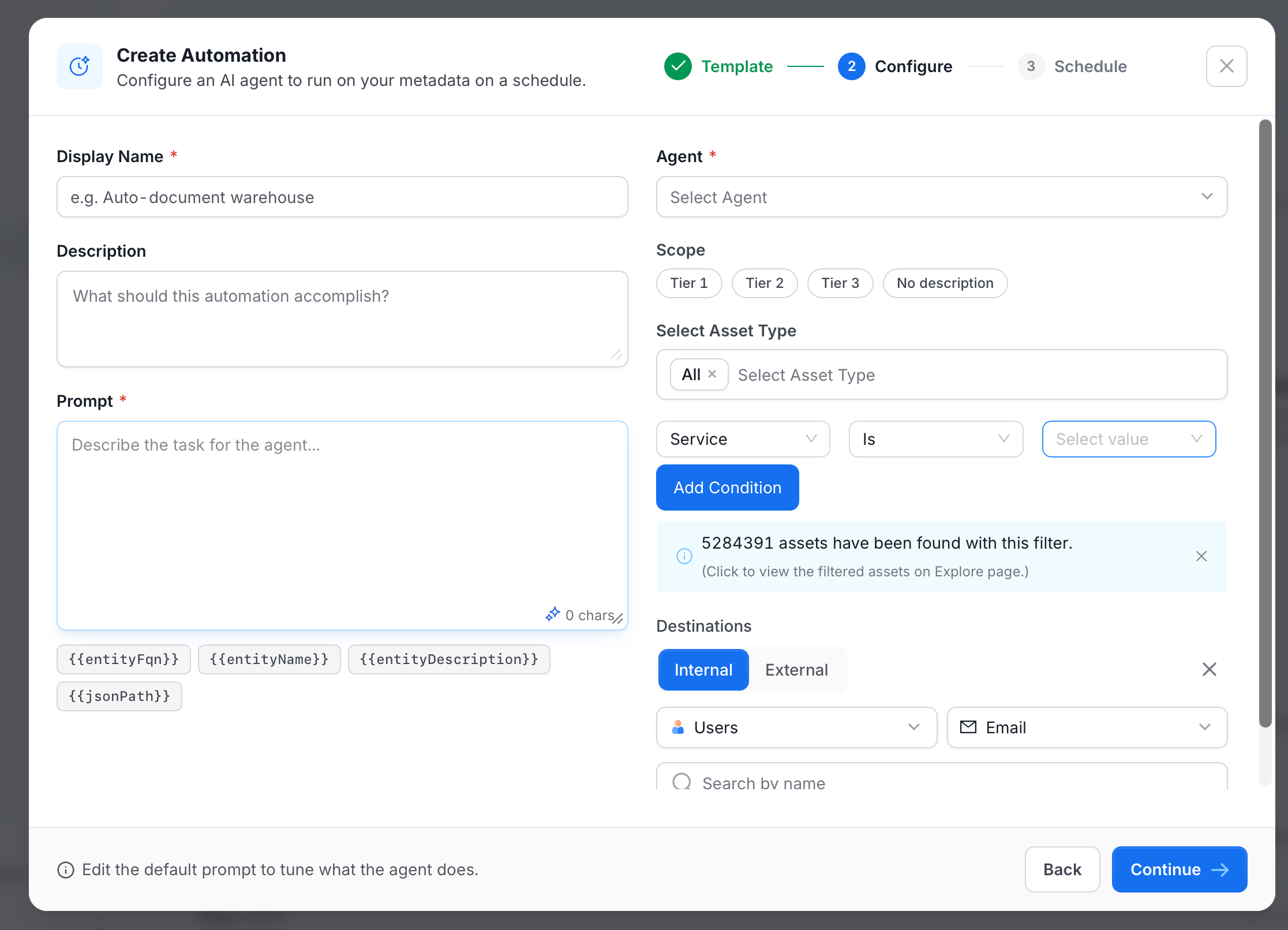 If you selected a template, the **Display Name**, **Description**, **Prompt**, **Agent**, **Scope**, and **Asset Type** fields are pre-filled based on the template. You can modify any of these before continuing.
 4. Click **Continue** and set the schedule:
* **Schedule**: The automation runs repeatedly based on the frequency you set—**Hourly**, **Daily**, **Weekly**, **Monthly**, or **Custom**—plus the day and time.
* **On Demand**: The automation runs once, only when you trigger it manually.
4. Click **Continue** and set the schedule:
* **Schedule**: The automation runs repeatedly based on the frequency you set—**Hourly**, **Daily**, **Weekly**, **Monthly**, or **Custom**—plus the day and time.
* **On Demand**: The automation runs once, only when you trigger it manually.
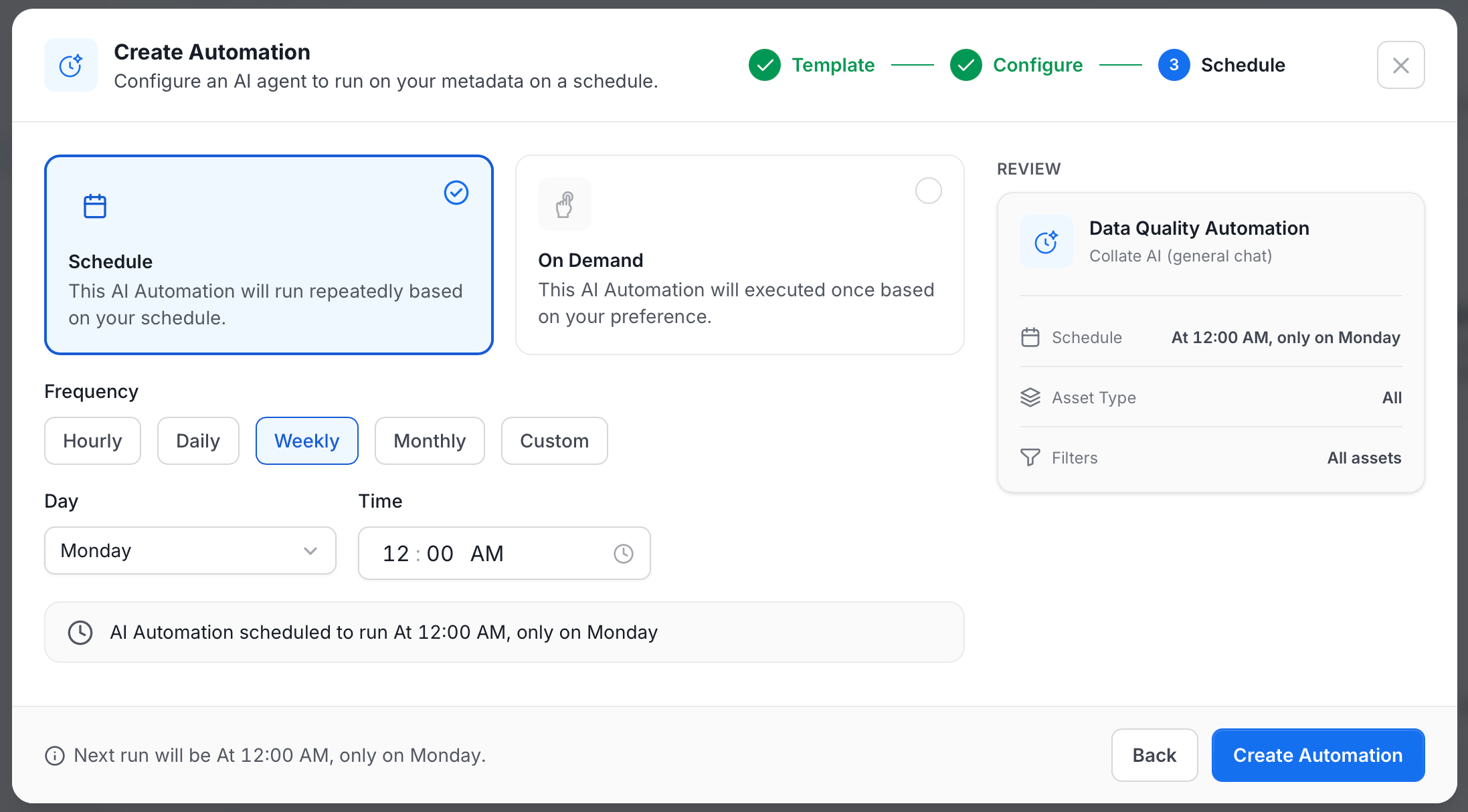 5. Review the summary—schedule, asset type, and filters—and click **Create Automation**.
## Prompt Templates
The **Prompt** field is how you tell the agent what to do with each asset it processes. Use template variables to reference the specific asset being processed — Collate substitutes the real value for each asset at runtime.
| Variable | Replaced with |
| ----------------------- | ---------------------------------------------------------------------------- |
| `{{entityFqn}}` | The asset's fully qualified name (e.g. `mysql_prod.ecommerce.public.orders`) |
| `{{entityName}}` | The asset's short name (e.g. `orders`) |
| `{{entityDescription}}` | The asset's current description, if one exists |
| `{{jsonPath}}` | The full JSON path to the asset in the catalog |
### Example Prompts
**Description Automation — write a description from scratch:**
```
You are a technical writer for a data team. Write a clear, concise description for the table {{entityFqn}}.
The description should explain what this table contains, what business process it supports, and who typically uses it.
Use plain language — avoid jargon. Two to four sentences.
```
**Description Automation — improve an existing description:**
```
The table {{entityName}} currently has this description: {{entityDescription}}
Rewrite it to be clearer and more specific. Keep the same meaning but improve readability.
Remove vague phrases like "contains data about" or "stores information on". Two to three sentences.
```
**PII Discovery Automation — classify and justify:**
```
Review the columns of {{entityFqn}} for personally identifiable information.
For each column that contains PII, apply the appropriate PII tag and add a one-sentence justification explaining why that column is sensitive.
```
**Tier Management Automation — assign tier based on usage:**
```
Analyze the usage patterns, lineage, and business context of {{entityFqn}}.
Assign a governance tier (Tier 1, Tier 2, or Tier 3) based on how critical this asset is to the business.
Tier 1 = mission-critical, used daily by many teams. Tier 2 = important, used regularly. Tier 3 = low usage or experimental.
Explain your reasoning in one sentence.
```
**Glossary Term Linking Automation — link terms and explain matches:**
```
Review the columns and existing metadata of {{entityFqn}}.
Link any columns that match business glossary terms defined in the catalog.
For each link, add a short note explaining why the column matches that term.
```
**Note**: Prompts run once per matched asset. The agent sees the asset's schema, column names, sample values, and existing metadata alongside your prompt — you don't need to describe the table structure yourself.
## Automation Templates
Collate ships with six ready-made automation templates to help you get started quickly. Each template is pre-configured with a default prompt and the appropriate agent. Select a template when creating an automation, then customize the prompt and scope as needed. For the full list of available agents, see [Agents](#agents).
5. Review the summary—schedule, asset type, and filters—and click **Create Automation**.
## Prompt Templates
The **Prompt** field is how you tell the agent what to do with each asset it processes. Use template variables to reference the specific asset being processed — Collate substitutes the real value for each asset at runtime.
| Variable | Replaced with |
| ----------------------- | ---------------------------------------------------------------------------- |
| `{{entityFqn}}` | The asset's fully qualified name (e.g. `mysql_prod.ecommerce.public.orders`) |
| `{{entityName}}` | The asset's short name (e.g. `orders`) |
| `{{entityDescription}}` | The asset's current description, if one exists |
| `{{jsonPath}}` | The full JSON path to the asset in the catalog |
### Example Prompts
**Description Automation — write a description from scratch:**
```
You are a technical writer for a data team. Write a clear, concise description for the table {{entityFqn}}.
The description should explain what this table contains, what business process it supports, and who typically uses it.
Use plain language — avoid jargon. Two to four sentences.
```
**Description Automation — improve an existing description:**
```
The table {{entityName}} currently has this description: {{entityDescription}}
Rewrite it to be clearer and more specific. Keep the same meaning but improve readability.
Remove vague phrases like "contains data about" or "stores information on". Two to three sentences.
```
**PII Discovery Automation — classify and justify:**
```
Review the columns of {{entityFqn}} for personally identifiable information.
For each column that contains PII, apply the appropriate PII tag and add a one-sentence justification explaining why that column is sensitive.
```
**Tier Management Automation — assign tier based on usage:**
```
Analyze the usage patterns, lineage, and business context of {{entityFqn}}.
Assign a governance tier (Tier 1, Tier 2, or Tier 3) based on how critical this asset is to the business.
Tier 1 = mission-critical, used daily by many teams. Tier 2 = important, used regularly. Tier 3 = low usage or experimental.
Explain your reasoning in one sentence.
```
**Glossary Term Linking Automation — link terms and explain matches:**
```
Review the columns and existing metadata of {{entityFqn}}.
Link any columns that match business glossary terms defined in the catalog.
For each link, add a short note explaining why the column matches that term.
```
**Note**: Prompts run once per matched asset. The agent sees the asset's schema, column names, sample values, and existing metadata alongside your prompt — you don't need to describe the table structure yourself.
## Automation Templates
Collate ships with six ready-made automation templates to help you get started quickly. Each template is pre-configured with a default prompt and the appropriate agent. Select a template when creating an automation, then customize the prompt and scope as needed. For the full list of available agents, see [Agents](#agents).
 ### Description Automation
Generates and updates human-readable descriptions for tables and columns across your data catalog. It reads each asset's schema, column names, sample values, and existing metadata to produce context-aware descriptions — not generic boilerplate.
**Key capabilities:**
* Writes descriptions for tables and columns that currently have none.
* Refreshes outdated or low-quality descriptions based on current schema and sample data.
* Keeps a human in the loop: when a description already exists, the automation opens a suggestion for review instead of overwriting it directly.
**When to use:** Onboarding a new data service with undocumented assets, filling coverage gaps after ingestion, or running a scheduled refresh to keep documentation current as schemas evolve.
**Default behavior:**
* **Empty description**: The automation writes one directly, with no review step.
* **Existing description**: The automation opens a suggestion instead of overwriting it, so a person reviews and approves the change before it's applied.
* **Existing description that a previous automation run wrote**: The automation skips the field. Because the automation already generated that description once, generating and suggesting it again wouldn't add value. It would only spend tokens redoing work that's already there.
* **Table with an open suggestion**: The automation skips the entire table until that suggestion is resolved or dismissed. Otherwise, every run would pile another suggestion on top of the one still waiting for review, so skipping avoids duplicate suggestions and the tokens spent generating them.
Skipped tables show up as filtered in the run logs, so you can see why a table was passed over on a given run.
**Tip**: This is something you can customize. Change the **Prompt** field to override the default, for example to always overwrite existing descriptions instead of opening a suggestion.
### Data Quality Planner Automation
Designs and deploys data quality test suites for your assets using AI. It analyzes each table's structure, constraints, and similarities with other tables to recommend the most relevant checks — then creates them in Collate automatically.
**Key capabilities:**
* Proposes completeness, accuracy, integrity, consistency, uniqueness, validity, and timeliness tests based on column types and constraints.
* Creates test suites and applies them to selected assets on a schedule.
* Scales quality coverage without requiring manual test configuration per table.
**When to use:** Newly ingested tables that have no quality coverage, periodic audits to expand test coverage across a service, or setting a quality baseline after a schema change.
### Tier Management Automation
Analyzes usage patterns, lineage depth, and business value signals to assign the appropriate governance tier (Tier 1, 2, or 3) to your assets. It considers query frequency, the number of downstream dependents, and how the asset is referenced across the organization.
**Key capabilities:**
* Assigns tiers to untiered assets based on actual usage and lineage, not manual judgement.
* Re-evaluates tier assignments as usage changes over time.
* Keeps a human in the loop: tier suggestions can be reviewed before being applied.
**When to use:** Classifying a batch of newly onboarded tables, auditing tier assignments for a service after significant usage changes, or automating tier governance across a large catalog.
**Note**: The agent analyzes every matched asset, including those that would fall into Tier 4 or Tier 5, but never patches those. Tier 4 and 5 assignments are skipped entirely. Only Tier 1, 2, and 3 are written back to the catalog.
### Domain Assignment Automation
Assigns a business domain to tables that have none, by matching each asset's metadata — name, column names, and description — against the domain definitions in your Collate catalog. No SQL is executed; the agent works entirely from metadata.
**Key capabilities:**
* Reads table and column names, descriptions, and existing tags to infer the right domain.
* Matches against the domain descriptions you have set up in Collate.
* Processes large numbers of undomained tables in a single scheduled run.
**When to use:** After ingesting a new service where assets have no domain, cleaning up domain gaps across an existing catalog, or enforcing domain coverage as a governance requirement.
**Note**: The agent only fills gaps — it never overwrites a domain that is already set. If a table already carries a domain, whether assigned directly or inherited from its schema, the agent leaves it unchanged.
### PII Discovery Automation
Classifies columns for personally identifiable information and applies PII tags automatically. It combines column names, sample data values, and profiling results to detect sensitive data — covering names, email addresses, phone numbers, national IDs, financial data, and more.
The agent applies two tag levels:
| Tag | Applied when |
| -------------------- | -------------------------------------------------------------------------------------------------------------- |
| **PII.Sensitive** | Column directly identifies an individual — name, email, SSN, passport number, bank account, credit card number |
| **PII.NonSensitive** | Column indirectly identifies an individual — phone number, physical address, city, postal code, URL |
Surrogate keys, foreign keys, and opaque internal identifiers that merely reference a person are not tagged — they are join references, not personal data.
**Key capabilities:**
* Scans columns and applies PII classification tags based on content and naming patterns.
* Uses profiler output (sample values and distributions) to catch PII that column names alone don't reveal.
* Supports compliance requirements including GDPR, CCPA, and India's DPDP Act.
**When to use:** Running a privacy audit before a compliance review, tagging a newly connected data source, or maintaining ongoing PII coverage as new columns are added.
### Glossary Term Linking Automation
Links your organization's business glossary terms to the tables and columns they describe. It uses column names, sample data, and profiling to find the best matches — keeping your semantic layer connected to your physical data as schemas evolve.
**Key capabilities:**
* Maps glossary terms to relevant tables and columns automatically.
* Detects new matching opportunities as new assets are ingested.
* Keeps term associations current without manual re-linking after schema changes.
* Additive only — always appends the matched term to the column's existing term list, never replaces it. No previously linked term is dropped.
**When to use:** After adding new glossary terms, after ingesting a new service, or running periodic maintenance to ensure glossary coverage stays high across the catalog.
**Note**:
**Glossary Term Linking Automation consumes significantly more credits than other automations.** Linking requires the agent to explore and compare each column against your full glossary, which involves substantially more reasoning per asset than writing a description or assigning a tier. Confirm your scope's live count before running this automation at scale.
## Agents
The **Agent** dropdown lists every agent available in your organization. Select the agent that best fits your automation goal. You can also select any custom agent you have created in [AI Studio](/ai-2-0/collate-ai/ai-studio/agents).
### General
**Collate AI (general chat)**
The general-purpose agent. Instead of a task-specific worker, it routes your automation through Collate AI's chat intelligence — the same model that powers [Collate AI Chat](/ai-2-0/collate-ai/collate-ai-chat). Use it when no dedicated agent fits your prompt, or when you want to combine multiple types of work in a single automation.
**Key capabilities:**
* Handles any metadata task you can describe in natural language.
* Combines documentation, classification, and quality work in one prompt.
* Falls back gracefully when a specialized agent is unavailable.
**When to use:** Custom or multi-step workflows that don't map cleanly to a single dedicated agent.
### Automation Agents
These agents are designed for use in AI Automations and are available as ready-made templates. See [Automation Templates](#automation-templates) for full configuration details.
| Agent | Description |
| ------------------------------------ | ---------------------------------------------------------- |
| **Description Automation** | Generates and updates descriptions for tables and columns |
| **Data Quality Planner Automation** | Designs and deploys data quality test suites |
| **Tier Management Automation** | Assigns governance tiers based on usage and business value |
| **Domain Assignment Automation** | Assigns business domains to tables with no domain set |
| **PII Discovery Automation** | Classifies columns for PII and applies tags |
| **Glossary Term Linking Automation** | Links glossary terms to tables and columns |
### Additional Agents
**SQL Query Agent**
Generates optimized SQL queries based on user requirements. Use in automations that need to produce SQL — for example, generating diagnostic queries for assets in a specific service.
**Data Advisor Agent**
Advises on the operational state of data assets — ingestion pipelines, dbt jobs, profiler results, and lineage. Diagnoses issues and produces prioritized remediation actions.
### System Agents
These agents primarily power Collate UI widgets but are selectable in the dropdown.
| Agent | Powers |
| ---------------------------------- | ------------------------------------------------------------------------------------------------------------------------------- |
| **Action Required Agent** | "Action Required" landing page widget — surfaces failed ingestion runs and data quality failures with downstream lineage impact |
| **Recommended Improvements Agent** | "Recommended Improvements" landing page widget — surfaces missing descriptions, tags, and glossary coverage gaps |
| **Summary Agent** | AI summaries for platform health, service connections, and agent and pipeline runs |
## Setting the Scope
Scope controls which assets the automation processes and how it executes.
**Important**:
**Automations run on every matched asset.** If your scope matches thousands of tables, the automation runs on all of them. Credit costs vary significantly by automation type — see the cost reference below. Always confirm the live asset count before creating or triggering an automation at scale.
### Automation Cost Reference
Different automations consume very different amounts of AI credits per asset.
| Automation | Cost level | What drives it |
| -------------------------- | ---------- | -------------------------------------------------------------------------------------------------------------------------------------------------------------------------------- |
| **Domain Assignment** | Lowest | Reads table metadata, lists existing domains once, patches one value. No column loop, no sample data. |
| **Tier Management** | Low | Analyzes usage, lineage, and ownership for the asset, patches one value. No column loop. |
| **Data Quality Planner** | Low–Medium | Reads schema and sample data, then calls one test-generation step per asset. |
| **Description Automation** | Medium | Processes columns in batches of 20; the agent reasons on each batch and patches. Scales with column count. |
| **PII Discovery** | Medium | Same batch structure as Description — 20 columns per round, classify and patch each batch. |
| **Glossary Term Linking** | Highest | Same column batches as Description and PII, plus a glossary search for every individual column and one more for the table. Costs scale with both column count and glossary size. |
### To Run on Specific Entities or a Specific Service
Configure any scope — an asset type, a condition, or a scope chip. The automation runs **once per matched asset**, sequentially. Each asset gets its own isolated agent invocation with its own rendered prompt.
* **Select Asset Type** — choose the kind of asset to process: Table, Topic, Dashboard, Pipeline, ML Model, Container, Search Index, Stored Procedure, or Data Product.
* **Conditions** — filter which assets within that type are included. For example, add **Service** **is** `mysql_prod` to limit the automation to assets in that specific service. Add multiple conditions to narrow further — all conditions must match.
* **Scope Chips** — one-click shortcuts to further narrow the matched set:
* **Tier 1 / 2 / 3** — limits to assets at that governance tier. Select multiple tiers to match any of them. See [Tiering](/ai-2-0/how-to-guides/data-insights/tiering).
* **No description** — limits to assets with no description set. Combine with a tier chip to target, for example, Tier 1 assets that still lack descriptions.
### To Apply Globally Across a Selected Asset Type
Leave the condition builder empty — select an asset type but add no conditions. The automation runs against **every asset of that type across all services**. For example, selecting **Table** with no conditions runs the automation on every table in every database service in your catalog.
Leave the scope completely empty — no asset type, no conditions, no chips — to run the automation **once with no entity context**, useful for catalog-wide reports or actions not tied to a specific asset.
**Note**: A single run processes up to **500 matched assets**. If your scope matches more, the run stops at 500 and logs a warning. Split large scopes across multiple automations — for example, one per service — to stay within the limit.
### Live Count
As you adjust the scope, Collate shows a live count of matching assets with a link to view them on the Explore page. Confirm the count before creating the automation.
## Choosing Destinations
Destinations decide who is notified when an automation runs. Choose **Internal** to notify people in Collate, or **External** to notify people outside Collate.
* **Internal**:
* **Recipient type**: Choose **Users**, **Teams**, **Admins**, **Owners**, **Followers**, **Mentions**, or **Assignees**.
* **Users, Teams, Mentions, or Assignees**: Search for and select specific people or teams.
* **Admins, Owners, or Followers**: No picker needed—Collate automatically notifies everyone in that group for the relevant assets.
* **Channel**: Choose **Email** or **Slack**. Slack isn't available when the recipient type is **Users**, **Admins**, or **Followers**.
* **External**:
* **Channel**: Choose **Email** or **Slack**.
* **Email**: Enter one or more email addresses, pressing **Enter** after each.
* **Slack**: Enter a Slack channel name, for example `#channel-name`.
### Description Automation
Generates and updates human-readable descriptions for tables and columns across your data catalog. It reads each asset's schema, column names, sample values, and existing metadata to produce context-aware descriptions — not generic boilerplate.
**Key capabilities:**
* Writes descriptions for tables and columns that currently have none.
* Refreshes outdated or low-quality descriptions based on current schema and sample data.
* Keeps a human in the loop: when a description already exists, the automation opens a suggestion for review instead of overwriting it directly.
**When to use:** Onboarding a new data service with undocumented assets, filling coverage gaps after ingestion, or running a scheduled refresh to keep documentation current as schemas evolve.
**Default behavior:**
* **Empty description**: The automation writes one directly, with no review step.
* **Existing description**: The automation opens a suggestion instead of overwriting it, so a person reviews and approves the change before it's applied.
* **Existing description that a previous automation run wrote**: The automation skips the field. Because the automation already generated that description once, generating and suggesting it again wouldn't add value. It would only spend tokens redoing work that's already there.
* **Table with an open suggestion**: The automation skips the entire table until that suggestion is resolved or dismissed. Otherwise, every run would pile another suggestion on top of the one still waiting for review, so skipping avoids duplicate suggestions and the tokens spent generating them.
Skipped tables show up as filtered in the run logs, so you can see why a table was passed over on a given run.
**Tip**: This is something you can customize. Change the **Prompt** field to override the default, for example to always overwrite existing descriptions instead of opening a suggestion.
### Data Quality Planner Automation
Designs and deploys data quality test suites for your assets using AI. It analyzes each table's structure, constraints, and similarities with other tables to recommend the most relevant checks — then creates them in Collate automatically.
**Key capabilities:**
* Proposes completeness, accuracy, integrity, consistency, uniqueness, validity, and timeliness tests based on column types and constraints.
* Creates test suites and applies them to selected assets on a schedule.
* Scales quality coverage without requiring manual test configuration per table.
**When to use:** Newly ingested tables that have no quality coverage, periodic audits to expand test coverage across a service, or setting a quality baseline after a schema change.
### Tier Management Automation
Analyzes usage patterns, lineage depth, and business value signals to assign the appropriate governance tier (Tier 1, 2, or 3) to your assets. It considers query frequency, the number of downstream dependents, and how the asset is referenced across the organization.
**Key capabilities:**
* Assigns tiers to untiered assets based on actual usage and lineage, not manual judgement.
* Re-evaluates tier assignments as usage changes over time.
* Keeps a human in the loop: tier suggestions can be reviewed before being applied.
**When to use:** Classifying a batch of newly onboarded tables, auditing tier assignments for a service after significant usage changes, or automating tier governance across a large catalog.
**Note**: The agent analyzes every matched asset, including those that would fall into Tier 4 or Tier 5, but never patches those. Tier 4 and 5 assignments are skipped entirely. Only Tier 1, 2, and 3 are written back to the catalog.
### Domain Assignment Automation
Assigns a business domain to tables that have none, by matching each asset's metadata — name, column names, and description — against the domain definitions in your Collate catalog. No SQL is executed; the agent works entirely from metadata.
**Key capabilities:**
* Reads table and column names, descriptions, and existing tags to infer the right domain.
* Matches against the domain descriptions you have set up in Collate.
* Processes large numbers of undomained tables in a single scheduled run.
**When to use:** After ingesting a new service where assets have no domain, cleaning up domain gaps across an existing catalog, or enforcing domain coverage as a governance requirement.
**Note**: The agent only fills gaps — it never overwrites a domain that is already set. If a table already carries a domain, whether assigned directly or inherited from its schema, the agent leaves it unchanged.
### PII Discovery Automation
Classifies columns for personally identifiable information and applies PII tags automatically. It combines column names, sample data values, and profiling results to detect sensitive data — covering names, email addresses, phone numbers, national IDs, financial data, and more.
The agent applies two tag levels:
| Tag | Applied when |
| -------------------- | -------------------------------------------------------------------------------------------------------------- |
| **PII.Sensitive** | Column directly identifies an individual — name, email, SSN, passport number, bank account, credit card number |
| **PII.NonSensitive** | Column indirectly identifies an individual — phone number, physical address, city, postal code, URL |
Surrogate keys, foreign keys, and opaque internal identifiers that merely reference a person are not tagged — they are join references, not personal data.
**Key capabilities:**
* Scans columns and applies PII classification tags based on content and naming patterns.
* Uses profiler output (sample values and distributions) to catch PII that column names alone don't reveal.
* Supports compliance requirements including GDPR, CCPA, and India's DPDP Act.
**When to use:** Running a privacy audit before a compliance review, tagging a newly connected data source, or maintaining ongoing PII coverage as new columns are added.
### Glossary Term Linking Automation
Links your organization's business glossary terms to the tables and columns they describe. It uses column names, sample data, and profiling to find the best matches — keeping your semantic layer connected to your physical data as schemas evolve.
**Key capabilities:**
* Maps glossary terms to relevant tables and columns automatically.
* Detects new matching opportunities as new assets are ingested.
* Keeps term associations current without manual re-linking after schema changes.
* Additive only — always appends the matched term to the column's existing term list, never replaces it. No previously linked term is dropped.
**When to use:** After adding new glossary terms, after ingesting a new service, or running periodic maintenance to ensure glossary coverage stays high across the catalog.
**Note**:
**Glossary Term Linking Automation consumes significantly more credits than other automations.** Linking requires the agent to explore and compare each column against your full glossary, which involves substantially more reasoning per asset than writing a description or assigning a tier. Confirm your scope's live count before running this automation at scale.
## Agents
The **Agent** dropdown lists every agent available in your organization. Select the agent that best fits your automation goal. You can also select any custom agent you have created in [AI Studio](/ai-2-0/collate-ai/ai-studio/agents).
### General
**Collate AI (general chat)**
The general-purpose agent. Instead of a task-specific worker, it routes your automation through Collate AI's chat intelligence — the same model that powers [Collate AI Chat](/ai-2-0/collate-ai/collate-ai-chat). Use it when no dedicated agent fits your prompt, or when you want to combine multiple types of work in a single automation.
**Key capabilities:**
* Handles any metadata task you can describe in natural language.
* Combines documentation, classification, and quality work in one prompt.
* Falls back gracefully when a specialized agent is unavailable.
**When to use:** Custom or multi-step workflows that don't map cleanly to a single dedicated agent.
### Automation Agents
These agents are designed for use in AI Automations and are available as ready-made templates. See [Automation Templates](#automation-templates) for full configuration details.
| Agent | Description |
| ------------------------------------ | ---------------------------------------------------------- |
| **Description Automation** | Generates and updates descriptions for tables and columns |
| **Data Quality Planner Automation** | Designs and deploys data quality test suites |
| **Tier Management Automation** | Assigns governance tiers based on usage and business value |
| **Domain Assignment Automation** | Assigns business domains to tables with no domain set |
| **PII Discovery Automation** | Classifies columns for PII and applies tags |
| **Glossary Term Linking Automation** | Links glossary terms to tables and columns |
### Additional Agents
**SQL Query Agent**
Generates optimized SQL queries based on user requirements. Use in automations that need to produce SQL — for example, generating diagnostic queries for assets in a specific service.
**Data Advisor Agent**
Advises on the operational state of data assets — ingestion pipelines, dbt jobs, profiler results, and lineage. Diagnoses issues and produces prioritized remediation actions.
### System Agents
These agents primarily power Collate UI widgets but are selectable in the dropdown.
| Agent | Powers |
| ---------------------------------- | ------------------------------------------------------------------------------------------------------------------------------- |
| **Action Required Agent** | "Action Required" landing page widget — surfaces failed ingestion runs and data quality failures with downstream lineage impact |
| **Recommended Improvements Agent** | "Recommended Improvements" landing page widget — surfaces missing descriptions, tags, and glossary coverage gaps |
| **Summary Agent** | AI summaries for platform health, service connections, and agent and pipeline runs |
## Setting the Scope
Scope controls which assets the automation processes and how it executes.
**Important**:
**Automations run on every matched asset.** If your scope matches thousands of tables, the automation runs on all of them. Credit costs vary significantly by automation type — see the cost reference below. Always confirm the live asset count before creating or triggering an automation at scale.
### Automation Cost Reference
Different automations consume very different amounts of AI credits per asset.
| Automation | Cost level | What drives it |
| -------------------------- | ---------- | -------------------------------------------------------------------------------------------------------------------------------------------------------------------------------- |
| **Domain Assignment** | Lowest | Reads table metadata, lists existing domains once, patches one value. No column loop, no sample data. |
| **Tier Management** | Low | Analyzes usage, lineage, and ownership for the asset, patches one value. No column loop. |
| **Data Quality Planner** | Low–Medium | Reads schema and sample data, then calls one test-generation step per asset. |
| **Description Automation** | Medium | Processes columns in batches of 20; the agent reasons on each batch and patches. Scales with column count. |
| **PII Discovery** | Medium | Same batch structure as Description — 20 columns per round, classify and patch each batch. |
| **Glossary Term Linking** | Highest | Same column batches as Description and PII, plus a glossary search for every individual column and one more for the table. Costs scale with both column count and glossary size. |
### To Run on Specific Entities or a Specific Service
Configure any scope — an asset type, a condition, or a scope chip. The automation runs **once per matched asset**, sequentially. Each asset gets its own isolated agent invocation with its own rendered prompt.
* **Select Asset Type** — choose the kind of asset to process: Table, Topic, Dashboard, Pipeline, ML Model, Container, Search Index, Stored Procedure, or Data Product.
* **Conditions** — filter which assets within that type are included. For example, add **Service** **is** `mysql_prod` to limit the automation to assets in that specific service. Add multiple conditions to narrow further — all conditions must match.
* **Scope Chips** — one-click shortcuts to further narrow the matched set:
* **Tier 1 / 2 / 3** — limits to assets at that governance tier. Select multiple tiers to match any of them. See [Tiering](/ai-2-0/how-to-guides/data-insights/tiering).
* **No description** — limits to assets with no description set. Combine with a tier chip to target, for example, Tier 1 assets that still lack descriptions.
### To Apply Globally Across a Selected Asset Type
Leave the condition builder empty — select an asset type but add no conditions. The automation runs against **every asset of that type across all services**. For example, selecting **Table** with no conditions runs the automation on every table in every database service in your catalog.
Leave the scope completely empty — no asset type, no conditions, no chips — to run the automation **once with no entity context**, useful for catalog-wide reports or actions not tied to a specific asset.
**Note**: A single run processes up to **500 matched assets**. If your scope matches more, the run stops at 500 and logs a warning. Split large scopes across multiple automations — for example, one per service — to stay within the limit.
### Live Count
As you adjust the scope, Collate shows a live count of matching assets with a link to view them on the Explore page. Confirm the count before creating the automation.
## Choosing Destinations
Destinations decide who is notified when an automation runs. Choose **Internal** to notify people in Collate, or **External** to notify people outside Collate.
* **Internal**:
* **Recipient type**: Choose **Users**, **Teams**, **Admins**, **Owners**, **Followers**, **Mentions**, or **Assignees**.
* **Users, Teams, Mentions, or Assignees**: Search for and select specific people or teams.
* **Admins, Owners, or Followers**: No picker needed—Collate automatically notifies everyone in that group for the relevant assets.
* **Channel**: Choose **Email** or **Slack**. Slack isn't available when the recipient type is **Users**, **Admins**, or **Followers**.
* **External**:
* **Channel**: Choose **Email** or **Slack**.
* **Email**: Enter one or more email addresses, pressing **Enter** after each.
* **Slack**: Enter a Slack channel name, for example `#channel-name`.
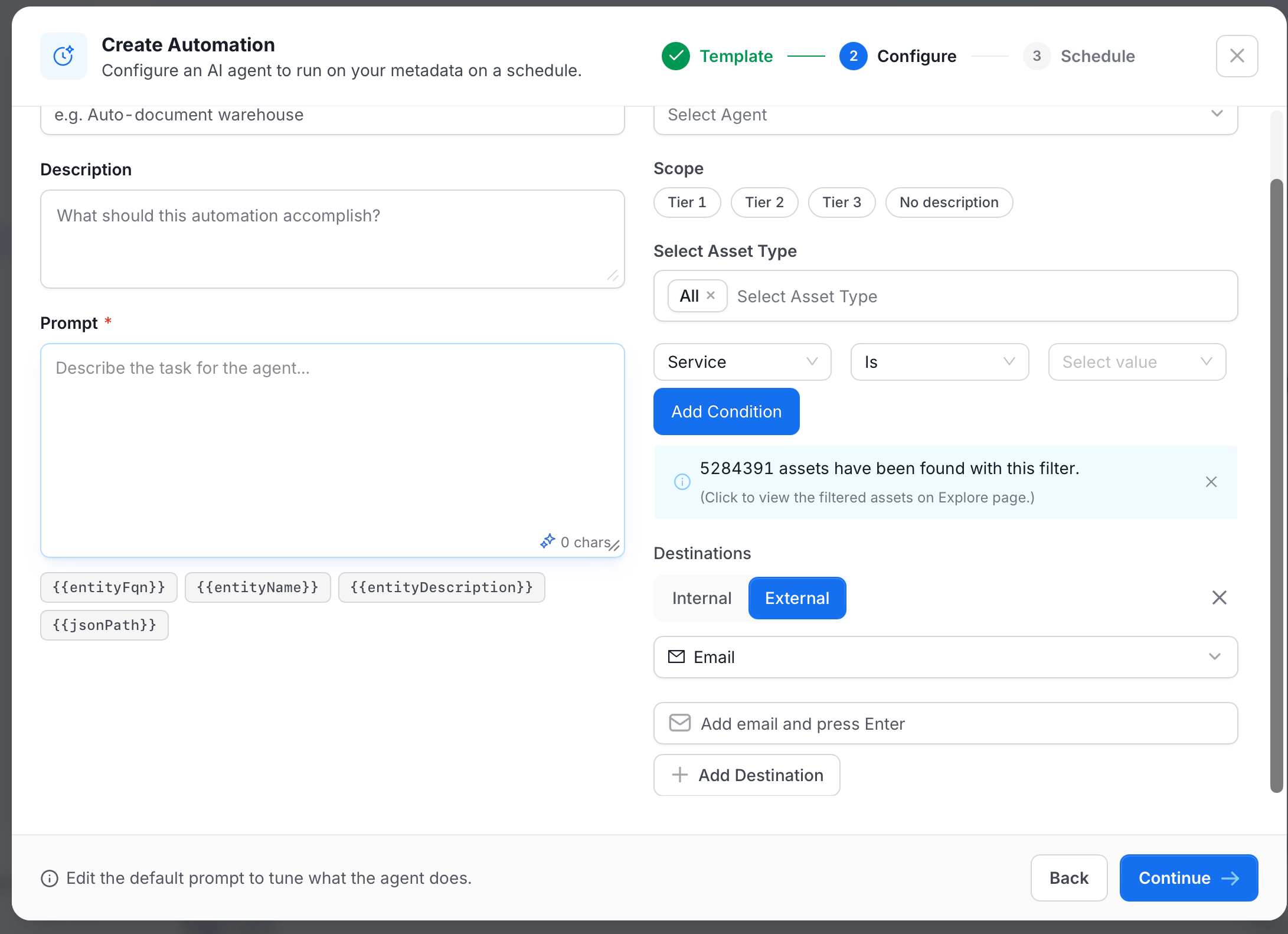 Click **Add Destination** to notify more people or teams, or to add another channel.
## Viewing and Managing Automations
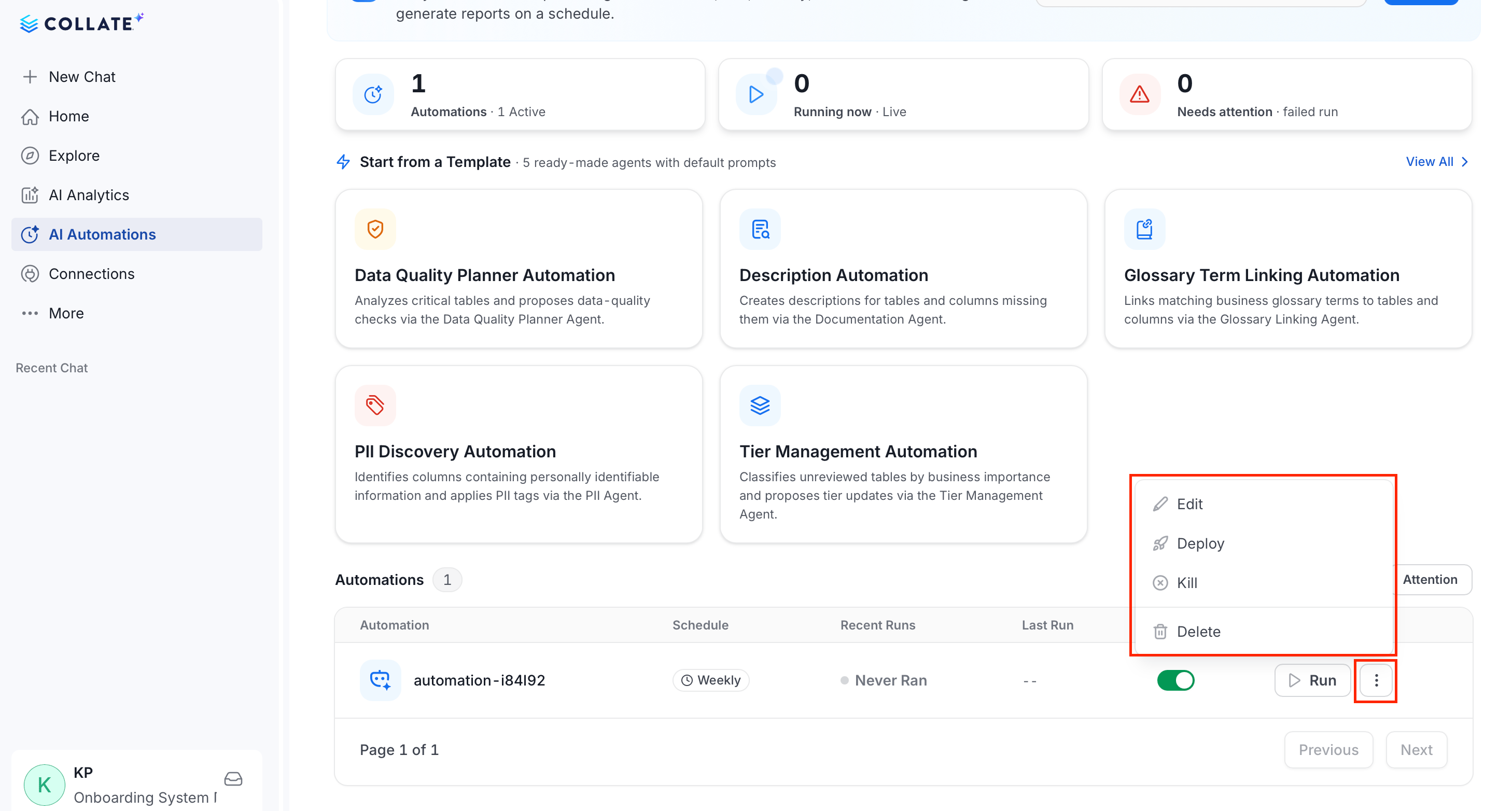
After a AI Automation is created, it appears in the **AI Automations** landing page.
The Automation tables shows the following details:
* **Summary cards**: total automations and how many are active, how many are running now, and how many need attention after a failed run.
* **Automations table**, filterable by **All**, **Active**, or **Attention**, with columns for the automation name, schedule, recent runs, last run time, an on/off status toggle, and actions.
* **Run**: trigger the automation once immediately, without waiting for its schedule.
* **Manage automations**: Click the **⋮** menu on a row for further actions:
* **Edit**: Reopen the wizard to change the automation's configuration or schedule.
* **Deploy**: Push the automation's schedule to the pipeline runner. Automations deploy automatically after you create or save them, so this step usually isn't necessary. Use it to manually redeploy if an automatic deployment fails.
* **Kill**: Stop a run that's currently in progress.
* **Delete**: Permanently remove the automation.
Click **Add Destination** to notify more people or teams, or to add another channel.
## Viewing and Managing Automations
After a AI Automation is created, it appears in the **AI Automations** landing page.
The Automation tables shows the following details:
* **Summary cards**: total automations and how many are active, how many are running now, and how many need attention after a failed run.
* **Automations table**, filterable by **All**, **Active**, or **Attention**, with columns for the automation name, schedule, recent runs, last run time, an on/off status toggle, and actions.
* **Run**: trigger the automation once immediately, without waiting for its schedule.
* **Manage automations**: Click the **⋮** menu on a row for further actions:
* **Edit**: Reopen the wizard to change the automation's configuration or schedule.
* **Deploy**: Push the automation's schedule to the pipeline runner. Automations deploy automatically after you create or save them, so this step usually isn't necessary. Use it to manually redeploy if an automatic deployment fails.
* **Kill**: Stop a run that's currently in progress.
* **Delete**: Permanently remove the automation.
 ## Permissions
Only users with the right permissions on the AI Automation resource can manage automations:
| Action | Permission required |
| -------------------- | ------------------- |
| Create an automation | Create |
| View automations | ViewBasic |
| Edit an automation | EditAll |
| Run an automation | Trigger |
| Deploy an automation | Deploy |
| Delete an automation | Delete |
Administrators have full access by default. Built-in templates are read-only for everyone, including administrators—start from a template to create your own editable copy instead of modifying the template directly.
## Permissions
Only users with the right permissions on the AI Automation resource can manage automations:
| Action | Permission required |
| -------------------- | ------------------- |
| Create an automation | Create |
| View automations | ViewBasic |
| Edit an automation | EditAll |
| Run an automation | Trigger |
| Deploy an automation | Deploy |
| Delete an automation | Delete |
Administrators have full access by default. Built-in templates are read-only for everyone, including administrators—start from a template to create your own editable copy instead of modifying the template directly.