> ## Documentation Index
> Fetch the complete documentation index at: https://docs.getcollate.io/llms.txt
> Use this file to discover all available pages before exploring further.
# Schedule & Share | AI Analytics
> Schedule automatic refreshes for AI Analytics dashboards, set up notifications, control visibility, and send weekly digests.
# Schedule & Share
Once you've built a dashboard, you can keep its numbers current with scheduled refreshes and deliver snapshots to your team automatically. This page covers scheduled refresh, notifications, visibility settings, and the Weekly Insight Digest.
## Create a Schedule
A refresh schedule tells Collate to re-run a dashboard's charts automatically so the numbers stay current without manual effort.
**To create a schedule:**
1. Open a dashboard.
2. Click the **⋮** menu and select **Schedule**.
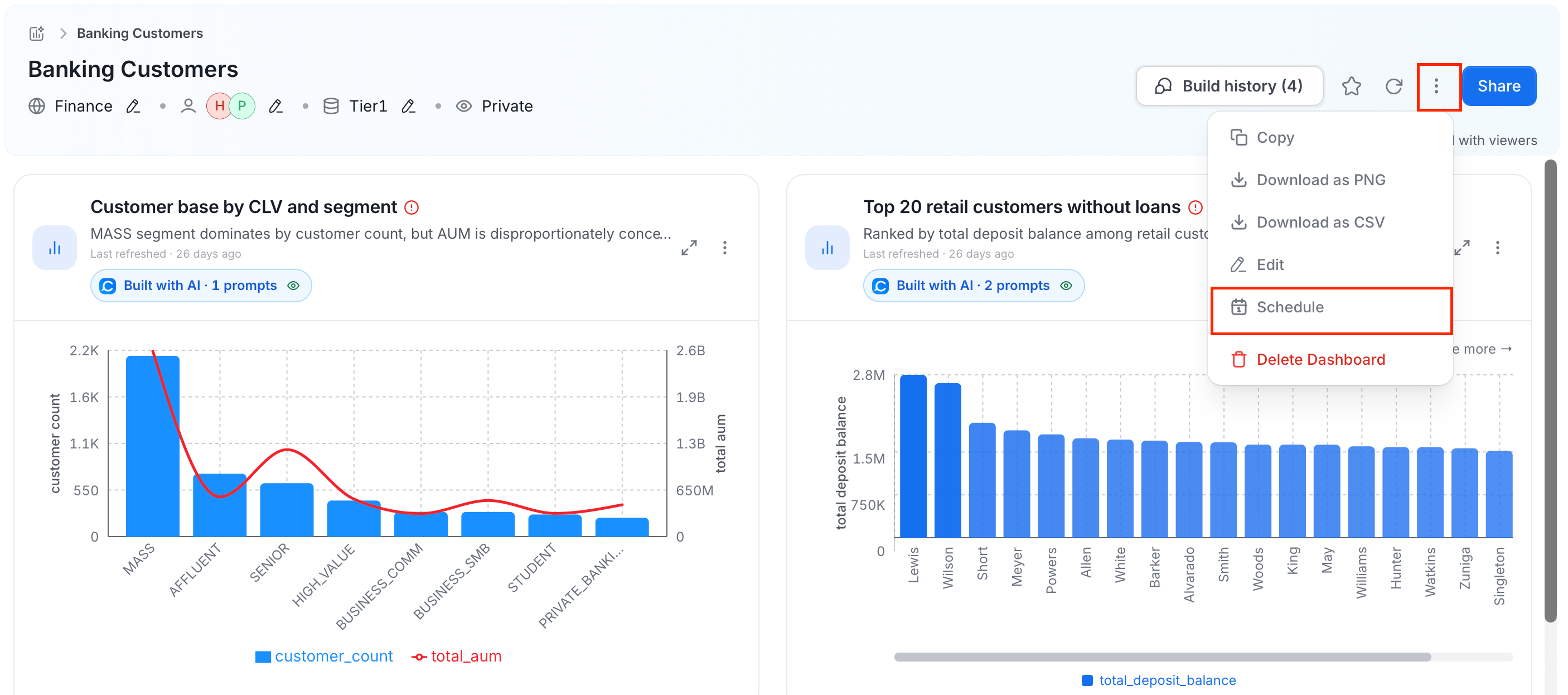 3. Configure the following details:
| Field | Options |
| --------------- | ----------------------------------------------------------------------------------------------------- |
| **Every** | A positive integer number of minutes, hours, days, or weeks |
| **At time** | HH:MM in 24-hour format — required for daily and weekly cadences |
| **Timezone** | IANA timezone identifier (for example `America/Los_Angeles`) — required for daily and weekly cadences |
| **Day of week** | Sunday through Saturday — used for weekly cadences only; defaults to Sunday if omitted |
3. Configure the following details:
| Field | Options |
| --------------- | ----------------------------------------------------------------------------------------------------- |
| **Every** | A positive integer number of minutes, hours, days, or weeks |
| **At time** | HH:MM in 24-hour format — required for daily and weekly cadences |
| **Timezone** | IANA timezone identifier (for example `America/Los_Angeles`) — required for daily and weekly cadences |
| **Day of week** | Sunday through Saturday — used for weekly cadences only; defaults to Sunday if omitted |
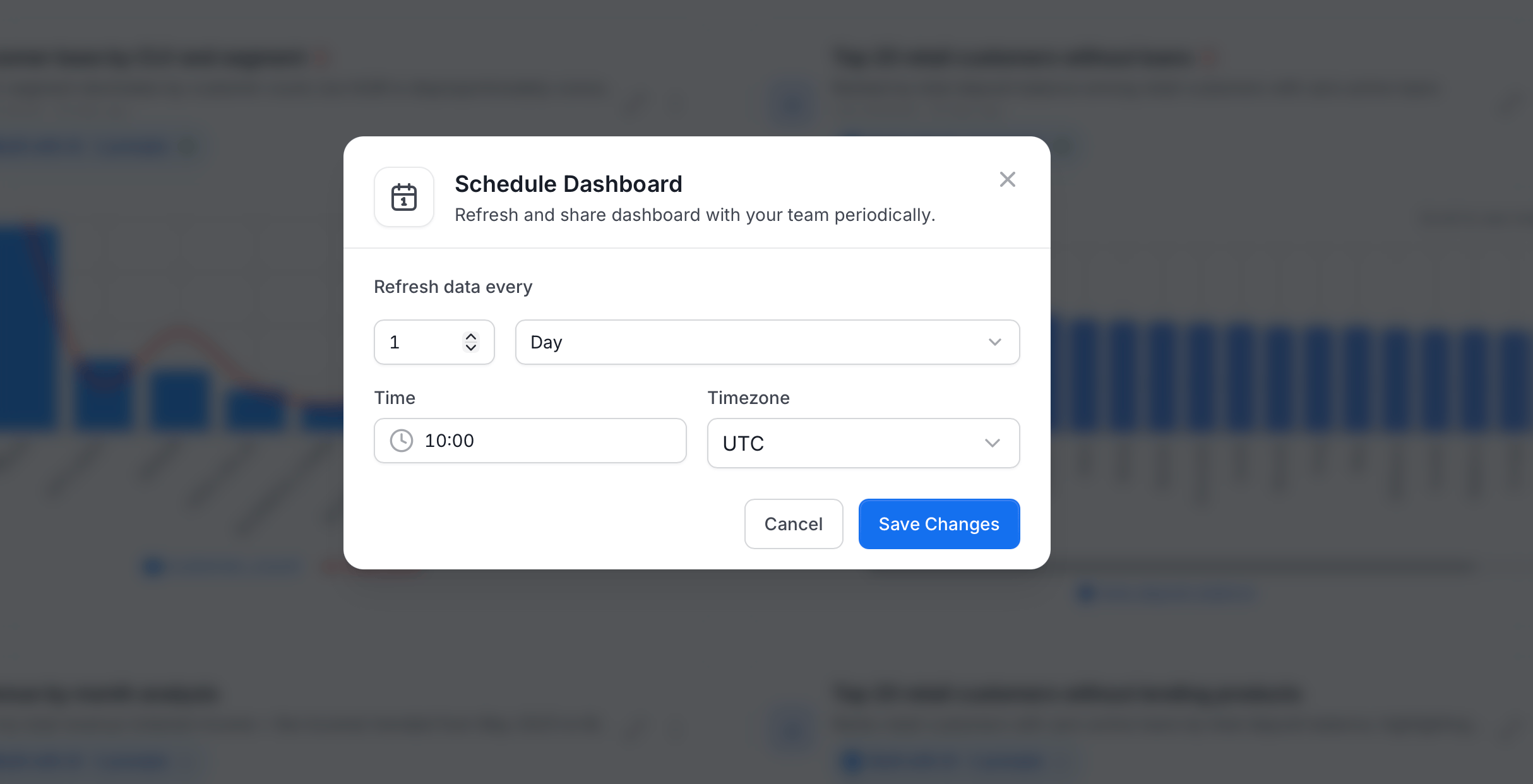 Sub-daily cadences (minutes or hours) fire at fixed offsets within their cycle and ignore the time-of-day and timezone fields.
4. Click **Save Changes**.
A newly created dashboard has no schedule. The schedule option is not available until the dashboard contains at least one chart.
### How Refresh Works
When a scheduled refresh runs, Collate re-executes each chart's SQL query using the credentials of that chart's **refresh identity**: the user whose query runner credentials are used to connect to the warehouse. This defaults to the chart creator and can be changed by an admin.
Results are written back to each chart's cached data. After the run, each chart's status is one of:
| Status | Meaning |
| ----------- | ------------------------------------------------------------ |
| **Success** | The query completed and returned data |
| **Failed** | The query failed — check the error message on the chart card |
| **Running** | The query is in progress |
| **Pending** | The query is queued but not yet started |
The overall dashboard refresh outcome reflects the aggregate across all charts:
| Outcome | Meaning |
| ------------------ | ----------------------------------------------------------------------------- |
| **Success** | All charts refreshed successfully |
| **PartialSuccess** | At least one chart succeeded and at least one failed |
| **Failed** | No charts succeeded |
| **Interrupted** | One or more charts did not reach a terminal state before the refresh deadline |
Setting a schedule registers a recurring job for that dashboard. Removing the schedule unregisters it, so no further refreshes run until you schedule the dashboard again.
## Share Dashboard
Deliver a snapshot of the dashboard to your team each time a scheduled refresh completes.
**To share a dashboard:**
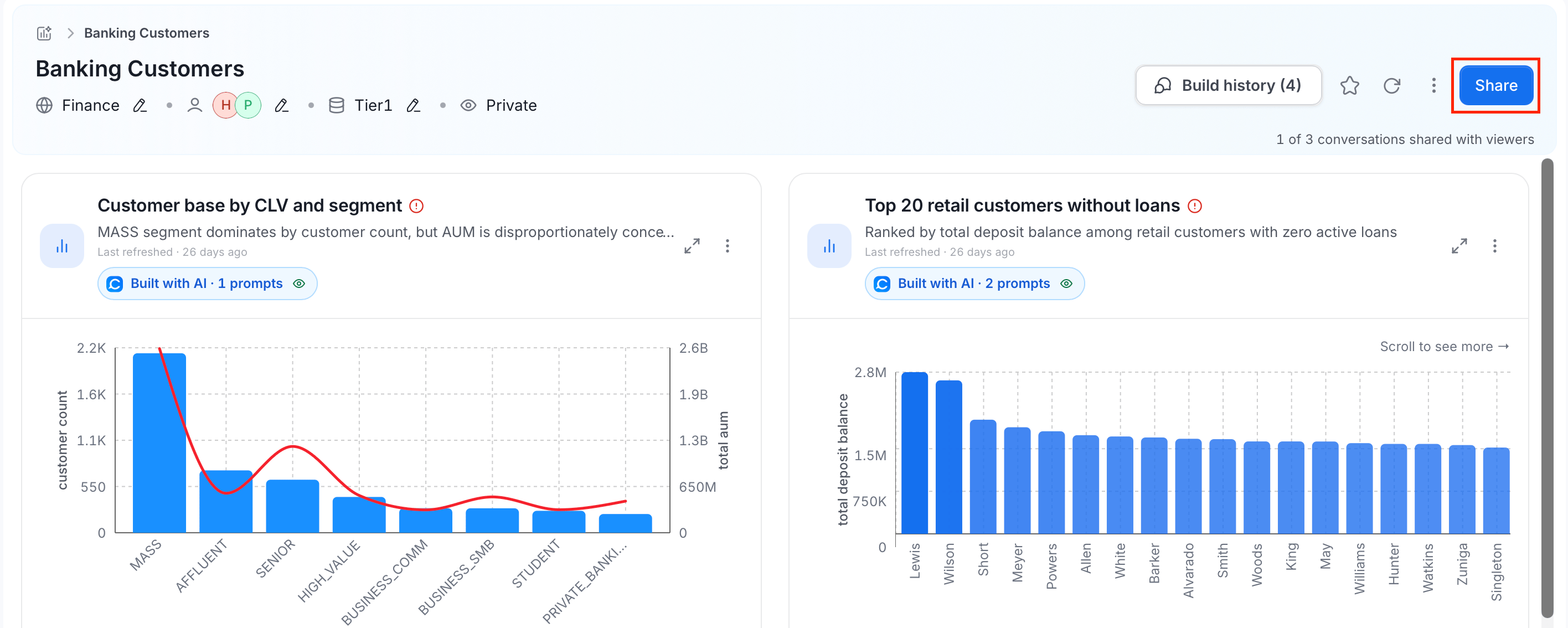
1. Open a dashboard and click **Share**.
Sub-daily cadences (minutes or hours) fire at fixed offsets within their cycle and ignore the time-of-day and timezone fields.
4. Click **Save Changes**.
A newly created dashboard has no schedule. The schedule option is not available until the dashboard contains at least one chart.
### How Refresh Works
When a scheduled refresh runs, Collate re-executes each chart's SQL query using the credentials of that chart's **refresh identity**: the user whose query runner credentials are used to connect to the warehouse. This defaults to the chart creator and can be changed by an admin.
Results are written back to each chart's cached data. After the run, each chart's status is one of:
| Status | Meaning |
| ----------- | ------------------------------------------------------------ |
| **Success** | The query completed and returned data |
| **Failed** | The query failed — check the error message on the chart card |
| **Running** | The query is in progress |
| **Pending** | The query is queued but not yet started |
The overall dashboard refresh outcome reflects the aggregate across all charts:
| Outcome | Meaning |
| ------------------ | ----------------------------------------------------------------------------- |
| **Success** | All charts refreshed successfully |
| **PartialSuccess** | At least one chart succeeded and at least one failed |
| **Failed** | No charts succeeded |
| **Interrupted** | One or more charts did not reach a terminal state before the refresh deadline |
Setting a schedule registers a recurring job for that dashboard. Removing the schedule unregisters it, so no further refreshes run until you schedule the dashboard again.
## Share Dashboard
Deliver a snapshot of the dashboard to your team each time a scheduled refresh completes.
**To share a dashboard:**
1. Open a dashboard and click **Share**.
 2. In the **Share Dashboard** pop-up, do the following:
* Set the **Notification** toggle to on, if you want to notify recipients each time the dashboard refresh completes.
* Set **Destination**:
* **Internal**: To share dashboard internally within the organization.
* **External**: To share with people outside your organization.
* **Add Destiantion**: To share with multiple users or teams.
2. In the **Share Dashboard** pop-up, do the following:
* Set the **Notification** toggle to on, if you want to notify recipients each time the dashboard refresh completes.
* Set **Destination**:
* **Internal**: To share dashboard internally within the organization.
* **External**: To share with people outside your organization.
* **Add Destiantion**: To share with multiple users or teams.
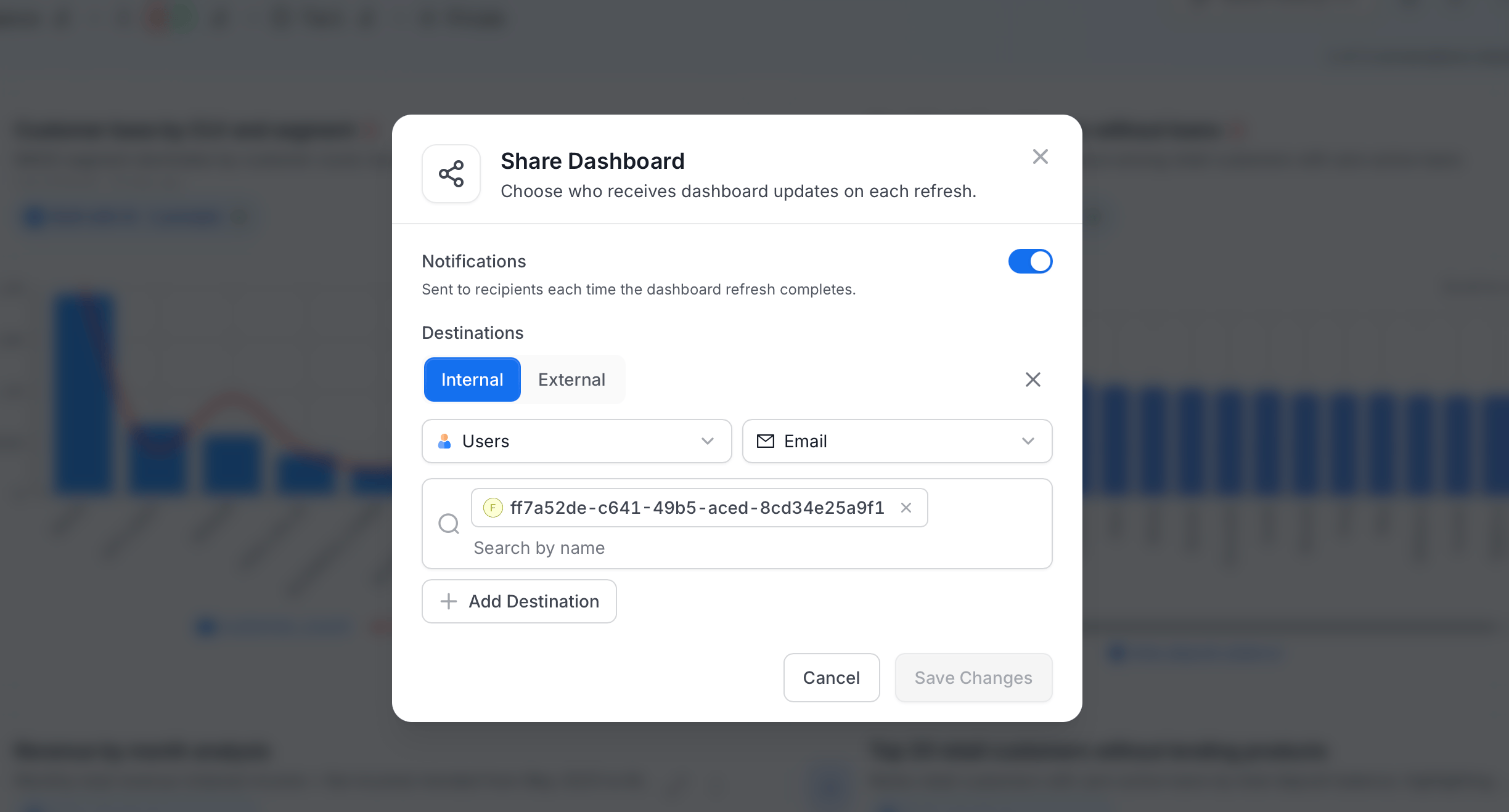 3. Click **Save Changes** to share the dashboard.
### What Gets Sent
What a destination receives depends on its channel:
* **Email and Slack**: Collate renders each chart as a PNG image and composes them into a PDF (one chart per page, in dashboard order). The PDF is attached to the email or Slack message. Charts that fail to render are skipped; a partial PDF is still delivered rather than no notification at all.
* **Other channels** (Teams, Webhook, etc.) — a standard text notification with a link back to the dashboard in Collate.
**Note**: Sending image attachments to Slack requires an OAuth bot token. A standard incoming webhook cannot deliver file attachments. Contact your Slack admin to configure the OAuth bot for Collate.
### Controls
Two settings determine what gets sent and to whom:
* **Enable / disable**: a single toggle that pauses all dispatching without removing your destination configuration. Re-enable to resume without re-entering destination details.
* **Destinations**: configure one or more delivery targets: Email, Slack, Teams, or Webhook.
Notifications fire once per refresh completion — on the same cadence as the refresh schedule. There is no separate notification schedule.
## Visibility
Visibility controls who can open a dashboard at all — separate from [Notifications](#share-dashboard), which controls who gets emailed or messaged about it.
Click the eye icon next to the dashboard's Domain and Owners to open **Who can access this dashboard?**, then choose:
| Visibility | Who can access |
| ----------- | -------------------------------------------------- |
| **Private** | Dashboard owners only |
| **Shared** | Owners plus any people or teams you explicitly add |
| **Public** | Anyone in the Collate workspace |
Choosing **Shared** reveals a picker to add the specific users or teams who should have access.
A viewer's access to the underlying data still respects their existing Collate permissions — visibility does not bypass row-level or column-level data policies on the connected warehouse.
## Weekly Insight Digest
The Weekly Insight Digest is a scheduled application that compiles a curated summary of AI-generated insights from your dashboards and delivers it to your team each week. It is separate from per-dashboard scheduled refresh notifications — the Digest aggregates across multiple dashboards and formats the results as a narrative summary rather than a raw chart snapshot.
See [Weekly Insight Digest](/ai-2-0/admin-guide/data-insights) for setup and configuration.
## Data Insights
Data Insights are metadata-driven KPIs and activity charts built directly from Collate's internal data layer — not from your connected warehouses. They cover metrics such as asset coverage, ownership completeness, tagging rates, lineage health, and data quality pass rates across your catalog.
Data Insights use the `dataInsight` query type and run without warehouse credentials. They are available to any Collate user regardless of which external data sources are connected.
Data Insights charts can be pinned to AI Analytics dashboards alongside SQL-backed charts, allowing you to combine warehouse data with catalog health metrics in a single view.
## Best Practices
* Schedule refreshes during off-peak hours for your data warehouse to avoid competing with production workloads.
* Use a dedicated service account as the refresh identity for scheduled dashboards so refreshes do not break when individual users leave or rotate credentials.
* Turn on notifications for dashboards your team checks regularly — the PDF lands in email or Slack so stakeholders get the update without logging in to Collate.
3. Click **Save Changes** to share the dashboard.
### What Gets Sent
What a destination receives depends on its channel:
* **Email and Slack**: Collate renders each chart as a PNG image and composes them into a PDF (one chart per page, in dashboard order). The PDF is attached to the email or Slack message. Charts that fail to render are skipped; a partial PDF is still delivered rather than no notification at all.
* **Other channels** (Teams, Webhook, etc.) — a standard text notification with a link back to the dashboard in Collate.
**Note**: Sending image attachments to Slack requires an OAuth bot token. A standard incoming webhook cannot deliver file attachments. Contact your Slack admin to configure the OAuth bot for Collate.
### Controls
Two settings determine what gets sent and to whom:
* **Enable / disable**: a single toggle that pauses all dispatching without removing your destination configuration. Re-enable to resume without re-entering destination details.
* **Destinations**: configure one or more delivery targets: Email, Slack, Teams, or Webhook.
Notifications fire once per refresh completion — on the same cadence as the refresh schedule. There is no separate notification schedule.
## Visibility
Visibility controls who can open a dashboard at all — separate from [Notifications](#share-dashboard), which controls who gets emailed or messaged about it.
Click the eye icon next to the dashboard's Domain and Owners to open **Who can access this dashboard?**, then choose:
| Visibility | Who can access |
| ----------- | -------------------------------------------------- |
| **Private** | Dashboard owners only |
| **Shared** | Owners plus any people or teams you explicitly add |
| **Public** | Anyone in the Collate workspace |
Choosing **Shared** reveals a picker to add the specific users or teams who should have access.
A viewer's access to the underlying data still respects their existing Collate permissions — visibility does not bypass row-level or column-level data policies on the connected warehouse.
## Weekly Insight Digest
The Weekly Insight Digest is a scheduled application that compiles a curated summary of AI-generated insights from your dashboards and delivers it to your team each week. It is separate from per-dashboard scheduled refresh notifications — the Digest aggregates across multiple dashboards and formats the results as a narrative summary rather than a raw chart snapshot.
See [Weekly Insight Digest](/ai-2-0/admin-guide/data-insights) for setup and configuration.
## Data Insights
Data Insights are metadata-driven KPIs and activity charts built directly from Collate's internal data layer — not from your connected warehouses. They cover metrics such as asset coverage, ownership completeness, tagging rates, lineage health, and data quality pass rates across your catalog.
Data Insights use the `dataInsight` query type and run without warehouse credentials. They are available to any Collate user regardless of which external data sources are connected.
Data Insights charts can be pinned to AI Analytics dashboards alongside SQL-backed charts, allowing you to combine warehouse data with catalog health metrics in a single view.
## Best Practices
* Schedule refreshes during off-peak hours for your data warehouse to avoid competing with production workloads.
* Use a dedicated service account as the refresh identity for scheduled dashboards so refreshes do not break when individual users leave or rotate credentials.
* Turn on notifications for dashboards your team checks regularly — the PDF lands in email or Slack so stakeholders get the update without logging in to Collate.