> ## Documentation Index
> Fetch the complete documentation index at: https://docs.getcollate.io/llms.txt
> Use this file to discover all available pages before exploring further.
# Your Preferences | Collate Admin Guide
> Set your own theme, sidebar, and language for Collate from the Preferences section of your Profile page.
# Your Preferences
The **Preferences** section of your **Profile** page lets you personalize how Collate looks and behaves on your device. These settings apply to you only. They do not change the experience of other users.
## Open Your Preferences
1. Click the **Profile** icon and select your user name.
2. In the **Account** group, click **Preferences**.
 ## Available Preferences
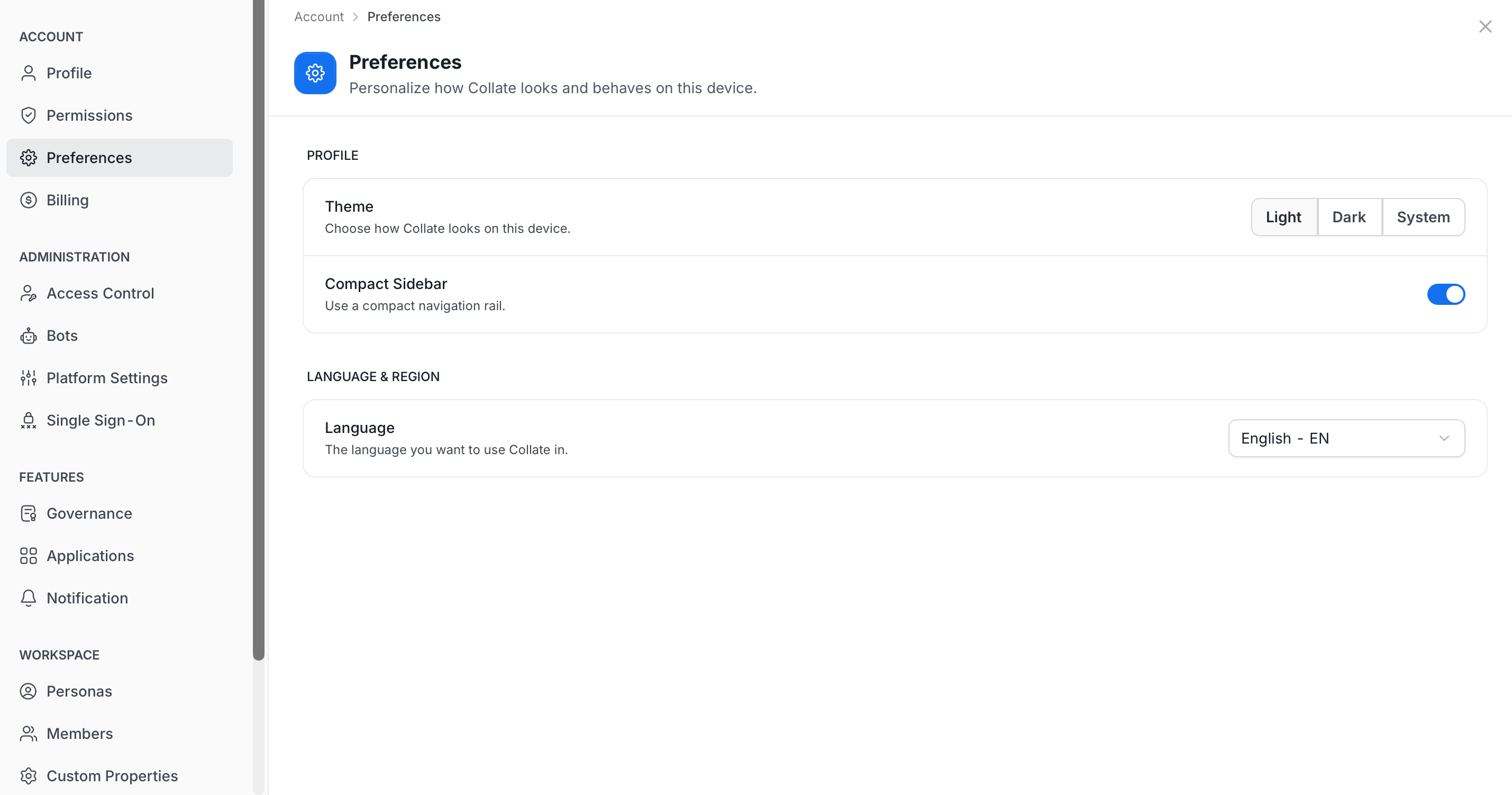
* **Theme**: Choose how Collate looks on this device. Select **Light**, **Dark**, or **System**. **System** follows your device setting.
* **Compact Sidebar**: Turn on to use a compact navigation rail.
* **Language**: Choose the language you want to use Collate in, for example **English - EN**.
Admins set platform-wide behavior, such as the default app mode for new users, in **Platform Settings**. For more information, see [Platform Settings](/ai-2-0/admin-guide/profile/platform-settings).
This documentation is built and hosted on [Mintlify](https://mintlify.com), a developer documentation platform.
## Available Preferences
* **Theme**: Choose how Collate looks on this device. Select **Light**, **Dark**, or **System**. **System** follows your device setting.
* **Compact Sidebar**: Turn on to use a compact navigation rail.
* **Language**: Choose the language you want to use Collate in, for example **English - EN**.
Admins set platform-wide behavior, such as the default app mode for new users, in **Platform Settings**. For more information, see [Platform Settings](/ai-2-0/admin-guide/profile/platform-settings).
This documentation is built and hosted on [Mintlify](https://mintlify.com), a developer documentation platform.