> ## Documentation Index
> Fetch the complete documentation index at: https://docs.getcollate.io/llms.txt
> Use this file to discover all available pages before exploring further.
# Governance Settings | Collate Admin Guide
> Configure Glossary Term Relations and Intake Forms from the Governance section of the Collate Profile page.
# Governance Settings
The **Governance** section of the **Profile** page holds the governance configuration for your platform. It is visible only to users with the Admin role.
## Open the Governance Section
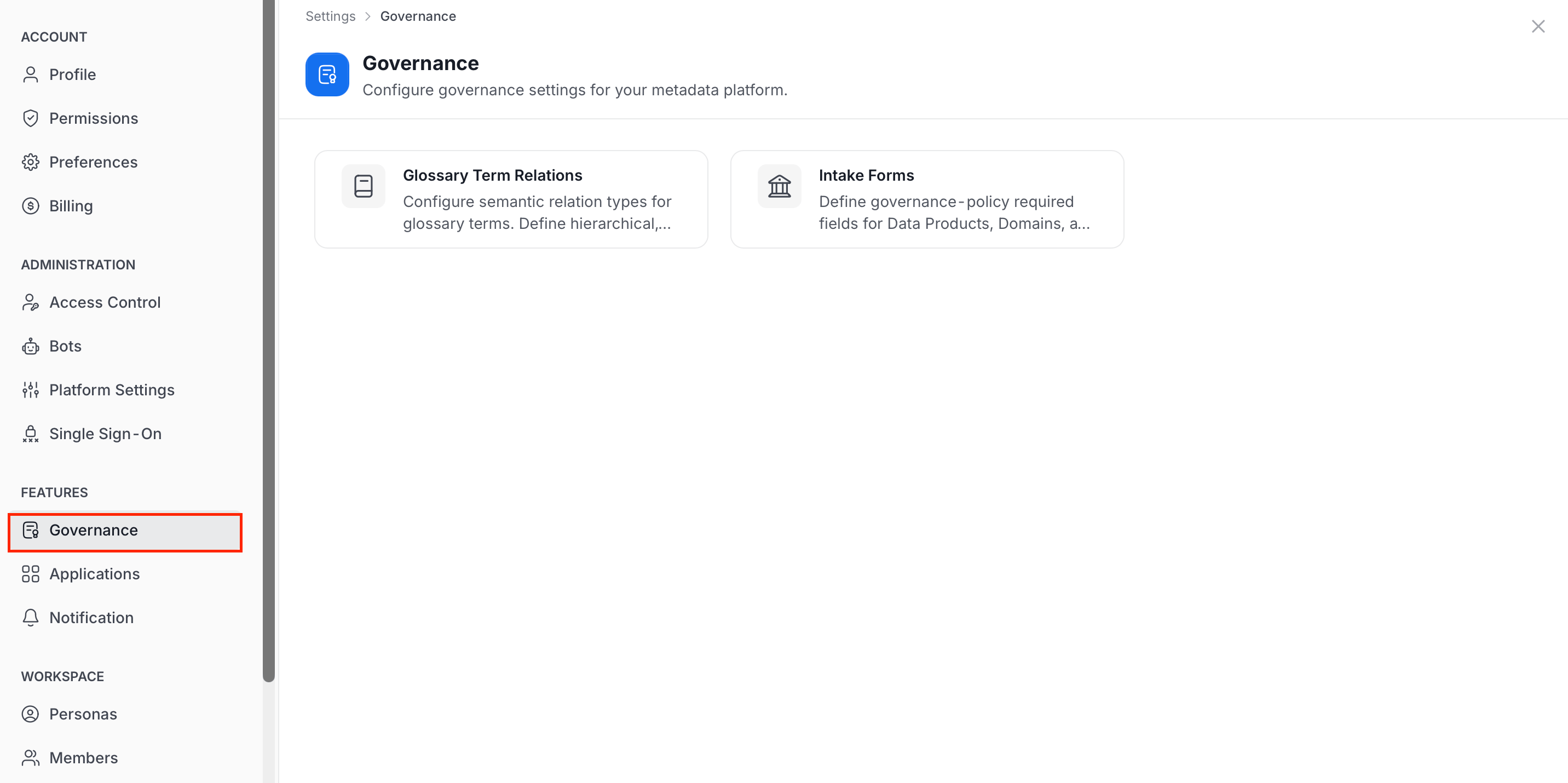
1. Click the **Profile** icon and select your user name.
2. In the **Features** group, click **Governance**.
3. Select a card:
* **Glossary Term Relations**: Configure the relation types between glossary terms.
* **Intake Forms**: Define the fields required to create Data Products, Domains, and Glossary Terms.
 ## Glossary Term Relations
Relation types define hierarchical, associative, and equivalence relationships between glossary terms, to build a rich ontology. Click the **Glossary Term Relations** card to open the list.
## Glossary Term Relations
Relation types define hierarchical, associative, and equivalence relationships between glossary terms, to build a rich ontology. Click the **Glossary Term Relations** card to open the list.
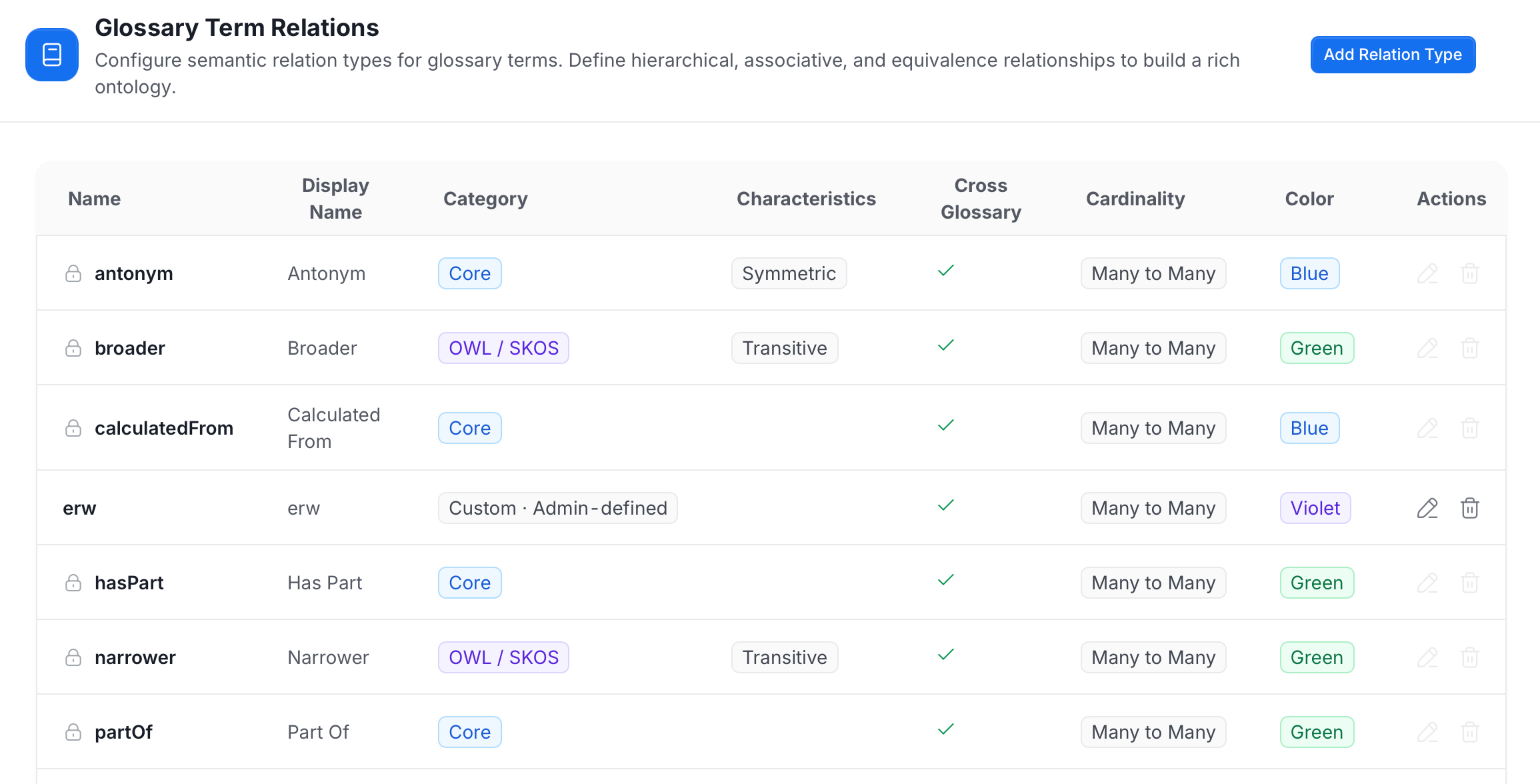 The list shows each relation type with these columns:
* **Name**: The technical name of the relation type. A lock icon marks built-in types.
* **Display Name**: The readable name shown to users.
* **Category**: Where the type comes from, for example **Core**, **OWL / SKOS**, or **Custom · Admin-defined**.
* **Characteristics**: Properties such as **Symmetric** or **Transitive**.
* **Cross Glossary**: A check mark means the relation can connect terms in different glossaries.
* **Cardinality**: How many terms the relation can connect, for example **Many to Many**.
* **Color**: The color used for the relation type.
* **Actions**: Edit and delete icons. They are available for custom types only and unavailable for built-in types.
When no relation types exist yet, the list shows **No glossary term relations yet**.
### Add a Relation Type
1. Click **Add Relation Type**.
The list shows each relation type with these columns:
* **Name**: The technical name of the relation type. A lock icon marks built-in types.
* **Display Name**: The readable name shown to users.
* **Category**: Where the type comes from, for example **Core**, **OWL / SKOS**, or **Custom · Admin-defined**.
* **Characteristics**: Properties such as **Symmetric** or **Transitive**.
* **Cross Glossary**: A check mark means the relation can connect terms in different glossaries.
* **Cardinality**: How many terms the relation can connect, for example **Many to Many**.
* **Color**: The color used for the relation type.
* **Actions**: Edit and delete icons. They are available for custom types only and unavailable for built-in types.
When no relation types exist yet, the list shows **No glossary term relations yet**.
### Add a Relation Type
1. Click **Add Relation Type**.
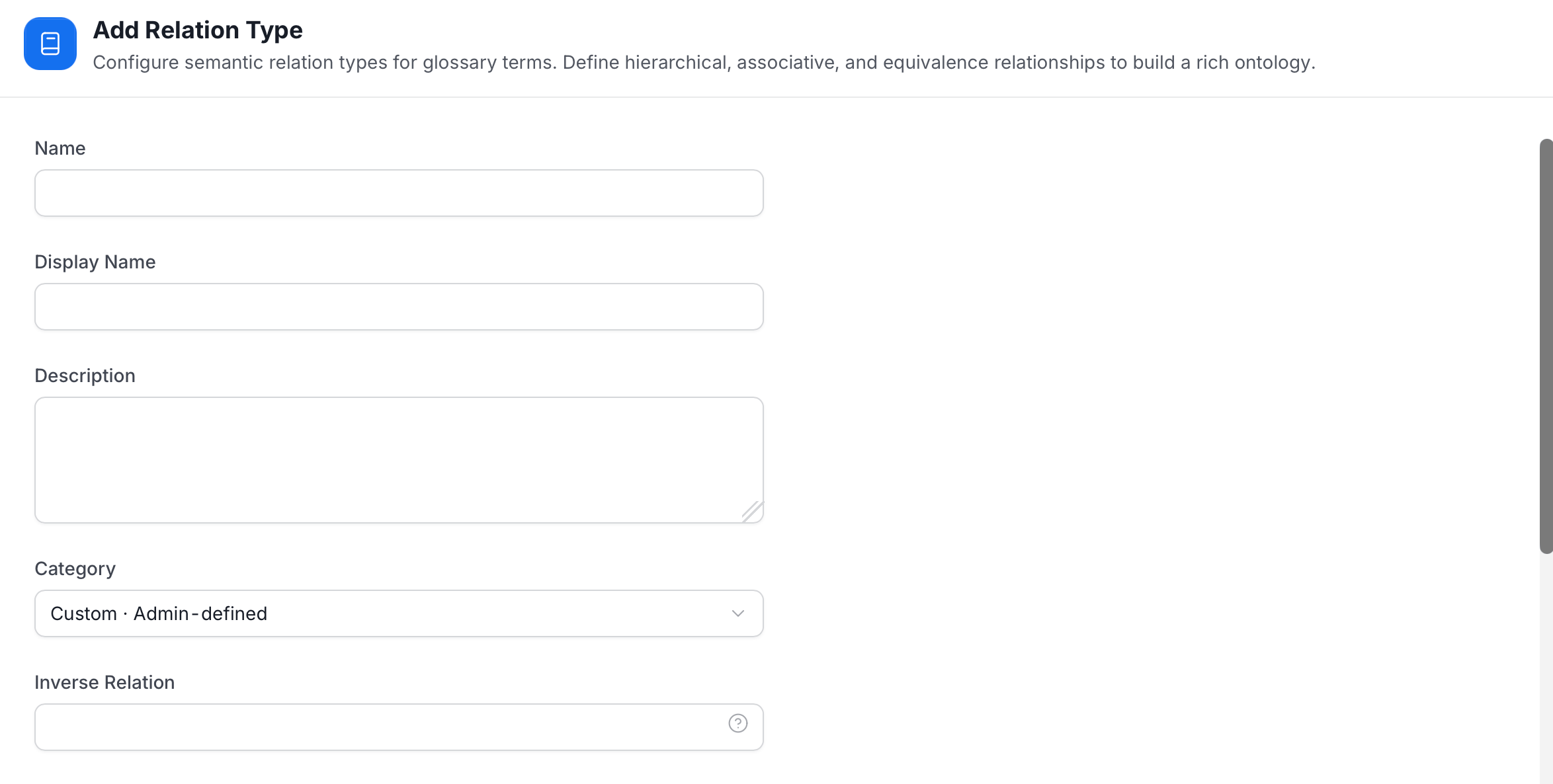 2. Enter the following:
* **Name**: The technical name of the relation type.
* **Display Name**: The readable name shown to users.
* **Description**: What the relation means and when to use it.
* **Category**: The category of the relation type. New types use **Custom · Admin-defined**.
* **Inverse Relation**: The relation type that represents this one in reverse. For example, the inverse of **Broader** is **Narrower**.
* **RDF Predicate**: The RDF or OWL predicate URI this relation type maps to when RDF indexing is enabled.
* **Cardinality**: How many terms the relation can connect. The default is **Many to Many**.
* **Color**: The color used to show the relation type.
2. Enter the following:
* **Name**: The technical name of the relation type.
* **Display Name**: The readable name shown to users.
* **Description**: What the relation means and when to use it.
* **Category**: The category of the relation type. New types use **Custom · Admin-defined**.
* **Inverse Relation**: The relation type that represents this one in reverse. For example, the inverse of **Broader** is **Narrower**.
* **RDF Predicate**: The RDF or OWL predicate URI this relation type maps to when RDF indexing is enabled.
* **Cardinality**: How many terms the relation can connect. The default is **Many to Many**.
* **Color**: The color used to show the relation type.
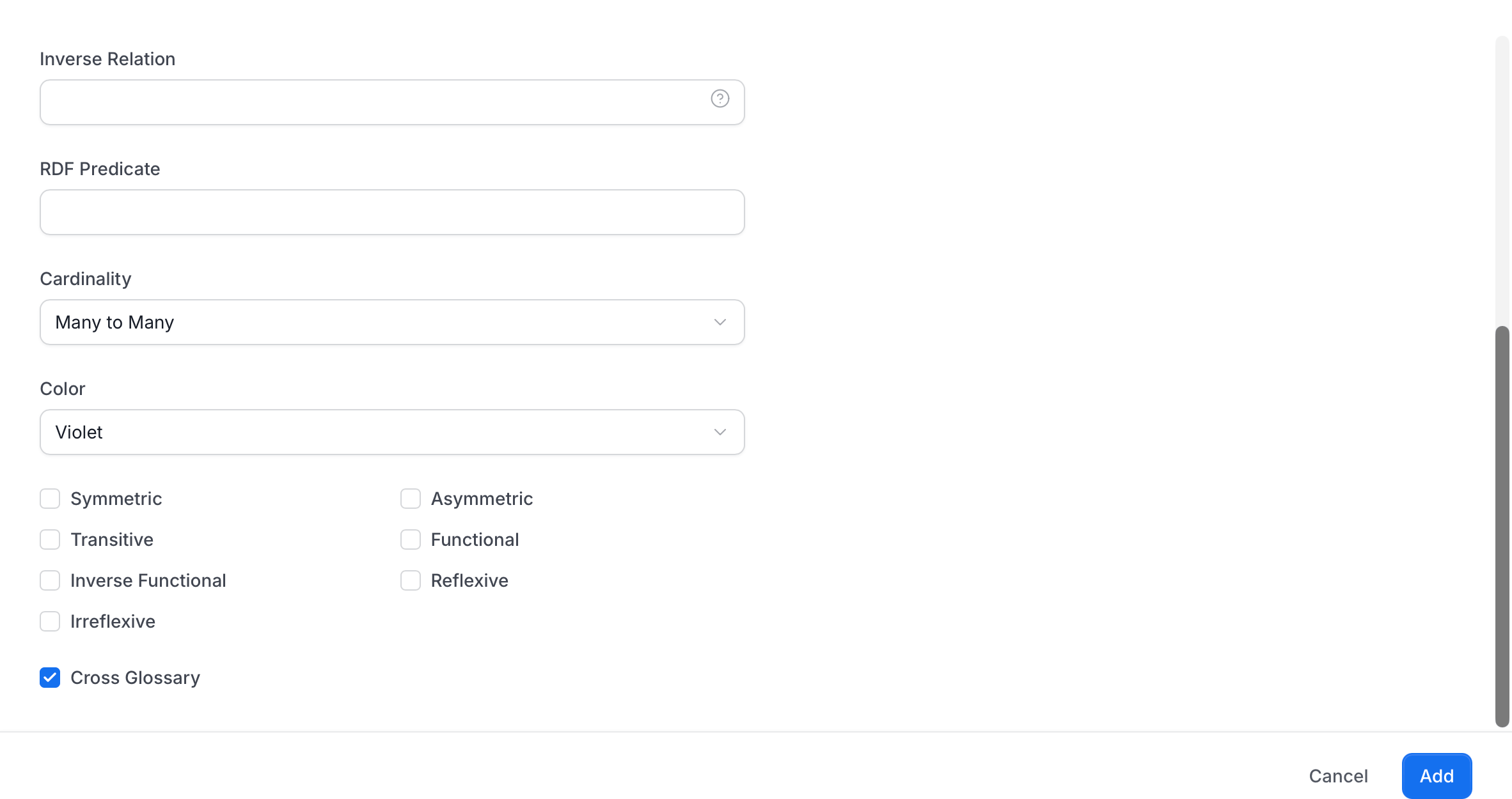 3. Select the characteristics that apply:
* **Symmetric**
* **Asymmetric**
* **Transitive**
* **Functional**
* **Inverse Functional**
* **Reflexive**
* **Irreflexive**
4. Select **Cross Glossary** to allow the relation between terms in different glossaries. It is selected by default.
5. Click **Add**.
### Edit or Delete a Relation Type
* **Edit**: Click the pencil icon on a custom relation type, change it, and click **Update**.
* **Delete**: Click the trash icon on a custom relation type and confirm.
For what each characteristic and field means, see [Relationship Types](/ai-2-0/how-to-guides/data-governance/ontology/relationship-types).
## Intake Forms
Intake Forms define the governance-policy fields that must be filled in before a Data Product, Domain, or Glossary Term can be created or updated. Collate enforces them at both the API and UI layers. Click the **Intake Forms** card to open the list.
Only one Intake Form can exist per entity type.
3. Select the characteristics that apply:
* **Symmetric**
* **Asymmetric**
* **Transitive**
* **Functional**
* **Inverse Functional**
* **Reflexive**
* **Irreflexive**
4. Select **Cross Glossary** to allow the relation between terms in different glossaries. It is selected by default.
5. Click **Add**.
### Edit or Delete a Relation Type
* **Edit**: Click the pencil icon on a custom relation type, change it, and click **Update**.
* **Delete**: Click the trash icon on a custom relation type and confirm.
For what each characteristic and field means, see [Relationship Types](/ai-2-0/how-to-guides/data-governance/ontology/relationship-types).
## Intake Forms
Intake Forms define the governance-policy fields that must be filled in before a Data Product, Domain, or Glossary Term can be created or updated. Collate enforces them at both the API and UI layers. Click the **Intake Forms** card to open the list.
Only one Intake Form can exist per entity type.
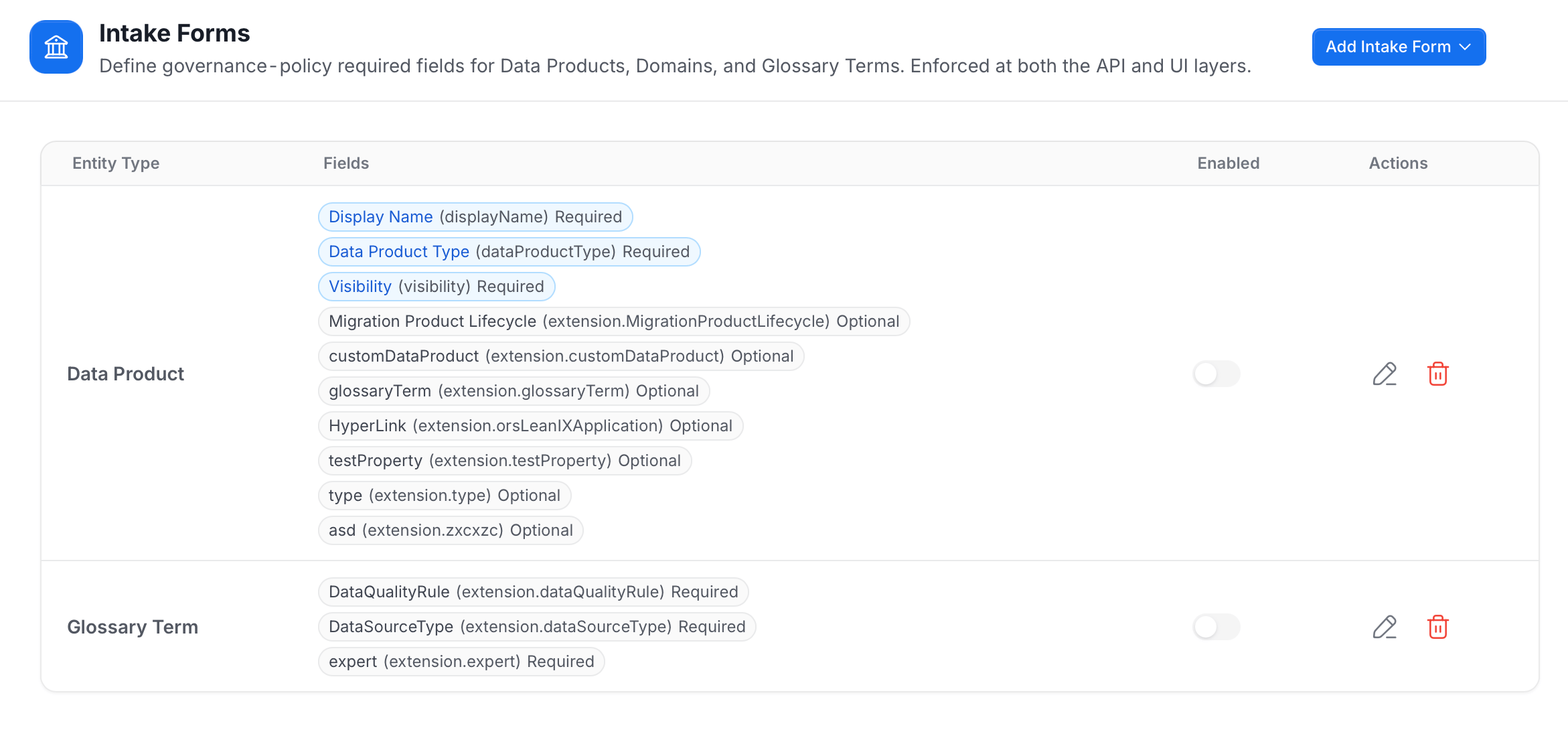 The list shows each Intake Form with these columns:
* **Entity Type**: The entity type the form applies to, for example **Data Product** or **Glossary Term**.
* **Fields**: The fields the form covers. Each field shows its label, its path in brackets, and whether it is **Required** or **Optional**. Custom properties use the path `extension.`.
* **Enabled**: Turn the toggle on to enforce the form. When it is off, the form is saved but not enforced.
* **Actions**: The pencil icon edits the form, and the trash icon deletes it.
When no forms exist yet, the list shows **No intake forms yet**.
### Add, Edit, or Delete an Intake Form
* **Add**: Click **Add Intake Form** and select the entity type. An entity type that already has a form shows as **Already configured**. Once every type is covered, the message **An intake form exists for every supported entity type** appears, and you edit an existing form instead.
* **Edit**: Click the pencil icon, change the fields, and click **Save**.
* **Delete**: Click the trash icon and confirm. Deleting a form stops enforcement for that entity type immediately.
For the full steps to configure the fields of a form, see [Intake Forms](/ai-2-0/how-to-guides/data-governance/intake-forms).
This documentation is built and hosted on [Mintlify](https://mintlify.com), a developer documentation platform.
The list shows each Intake Form with these columns:
* **Entity Type**: The entity type the form applies to, for example **Data Product** or **Glossary Term**.
* **Fields**: The fields the form covers. Each field shows its label, its path in brackets, and whether it is **Required** or **Optional**. Custom properties use the path `extension.`.
* **Enabled**: Turn the toggle on to enforce the form. When it is off, the form is saved but not enforced.
* **Actions**: The pencil icon edits the form, and the trash icon deletes it.
When no forms exist yet, the list shows **No intake forms yet**.
### Add, Edit, or Delete an Intake Form
* **Add**: Click **Add Intake Form** and select the entity type. An entity type that already has a form shows as **Already configured**. Once every type is covered, the message **An intake form exists for every supported entity type** appears, and you edit an existing form instead.
* **Edit**: Click the pencil icon, change the fields, and click **Save**.
* **Delete**: Click the trash icon and confirm. Deleting a form stops enforcement for that entity type immediately.
For the full steps to configure the fields of a form, see [Intake Forms](/ai-2-0/how-to-guides/data-governance/intake-forms).
This documentation is built and hosted on [Mintlify](https://mintlify.com), a developer documentation platform.