> ## Documentation Index
> Fetch the complete documentation index at: https://docs.getcollate.io/llms.txt
> Use this file to discover all available pages before exploring further.
# Manage Bots | Collate Admin Guide
> Create bots, assign roles, and generate or revoke JWT tokens from the Bots section of the Collate Profile page.
# Manage Bots
Bots are service accounts that run ingestion, automation, and API calls on behalf of your organization. Admins manage them from the **Bots** section of the **Profile** page, where each bot has scoped access through roles.
The **Bots** section is visible only to users with the Admin role. If you don't see it, ask your organization's Collate Admin to generate a bot token for you or grant you Admin access.
## Open the Bots Section
1. Click the **Profile** icon and select your user name.
2. In the **Administration** group, click **Bots**.
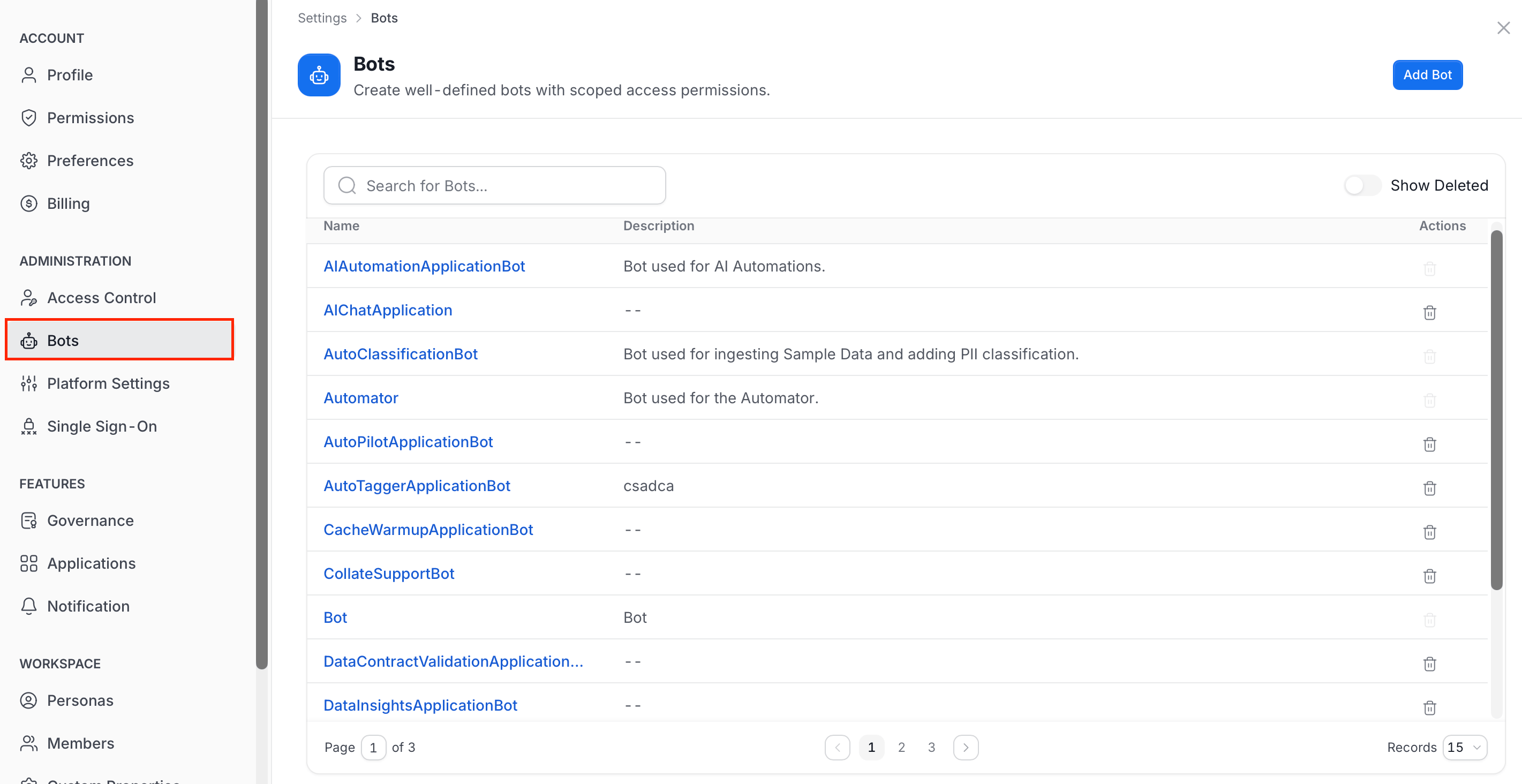 The list shows each bot with its **Name**, **Description**, and **Actions**.
* **Search for Bots**: Filter the list by name.
* **Show Deleted**: Turn on to include deleted bots in the list.
* **Delete**: Use the trash icon in **Actions**. It is unavailable for system bots that can't be deleted.
* **Pagination**: Use the page controls and the **Records** menu at the bottom to move through the list.
## Create a Bot
1. In the **Bots** section, click **Add Bot**.
2. Enter the following:
* **Email** (required): The email for the bot. Collate creates the bot user from it.
* **Display Name**: A readable name for the bot.
* **Description**: What the bot is used for. The field has a rich text editor.
* **Token Expiration** (required): How long the bot's JWT token stays valid. Choose **1 hour**, **1 day**, **7 days**, **30 days**, **60 days**, **90 days**, or **Unlimited**.
* **Allow Impersonation**: Lets the bot act on behalf of users with the `X-Impersonate-User` header. Policies control who can be impersonated, and by default admin users and other bots are excluded. This can be set only when you create the bot.
The list shows each bot with its **Name**, **Description**, and **Actions**.
* **Search for Bots**: Filter the list by name.
* **Show Deleted**: Turn on to include deleted bots in the list.
* **Delete**: Use the trash icon in **Actions**. It is unavailable for system bots that can't be deleted.
* **Pagination**: Use the page controls and the **Records** menu at the bottom to move through the list.
## Create a Bot
1. In the **Bots** section, click **Add Bot**.
2. Enter the following:
* **Email** (required): The email for the bot. Collate creates the bot user from it.
* **Display Name**: A readable name for the bot.
* **Description**: What the bot is used for. The field has a rich text editor.
* **Token Expiration** (required): How long the bot's JWT token stays valid. Choose **1 hour**, **1 day**, **7 days**, **30 days**, **60 days**, **90 days**, or **Unlimited**.
* **Allow Impersonation**: Lets the bot act on behalf of users with the `X-Impersonate-User` header. Policies control who can be impersonated, and by default admin users and other bots are excluded. This can be set only when you create the bot.
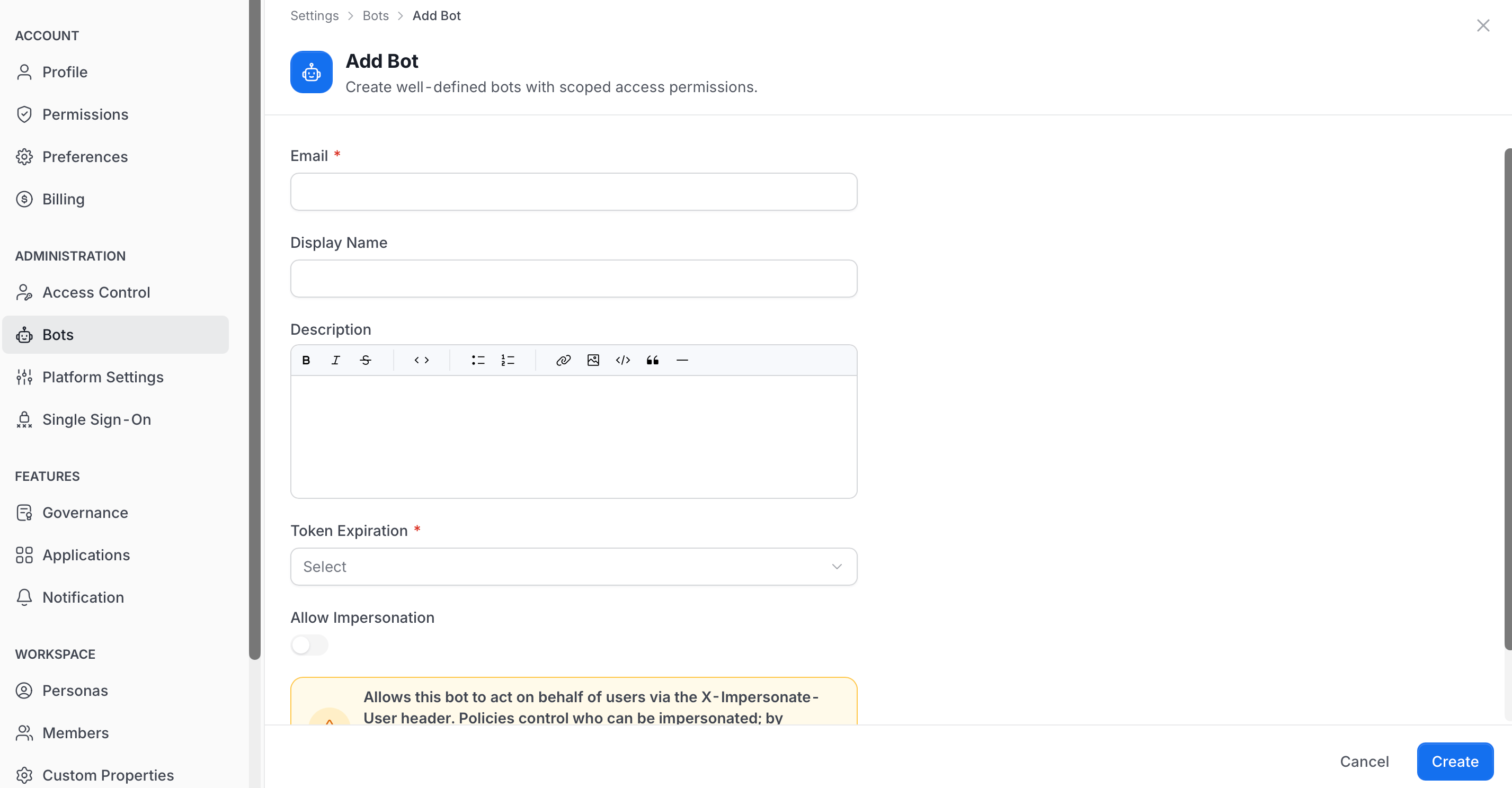 3. Click **Create**. Click **Cancel** to discard the form.
## Manage a Bot
Select a bot from the list to open its details page.
3. Click **Create**. Click **Cancel** to discard the form.
## Manage a Bot
Select a bot from the list to open its details page.
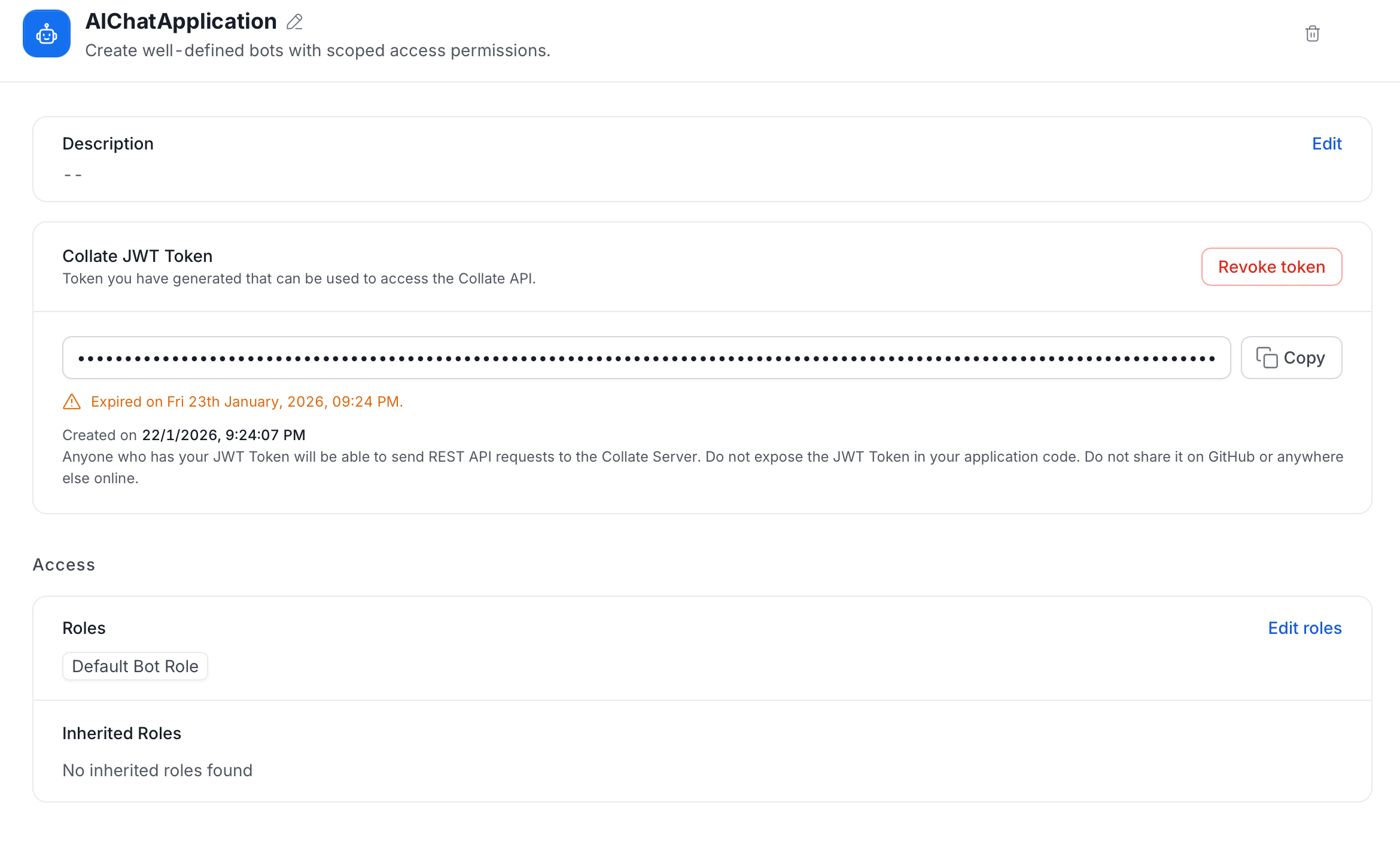 The page has these options:
* **Rename**: Click the **Edit** icon next to the bot name, enter the new name, and save it.
* **Delete**: Click the **Delete** icon in the bot's page header and confirm. You can't delete the `ingestion-bot`.
* **Description**: Shows what the bot is used for. Click **Edit**, update the text, and click **Save**. Click **Cancel** to discard your changes.
* **Collate JWT Token**: The token the bot uses to call the Collate API.
* **Token field**: The token is masked. Click **Copy** to copy it to your clipboard.
* **Expiry message**: Shows when the token expires or expired. A warning appears when the token has already expired. If the token never expires, the message says it has no expiry.
* **Created on**: The date and time the token was generated.
* **Revoke token**: Invalidates the current token. After you revoke it, use **Generate New Token** to create a new one and choose its expiry.
* **Access**: The roles that give the bot its permissions.
* **Roles**: The roles assigned directly to the bot, for example **Default Bot Role**. Click **Edit roles**, search for and select the roles, and click **Save**. Click **Cancel** to discard your changes.
* **Inherited Roles**: Roles the bot gets from elsewhere. The section says **No inherited roles found** when there are none.
Anyone with a bot's JWT token can send REST API requests to your Collate server with that bot's permissions. Do not put the token in application code or share it online.
For the steps to copy the `ingestion-bot` token, see [Run Ingestion Pipeline Via CLI with Basic Auth](/ai-2-0/admin-guide/cli-ingestion-with-basic-auth).
This documentation is built and hosted on [Mintlify](https://mintlify.com), a developer documentation platform.
The page has these options:
* **Rename**: Click the **Edit** icon next to the bot name, enter the new name, and save it.
* **Delete**: Click the **Delete** icon in the bot's page header and confirm. You can't delete the `ingestion-bot`.
* **Description**: Shows what the bot is used for. Click **Edit**, update the text, and click **Save**. Click **Cancel** to discard your changes.
* **Collate JWT Token**: The token the bot uses to call the Collate API.
* **Token field**: The token is masked. Click **Copy** to copy it to your clipboard.
* **Expiry message**: Shows when the token expires or expired. A warning appears when the token has already expired. If the token never expires, the message says it has no expiry.
* **Created on**: The date and time the token was generated.
* **Revoke token**: Invalidates the current token. After you revoke it, use **Generate New Token** to create a new one and choose its expiry.
* **Access**: The roles that give the bot its permissions.
* **Roles**: The roles assigned directly to the bot, for example **Default Bot Role**. Click **Edit roles**, search for and select the roles, and click **Save**. Click **Cancel** to discard your changes.
* **Inherited Roles**: Roles the bot gets from elsewhere. The section says **No inherited roles found** when there are none.
Anyone with a bot's JWT token can send REST API requests to your Collate server with that bot's permissions. Do not put the token in application code or share it online.
For the steps to copy the `ingestion-bot` token, see [Run Ingestion Pipeline Via CLI with Basic Auth](/ai-2-0/admin-guide/cli-ingestion-with-basic-auth).
This documentation is built and hosted on [Mintlify](https://mintlify.com), a developer documentation platform.